
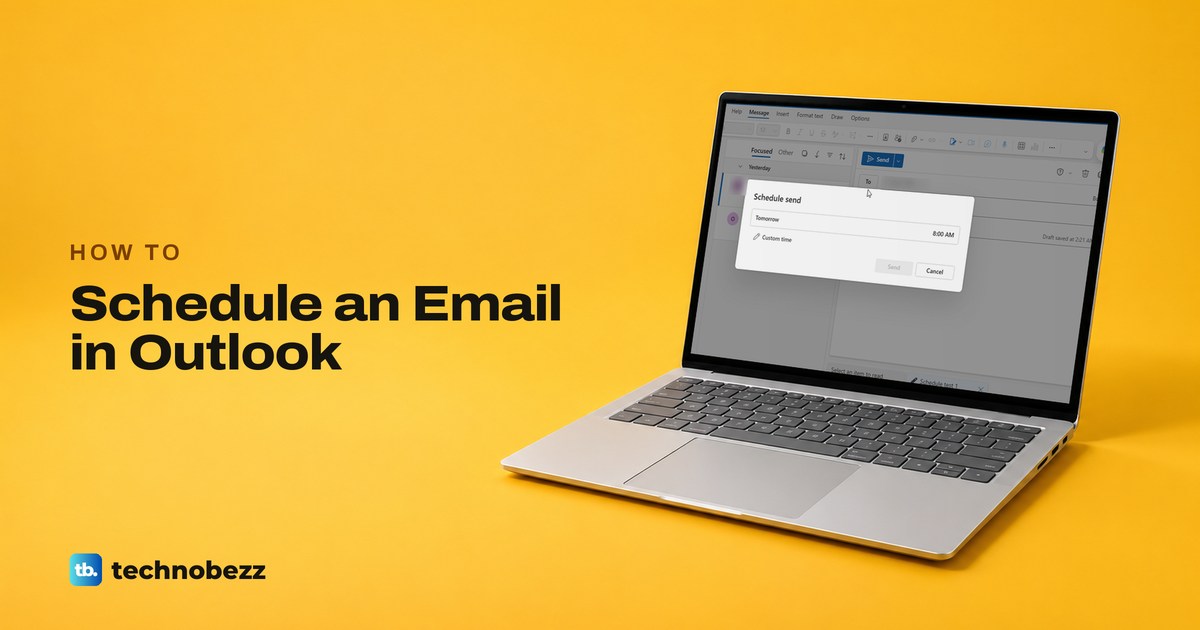
To schedule an email in Outlook, write it, select the arrow next to Send, choose Schedule send and pick a time. That works in Outlook on the web, the new Outlook for Windows and Outlook for Mac. In classic Outlook for Windows, open Delay Delivery from the message's Options tab instead, tick Do not deliver before, set the date and time, then select Close and Send.
Where the email waits decides whether your PC can be off. A message scheduled on the web waits in Drafts in your mailbox, and ours arrived on time with every browser window closed. Classic Outlook keeps a delayed message in the Outbox on your PC, and in its default Cached Exchange Mode it only goes while Outlook is running.
The short version
- Web and new Outlook: select the arrow next to Send, then Schedule send. The email waits in Drafts.
- Classic Outlook: on the Options tab, open Message Options or Delay Delivery and tick Do not deliver before. The email waits in the Outbox.
- PC off at the send time? Schedule it from Outlook on the web. Classic Outlook must be running when the time comes.
- Changed your mind: on the web, open it from Drafts and select Cancel send. In classic Outlook, select it in the Outbox and press Delete. If you open it to change it, finish with Send or it will not go at all.
- Gmail, Yahoo or iCloud in Outlook: IMAP and POP accounts get no Schedule send in the new Outlook or on a Mac.
Which Outlook you have
The steps depend on which Outlook is open, so check that first. Microsoft's test is the Settings gear at the top right, which the new Outlook has and classic Outlook does not. Classic Outlook on our PC showed File, Home, Send / Receive, View and Help tabs, with a Try the new Outlook switch set to Off where the gear would be.
Outlook on the web runs in a browser and has the gear too, next to File, Home, View and Help tabs. If the Try the new Outlook switch was turned on by accident and you want the old ribbon back, here is how to switch back to the old Outlook. The table sums up where each version keeps a scheduled email.
| Outlook you use | Where to find it | Where the email waits | Can your PC be off at the send time? |
|---|---|---|---|
| Outlook on the web or Outlook.com | Arrow next to Send, then Schedule send | Drafts, in your mailbox | Yes, it is held in your mailbox. Ours arrived on time with the browser closed |
| New Outlook for Windows | Arrow next to Send, then Schedule send | Drafts, in your mailbox | Microsoft holds it in Drafts, the same as the web |
| Classic Outlook for Windows | Options tab, then Message Options or Delay Delivery | Outbox, on your PC | No. By default Outlook must be running at the time |
| Classic Outlook, every message | File, Info, Manage Rules & Alerts, a defer delivery rule of up to 120 minutes | Outbox, on your PC | No. The rule only runs in Outlook |
| Outlook for Mac | Arrow on Send, then Schedule send | Drafts | Yes, it is held in Drafts, and Microsoft says it is sent even if Outlook is not open |
Schedule an email in classic Outlook with Delay Delivery
Classic Outlook has no Schedule send on its Send button. It calls the feature Delay Delivery, and it sits in the message window rather than next to Send. Microsoft points to the Message Options arrow, and with the Simplified Ribbon on our PC that was a small arrow at the right end of the Options tab, after Use Voting Buttons, with the tooltip Message Options.
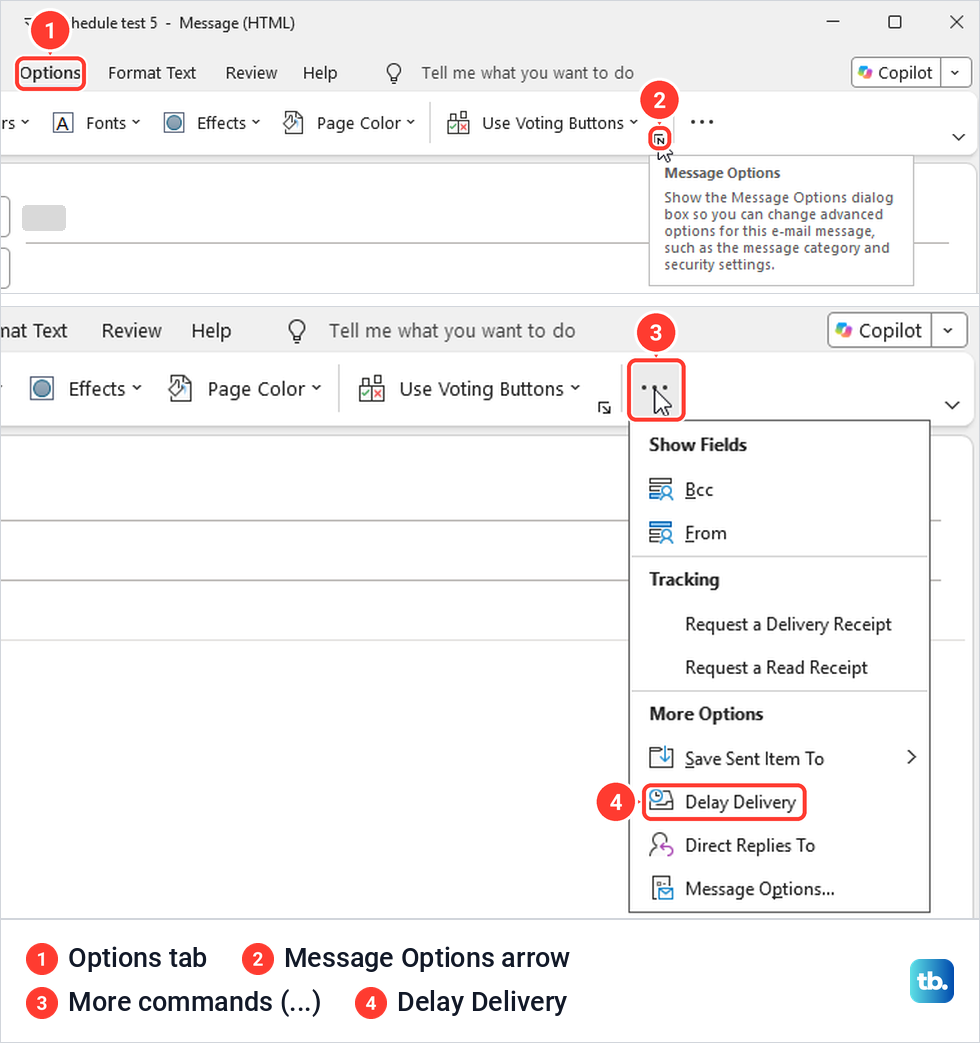
The ... (More commands) button next to it holds a second route, Delay Delivery under More Options, and both open the same Properties dialog, though not in the same state. Through the Message Options arrow, Do not deliver before was unticked, while Delay Delivery opened it already ticked with today's date and 5:00 PM filled in. So check that date and time before you select Close, because ours defaulted to 5:00 PM today.
- 1.Select New Email and add the recipient, subject and text.
- 2.Open the Options tab and select the small Message Options arrow, or select ... and then Delay Delivery.
- 3.Under Delivery options, tick Do not deliver before.
- 4.Set the date and the time you want the email delivered, then select Close.
- 5.Select Send, and the message moves to the Outbox to wait.
On the Classic Ribbon, Microsoft says the Message Options arrow is in the Tags group. The time box takes a typed time as well as a pick from its list, and ours held the exact minute we typed.
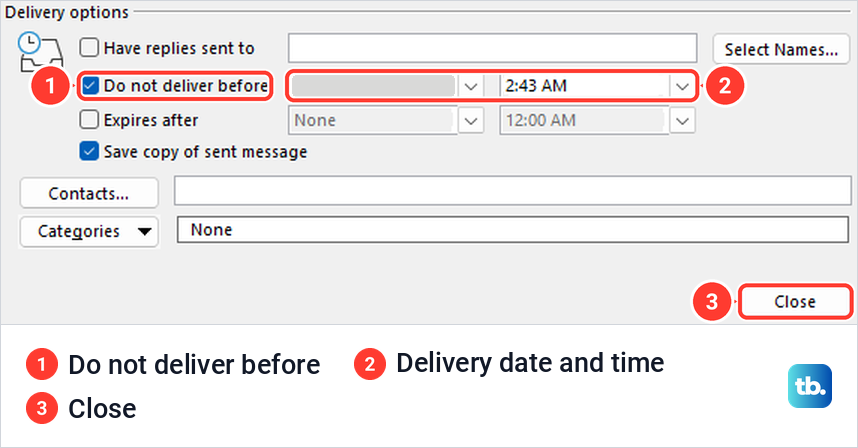
Check the time before you select Send. Once the dialog closed, nothing in the message window showed that a delay was set. Microsoft adds that Outlook needs to be online and connected for Delay Delivery to work.
Find, change or send a delayed email from the Outbox
After Send, the message sat in the Outbox in italics, and the folder pane showed Outbox with a count of 1. Microsoft says an italic subject line is how you know it is set correctly. Look for a waiting message there, not in Drafts or Sent Items.
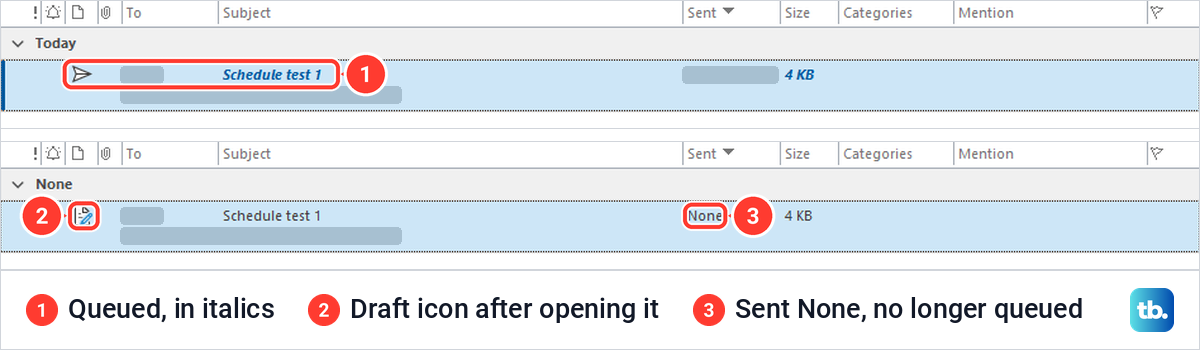
Be careful when you open it. Double-clicking the held message opened it as an ordinary editable draft, with no note about the delay, and closing it took it out of the queue. The row lost its italics, its Sent column changed to None and it showed a draft icon.
Microsoft describes the same trap, and says a message opened and closed without selecting Send again stays in the Outbox and is not sent at the delayed time. So whenever you open a held message, finish with Send. To cancel it altogether, select it in the Outbox and press Delete, which on our PC removed it and left the Outbox empty.
To send it right away, Microsoft's steps are to open it from the Outbox, open Message Options, clear Do not deliver before, then select Close and Send. To change the time, open it from the Outbox, set a new date or time under Do not deliver before, then select Close and Send again, as an opened message only goes once you send it again. If it never leaves the Outbox after its time, see what to do when delayed delivery is not working.
Schedule an email in Outlook on the web
Outlook on the web has a real Schedule send. Write the message as usual, then select the small arrow on the right of the Send button. On our screen the menu held three items, Send, Schedule send and Start mail merge.
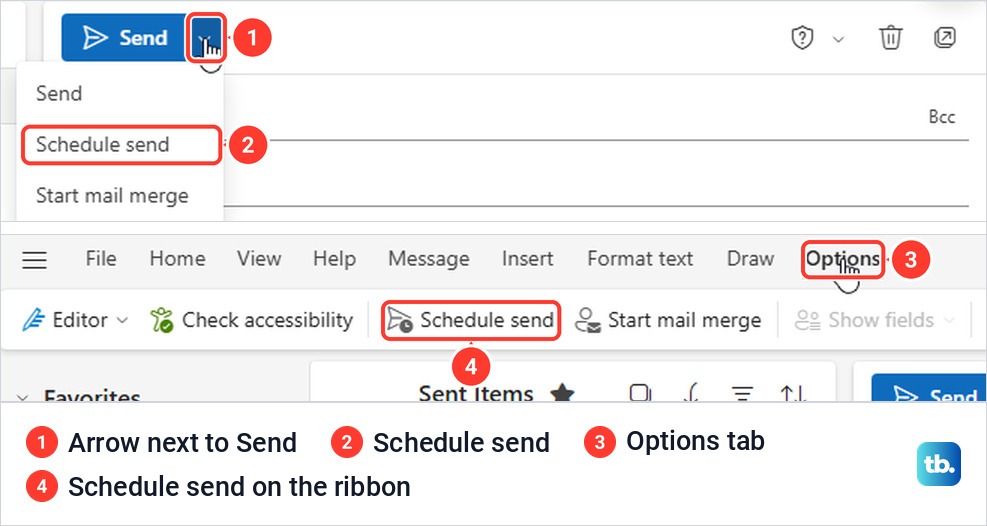
The message's Options tab has a Schedule send button too, between Check accessibility and Start mail merge. From the Send menu, select Schedule send and a small dialog offers preset times, which Microsoft calls default options. Ours offered a single one, Tomorrow at 8:00 AM, plus Custom time.
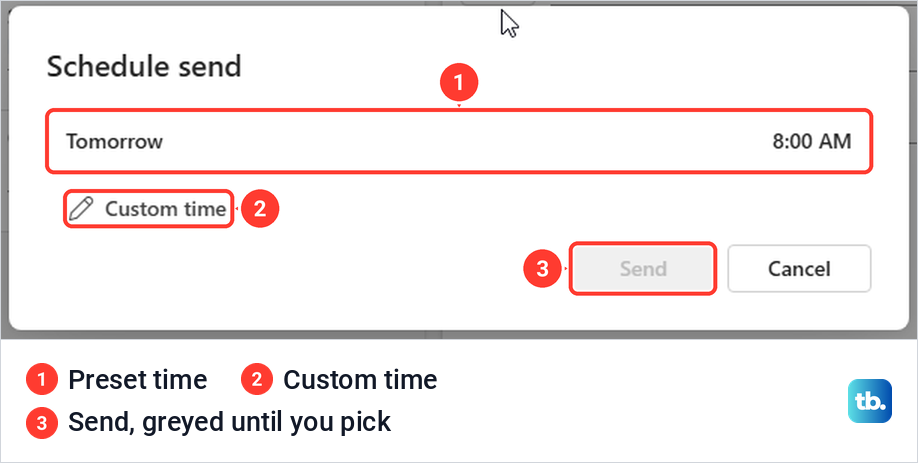
Send stays greyed out until you pick something. Select a preset and then Send, or select Custom time for a time of your own.
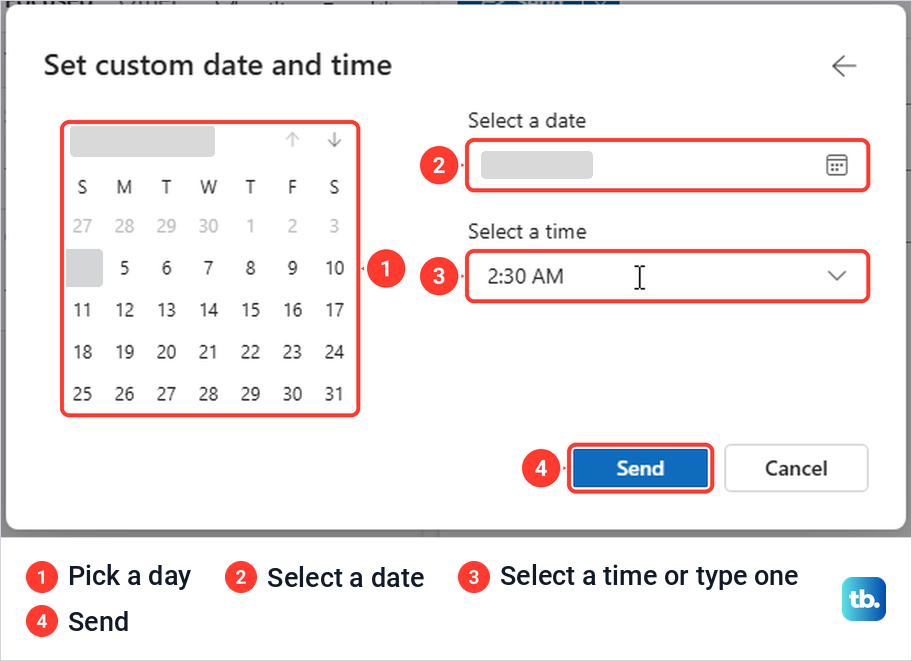
Custom time opens Set custom date and time, with a month calendar, a Select a date box and a Select a time list. The list steps in 30 minutes, and the box also accepted a time we typed in, a few minutes ahead. No time zone appears anywhere in the dialog. Select Send to schedule it.
Find or cancel a scheduled email on the web
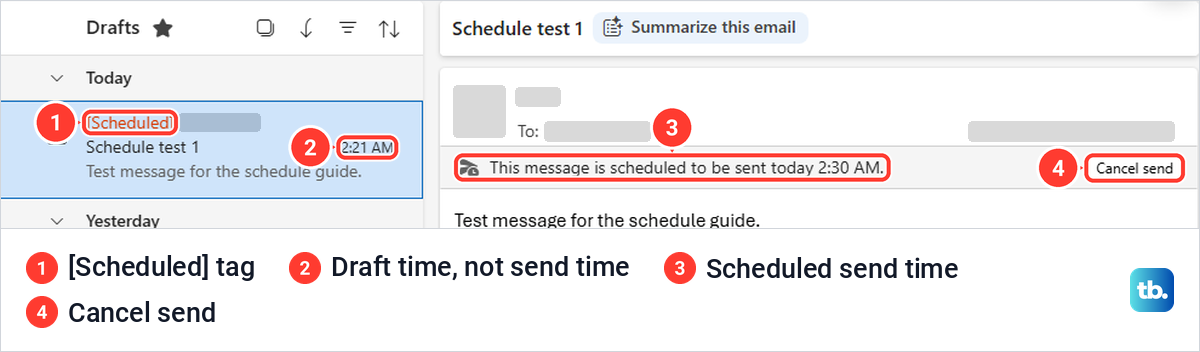
A scheduled message waits in Drafts. Right after we scheduled ours, its row still read [Draft], and moments later the tag changed to [Scheduled]. The time on the row is when the draft was saved, not when it will go, so open the message to see the send time.
Opened from Drafts, ours showed a grey bar reading This message is scheduled to be sent today, followed by the time, with a Cancel send button. There was no Edit pencil and no Send Now button, although an older Microsoft page still describes them.
One thing caught us out. When we clicked the row while it still read [Draft], it opened as a normal editable message with no bar at all, as if the schedule had gone. After we switched to another folder and back, the scheduled bar appeared, and the message still went at its time.
To send it now, Microsoft's steps are to select Cancel send and then Send, and the message goes immediately. Cancel send was the only schedule control on the opened message, and the gear-like icon that appears on the row when you point at it is Customize Actions, not a schedule setting.
Schedule an email in the new Outlook for Windows
In the new Outlook for Windows, Microsoft's steps match the web's. While writing the message, select the dropdown next to Send, choose Schedule send, pick one of the default options or a custom time, and select Send. Microsoft says the message then remains in the Draft folder until the delivery time.
To send it early, open the Drafts folder, open the scheduled message, select Cancel send and then Send. If its steps do not match your screen, Microsoft says you may not be using the new Outlook yet, so follow the classic steps instead.
What happens if your PC is off or Outlook is closed
That depends on where the message waits. A message scheduled on the web waits in the Drafts folder of your mailbox, so nothing on your PC has to stay open. We scheduled one from Outlook on the web, closed every Edge window more than five minutes before its time, and it still arrived in the other mailbox within about a minute of the scheduled time.
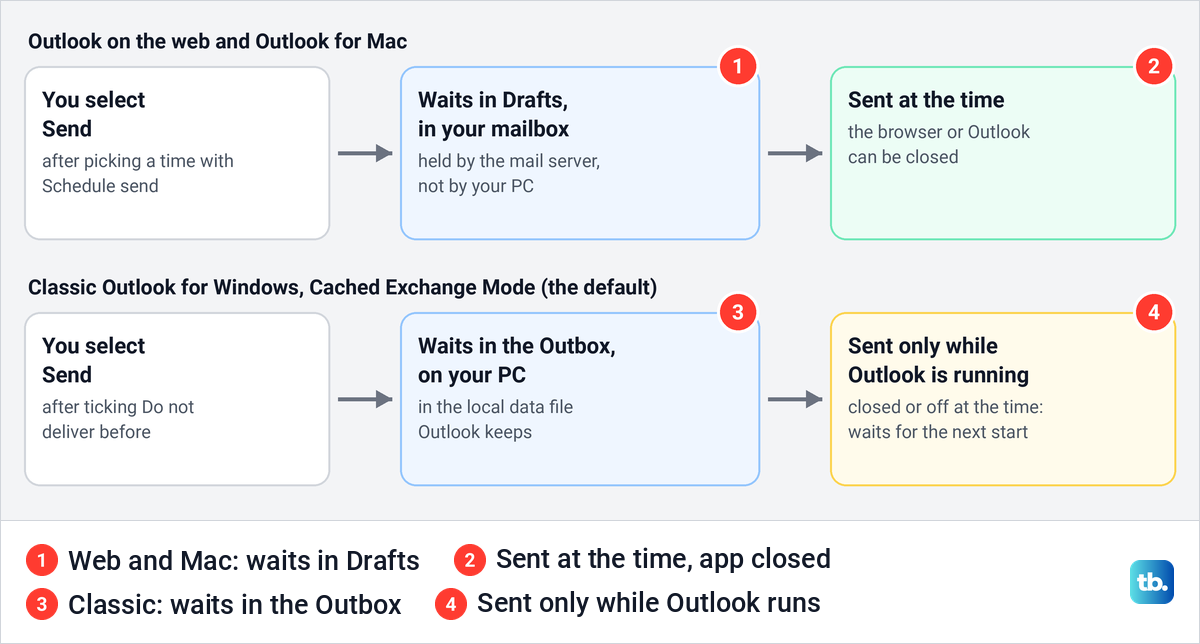
Classic Outlook is different. Microsoft explains that in Cached Exchange Mode, a Do not deliver before message is deferred to the local Outbox, not to the server, and is not delivered unless Outlook is running at the scheduled time. Cached Exchange Mode is the default for Exchange and Microsoft 365 accounts, and it was switched on in our classic Outlook.
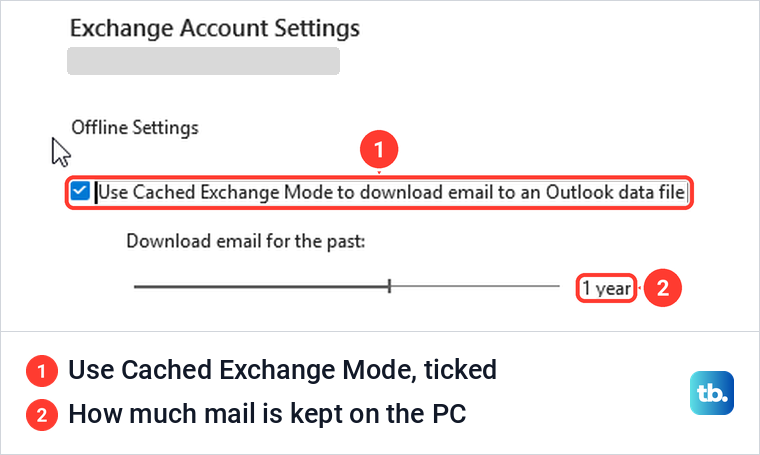
To see the setting, select File > Account Settings > Account Settings, select your account and choose Change. Look under Offline Settings for Use Cached Exchange Mode, and change nothing there.
Outlook warns you about this itself. When we chose File > Exit with a delayed message waiting, Outlook said "You have messages in your Outbox waiting to be sent. If you exit now, they won't be sent until the next time you start Outlook." It showed a countdown, reading Exiting in 24 seconds when we looked, with Exit and Send Later and Don't Exit buttons.
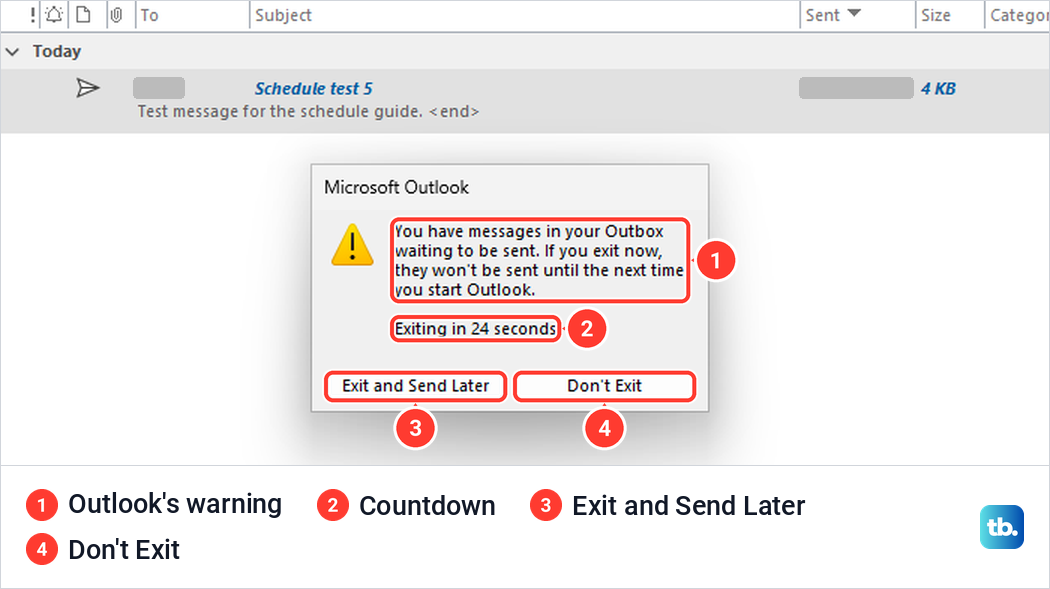
So if you use classic Outlook, leave it running and the PC awake until the message has gone, and choose Don't Exit if that warning appears. If you closed Outlook before the time, open it again, because its warning says held messages wait until the next time you start it. If the PC will be off, schedule from Outlook on the web instead, which uses the same mailbox.
Microsoft names online mode as a way round this for classic Outlook. It also recommends always using Cached Exchange Mode with a Microsoft 365 mailbox, so the web is the simpler fix.
The time the recipient sees
Our message scheduled from the web reached the other mailbox stamped with the scheduled time, both in the message list and in the opened message. That was not the time we had selected Send, about seven minutes earlier.

A message still sitting in Drafts or the Outbox after its time is the sign something went wrong. If a scheduled time passes and nothing arrives from any version, check whether there is a problem with Outlook email today before you send it again.
Delay every email you send in classic Outlook
Classic Outlook can also hold every message you send for a set number of minutes, with a rule, and Microsoft says the delay can be up to two hours. Select File > Info > Manage Rules & Alerts > New Rule. Choose the blank rule for messages you send, the second choice under Start from a blank rule, and select Next without ticking a condition.
Outlook then asked "This rule will be applied to every message you send. Is this correct?" Select Yes, tick defer delivery by a number of minutes, select a number of in the description and enter the minutes.
When we typed 200, Outlook refused with Enter a whole number between 1 and 120. Name the rule, keep Turn on this rule ticked and select Finish. Microsoft says each message then waits in the Outbox for those minutes after you select Send.
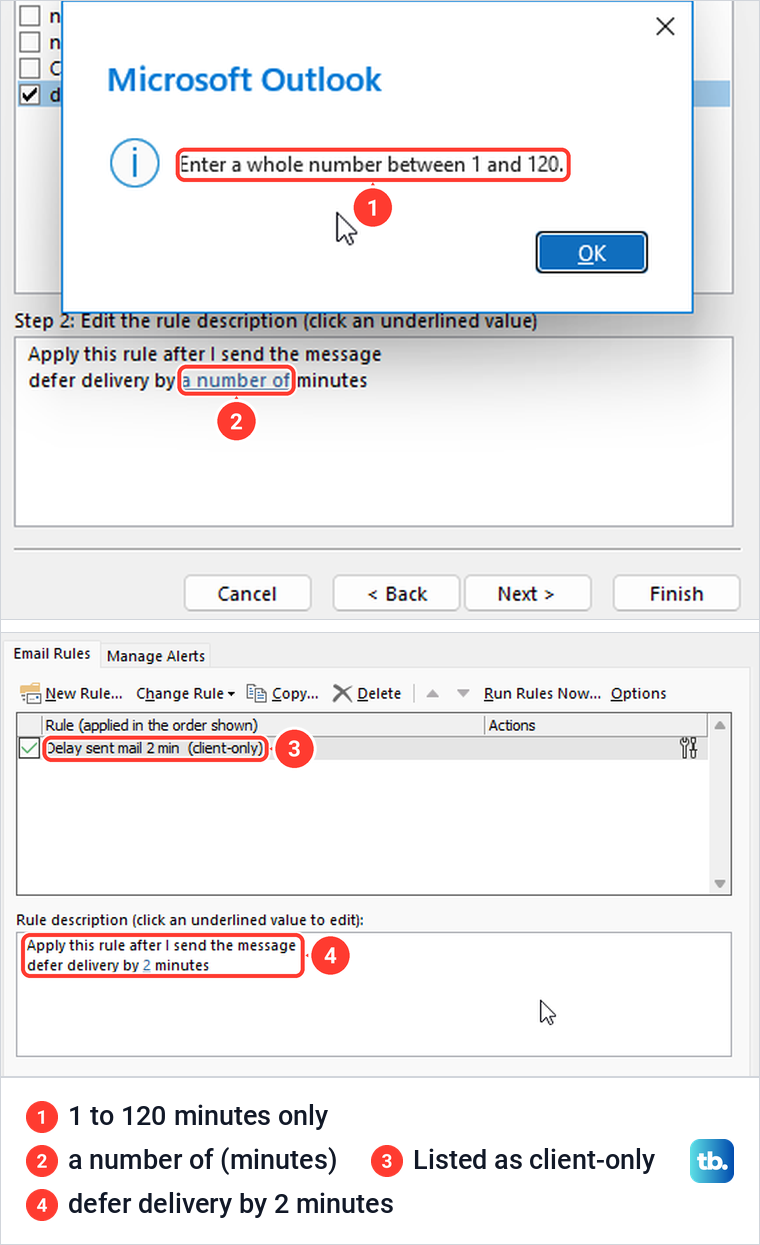
Read the warning that appears at Finish. Outlook told us the rule only runs when you check your email in Outlook and will not work for email you check online or from another device, and it listed the rule as client-only. So do not count on it for mail you send from the web or your phone, and if it does nothing at all, see what to do when Outlook rules are not working.
If every message you send suddenly waits in the Outbox, a rule like this is a likely cause. Open Manage Rules & Alerts, then untick the rule or select it and choose Delete, which asked us to confirm. Microsoft also says Viva Insights schedule send suggestions need any delay rules turned off.
Schedule an email in Outlook for Mac
Outlook for Mac has Schedule send too, and older versions call it Send Later. Add at least one recipient on the To line, select the dropdown arrow on the Send button and choose Schedule send. Enter a time and date and select OK.
Microsoft says the message is saved in the Drafts folder until then and will be sent even if Outlook is not open on your computer. To cancel, open the message in Drafts, select Cancel Send and then Yes. The message stays open, so you can send it right away or schedule it for another time.
Microsoft lists the feature for a Microsoft 365 subscription, Outlook 2019 for Mac and Outlook 2021 for Mac, and its page also applies to Outlook 2024 for Mac. It needs an Exchange account such as Outlook.com hosted on Microsoft 365. It is not available for IMAP or POP accounts such as Gmail, Yahoo or iCloud, and the Mac has no rule that delays every message. If the Send arrow has no Schedule send, check Outlook > About Outlook and update Outlook for Mac.
Why Schedule send is missing or looks different
Check the account first. Microsoft says Schedule send is not available for IMAP or POP accounts in the new Outlook and on a Mac, which covers Gmail, Yahoo and iCloud addresses added to Outlook. So if you used the steps to set up Gmail in the Outlook app in the new Outlook for Windows, that account's Send button has no Schedule send even when your work account's does, and the same goes for Gmail in Outlook for Mac.
Classic Outlook has no Schedule send on its Send button. It uses Delay Delivery instead, and Microsoft's page names no account-type limit for Delay Delivery, only that Outlook needs to be online and connected for it to work.
Work accounts may also see a schedule send suggestion from Viva Insights, with its own Schedule send button, for example when the recipients are outside their working hours. Microsoft says these suggestions are on by default and cannot schedule delivery to distribution lists or Microsoft 365 groups. A message scheduled from a suggestion waits in Sent Items in Outlook for Windows, not the Outbox, and in Drafts on the web.
If ordinary messages pile up in the Outbox too, the schedule is not the problem, so see what to do when Outlook is not sending emails. A delayed message in classic Outlook that stays put past its time points to Outlook being closed or offline at that moment, by Microsoft's explanation. It can also mean the message was opened and closed without selecting Send again, which takes it out of the queue.
Schedule send is not Undo send or recall
Undo send, once it is turned on, holds every message for a few seconds after Send, so you can stop it before it leaves. In Outlook on the web the slider went up to 30 seconds for us, and classic Outlook's File > Options > Mail had no Undo send at all. Schedule send and Delay Delivery hold one message until a time you choose.
Recall is for after the fact, once a message has already been delivered, and here is how to recall an email in Outlook. Schedule send cannot help there, because it only works before a message leaves.
How we tested this guide
We tested this on Windows 11, version 25H2, scheduling a message in Outlook on the web and setting Delay Delivery in classic Outlook.
Frequently Asked Questions
Where do scheduled emails go in Outlook?
On the web, in the new Outlook and on a Mac they wait in Drafts until the send time. In classic Outlook they wait in the Outbox, shown in italics while they are queued, except a message scheduled from a Viva Insights suggestion, which Microsoft puts in Sent Items in Outlook for Windows.
Does my computer need to be on for a scheduled email to send?
Not for Outlook on the web, which holds it in your mailbox and delivered ours with the browser closed, or for Outlook for Mac, which Microsoft says sends even if Outlook is not open. Classic Outlook in its default Cached Exchange Mode sends only while Outlook is running, and it warns you if you exit with mail waiting.
How do I send a scheduled email right away?
On the web or in the new Outlook, open it from Drafts, select Cancel send and then Send. In classic Outlook, open it from the Outbox, clear Do not deliver before in Message Options, then select Close and Send.
Can I schedule an email from a Gmail account in Outlook?
Not with Schedule send in the new Outlook or on a Mac, where Microsoft says it is not available for IMAP or POP accounts such as Gmail. In classic Outlook, Microsoft's Delay Delivery steps carry no account limit, only that Outlook must be online and connected for it to work.
Can I schedule a recurring email in Outlook?
Not with Schedule send or Delay Delivery, which each hold one message. A scheduled cloud flow in Power Automate can send an email on a recurrence, such as once a week, and here is how to use Power Automate.
Why does every email I send wait in the Outbox?
A delay rule is probably on. Open File > Info > Manage Rules & Alerts and untick or delete the rule that says defer delivery.
Will the recipient see when I wrote the email?
Not from the time stamp of a message scheduled on the web. Ours arrived showing the scheduled time, not the time we selected Send.