Samsung TV HDMI inputs sit inside Connected Devices or Source, which makes the switch feel harder than it is. The right path depends on your remote and Smart Hub layout. Start with the current Smart Remote method, then use the alternate paths when your TV shows different labels.
Use Connected Devices on newer Samsung TVs
The most common cause of confusion is that many newer Samsung Smart Remotes do not include a dedicated Source button.
Press Home on the Smart Remote.
From the Home screen, press left to open the side menu, then select Connected Devices.
Choose the HDMI device or HDMI port connected to your TV.
On many current models, press Home, open Menu, select Connected Devices, then choose the input source your device uses.
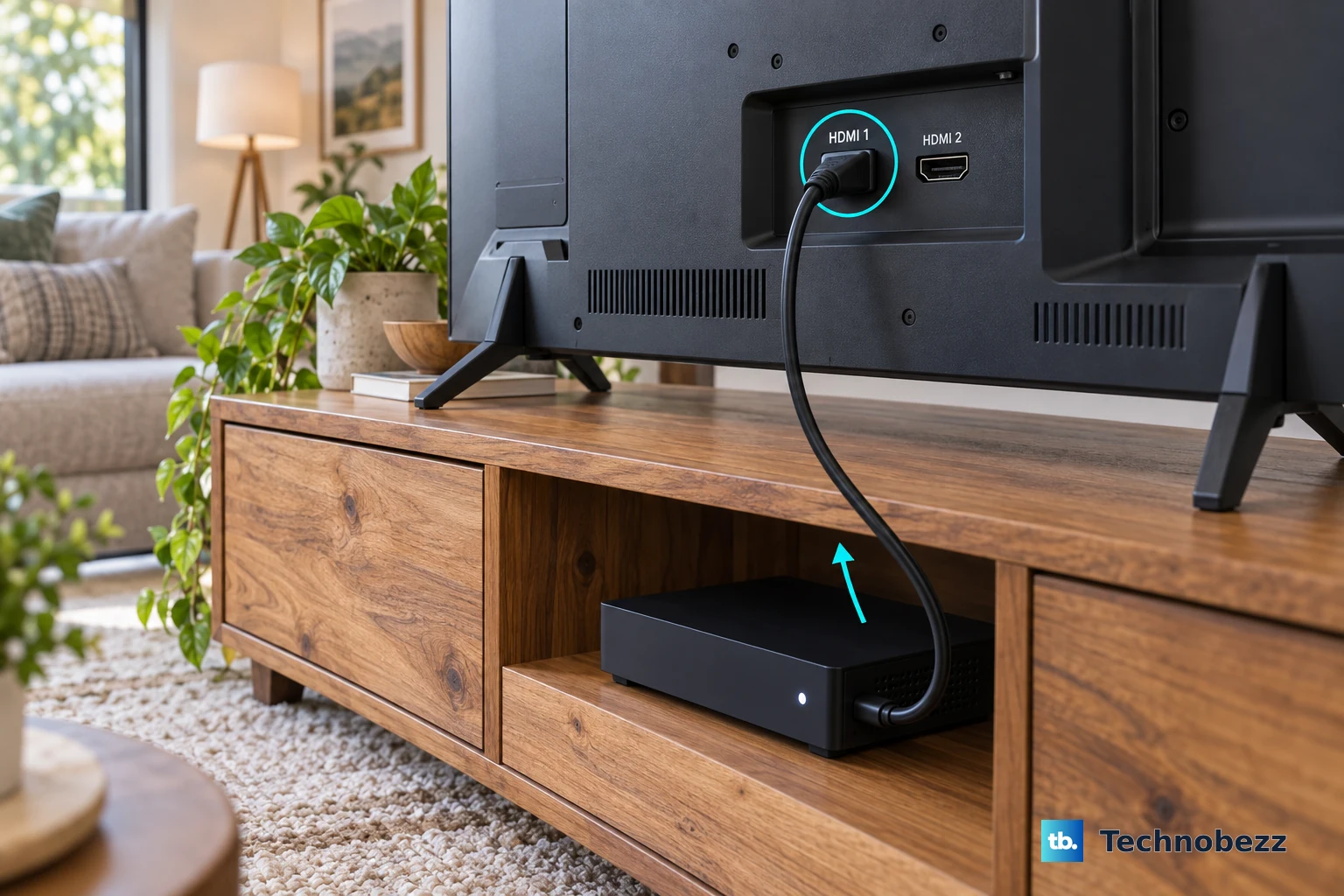
Try the Source button on older or universal remotes
This method applies when your Samsung Universal remote, older Samsung IR remote, cable remote, or compatible third-party remote has a physical Source or Input button. Newer Smart Remotes use Connected Devices instead.
Press Source or Input on the remote control.
Move through the available input sources until the HDMI port that matches your device is highlighted.
Select that HDMI input to switch the TV.
For a third-party universal remote, program the remote for Samsung TV control using the remote maker's instructions, then use that remote's Input or Source control.
Pick HDMI from the Home screen
Press Home on the remote.
Choose Source from the Home screen.
Select the device tile or HDMI port you want to use.
Use Connected Devices instead on newer layouts that no longer show Source directly.
Check Connected Devices first when the HDMI tile is missing from Source.
Add your HDMI device to Home
The most common reason people repeat the same input steps every day is that the HDMI device is not pinned to the Home screen.
Open Connected Devices.
Highlight the HDMI device or port you use most often.
Press the down button on the remote, then choose Add to Home.
On Samsung models that use the alternate shortcut action, press and hold Select, then choose Add to Home.
After that, press Home and choose the device shortcut whenever you want that HDMI input.
Let the TV switch automatically
This applies when you want the Samsung TV to jump to a device as soon as the device is connected or powered on. Automatic switching uses HDMI device recognition and HDMI-CEC or Anynet+ behavior on supported device, cable, TV model, and firmware combinations.
Connect the external device to an open HDMI port on the TV.
Turn on the external device.
When the TV recognizes the device, it switches to that HDMI source.
To stop automatic HDMI switching on supported Samsung TVs and Odyssey Ark models with an IR remote, confirm the TV software is up to date, point the remote at the TV, then press Mute, 7, 2, 9, Exit.
To stop automatic HDMI switching with a Samsung Smart Remote, confirm the TV software is up to date, switch to the TV source, point the Smart Remote at the TV, then press Mute, Vol Down, Ch Down, Mute. Press in on the volume control for Mute.
Use SmartThings when the remote is not handy
This fixes HDMI switching from your phone when your compatible Samsung TV or projector is already added to SmartThings.
Open SmartThings on your phone.
Tap Menu.
Open All devices.
Select your TV or projector.
Use the on-screen remote to navigate to Connected Devices or Source.
Choose the HDMI input.
To add a compatible TV first, open SmartThings, tap Device, choose the Home icon or location, tap Add, select Add device, choose TV, select Samsung, choose TV, then tap Start.
Control HDMI input with voice
Use voice control when your Samsung TV, account, region, and assistant support source commands.
- 1.For Bixby, open Settings, All Settings, Advanced Features, Voice, then Bixby Settings.
- 2.Press and hold the Voice Assistant or Microphone button on the Smart Remote, then say HDMI or Switch to HDMI 1.
- 3.With hands-free wake-up enabled, say Hi Bixby, then say the HDMI command.
- 4.For Google Home, connect the TV through SmartThings, link SmartThings in Google Home, then say Hey Google, set the input of living room TV to HDMI 1.
- 5.For Alexa, connect the TV through SmartThings, enable the SmartThings skill in Alexa, run Discover Devices, then say Alexa, set the input of living room TV to HDMI 1.
Handle managed or hotel TVs
Hotel, hospitality, and business Samsung TVs use admin controls that ordinary home TVs do not expose. A property or workplace sets source behavior through business features such as Auto Source Mode, Lock-Out, Front Panel Lock-Out, and Multi Code Remote.
When a managed Samsung TV will not switch to HDMI, contact the property staff, workplace admin, or display manager. Samsung does not publish a current supported consumer menu path for changing those business restrictions on a home TV.
Fix the right HDMI port settings for 4K devices
This fixes picture or device behavior after the TV is already on the correct HDMI input.
Open Settings on the Samsung TV.
Go to General.
Open External Device Manager.
Select UHD HDMI Color or Input Signal Plus.
Choose the HDMI port used by the 4K, HDR, console, PC, UHD Blu-ray player, Roku, or other high-bandwidth device.
Switch back to the HDMI input from Connected Devices or Source.
Frequently Asked Questions
Why does my Samsung remote not have a Source button?
Many newer Samsung Smart Remotes use the Home screen and Connected Devices menu instead of a dedicated Source button. Press Home, open Connected Devices, and choose the HDMI port or device.
Can my Samsung TV turn on directly to HDMI instead of Smart Hub?
Not to a fixed HDMI input. On supported Samsung Smart TVs, turning off Start with Smart Hub Home under Settings, All Settings, General and Privacy, Start Screen Option makes the TV start on the last used source, which may be an HDMI input, a channel, or an app, so leave the TV on the HDMI input you want before you power it off. Some models place Start Screen Option under Advanced Features.
Can I switch HDMI inputs without the remote?
Yes, on Samsung TVs with a TV Controller button. With the TV on, press the Controller button to open the Control menu, press it to move through items, and press and hold to select the source or input item.
Why does my TV change to an HDMI input by itself?
The TV is recognizing a connected HDMI device when it powers on. Supported Samsung TVs also have documented remote-code sequences for turning automatic HDMI switching off.