Downloads failing on Android usually trace back to the connection, storage space, Google Play, Chrome, permissions, or account controls. Start with the fastest checks, then move into the app-specific fixes when only Play Store or Chrome downloads are failing. These steps use current Android, Google Play, Chrome, Files by Google, Family Link, and Android Enterprise guidance checked for August 2026.
Switch networks and retry
This fixes downloads stuck on a stalled Wi-Fi or mobile data connection.
Open Settings, then go to Network & internet or Connections.
Turn Wi-Fi off.
Turn Mobile data or Cellular data on.
Retry the download.
Turn Mobile data or Cellular data off when the download still fails.
Turn Wi-Fi back on.
Move closer to the router.
Try the download again once the Wi-Fi indicator appears.
Refresh the connection
A quick radio reset clears a connection that looks active but refuses to move data. Open Settings > Network & internet or Settings > Connections, turn Airplane Mode on, wait 10 seconds, then turn Airplane Mode off.
For home Wi-Fi problems, restart the router too. Unplug the router from the electrical outlet, wait 30 seconds, plug it back in, then wait another 30 seconds for the lights to come back on.
Once your phone reconnects, retry the same download before changing anything else.
Make enough storage room
Google says low storage can stop apps from downloading and installing, and that less than 1 GB available is a sign your device may be low on space.
- 1.Open Settings and tap Storage.
- 2.Tap Free up space when storage is low.
- 3.Open Files by Google, tap Menu, then tap Clean.
- 4.On the Junk files card, tap Clean xx MB, then tap Clear.
- 5.Retry the app, game, book, media file, or download.
Restart Android and update the system
This fixes download failures caused by a temporary Android or Google Play software issue.
Press and hold the Power button.
Tap Power off or Restart.
Press and hold the Power button until the device turns on again when it does not restart from the menu.
After it boots, open Settings > System > Software update > System update.
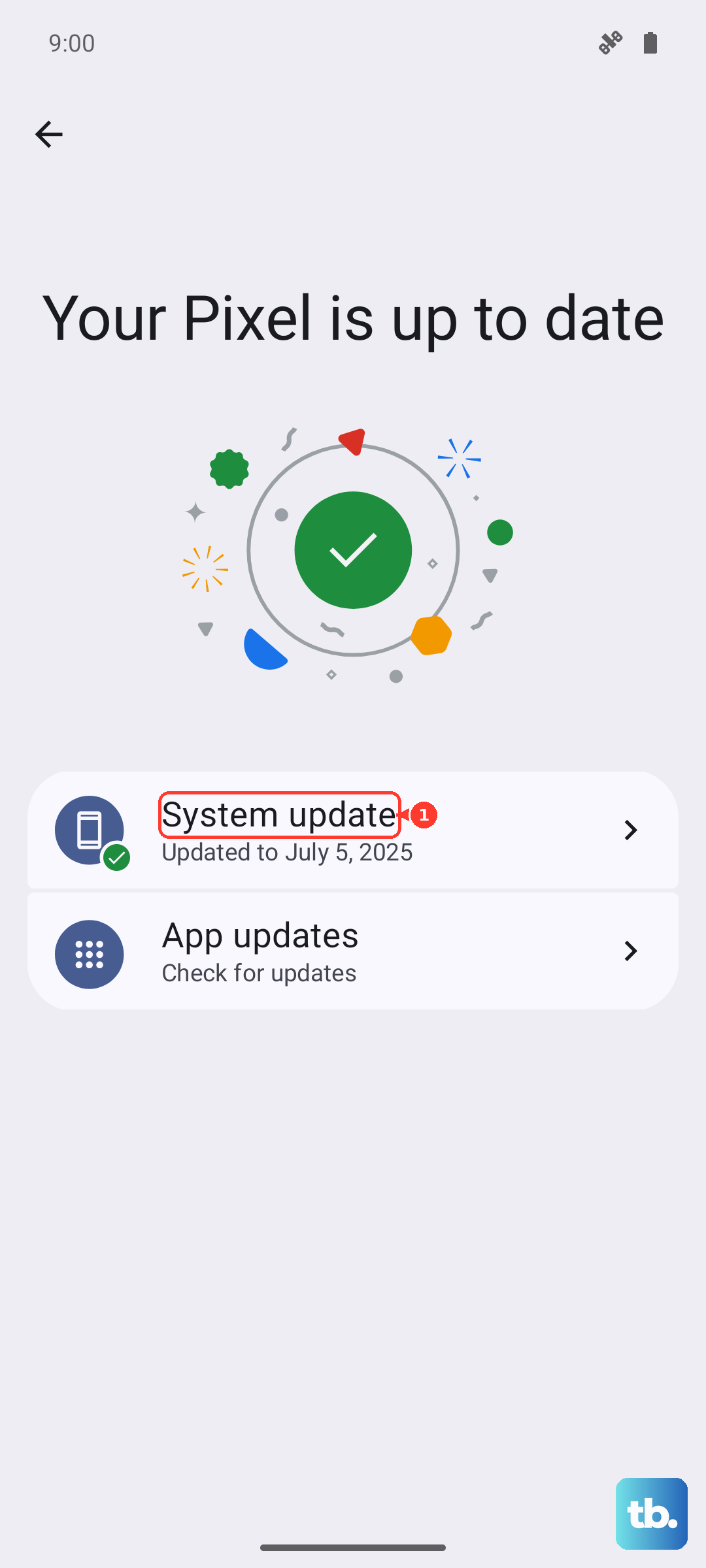
Follow the on-screen instructions to download or install updates.
Retry the failed download.
Fix Play Store downloads that get stuck
When the failed download is an app, game, book, or media item from Google Play, close and reopen the store first. Swipe up from the bottom, hold, let go, then swipe up on Google Play Store to close it.
Open Google Play Store again and retry the download. For a specific app, open the app page and check that it says the app is available for your device.
When one installed app will not update, go to Google Play Store > profile icon > Manage apps & device > Manage, tap the app name, tap Uninstall, then tap Install or Enable.
You can also manually update apps from Google Play Store > profile icon > Manage apps & device. Under Updates available, tap See details, then tap Update next to the app or tap Update all.
Clear Play Store cache and storage
This fixes Play Store download and install failures after the simpler Play Store restart steps do not help.
From your home or app screen, touch and hold Google Play Store.
Tap App Info.
Open Storage & cache.
Tap Clear Cache.
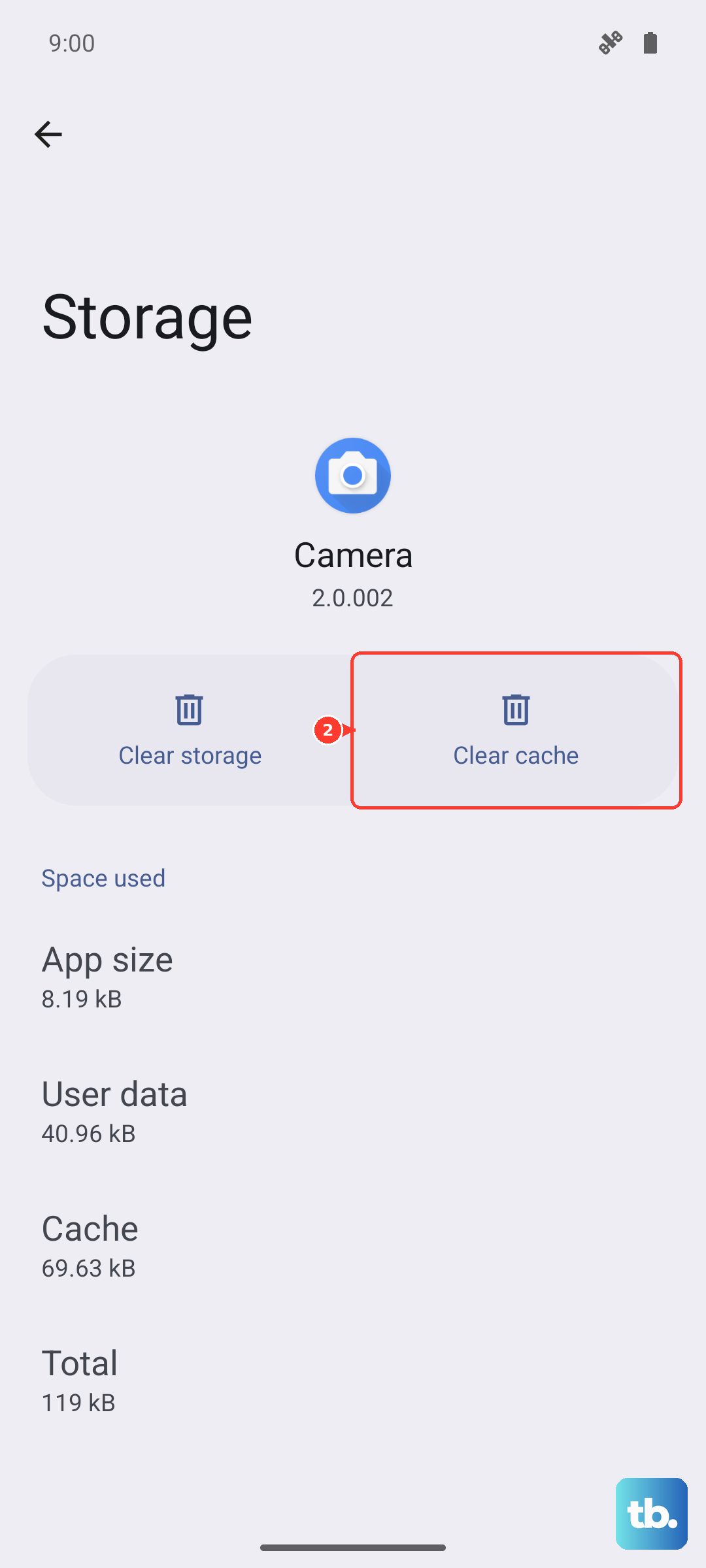
Tap Clear storage.
Tap Delete.
Save this one for last. Google does not recommend clearing Google Play services until every other troubleshooting option has been tried, because clearing its data or storage may delete information saved to your device, including passwords, transit cards, and virtual payment cards saved to Google Pay. You may also need to reauthenticate your payment methods on Google Pay and sign back into your Google Account on all your devices.
When downloads still fail after all the other Google Play troubleshooting above, open Settings > Apps > Google Play services.
Tap See all apps when Google Play services is not shown.
Choose Google Play services.
Open Storage & cache.
Tap Clear cache.
Tap Clear storage.
Tap Clear all data.
Tap Delete.
Clear up Chrome download problems
Use these steps when a file download fails in Chrome instead of Google Play.
- 1.Open Chrome, tap More, tap Refresh, then try the download link again.
- 2.Go to Chrome > More > Downloads; when the address bar is at the bottom, swipe up on the address bar and tap Downloads.
- 3.Next to the downloading file, tap Pause or Cancel, then retry the file from the site.
- 4.To remove old files, tap More next to one download and tap Delete, or touch and hold multiple files and tap Delete.
- 5.For cache problems, go to Chrome > More > Delete browsing data, choose a duration and data types such as cached images and files, then tap Delete data.
Check permissions, data saver, and account settings
Browsers, file managers, cloud apps, and messaging apps that ask for file or media access need those permissions granted before they can save or open downloads in shared storage. Open Settings > Apps, select the app, tap Permissions, choose the needed permission, then select Allow.
For the alternate privacy path, open Settings > Security & Privacy > Privacy > Permission manager, choose the permission type, select the app, and choose the permission setting.
For Play Store downloads failing over cellular data while Data Saver is on, open Settings > Network & internet > Data usage > Data saver. Tap Unrestricted data access, choose Google Play Store, and turn access on.
Wrong time settings also break Play downloads. Go to Settings > System > Date and time, turn on Set time automatically and Set automatically under Time zone, wait a few minutes, then retry.
If this method fails, remove and re-add the Google Account from Settings > Passwords & accounts, then use Add account and Google to sign in again.
Restrictions on child or work devices
This method applies when downloads are blocked by supervision, approvals, or an organization-managed device. The fix happens in Family Link or managed Google Play, not in the regular download screen.
On a child account, the parent opens Family Link, selects the child, goes to Controls > Google Play, and adjusts content filters or purchase and download approvals.
For a work device or work profile, open the managed Google Play store and install only apps approved by the organization.
When the app is missing or blocked, contact the IT or EMM administrator.
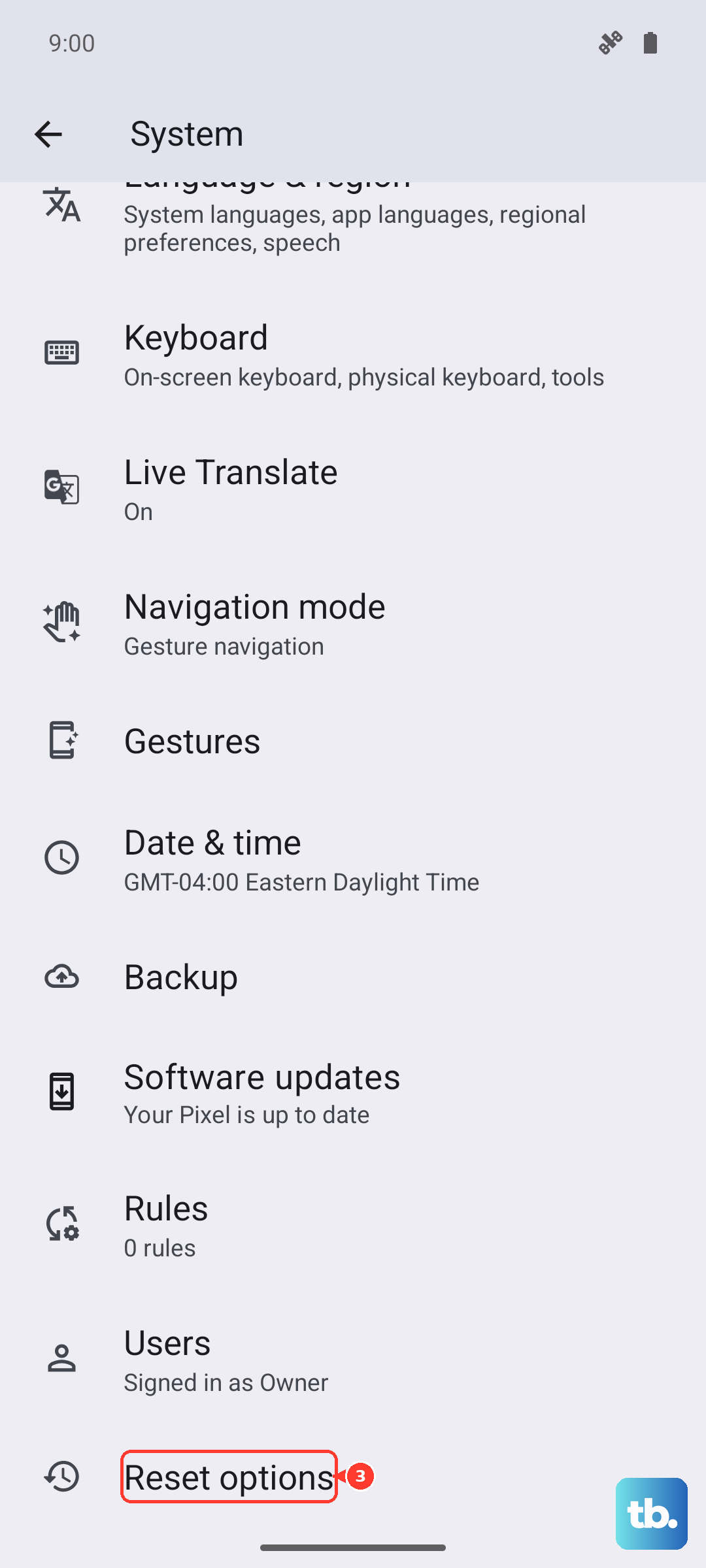
As a last resort after all download and app-store troubleshooting fails, back up the device first. Before you reset, make sure you know a Google Account on the phone and its password, plus your screen lock PIN, pattern, or password, and charge the phone to at least 70 percent. You need that account to set the phone up again. On most phones you then open Settings > System > Reset options and choose Erase all data (factory reset); check your manufacturer's support site for device-specific reset instructions.
Use manufacturer-specific power and volume button instructions only when Settings will not open.
Frequently Asked Questions
Why do Android downloads keep failing even with Wi-Fi on?
The Wi-Fi connection may be stuck or too weak. Toggle Wi-Fi and mobile data, use Airplane Mode for 10 seconds, move closer to the router, or restart the router before retrying.
How much free space do I need for Play Store downloads?
Google says Play downloads can stop when storage is low or when less than 1 GB is available, so free space first and then retry the download.
Should I turn off Chrome Safe Browsing to download a blocked file?
Google supports changing Safe Browsing levels, but it recommends taking download warnings seriously. Continue only when you trust the file.
Why can my child not download an app from Google Play?
Family Link content filters or purchase and download approvals may be blocking it. A parent can review those settings in Family Link under Controls and Google Play.











