Your Android phone is frozen, and tapping the screen gets you nowhere. Use the button sequence for your brand below to restart it without the touchscreen. A force restart does not intentionally erase stored data, but unsaved work can be lost.
Try the Power button on a frozen screen
A long Power hold restarts a frozen screen on phones that support this procedure.
For phones covered by Google's general Android instructions, hold Power for about 30 seconds. Your manufacturer's instructions take precedence when they specify a different combination.
On a Google Pixel, including Pixel 6 and later and Fold, hold Power for up to 60 seconds. No touchscreen interaction is required.
Release Power when the Pixel starts rebooting and the G logo appears.
Restart an unresponsive Samsung Galaxy
Hold Side, or Power, and Volume Down together for more than 7 seconds, continuing until the phone restarts. Samsung allows up to 60 seconds for an unresponsive device.
If the power menu appears during the hold, keep holding the buttons until the device restarts.
If the button procedure opens Maintenance Boot Mode, use either Volume button to highlight Normal Boot.
Select it with Power or, on models with that button, Bixby.
If the phone still does not restart, follow Samsung's instructions for your exact model. For a Galaxy designed with a user-removable battery, try the battery procedure below.
Match the shortcut to your phone brand
Use your brand's procedure, following your exact model's instructions wherever they differ.
Motorola: Hold Power for 10–20 seconds. Motorola specifies at least 5% battery for this procedure; use the charging instructions below if the phone does not respond.
Xiaomi, Redmi, and POCO: Hold Power for more than 10 seconds under Xiaomi's general guidance. POCO C85 uses this timing too; other models have their own timing requirements.
OPPO: Hold Power and Volume Up together for at least 8 seconds, until the OPPO logo appears.
realme: Hold Power and Volume Up together until the phone restarts. realme specifies 8-, 10-, and 15-second holds across its support instructions, so follow your model's timing.
Nothing: Hold Power and Volume Up together until the Nothing logo appears. Nothing's dedicated force-restart instructions give no fixed duration.
HMD and Nokia Android smartphones: Hold Power and Volume Up together for about 15 seconds, or until the phone vibrates.
Wait for it to restart. This procedure applies to Android smartphones, not Nokia feature phones or Lumia devices.
Charge a depleted Motorola before retrying
A completely depleted battery prevents a Motorola phone from responding to the restart procedure.
Charge a completely depleted Motorola for at least 15 minutes. Motorola specifies at least 5% battery for its general force-reboot procedure.
Retry holding Power for 10–20 seconds.
For Motorola models whose help guide specifies the longer procedure, hold Power for about 30 seconds.
If that longer hold fails, charge the phone for at least 5 minutes.
With the charger still connected, hold Power again for 30 seconds.
Use the model-specific buttons on other phones
On ASUS ROG Phone 3 and later or Zenfone 7 and later, hold Power and Volume Down together for at least 8 seconds.
If the ASUS has not restarted, extend the hold to 12 seconds.
On Sony Xperia 1 VII models XQ-FS54 and XQ-FS72, hold Power and Volume Up together.
Release both buttons at the first vibration to restart. Holding past that point until three vibrations forces a shutdown instead.
If you used the Sony forced-shutdown alternative, turn the phone on with Power to complete the power cycle.
On Fairphone 3, 4, 5, and Fairphone Gen. 6 running official Fairphone OS, hold Power for 15 seconds.
For HONOR phones covered by its power and restart instructions, hold Power and Volume Down together for more than 10 seconds.
For ZTE phones covered by its boot-loop troubleshooting instructions, hold Power for 10 seconds. This is not a brand-wide procedure for REDMAGIC or nubia phones.
On TCL K33 5G, hold Power and Volume Down together until the screen goes dark. This instruction applies specifically to the K33 5G, not every TCL phone.
If the matching procedure fails, check the manufacturer's instructions for your exact model before trying another combination. Power alone, Power and Volume Down, and Power and Volume Up are not universal Android shortcuts.
Power cycle a Galaxy with a removable battery
A battery power cycle restarts an unresponsive Galaxy with a user-removable battery; it does not apply to sealed-battery phones.
Remove the back cover.
Take out the battery.
Leave the battery out for 30 seconds.
Reinsert the battery.
Press Power to turn on the phone.
Frequently Asked Questions
Which reset options should I avoid when restarting?
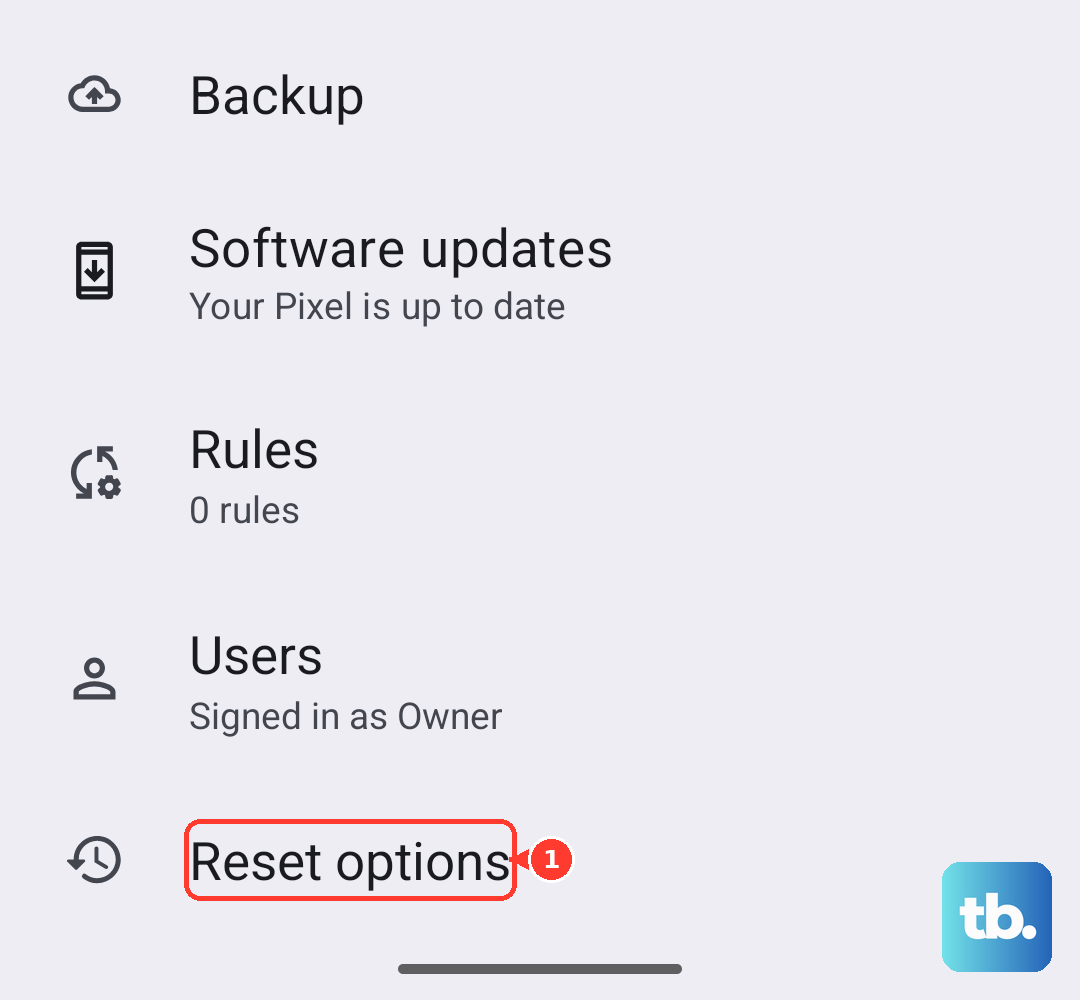
Do not select Factory reset, Wipe data, or Clear all data just to restart your phone. These are destructive reset options, not force-restart commands.
Can I restart my Android phone without using the buttons?
Yes, if the software still responds. On current Samsung Galaxy layouts, swipe down from the top-right corner to open the Quick panel. Tap the Power off icon. Tap Restart, then confirm if prompted. Earlier or differently configured panels require two downward swipes or a two-finger swipe. This performs an ordinary restart.
Can I force restart my phone remotely with Google Find Hub?
Google Find Hub has no documented restart command. Its Factory reset option erases the device and is not a substitute for restarting.
Does Force stop restart the whole phone?
No. Force stop acts on an individual app. It does not restart Android or replace the phone's hardware force-restart procedure.











