Android phone problems can hit all at once: frozen apps, broken Wi-Fi, missing notifications, Bluetooth dropouts, or a phone that refuses to charge. Start with the fixes that clear temporary glitches, then move into app, storage, network, and reset steps only where they fit. The steps below use current Android, Google Play, Pixel, and Samsung support paths.
1. Restart the phone before changing settings
A restart clears stuck app processes and gives Android a clean run at the problem.
Press and hold the Power button for about 30 seconds, or until the phone restarts.
If a menu appears, tap Restart, then tap Restart again.
Open the app, Wi-Fi network, Bluetooth device, or feature that failed and test it once.
On Samsung Galaxy phones and tablets, charge the device first when the battery is drained.
For a forced reboot, hold Volume down and Power together for about 10 seconds until the Samsung logo appears.
If Maintenance mode appears, use the Volume buttons to select Normal Boot, then press Power.
2. Update Android and Google Play next
For most Android phones, open Settings > System > Software updates, then follow the on-screen instructions.
To check the current version, go to Settings > About phone or About tablet > Android version.
On Pixel, use Settings > System > System update.
On Samsung Galaxy, use Settings > Software update or System update, depending on the model.
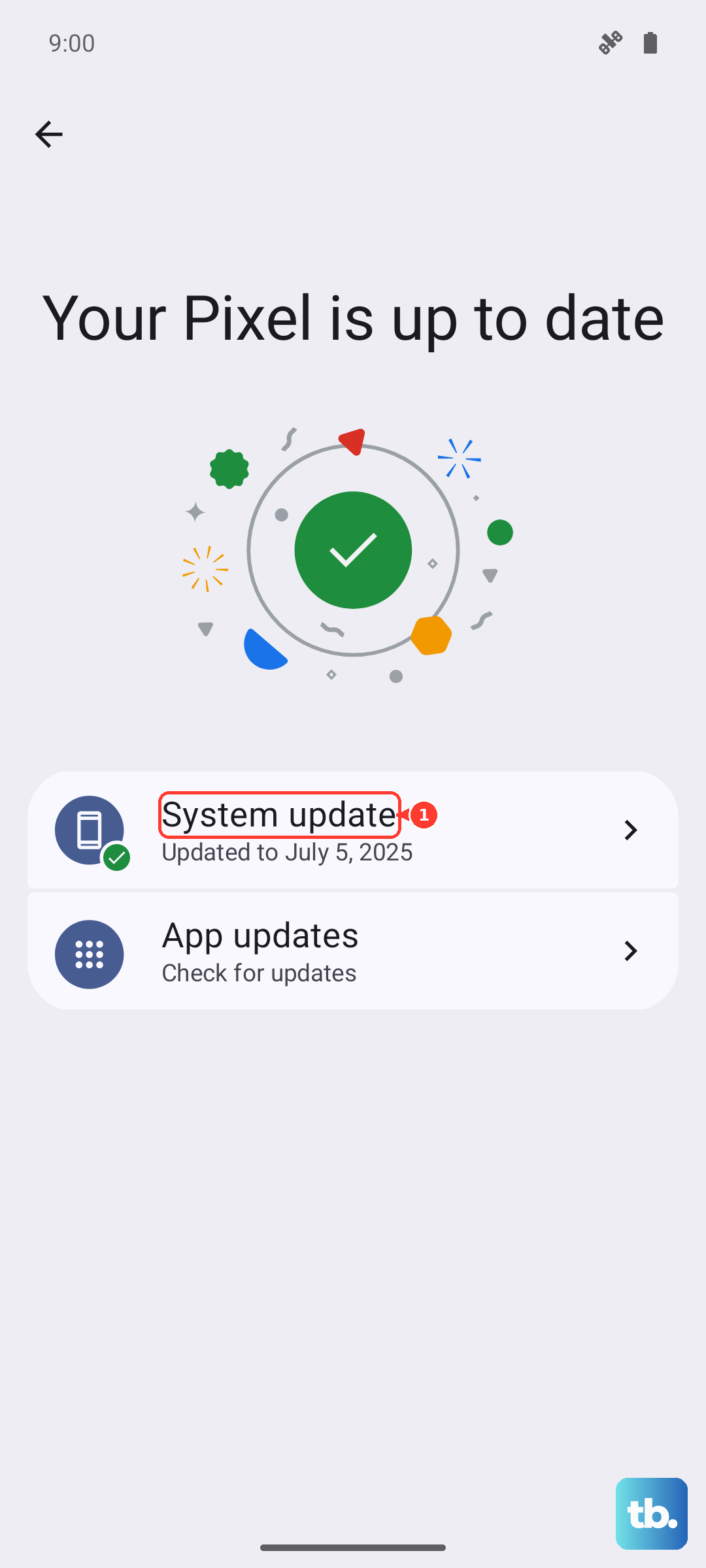
Outdated system software and old app builds create app crashes, download errors, and feature glitches. Update the phone first, then update the apps.
Open Google Play Store.
Tap the profile icon.
Tap Manage apps & device.
Under Updates available, tap See details.
Tap Update beside one app, or tap Update all.
If the Play Store itself needs attention, open Google Play Store > profile icon > Settings > About > Update Play Store > Got it.
3. Fix crashing apps without resetting the phone
When one app keeps closing, freezing, or refusing to open, handle that app directly.
Force stop it: Open Settings > Apps, select the problem app, tap Force stop, restart the phone, and test again.
Clear its cache: Open Settings > Apps > the problem app > Storage & cache or Storage > Clear cache.
Reset the app: Tap Clear storage or Clear data only after cache clearing fails. This permanently deletes local app data unless that data is synced or backed up.
Reinstall it: Open Google Play Store > profile icon > Manage apps & device > Manage, select the app, then tap Install or Enable.
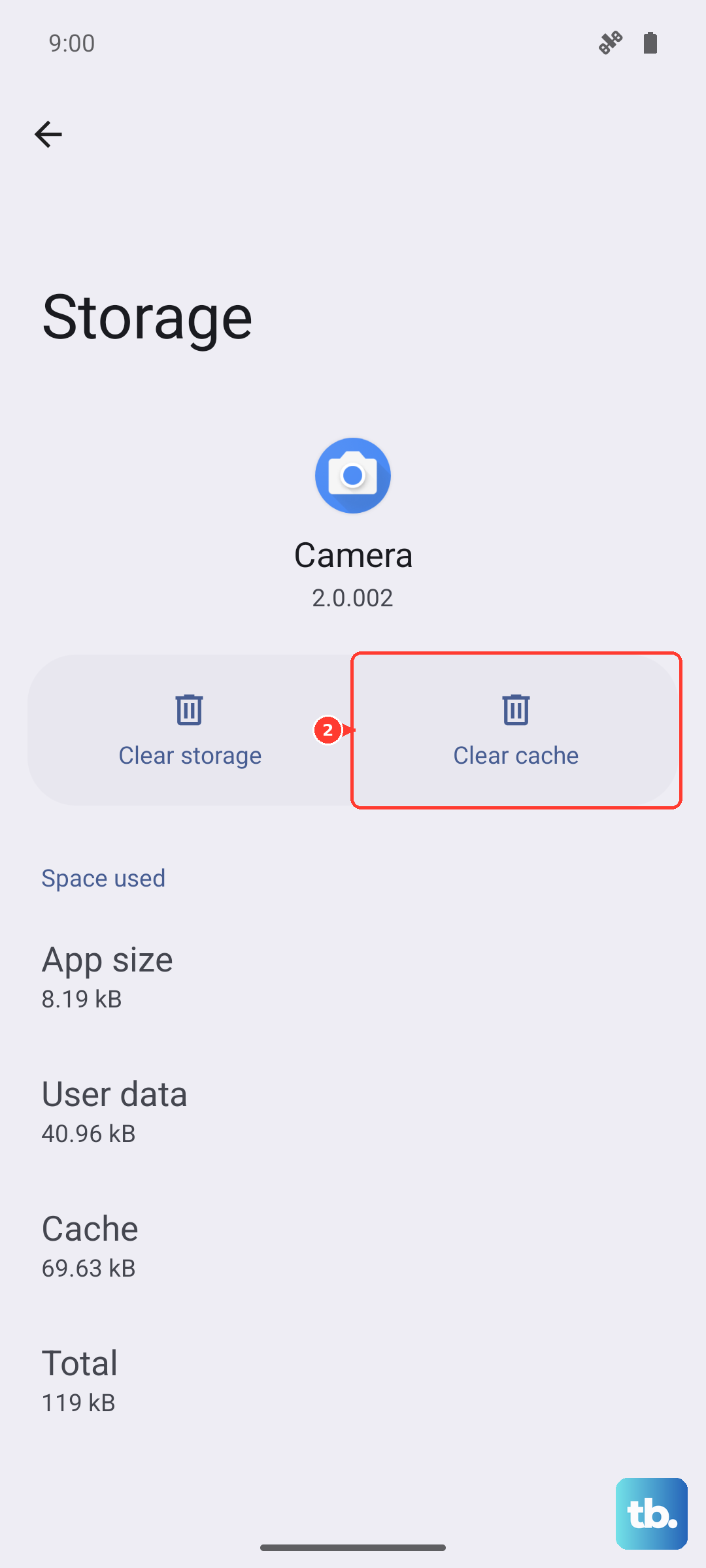
If Google Play downloads or updates fail, clear the Play Store cache and data: Settings > Apps & notifications > See all apps > Google Play Store > Storage > Clear Cache > Clear data. Reopen Google Play Store and try the download again.
For app errors tied to Google services, resync the clock from Settings > System > Date & Time.
Turn off Automatic Time Zone and Automatic Date & Time, set an incorrect date or time, then turn Automatic Time Zone and Automatic Date & Time back on.
4. Free storage before performance falls apart
Open Settings.
Tap Storage.
Select a category to see what is using space.
Go back to Storage, then tap Free up space.
Choose a category, tap Select files or Browse, select the files you no longer need, and tap Move files to Trash.
Crowded storage affects app behavior and day-to-day speed. Android gives you a built-in cleanup path, so use that before deleting apps at random.
On Samsung Galaxy, open Settings > Device care > Storage, choose a category such as Images, Videos, Audio files, or Documents, select files, then tap Delete or Delete all > Move to Trash.
To clean memory on Galaxy devices, use Settings > Device care > Memory > Clean now.
5. Repair Wi-Fi cellular and Bluetooth connections
Connection problems need a split test: restart the network hardware, reconnect the phone, then reset only the connection type that is failing.
Unplug the router and modem power cords for 15 seconds.
Plug them back in, check the cords and cables, then wait a few minutes for the lights to work correctly.
On the phone, open Settings > Network & internet > Internet.
Turn on Wi-Fi.
Tap Saved networks, select the network, and tap Forget.
Tap Add network, enter the network name and security details, then tap Save.
For Bluetooth, turn Bluetooth off and on, confirm the accessory is paired and connected, then restart both devices.
To re-pair, open Settings > Connected devices > Saved devices or Bluetooth, tap Settings beside the old device, tap Forget > Forget device, then use Pair new device.
If Bluetooth connects but audio fails, open Settings > Connected devices > Bluetooth or Saved devices, tap Settings beside the car or accessory, then turn on Media audio for music or Phone audio for calls.
On Samsung Galaxy, reset mobile data from Settings > General management > Reset > Reset mobile network settings > Reset settings > Reset.
For Wi-Fi and Bluetooth on Galaxy, use Settings > General management > Reset > Reset Wi-Fi and Bluetooth settings > Reset settings.
6. Restore notifications permissions and privacy controls
Restore app alerts: Open Settings > Notifications > App notifications, choose the app, then turn notifications on and adjust its categories.
Change an alert from the notification itself: Swipe down, touch and hold the notification, tap Settings, then change All notifications or the specific notification type.
Fix app permissions: Go to Settings > Apps > the app > Permissions, select the permission, then tap Allow or Don’t allow.
Use Permission manager: Open Settings > Security & Privacy > Privacy > Permission manager, choose a permission type, select the app, then choose the permission setting.
Check recent access: Open Settings > Security and Privacy or Privacy > Privacy dashboard, select a permission, then tap an app to update it.
Re-enable camera or microphone globally: Open Settings > Security & privacy > Privacy > Privacy controls, then turn on Camera access or Microphone access.
Missing alerts, broken camera access, silent microphones, and blocked location features often come from Android settings rather than the app itself.
On a phone with a Work Profile, the admin manages the work apps and work-profile settings. On a company-owned device, the admin can also block device-wide controls such as Wi-Fi, Bluetooth, tethering, mobile networks, unknown-source installs, location services, VPN changes, app installs or removals, system updates, and camera access.
When Android says the setting is controlled by an organization, contact that organization or admin.
7. Use Safe Mode when the problem keeps returning
Safe Mode isolates downloaded apps. If the problem disappears in Safe Mode, restart normally and remove recently downloaded apps one by one, restarting after each removal.
On Pixel 6 and later, press and hold Power and Volume Up, then touch and hold Power off or Restart and tap OK.
On Pixel 5a and earlier, press and hold Power, then tap Power off.
To start a Pixel in Safe Mode from power off, press Power.
When the animation starts, press and hold Volume down until the animation ends and the phone starts in Safe Mode.
The words Safe mode appear at the bottom of the screen.
On Samsung Galaxy, open Quick panel, tap the Power icon, touch and hold Power off until Safe mode appears, then tap Safe mode.
To exit, open Quick panel with two fingers, tap the Power icon, turn off or restart the device, then press Power to turn it on.
8. Handle charging screen and lost phone emergencies
Try computer charging first: Connect the phone to a powered-on computer with a working USB or USB-C cable.
Wait 10 to 15 minutes, disconnect and reconnect it within 10 seconds, then look for a battery icon.
When the battery icon appears, charge for at least 30 minutes, then press and hold Power until the phone restarts, tapping Restart if prompted.
Use the buttons when they are the only response: Keep the phone plugged in and press Volume down and Power for at least 20 seconds.
If a red light appears, charge for at least 30 minutes, press Power, then tap Restart.
If an Android robot or Start appears, use Volume down to select Power off, press Power, charge for 30 minutes, then press Power and tap Restart.
Check touch response: Touch the top left corner of the screen and slowly drag to the bottom right without lifting your finger.
If Quick Settings or notifications drag all the way down, that area of the screen is responding.
If the drag releases in the same spot repeatedly, note the spot and contact the manufacturer.
Find a lost phone: Use the Find Hub app on another Android device or open android.com/find in a browser, sign in, select the device, then use Play sound, Get directions, Find nearby, or Mark as lost.
To erase it, select the device, open Settings, then tap Factory reset [device name].
9. Reset the phone only after backing up
A factory reset erases apps and data and returns the phone to initial setup. Use it after restarts, updates, app fixes, storage cleanup, connection fixes, and Safe Mode do not solve the problem.
Turn on backup from Settings > Google services > All services, then choose Photos & videos, Device data, or both and turn Backup on.
For a manual backup, open Settings > Google > All services > Backup > Back up now.
Confirm that you know the Google Account, Google password, and screen lock for the phone.
Charge the phone to at least 70 percent and connect it to Wi-Fi or a mobile network.
On general Android and Pixel phones, open Settings > System > Reset options > Erase all data (factory reset).
On Samsung Galaxy, open Settings > General management > Reset > Factory data reset, review the information, tap Reset, then tap Delete all.
Keep the phone connected to a network during the reset, and enter your Samsung account password if a Samsung account is signed in, since the device logs out of that account before it erases.
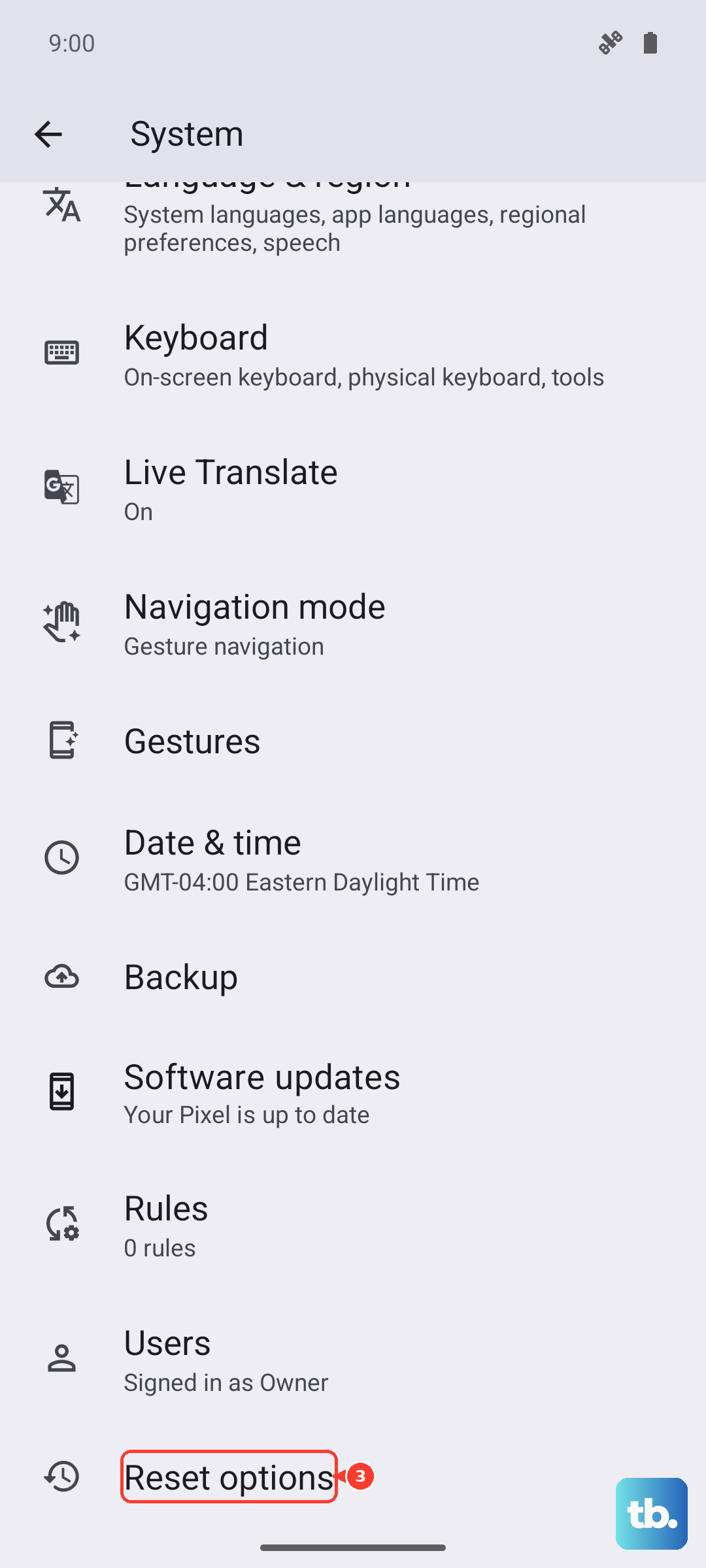
After the reset, sign in with the Google Account that contains the backup and follow the restore steps during first setup. Photos and videos are available in Google Photos, while other backed-up data restores during setup.
Frequently Asked Questions
How do I know if an Android app problem is caused by a downloaded app?
Start the phone in Safe Mode and use it normally. If the issue disappears, restart normally and remove recently downloaded apps one by one, restarting after each removal.
What should I do when Google Play Store will not update apps?
Update Google Play Store from Profile icon > Settings > About > Update Play Store. If downloads still fail, clear the Play Store cache and data from Android Settings.
Why does Bluetooth connect but music or calls still do not work?
Open the paired device settings and turn on Media audio for music or Phone audio for calls. Some cars and accessories do not support every Bluetooth audio profile.
Can I restore my Android data after a factory reset?
Yes. During first setup, sign in to the Google Account that contains the backup and follow the restore steps. A backup from a higher Android version cannot be restored onto a lower Android version.