An Android app freezes, and tapping the screen gets you nowhere. Start by closing the stuck app, then work through updates and cache clearing. The steps below cover individual app failures and a frozen phone, with fixes that erase data saved for later.
Close the app and open it again
A stalled app is the first thing to address when just one app stops responding.
With Android gesture navigation, swipe up from the bottom, hold, then release to see your recent apps.
Swipe up on the affected app’s preview to close it.
Open the app again from All Apps.
Try the action that stopped working.
If it remains unresponsive on a Pixel, open Settings > Apps > See all apps and select the app.
Tap Force stop > OK. Some essential services cannot be force-stopped.
Reopen the app. There’s no need to routinely close every app, since Android manages memory automatically.
Restart a phone that keeps freezing
Restart when the app stays unresponsive or several apps freeze. If the whole screen is stuck, use the hardware buttons for your phone.
On a Pixel 6 or later, including Fold, hold Power and Volume up for a few seconds to open the power menu.
Tap Restart.
On a Pixel 5a or earlier, hold Power for about 30 seconds or until it restarts.
On a responsive Samsung Galaxy, swipe down from the top right to open the Quick panel.
Tap the power icon.
Tap Restart, then tap Restart again if a confirmation screen appears.
If your Galaxy is frozen, hold Side and Volume down for more than seven seconds until it restarts.
For other Android phones with a frozen screen, Google’s general instructions specify holding Power for approximately 30 seconds.
If that does not restart your phone, use the manufacturer’s button combination for your model.
Bring your apps and system up to date
Open the Play Store.
Tap your profile picture.
Select Manage apps & device, also labeled Manage apps & devices on some versions.
Open Updates available.
Tap Update beside the affected app, or Update all to install all available app updates.
For apps obtained through Samsung’s store, open Galaxy Store > Menu > Updates.
Tap the app’s circular update arrow. Galaxy Store updates are separate from Play Store updates.
On a Pixel, open Settings > System > Software update.
Follow the prompts to install an available system update.
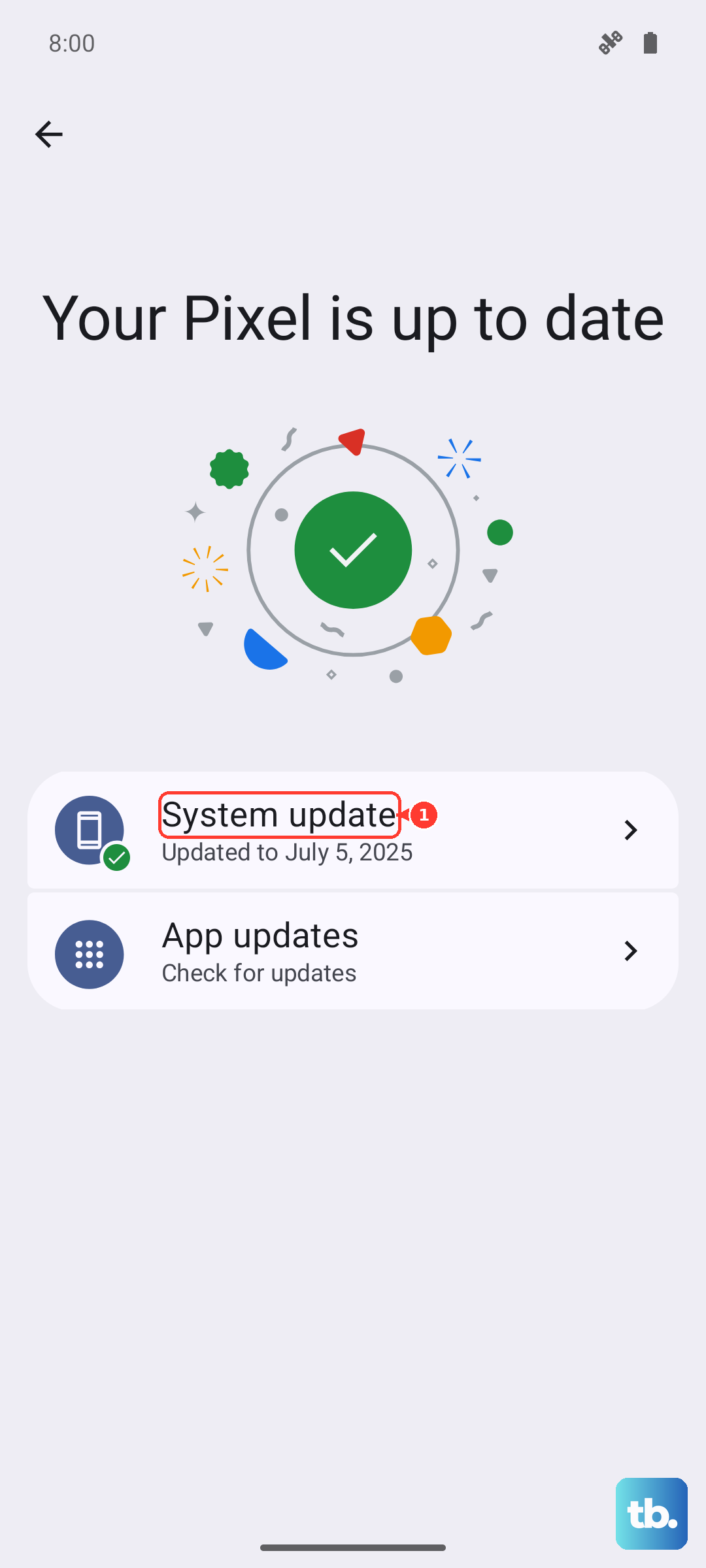
On a Galaxy running One UI 8.5 or later, open Settings > Software update > Check for updates. On One UI 8.0 or earlier, use Download and install instead.
Follow the update prompts. Carrier versions use different labels.
Check the Galaxy’s Google Play system update separately under Settings > About phone or About tablet > Software information > Google Play system update.
Install any available Google Play system update.
Test the affected app again after updating, before moving to the next fix.
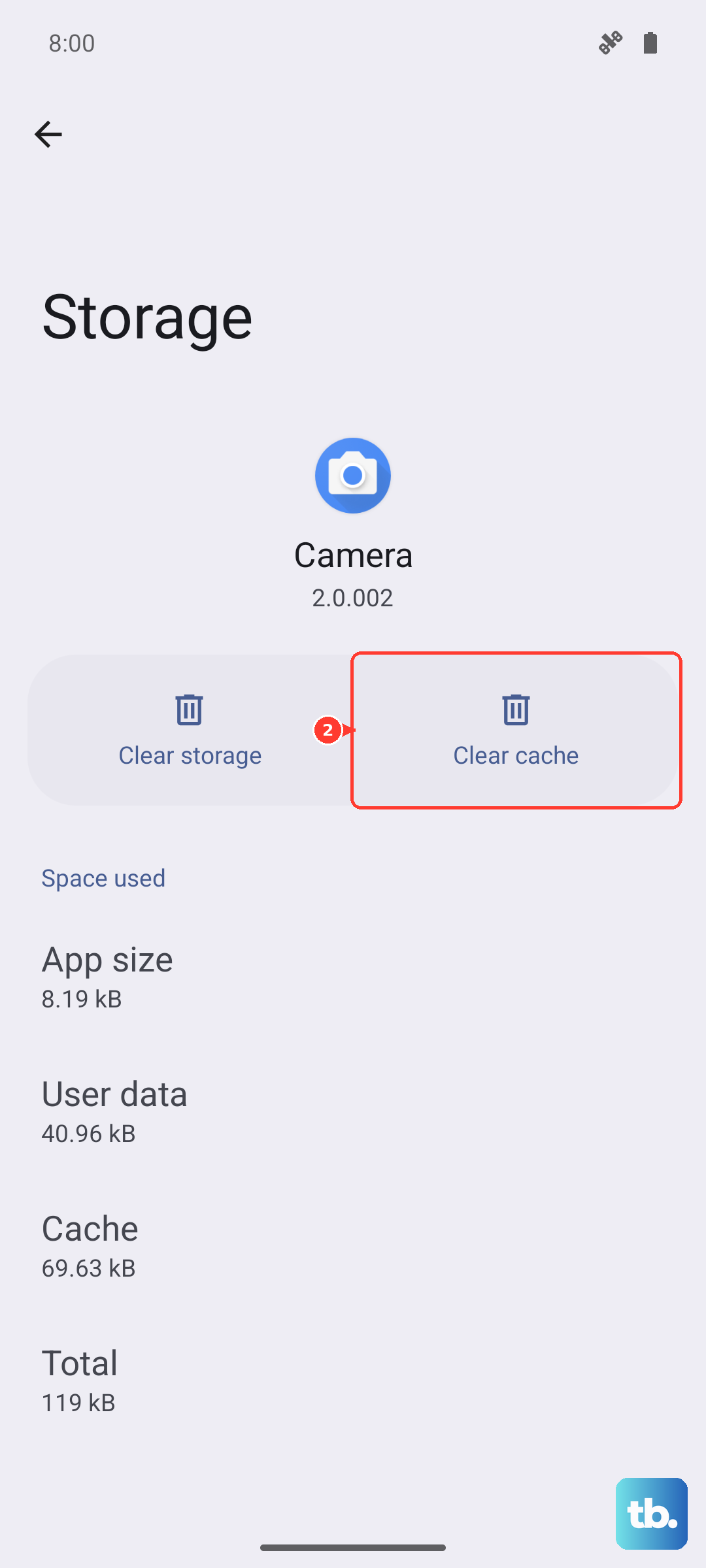
Clear the affected app’s cache
Clearing cache removes temporary files, so try this before erasing saved app data.
- 1.Open Settings > Apps.
- 2.On a Pixel, tap See all apps, then select the affected app. On a Galaxy, select it directly.
- 3.Open Storage & cache on Pixel or Storage on Galaxy.
- 4.Tap Clear cache.
- 5.Reopen the app and test it.
Check your connection and free up storage
Use the connection checks when an online app stalls while loading. Check storage too, since Google warns that problems can begin when less than 10% is free.
For an online app that keeps stalling, turn off Mobile data or your Wi-Fi router for a few minutes.
Restart the phone using the instructions above.
Turn mobile data or the router back on and reconnect.
Try the app again.
If it still stalls, connect to another network and retest.
To check device storage, open Settings > Storage.
If space is low, tap Free up space.
Choose a category, or use Browse if the category you need is absent.
Tap Select files.
Select files you no longer need.
Review your selection before tapping Move files to Trash. These steps apply to devices with Google’s storage controls; some require Android 14 or later.
Remove offline music or videos through the app that downloaded them. In Google TV, open Library, then next to the downloaded video, tap Downloaded > Remove.
In YouTube Music, open Library and select the downloaded item.
Tap More > Remove download.
Restore access to restricted or paused apps
Background restrictions and intentional pausing stop affected apps from connecting in the background or opening normally.
If a Pixel app loses background connectivity while Data Saver is on, open Settings > Network & internet > Data Saver > Unrestricted data.
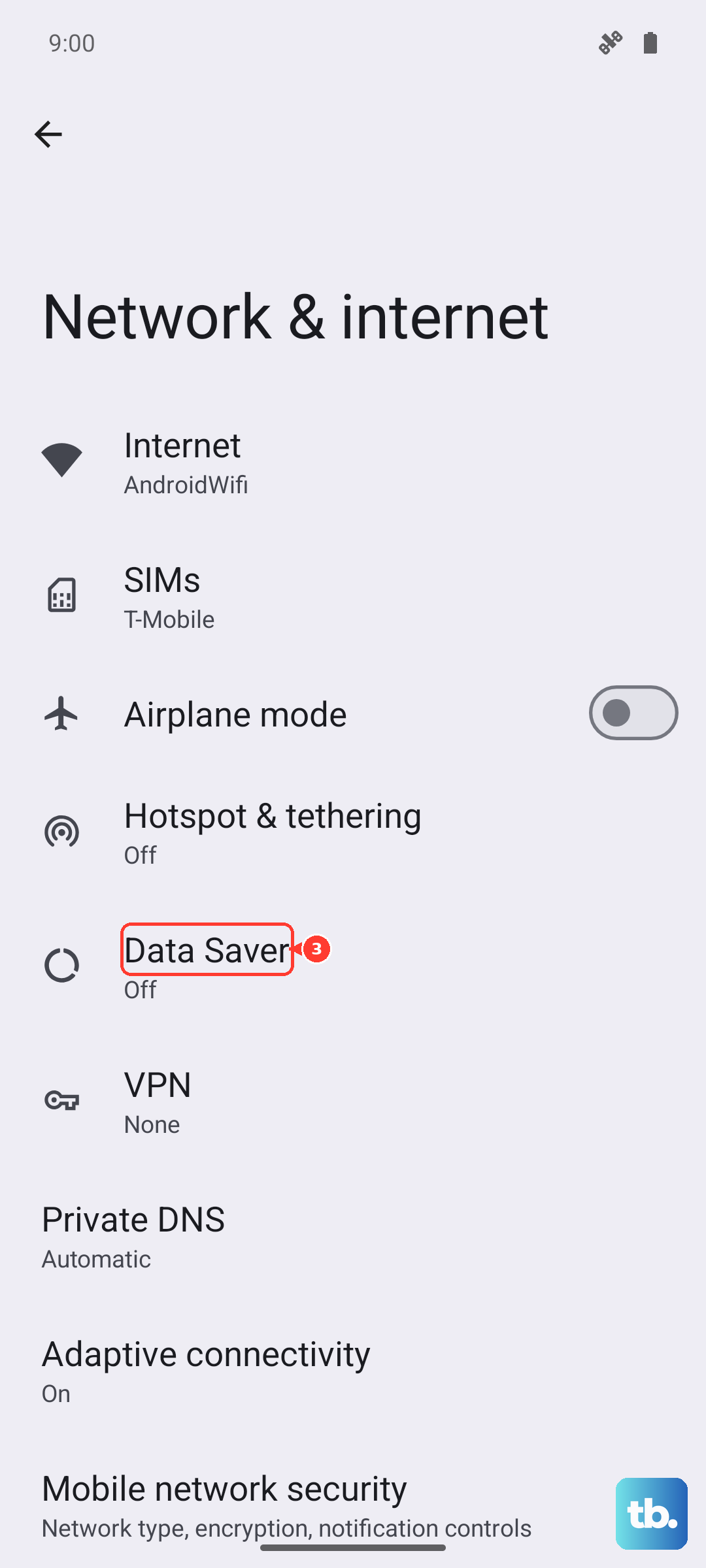
Enable the affected app. This setting addresses background networking; it does not repair an app frozen on your screen.
For background battery restrictions on Pixel, open Settings > Apps > See all apps > select the app > App battery usage > Allow background usage.
Review the restriction and use Google’s recommended setting, Optimized.
If Extreme Battery Saver has paused the app, tap its icon.
Choose Unpause temporarily.
For a lasting exception, open Settings > Battery > Battery Saver > Extreme Battery Saver > Essential apps.
Select the app you want to keep available.
When Focus mode is blocking access, open Settings > Digital Wellbeing > Focus mode.
Tap Turn off now or Take a break.
Reset or reinstall a persistently failing app
Back up important app data first, because clearing storage erases saved app data.
- 1.On Pixel, open Settings > Apps > See all apps > select the app > Storage & cache. On Galaxy, use Settings > Apps > select the app > Storage.
- 2.On Pixel, tap Clear storage or Clear data, then OK. On Galaxy, tap Clear data > Delete. Some Galaxy system apps do not allow data clearing.
- 3.Open the app and test it before proceeding.
- 4.If it still fails and is a removable Play Store app, open Play Store > profile icon > Manage apps & devices > Manage, select the app, and tap Uninstall.
- 5.To reinstall, return to Manage apps & device > Manage. Choose This device > Not installed, select the app, and tap Install. Reinstallation requires the app to remain available and compatible with your device.
Use safe mode to check for app interference
Safe mode helps identify interference from downloaded apps when the phone or its built-in apps keep freezing. It disables downloaded apps, so you cannot test a downloaded app’s normal operation while it is active.
On Pixel 6 or later, hold Power and Volume up to open the power menu. Touch and hold Power off or Restart, then tap OK.
On a Galaxy, hold Side and Volume down to display the power menu. Touch and hold Power off, then tap Safe mode.
If the symptoms disappear, restart normally and remove recently installed apps one at a time using the uninstall steps above. Test after each removal to identify the app causing the problem.
Get help before resetting the entire phone
If only one app still fails, open its listing in the Play Store.
Tap App support to contact the developer.
Describe the failure, include the exact error message, and explain the actions that reproduce it. Compatibility problems and app defects belong with the developer.
For persistent problems across the device, find your model under Settings > About phone > Model & hardware. On a Galaxy, the model information appears directly on the About phone screen.
Contact the manufacturer for troubleshooting specific to that model.
If broader troubleshooting fails, a factory reset is a last resort. It erases local apps and data.
Back up your data before proceeding.
Confirm that you have your account credentials.
On Pixel, open Settings > System > Reset options > Erase all data (factory reset).
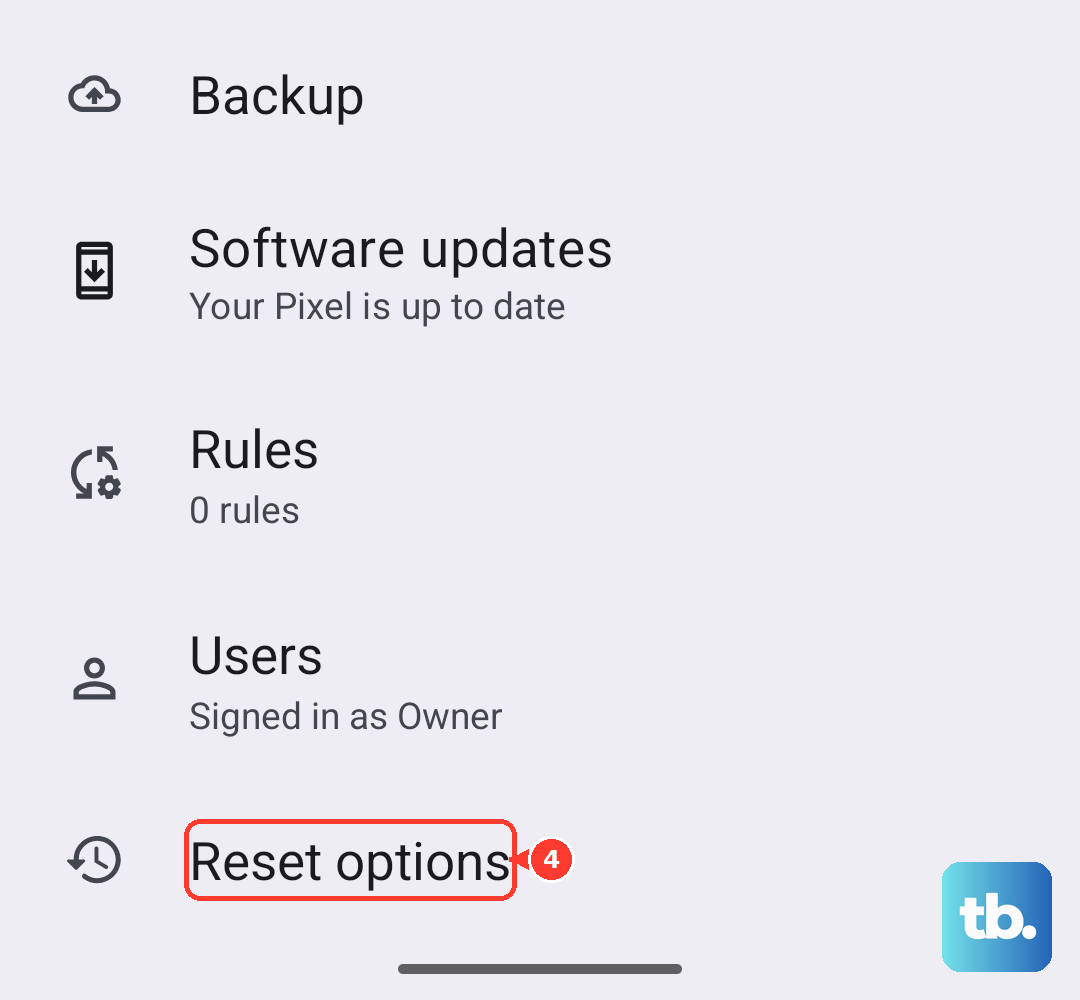
Tap Erase all data.
Enter your PIN if requested.
Confirm the reset.
On Galaxy, search Settings for Factory data reset.
Select the result, then choose Factory data reset > Reset.
Complete the authentication and reset prompts.
If device-wide freezing continues after the reset, seek manufacturer support. If only the same app fails after reinstalling it, return to its developer: resetting the phone does not fix a recurring defect in the app.
Frequently Asked Questions
Why is an app icon faded and the app will not open?
An archived app has a dimmed icon with an archiving icon on top. Tap that Home-screen icon to reinstall it. If the icon is dimmed without an archiving icon, the app’s timer may have run out: open Settings > Digital Wellbeing > App timers and delete that app’s timer. The original app store must remain installed, and the app must still be available. To prevent automatic archiving for that app, open Settings > Apps > select the app and turn off Manage app if unused.
How do I leave an unstable app beta?
Open Play Store > profile icon > Manage apps & devices > Beta and select the app. Under You’re a beta tester, tap Leave, then Leave again. Back up local progress and customizations before uninstalling the beta, then reinstall the public version.
Do I have to pay again to reinstall a purchased app?
No. Use the Google Account that originally purchased the app. It must still be available through Google Play and compatible with your device.