A blank preview, the wrong camera, or a blocked permission prompt can ruin a video call before anyone joins. The fastest way to test webcam video is to use the camera preview built into your device first, then check the browser or meeting app you plan to use. Start with the section for your device, then move to app-specific previews if the camera works in one place but not another.
1. Test your webcam in Windows settings
Open Start, go to Settings, select Bluetooth & devices, and choose Cameras. Under Connected cameras, select your camera, then watch for the live preview that Windows starts automatically.
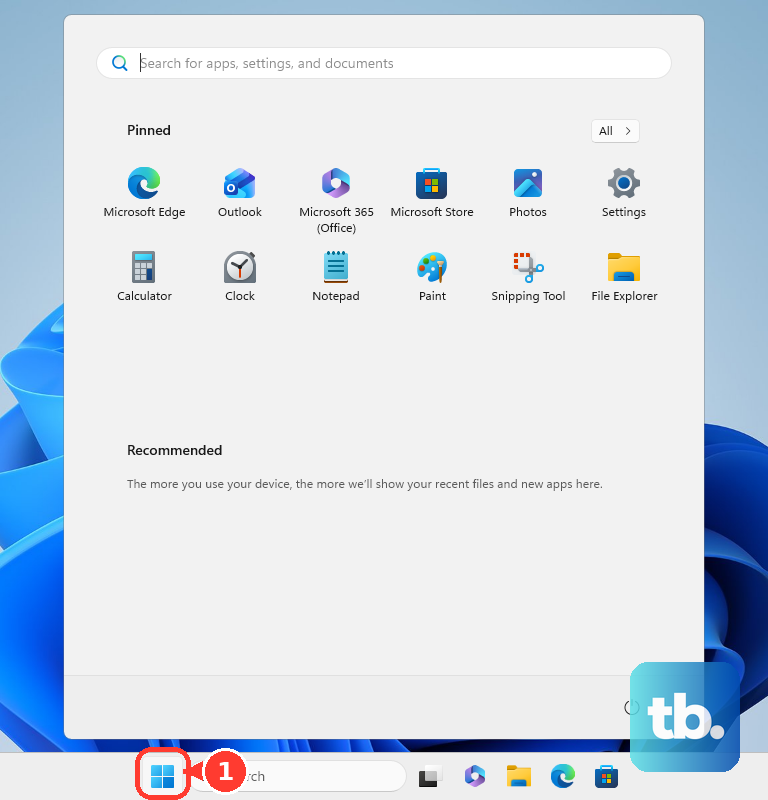
Use this Windows 11 settings check first when the camera appears in Windows, because it confirms the device before you open a calling app.
2. Use the Windows Camera app for a quick preview
This fixes the basic question of whether Windows can open the camera and show live video. Select Start, type Camera, and select Camera.
If Windows asks for access, select Yes, then confirm that live video appears in the app. If the Camera app is missing, install Windows Camera from the official Microsoft Store page.
On a device with more than one camera, select the Change camera icon at the top right of the Camera app.
3. Check camera permission on Windows
Open Start, go to Settings, select Privacy & security, and choose Camera. Turn Camera access on, then turn Let apps access your camera on.
After that, turn on access for the Microsoft Store app you want to use. For browsers and desktop apps, turn Let desktop apps access your camera on.
Desktop apps cannot be toggled one by one from this Windows page, so use the desktop apps switch when Chrome, Edge, Zoom, Teams, or another desktop app cannot see the camera.
4. Try the built-in Mac camera apps
Open FaceTime or Photo Booth, then wait for the camera to turn on automatically. Look for the green light beside the camera while it is active.
In Photo Booth, confirm that Take Photo or Record Video is available. For a photo test, click Picture or Four Pictures, then click Take Photo.
For a video test, click Video, click Record Video, then click Stop.
5. Pick the right camera on a Mac
Connect the camera you want to test. In FaceTime, open the Video menu and choose the camera.
In Photo Booth, open the Camera menu and choose the camera. In QuickTime Player, select File, then New Movie Recording, then use the down arrow to choose the camera.
For app access, open the Apple menu, then System Settings, then Privacy & Security, then Camera, and turn access on for the app. To use an iPhone as the Mac webcam, on the iPhone open Settings, then General, then AirPlay & Continuity, then turn Continuity Camera on; on the Mac, choose the iPhone as the camera in FaceTime, Photo Booth, or another camera app.
Built-in Apple apps such as FaceTime and Photo Booth already have camera access, so check third-party app permission when the Mac preview works but a specific app does not.
6. Test a Chromebook camera
Open Launcher, select Camera, and choose Photo, Portrait, Video, or Scan. For a video test, select Start recording.
On Chromebooks with multiple cameras, use Switch camera. Open the bottom-right time area, then Settings, then Privacy and security, then Privacy controls, and turn Camera access on.
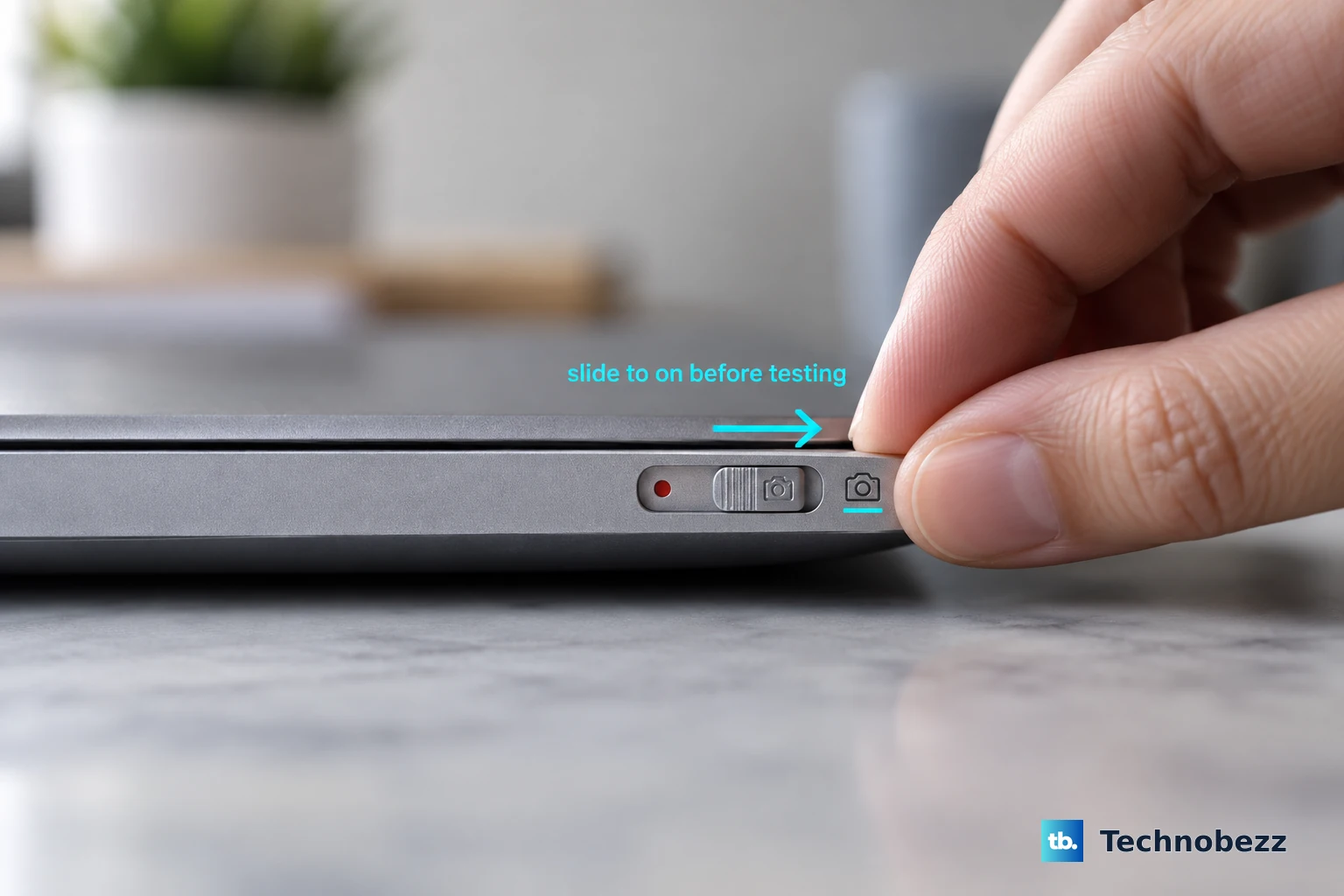
Next, grant camera permission to the apps that need it. On Chromebook models with a physical camera switch, turn it on before testing.
7. Allow camera access in your browser
For Chrome on desktop, open More > Settings > Privacy and security > Site settings > Permissions > Camera, choose the default camera, and review the allowed and blocked sites. When a site asks for camera access, choose Allow while visiting the site, Allow this time, or Never allow; if the operating system blocks Chrome, select Open settings, turn camera access on in computer settings, then quit or restart Chrome when prompted.
In Firefox, manage saved camera choices from Menu > Settings > Privacy & Security > Permissions > Camera > Settings.... In Edge, allow the camera prompt on the site, or block a site later from Settings and more > Settings > Privacy, search, and services > Site Permissions > All sites.
8. Preview the webcam in your video calling app
In Google Meet, open meet.google.com, then Settings, then Video, then Camera. A working camera shows a video feed to the right of Video, then select Done.
In Google Meet during a meeting, open meet.google.com, join the meeting, select Camera in the address bar, turn Camera on, then choose Allow on every visit.
In Zoom, sign in to the desktop app, select your profile picture, then Settings, then Video & effects. The selected camera shows a preview, and you can choose another camera.
To use Zoom's test meeting, open zoom.us/test, select Join, then follow the prompts to test video, audio, and microphone.
In Microsoft Teams, open Settings and more, then Settings, then Devices, then Video settings, then Camera. Select the camera and check the preview.
In Microsoft Teams before joining a meeting, select Open device settings, then Video Settings, then choose the camera options you want.
In Discord, open the User Settings cog, then Voice & Video, choose a camera from the camera options dropdown, then select Test Video.
In Slack, select your profile picture in the sidebar, then Preferences, then Audio & video, then choose a camera under Camera. In a Slack huddle, click the headphones icon, then click the camera icon at the bottom of the huddle window to turn video on and confirm self-view.
In Webex App, open Settings, then Video, then choose the camera from the Camera drop-down list. In a Webex test meeting or pre-join window, use Start video or Stop video, allow camera access if prompted, then join or leave after checking the preview.
Test inside the app you will actually use for the call, because each app can have its own selected camera and permission state.
9. Fix a webcam that still fails the test
This fixes common Windows and external webcam failures when the camera is connected but still does not appear or open. For an external USB webcam, confirm that the cable is securely connected and that no cord is loose.
Test the external camera on a different device to rule out a hardware problem. On Windows 11, start with the automated camera troubleshooter: open the Get Help app, enter camera troubleshooter in the search bar, then follow the steps provided.
If Get Help does not fix it, open Start, then Settings, then System, then Troubleshoot, then Other troubleshooters, then Camera, then select Run.
To re-enable a disabled Windows camera, open Start, then Settings, then Bluetooth & devices, then Cameras. Under Disabled cameras, select the camera, then select Enable.
To disable a Windows camera, open Start, then Settings, then Bluetooth & devices, then Cameras. Under Connected cameras, select the camera, select Disable, then select Yes.
For a Windows driver failure, open Start, then Device Manager, then Cameras, right-click the camera, select Uninstall device, select Uninstall, then restart the PC. After restarting, return to Device Manager, right-click the camera, select Update driver, then Search automatically for drivers.
If settings are grayed out on a work or school Windows device, the administrator can control camera access through Windows camera policy. If cameras are unavailable on a managed Mac, device management can restrict Use of cameras.
Skip older consumer Skype webcam-test instructions, because consumer Skype retired on May 5, 2025; use Teams, Zoom, Meet, Webex, Slack, Discord, or the built-in camera app instead.
Frequently Asked Questions
What is the safest way to test webcam video online?
Use the browser's own camera permission controls or the official test and preview tools in Zoom, Google Meet, Teams, Webex, Slack, or Discord. Random third-party webcam test sites are not needed for the checks covered here.
Why does my webcam work in one app but not another?
Each app or website can have its own camera permission and selected camera. Check the operating system permission first, then open the app's own video or device settings and choose the correct camera.
How do I know when my webcam is active?
On Windows, use the hardware camera light when the device has one or the Windows camera on or off notification. On a Mac, the green light beside the camera glows while the camera is active.
Can I test camera permissions on iPhone or iPad?
Yes. On iPhone or iPad, open Settings, then Privacy & Security, then Camera, and turn camera access on or off for each app. In Chrome for iPhone or iPad, allow camera access when the site prompts, or change access later from the camera or microphone control at the left of the address bar.
Can I test my webcam in Zoom without joining a real meeting?
Yes. Open zoom.us/test, select Join, then follow the prompts to test video, audio, and microphone. You can also sign in to the Zoom desktop app and check Settings, then Video & effects.