A broken camera driver can make your webcam vanish, fail in the Camera app, or disappear from Teams and Zoom. Start with Windows Update and Device Manager, then use official manufacturer downloads when Windows cannot repair it. The goal is simple: get the camera detected again without risky driver sites or outdated tools.
Install Windows camera driver updates first
Start here because Windows Update delivers recommended hardware driver updates.
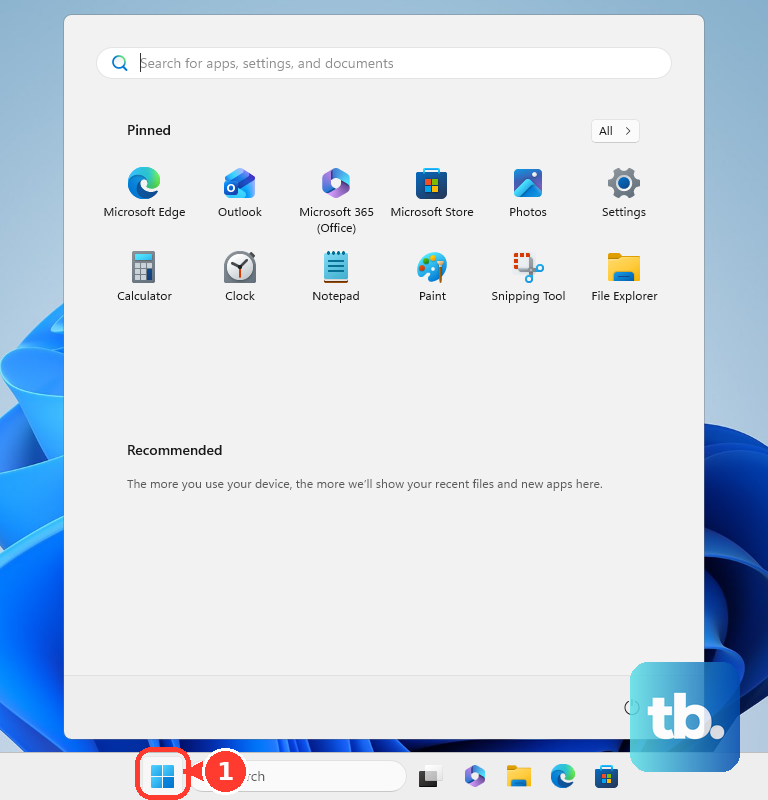
- 1.On Windows 11, open Start, then Settings, then Windows Update.
- 2.Select Check for updates and install anything Windows offers.
- 3.Restart the PC when Windows asks.
- 4.Open the Camera app, Teams, Zoom, or your video-call app and test the webcam.
Look for optional driver updates
Some camera drivers sit under optional updates instead of installing automatically. Check there before downloading a driver by hand.
On Windows 11, open Start, then Settings, then Windows Update, then Advanced options, then Optional updates, then Driver updates. Select the camera or webcam driver when Windows offers one, install it, and restart if prompted.
On Windows 10 the route is different. Open Start, then Settings, then Update & Security, then Windows Update, and select Check for updates. If View optional updates appears, select it, open Driver updates, tick the camera or webcam driver, and choose Download and install. Microsoft ended Windows 10 support on October 14, 2025, but vendors still document this path for supported Windows 10 PCs.
If optional updates do not show a camera driver, use Device Manager next so Windows can search for the driver tied to the camera already installed in the PC.
Update the camera driver in Device Manager
Use this when Windows Update did not fix the webcam, but the camera still appears in Windows. Device Manager can ask Windows to find an updated driver for that exact device.
Right-click Start and open Device Manager.
Expand Cameras, then right-click your camera.
Select Update driver, then choose Search automatically for drivers. Microsoft labels the same choice Search automatically for updated driver software on another current Device Manager page. The wording varies by Microsoft page and Windows build; use whichever of those two labels appears.
Let Windows finish, then restart if it installs a driver.
Undo or reinstall a bad driver
This fixes camera failures that started right after a driver or Windows update.
Right-click Start and open Device Manager.
Right-click or press and hold your camera, then open Properties.
Open the Driver tab and select Roll Back Driver.
Choose Yes, then restart the PC.
When Roll Back Driver is unavailable, Windows has no previous driver to restore.
Return to the Driver tab and select Uninstall Device.
Check Delete the driver software for this device, select OK, then use Action and Scan for hardware changes.
Restart the PC after the scan, then test the camera again.
Download the camera driver from the official maker
Use the official download path when Windows Update and Device Manager do not supply a working camera driver.
- 1.Right-click Start, open Device Manager, expand Cameras, and note the camera, PC, or webcam model.
- 2.Go to the official support or downloads page for the exact PC or webcam maker.
- 3.Choose your exact model and Windows version when the support page asks.
- 4.Download the relevant camera, webcam, chipset, firmware, or original driver package offered for that model.
- 5.Run the vendor installer and restart when prompted.
Use your PC maker’s update app
This applies when you have a Dell, HP, Lenovo, ASUS, Surface, or supported Logitech webcam. Vendor tools can find model-specific driver, firmware, BIOS, or camera-related updates that a generic search misses.
On Dell PCs, use Dell SupportAssist to run an optimization or driver scan. When pending driver updates appear, select Update under Get Drivers & Downloads.
Dell also supports its website path: open Dell Support, then Drivers & Downloads, enter the Service Tag or model, or select Detect this PC. Set the operating system, search for camera, webcam, or camera firmware when needed, then download and install the applicable package.
On HP PCs, open HP Support Assistant, then Updates, let it scan, and install available updates for the PC, including BIOS, chipset, and camera or webcam-related updates. HP’s driver page can place webcam files under broader driver categories depending on the model.
On Lenovo PCs, open Lenovo Vantage, then System Update, then Check for Updates, and install all updates or selected updates. Lenovo’s support site also lets you enter or detect the model, open Drivers & Software or Downloads, and search for Camera or Integrated Camera.
On ASUS PCs, open MyASUS and go straight to System Update, let it list what needs updating, tick the items you want, and choose Update Selected Items. ASUS folded the old ASUS Live Update app into MyASUS, and if no System Update tab appears, your device does not support it, so use the ASUS support site instead. ASUS also offers a support-site path through Support, then Driver & Tools, then Driver & Utility, then Driver & Tools for supported models and operating systems.
For Microsoft Surface, use the official Surface drivers and firmware page for your exact Surface model, install the package, and restart. Do not uninstall camera drivers on Surface Pro X because Microsoft says restoring them requires a full system reset.
For compatible Logitech webcams, use Logi Tune or Logitech’s own software pages instead of third-party driver portals. Check the requirements before you download: Logi Tune Desktop needs Windows 11 x64 23H2 or later, or Windows on ARM 11 24H2 or later, so on Windows 10 you want the official Logitech page for your exact model instead. Many Logitech webcams are plug-and-play and use Windows Update drivers; Logi Tune can show firmware information for supported business webcams under My Devices, the webcam, and the Info Button.
Fix access settings before blaming the driver
Windows can block camera access even when the driver is installed and working.
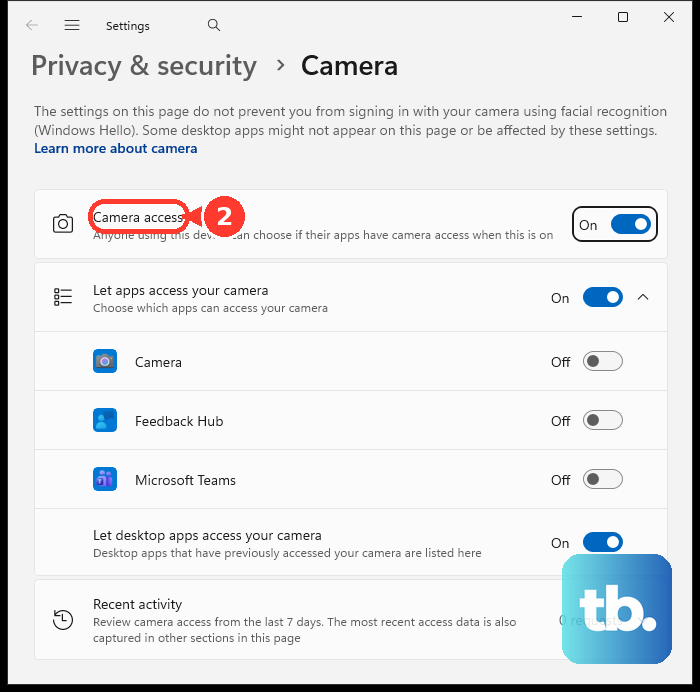
On Windows 11, open Start, then Settings, then Privacy & security, then Camera, and turn on Camera access, Let apps access your camera, the individual Microsoft Store app toggle, and Let desktop apps access your camera.
For Windows 11 camera management, go to Start, then Settings, then Bluetooth & devices, then Cameras, and select the connected camera to view or manage its settings.
On Windows 10, open Start, then Settings, then Privacy, then Camera. Turn on Camera access for this device, Allow apps to access your camera, the needed app toggles, and Allow desktop apps to access your camera. If the Windows Camera app itself fails after the driver is installed, reset the app. On Windows 10, open Start, then Settings, then Apps, then Apps & features, select Camera, then Advanced options, then Reset, and choose Reset again. On Windows 11, the same fix lives under Start, then Settings, then Apps, then Installed apps, where you search Camera, select the three dots next to Camera, then Advanced options, then Reset, and choose Reset again.
Check USB, privacy shutters, and blocked apps
The most common non-driver cause is a camera being blocked by hardware, a USB connection, privacy settings, or another app already using it.
For an external webcam, disconnect it, wait 10 seconds, and plug it into a different USB port.
For a monitor-integrated webcam, confirm that the USB upstream cable is connected between the monitor and the PC.
Right-click Start, open Device Manager, choose View, then Show hidden devices, and expand Imaging devices or Cameras. When a grayed-out camera appears, right-click it and select Enable device; when it is missing, use Action, then Scan for hardware changes.
Check the laptop for a physical privacy slider, shutter, or camera key. ASUS documents F10 or Fn + F10 on supported models, Dell notes that some models use an Fn plus function-key shortcut, and HP documents webcam privacy switches or shutter keys on selected notebooks.
Close apps that may already be using the webcam. Right-click the taskbar, open Task Manager, right-click video apps or browser sessions using the camera, and select End Task.
For USB-connected webcams, open Device Manager, expand Universal Serial Bus controllers, right-click each USB host controller, choose Update driver, then Search automatically for drivers, and restart.
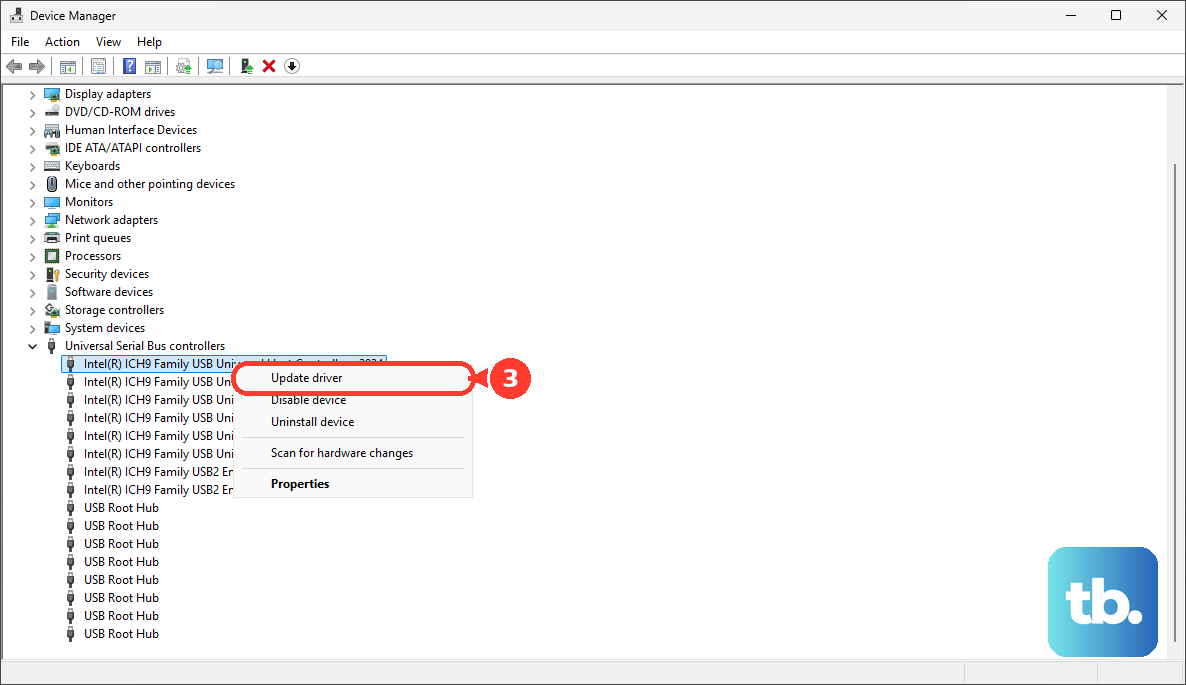
If the webcam broke after a USB driver update, use the controller’s Properties, then Driver, then Roll Back Driver, choose a reason, select Yes, and restart.
When video calls still cannot see the camera
Browser and meeting-app permissions can make a working camera look broken. In Microsoft Edge, open Settings and more, then Settings, then Cookies and site permissions, then Camera, and keep Ask before accessing on, or change the site’s camera setting under Site Permissions and All sites.
In Chrome, open More, then Settings, then Privacy and security, then Site settings, then Camera. Select the default camera from the drop-down, review allowed and blocked sites, delete exceptions, or change a blocked site to Allow.
In Firefox, open the menu, then Settings, then Privacy & Security, then Permissions, then Camera, then Settings.... Choose Allow or Block for the site and select Save Changes.
In Teams, open Settings and more, then Settings, then Devices, and use Make a test call. In Zoom, click the arrow next to Start / Stop Video, open Video Settings, and choose the right camera from the Camera drop-down.
On a work or school PC, your organization may block camera access through Windows, browser, or app policy. Ask your administrator to confirm that camera devices and camera app access are allowed for your device and account.
Older guides may point you to third-party driver download portals. Use Windows Update, Device Manager, official PC or webcam support pages, or the vendor’s current update app instead. Logitech Camera Settings is a different case: Logitech still publishes it as the official webcam-settings download for models such as the C922 Pro Stream Webcam, Windows 10 included, so it is not a legacy path to avoid. Open the official Logitech page for your exact model and use whichever tool Logitech lists there.
If video calls still fail after browser and app permissions are correct, return to the official manufacturer download path and install the newest model-specific camera, firmware, chipset, or BIOS update offered for your PC or webcam.
Frequently Asked Questions
What is the safest way to fix a missing camera driver on Windows?
Use Windows Update first, then optional driver updates, then Device Manager. If Windows still cannot repair it, download the driver from the official PC or webcam support page for your exact model.
Should I use a third-party camera driver download site?
No. The verified repair paths are Windows Update, Device Manager, official manufacturer support pages, and current vendor tools such as Dell SupportAssist, HP Support Assistant, Lenovo Vantage, MyASUS, Surface drivers and firmware, or Logi Tune for supported Logitech webcams.
Why is Roll Back Driver grayed out for my webcam?
Windows has no previous camera driver stored for that device. Use Uninstall Device and Scan for hardware changes, or install the official manufacturer driver for your exact PC or webcam model.
Can Windows privacy settings block a working camera driver?
Yes. Camera access, app camera access, individual Store app toggles, desktop app access, browser site permissions, a hardware shutter, or another app using the camera can stop the webcam from appearing in apps.
Do USB webcams need separate Windows drivers?
Many USB webcams use Windows Update or the generic USB Video Device driver. If a vendor driver breaks, Device Manager can switch supported USB webcams to USB Video Device, and official vendor tools can handle model-specific firmware or settings.