

To cast your phone to a TV, put both on the same Wi-Fi network, then tap Screen Mirroring in Control Center on an iPhone, or the Cast button in an app on Android for a Chromecast or Google TV. With no Wi-Fi, a supported HDMI adapter does the job. On an iPhone, pick an AirPlay TV or Apple TV from the list, and on a Galaxy, Smart View mirrors the screen to a Samsung TV.
The method matters more than the phone. On our iPhone 17 Pro with iOS 26.6, the Screen Mirroring list showed our Samsung Odyssey G9 smart monitor, which has AirPlay built in. That list is for AirPlay screens, so for a Chromecast you use the Cast button inside an app instead.
The short version
- Match the method: AirPlay for an iPhone, Google Cast or Smart View for Android, an HDMI adapter when there is no Wi-Fi.
- Prepare the TV: put it on the same Wi-Fi network as the phone and switch on its AirPlay or mirroring setting.
- One video or everything: an app's Cast or AirPlay button sends one video, while Screen Mirroring sends your whole screen.
- Codes and privacy: type a code only when the TV shows one, and turn on Do Not Disturb before you mirror.
- Black picture: some apps, Netflix included, block mirroring, so open that app on the TV instead.
Which casting method works with your TV
Every TV or streaming stick listens for one or more methods, and the phone must speak one of them. The table pairs common phones and TVs with the control to use. Sending one video uses the app's own Cast or AirPlay button, while mirroring copies everything your phone shows.
| Phone and TV | Send one video | Mirror the whole screen | What the TV needs |
|---|---|---|---|
| iPhone and an AirPlay TV or Apple TV | The AirPlay button in the app, if the app supports it | Control Center > Screen Mirroring | AirPlay on, the same Wi-Fi, a code if the TV shows one |
| iPhone and a Chromecast or Google TV Streamer | The Cast button in apps that support Google Cast | Not from Google Home, whose Cast my screen is for Android | The same Wi-Fi. On the iPhone, Local Network permission for the app |
| Android and a Chromecast or Google TV | The Cast button in the app | Google Home > Cast my screen, on Android 8.0 or later | The same Wi-Fi, Google Cast is on after Google TV setup |
| Samsung Galaxy and a Samsung TV | The app's own TV button, if the app supports that TV | Quick settings > Smart View | The same Wi-Fi, then Allow or a PIN on the TV |
| iPhone and a Roku with AirPlay | The AirPlay button in the app | Control Center > Screen Mirroring | Settings > Apple AirPlay and HomeKit, AirPlay set to On |
| Android and a Roku | The app's own TV button, if the app supports that TV | The phone's mirroring control, such as Smart View | Allow the request on the Roku, Pixel phones are left off Roku's list |
| Android and a Fire TV | The app's own TV button, if the app supports that TV | The phone's screen mirroring control, if it supports Miracast | Display & Sounds > Enable Display Mirroring |
| Any phone with video output and an HDMI TV | Works unless the app's copy protection blocks it | The cable shows the phone on the TV | The right adapter and the TV set to that HDMI input |
Cast one video or mirror the whole screen
Casting and mirroring are often used as if they meant the same thing, but they send different things. An app's Cast or AirPlay button puts that one video, song or photo on the TV. Mirroring copies your entire screen, and Samsung puts it plainly: whenever you do something on your phone, like opening a different app, that action shows on the other screen as well.
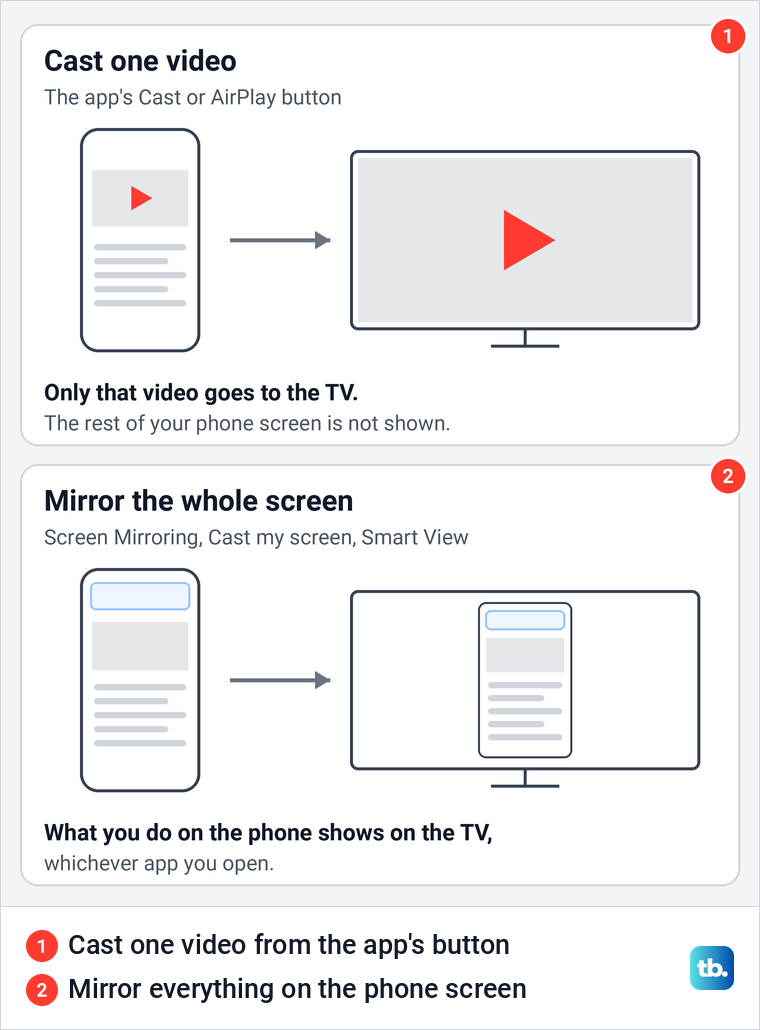
Pick by what you want to show. For a film, a YouTube video or music, the app's own button is the cleaner choice, because only that item goes to the TV. Mirroring suits apps with no Cast or AirPlay button, a game, a slideshow from your camera roll, or showing someone how to do something on the phone.
Get the TV ready before you look on the phone
Two things decide whether the TV shows up at all. Apple, Google and Samsung each say the phone must be on the same Wi-Fi network as the TV or streaming device. The TV's own receiver setting must also be on, and its name and place in the menus differ by brand and model.
On our Samsung Odyssey G9 smart monitor, the AirPlay entry sits one level down. All Settings lists a Connections category, subtitled Network and Bluetooth, and near the bottom of Connections is Apple AirPlay Settings. Samsung says the entry sits under General on older TVs and under Connection on 2023 and newer models. If a Samsung TV has no Apple AirPlay Settings entry at all, Samsung says that model does not support AirPlay.
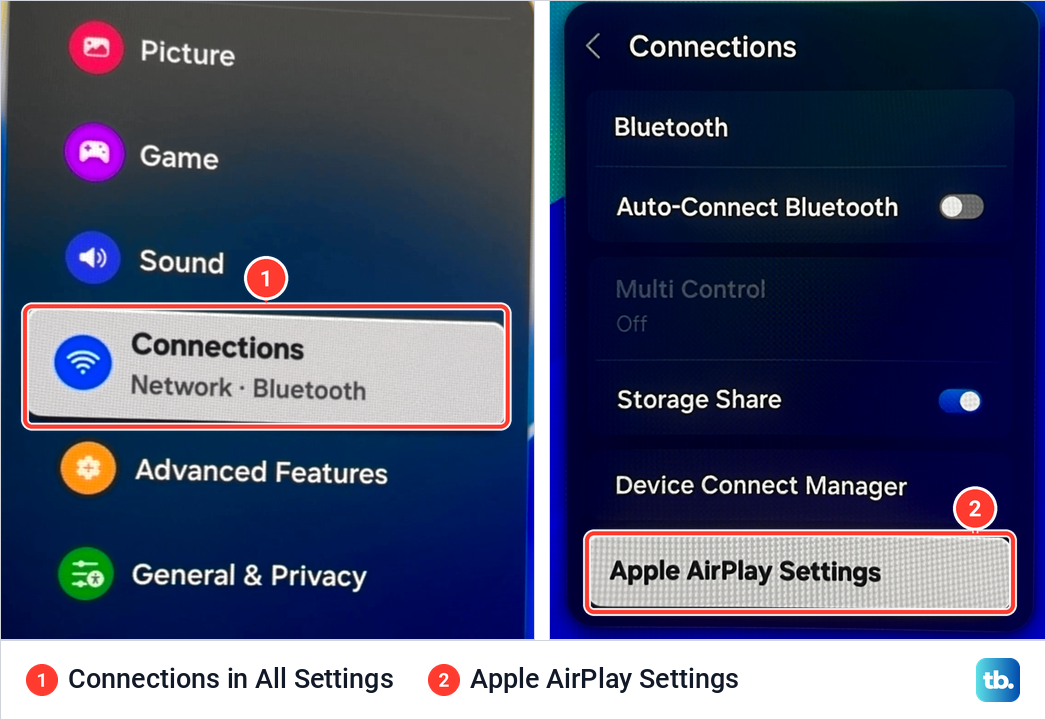
Inside that entry, Samsung says you find an AirPlay option that turns the feature on and off, and a Require Code option that asks for a passcode the first time you connect an iOS device or every time. If the TV cannot join your Wi-Fi in the first place, fix a Samsung TV Wi-Fi connection before you look for it on the phone.
Other receivers have their own switch. On an Apple TV, Apple puts it under Settings > AirPlay and HomeKit, where you choose who can stream: Everyone, Anyone on the Same Network or Only People Sharing This Home, with a separate Require Password option. On a Roku, Roku says to open Settings > Apple AirPlay and HomeKit and make sure AirPlay is set to On, and our guide shows how to turn on AirPlay on a Roku TV step by step.
A Google TV or Android TV needs nothing extra, because Google says Google Cast is turned on automatically when you set one up. On other TVs that work with Cast, Google says you turn the feature on during the TV's setup or when you start casting, and the steps vary by brand. A Fire TV has its own mirroring switch, covered in the Roku and Fire TV section below.
Mirror an iPhone to an AirPlay TV or Apple TV
Swipe down from the top-right corner of the screen to open Control Center, then tap Screen Mirroring, the button with two overlapping rectangles. On our iPhone 17 Pro with iOS 26.6 it sat in the bottom row, next to Scan Code. On an iPhone with a Home button, Apple says to swipe up from the bottom edge of the screen instead.
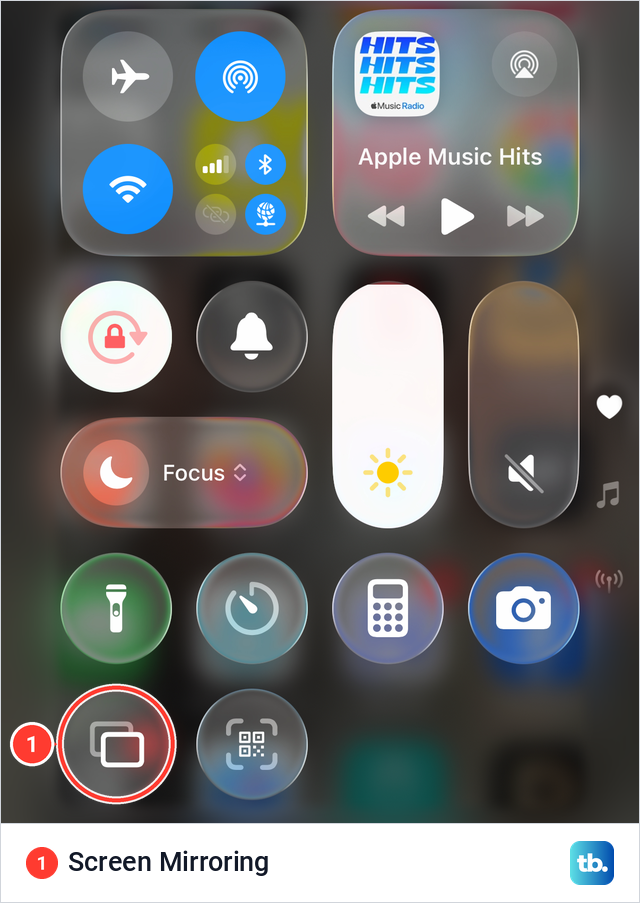
The list that opens shows the AirPlay screens your iPhone can find. Ours showed one, our Samsung Odyssey G9 smart monitor. Tap your TV, and if an AirPlay passcode appears on the TV, Apple says to enter it on the iPhone.
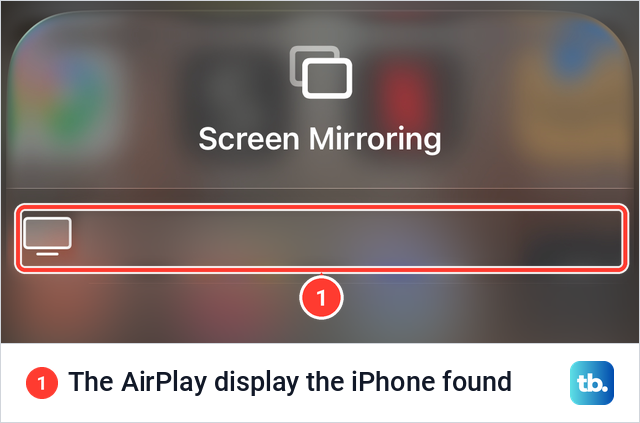
To stop, Apple's steps are to open Control Center, tap Screen Mirroring, then tap Stop Mirroring. For every AirPlay menu and cable option on iPhone, see how to mirror an iPhone to a TV.
Apple also says you can't record your screen and use screen mirroring at the same time. If you need to record your iPhone screen, stop mirroring first and start the recording afterwards.
Send one video or photo from an iPhone with AirPlay
For a single video, Apple's steps are to find the video, tap the AirPlay button in the app and choose your TV. The TV then plays that video instead of a copy of your screen. To stop, tap the AirPlay button in the same app and choose your iPhone from the list.
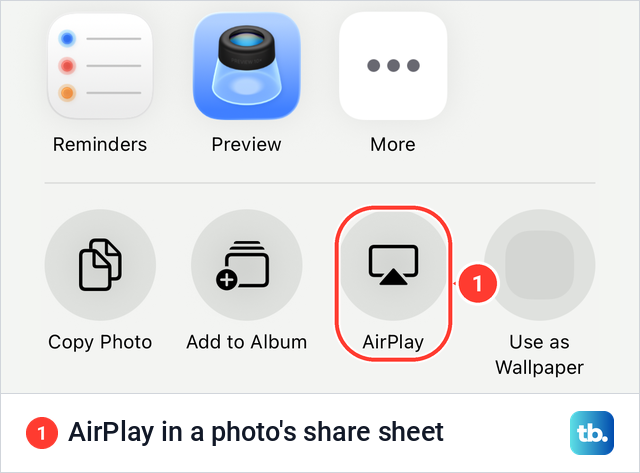
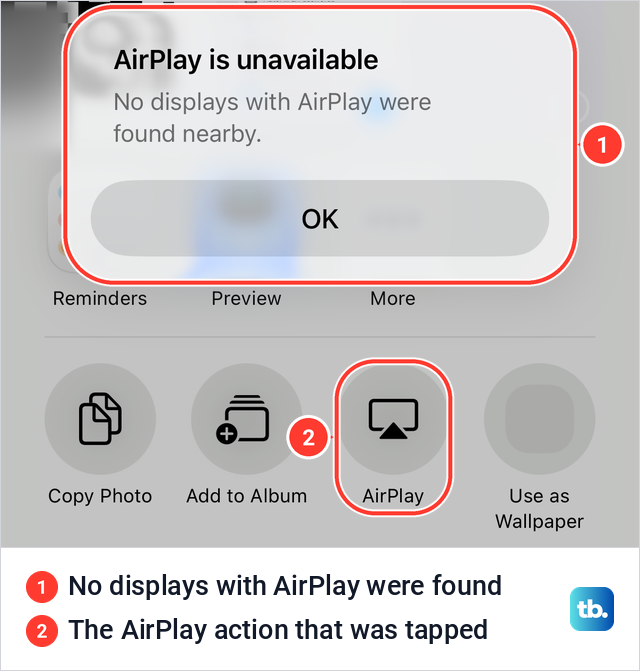
Photos has an AirPlay action of its own. On iOS 26.5 we opened a picture, tapped Share, and found AirPlay in the row of actions next to Copy Photo and Add to Album. Apple warns that some video apps might not support AirPlay, and if yours has no AirPlay button, its advice is to check whether the app is available on your Apple TV.
Your iPhone can also start AirPlay by itself. On our iPhone 17 Pro, Settings > General > AirPlay & Continuity had Automatically AirPlay set to Automatic, with Never and Ask as the other choices. The note under them says the iPhone can ask to AirPlay, or connect automatically to nearby speakers and TVs when you play content from apps you regularly use with AirPlay.
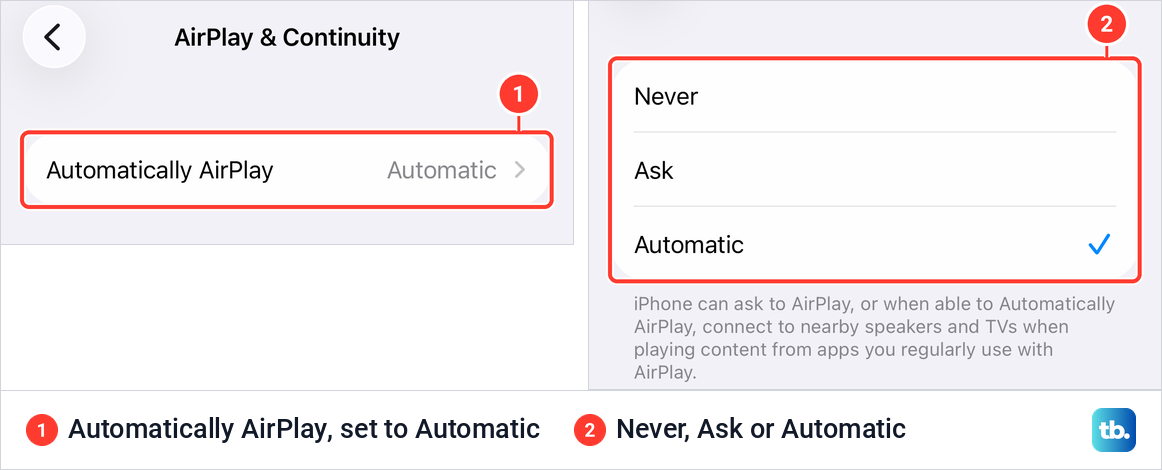
Choose Ask if videos keep jumping to a TV on their own, or Never to stop the automatic connections. This page only governs your iPhone. It is not where AirPlay is turned on for the TV, which lives in the TV's own settings.
Use an iPhone with a Chromecast or Google TV Streamer
For a Chromecast or Google TV Streamer, Google's iPhone route runs through apps that support Google Cast, so you cast one app at a time. Google's steps are to join the same Wi-Fi network as the Chromecast, open an app that supports Google Cast, tap the Cast button and choose the device. The Cast button turns solid once you are connected.
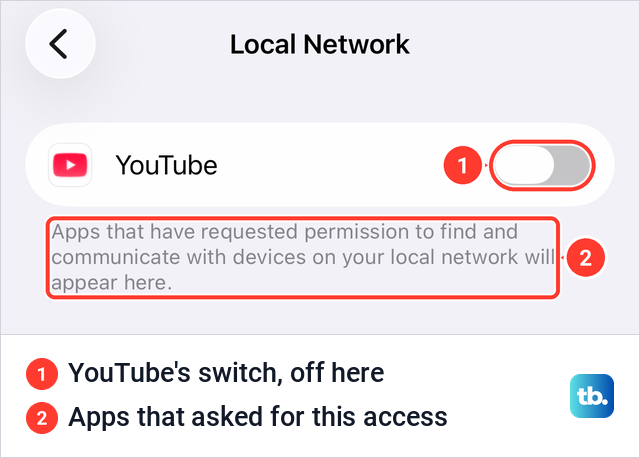
If the Cast button never finds your TV, check the app's network permission. Google's fix on iPhone is to turn on Local Network permission for that app, under Settings > Privacy & Security > Local Network. On our iPhone, YouTube was the only app on that page, and its switch was off.
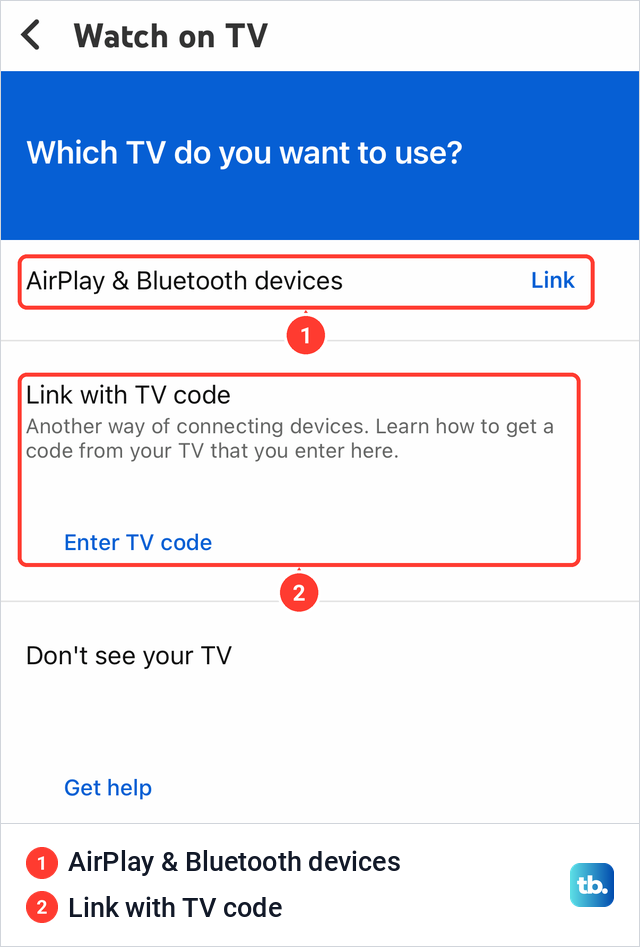
Some apps add their own TV route as well. On our iPhone, YouTube's Settings > Watch on TV page asked "Which TV do you want to use?" and offered AirPlay & Bluetooth devices and Link with TV code, which uses a code you get from the TV. Google's Cast my screen feature is for Android phones, so to mirror the whole iPhone screen you need an AirPlay receiver or a cable.
Cast from an Android phone to a Chromecast or Google TV
Casting from an app works the same way as on iPhone. Put the phone on the same Wi-Fi network as the Chromecast, Google TV Streamer or TV with Google Cast, open the app, tap the Cast button and pick the device. Google notes that the button is not in the same place in every app, and to stop you tap it again and choose Disconnect.
To mirror the whole screen, use the Google Home app, which Google says needs Android 8.0 or later. Open Google Home, tap Favorites or Devices, then touch and hold the tile of your TV or streaming device. Tap Cast, then Cast my screen, and choose Cast screen for everything or Cast one app for a single app.
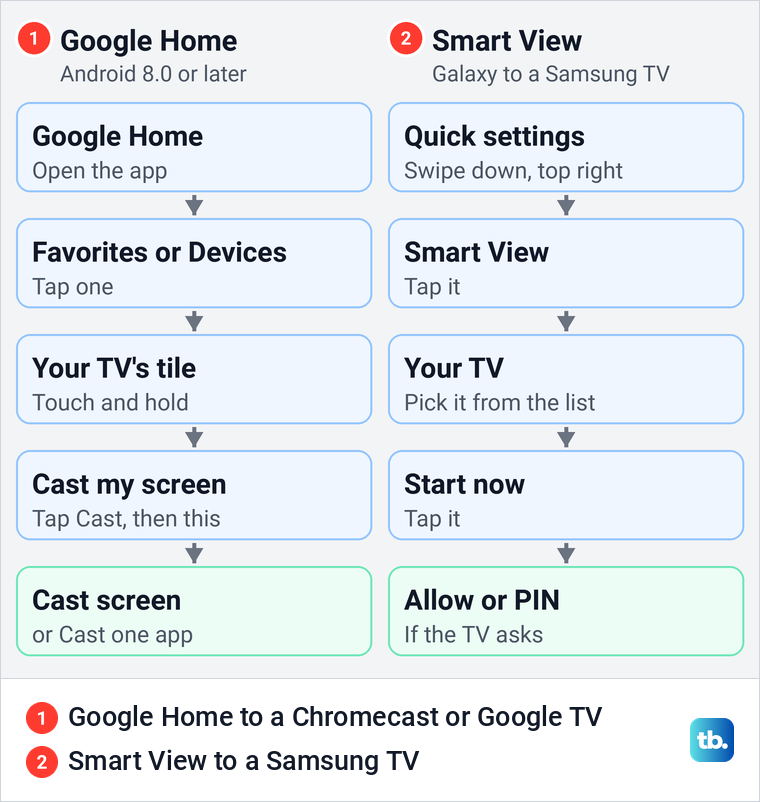
To stop, touch and hold the same device tile and tap Stop mirroring. A Pixel also has the feature in its settings, where Google's path is Settings > Connected devices > Connection preferences > Google Cast. You choose one app or the entire screen there, and you stop from the Cast notification with Disconnect.
Mirror a Samsung Galaxy with Smart View
Smart View is Samsung's name for screen mirroring on Galaxy phones, and Samsung says it is not available on every device. The phone and TV must be on the same Wi-Fi network. Swipe down from the top right of the screen to open Quick settings, tap Smart View, select your TV from the list of available devices and tap Start now.
If the TV asks, enter the PIN it shows or select Allow on the TV. Samsung's tip when the phone will not display is that the TV may need to give permission, so restart both, try again and select Allow when it appears. When you are done, tap the Smart View icon on the phone and tap Disconnect.
If your Chromecast is missing from the Smart View list, use the app's Cast button or Google Home's Cast my screen instead. Both routes are in the diagram above.
Cast to a Roku or Fire TV from your phone
Roku and Fire TV take mirroring from the phone's own screen mirroring control. Amazon says a Fire TV needs a device that supports Miracast, and Roku says that, in general, a phone running Android 10.0 or later likely supports its screen mirroring, unless it is a Google branded device such as a Pixel. The phone's control may be called Smart View, Wireless display, Screen casting or something similar.
On a Galaxy, Roku's steps are to tap Smart View, select the Roku, then follow the instructions on the Roku to allow screen mirroring. An iPhone takes the AirPlay route on Roku models that support it. A Pixel is better paired with a Chromecast or Google TV and the Pixel's own Google Cast feature.
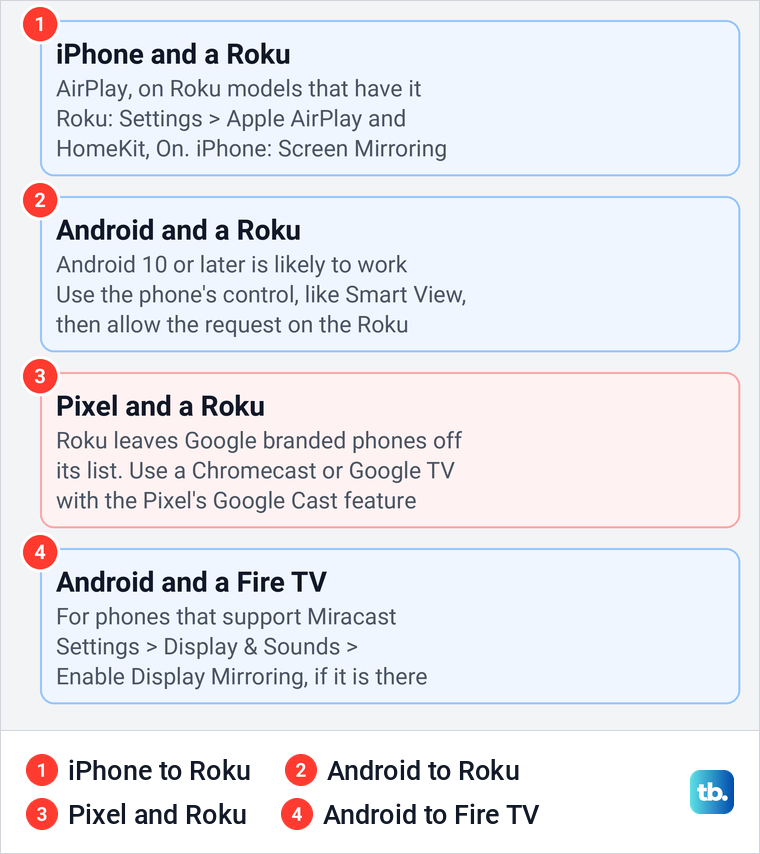
Amazon also asks for the phone and Fire TV to be on the same Wi-Fi network. Its order is to turn on the mirroring option on the phone, then open Settings > Display & Sounds > Enable Display Mirroring on the Fire TV and follow the instructions on screen. If that option does not appear, Amazon says your Fire TV does not support screen mirroring.
Connect your phone to a TV without Wi-Fi
A cable is the dependable way to show your phone on a TV with no Wi-Fi network. Apple's steps are to plug the right adapter into the iPhone's charging port, a Lightning Digital AV Adapter on a Lightning iPhone or a USB-C Display AV Adapter on a USB-C model. Connect an HDMI cable from the adapter to the TV, then switch the TV to the correct video source.
On an iPhone with USB-C, Apple says a plain USB-C to HDMI adapter or cable also works. The Apple adapters have an extra port, so you can charge the iPhone while it is connected to the TV.
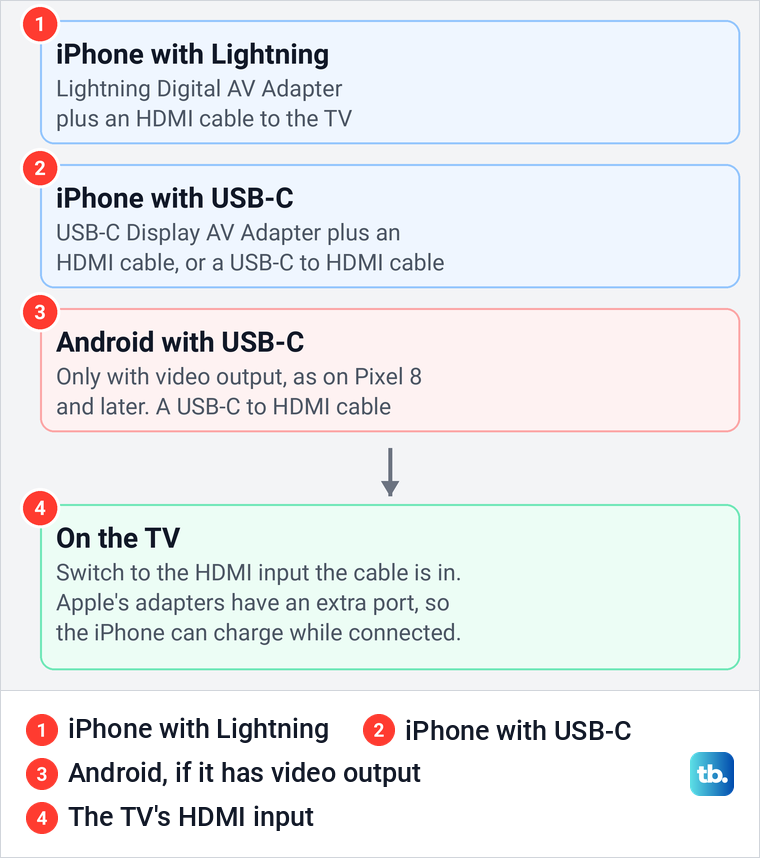
Android is less predictable, because a USB-C port does not prove the phone can send video. Google documents cable display output for Pixel 8 and later, using a USB-C to HDMI cable for a TV, or USB-C to DisplayPort for a display with that input. Do not count on it with an older Pixel, and for other brands check your phone maker's specifications before you buy a cable.
There is one wireless exception. Apple's documentation for organizations says that to use AirPlay with an Apple TV, devices don't need to be on the same network, or on any network at all, because they can find each other peer to peer. That applies to supported Apple TV models, not to every TV with AirPlay built in.
Stop casting and keep your screen private
Each method stops from the control that started it, as each section above describes. Mirroring copies what is on your phone screen, so an alert that pops up while you mirror may show on the TV too, depending on your phone and its settings.
If that matters, turn on Do Not Disturb before you start, but check its exceptions. On our iPhone its settings read "Notifications from selected people and apps will be allowed, all others will be silenced." When private alerts must stay off the TV, cast only the video from the app, which keeps the rest of your phone off the screen.
When you finish, turn Do Not Disturb off again so your notifications alert you as usual. Do Not Disturb silences notifications rather than blocking them, so messages that arrive while it is on are still waiting for you.
Why the TV does not show up or the picture is black
If you try AirPlay from a photo's share sheet and no AirPlay display is found, the iPhone tells you. On iOS 26.5 the alert read "AirPlay is unavailable" and "No displays with AirPlay were found nearby." If you see it, check the TV's AirPlay setting and the network first.
Work through the basics in order. Check that the TV is on and its AirPlay or mirroring setting is switched on, that both devices are on the same Wi-Fi network, and on iPhone that the app has Local Network permission. Google adds that a router feature called AP isolation, also known as client isolation, can stop devices from talking to each other, and that a guest, hotel or public network with it switched on will not work.
If the TV still does not appear, restart your phone and check the list again. When only a Samsung TV stays missing, restart a Samsung TV before you change its network settings. When the right method still fails, our guide to fix a phone that will not cast goes through every remaining cause.
A black picture while the rest of the screen shows often means the app is blocking the copy. Netflix says AirPlay and Screen Mirroring are no longer supported, and its phone casting works only with a short list of receivers: Chromecast 3rd gen or older, Google Nest Hub Smart Display, and select Vizio and Compal TVs, on Standard or Premium plans. For an iPhone or iPad with a USB-C port on a cable, Netflix says the cable or adapter must support HDCP 2.2.
The simple fix is to open the app on the TV itself. On a Samsung TV where the built-in Netflix app also misbehaves, fix Netflix on a Samsung TV separately, since that is a TV problem rather than a casting one.
Reduce lag and keep the sound in sync
Mirroring sends a live copy of your screen over Wi-Fi, so a busy or distant network can show up as lag. For Android screen casting, Google suggests keeping the streaming device or TV within 15 feet (4 meters) of the router. It also suggests connecting the phone and the streaming device to the same Wi-Fi band, either 2.4 GHz or 5 GHz.
If the voice is always a little behind the picture, look for an audio delay or offset setting on the TV, receiver or soundbar, which is Google's advice for a constant delay. Google Home's group delay setting will not help here. Google says it only affects group playback and has no effect when casting to a single speaker or TV.
On a Samsung TV with no sound from any source, fix sound on a Samsung TV before you adjust anything on the phone. If a Samsung TV also buffers in its own apps, fix buffering on a Samsung TV instead of changing how you cast.
How we tested this guide
We tested this on an iPhone 17 Pro with iOS 26.6 and a Samsung Odyssey G9 smart monitor, opening Screen Mirroring with the monitor in its list.
Frequently Asked Questions
How do I cast my phone to a TV that does not show up?
Check that the TV supports the method you are using and that its AirPlay or mirroring setting is on. Put both on the same Wi-Fi network, and on iPhone turn on Local Network permission for the app you cast from.
Can I connect my phone to a TV without Wi-Fi?
Yes, with an HDMI adapter, if your phone supports video output. Use Apple's Lightning or USB-C adapter for an iPhone, check your Android phone's specifications, then switch the TV to that HDMI input.
Why can I cast an app but not mirror my whole phone?
App casting and screen mirroring are separate features. An iPhone can cast apps to a Chromecast, but mirroring the whole iPhone screen needs an AirPlay receiver, and Google Home's Cast my screen is for Android.
Why will my Pixel not mirror to a Roku?
Roku leaves Google branded phones such as Pixel off its list of Android phones likely to support its screen mirroring. Use a Chromecast or Google TV with the Pixel's Google Cast feature instead.
Why does Netflix show a black screen when I mirror?
Netflix says AirPlay and Screen Mirroring are no longer supported. Open Netflix on the TV itself, or cast to one of the few receivers Netflix lists.
Can other people see my notifications while I mirror?
They might. Mirroring copies what is on your screen, so whether an alert shows on the TV depends on your phone and its settings. Turn on Do Not Disturb first and check which people and apps it still allows, or cast only the video from the app.
How do I stop casting to my TV?
Tap the Cast button and choose Disconnect, or on iPhone open Control Center, tap Screen Mirroring and then Stop Mirroring. In Google Home, touch and hold the device tile and tap Stop mirroring.