
To create an email template in Outlook, write the message once and save it as a template. In classic Outlook for Windows, open File > Save As in the message window and choose Outlook Template, then reopen it later with Choose Form. In new Outlook and Outlook on the web, choose Mail template > Save email as template and start each copy with New > Mail from template.
When you save an Outlook email as a template this way, it keeps the recipients, subject, body, formatting and attachments, so it is the way to make an email template in Outlook for any message you send again and again. If you only need a reusable sentence, such as a standard reply, the My Templates pane and Quick Parts drop saved text or content into the message you already have open.
Several commands sit deeper in the menus than Microsoft's help pages show, so the steps below follow what Outlook actually displayed. If a button in these steps is missing from your ribbon, look under More options, the three dots at its right end.
The short version
- Classic Outlook: write the email (Ctrl + Shift + M opens a new one), then File > Save As and pick Outlook Template.
- New Outlook and the web: Mail template > Save email as template, which may sit under the Message tab's More options button.
- Use an Outlook email template: Choose Form > User Templates in File System in classic Outlook, or New > Mail from template.
- Just a phrase or block: My Templates or Quick Parts insert saved text or content at the cursor.
- Edits: saving a message opened from a template keeps a draft and leaves the template unchanged.
Which Outlook template type to use
Outlook has four template tools, and they store different things. Pick by what the next email needs to carry over.
| What you want to reuse | Use this | What it keeps | How to open it again |
|---|---|---|---|
| A complete email in classic Outlook | Outlook Template, an .oft file | Recipients, subject, body, formatting and attachments | New Email arrow > More Items > Choose Form > User Templates in File System |
| A complete email in new Outlook or on the web | Mail Templates | Recipients, subject, body, formatting and attachments | New > Mail from template |
| A short reply or sentence | My Templates | Plain text with basic styling | View Templates or My Templates, then click the snippet |
| A reusable part of a message | Quick Parts | The selected content, formatting included | Insert > Quick Parts in classic Outlook, then click the block |
Microsoft describes Mail Templates as saving full emails, including recipients, subject, body, formatting, and attachments, and My Templates as storing short text snippets with plain text and basic styling. It also says both need a qualifying Microsoft 365 subscription, so an account without one may not show them.
None of these sends anything by itself. A template opens a message that you check and send, while replies that should go out automatically while you are away are a different feature, so set up an out of office reply for that job instead.
Create an email template in classic Outlook
Start a new message with Home > New Email, or press Ctrl + Shift + M, which opened a blank message for us even from the Calendar. Fill in everything the template should keep: the To and Cc boxes, the subject, the body and any attachment. Our sample had one recipient, the subject Sample status update, five short lines and a small text file attached.
In the message window, open File and choose Save As. Our Save As box opened in Documents with Outlook Message Format - Unicode as the type and the subject already typed as the file name. Open the Save as type list and pick Outlook Template.
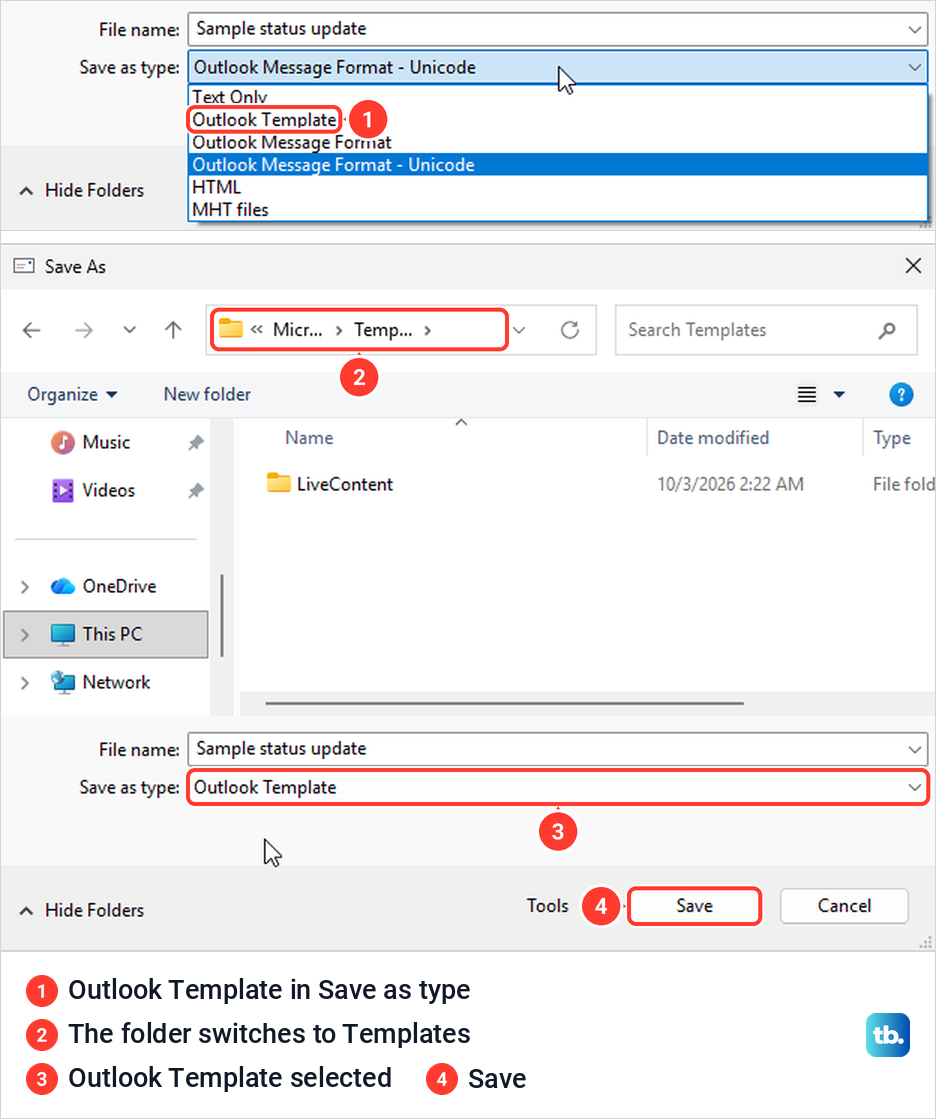
The moment we picked Outlook Template, the dialog jumped by itself from Documents to the Microsoft Templates folder. Leave it there and click Save, because that folder is where Outlook looks for templates later. Microsoft gives the default location as c:\users\username\appdata\roaming\microsoft\templates, and our file, Sample status update.oft, showed up there in File Explorer.
Closing the message after saving the template still asked Want to save your changes? The template is already saved at this point, and choosing No closed the window without leaving a copy in Drafts.
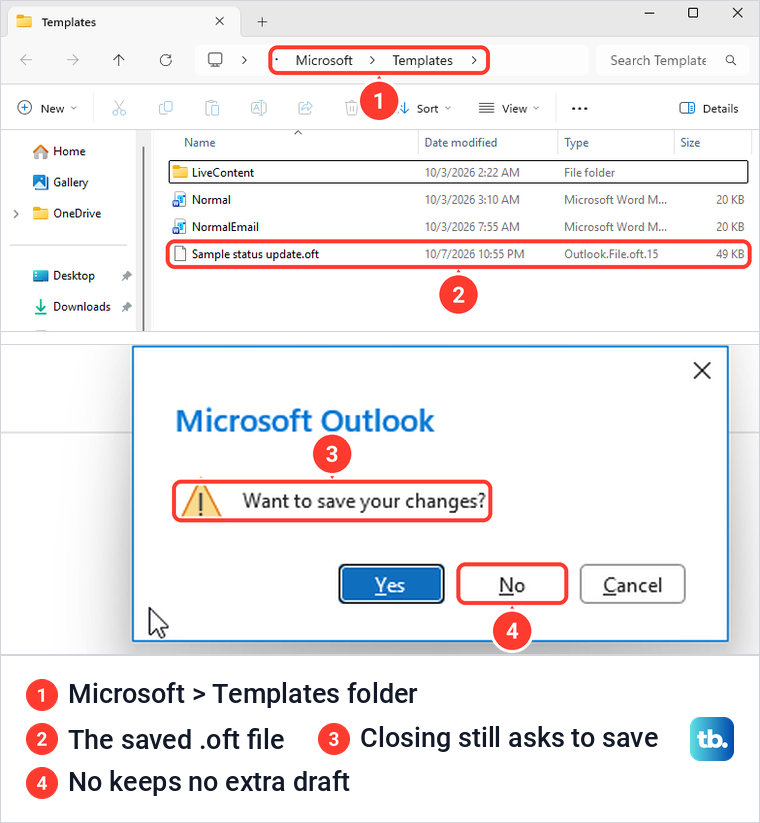
You can save a template in another folder, but then you have to browse to it every time you want it. Keeping it in the Templates folder lets the Choose Form list find it straight away.
Open a classic Outlook template to send it
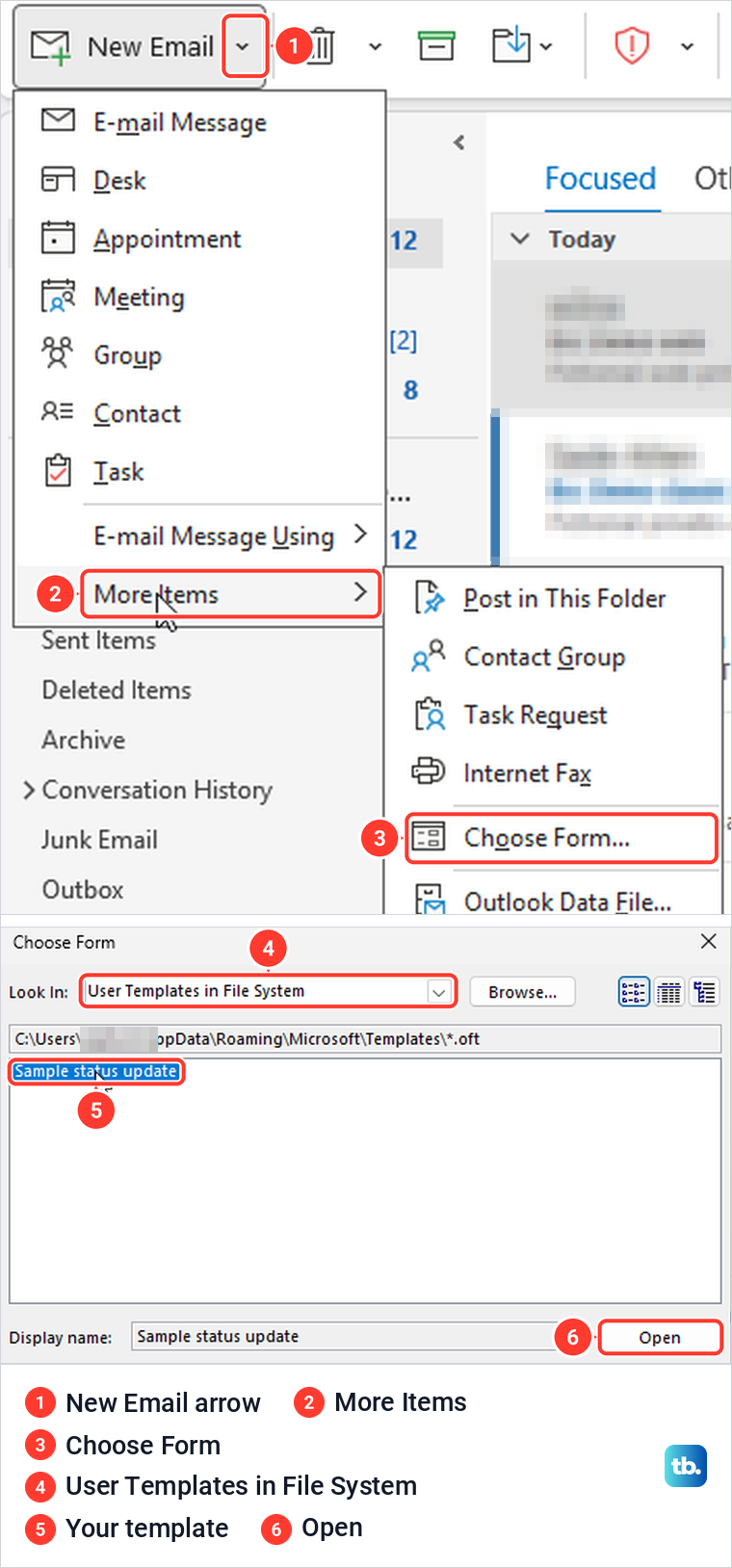
On our ribbon there was no New Items button. Click the small arrow on New Email, point to More Items and choose Choose Form. Microsoft's help page writes the same route as New Items > More Items > Choose Form, which is how it reads when the ribbon is not in its simplified layout.
The Choose Form box opens on Standard Forms Library, and when we opened it again it was back there. Set Look In to User Templates in File System, select your template and click Open. If you saved the file somewhere else, Browse in the same box lets you pick it.
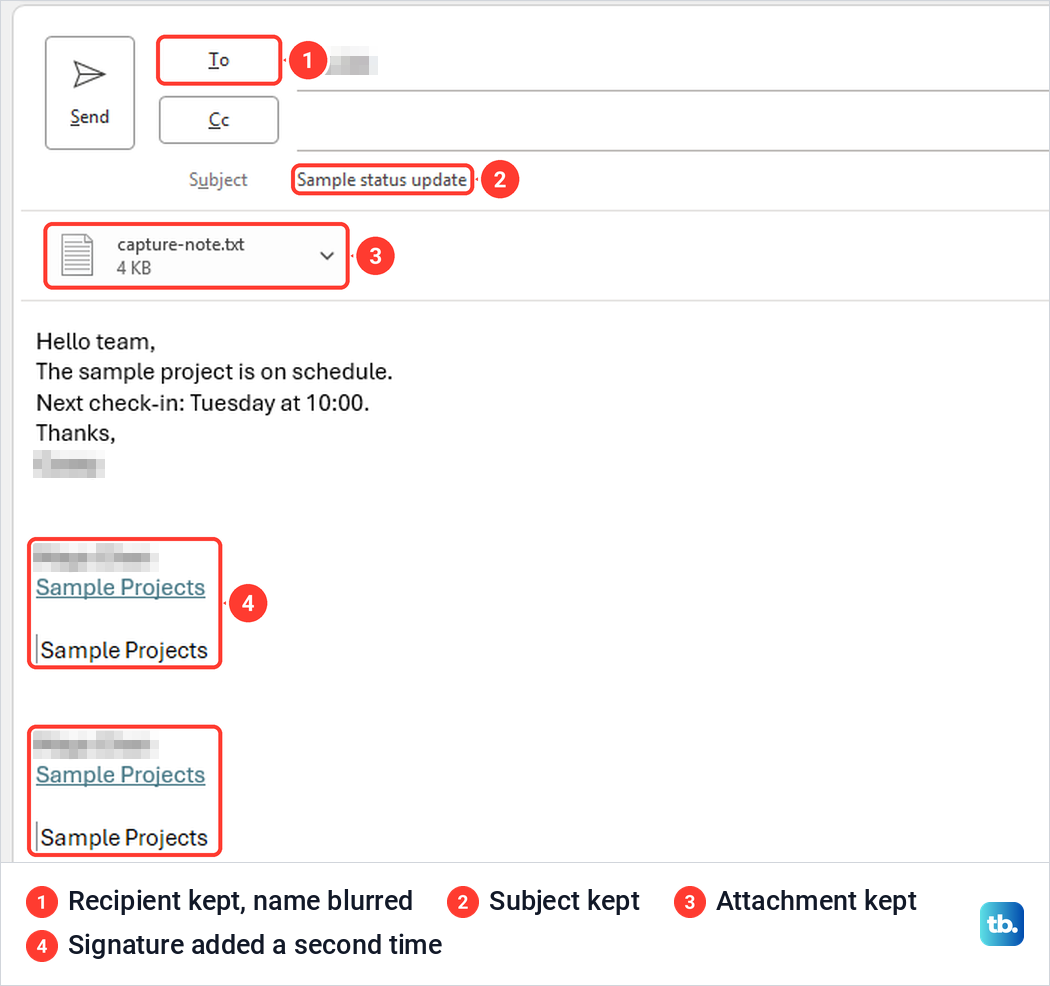
Our template opened as a new message with the recipient, subject, all five lines and the attachment in place. Two things were different. The default signature was added a second time under the one saved in the template, and the attachment card read 4 KB instead of the original 35 bytes, with the file still attached.
Read the sign-off before you send. If Outlook adds your signature automatically, deleting it from the message before you save the template should leave just the one Outlook adds, and if the sign-off itself is wrong, change your Outlook signature once rather than fixing every copy.
Update the details, then send it. If the same group gets every copy, create an Outlook distribution list and put it in the template's To box, then check the To box each time before you send. You can also schedule the email in Outlook instead of sending it straight away.
Save an email template in Outlook on the web
Select New mail and write the message, with its recipients, subject, body and any attachment. On our Message tab there was no Mail template button. Click More options, the three dots at the right end of the ribbon, scroll to the bottom of the menu and choose Mail template > Save email as template under Options.
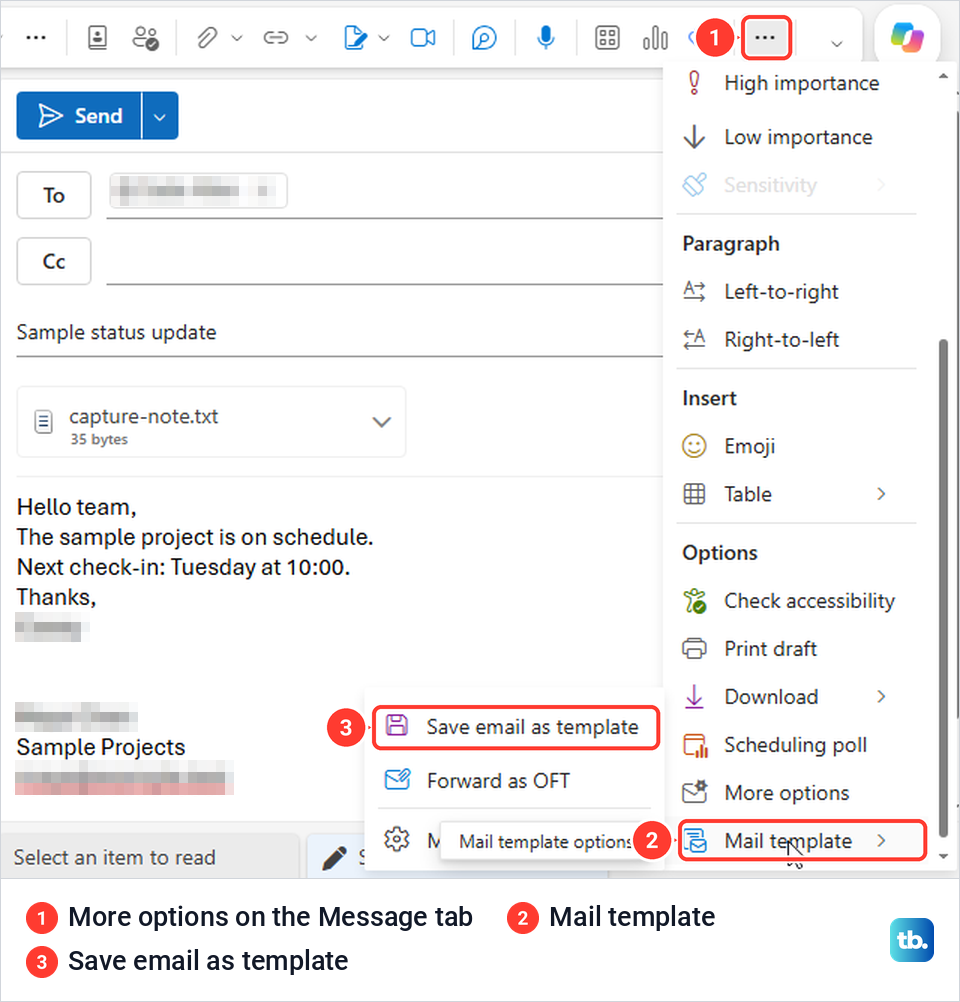
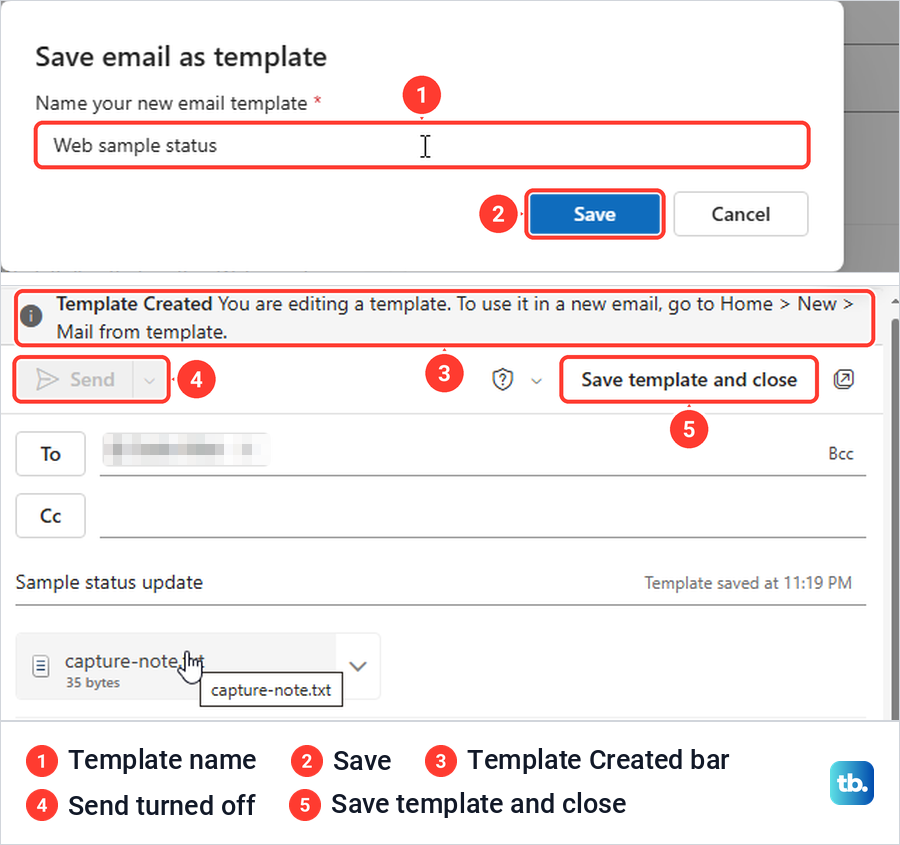
The same submenu holds Forward as OFT, which Microsoft says saves the draft as an .oft file and attaches it to a new email, a quick way to send a template to a colleague. The Save email as template box asks you to name your new email template and fills in the subject for you. Type a clearer name if you plan to keep several, then click Save.
What happens next surprised us. The message you were writing becomes the template: a bar reads Template Created You are editing a template, Send turns grey, and a Save template and close button appears. The draft also left our Drafts folder, so finish with Save template and close and start a fresh message when you want to send something.
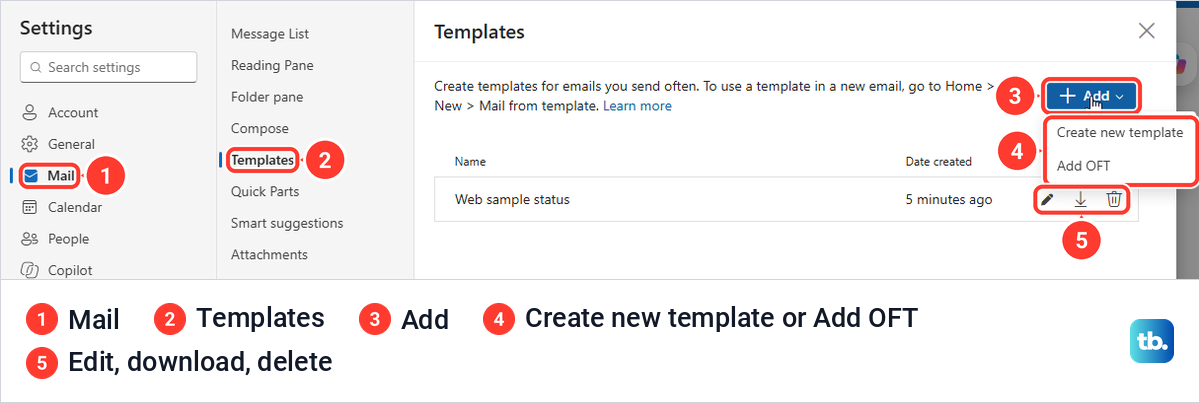
Your saved templates are in Settings > Mail > Templates. Each one has buttons to edit, download and delete it, and Add offers Create new template or Add OFT. Microsoft says templates there are listed by account, and with one account signed in our list had no account headings.
Save an email template in new Outlook
New Outlook for Windows uses the same Mail Templates feature as the web. Microsoft's steps are Home > New > Mail, add the recipients, subject and attachments, then Message > Mail template > Save email as template, type a name and select Save. If the button is not on the Message tab, look under More options at the right end, as on the web.
Microsoft says templates made this way are saved to the account you are composing the draft from, and that mailbox can use them in Outlook on the web as well. To see the full list, open Settings > Mail > Templates. If you would rather keep working with .oft files, you can switch back to classic Outlook, or import them as shown further down.
Start a new email from a template on the web
Click the arrow beside New mail and choose Mail from template. In our menu it sat second, under Mail. A box headed New mail from template lists your templates, newest-opened first, with a Manage Templates button at the bottom. Microsoft gives the same New > Mail from template route for new Outlook.
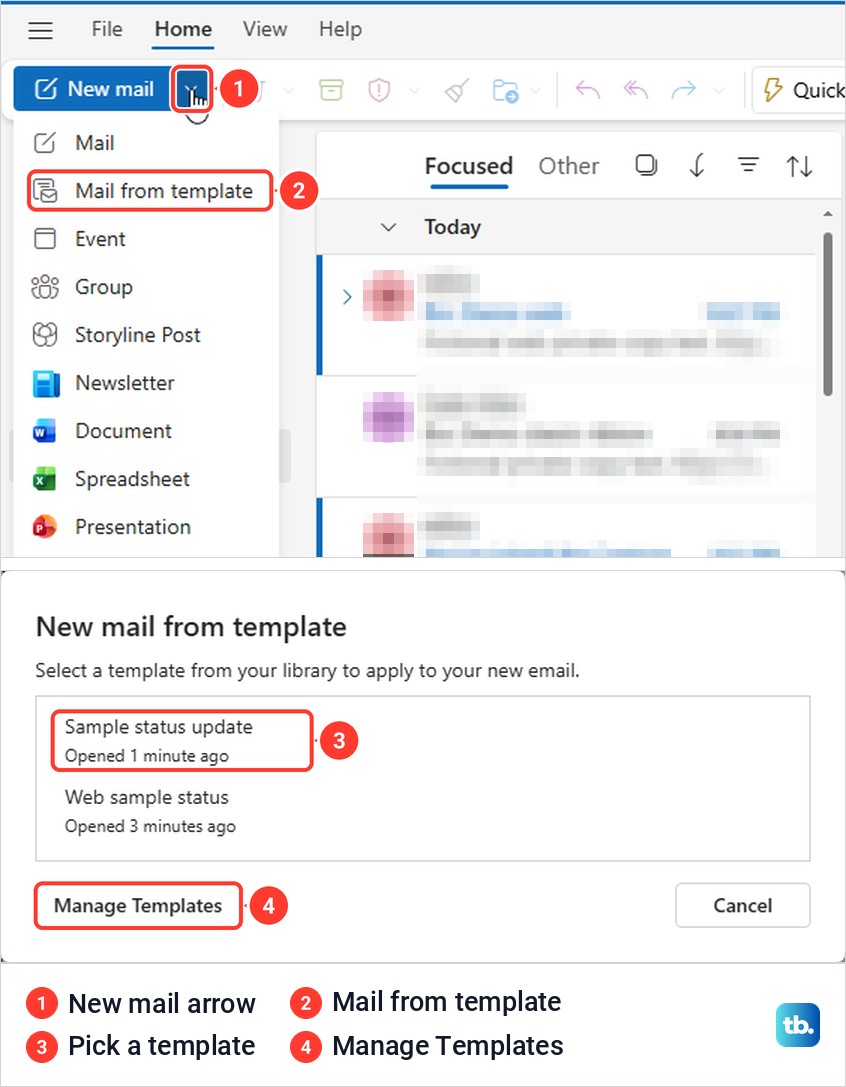
Pick a template and it opens as an ordinary draft. Ours came back with the recipient, subject, body and attachment, and Send was available again, since this is a new message rather than the template. Change whatever differs this time, such as the date or a name, and send it.
Changes to a message opened from a template stay in that message
This is the part people trip over. In classic Outlook we opened our template, added the line Draft-only change. and pressed Ctrl + S. Nothing appeared on screen, but the message was now in Drafts with None in its date column, and opening the template again through Choose Form showed the original text without the new line.
Outlook on the web did the same. We added Draft-only web change. to a message started from a template, Outlook showed Draft saved, and the next message from that template had no added line. Microsoft's help page says it plainly: if you use the Save command, this creates a draft of your message, but won't update the template.
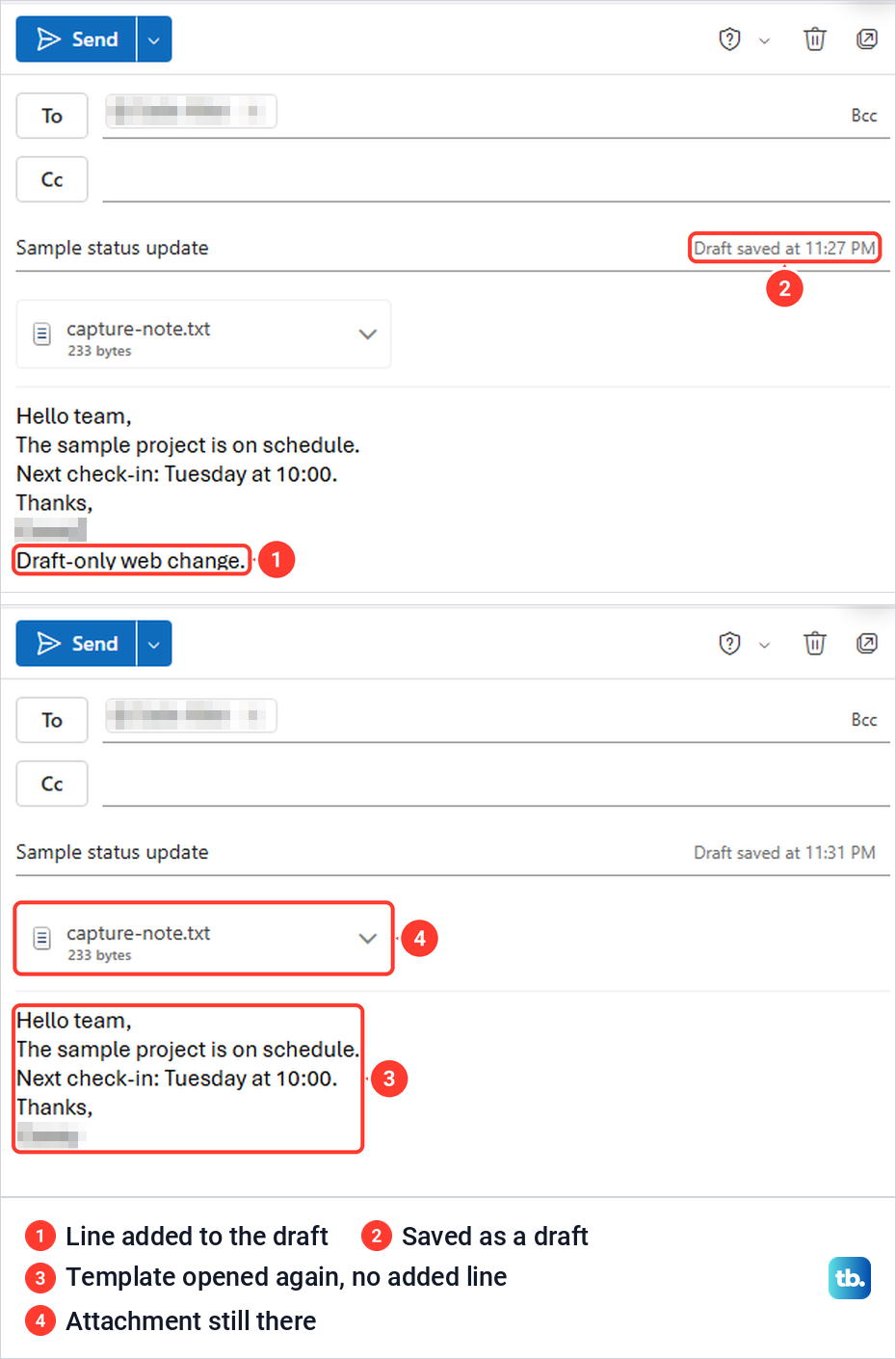
To change a template in classic Outlook, open it, make the edit and use File > Save As > Outlook Template again, with the same name to replace the old file or a new name to keep both. In new Outlook and on the web, save the corrected message as a new template, then delete the old one from Settings > Mail > Templates.
Save a short reply with My Templates
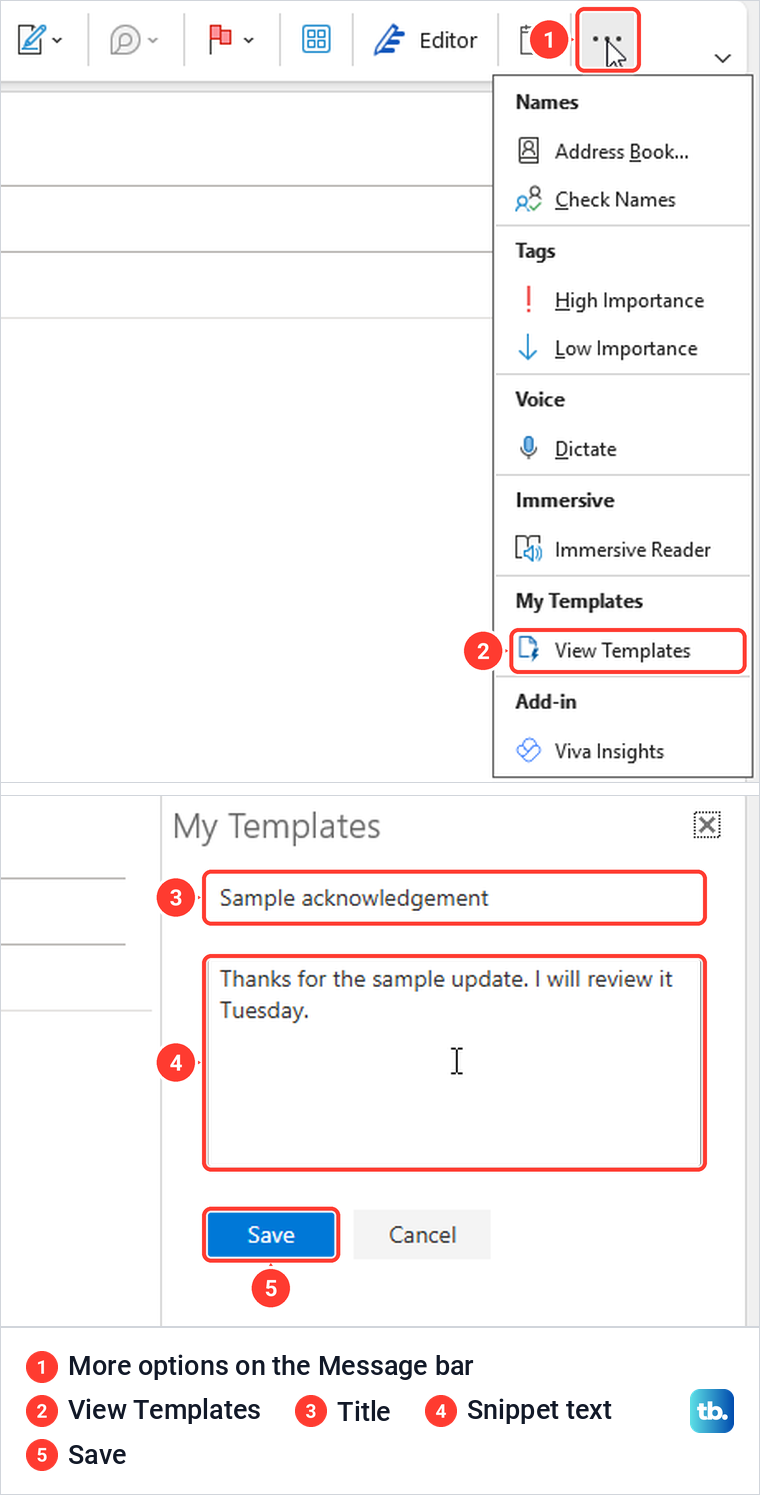
My Templates is for phrases, not whole emails. In classic Outlook, open a new message and click More options at the right end of the Message tab; on our screen the menu had a My Templates heading with View Templates under it. The first time, a short page explains the add-in, and Continue opens the pane.
The pane starts with three ready-made samples and a + Template button. Click it, type a title and the text, and click Save, which stayed grey until both boxes had something in them. Our Sample acknowledgement snippet then appeared in the list by its title.
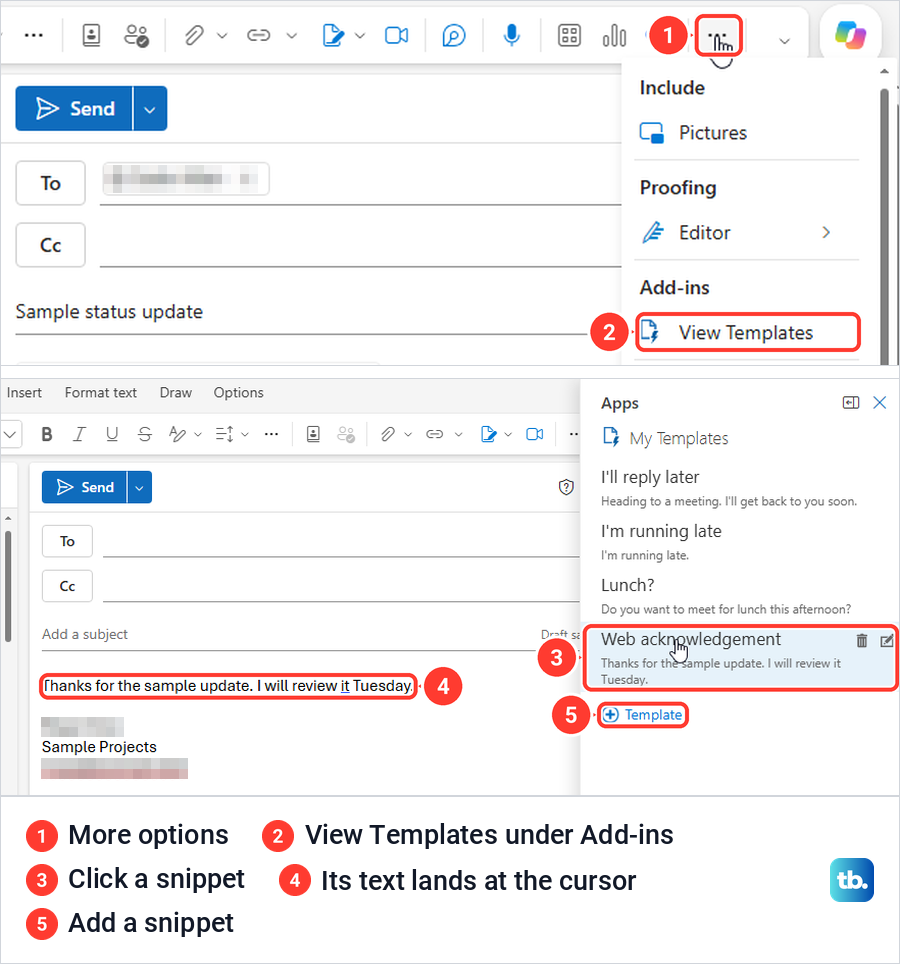
To use a snippet, put the cursor where the text should go and click the snippet in the pane. Its text went straight into our message at the cursor, and pointing at the entry showed a bin to delete it and a pencil to edit it. Because it lands wherever the cursor is, you can use a snippet in a reply as well as in a new email.
In Outlook on the web the add-in is also called View Templates, in the Message tab's More options menu under Add-ins. Our first click also raised a What's new box about Mail Templates and Quick Parts. The pane, headed Apps and My Templates, works the same way, and our web snippet went in at the cursor just like the classic one.
A snippet is not a full template. Ours never appeared in the Choose Form list of .oft files, and it carries no recipients, subject or attachment. Microsoft says snippets are saved to your primary mailbox and follow it to other Outlook apps, so they show up only for that mailbox, and a different mailbox we opened on the web had its own separate list.
If My Templates is not listed at all, Microsoft's tip is that your organization may have add-ins turned off, and your administrator is the person to ask. Microsoft Learn also gives a combined limit of 32 KB for all My Templates in Outlook on the web for Exchange Online mailboxes, so a snippet that will not save may need shorter text or fewer old snippets.
My Templates snippets and shared mailboxes: a team that works from one mailbox can add a shared mailbox in Outlook, but snippets you make there are only available to your account unless the mailbox is opened in a particular way. Microsoft lists those ways.
In new Outlook, anyone with access can view and edit them if the shared mailbox is promoted to a full account and they open it the same way. On the web, the same applies when everyone opens it with Open another mailbox in its own tab or window, while in classic Outlook they stay with your account.
Save a reusable block with Quick Parts
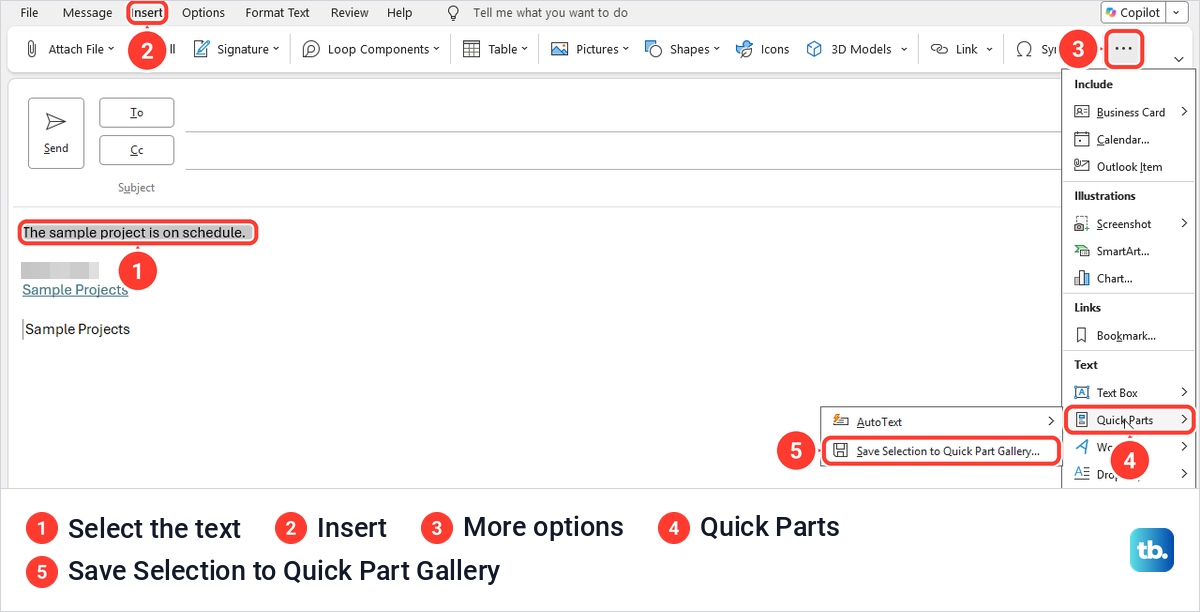
In classic Outlook, Quick Parts keeps a selected piece of a message, formatting included, ready to drop into any other message. Select the content in a message first. On our simplified ribbon the Insert tab had no Quick Parts button, so click Insert, then More options at the right end, and under Text point to Quick Parts > Save Selection to Quick Part Gallery.
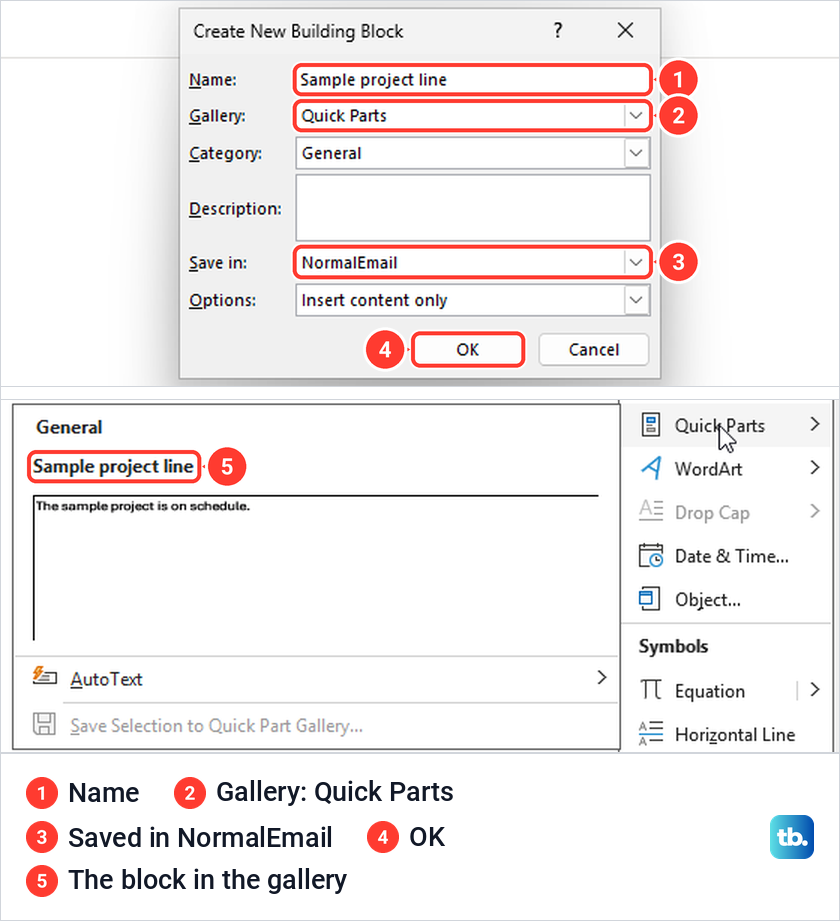
The Create New Building Block box suggests a name from the first words of the selection, so give it one you will recognise later. We left the other boxes as they were: Gallery set to Quick Parts, Category General, Save in NormalEmail and Options set to Insert content only. Click OK.
In another message, put the cursor in place and open Insert > More options > Quick Parts again. Our block, Sample project line, was listed under General with a preview, and clicking it inserted the sentence. Microsoft's Quick Parts page also covers renaming and deleting blocks through Organize and Delete.
Outlook on the web has Quick Parts too. Its What's new box told us to select the section in a draft and choose Save selection to Quick Parts, and Settings > Mail lists Quick Parts just under Templates.
Move a classic template to new Outlook or the web
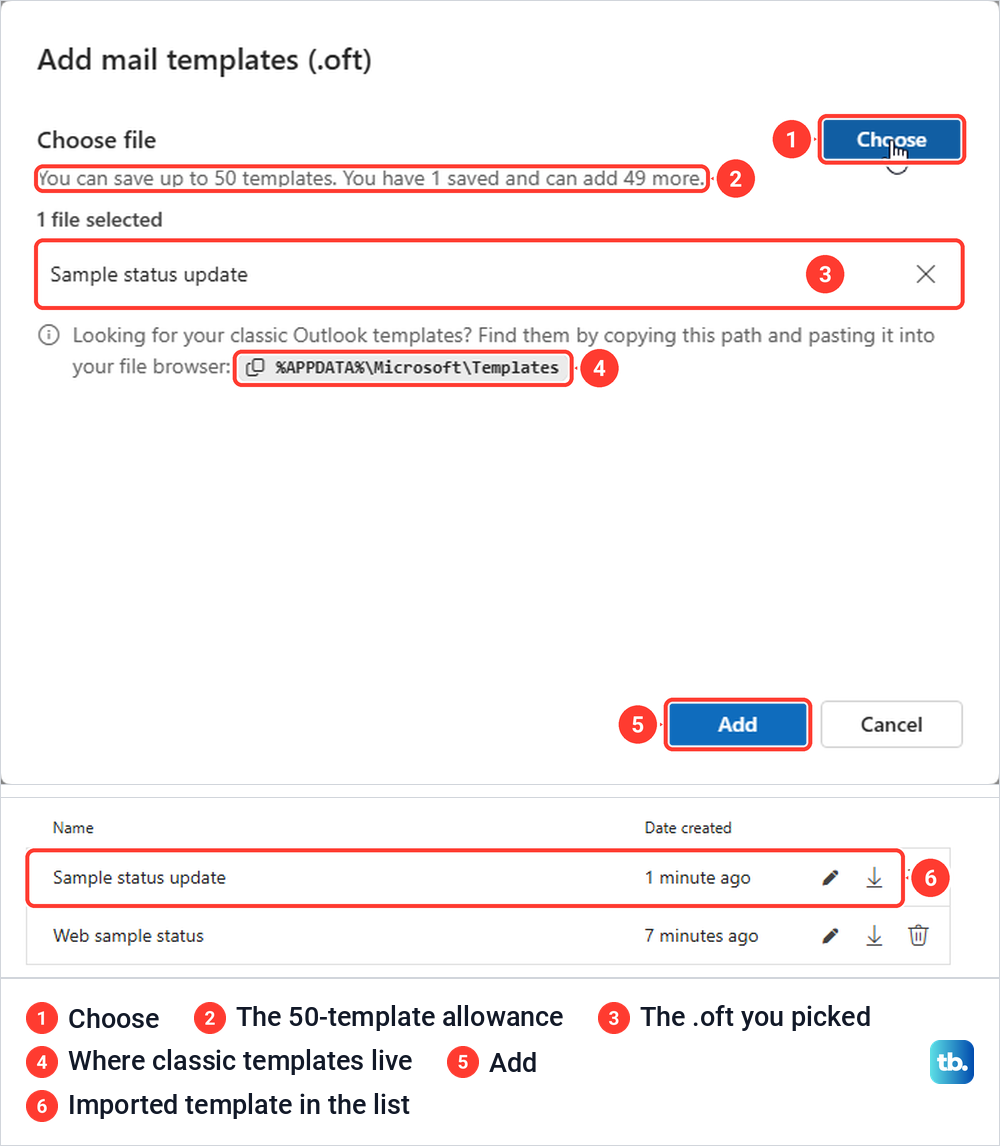
An .oft file from classic Outlook can join your Mail Templates list. Open Settings > Mail > Templates, select Add > Add OFT, click Choose and pick the file. The dialog also shows where classic templates live, %APPDATA%\Microsoft\Templates, with a button to copy that path for File Explorer.
Our dialog said we could save up to 50 templates and add 49 more, which is a limit on that full-template list rather than on My Templates. After we clicked Add, Sample status update sat beside the template we had made on the web, and a new message from it kept the recipient, subject, body and attachment. Going the other way, Microsoft says Save as OFT in the same Settings list downloads a template as an .oft file.
If a template or button is missing
Look under the overflow menus first. On our screens, Choose Form sat under the New Email arrow, View Templates and Mail template sat in the Message tab's More options menu, and classic Outlook's Quick Parts sat in the Insert tab's More options menu. Microsoft's help pages place several of them directly on the ribbon, so check both places.
Then check that you are in the right place. A classic .oft only appears when Look In is set to User Templates in File System, while Mail Templates belong to the account you were writing from, and My Templates to your primary mailbox. If your copy of Outlook still lacks a command Microsoft documents, update Outlook on your device before deciding the feature is gone.
If your administrator turns add-ins back on or Outlook has just updated, restart Outlook on Windows and open a new message again. If a saved template or the button is still absent after those checks, our guide to find missing Outlook templates works through the remaining causes.
Create an email template in Outlook for Mac
Outlook for Mac has its own built-in templates. Microsoft's steps are to select the message you want to reuse, choose File > Save As Template, give it a name, choose where to save it and select Save. The file name ends in .emltpl.
To use it, choose File > New > Mail From Template, select the template and select Open, then add your content and recipients. Microsoft says My Templates is also available on a Mac for Microsoft Exchange accounts.
How we tested this guide
We tested this in classic Outlook for Microsoft 365 on Windows 11, version 25H2, and Outlook on the web in Microsoft Edge, saving and reusing a sample status email.
Frequently Asked Questions
Can an Outlook email template include recipients and attachments?
Yes, if you save a full template. A classic .oft file and a Mail Template both kept the recipient, subject, body and attachment of our sample, while My Templates keeps short text snippets and Quick Parts keeps a selected part of a message, without the recipients or subject.
Where are Outlook email templates saved?
Classic Outlook saves .oft files in the Microsoft Templates folder under your user profile by default, and Choose Form lists them under User Templates in File System. In new Outlook and on the web, full templates are in Settings > Mail > Templates.
Does saving a message opened from a template change the template?
No. Saving it creates a draft, which is what happened in both classic Outlook and Outlook on the web. Save the corrected message as a template again to change it.
Can I use a template when replying to an email?
Use My Templates or Quick Parts, which insert saved text or content at the cursor in any open message, including a reply. A full template always starts a new email.
Why is My Templates missing from Outlook?
It may be inside the Message tab's More options menu rather than on the ribbon. If it is not there either, Microsoft says your organization may have turned add-ins off.
Can I use my classic Outlook templates in new Outlook?
Yes. Go to Settings > Mail > Templates, choose Add > Add OFT and pick the .oft file, which kept all its fields when we imported one on the web.
Why will My Templates not save my template?
Microsoft gives a combined limit of 32 KB for all My Templates in Outlook on the web for Exchange Online. Shorten the text or delete snippets you no longer use.