

Drop a stack of paper in the feeder, press button 1, and walk away. Seconds after the last page drops into the tray, the PDF is sitting in a folder on my home server, named with the date and time. No computer gets switched on, no app gets opened, and anyone in the house can do it. That's how the Ricoh SP-2240N has run in my house for about a month, and it's the reason the rest of my family now scans things too.
Technobezz is supported by its audience. We may get a commission from retail offers. Reviews ethics statement.
Ricoh SP-2240N Review, the Network Scanner My Whole Family Uses Without a PC
The Ricoh SP-2240N scans both sides at up to 40 pages per minute and sends files straight to a network folder or email from three programmable buttons, no computer needed.
Updated October 26, 2026Oct 26, 2026
•15 min read

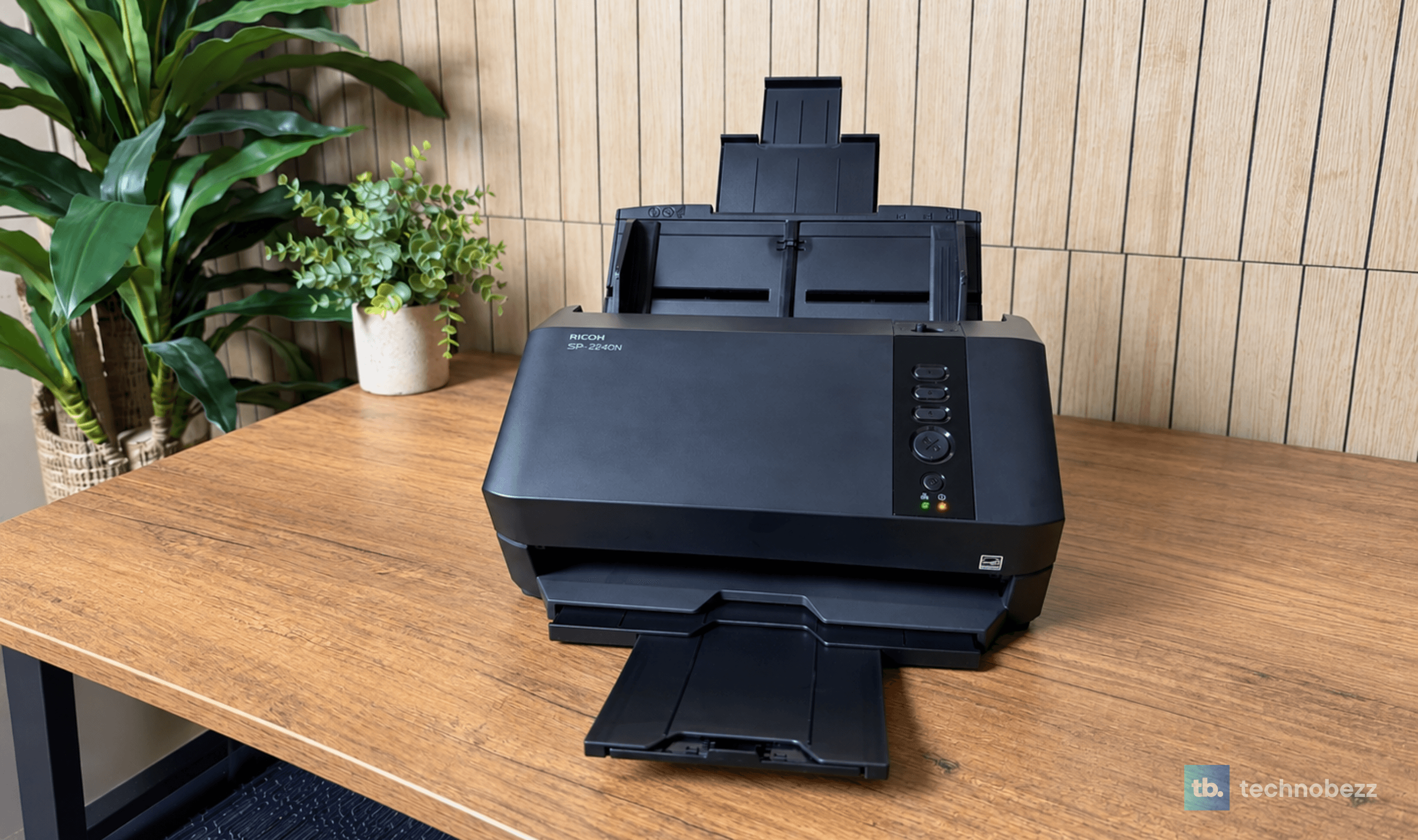
Credit: Technobezz
Get Deals Like These in Your Inbox
The best prices, straight to your inbox.
9.4/ 10
Best for Home offices, families and small teams that want receipts, IDs, photos and paperwork scanned straight to a network folder or email with one button press, no computer required
Ricoh SP-2240N Network Document Scanner
TypeCompact duplex network document scanner (ADF and manual feed)
Model NumberSP-2240N (PA03880-B005)
Scanning Speed40 ppm / 80 ipm at 200 and 300 dpi; 13 ppm / 26 ipm at 400 and 600 dpi (A4 portrait)
ADF Capacity80 sheets (80 g/m² or 20 lb paper), can be topped up mid-scan
Optical Resolution600 dpi (output 50 to 600 dpi, 1,200 dpi via driver)
DirectScan Resolution150, 200, 240 or 300 dpi
I've fed it receipts, plastic ID cards, business cards, book pages, old photos and ordinary paperwork, all through the scanner's own network buttons rather than a PC. Colors come out close to the originals, the build feels a class above its price, and it hasn't hiccuped once on the jobs that matter. It isn't for everyone. There's no Wi-Fi, no screen and no Mac driver, and those three gaps decide whether it belongs on your desk. If they don't rule you out, this is one of the most convenient scanners I've used.
Ricoh SP-2240N Network Document Scanner - Best Network Document Scanner
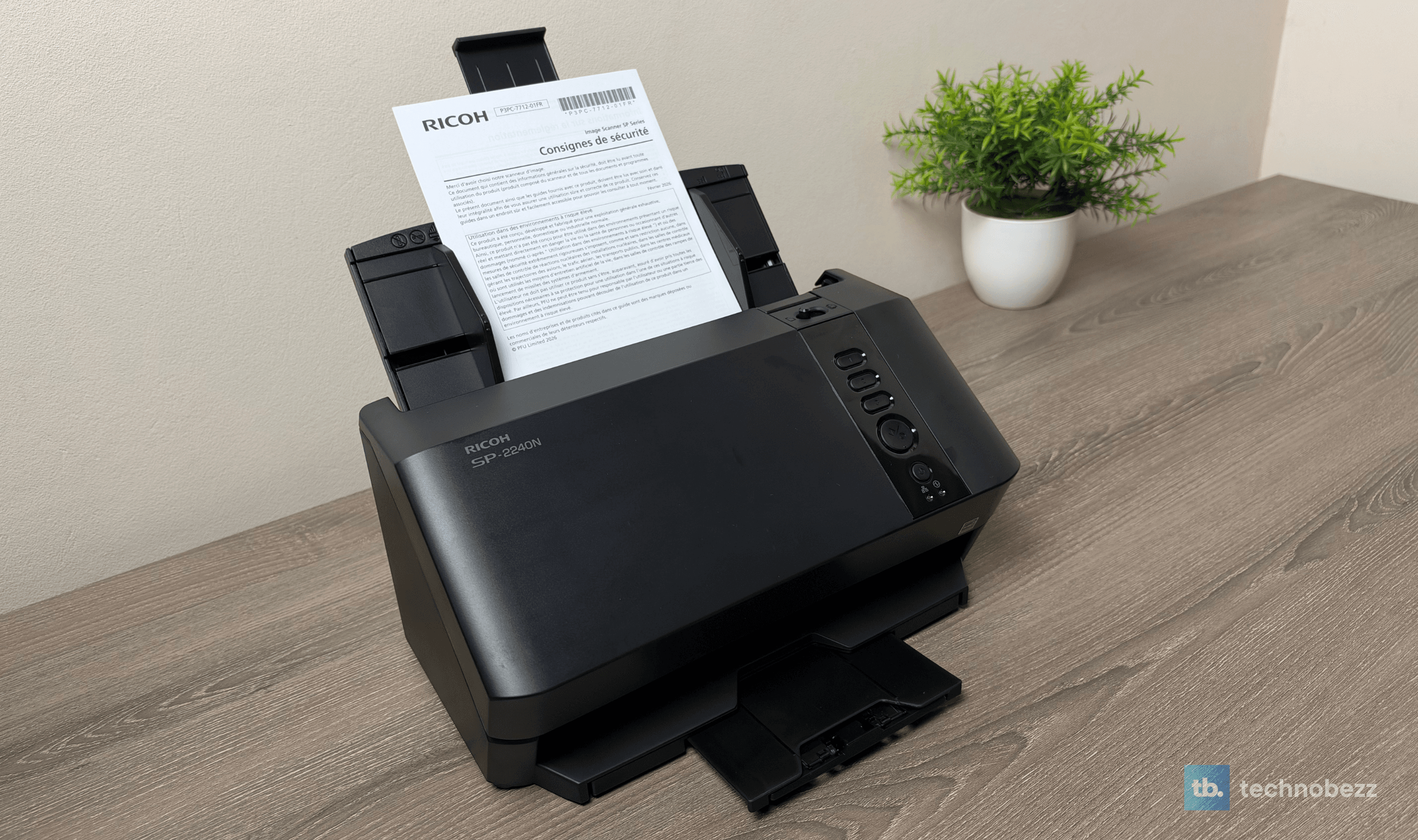
The SP-2240N is a compact duplex document scanner from Ricoh subsidiary PFU, built on the same imaging technology as its fi Series office scanners. It scans both sides of a page in one pass at up to 40 pages (80 images) per minute at 200 or 300 dpi, holds 80 sheets in its feeder, and connects over Gigabit Ethernet or USB-C. The headline feature is DirectScan: three programmable buttons on the front that scan straight to a network folder, an FTP or SFTP server, or an email address without a computer. Ricoh launched it in June 2026 at $389.99, and it has been selling for $379.99 on Amazon.
Key Highlights
- DirectScan sends scans to a network folder (SMB), FTP, SFTP or email with no PC
- Three programmable Send to buttons, each with its own destination and scan settings
- 40 ppm / 80 ipm duplex scanning at 200 and 300 dpi
- 80-sheet automatic document feeder, and you can top it up while it scans
- Handles receipts, business cards, photos and plastic ID cards up to 1.4 mm thick
- Ultrasonic multifeed detection plus image-monitoring paper protection
- On-device searchable PDF option with more than two dozen languages
- Blank page deletion, auto rotation, hole punch removal and background pattern removal
- Gigabit Ethernet and USB-C, with setup handled in a web browser
- Rated for up to 6,000 sheets a day
- Compact 11.5 x 6.4 x 5.9-inch body without the chute and stacker, 7.3 pounds
Pros
- Scanning with no computer is fast, reliable and simple enough for the whole family
- Three buttons cover three different jobs, so nobody has to change settings
- Color accuracy is strong for a scanner at this price
- Cleaner color and detail than the last document scanner we reviewed
- Solid build, with sturdy rollers, arms and springs inside
- As fast in daily use as Ricoh's spec sheet says
- Setup happens entirely in a web browser, Mac included
- Receipts, plastic cards, photos and paper all scanned accurately
- The Scan/Stop button clears a stuck job quickly
- The Batch Log tells you exactly what happened to every scan
- Sleek, compact design that suits a home office
Cons
- No macOS driver, so Mac owners are limited to the scanner's network buttons
- No Wi-Fi, so it needs an Ethernet cable or a USB connection
- No screen, only status lights on the front panel
Who it's for
Home offices, families and small teams that want paper gone with as little effort as possible. If you can run an Ethernet cable from your router to wherever the scanner sits, the SP-2240N turns scanning into a button press anyone can manage: receipts for taxes, kids' school forms, insurance cards, signed contracts, old photos. It's especially good if you already keep files on a network drive or home server, because that's where DirectScan shines. Windows users get Ricoh's full PaperStream software on top of that.
Skip if
You're on a Mac and want to scan from your computer's apps, or you need Wi-Fi. Ricoh doesn't make a macOS driver for the SP-2240N, and it has no wireless option at all. The Wi-Fi scanner with a touchscreen, cloud destinations and full Mac support is the better fit there. If you mostly scan the odd page and never batches, a flatbed or a cheaper portable may be enough too, and our roundup of the best scanners covers the alternatives.
Three Buttons That Replace the Computer
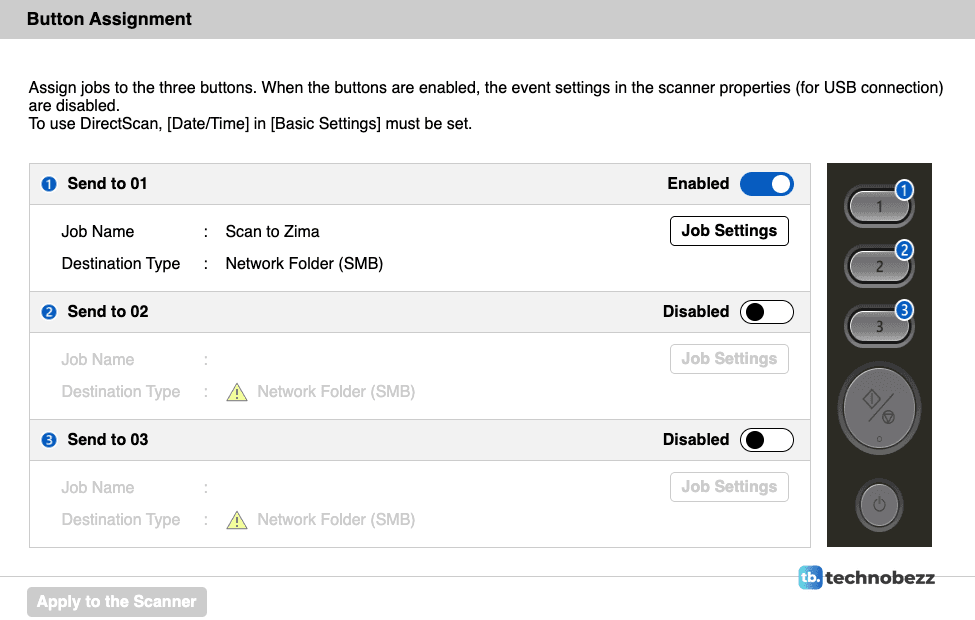
Every scanner promises one-touch scanning. The SP-2240N actually delivers it without a PC controlling the scan. The three numbered Send to buttons on the front each hold a complete job: the scan settings, the file format, the file name rule and the destination. Press one, and the scanner feeds the stack, processes the images on its own chip, and delivers the file by itself.
We connected ours straight to the router and pointed button 1 at a shared folder on the ZimaBoard 2 that runs our home server. Now when someone in the house needs a document scanned, they walk up, load it, press the right button, and it appears in that folder seconds later. There's nothing to install on anyone's phone or laptop, and nothing to explain beyond "use button 1." I can't overstate how much that changes the habit. I scan far more than I did with scanners that needed a computer awake and an app open, and so does everyone else here.
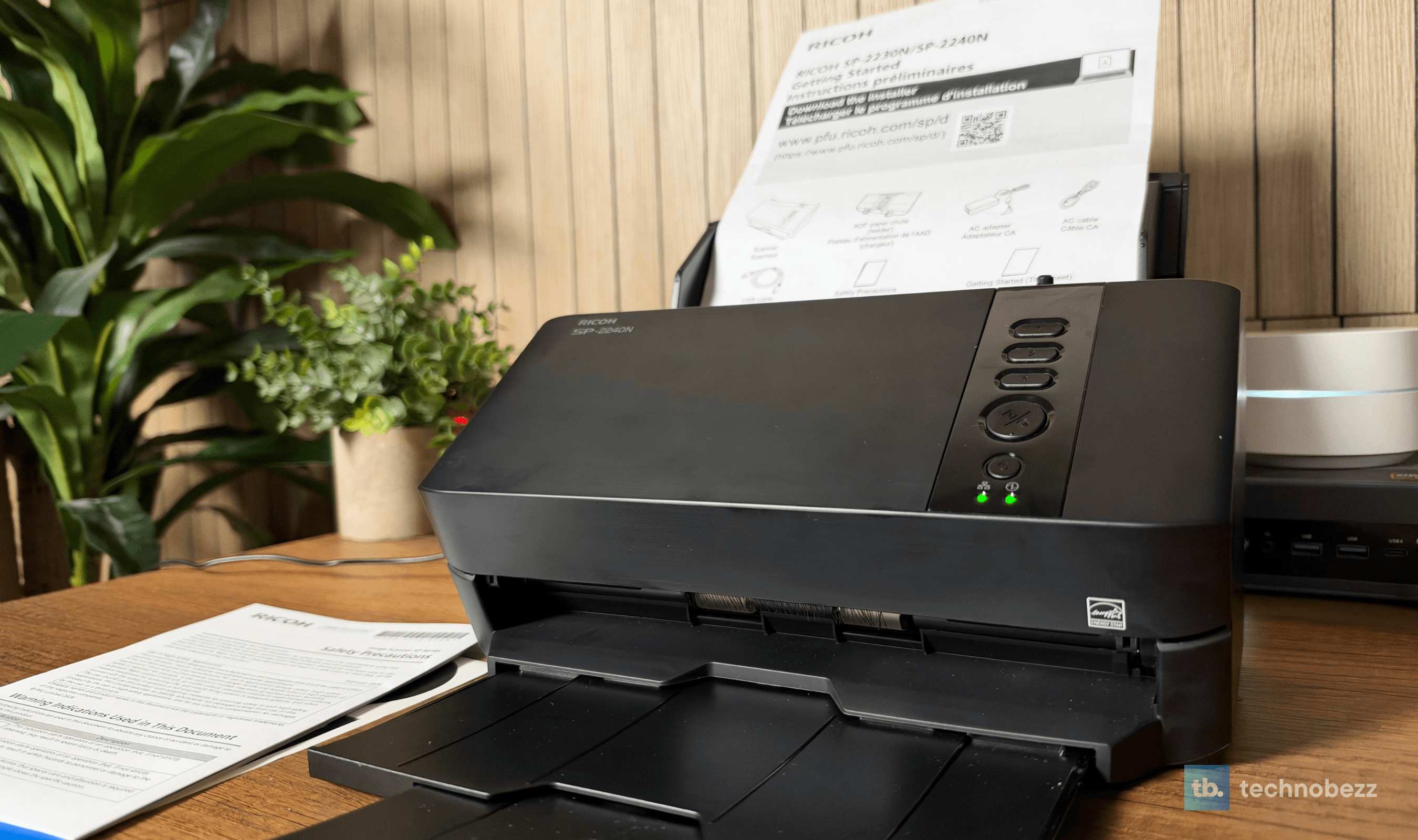
Each job can go to a network folder over SMB, an FTP or FTPS server, an SFTP server, or an email address through your own mail server. That gives you three different routines on one device: one button for household paperwork into a shared folder, one for receipts into an accounting folder, one that emails a scan to whoever needs it. Inside each job you choose color mode, one or both sides, resolution, paper size, PDF compression and whether the scanner should run text recognition and save a searchable PDF, with more than two dozen languages to choose from.
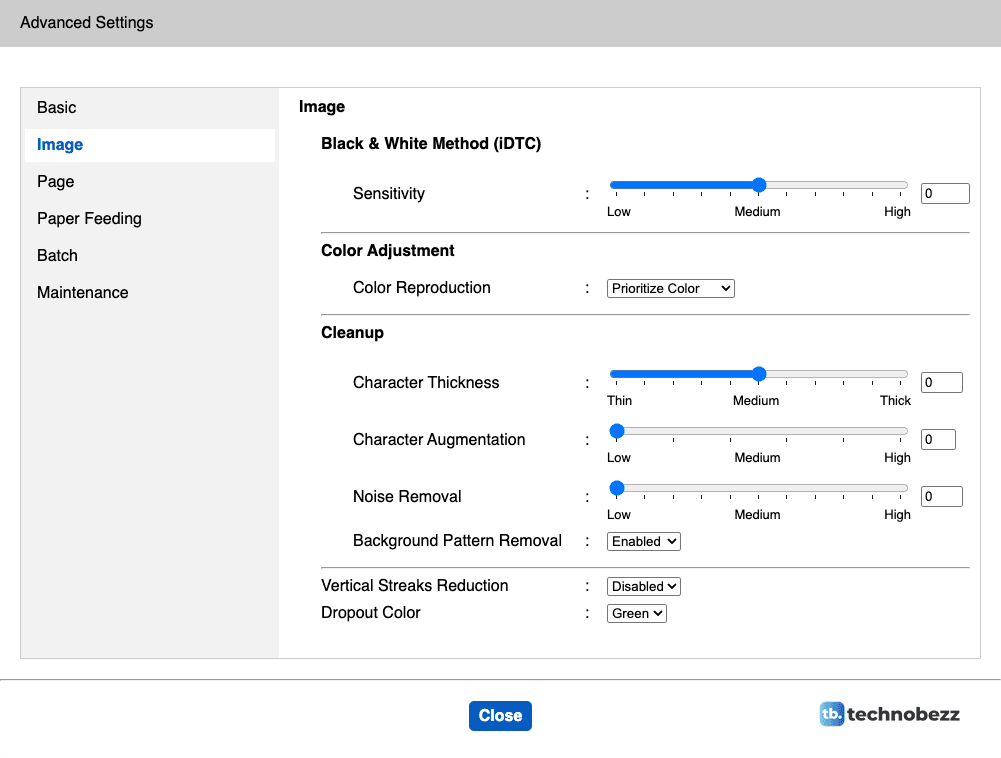
Behind those buttons sits a surprisingly deep set of image controls. Blank page deletion is switched on out of the box, so the blank backs of single-sided pages are dropped automatically. There's also auto rotation, hole punch removal, background pattern removal, edge repair and dropout color for forms, plus sliders for text thickness and noise removal.
Setup Happens in a Web Browser
I went looking for Mac software first and found there isn't any, which turned out not to matter for DirectScan. The SP-2240N runs its own admin page, called PaperStream Scanner Admin, and any browser on the same network can reach it. Plug the scanner into your router, find its address in your router's app or device list, and open it with https in front. Your browser will warn you about the certificate, which is normal for a device like this. The admin password is printed on a label on the bottom of the scanner.
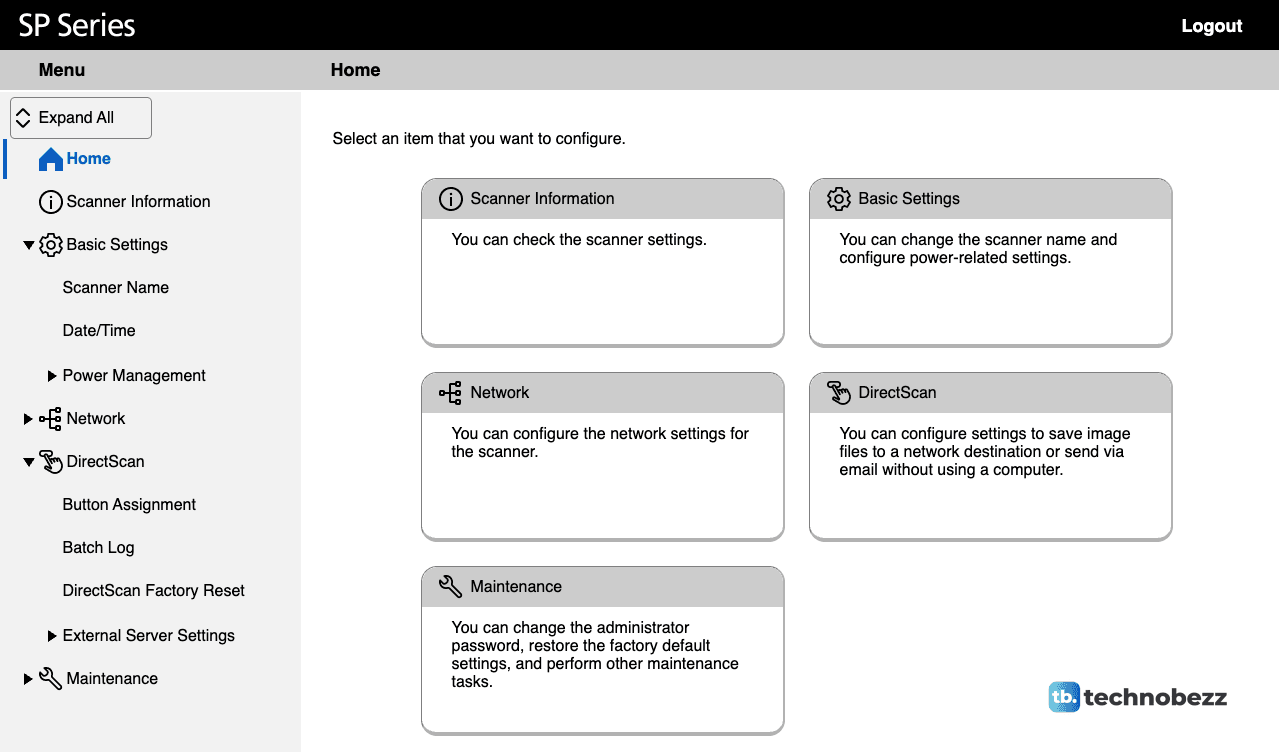
From there, going from setup to the first scan is quick. Set the date and time first, because DirectScan won't run without it and every file is named with a timestamp by default. Then switch on a Send to button, build its job and apply it. The menus are plain but logical, and the built-in Batch Log lists every scan with its time, job name, destination and status, along with an explanation whenever something fails.
Two small things to know before you start. The ADF paper chute ships in the box as a separate piece, so the scanner looks like it's missing its paper tray until you clip it on. And the stacker slides out from the front to catch finished pages. Windows users can skip the browser route entirely and install Ricoh's PaperStream suite, which adds PaperStream ClickScan for quick right-click scanning, PaperStream Capture for heavier batch work and a full TWAIN driver for document software.
Color That Holds Up Against the Originals
Color is where the SP-2240N impressed me most. Receipts, plastic ID cards, business cards, book pages and printed photos all came back accurate. If I had to score its color accuracy, I'd put it at 4 to 4.5 out of 5. Colors on cards and photos look close to the originals.
It isn't perfect. Look closely at photos and you'll see some grain, which is expected from a document scanner like this. DirectScan also tops out at 300 dpi, so anyone archiving photos at higher resolution will want Ricoh's Windows software, which goes to 600 dpi optically. For documents, 300 dpi is plenty.
What surprised me was the comparison with the ScanSnap iX2500 we reviewed earlier this year. The iX2500 is an excellent scanner, but next to it the SP-2240N produces cleaner detail and more faithful color gradations. It's not a night-and-day gap, but it's noticeable, and it's the kind of quality you don't expect at this price.
The scanner also sizes each page by itself. Full-size pages, a 4 x 6 print and a credit-card-sized instant photo went through in the same session, and each one came out at its own size rather than padded out to a full page. Cards go in sideways, and plastic cards up to 1.4 mm thick, embossed or flat, are supported.
Fast Enough That Waiting Isn't Part of It
Ricoh rates the SP-2240N at 40 pages and 80 images per minute at 200 and 300 dpi, and in daily use it feels every bit that quick. Pages fly through the feeder, both sides are captured in one pass, and the file lands on the server within seconds of the last page. On our very first run, a two-page job went from button press to finished PDF on the server in under a minute, and that included the scanner's first connection to the share.
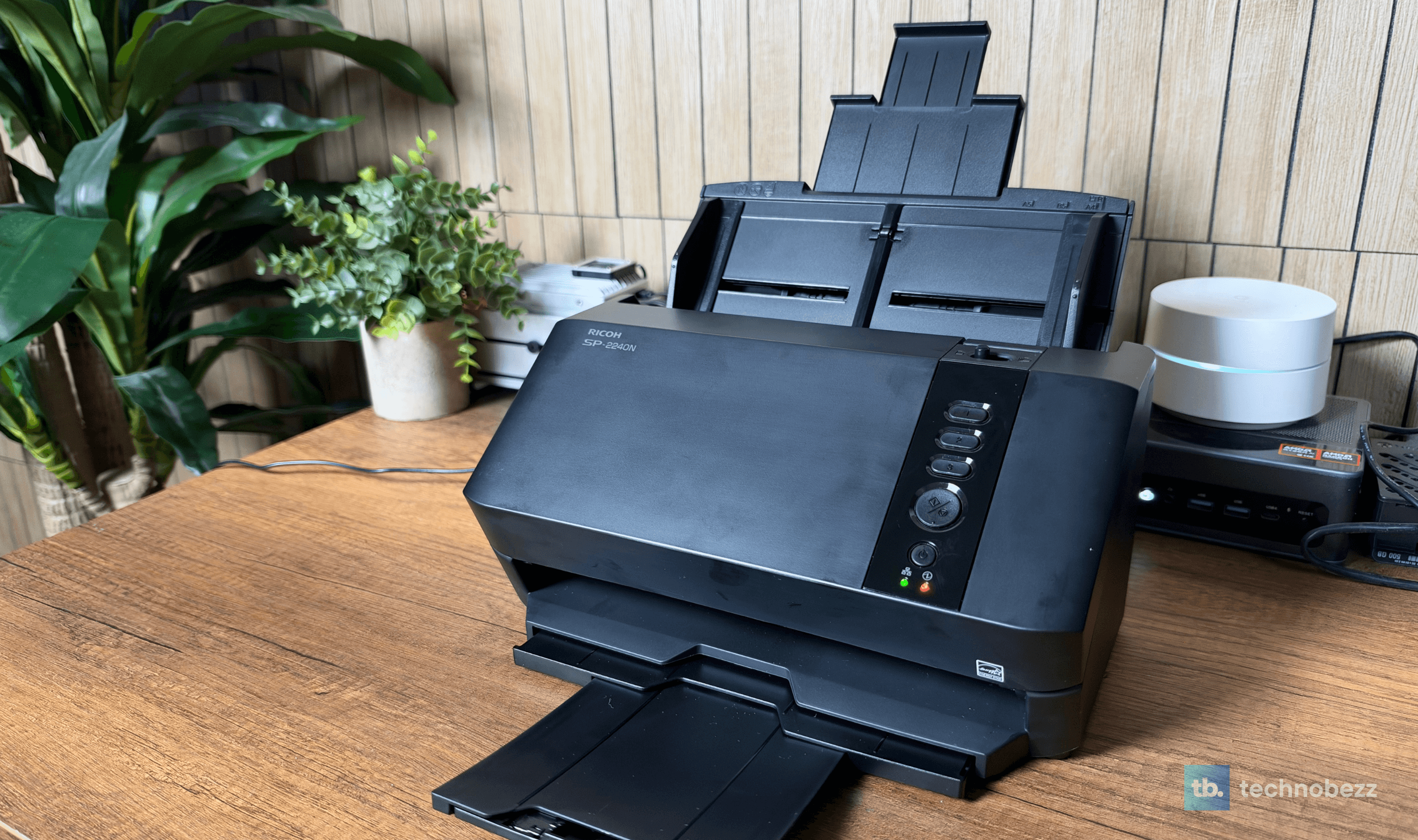
The 80-sheet feeder holds a proper stack, and you can add more paper while a job is running. Everything I fed it, from receipts to plastic cards, went through without a hiccup. For thick items, a feed mode switch on the front puts the scanner into manual single-sheet mode without digging through software. Ricoh rates it for up to 6,000 sheets a day, far beyond what a home office will throw at it.
Built Better Than the Price Suggests
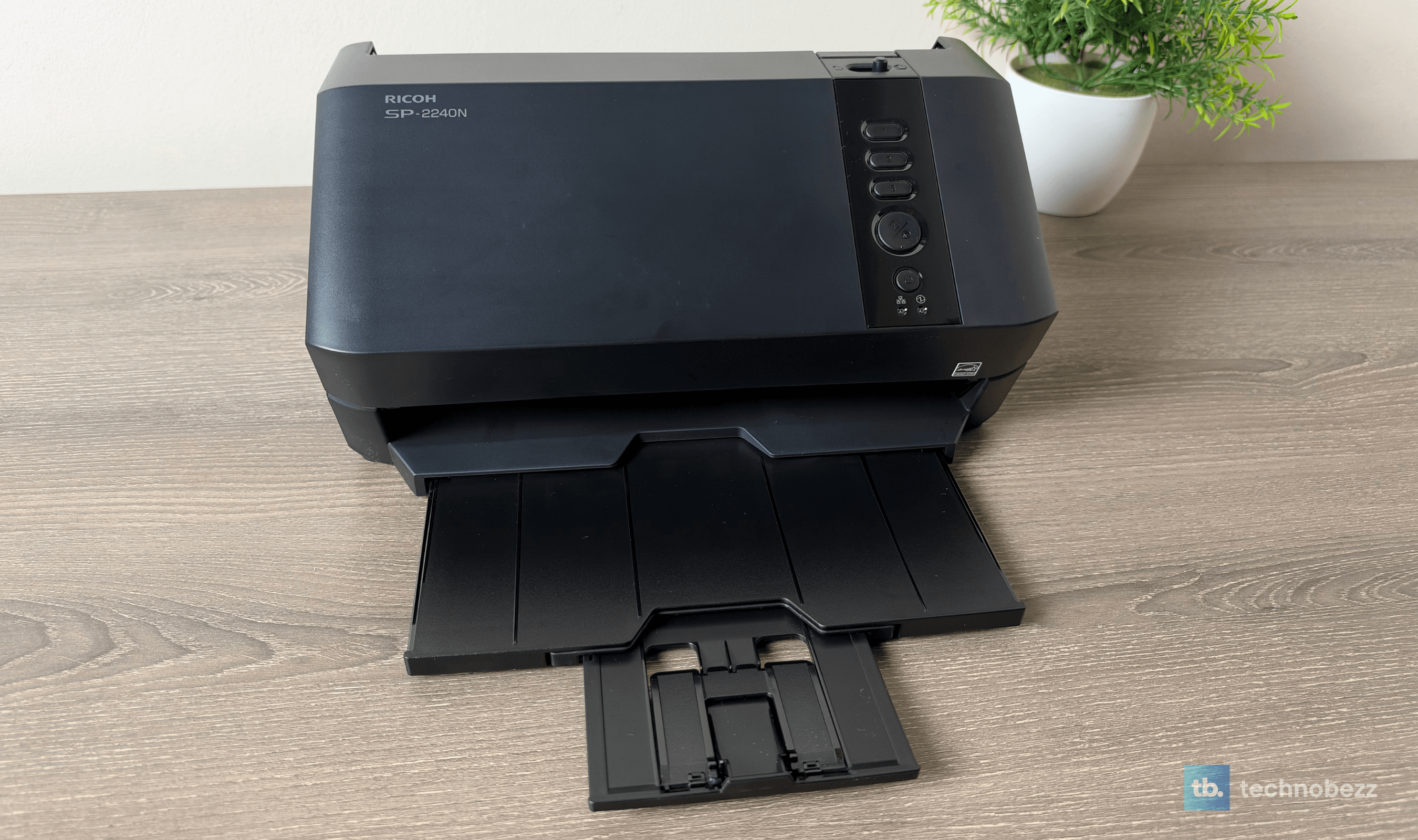
I opened the SP-2240N up, moved it around, and went through it inside and out. There's some plastic, as you'd expect, but the parts that do the work feel engineered to last. The rollers, the arms and the springs that guide each sheet are firm and precise. Ricoh rates the brake and pick rollers for 200,000 sheets each, and they're the only consumables.
It looks good too. The black body is compact at 11.5 inches wide and about 6.4 inches deep before you add the chute and stacker, and it sits neatly on a shelf or desk without shouting "office equipment." The one downside of that finish is fingerprints. It collects them, but it's a minor cosmetic point on something you'll mostly set up and leave alone.
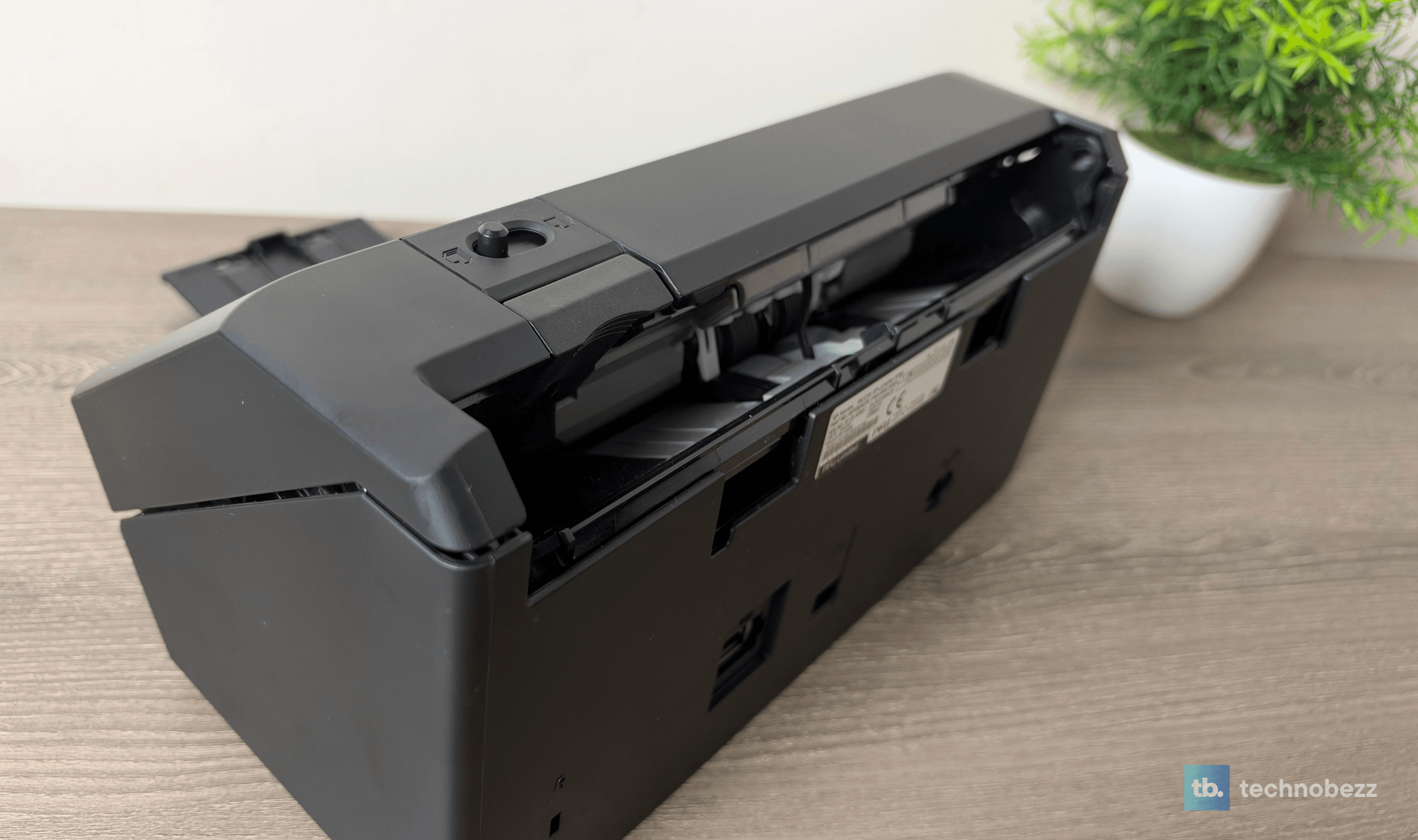
That set-and-forget quality is the bigger story. Over about a month of use, it has done exactly what Ricoh says, at the speed Ricoh says, without a single scanner-side problem. When I needed it, it worked, which is the most important thing a scanner can do.
The Stop Button Earns Its Place
With no screen, the front panel is just the three Send to buttons, a large Scan/Stop button, the power button and status lights. I expected that to be a weakness, and the lack of a display is still a fair criticism, because the lights don't tell you much on their own. In practice, the Scan/Stop button did more for me than a screen would have. The few times a job hung or the queue got stuck, one press cleared it and freed things up in seconds, with no troubleshooting.
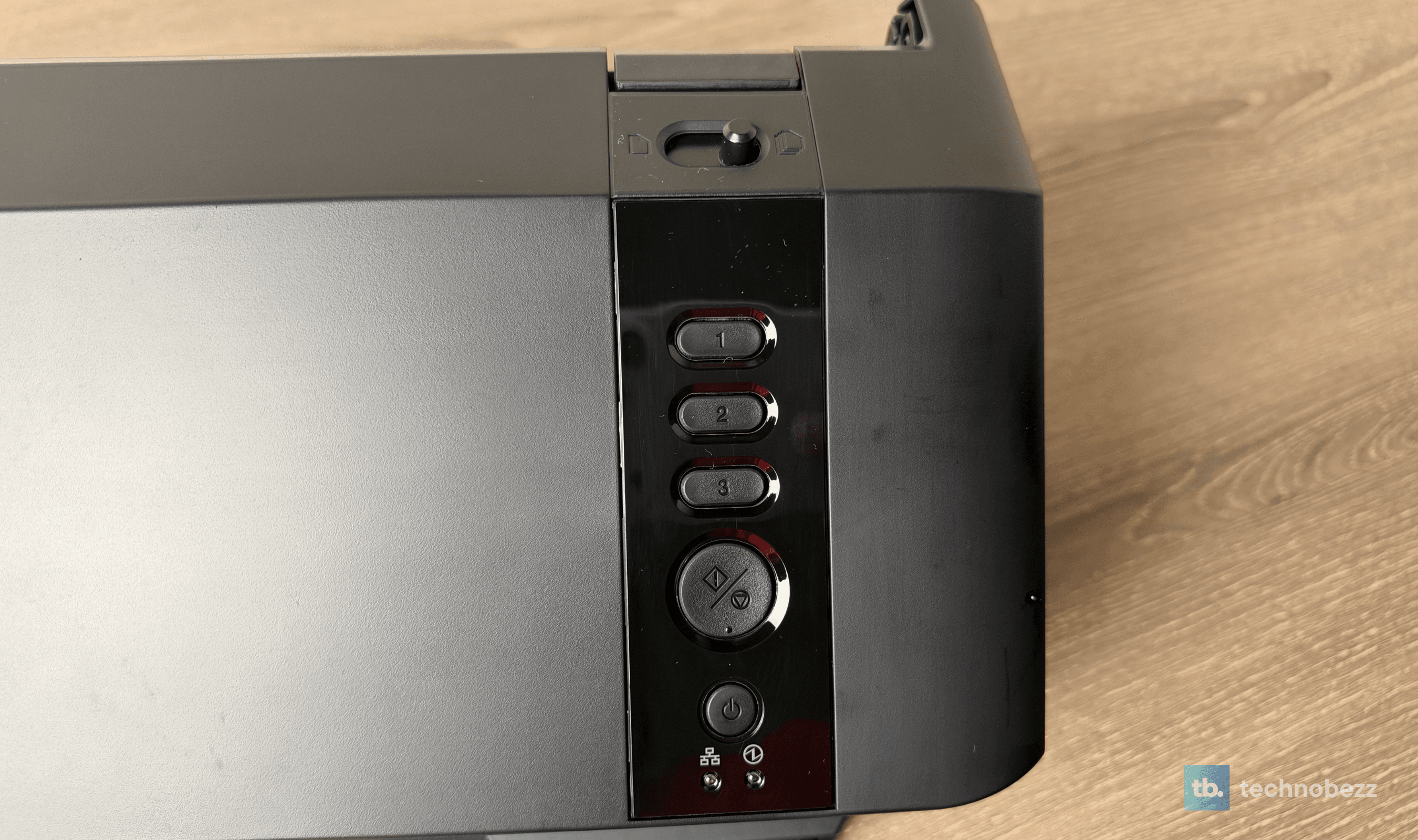
The protection features help too. An ultrasonic sensor detects overlapping sheets, and image monitoring is there to stop the feed before stapled or stuck-together paper gets damaged. When I did want details, the Batch Log in the browser had them.
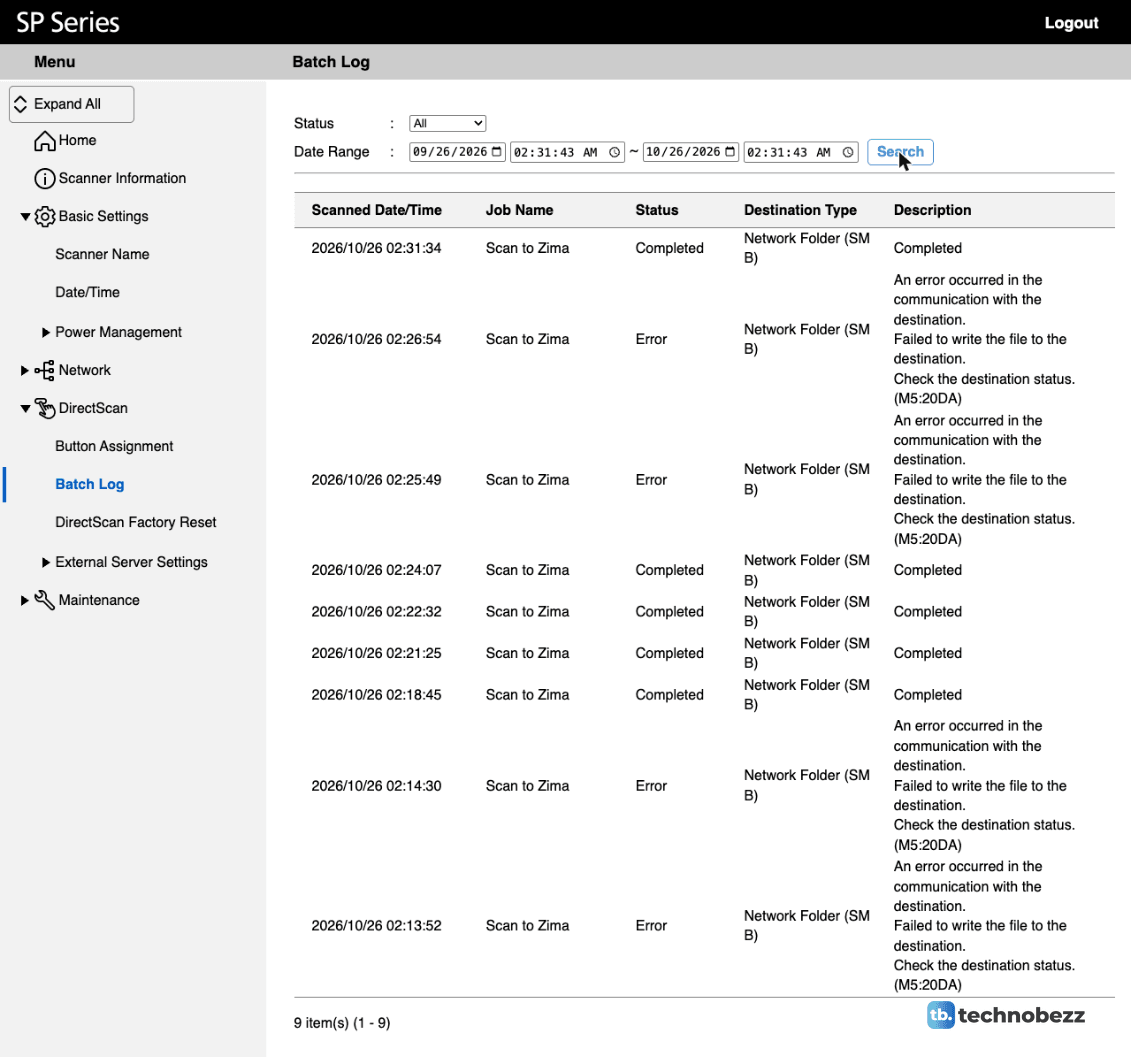
Our later scans failed with a clear "failed to write the file to the destination" message. The cause turned out to be a bug in the file-sharing software on our home server, which crashed whenever the scanner saved a file. One setting change on the server fixed it, every scan since has gone through, and the scanner itself never misbehaved. It's worth knowing if you're scanning to a NAS and see the same error.
A Network Scanner First, Not a Mac Scanner
The SP-2240N's biggest limitation is software support. Ricoh's drivers and PaperStream apps are Windows-only, Linux is supported over USB only, and there is no macOS driver at all. Ricoh's macOS scanner driver, which works with Apple's Image Capture app, covers several other models but not this one.
For Mac owners, the workaround is the one I used: treat it as a network scanner. Set it up in a browser, point the buttons at a shared folder or an email address, and open the files on your Mac. That covers most household scanning well. What you can't do is start a scan from a Mac app or scan into a specific program.
The lack of Wi-Fi is the other trade-off. You need an Ethernet cable to a router or switch, or a USB connection to a single PC. I'd rather have the stability of a wired connection on a device the whole family relies on, but it does limit where the scanner can live.
This product was provided to Technobezz for review. We independently select what we review. The manufacturer had no input on this article and did not see it before publication. All opinions are our own.
FAQ
Does the Ricoh SP-2240N work with a Mac?
Not with a driver. Ricoh offers no macOS software for the SP-2240N, so you can't scan into Mac apps or use Image Capture. You can still set it up from Safari or any browser on your network and use DirectScan to send scans to a shared folder or an email address, then open them on your Mac.
Do I need a computer to use it?
No. Once DirectScan is set up, the three Send to buttons scan to a network folder, an FTP or SFTP server, or email entirely on their own. You need a browser once to do the setup, and a Windows PC only if you want Ricoh's PaperStream software for computer-based scanning.
Does it have Wi-Fi?
No. It connects with Gigabit Ethernet or USB-C. For DirectScan, plug it into your router or a network switch, and it becomes available to everyone on the network.
Can it scan ID cards, receipts and photos?
Yes. It handles receipts, business cards, plastic ID cards up to 1.4 mm thick fed sideways, photos, and documents from 2 x 2 inches up to 8.5 x 14 inches, with long-page scanning up to 240 inches at 200 dpi. Ricoh also sells carrier sheets for delicate items and photos.
What's the difference between the SP-2240N and the SP-2230N?
Speed and rated workload. The SP-2230N scans at 30 pages and 60 images per minute and is rated for 4,500 sheets a day, while the SP-2240N does 40 pages and 80 images per minute and is rated for 6,000. Both have an 80-sheet feeder, Ethernet and DirectScan. Ricoh's US lineup currently lists the SP-2240N, and the SP-2230N is sold in other markets, including the UK.
Will it work with my NAS or home server?
Yes. DirectScan supports SMB network shares, which most NAS boxes and home servers offer, plus FTP and SFTP. If scans fail with a "failed to write the file to the destination" error, check the server's logs before blaming the scanner. On our server, turning off a file-sharing feature called SMB2 leases stopped a crash, and every scan since has completed.
The Ricoh SP-2240N does the job a scanner should do and then removes the steps that usually stop people from doing it. Press a button, and the paper is digital and filed where it belongs. Color is better than I expected, the build is better than the price suggests, and about a month in, it has been completely dependable. Mac owners who need driver support and anyone who wants Wi-Fi should look elsewhere. For everyone else, at around $380, it's an easy recommendation.
It's the rare piece of office gear that gets used more once the novelty wears off, not less.
Share this article
More reviews
Review
Tribit PocketGo Review, a Small Speaker With Big Sound
Review
The Baseus Bowie MC2 Is the Open-Ear Pair I Keep Forgetting to Take Off
Review
The Dreame AirPursue PM20 Purifies, Heats, Cools and Follows You Around the Room
Review
I Spent Weeks Looking for a Flaw in the HHKB Professional HYBRID Type-S
ReviewiPhone 18 Pro Max vs iPhone 17 Pro Camera Comparison in DaylightReviewDreame D20 Air Plus Review, Built Like a Robot That Costs Three Times as MuchReviewThe Boulies EP600 Moves in More Directions Than Any Chair We Have TestedReviewNarwal Freo 20 Edge Review, Reaching the Corners Without Dragging the DirtReviewHisense M7SR Review, an Easy First Step Into MiniLEDReviewKYY X90D Review, Two Extra Screens From One USB-C CableReviewI've Used the 15-inch MacBook Air M5 for Months, and It's the Best Laptop I've Ever OwnedReviewUltenic AC1 TriFlex Review, the Wet Dry Vacuum That Pulls Its Own Weight