

The best free screen recorder software depends less on the biggest feature list and more on what you record every week. A Windows user grabbing a short app clip does not need the same tool as a creator recording a long tutorial, a teacher adding webcam narration, or a team sending quick async updates.
For most people, OBS Studio is the strongest pick because it is free, open source, cross-platform, and built for serious recording without the short limits that shape many lighter tools. The built-in options still matter, though. If you only need a fast clip on Windows, Mac, iPhone, iPad, or Android, the recorder already on your device is often the cleanest choice.
At a Glance
| Best for | Software | Standout | Free tier |
|---|---|---|---|
| Most people | OBS Studio | Cross-platform recording with capture sources and output controls | Free and open source |
| Windows power users | ShareX | Region screen recording and GIF capture from the Capture menu | Free forever, open source, no account required |
| Quick Windows clips | Windows 11 Snipping Tool | Windows logo key + Shift + R opens video snip recording | Included with current Windows 11 Snipping Tool |
| Windows app and game clips | Xbox Game Bar | Windows key + Alt + R starts and stops recording | Included with Windows 10 and Windows 11 |
| Screen and camera videos | Microsoft Clipchamp | Records browser tabs, windows, or the full screen, then exports up to 1080p | Free recordings up to 30 minutes with no watermarks |
| Mac users | macOS Screenshot | Shift + Command + 5 opens full-screen and selected-portion recording | Included with macOS Mojave 10.14 or later |
| iPhone and iPad users | iPhone and iPad Screen Recording | Control Center recording with a three-second countdown | Included on iPhone, iPad, and iPod touch |
| Android users | Android Screen Record | Quick Settings recording with audio and touch options on supported devices | Included on Android devices that expose the Screen record tile |
| Short narrated lessons | ScreenPal | Records screen, webcam, or both with microphone narration | No account needed to start, no watermark, and unlimited videos. ScreenPal says sign-in is required to record past five minutes, and the free-plan cap is 15 minutes per desktop recording. |
| Async team updates | Loom Starter | Screen and camera bubble recording with comments, reactions, and transcripts | 25 videos per person, 5 minutes per video, up to 720p |
How we chose
We prioritized free screen recorders that are current, officially documented, and useful without steering the reader toward hardware or shopping decisions. The strongest picks either work across major desktop platforms, come built into the operating system, or solve a clear recording job such as quick clips, tutorials, mobile capture, or async sharing.
We disqualified anything deprecated, anything without a current official product or support page, and anything whose free limits would make the recommendation misleading. We also treated narrow built-in tools honestly, so a fast recorder for one device did not get described as a full replacement for a dedicated desktop recording app.
OBS Studio
Key highlights
- Standout: Cross-platform recording with capture sources and output controls
- Free tier: Free and open source
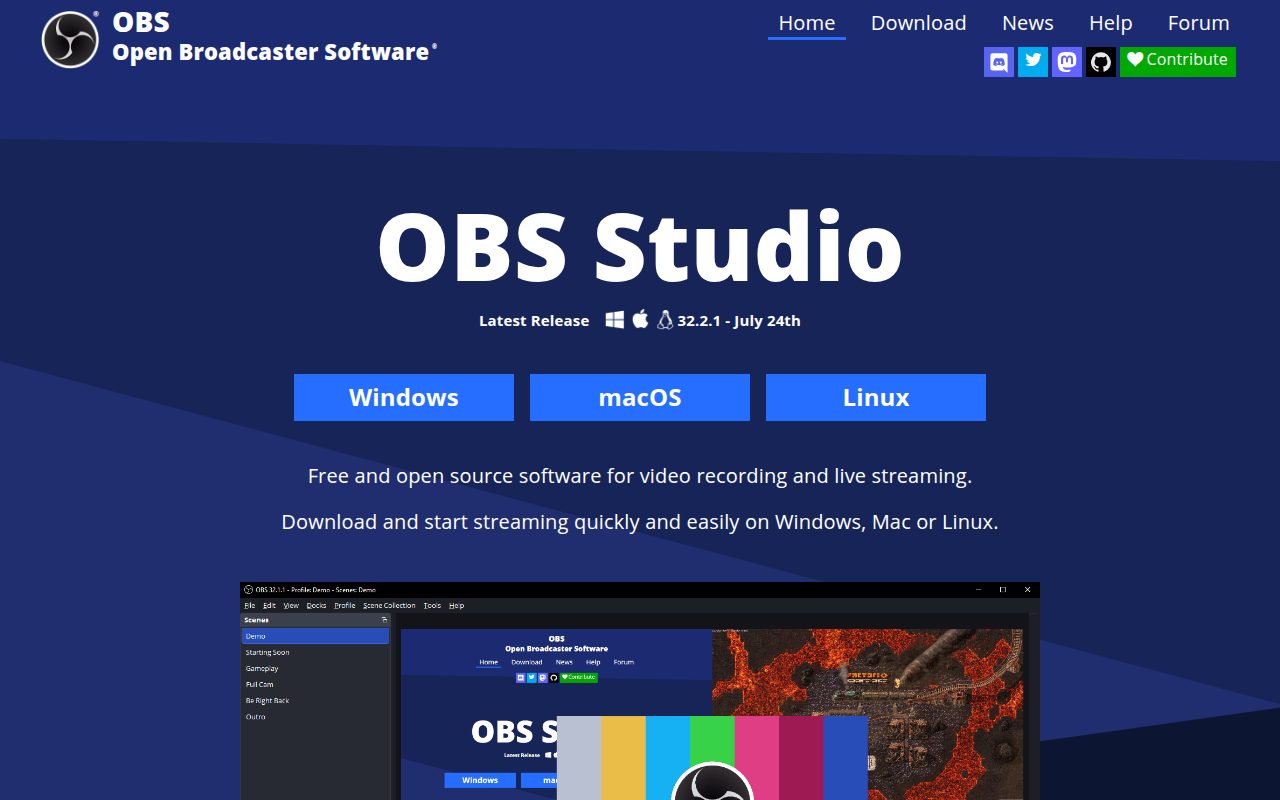
OBS Studio is the free screen recorder most people should pick when they want one tool that can grow with them. It runs on Windows, macOS, and Linux, and its capture-source workflow covers display capture, window capture, macOS screen capture, and Windows game capture from the Sources dock.
Its standout advantage is control. The Auto-Configuration Wizard helps with first setup, while Settings gives you places to check audio and output before you press Start Recording in the Controls dock. That makes OBS a better long-term choice for tutorials, gameplay, presentations, and repeatable recording setups than a simple one-button recorder.
Pros
- It is free and open source.
- It works on Windows, macOS, and Linux.
- It supports multiple capture sources for screens, windows, games, and macOS screen capture.
- It includes setup help through the Auto-Configuration Wizard.
- It gives direct control over audio and output settings.
Cons
- It takes more setup than a built-in recorder.
- macOS 12 users need the older OBS Studio 32.1.2 release rather than the current 32.2.1 line.
- Its interface is more powerful than casual clip recording requires.
Choose OBS Studio if you want the best free screen recorder software for serious desktop recording, longer sessions, tutorials, gameplay, or a setup you will reuse.
You only need a ten-second built-in clip and do not want to configure sources or output settings.
ShareX
Key highlights
- Standout: Region screen recording and GIF capture from the Capture menu
- Free tier: Free forever, open source, no account required
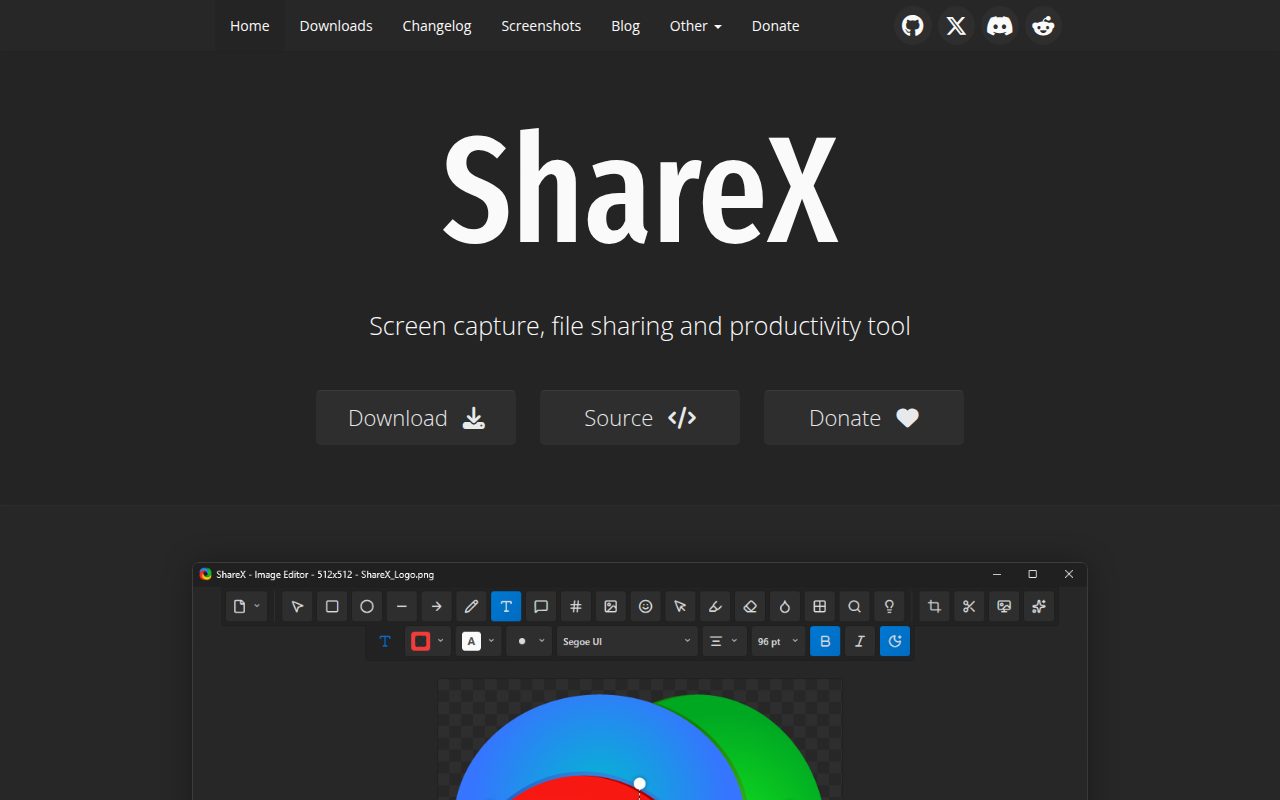
ShareX is the Windows pick for people who like fast capture tools with lots of control around the edges. It records from the main window or tray menu through Capture, then Screen recording or Screen recording GIF, and it lets you select the region before the countdown begins.
The reason it earns a spot is that it is genuinely free, open source, and built around screen capture rather than wrapped inside a broader editing suite. Its standout setting is Task settings, where the Screen recorder area and Screen recording options give Windows users access to FFmpeg and audio configuration when they need more than the default behavior.
Pros
- It is free forever and open source.
- It does not require an account.
- It records video or GIFs from the Capture menu.
- It supports region selection before recording starts.
- It includes screen recorder options for FFmpeg and audio setup.
Cons
- It is Windows-only.
- Its many capture options can feel dense for a first recording.
- It is better for utility capture than polished camera-led presentations.
ShareX is for Windows users who want a fast, configurable recorder for screen clips, GIFs, and repeat capture workflows.
You need Mac, Linux, iPhone, iPad, or Android support from the same recorder.
Windows 11 Snipping Tool
Visit Windows 11 Snipping Tool
Key highlights
- Standout: Windows logo key + Shift + R opens video snip recording
- Free tier: Included with current Windows 11 Snipping Tool
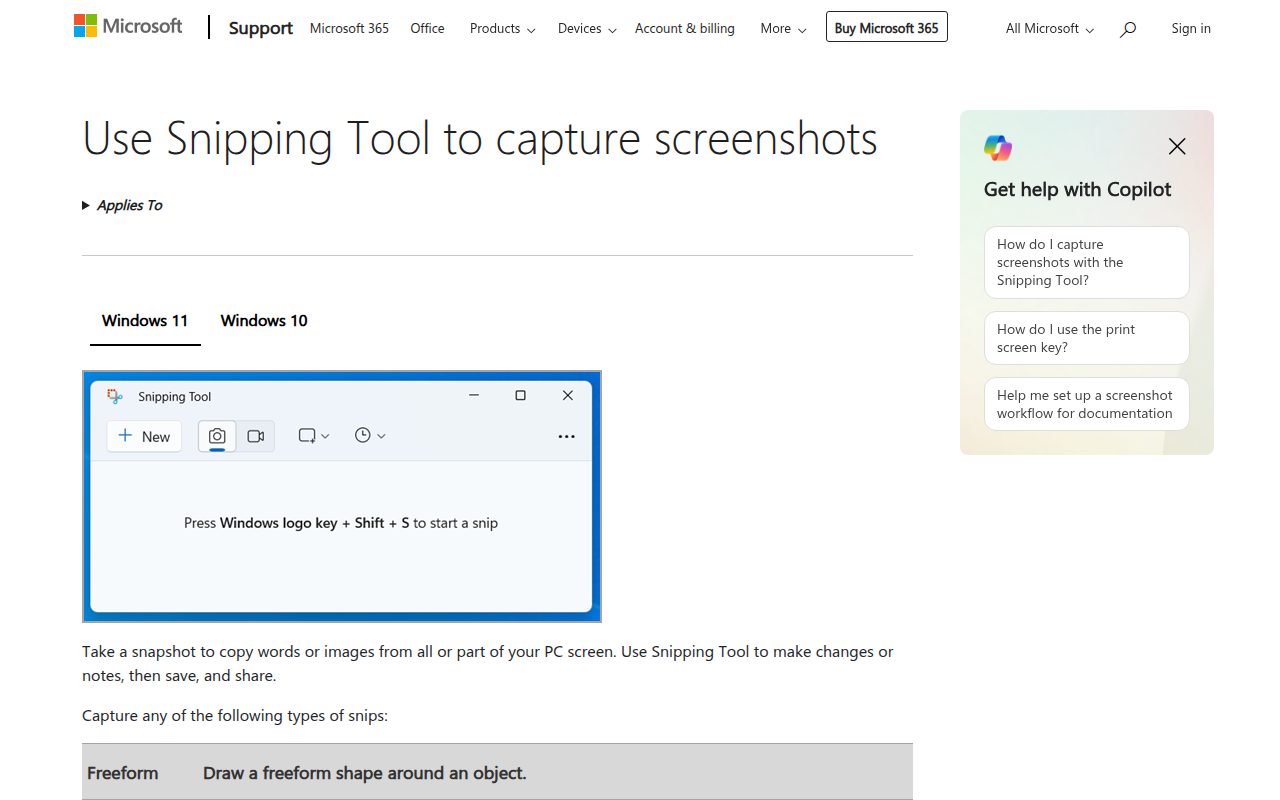
Windows 11 Snipping Tool is the cleanest choice for quick recording on a current Windows 11 device. It is built into the Snipping Tool experience, so you can open it from Start, choose Record, select New, mark the area, then start and stop without installing a separate app.
The standout feature is the direct shortcut. Windows logo key + Shift + R opens the video snip overlay, which makes it the recorder to use when you need a small screen area captured quickly and saved without building a full production setup.
Pros
- It is built into current Windows 11 Snipping Tool.
- The Windows logo key + Shift + R shortcut opens recording quickly.
- It records a selected area rather than forcing a full-screen capture.
- It can hand the clip to Clipchamp for editing.
Cons
- It is not the Windows 10 built-in Snipping Tool recorder.
- It is designed for quick clips rather than advanced recording layouts.
- It does not replace OBS for source control or longer production workflows.
Windows 11 Snipping Tool is for Windows 11 users who want the fastest built-in way to capture a defined area of the screen.
You need cross-platform recording, game capture controls, or a recorder for Windows 10.
Xbox Game Bar
Key highlights
- Standout: Windows key + Alt + R starts and stops recording
- Free tier: Included with Windows 10 and Windows 11
Xbox Game Bar is the Windows recorder to use for games and app clips when you want keyboard-driven capture. Once Windows Game Bar recording is enabled, Windows key + Alt + R starts and stops a recording, while Windows key + G brings up the controls.
Its standout setting is the microphone toggle on Windows key + Alt + M, which is useful when a clip needs quick narration. Files save to Videos and then Captures, giving Windows users a predictable place to find the result after recording.
Pros
- It is included with Windows 10 and Windows 11.
- The Windows key + Alt + R shortcut starts and stops recording.
- It works well for supported games and apps.
- It includes a keyboard shortcut for microphone capture.
Cons
- It is not a full desktop or File Explorer recorder in every context.
- Managed Windows devices can have recording disabled by policy.
- It is less flexible than OBS for custom recording scenes.
Xbox Game Bar is for Windows users who mainly record supported apps and games and want shortcut-first capture.
You need reliable full-desktop recording across every Windows surface.
Microsoft Clipchamp
Key highlights
- Standout: Records browser tabs, windows, or the full screen, then exports up to 1080p
- Free tier: Free recordings up to 30 minutes with no watermarks
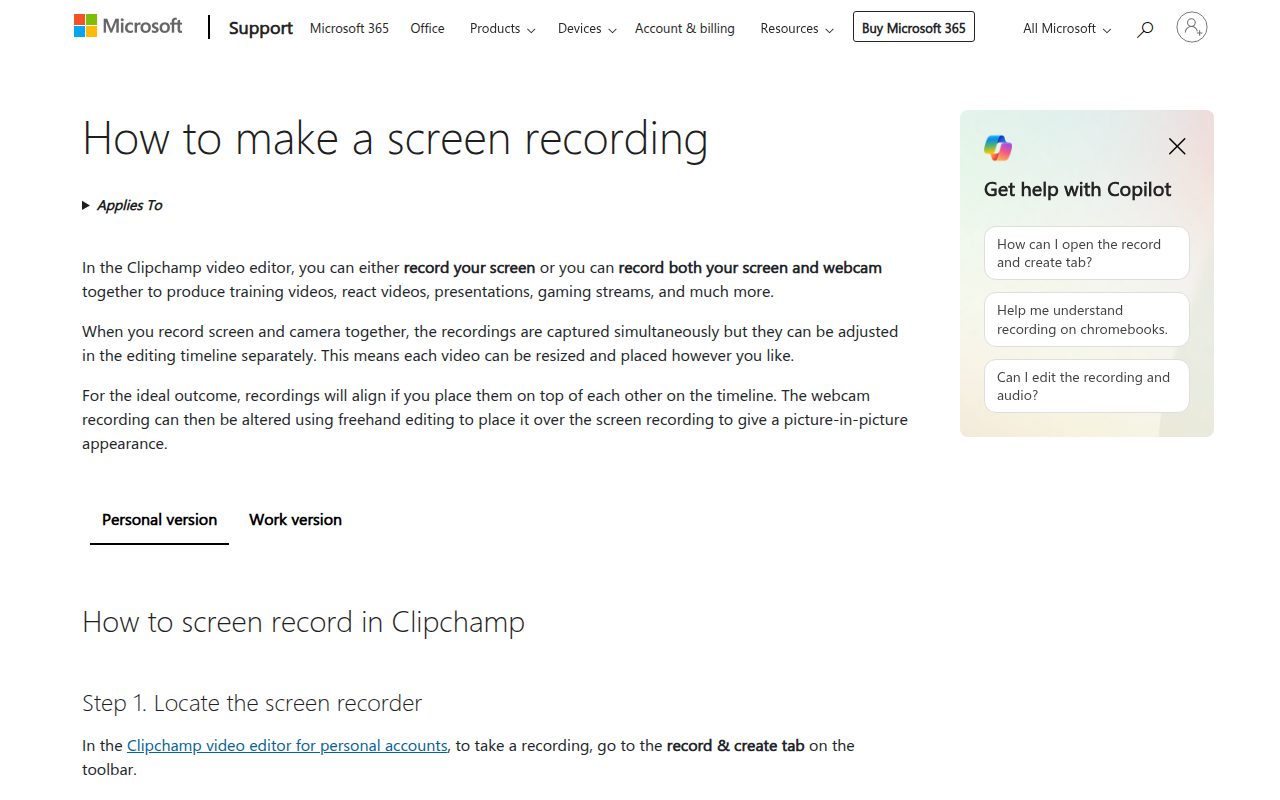
Microsoft Clipchamp is the best free pick here for people who want screen recording and a simple editing handoff in the same flow. In the record and create tab, you can choose screen or screen and camera, allow camera and microphone access, select a microphone source, and then record a browser tab, window, or the entire screen.
The standout is what happens after capture: the recording can move into save and edit, then export. The official free offer supports screen and camera recording for Windows 11 and Mac, recordings up to 30 minutes, exports up to 1080p, and no watermarks.
Pros
- It records screen-only or screen-and-camera videos.
- It works through the web app and Windows app.
- It supports browser tab, window, and full-screen recording.
- It exports free videos up to 1080p with no watermarks.
- It includes recordings up to 30 minutes for free.
Cons
- It requires signing in to Clipchamp.
- The free recording limit is 30 minutes.
- It is not as configurable as OBS for dedicated production setups.
Clipchamp is for people making short lessons, walkthroughs, or webcam-plus-screen videos that need light editing after recording.
You want a no-account desktop recorder or expect recording sessions longer than 30 minutes.
macOS Screenshot
Key highlights
- Standout: Shift + Command + 5 opens full-screen and selected-portion recording
- Free tier: Included with macOS Mojave 10.14 or later
macOS Screenshot is the built-in recorder most Mac users should start with. Press Shift + Command + 5, choose Record Entire Screen or Record Selected Portion, then use Options for save location, timer, microphone, and visible click settings before recording.
It earns its spot because it is direct, official, and already on Macs running macOS Mojave 10.14 or later. The concrete standout is the Options menu, which keeps common recording choices close to the record button instead of burying them in a separate app.
Pros
- It is built into macOS Mojave 10.14 or later.
- It records the full screen or a selected portion.
- The Options menu includes save location, timer, microphone, and click settings.
- It can be opened quickly with Shift + Command + 5.
Cons
- Some apps, including Apple TV, may block window recording.
- It is Mac-only.
- It is simpler than OBS for multi-source recording setups.
macOS Screenshot is for Mac users who want a built-in recorder for clean full-screen or selected-area captures.
You need Windows or Linux support, or you want scene-based recording controls.
iPhone and iPad Screen Recording
Visit iPhone and iPad Screen Recording
Key highlights
- Standout: Control Center recording with a three-second countdown
- Free tier: Included on iPhone, iPad, and iPod touch
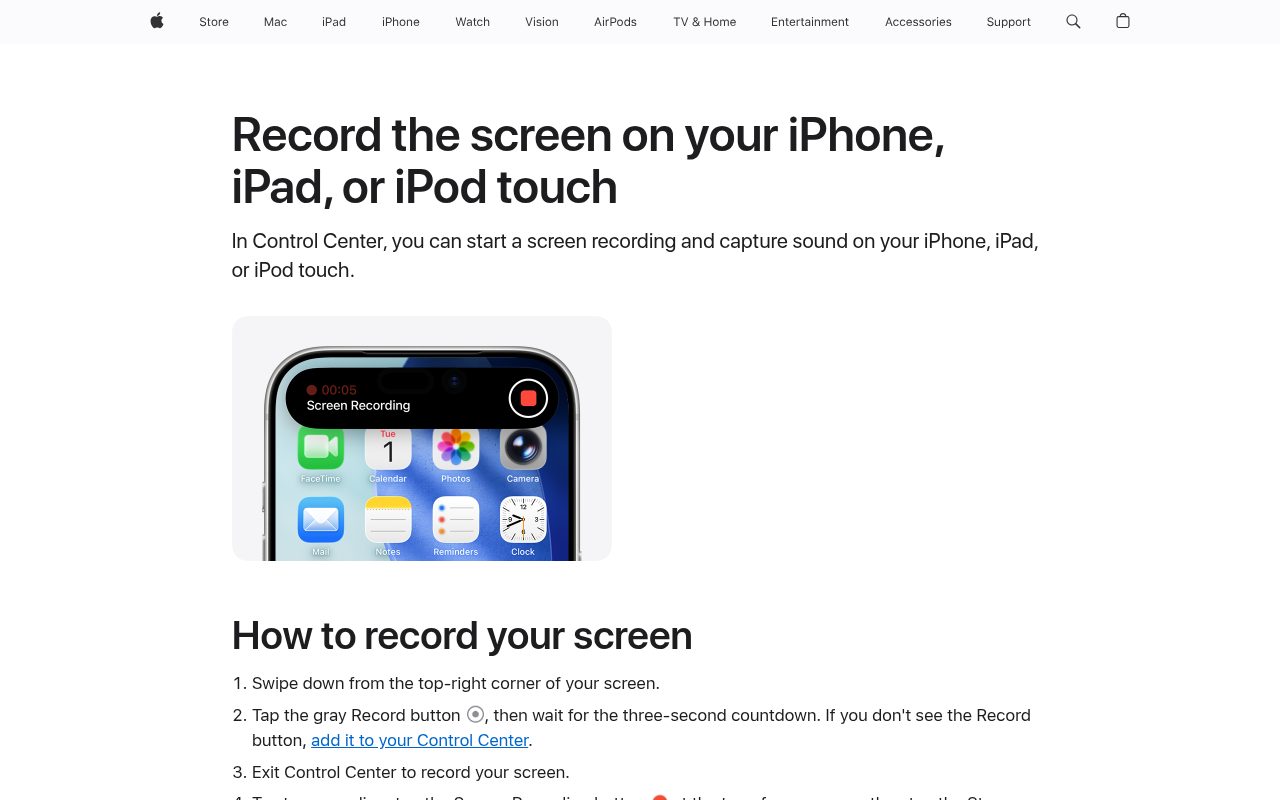
iPhone and iPad Screen Recording is the right choice for capturing what happens on an iPhone, iPad, or iPod touch. It lives in Control Center: tap the gray Record button, wait for the three-second countdown, leave Control Center, then stop from the Screen Recording button at the top of the screen or from Control Center.
Its standout is availability. If the button is missing, Screen Recording can be added to Control Center, which makes it a simple official recorder for app walkthroughs, settings demos, and short mobile clips.
Pros
- It is built into iPhone, iPad, and iPod touch devices with Control Center recording.
- The three-second countdown gives you time to get ready.
- It can be started and stopped from Control Center.
- It is well suited to mobile app and device walkthroughs.
Cons
- Some apps may block audio or video recording.
- It cannot be used at the same time as screen mirroring.
- It is not a desktop screen recorder.
iPhone and iPad Screen Recording is for Apple mobile users who need a built-in way to capture app steps or device behavior.
You need to record protected app content, mirror the screen at the same time, or capture a desktop workflow.
Android Screen Record
Key highlights
- Standout: Quick Settings recording with audio and touch options on supported devices
- Free tier: Included on Android devices that expose the Screen record tile
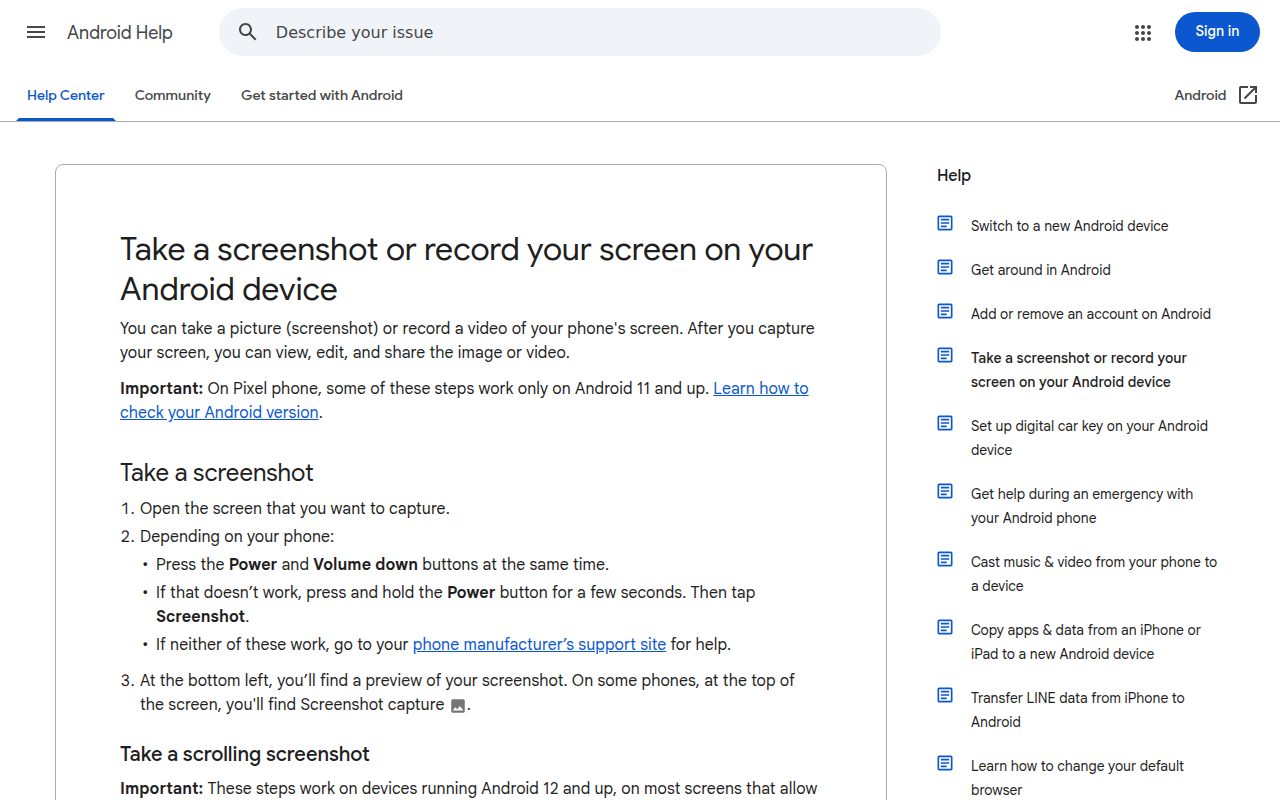
Android Screen Record is the built-in option for Android devices that expose the Screen record tile in Quick Settings. Swipe down twice from the top of the screen, tap Screen record, choose what to record, then start and stop from the Screen recorder notification.
The reason it belongs on this list is convenience. On supported devices, the Edit control lets you drag Screen record into Quick Settings if it is not already visible, and the pre-recording options can include audio recording and showing touches.
Pros
- It is built into Android devices that expose the Screen record tile.
- It starts from Quick Settings.
- It can include audio on supported devices.
- It can show touches before recording starts.
Cons
- Availability varies by device maker and Android version.
- Options are not identical across every Android device.
- It is not a desktop recording tool.
Android Screen Record is for Android users who want the fastest built-in recorder for mobile app walkthroughs and device clips.
Your Android device does not expose the Screen record tile or you need desktop editing and capture controls.
ScreenPal
Key highlights
- Standout: Records screen, webcam, or both with microphone narration
- Free tier: No account needed to start, no watermark, and unlimited videos. ScreenPal says sign-in is required to record past five minutes, and the free-plan cap is 15 minutes per desktop recording.
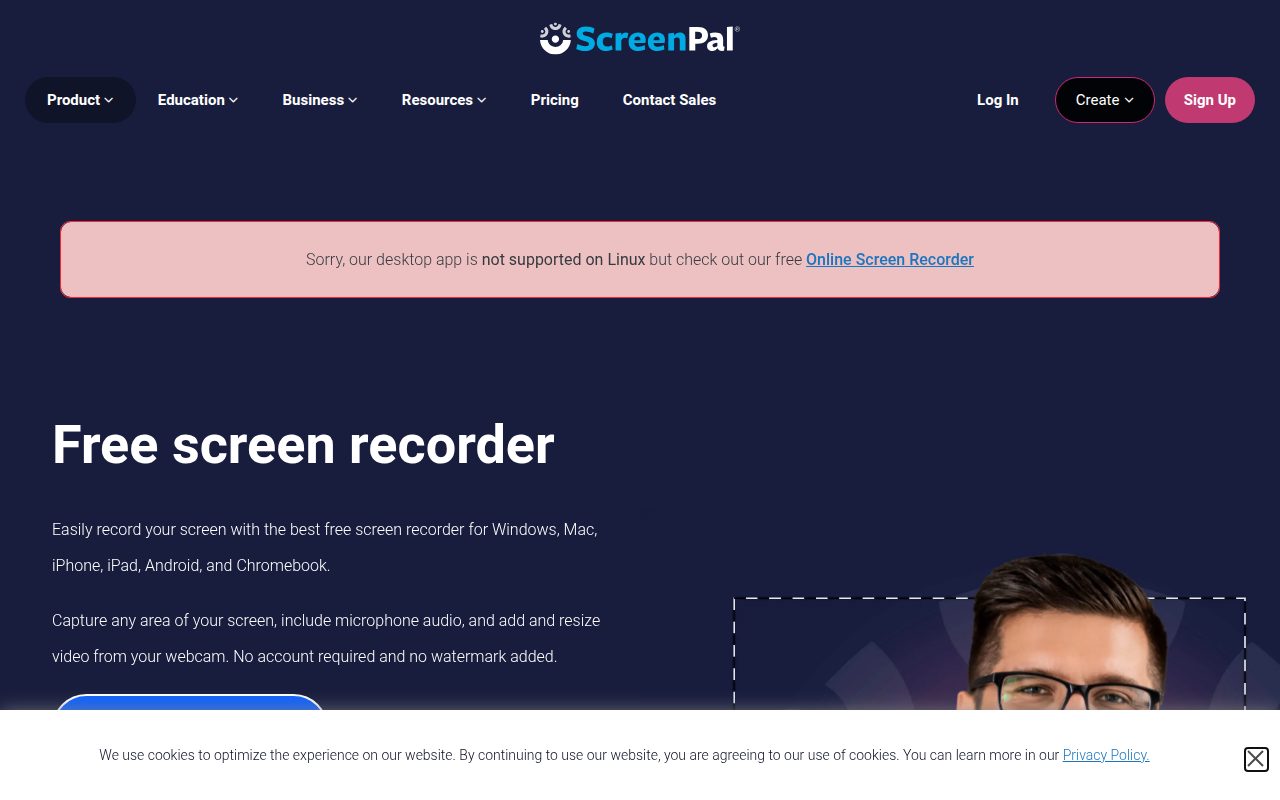
ScreenPal is a strong free choice for short teaching videos and narrated walkthroughs. The recorder lets you choose screen, webcam, or both, then choose full screen, a window, or a defined area before recording with microphone narration.
Its standout free terms are practical for quick lessons: no account is needed to start, there is no watermark, and ScreenPal advertises unlimited videos across Windows, Mac, Chromebook, iPhone, iPad, and Android. ScreenPal's support documentation says you must sign in to record past five minutes, while the free-plan cap is 15 minutes per desktop recording. Mac or Windows system audio requires an upgraded plan.
Pros
- It records the screen, webcam, or both.
- It supports full screen, window, and area capture.
- It includes microphone narration.
- No account is needed to start recording.
- It has no watermark and allows unlimited videos.
Cons
- Free-plan desktop recordings are limited to 15 minutes, and ScreenPal says sign-in is required to continue past five minutes.
- Mac and Windows system audio are not included in the free desktop recorder.
- It is less suited to long-form recording than OBS.
ScreenPal is for teachers, trainers, and presenters who make short narrated screen or webcam lessons without needing system audio on Mac or Windows.
Your desktop recordings regularly run past 15 minutes or depend on system audio capture.
Loom Starter
Key highlights
- Standout: Screen and camera bubble recording with comments, reactions, and transcripts
- Free tier: 25 videos per person, 5 minutes per video, up to 720p
Loom Starter is the free recorder to choose when the recording is meant to become a shareable update, not just a local file. It works through the desktop app, Chrome extension, and mobile apps, with capture choices for screen only, screen and camera, or camera only.
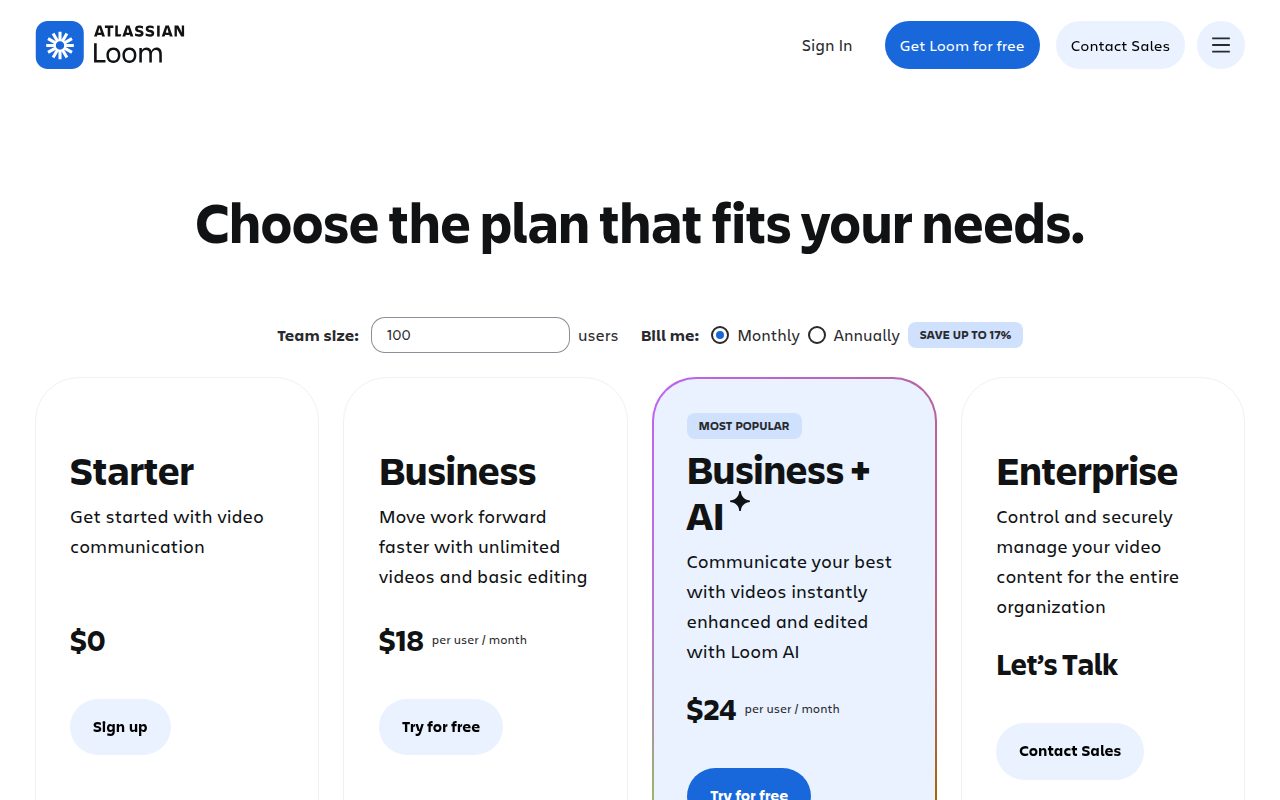
The standout is its collaboration layer. The free Starter plan includes 25 videos per person, a 5 minute video recording limit, up to 50 workspace members, 720p video quality, screen and camera bubble recording, system audio, comments, reactions, and transcripts.
Pros
- It supports Mac, Windows, iOS, Android, and a Chrome extension.
- It records screen only, screen and camera, or camera only.
- It includes system audio on the free Starter plan.
- It includes comments, reactions, and transcripts.
- It is built for link sharing after recording.
Cons
- The free Starter plan is limited to 25 videos per person.
- Free recordings are limited to 5 minutes per video.
- Free video quality is capped at 720p.
- It requires signing in.
Loom Starter is for teams, teachers, and support roles that need short screen-and-camera updates with comments and quick sharing.
You need long recordings, more than 25 saved videos per person, or 1080p free output.
How to Choose
- Start with OBS for one serious desktop recorder. It is the best default when you want a free, open-source tool that works across Windows, macOS, and Linux and gives you control over sources, audio, and output.
- Use the built-in recorder for fast device clips. Windows 11 Snipping Tool, macOS Screenshot, iPhone and iPad Screen Recording, and Android Screen Record are the cleanest picks when you only need to capture the device you are already using.
- Pick ShareX for Windows utility capture. It is the sharper Windows choice when region recording, GIF capture, tray access, and screen recorder options matter more than webcam presentation.
- Choose Clipchamp for screen plus camera with editing. It fits walkthroughs and lessons that need a recorder and a simple export path in one place.
- Choose ScreenPal for short narrated lessons. It is best when microphone narration, webcam capture, no account to start, and no watermark matter more than long recordings or desktop system audio.
- Choose Loom Starter for async sharing. It is the right free option when comments, reactions, transcripts, and quick links are part of the job.











