

The best free video editing software is not one single app for everyone. A creator cutting Shorts on a phone needs a different tool from someone finishing a color-heavy short film, and a beginner making family clips should not have to stare down a broadcast suite just to trim a video.
For most people, DaVinci Resolve is the one to install first. It gives you a serious editor, color tools, visual effects, audio workspaces, and export controls without a monthly subscription, ads, or user tracking. The other picks here earn their place by being better for a specific kind of work, whether that is social video, Apple-only editing, open-source control, browser projects, or mobile YouTube uploads.
At a Glance
| Best for | Software | Standout | Free tier |
|---|---|---|---|
| Most people | DaVinci Resolve | Pro editing, color, VFX, audio, and delivery pages | Free edition, with Studio features excluded |
| Social video | CapCut | Web, desktop, and mobile editing with watermark-free export | Free Standard, with Pro templates, effects, AI tools, storage, and team features excluded |
| Windows and browser projects | Microsoft Clipchamp | Simple timeline editing and AI video creation surface | Free personal tier with exports up to 1080p HD |
| Apple users | Apple iMovie | Magic Movie, Storyboard, Movie, and trailer workflows | Free on Apple devices, with no separate paid tier found |
| Open-source editing | Kdenlive | Cross-platform non-linear editor with no watermark or export limits found | Free and open source |
| Flexible cross-platform editing | Shotcut | Playlist, timeline, and Export workflow across major desktop platforms | Free and open source |
| Beginners who want open source | OpenShot Video Editor | Drag-and-drop tracks, effects, titles, and export | Free and open source under GPL |
| 3D creators | Blender Video Sequencer | Video editing inside Blender’s full creation suite | Free and open source |
| YouTube mobile creators | YouTube Create | Clips, filters, royalty-free music, voiceover, auto-captions, and YouTube sharing | Free of charge and without ads |
| Quick branded clips | Adobe Express Free video editor | Templates, free assets, editing tools, storage, and social scheduling | Free plan with 5GB storage and Premium features excluded |
How we chose
Every pick had to be current, officially available, and backed by an official product or support page. We favored editors that are genuinely useful without a paid upgrade, then separated them by the person each one serves best instead of pretending a mobile template editor and a pro color suite belong in the same lane.
Free-tier limits matter here. When a vendor reserves 4K export, premium effects, AI tools, cloud storage, or advanced features for paid plans, that boundary is stated plainly so the recommendation stays honest.
DaVinci Resolve
Key highlights
- Standout: Pro editing, color, VFX, audio, and delivery pages
- Free tier: Free edition, with Studio features excluded
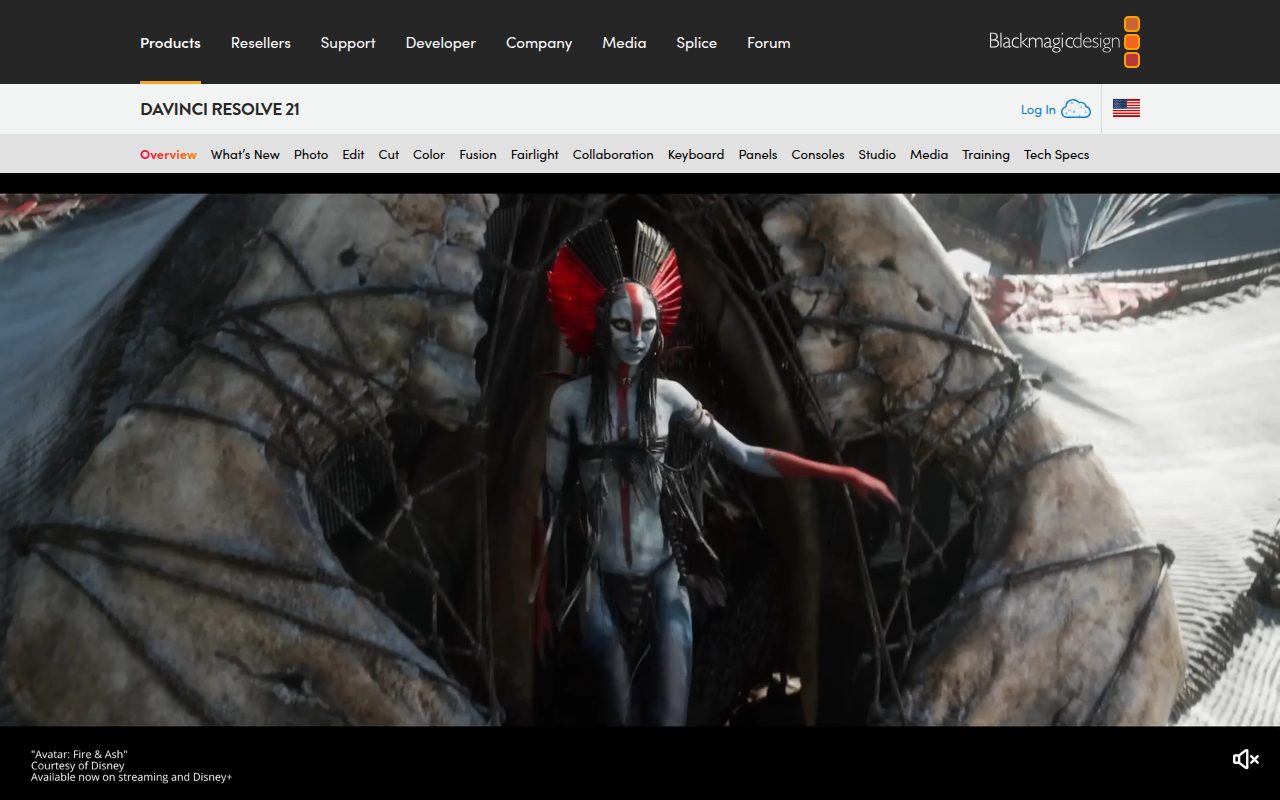
DaVinci Resolve is the strongest overall pick because it is a real post-production suite, not a lightweight editor with a few free samples attached. The free edition runs on macOS, Windows, Linux, and supported iPads, and it gives you the Media, Cut and Edit, Fusion, Color, Fairlight, and Deliver pages in one app.
That range is why it earns the top spot. You can start with basic timeline cuts, then grow into color grading, effects, audio finishing, and export control without moving your project to another editor. The standout setting is the page-based workflow: Cut for quick assembly, Color for grading, Fairlight for audio, and Deliver for final export.
The Studio version still matters for advanced work. Blackmagic keeps tools like the DaVinci AI Neural Engine, extra Resolve FX, stereoscopic 3D, 10-bit and 120fps options, beyond-4K output, and other high-end features in the paid edition.
Pros
- It is the most complete free editor here.
- It includes professional color, audio, effects, and delivery workspaces.
- It runs on macOS, Windows, Linux, and supported iPads.
- The free edition has no monthly subscription, ads, or user tracking.
Cons
- It is more complex than casual editors need.
- Some advanced AI, effects, 10-bit, 120fps, and beyond-4K features require Studio.
- New editors may need time to learn the page-based layout.
Most people who want one free editor they can keep using as their projects get more serious.
You only want fast phone edits, templates, and social-first effects.
CapCut
Key highlights
- Standout: Web, desktop, and mobile editing with watermark-free export
- Free tier: Free Standard, with Pro templates, effects, AI tools, storage, and team features excluded
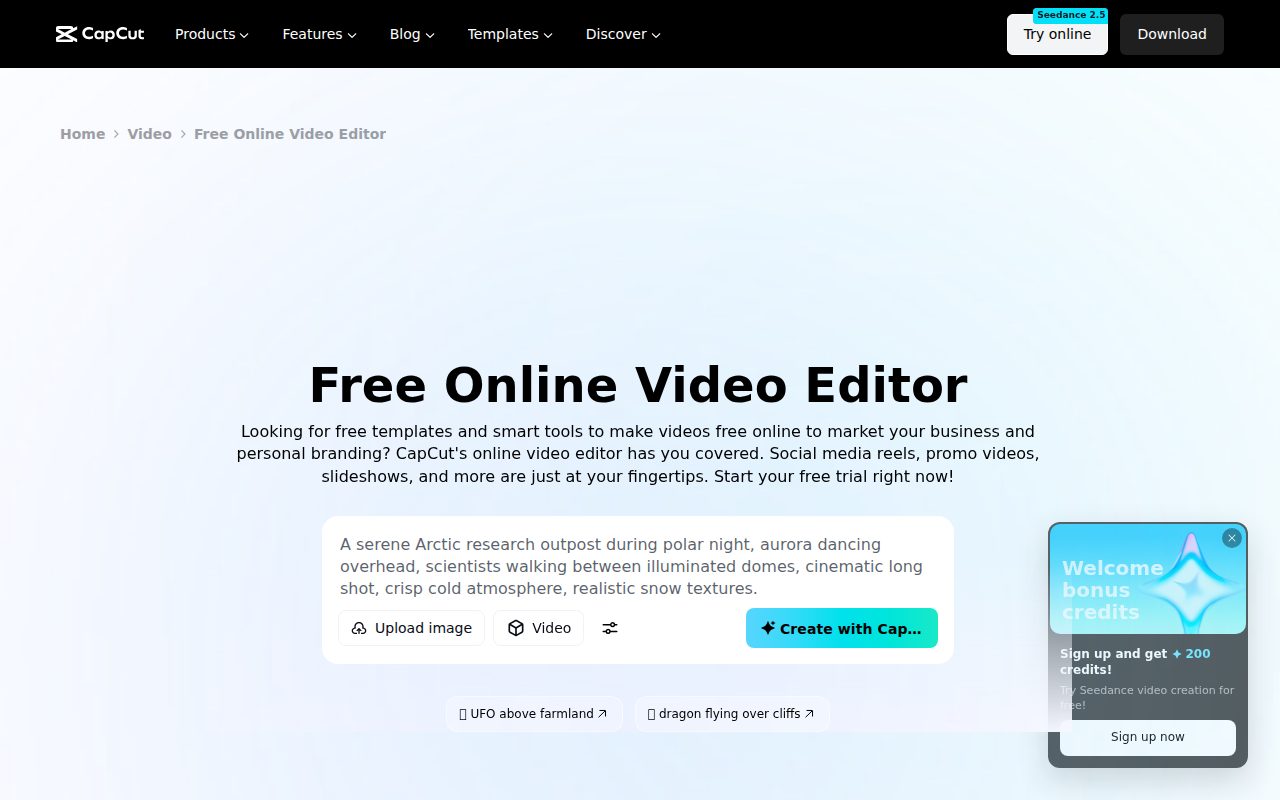
CapCut is the best choice for social-first video because it is built around the way short clips are actually made now. It works in the browser, on Windows and macOS desktops, and on iOS, iPadOS, and Android, so it fits creators who move between a phone, laptop, and web editor.
Its spot comes from speed and reach. The free Standard version supports basic, advanced, and smart editing tools, and it can export without a watermark. That matters for TikTok-style edits, Reels, Shorts, quick captions, and template-driven work where the finished clip needs to leave the editor cleanly.
CapCut is not the pick for maximum control. Premium templates, effects, fonts, music, advanced AI tools, larger cloud storage, and collaboration or team features sit behind Pro limits, so the free version is best treated as a fast consumer editor rather than a full post-production system.
Pros
- It works across web, desktop, and mobile.
- The free Standard version can export without a watermark.
- It is fast for social clips and creator workflows.
- It offers basic, advanced, and smart tools in the online editor.
Cons
- Many premium templates, effects, fonts, music, and AI tools are reserved for Pro.
- Larger cloud storage and team features are not part of the free Standard experience.
- It is less suited to traditional long-form finishing than DaVinci Resolve.
Creators making short-form social videos who want quick editing on web, desktop, or mobile with watermark-free export.
You need deep color grading, advanced audio finishing, or a desktop-first professional workflow.
Microsoft Clipchamp
Key highlights
- Standout: Simple timeline editing and AI video creation surface
- Free tier: Free personal tier with exports up to 1080p HD
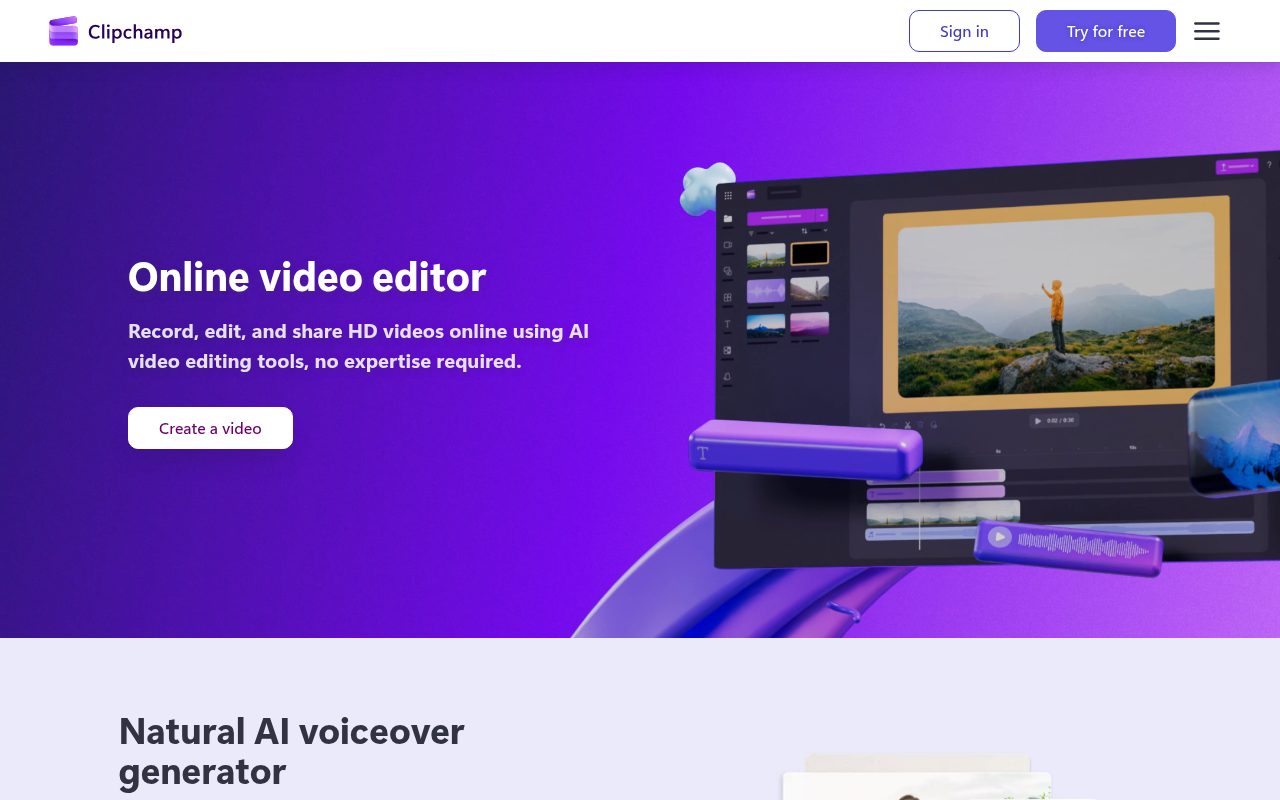
Microsoft Clipchamp is the easy recommendation for Windows users and anyone who wants a browser editor that feels approachable. It is built into Windows 11, available from the Microsoft Store, and runs through Microsoft Edge or Google Chrome on Windows, macOS, Linux, and Chromebook for personal accounts.
It earns its place by making simple timeline projects feel low friction. You import media, drag it onto the timeline, edit, and export. The AI surface also gives you a guided way to create a video from added media by choosing styles and letting Clipchamp assemble a direction.
The free personal tier includes your own media, free stock, and export up to 1080p HD. It is not the right pick for 4K delivery or premium libraries, because 4K exports, premium filters, premium effects, premium stock, and some Microsoft 365 or paid features are outside the free tier.
Pros
- It is built into Windows 11 and also works in supported browsers.
- The timeline workflow is simple and familiar.
- The free personal tier supports exports up to 1080p HD.
- It includes own media and free stock in the free tier.
Cons
- Free exports stop at 1080p HD.
- Premium filters, effects, and stock require paid access.
- Work or school access depends on admin enablement.
Windows users, Chromebook users, and browser-first editors making straightforward videos up to 1080p.
Your projects need 4K export or a more advanced desktop editing environment.
Apple iMovie
Key highlights
- Standout: Magic Movie, Storyboard, Movie, and trailer workflows
- Free tier: Free on Apple devices, with no separate paid tier found
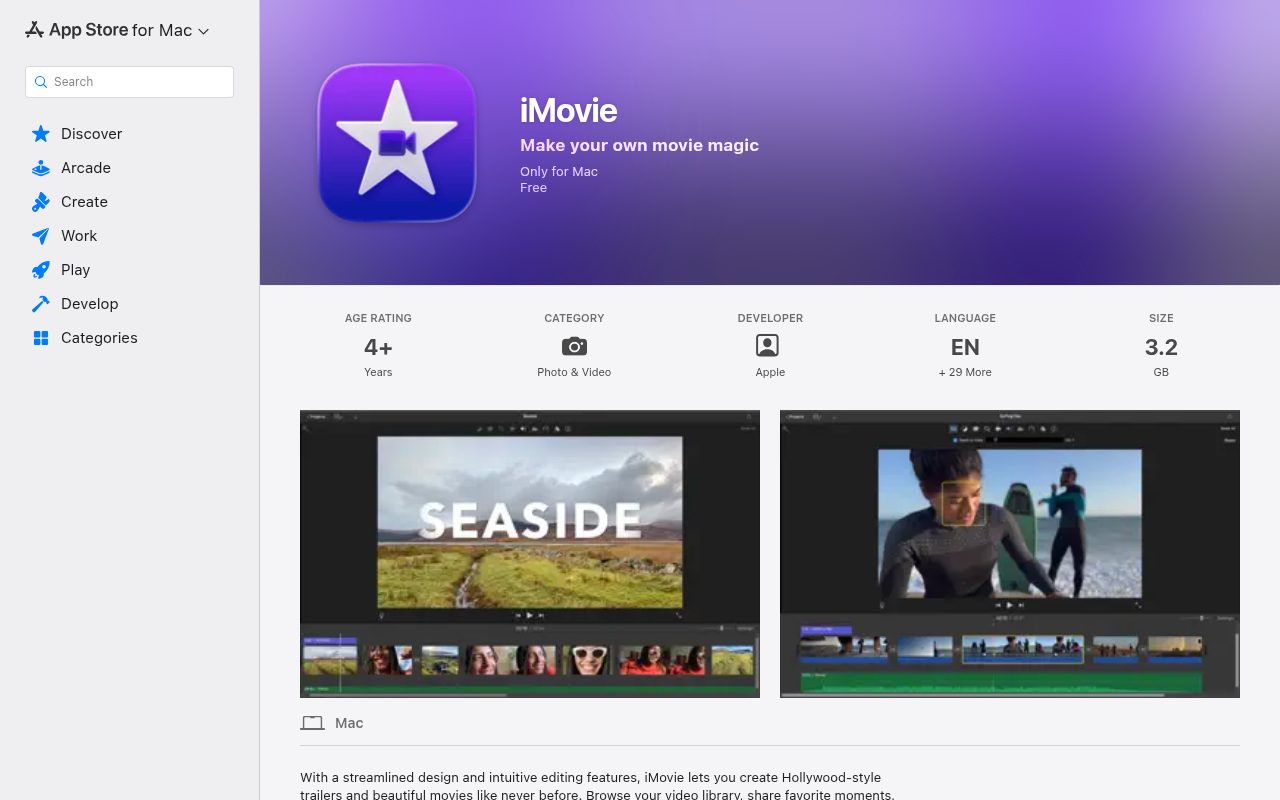
Apple iMovie is the clean pick for people who live on iPhone, iPad, and Mac. It is free on Apple devices, with no separate paid tier or watermark, and it keeps the editing experience simple enough for first projects.
What makes iMovie worth choosing is how directly it serves everyday Apple editing. On iPhone and iPad, you can start with Magic Movie, Storyboard, or Movie. On Mac, you can create a movie or trailer, edit, and share or export when finished.
The tradeoff is scope. iMovie is platform-locked and less advanced than Final Cut Pro, so it is best for clean personal videos, school projects, quick travel edits, and Apple-device workflows rather than heavy finishing.
Pros
- It is free for Apple users.
- It works on iPhone, iPad, and Mac.
- Magic Movie and Storyboard help shape projects quickly.
- There is no separate paid tier or watermark.
Cons
- It is limited to Apple devices.
- It is less advanced than Final Cut Pro.
- The Mac version has current system requirements that may exclude older Macs.
Apple users who want a simple free editor for personal videos, trailers, school projects, and quick exports.
You need cross-platform editing or professional controls beyond iMovie’s simpler toolset.
Kdenlive
Key highlights
- Standout: Cross-platform non-linear editor with no watermark or export limits found
- Free tier: Free and open source
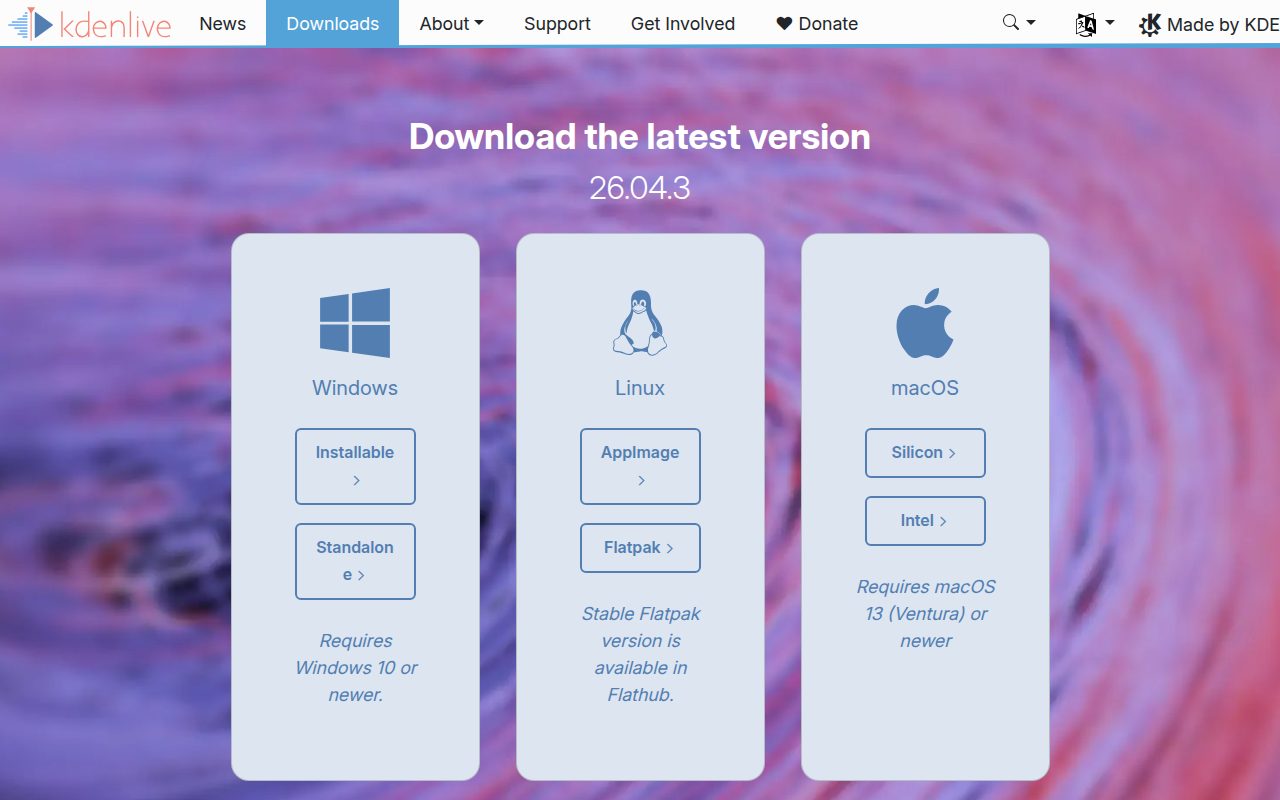
Kdenlive is the best open-source editor for people who want a capable desktop NLE without watermarks, seat limits, export limits, or time limits. It is available for Linux, Windows, macOS, and BSD, with current downloads for Windows, Linux AppImage or Flatpak, and macOS builds.
It earns this spot because it behaves like a proper non-linear editor while staying firmly in the free and open-source world. You create a project, import media, edit on a timeline, then render or export from Kdenlive’s export controls.
The standout is freedom of platform and licensing. It is especially strong for Linux users, but it also gives Windows and Mac users a serious open-source alternative to simpler consumer editors.
Pros
- It is free and open source.
- There are no stated watermark, seat, export, or time limits.
- It runs on Linux, Windows, macOS, and BSD.
- It offers a traditional non-linear editing workflow.
Cons
- It is less polished for beginners than template-driven editors.
- Windows and macOS users need to match the current system requirements.
- It does not focus on social templates the way CapCut does.
Open-source users, Linux editors, and desktop creators who want a full timeline editor without commercial free-tier restrictions.
You want the simplest possible interface or a mobile-first editor.
Shotcut
Key highlights
- Standout: Playlist, timeline, and Export workflow across major desktop platforms
- Free tier: Free and open source
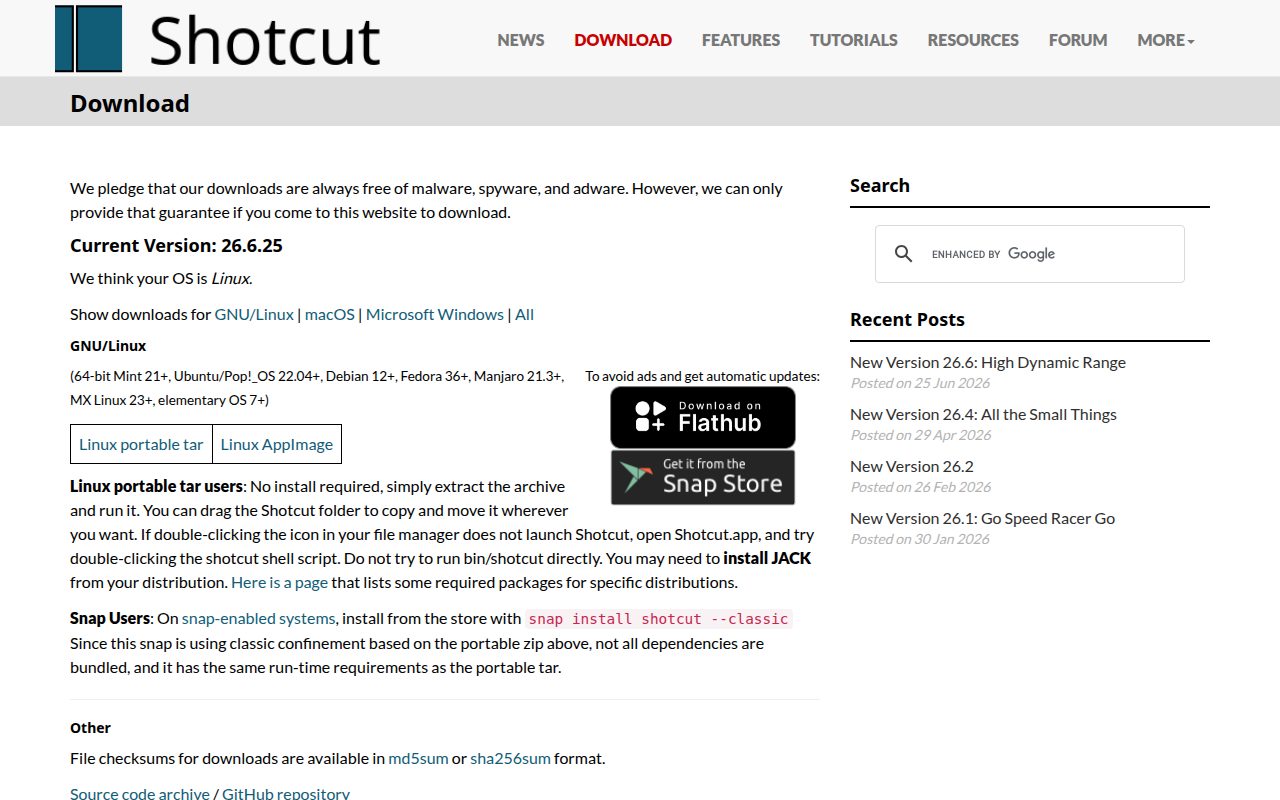
Shotcut is a strong free editor for people who want a straightforward cross-platform desktop tool. It is available for Windows, macOS, and GNU/Linux, with current Windows 10 and 11 support, macOS 12 through 26 support, and Linux downloads.
It earns its place by keeping the editing path practical. You add media to a playlist or timeline, make your edits, then export from the Export panel. There are no stated watermark, seat, export, or time limits, which gives it a cleaner free story than many commercial editors.
Shotcut is best when you want control without committing to a heavier suite. It is not as broad as Resolve and not as guided as Clipchamp, but it sits in a useful middle ground for desktop video work.
Pros
- It is free and open source.
- There are no stated watermark, seat, export, or time limits.
- It supports Windows, macOS, and GNU/Linux.
- The playlist, timeline, and Export workflow is direct.
Cons
- It is not as full-featured as DaVinci Resolve.
- It has fewer beginner-friendly guided workflows than Clipchamp or iMovie.
- Older Windows and macOS systems rely on legacy builds.
Desktop editors who want a free open-source app that works across major platforms and stays focused on the timeline.
You want phone editing, built-in social templates, or a full professional color and audio suite.
OpenShot Video Editor
Key highlights
- Standout: Drag-and-drop tracks, effects, titles, and export
- Free tier: Free and open source under GPL
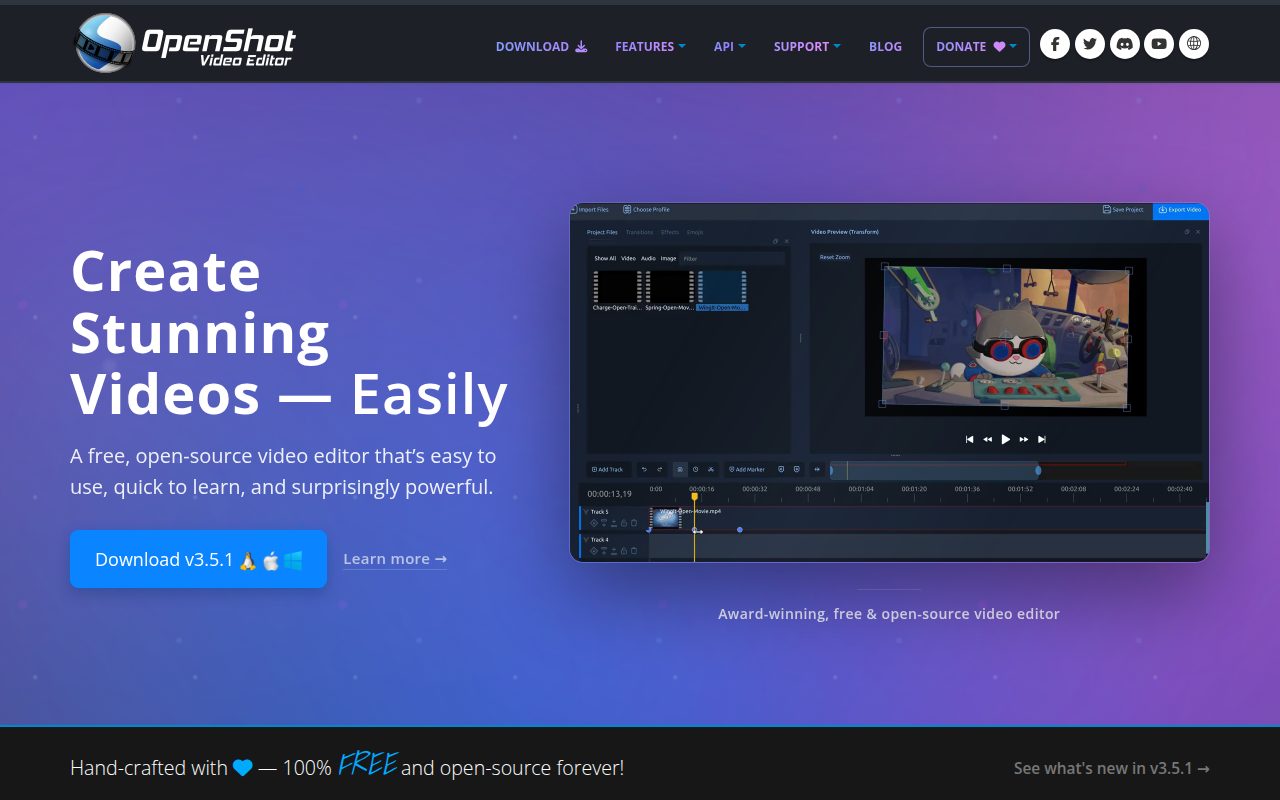
OpenShot Video Editor is the friendliest open-source choice for beginners. The official page describes it as free and open source under GPL, and the workflow starts in a way anyone can understand: drag video, audio, or images into OpenShot and begin arranging them.
It earns its place by keeping the basics visible. Tracks, effects, titles, and export are enough for simple YouTube videos, class projects, personal edits, and clips where the goal is finishing cleanly without learning a large professional suite.
OpenShot is not the most advanced editor on this list, and that is the point. It is for people who want open-source software but would rather start editing than configure a complex workspace.
Pros
- It is free and open source under GPL.
- The drag-and-drop workflow is easy to understand.
- It runs on Linux, macOS, and Windows.
- It includes tracks, effects, titles, and export tools.
Cons
- It is less advanced than DaVinci Resolve or Kdenlive.
- It is not built around mobile or social-first editing.
- It offers fewer guided templates than iMovie or Clipchamp.
Beginners who want a free open-source desktop editor for simple timeline projects.
You already know you need professional grading, audio finishing, or advanced effects work.
Blender Video Sequencer
Key highlights
- Standout: Video editing inside Blender’s full creation suite
- Free tier: Free and open source
Blender Video Sequencer is the right pick when video editing is part of a broader 3D or motion workflow. Blender is a free and open-source creation suite, and the Video Sequencer is built into it rather than sold as a separate editor.
Its reason for being on this list is integration. You can open the Video Editing workspace or add a Video Sequencer editor, place images, videos, sounds, and scenes on the timeline, then render or export animation and video from the same environment.
For pure video editing, Blender is not the easiest recommendation. For Blender users, animators, and creators who need video alongside scenes and rendered work, it is uniquely useful because the editor lives inside the tool they already use.
Pros
- It is free and open source.
- The Video Sequencer is built into Blender.
- It works with images, videos, sounds, and scenes on a timeline.
- It fits animation, 3D, and rendered video workflows.
Cons
- It is not the simplest editor for standard video projects.
- The wider Blender interface can feel heavy if you only need trims and exports.
- It is less social-video focused than CapCut or YouTube Create.
Blender users, animators, and 3D creators who want video editing inside the same free creative suite.
You only need a conventional video editor for camera footage and quick exports.
YouTube Create
Key highlights
- Standout: Clips, filters, royalty-free music, voiceover, auto-captions, and YouTube sharing
- Free tier: Free of charge and without ads
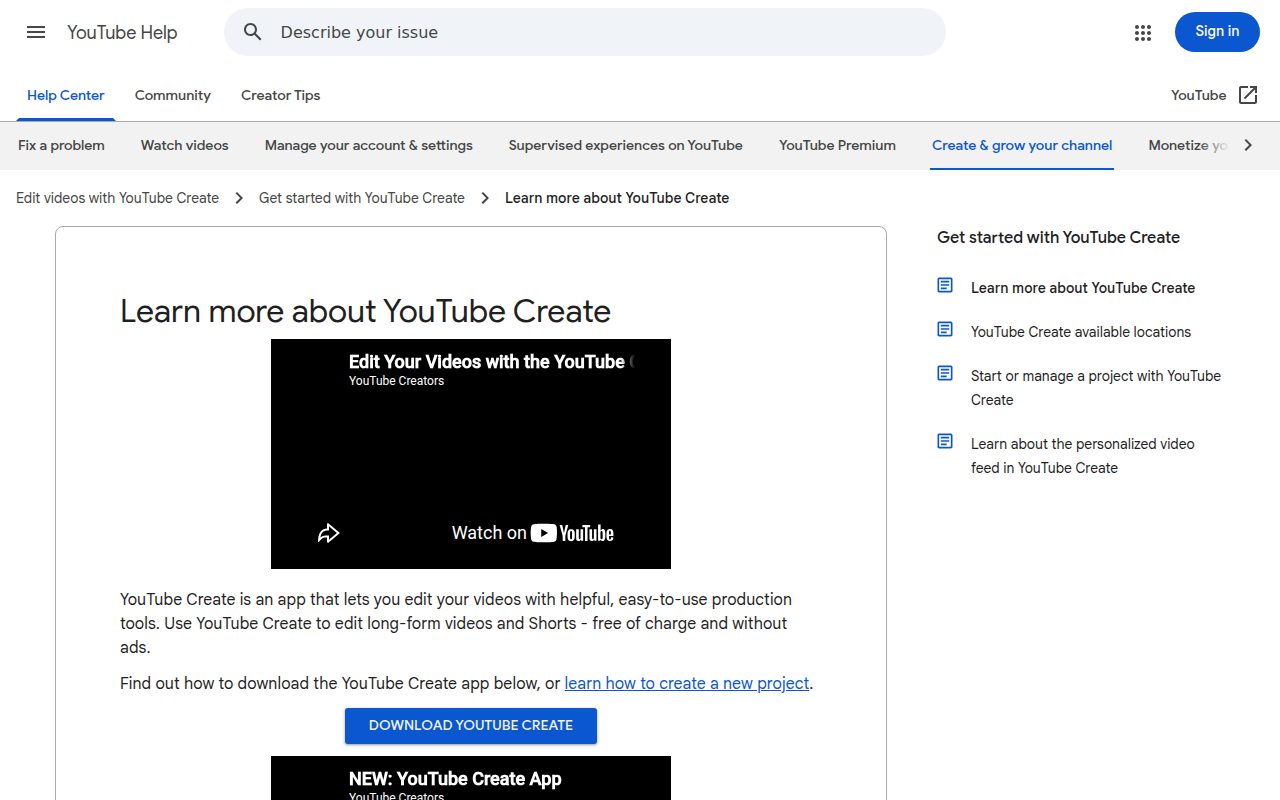
YouTube Create is the best free editor for creators who want to cut videos on a phone and send them straight into the YouTube ecosystem. It is a mobile app for Android and iPhone, requires Google sign-in, and availability depends on supported countries or regions.
It earns the YouTube slot because its tools match creator habits. You can combine videos, photos, and audio, trim, clip, crop, add filters and effects, use royalty-free music, record voiceover, add auto-captions, then upload or share to YouTube.
The official Help material says YouTube Create is free of charge and without ads. Its limit is access, not price: it is mobile-only, country-restricted, and iPhone use requires an iPhone XR or newer running iOS 17 or later.
Pros
- It is free of charge and without ads.
- It includes trimming, clipping, cropping, filters, effects, voiceover, and auto-captions.
- It includes royalty-free music.
- It is designed for uploading or sharing to YouTube.
Cons
- It is mobile-only.
- Availability is limited to supported countries and regions.
- iPhone users need an iPhone XR or newer running iOS 17 or later.
Mobile YouTube creators who want a free editor tied closely to YouTube publishing.
You need desktop editing, broader platform support, or access outside YouTube Create’s supported regions.
Adobe Express Free video editor
Visit Adobe Express Free video editor
Key highlights
- Standout: Templates, free assets, editing tools, storage, and social scheduling
- Free tier: Free plan with 5GB storage and Premium features excluded
Adobe Express Free video editor is the best pick for quick visual pieces that blend video, text, graphics, and social assets. It works on web, iOS, Android, and iPad, which makes it practical for creators who move between a browser and a mobile device.
It earns its place through ready-made creative material. The free plan includes standard photo, video, and document editing, more than 100,000 templates, more than 1 million free assets, 5GB storage, 10-day version history, and scheduling to one account per social network.
This is not the choice for a full editing timeline or premium Adobe libraries. Premium assets and features require paid access, and organizations can disable Adobe Express Free in the Admin Console, but the free plan is strong for fast branded clips and lightweight social production.
Pros
- It works on web, mobile iOS and Android, and iPad.
- The free plan includes standard photo, video, and document editing.
- It includes more than 100,000 templates and more than 1 million free assets.
- The free plan includes 5GB storage, 10-day version history, and limited social scheduling.
Cons
- Premium assets and features are excluded from the free plan.
- It is less suited to full traditional timeline editing than DaVinci Resolve or Kdenlive.
- Organizations can disable Adobe Express Free in the Admin Console.
Creators and small teams making quick branded clips, social posts, and lightweight video designs.
You need a dedicated NLE with deep timeline, color, audio, and export controls.
How to Choose
- Start. Pick DaVinci Resolve if you want the strongest free editor overall and you are willing to learn a professional workspace.
- Create. Pick CapCut for social clips across phone, web, and desktop, especially when fast edits and watermark-free export matter most.
- Simplify. Pick Clipchamp for easy Windows or browser projects up to 1080p, or iMovie if every device you edit on is made by Apple.
- Own. Pick Kdenlive, Shotcut, or OpenShot when open-source software is the priority, with Kdenlive for the most capable lane, Shotcut for flexible desktop editing, and OpenShot for beginners.
- Specialize. Pick Blender Video Sequencer for 3D and animation workflows, YouTube Create for mobile YouTube publishing, and Adobe Express for quick branded clips built from templates and free assets.











