


The first useful checks on an iPhone 18 Pro or iPhone 18 Pro Max are practical ones: confirm your cellular line, decide what the buttons do, and make the screen comfortable to read.
Both models also have camera options worth trying before you settle on a routine. Apple documents the aperture and Reference Image features specifically for the iPhone 18 Pro models.
The short version
- Confirm your eSIM line and set the Action button.
- Choose how Camera Control opens Camera and adjust Liquid Glass.
- Check Dynamic Island Live Activities and your Photographic Style.
- Try lens aperture before deciding whether to enable Reference mode.
1. Confirm your eSIM line is on
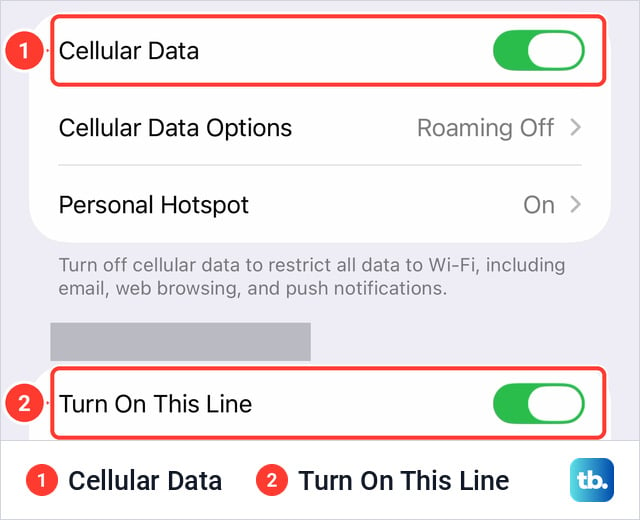
Why it matters: On both iPhone 18 Pro and iPhone 18 Pro Max, checking the cellular line belongs near the top of the setup list. An eSIM is a digital SIM, so there is no card to inspect when you want to confirm that setup finished.
Apple says you can add an eSIM after the initial setup in Settings > Cellular > Set Up Cellular or Add eSIM. The available setup choices can vary by model and region. Apple also says to verify activation in Settings > Cellular by checking that the new line under eSIMs is turned on.
What to do: Open Settings > Cellular and look for your line. If it appears, confirm that it is on. If it does not appear and setup is still pending, use Set Up Cellular or Add eSIM and follow the choices shown on your phone. Check again when setup finishes.
Full steps with our screenshots: How to Set Up an eSIM on iPhone.
2. Choose what the Action button does
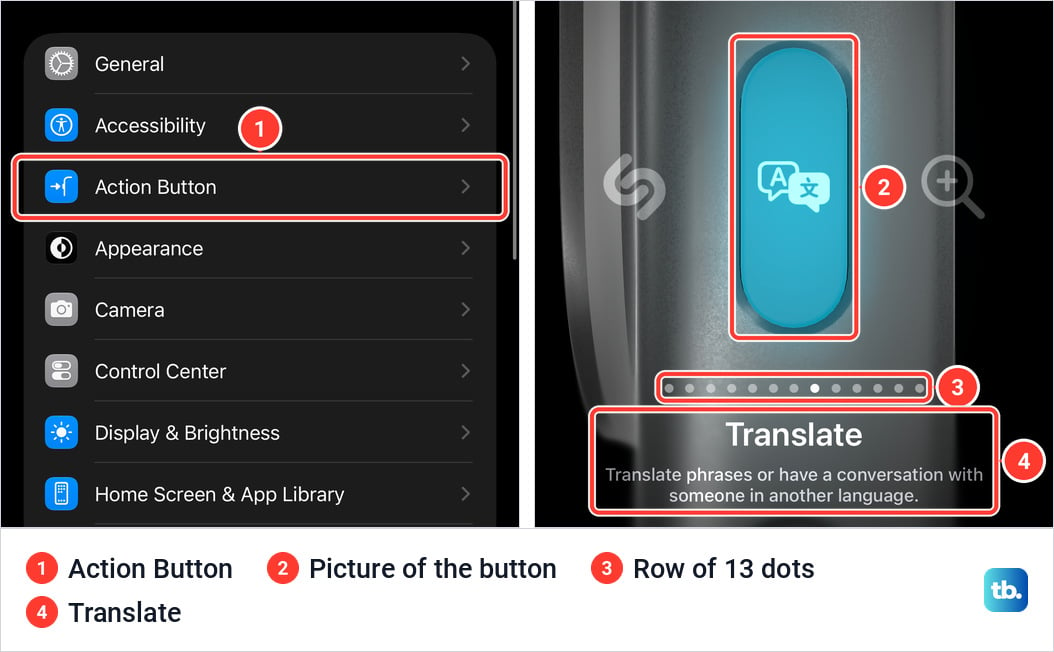
Why it matters: Both iPhone 18 Pro models have an Action button. Apple sets it to Silent Mode by default, but that may not be the action you want on a button you can reach without opening an app. A quick check also prevents confusion if you expect it to silence the phone.
In Settings > Action Button, swipe through choices such as Silent Mode, Focus, Camera, Flashlight, Controls, Shortcut, and Accessibility. Apple says to press and hold the button to perform its assigned action. Controls, Shortcut, and Accessibility also require you to choose a specific option beneath the action.
What to do: Start by checking the current assignment. Keep Silent Mode if you want a physical way to switch it, or choose one action you expect to use often. If you select Controls, Shortcut, or Accessibility, finish its additional selection and then press and hold the button to check the result.
Full steps with our screenshots: How to Customize the Action Button on iPhone.
3. Set Camera Control to one or two clicks
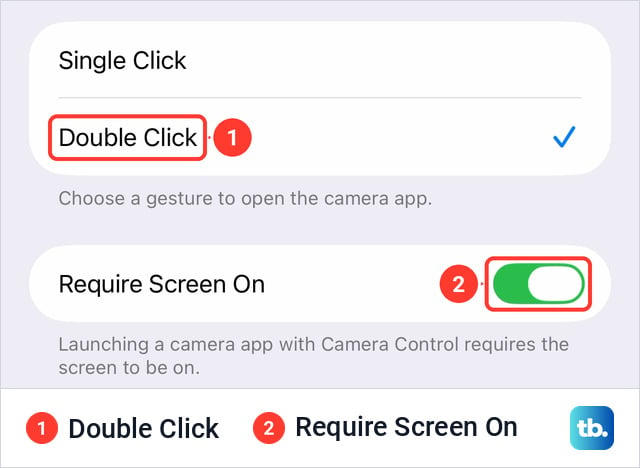
Why it matters: Camera Control is available on both iPhone 18 Pro and Pro Max. It can open Camera from the side of the phone, so its launch setting affects an action you may use often. One click is direct; two clicks may suit you better if an accidental press opens Camera.
Apple places the choice at Settings > Camera > Camera Control, where you can select Single Click or Double Click. With Camera open in Photo mode, another click takes a photo, and clicking and holding records video. If Camera opens in Video mode, a click starts recording. Apple also says a light double press opens an overlay of available camera settings.
What to do: Try the current launch choice while holding the phone as you normally would. Change it to Single Click or Double Click if the other behavior feels more deliberate. Then open Camera and try a light double press so you know how to reach its controls before you need a quick shot.
Full steps with our screenshots: How to Use Camera Control on iPhone.
4. Adjust the Liquid Glass tint
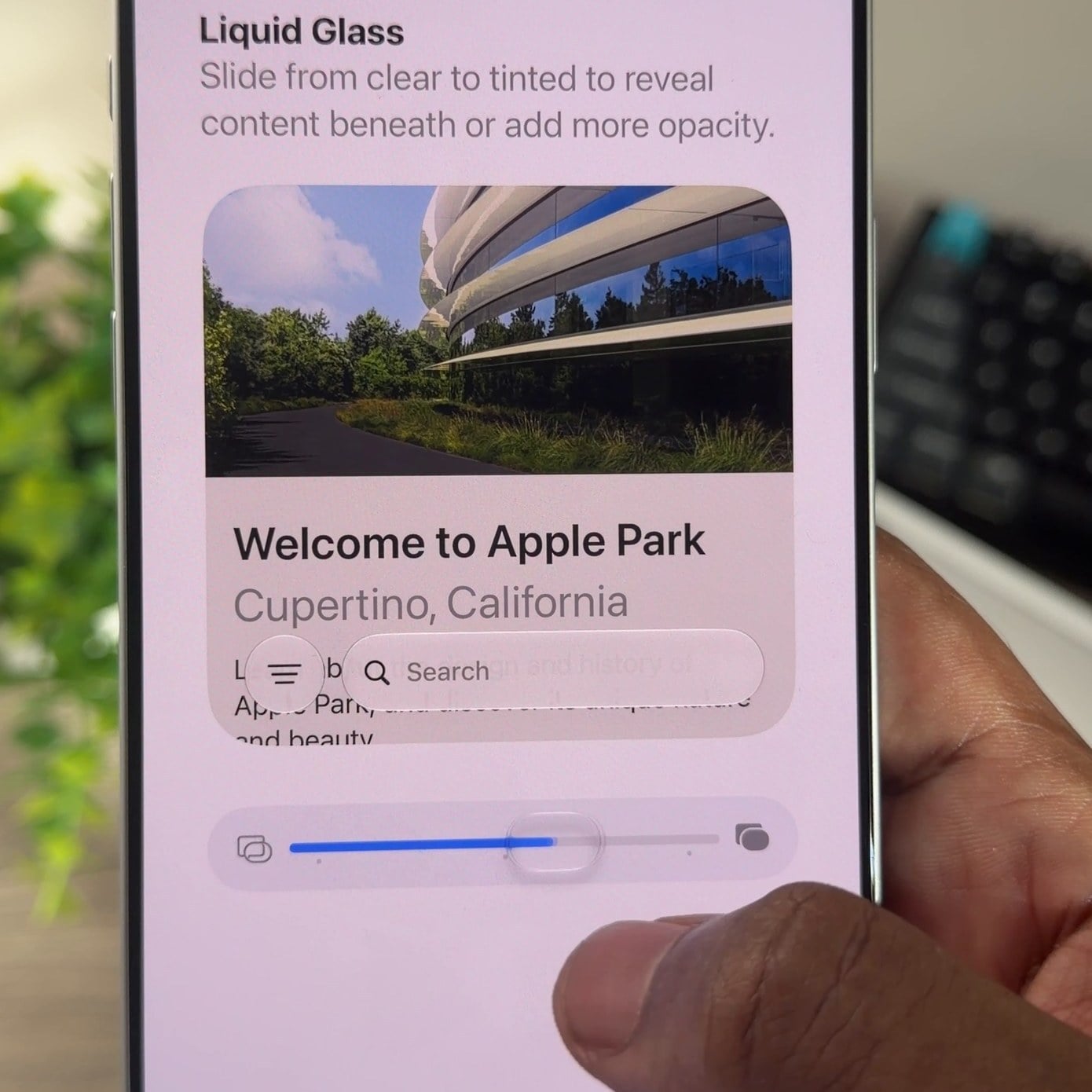
Why it matters: On either iPhone 18 Pro model running iOS 27, Liquid Glass is a display preference you can judge immediately. The setting changes how clear or tinted the interface looks. There is no need to commit to the appearance you saw during setup if you would rather adjust it after using the phone.
Apple puts the slider in Settings > Appearance > Liquid Glass. Dragging right increases the tint; dragging left makes Liquid Glass more clear. Apple says Reduced Transparency or Increased Contrast in Accessibility settings must be off before you can change this look.
What to do: Open a screen you read frequently, then move the Liquid Glass slider until its controls and text look comfortable to you. Check a few positions instead of assuming either end is best. If the slider cannot be changed, review the two Accessibility settings Apple names, and change them only if you are comfortable doing so.
Full steps with our screenshots: How to Change Liquid Glass on iPhone From Clear to Tinted.
5. Check Live Activities in the Dynamic Island
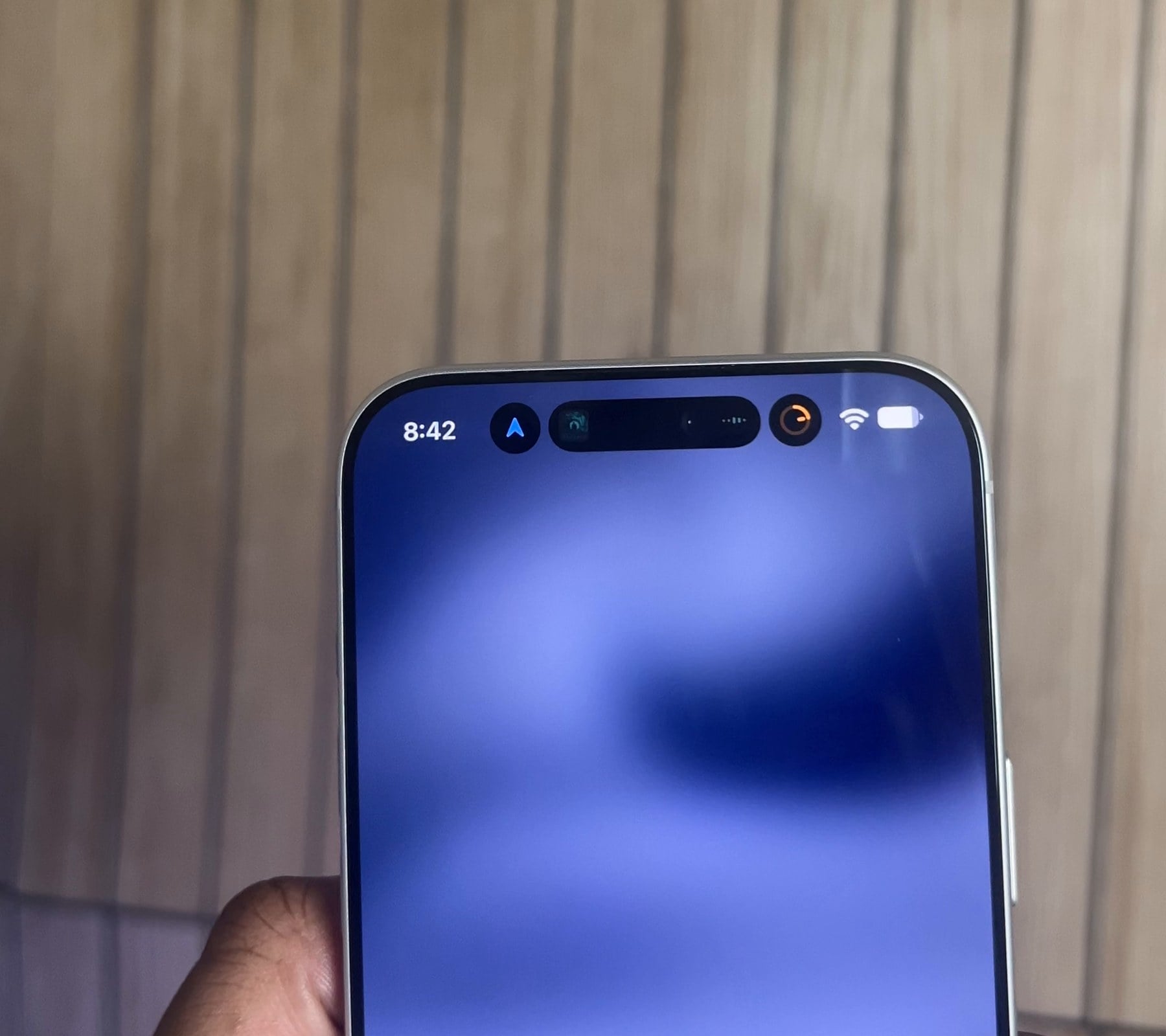
Why it matters: Both iPhone 18 Pro and Pro Max can show up to three Live Activities at once in the Dynamic Island, according to Apple. Learning its gestures early makes ongoing information easier to inspect when you are already using another app.
Apple says the Dynamic Island can show activities such as directions while the phone is unlocked. In the Dynamic Island guide, it says to touch and hold an activity for more detail, swipe an expanded activity up to collapse it, and swipe across the island to move between activities on iPhone 18 Pro models.
What to do: When an activity appears, touch and hold it, then collapse it again. If an app offers a Live Activities setting, Apple places that at Settings > Apps > the app > Live Activities. Check that setting if you want to change that app's live updates. Apple notes that some apps have no such setting.
Full steps with our screenshots: How to Use the Dynamic Island on iPhone.
6. Pick a Photographic Style and check its texture
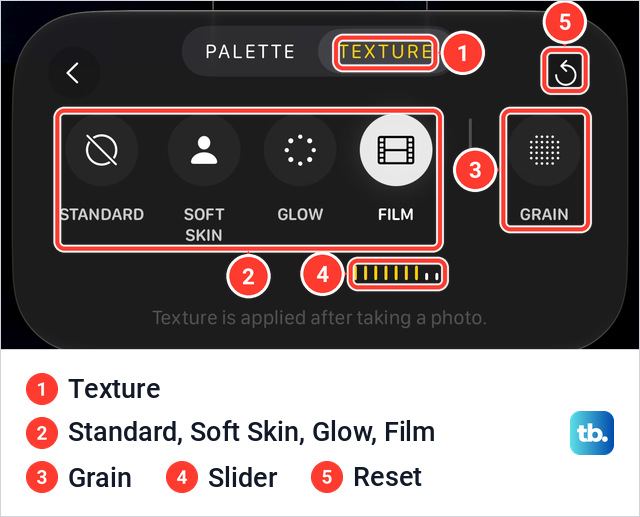
Why it matters: Both iPhone 18 Pro and Pro Max support Apple's texture and grain controls in Photographic Styles. A style affects the look of photos you take, so it is useful to choose deliberately before you start building a photo library on the new phone.
In Camera, tap the Camera Controls button or swipe up from the camera modes, then tap Styles. Apple says you can swipe through styles and tap Customize to adjust tone, color, texture, and intensity. On these models, tap Texture to choose an option such as Film, and tap Grain to add film grain. The Photographic Styles guide also says Settings > Camera > Formats > High Efficiency is needed to edit styles later in Photos.
What to do: Preview a few styles on a familiar subject before selecting one. If you want a plain starting point, choose Standard. Try Texture and Grain only if you want those changes in the photo. Check High Efficiency before relying on later style edits, and revisit your choice after viewing the photos at full size.
Full steps with our screenshots: How to Add Film Grain With Photographic Styles.
7. Try the Main camera's lens aperture
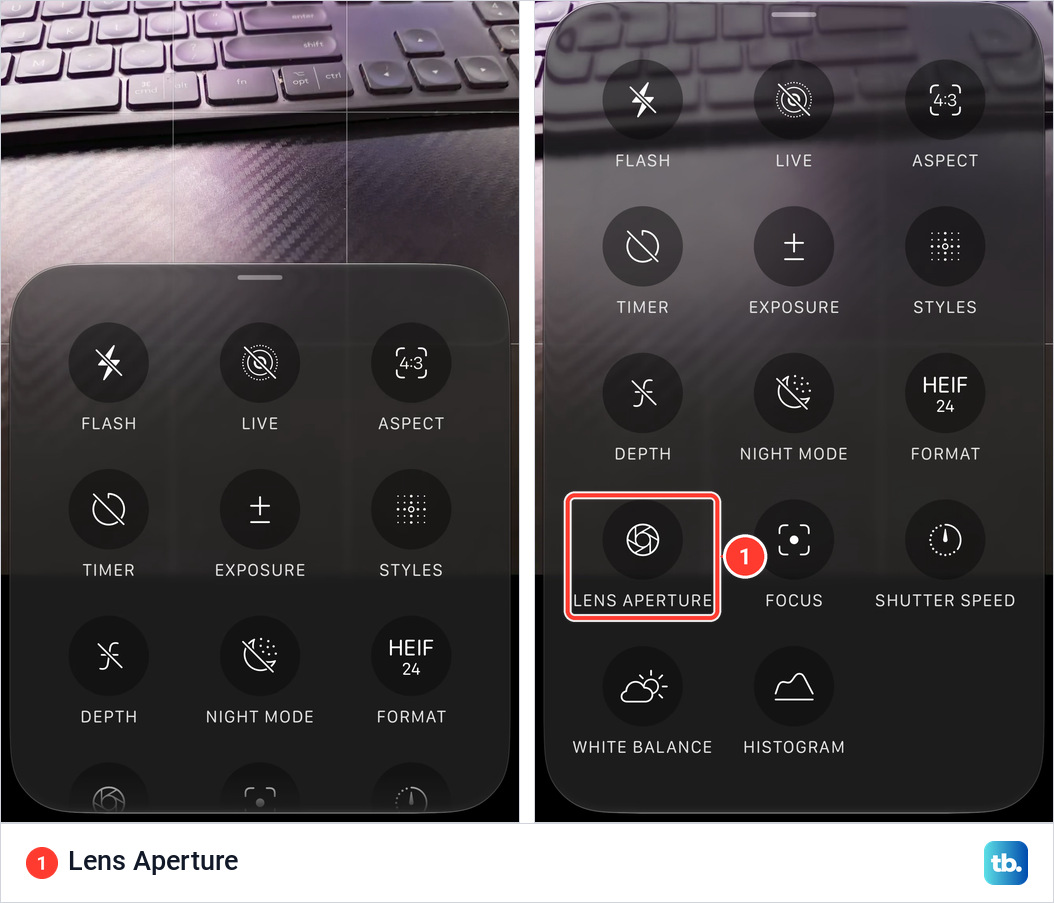
Why it matters: Apple documents variable aperture for the Main camera on both iPhone 18 Pro models. A wider setting lets in more light, while Apple's f/4 example keeps more of a group in focus. This is worth trying before deciding if you want the camera to remember a manual choice.
In Camera, tap Camera Controls, then Lens Aperture, as described in Apple's advanced camera tools guide. Apple lists f/1.48, f/1.8, f/2.8, and f/4 for the Fusion Main camera. The camera sets aperture automatically unless you choose a value. To retain your last choice, Apple places Lens Aperture in Settings > Camera > Preserve Settings.
What to do: Photograph the same nearby subject at two aperture settings and compare the area in front of and behind it. On my iPhone 18 Pro Max, paint in front of a badge showed more fine detail at f/4 than at f/1.48. Leave automatic selection in place unless you have a reason to keep a manual setting.
Full steps with our screenshots: How to Change the Aperture on iPhone 18 Pro.
8. Decide if you need Apple Reference Image
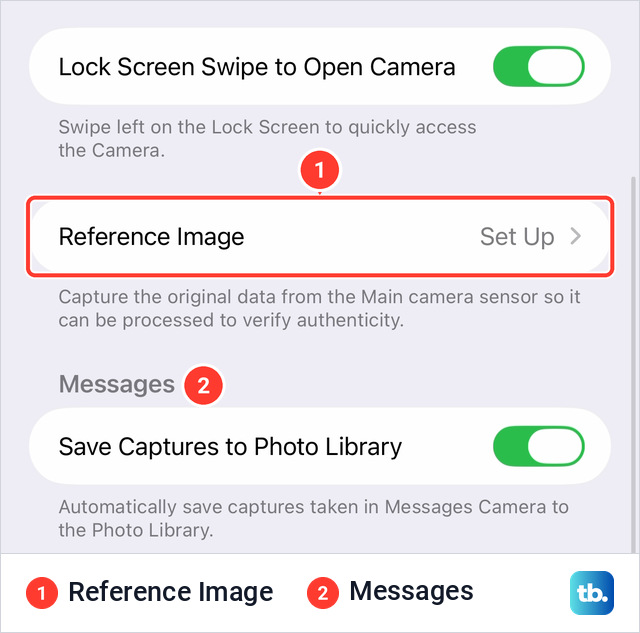
Why it matters: Apple documents Reference mode for iPhone 18 Pro and iPhone 18 Pro Max. It is an optional camera feature for photos whose authenticity you may need to verify later. Most owners can make this a deliberate check instead of turning it on without knowing what it saves.
Apple says Reference mode captures a regular photo plus signed data from the Main camera sensor. You can later develop and compare a reference image in Photos. It is off by default; setup is at Settings > Camera > Reference Image > Add Reference Mode. Apple says reference images need additional storage and an internet connection for development, and availability varies by region.
What to do: If you need a verifiable record, read the setup screen and enable Reference mode, then select it in Camera when taking that photo. Check the Share Reference Image option before sending one. If you have no use for the extra data, leave the feature off for now.
Full steps with our screenshots: How to Use Apple Reference Image on iPhone.