

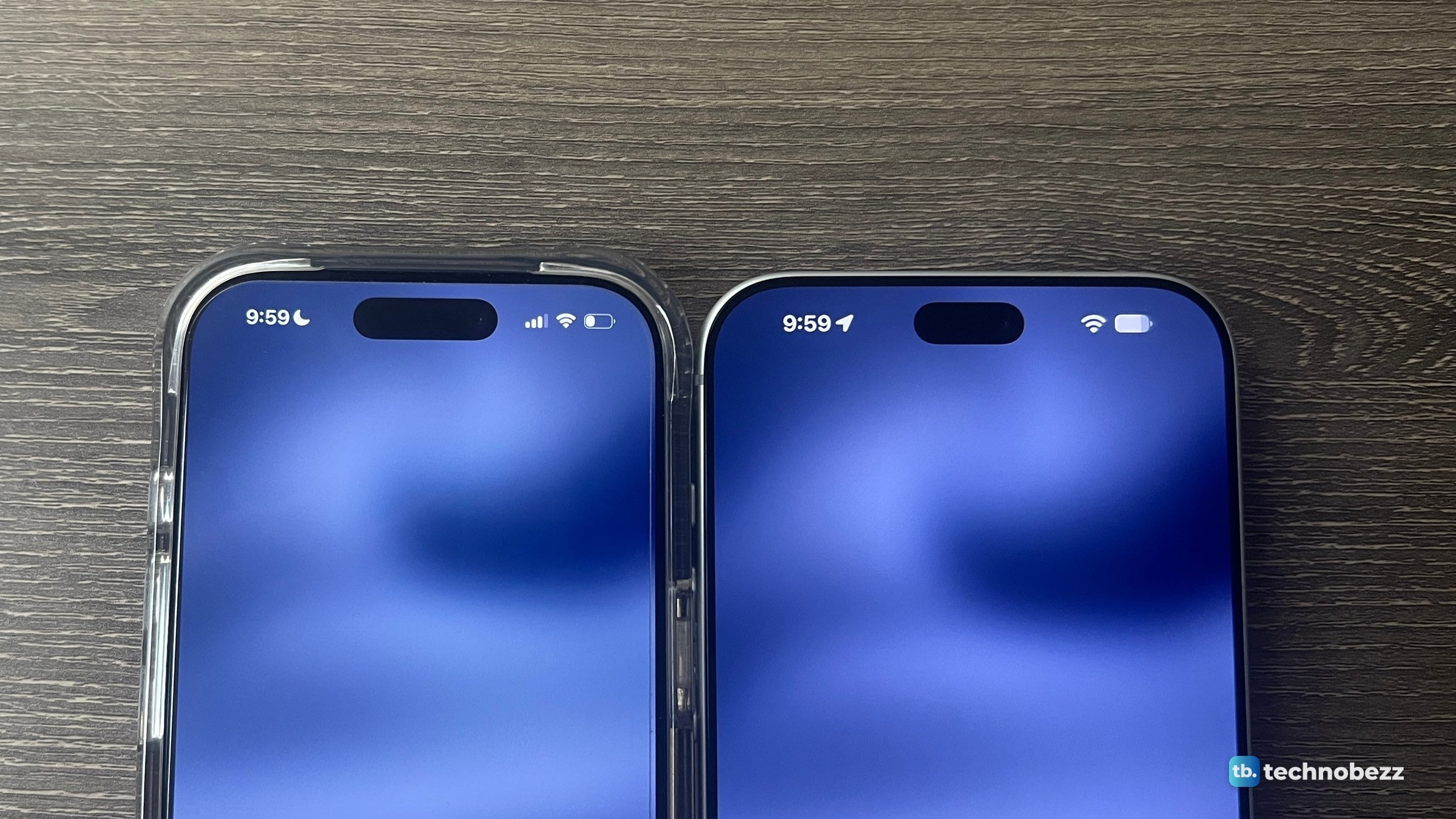
To use the Dynamic Island, touch and hold an activity to expand it, swipe the expanded activity up to collapse it, and tap the activity you want to view when two are showing. On iPhone 18 Pro and iPhone 18 Pro Max, which show up to three Live Activities at once, swipe across the island to move between them. These gestures follow Apple's iPhone User Guide for iOS 27. The iOS 26 swipes are in the table below.
The short version
- Touch and hold expands an activity. Swiping the expanded activity up collapses it.
- iPhone 18 Pro models show up to three at once. Swipe across to move between them.
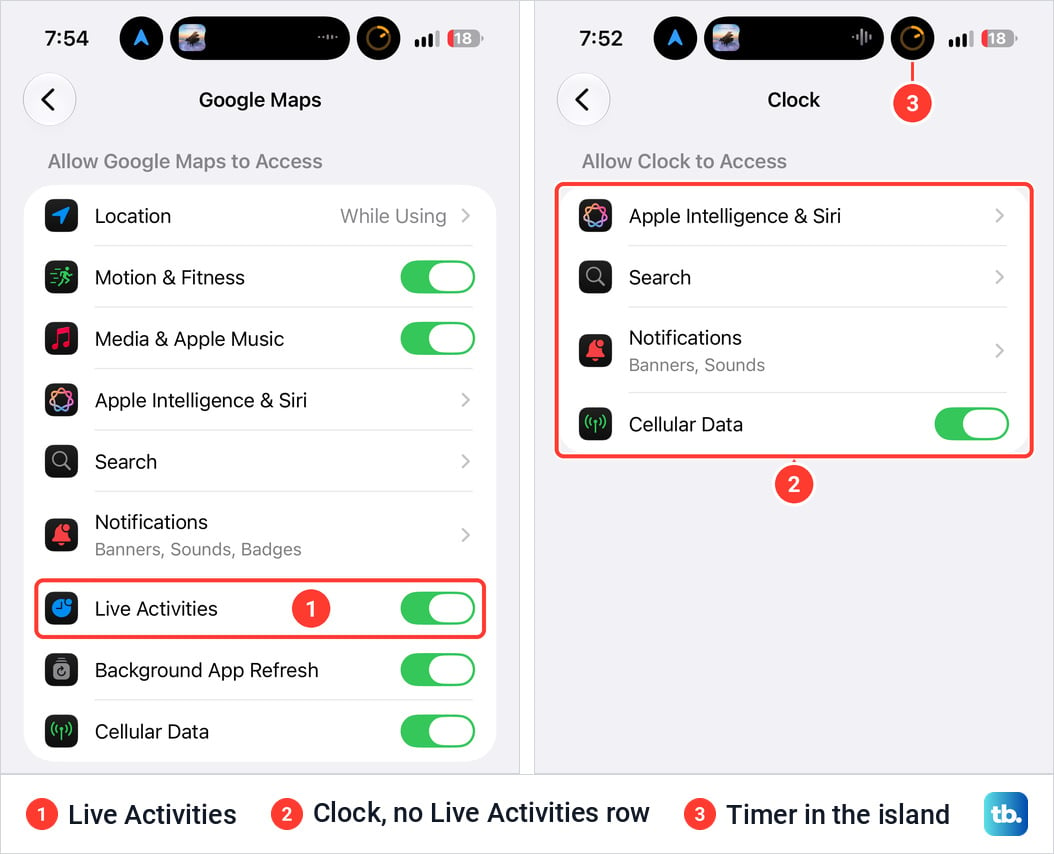
- An app's Live Activities setting is under Settings, Apps, then the app. On my iPhone 18 Pro Max, Google Maps has a switch there and Clock has no such row.
Which iPhones have the Dynamic Island
Apple lists 16 models: iPhone 14 Pro and 14 Pro Max, all four iPhone 15 models, iPhone 16, 16 Plus, 16 Pro and 16 Pro Max, iPhone 17, 17 Pro and 17 Pro Max, iPhone Air, and iPhone 18 Pro and 18 Pro Max. The iPhone 16e and 17e run iOS 27 but are not on the list. If you are not sure which is yours, here is how to check which iPhone you have.
The island works on the Home Screen and inside apps whenever the iPhone is unlocked. It shows alerts and Live Activities, Apple's name for app activities whose progress you can follow.
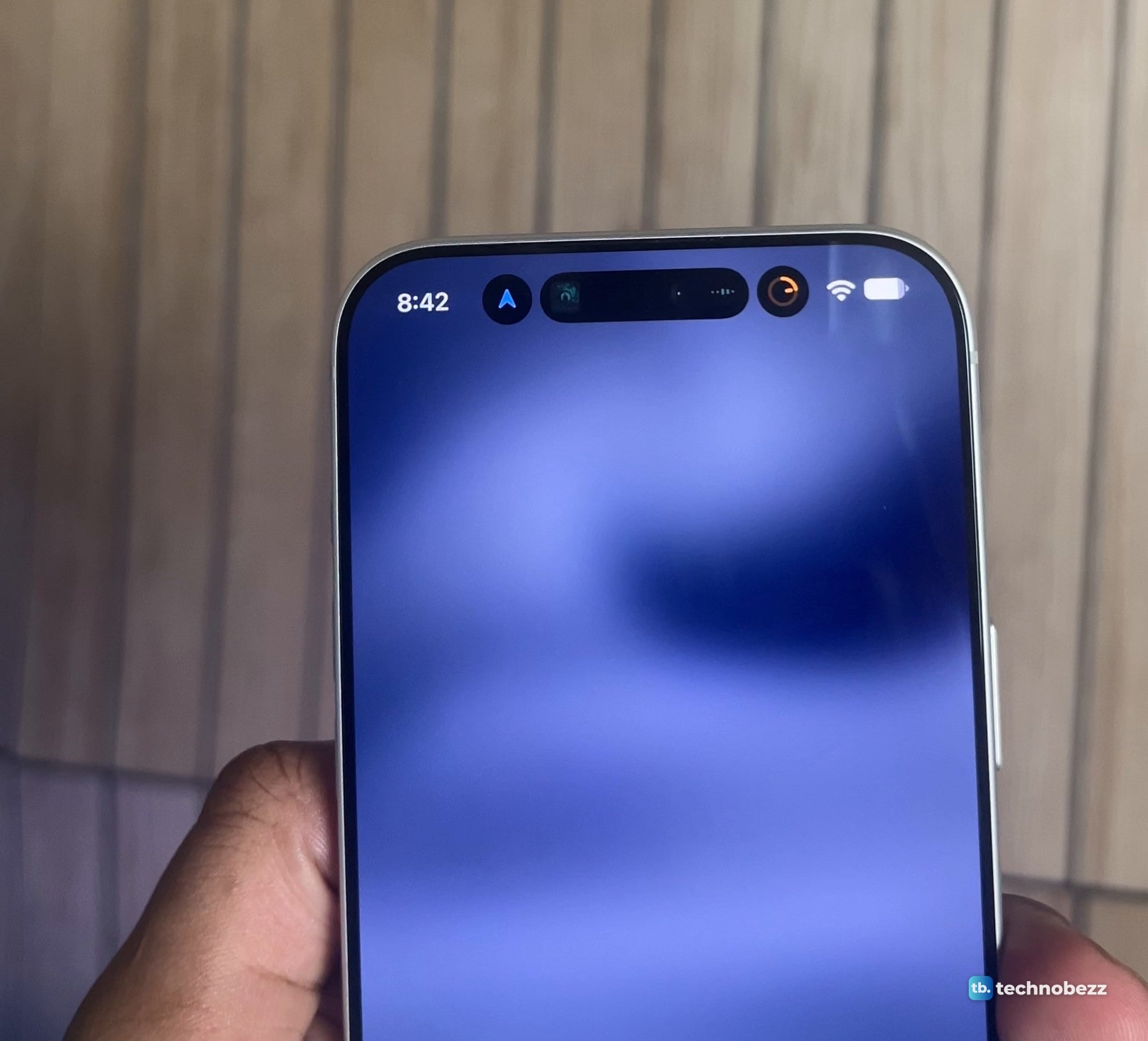
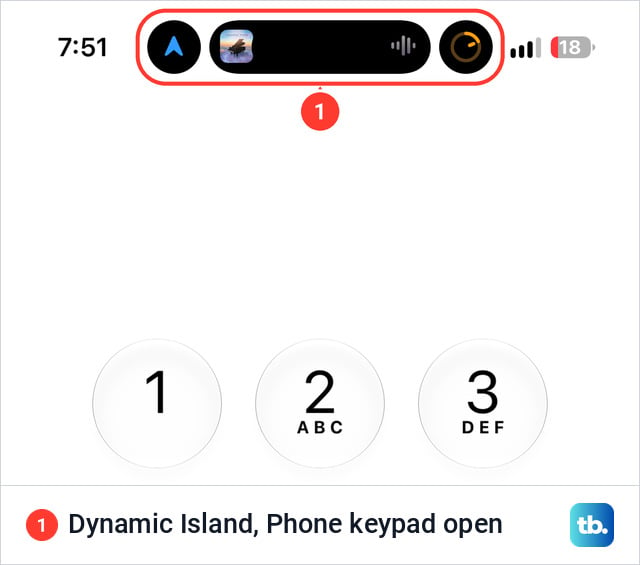
Here it is inside an app, the Phone keypad, on my iPhone 18 Pro Max.
How to tap, hold and swipe the Dynamic Island
You need something running first. A timer is the easiest to try. On both of my phones, a running timer showed in the island as a small ring beside the music.
- 1.Open the Clock app.
- 2.Tap Timers.
- 3.Set a duration.
- 4.Tap Start.
- 5.Go to the Home Screen or open another app. The timer keeps counting.
- 6.Touch and hold the activity to expand it.
- 7.Swipe the expanded activity up to collapse it.
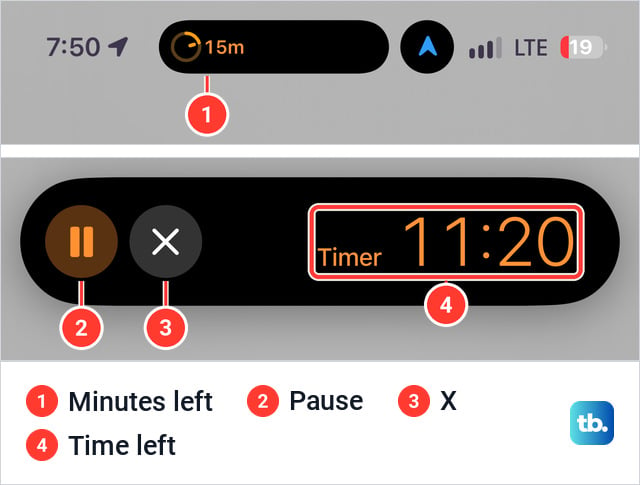
On my iPhone 18 Pro Max, the timer in the wide part of the island showed a ring and the minutes left. Expanded, it showed pause and X buttons and the time left.
When two activities are showing, tap the one you want to view. On an iPhone 18 Pro or 18 Pro Max, swipe across the island to move between up to three.
Apple's iPhone User Guide lists different gestures for iOS 27 than for iOS 26 and earlier. Here is every gesture on that page.
| Gesture | What it does | Where Apple lists it |
|---|---|---|
| Touch and hold the activity | Expands it | All versions |
| Swipe the expanded activity up | Collapses it | iOS 27 |
| Tap the activity you want to view | Switches between two activities | iOS 27 |
| Swipe across the island | Moves between up to three Live Activities | iOS 27, iPhone 18 Pro models |
| Swipe from the center to the right or left side | Expands the activity | iOS 26 and earlier |
| Swipe from the right or left side toward the center | Collapses the activity | iOS 26 and earlier |
| Swipe from one side or the other | Switches between two activities | iOS 26 and earlier |
Touch and hold is the only gesture in every version. With music playing on my iPhone 18 Pro Max and my iPhone 17 Pro, a press and hold opened the full player on both, with the track, a progress bar, and back, pause and forward buttons.
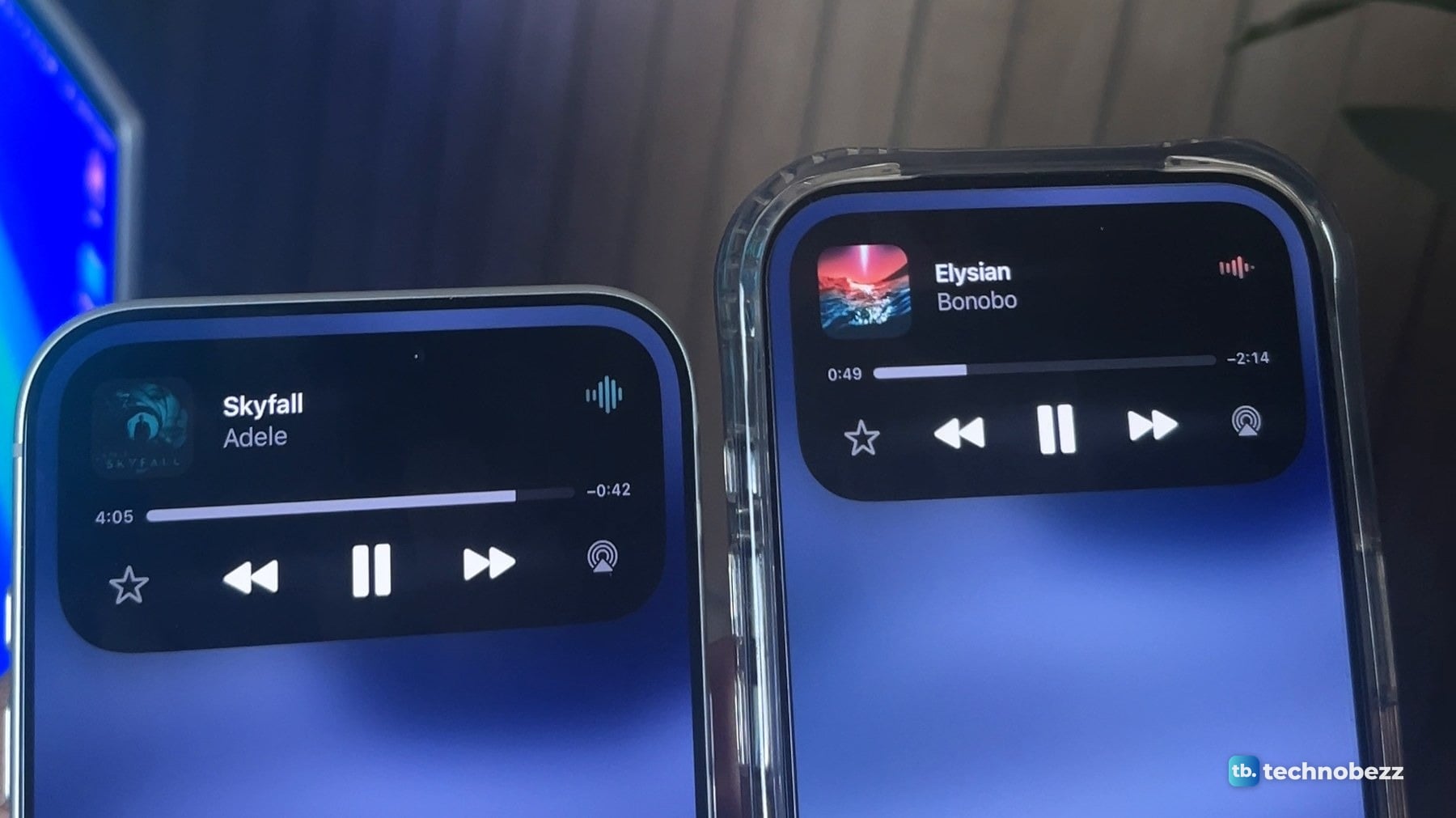
A screenshot from the iPhone 18 Pro Max shows the rest: time played and time left on the progress bar, plus a star and an AirPlay icon.
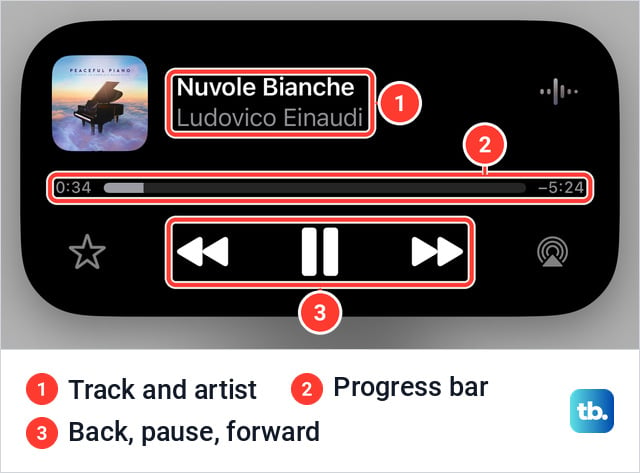
Apple's own pages describe a tap in two ways. The iOS 27 guide uses it to switch between two activities. Apple's Voice Memos page says to tap the Dynamic Island to expand it.
What shows up in the Dynamic Island
Apple's own examples are a Voice Memo recording, an AirDrop connection and directions from Maps, and its iPhone 18 Pro page adds live sports scores and music.
Apple gives instructions for three cases.
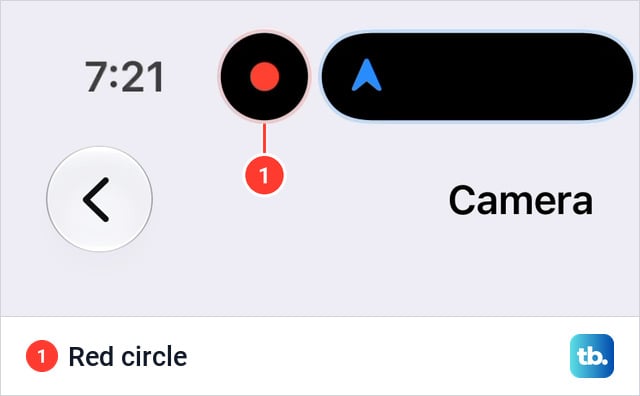
- Screen recording. On an iPhone with a Dynamic Island, stop a screen recording by tapping the red circle, then the Stop Screen Recording button.
- Phone calls. Apple's call page says to tap the green call indicator to return to a call after you open another app. It does not say the indicator is in the Dynamic Island.
- Directions. When Maps is navigating and you open another app, tap the directions banner at the top of the screen or the navigation indicator in the status bar to return to Maps.
While my iPhone 18 Pro Max recorded its screen, the red circle sat in a round bubble at the left end of the island.
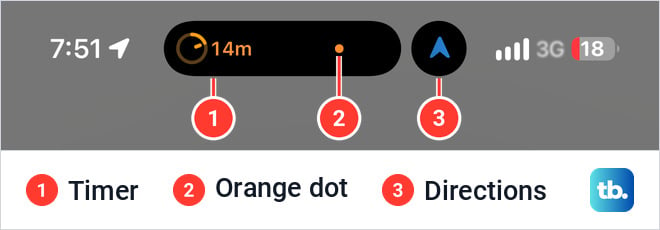
During a call, with the call screen open, the island showed the timer, an orange dot and the directions arrow. Apple says an orange indicator means an app is using the microphone.
Where to find Live Activities settings
Apple documents Live Activities settings one app at a time.
- 1.Open Settings.
- 2.Tap Apps.
- 3.Tap the app you want to change.
Apple's page says to tap Live Activities and does not name the controls. On my iPhone 18 Pro Max, the Google Maps page has it as a switch, between Notifications and Background App Refresh, and it was on. The Clock page has no Live Activities row, with the timer ring in the island above it.
Apple notes that not all apps have a Live Activities setting, and it gives the same path for Live Activities on the CarPlay Dashboard. Notifications have their own settings, covered in how to silence notifications on your iPhone.
What is new on iPhone 18 Pro and 18 Pro Max
Apple describes the island on the iPhone 18 Pro models as smaller and redesigned to make room for more information. Apple says it can now show three Live Activities at once while still handling Face ID.
I had a timer and music running on both of my phones, and directions as well on the iPhone 18 Pro Max. The iPhone 17 Pro showed its two. The iPhone 18 Pro Max showed all three.
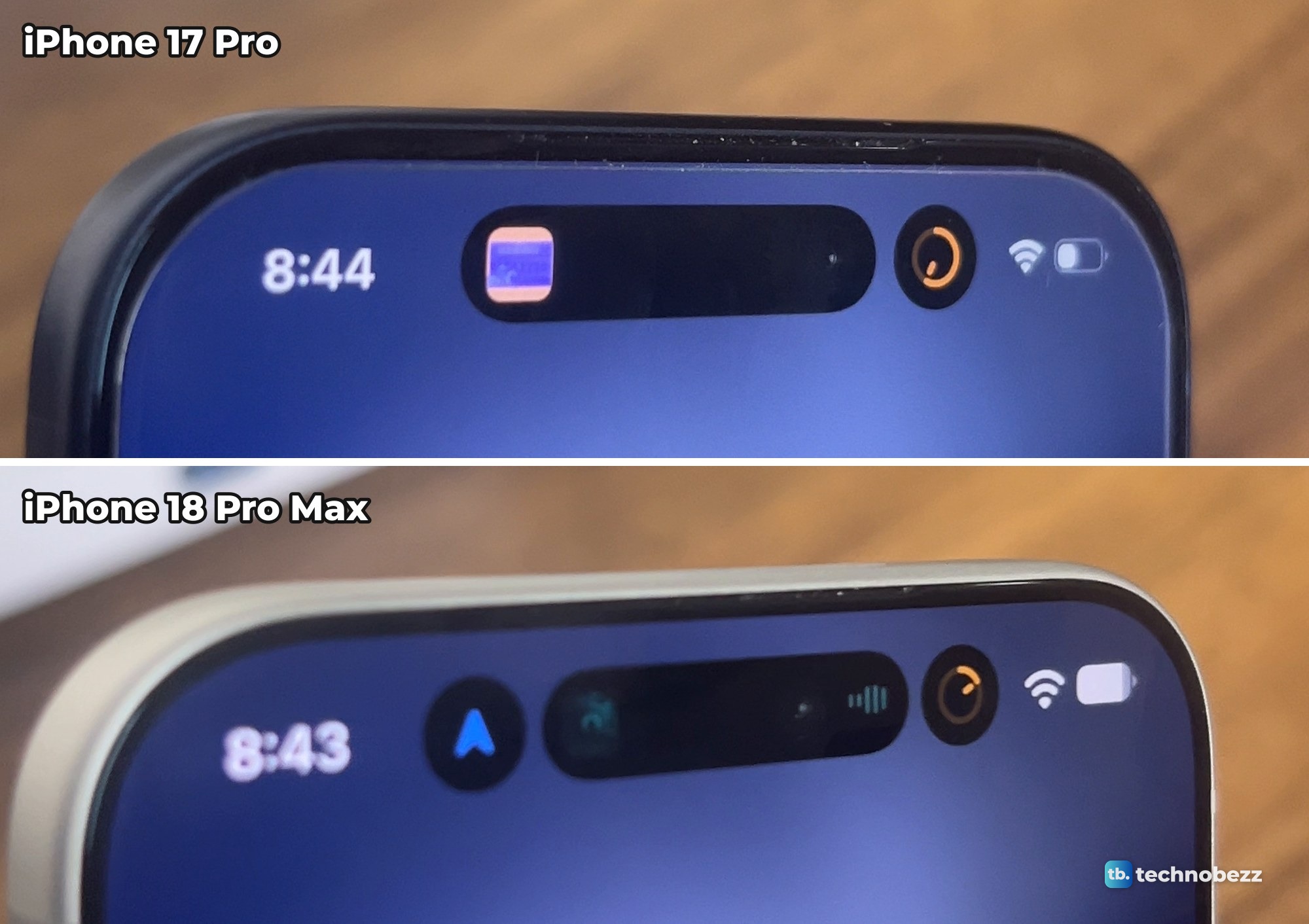
In screenshots, the iPhone 18 Pro Max fits three in as a wide island with a round bubble on each side. Music had the middle, directions the left and the timer the right, on the Home Screen and inside apps.
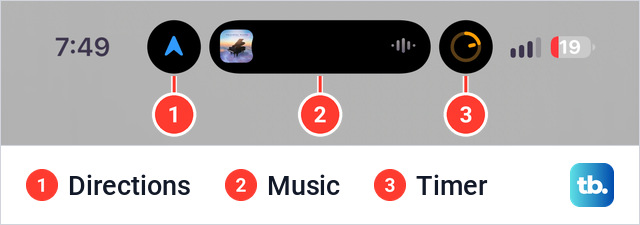
That order is not fixed. Other screenshots from the same five minutes show the timer in the wide island with directions in a bubble on its right, directions there with music in the bubble, and directions alone. They are stills, so they show where things ended up, not what moved them.
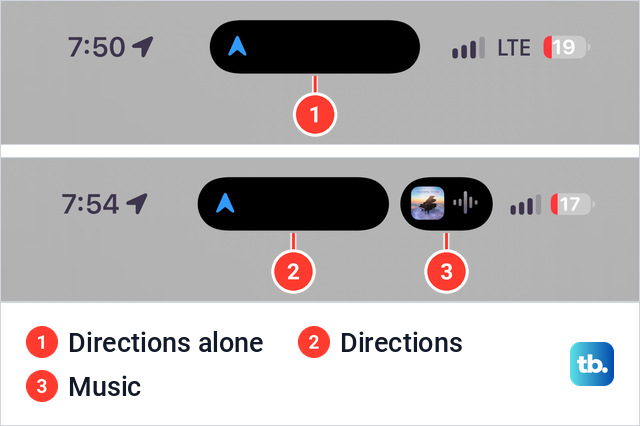
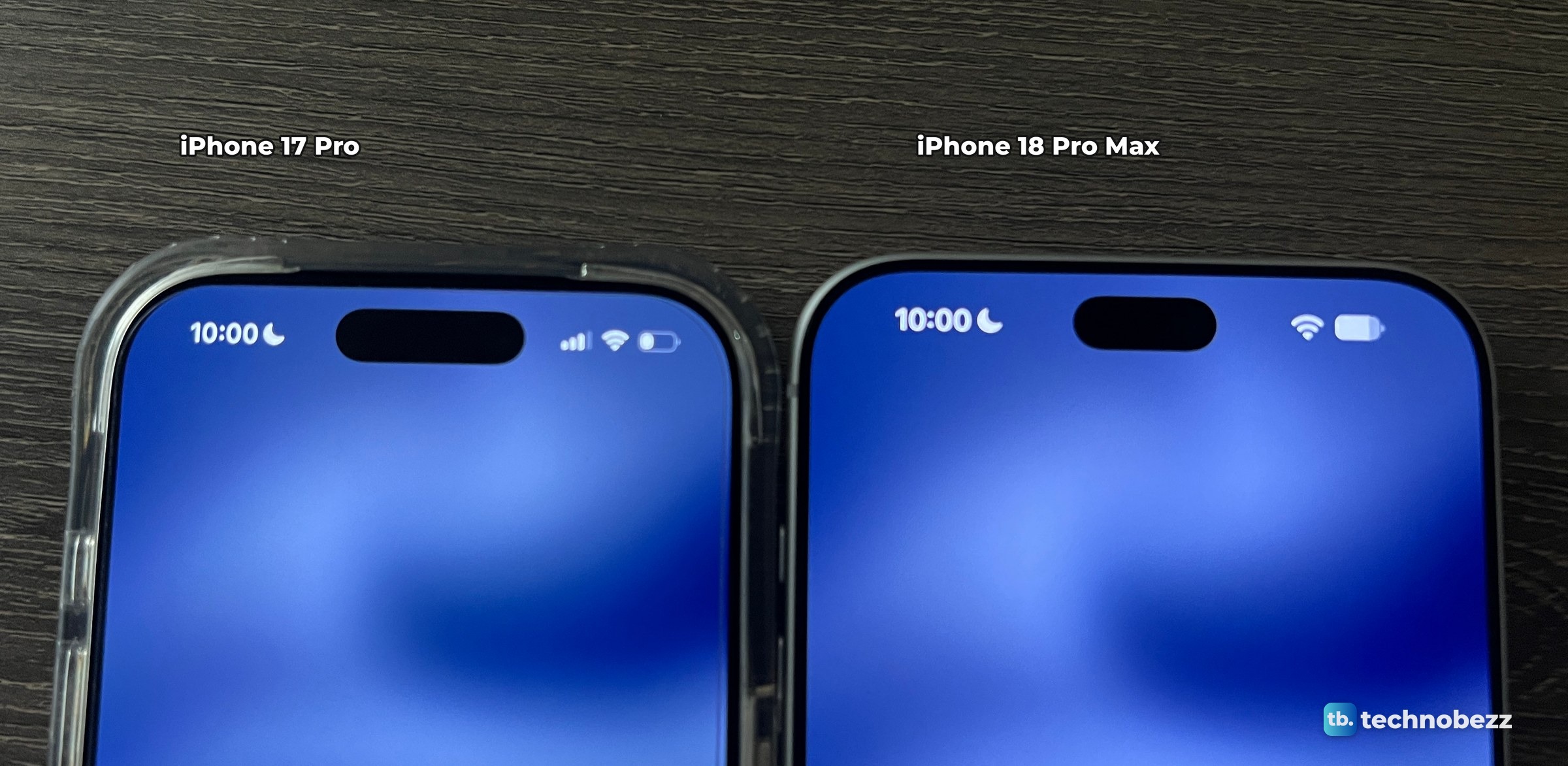
In one straight-down photo of both phones with nothing running, the island on the iPhone 18 Pro Max measured about 24 percent narrower than the one on the iPhone 17 Pro. That is width only. A report in March put the shrink at 35 percent. It is indeed smaller, and it shows better when nothing is running.
This short video shows both phones side by side, the three activities and the press and hold.
What to do when the Dynamic Island shows nothing
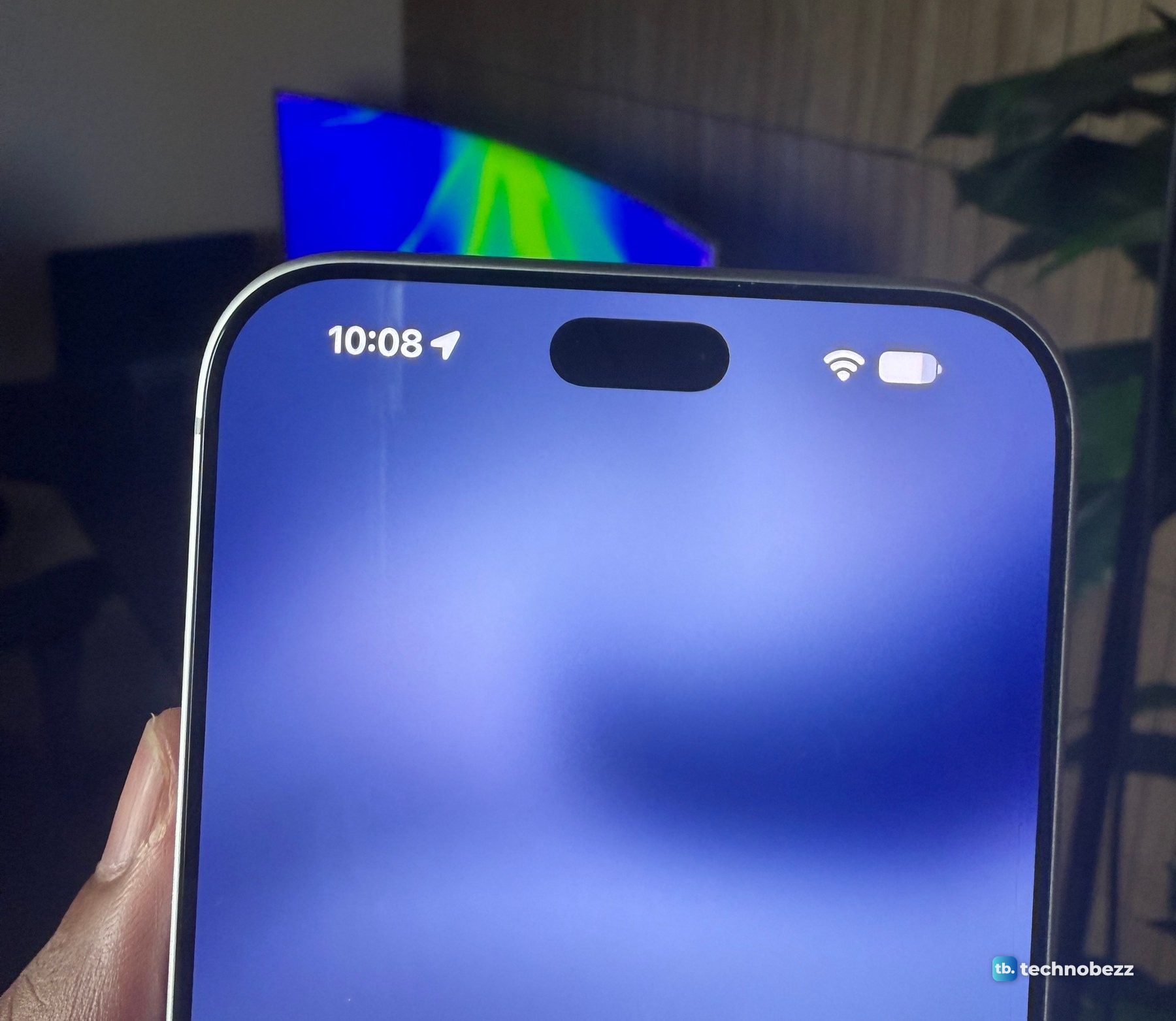
With nothing running, the island on my iPhone 18 Pro Max is a plain black pill.
If you expected something there, check these.
- The iPhone is locked. The island works when the iPhone is unlocked. On a locked iPhone, Live Activities appear on the Lock Screen.
- The swipe is from another iOS version. Go to Settings, tap General, then tap About to see your iOS version, then use the matching rows above.
- The whole screen is frozen. If the iPhone is not responding and you cannot turn it off and back on, try forcing it to restart.
Can you open Siri from the Dynamic Island?
Apple's guide says that if you have Siri AI, one way to activate Siri is to use the Dynamic Island by swiping down from the top of the screen. Siri AI is in beta on iOS 27 or later and needs an Apple Intelligence-enabled iPhone 15 Pro, iPhone 15 Pro Max, or iPhone 16 model or later, with Siri and the device language set to a supported language. It is available in English to start and will not initially be available in the EU on iOS.