


To change the Liquid Glass look on an iPhone running iOS 27, go to Settings, tap Appearance, tap Liquid Glass, then drag the slider to the right to increase the tint or to the left to make it more clear. On iOS 26.1 and later versions of iOS 26, the same setting is a choice of Clear or Tinted, under Settings, Display & Brightness, Liquid Glass.
The short version
- iOS 27 has a slider. Go to Settings, Appearance, Liquid Glass. Right increases the tint, left makes it more clear.
- iOS 26.1 and later versions of iOS 26 have a choice of Clear or Tinted in Settings, Display & Brightness, Liquid Glass.
- My iPhone 18 Pro Max showed a Liquid Glass slider during setup, and the same slider is in Settings under Appearance.
- With Reduce Transparency on, the slider still moved on my iPhone 18 Pro Max, and moving it turned Reduce Transparency off.
- Apple's iOS 27 compatibility list covers iPhone 11 and later, plus iPhone SE (2nd generation) and later.
How to change Liquid Glass on iPhone with iOS 27
Apple says the slider lets you customize how Liquid Glass looks, "from ultraclear to fully tinted." The steps below follow Apple's iPhone User Guide for iOS 27, and each one matches what my iPhone 18 Pro Max shows.
- 1.Go to the Settings app on your iPhone.
- 2.Tap Appearance.
- 3.Tap Liquid Glass.
- 4.Drag the slider to the right to increase the tint of Liquid Glass, and to the left to make Liquid Glass more clear.
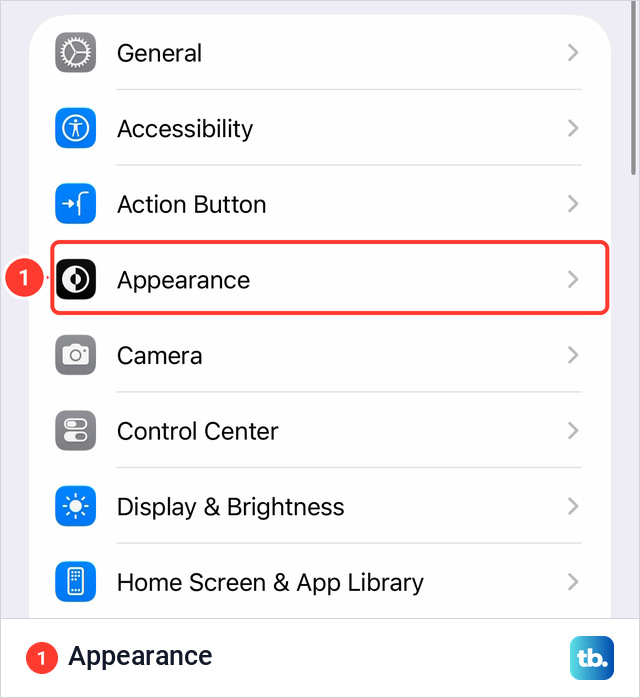
On my iPhone 18 Pro Max, the Appearance screen has Light and Dark at the top, then Liquid Glass, Text Size, Bold Text and Display Zoom. The Liquid Glass row shows the current setting as its value.
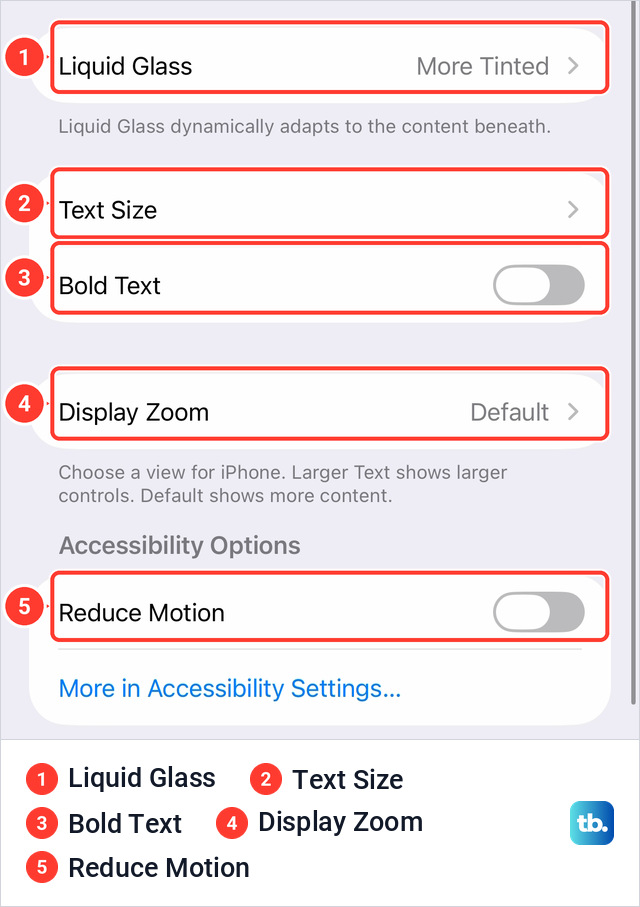
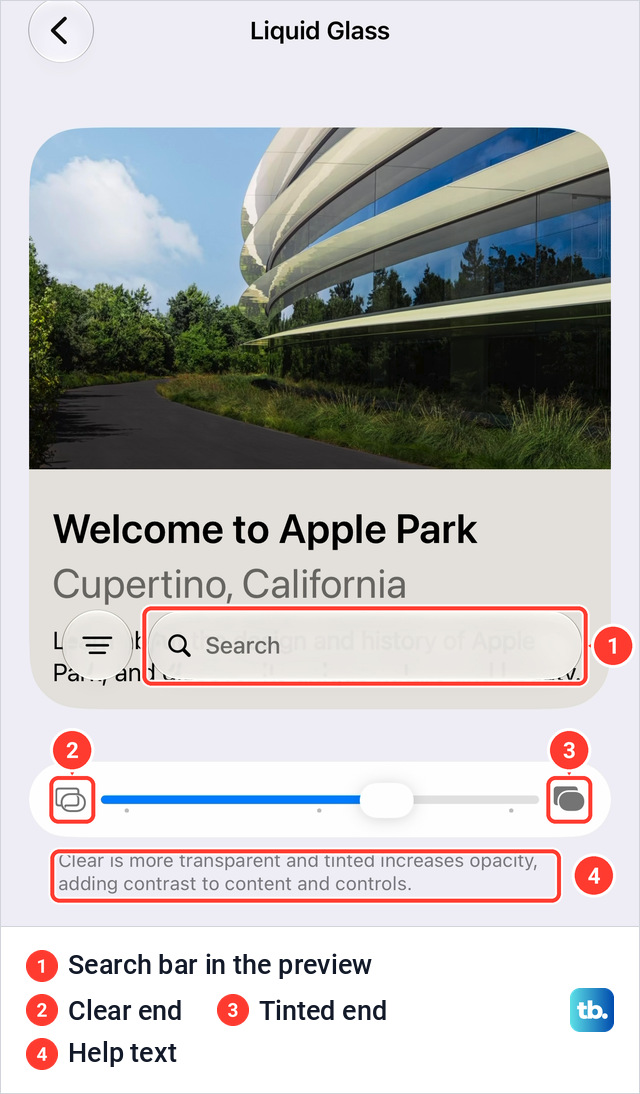
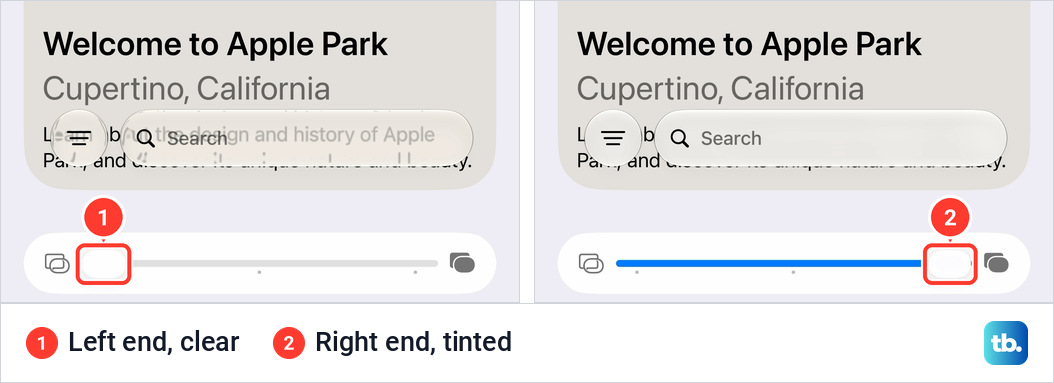
The Liquid Glass screen has a preview card with a search bar drawn over it, the slider, and one line of help text: "Clear is more transparent and tinted increases opacity, adding contrast to content and controls." On my phone, the search bar in the preview changed as I dragged. To compare two positions, take a screenshot of the same screen at each one.
How to switch between Clear and Tinted on iOS 26
Apple's release notes list this setting under iOS 26.1 and describe it as a choice between "the default clear look or a new tinted look which increases opacity of the material in apps and notifications on the Lock Screen."
- 1.Go to the Settings app on your iPhone.
- 2.Tap Display & Brightness.
- 3.Tap Liquid Glass.
- 4.Choose Clear for a more transparent look or Tinted for more contrast and increased opacity.
The Liquid Glass screen during iPhone setup
When I set up my iPhone 18 Pro Max, the setup assistant showed a screen titled Liquid Glass, after the step where you choose how to transfer data from your old iPhone. The line under the title reads "Slide from clear to tinted to reveal content beneath or add more opacity."
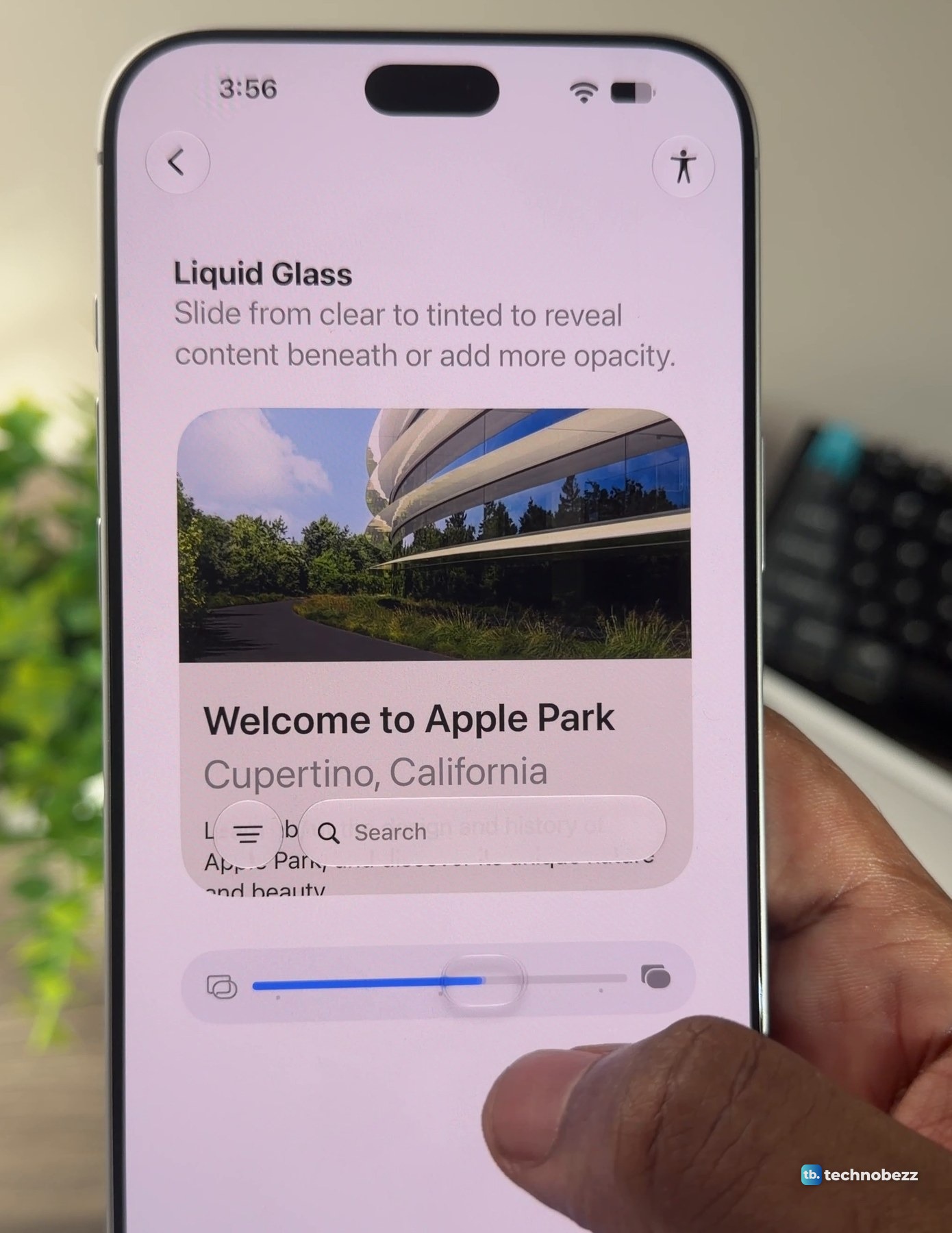
The same slider and the same sample card are in Settings afterward.
What clear and tinted change
Liquid Glass is the design Apple introduced in iOS 26 for the Lock Screen, the Home Screen, apps, navigation and controls. In the preview in Settings, the clear end lets the text behind the search bar show through, and the tinted end hides it.
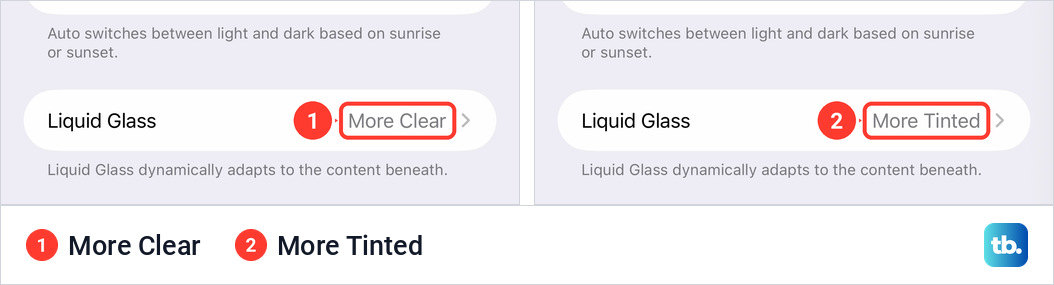
On the Appearance screen, the Liquid Glass row then read More Clear at the left end and More Tinted at the right end.
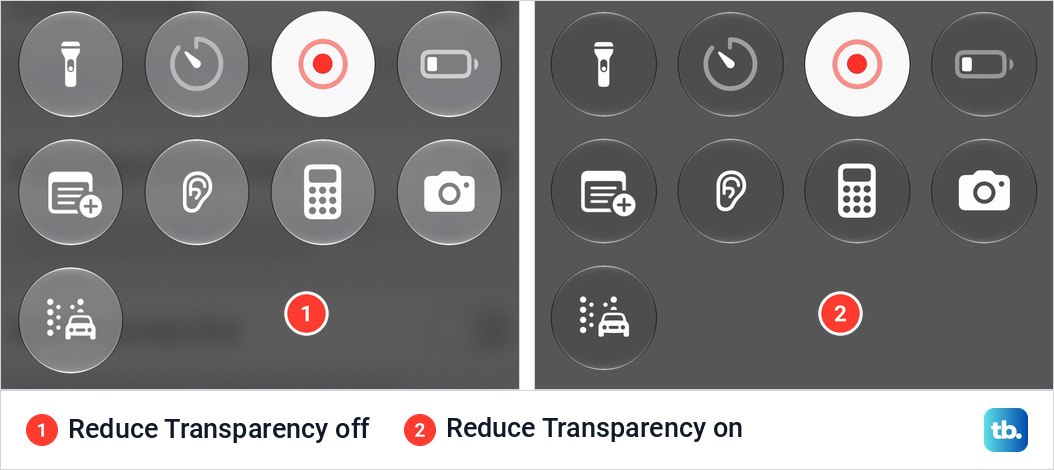
In Control Center on my iPhone 18 Pro Max, the round controls looked nearly the same with the slider at either end.
| Setting | Where to find it | What it does |
|---|---|---|
| Liquid Glass slider (iOS 27) | Settings, Appearance, Liquid Glass | Right increases the tint of Liquid Glass. Left makes Liquid Glass more clear |
| Clear (iOS 26, from 26.1) | Settings, Display & Brightness, Liquid Glass | A more transparent look, and the default in iOS 26 |
| Tinted (iOS 26, from 26.1) | Settings, Display & Brightness, Liquid Glass | More contrast and increased opacity in apps and in notifications on the Lock Screen |
| Reduce Transparency | Settings, Accessibility, Display & Text Size | Gives transparent and blurred backgrounds a solid color |
| Increase Contrast | Settings, Accessibility, Display & Text Size | Increases the contrast between elements such as apps and background colors |
| Reduce Motion | Settings, Appearance, under Accessibility Options. Apple also gives Settings, Accessibility, Motion | When it is off, you see more motion, like the fluid morphing effects of Liquid Glass |
How to make Liquid Glass easier to read
Start with the slider and drag it to the right, which increases the tint. Apple describes the end of the range as fully tinted.
Apple also documents Reduce Transparency for solid backgrounds and Increase Contrast for greater contrast between screen elements.
- 1.Go to the Settings app on your iPhone.
- 2.Tap Accessibility.
- 3.Tap Display & Text Size.
- 4.To make transparent items solid, turn on Reduce Transparency.
- 5.To increase the contrast between colors, turn on Increase Contrast.
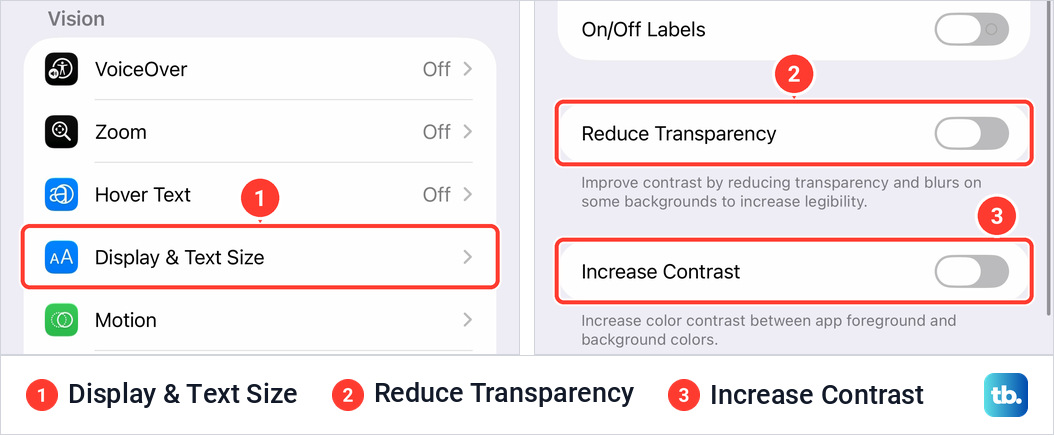
Apple covers both switches in its guide to changing display colors on iPhone. With Reduce Transparency on, the round controls in Control Center on my iPhone 18 Pro Max became flat, dark circles.
What to do if the Liquid Glass setting is missing or will not change
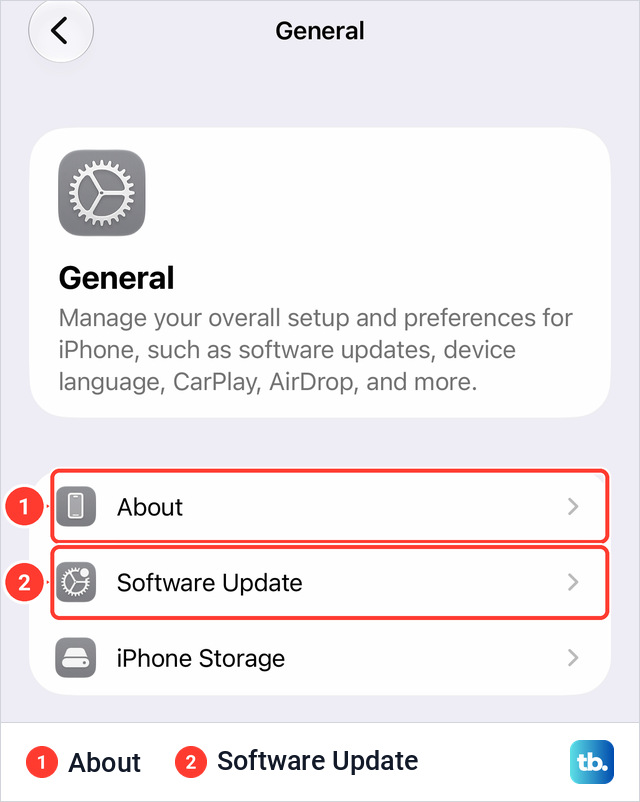
If you cannot find Liquid Glass, check the installed version in Settings, General, About, on the iOS Version row. That screen is also how to see what iPhone you have. Apple documents the setting under Appearance in iOS 27 and under Display & Brightness in iOS 26.1 and later versions of iOS 26.
If the iPhone is on a version earlier than iOS 26.1, go to Settings, General, Software Update. Before a big update, it helps to know how to back up your iPhone and how to restore it from a backup. If the download fails for lack of room, here is how to get more storage on iPhone.
If the setting is there but the look will not change, check Accessibility. Apple's note reads, "If you turned on Reduced Transparency or Increased Contrast in Accessibility settings, you need to turn them off to change the look for Liquid Glass."
My iPhone 18 Pro Max handled Reduce Transparency differently. With that switch on, the slider still moved. It sat at the right end, the search bar in the preview was solid white, and the help text added a sentence: "When Reduce Transparency is on, adjusting Liquid Glass may turn this setting off." When I dragged the slider away from the right end, the preview turned back to glass. Dragging it back to the right end brought the solid bar and the extra sentence back. I left it short of the end, and Reduce Transparency was off when I went back to Accessibility. I did not test Increase Contrast.
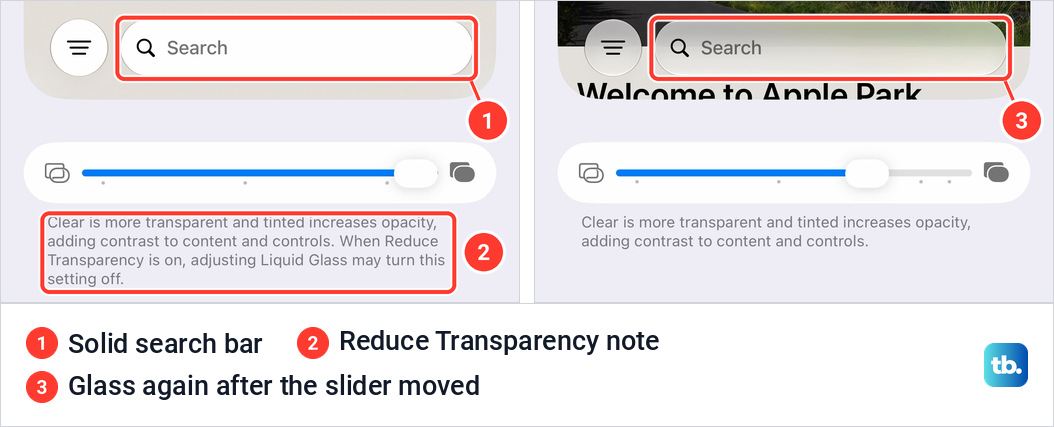
So set the slider first, then check whether Reduce Transparency is still the way you want it. If Settings freezes while you drag, force restart the iPhone and try again.
Questions about the Liquid Glass setting
Can you turn Liquid Glass off completely?
The Liquid Glass screen on my iPhone 18 Pro Max has no off switch, only the preview, the slider and the help text. At the tinted end, the search bar in my preview still picked up a green tint from the grass behind it. With Reduce Transparency on, the same bar was solid white.
Is this the same as Clear or Tinted app icons?
No. Apple documents those as Home Screen options that change how app icons and widgets look. Touch and hold the Home Screen background until the icons begin to jiggle, tap the Edit button at the top left, choose Customize, then tap Clear or Tinted. On my iPhone 18 Pro Max the Edit button is a paintbrush icon with no word on it.
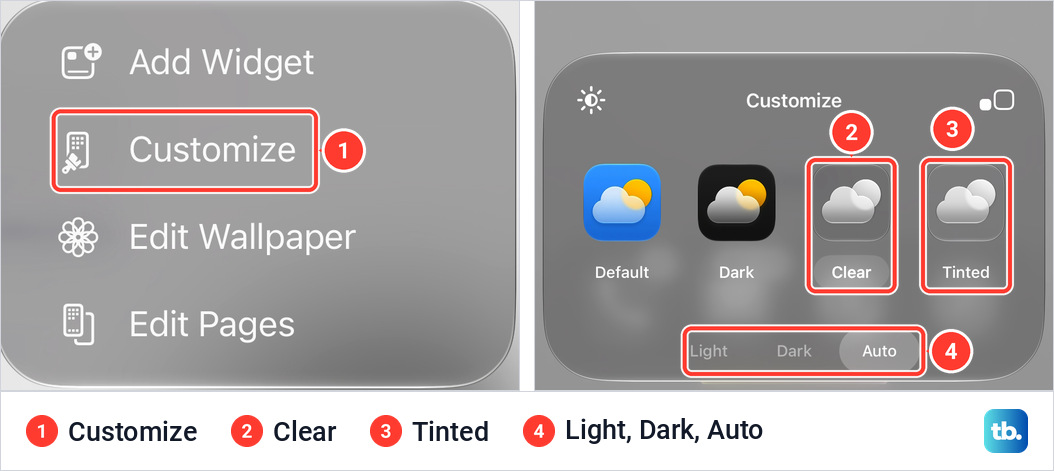
For the Lock Screen clock, Apple's guide says to select the existing Lock Screen you want to edit before tapping Customize. Its clock options depend on the wallpaper, and include tapping the time "to change the font, switch to a more transparent look, and more."
Which iPhones have the Liquid Glass slider?
Apple's guide gives the slider for iOS 27, and Apple's iOS 27 compatibility list covers iPhone 11 and later, plus iPhone SE (2nd generation) and later. Apple's release notes list the Clear and Tinted choice under iOS 26.1. Apple's iPad guide gives the same path for iPadOS 27.