


To add film grain on an iPhone 18 Pro or iPhone 18 Pro Max, open Camera, tap the Camera Controls button (the circle with six dots, right of the shutter), then tap Styles, Customize and Texture, and turn on Grain if it is dim. On my iPhone 18 Pro Max the Texture tab lists Standard, Soft Skin, Glow and Film, with Grain as a separate button. Apple's Photos guide lists the same Texture and Grain controls for editing after the shot.
The short version
- Path: Camera, the six-dot Camera Controls button, Styles, Customize, Texture, then turn on Grain if it is dim.
- Apple's Camera guide marks Texture as available on iPhone 18 Pro and iPhone 18 Pro Max.
- The textures are Standard, Soft Skin, Glow and Film. Grain turns on or off with one tap.
- Shoot in High Efficiency, or the style cannot be edited later in Photos.
What you need before you start
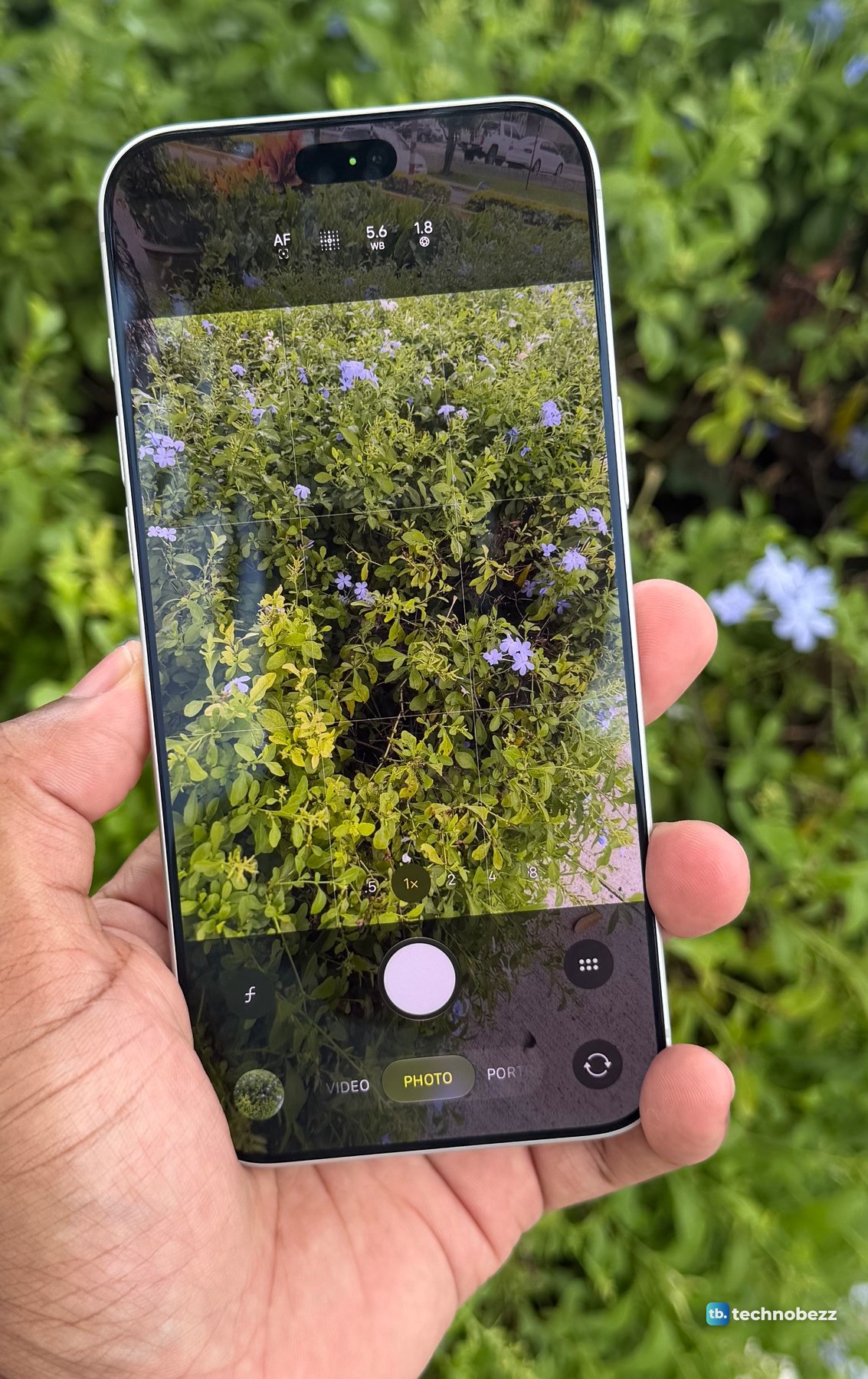
Apple's iPhone User Guide for iOS 27 marks the Texture option as "Available on iPhone 18 Pro and iPhone 18 Pro Max". Apple calls the feature Photographic Styles 3, and it was announced alongside the variable aperture on the iPhone 18 Pro. If you are not sure which model you have, here is how to see what iPhone you have.
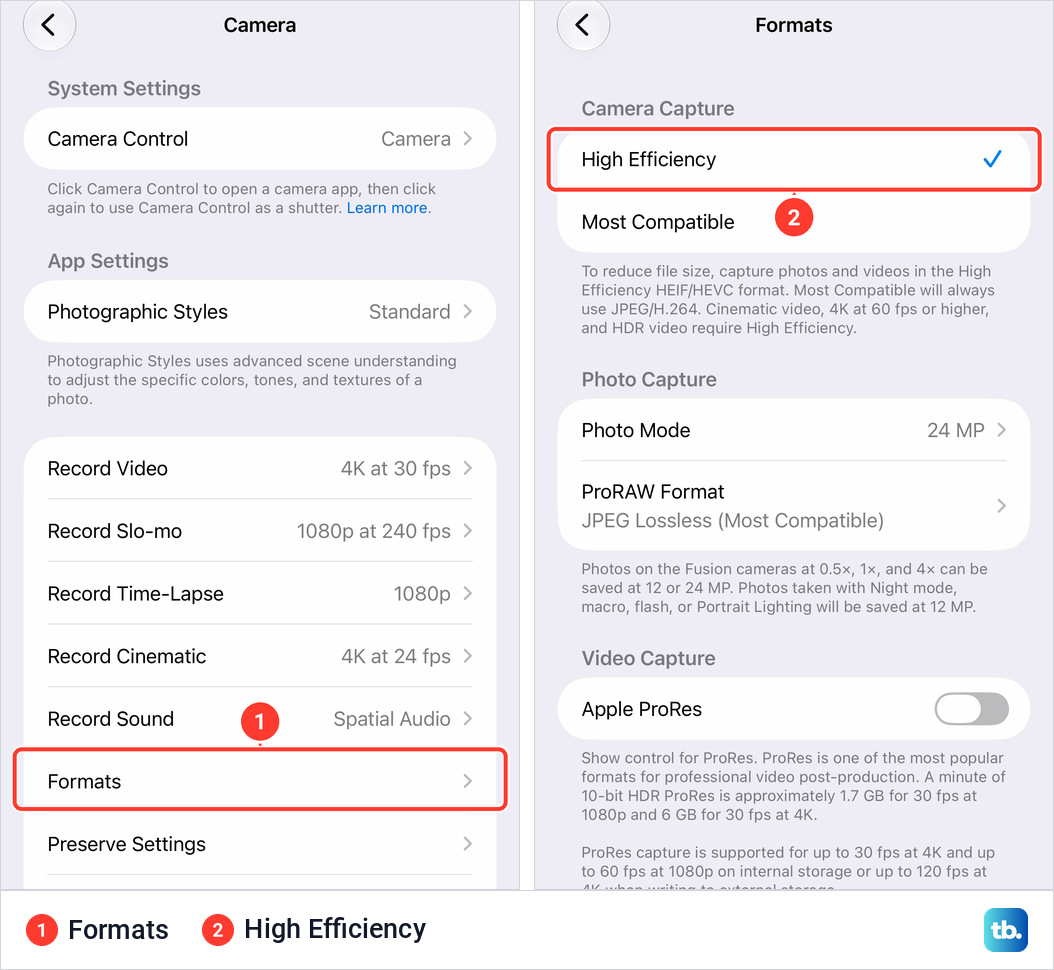
One setting matters before the first shot. Apple notes that Camera has to capture in High Efficiency for a style to be editable later in Photos. Go to Settings, tap Camera, tap Formats, then tap High Efficiency. On my iPhone 18 Pro Max it was already checked, and the screen says the format is there "to reduce file size", useful if you want to get more storage on your iPhone.
How to add film grain in the Camera app
These steps follow Apple's Photographic Styles guide in the iPhone User Guide for iOS 27, with the labels my iPhone 18 Pro Max shows.
- 1.Open Camera in Photo or Portrait mode.
- 2.Tap the Camera Controls button, or swipe up from the camera modes at the bottom of the screen.
- 3.Tap Styles.
- 4.Swipe the row of styles left or right.
- 5.Tap Customize under the row.
- 6.Tap Texture at the top of the panel.
- 7.Tap Soft Skin, Glow or Film, or tap Standard for no texture.
- 8.If you chose Soft Skin, Glow or Film, drag the row of tick marks under it to set its strength. Skip this step for Standard.
- 9.Look at Grain, the round button at the right. If it is dim, tap it to turn it on. If it is already white, leave it on.
- 10.Tap the Shutter button to take your shot.
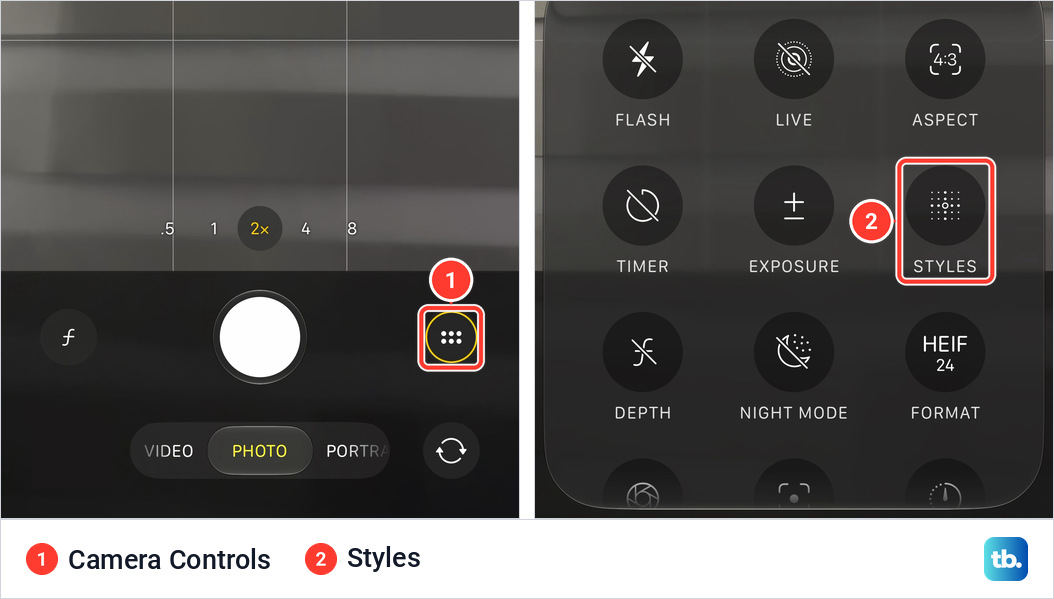
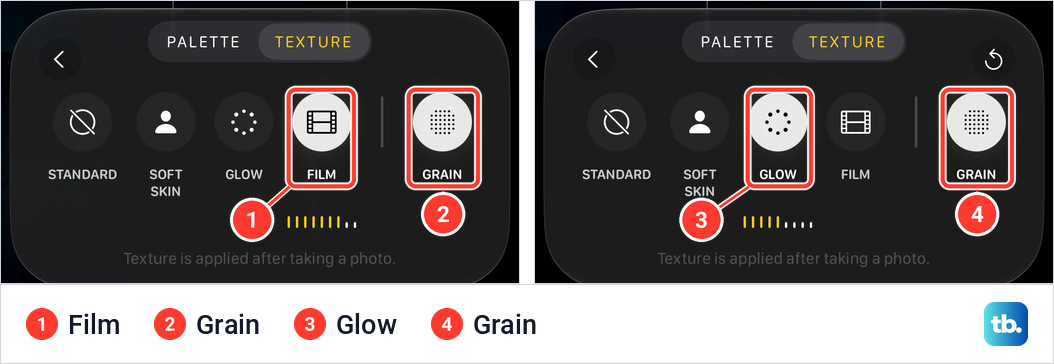
The same menu has a Live tile for Live Photos, covered in how to turn off Live Photos. Some style names carry a texture, such as Dramatic + Film or Luminous + Glow. When I chose Dramatic + Film and opened Texture, Film and Grain were already on.
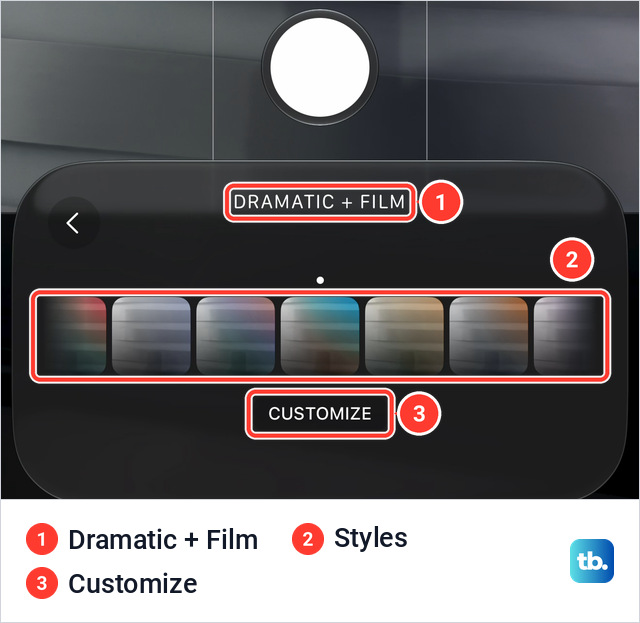
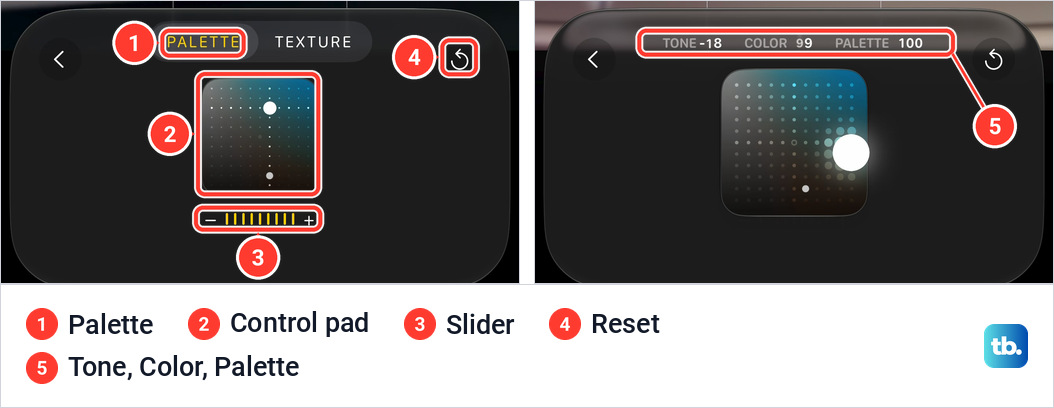
Customize has two tabs, Palette and Texture. Palette is a square control pad for Tone and Color, with a minus and plus slider under it. A Reset button, a circular arrow, appears at the top right once you change something. There is no X, only a back arrow.
On the Texture tab, Grain sits apart past a thin divider. The Shutter button stays above the panel, so you can shoot without closing it.
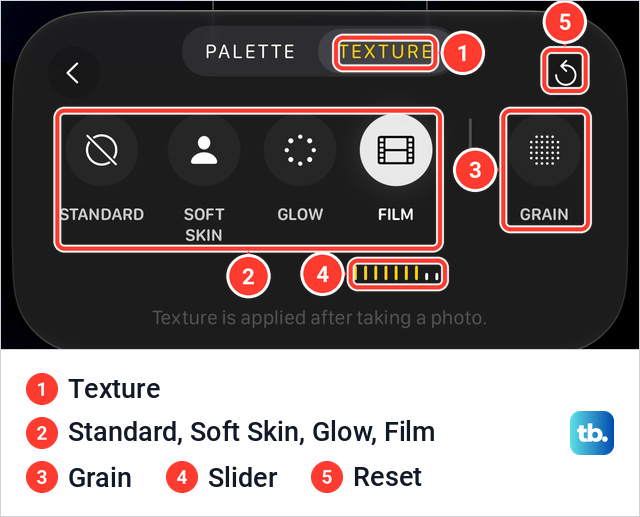
Texture and Grain options on the iPhone 18 Pro Max
Apple says you can "customize texture and grain to soften skin details or achieve an artful film look", but its guide does not describe how each option looks. This is what each one showed on my iPhone 18 Pro Max.
| Option | On my iPhone 18 Pro Max |
|---|---|
| Standard | No texture and no slider. Grain stayed off each time I picked it. |
| Soft Skin | A slider under the button. |
| Glow | A slider whose scale is titled Soft Scene Intensity. |
| Film | A slider whose scale is titled Filmic Intensity, 0 to 100. |
| Grain | A separate round button. One tap turns it on, the next turns it off. No slider of its own. |
Grain is not tied to Film. I turned it on with Soft Skin, Glow and Film.
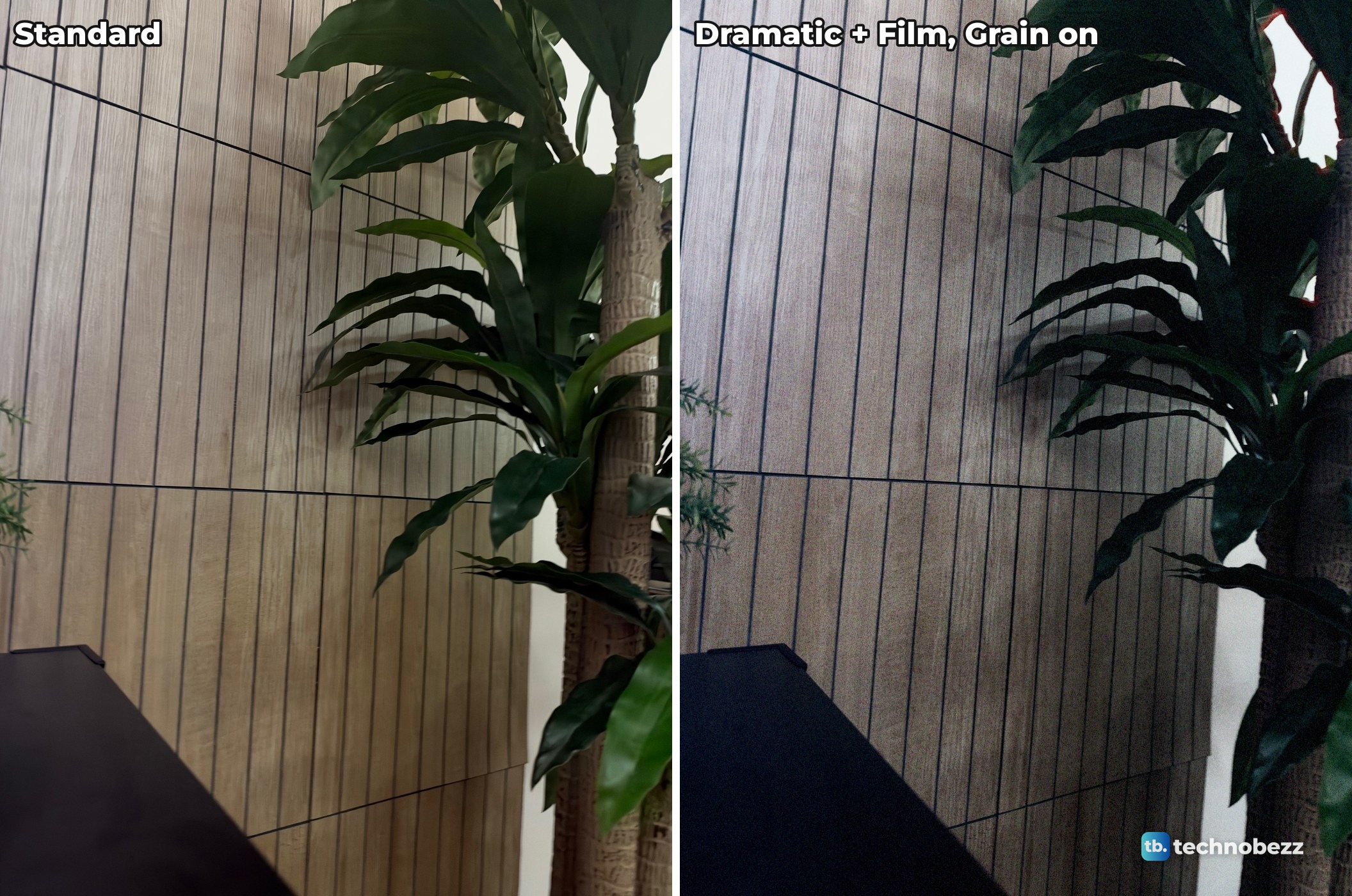
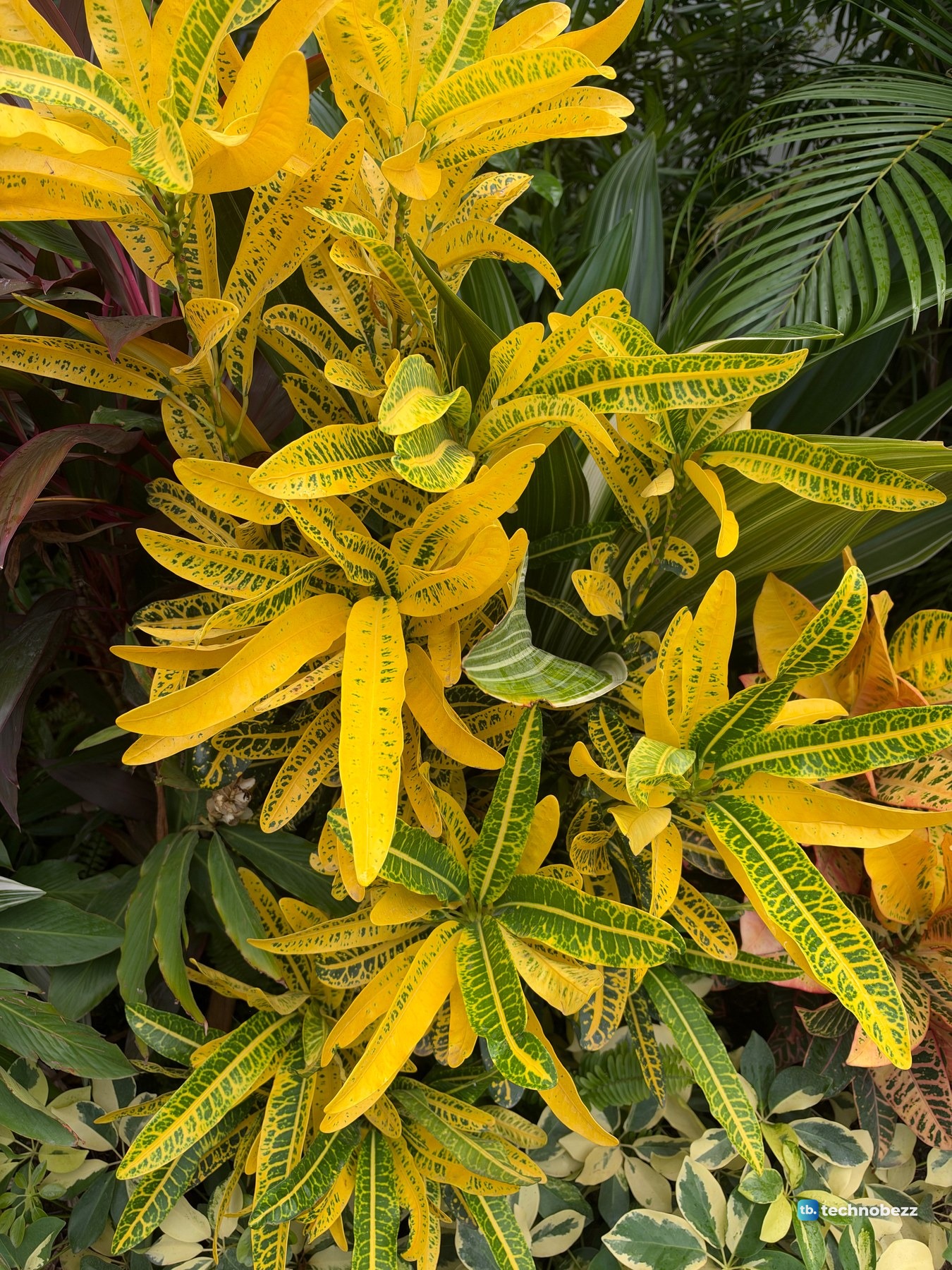
iPhone in Canada reports that photographer Tyler Stalman compared the phone with Portra 400 film and "found Apple did a convincing job with grain and halation", but said overall color and contrast did not fully match. Here is one plant shot on my iPhone 18 Pro Max with Standard and with Dramatic + Film and Grain, under a minute apart.
Is the grain applied before or after you take the photo?
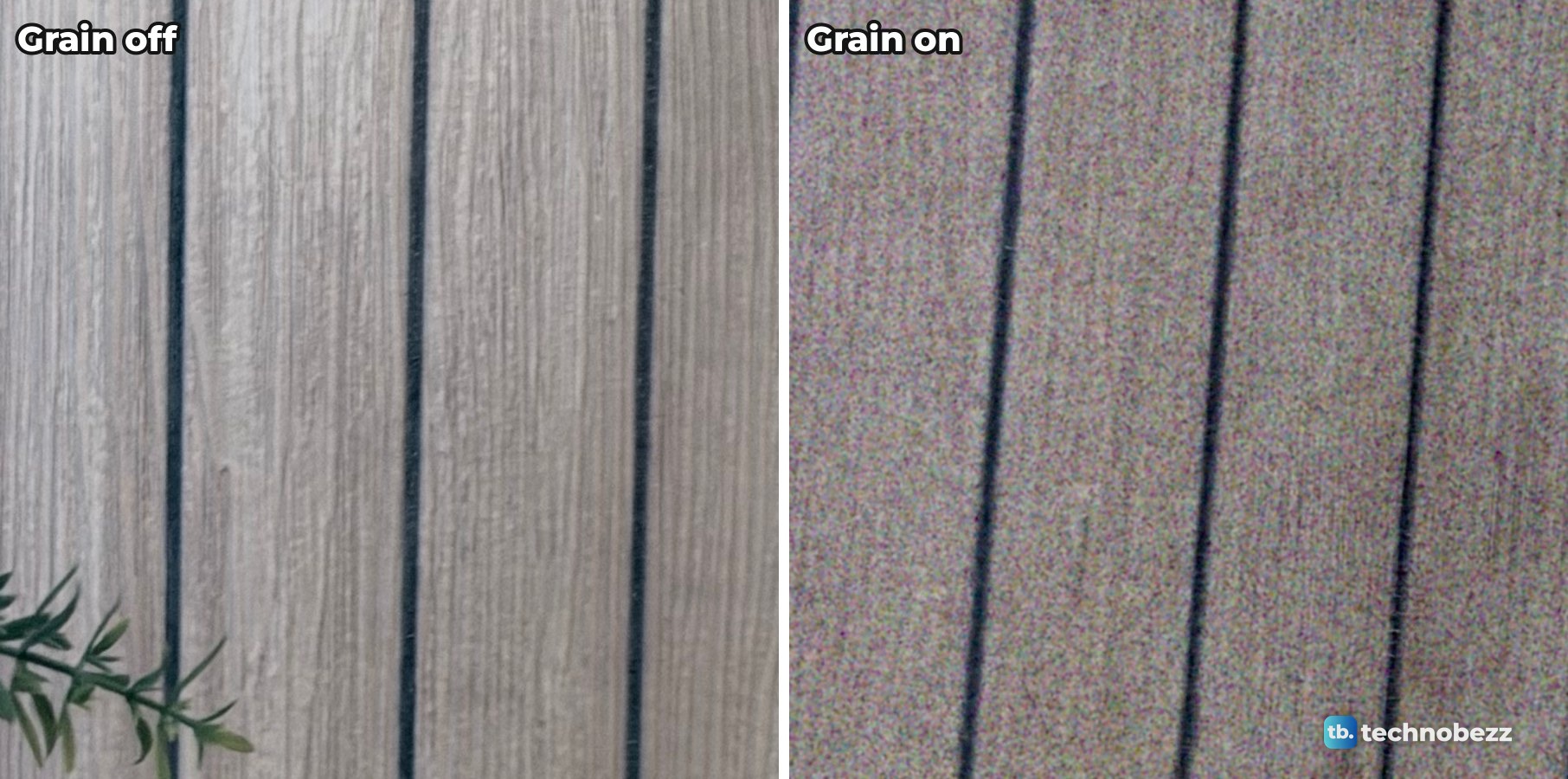
Apple documents choosing texture and grain in Camera before taking a photo and refining the style afterward in Photos. On my iPhone 18 Pro Max the Texture tab says "Texture is applied after taking a photo." Apple's product page adds that you can "easily adjust or reverse effects anytime". I took two photos three seconds apart with the same style, Grain off and then on.
How to edit texture in Photos
Apple's Photos editing guide lists the same Texture controls for photos captured on an iPhone 18 Pro or iPhone 18 Pro Max.
- 1.Open the Photos app.
- 2.Open a photo taken with a Photographic Style.
- 3.Tap the Edit button, the icon with three sliders at the bottom of the screen.
- 4.Tap Styles in the bar at the bottom of the editor.
- 5.Tap Customize under the row of styles.
- 6.Tap Texture.
- 7.Choose a texture such as Soft Skin, Glow or Film and drag the slider, or choose Standard to apply no texture.
- 8.If Grain is not already on, tap it to add film grain to the texture.
- 9.Tap Done at the top right.
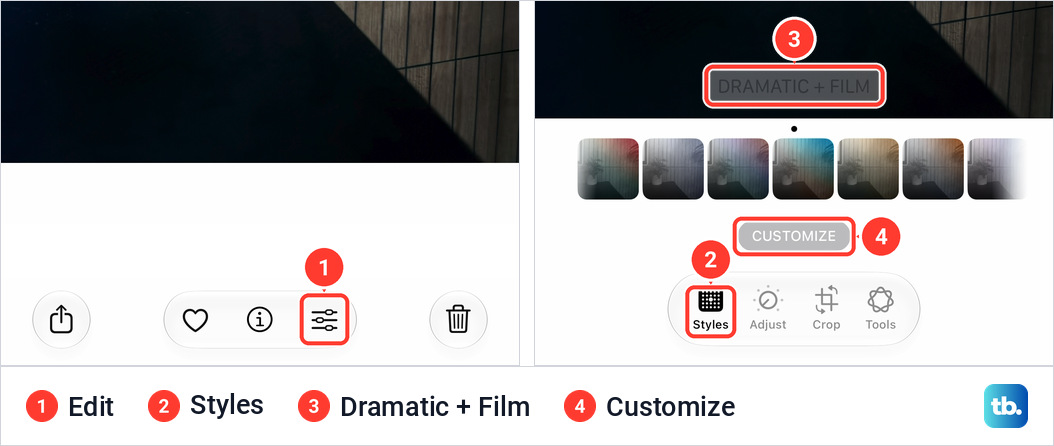
On my phone the Styles tab also appeared on a photo whose style read Standard. Tap Cancel instead of Done and the phone offers Discard Changes.
To undo edits after you save, open the edited photo, tap the More button, then tap Revert to Original. The other tools are in our guide to editing photos on iPhone. The Formats screen names the High Efficiency format HEIF/HEVC, worth knowing before you transfer photos from an iPhone to a computer.
How to reset a Photographic Style
In Camera, tap the Reset button, the circular arrow at the top right of the Customize panel. On the Texture tab it brought back the texture the style came with, Film with Grain on for Dramatic + Film. To turn Grain off on its own, tap Grain again. To change or reset the whole Photographic Style, tap the back arrow to return to the styles row, then select Standard or another style. Standard on the Texture tab removes only the texture.
You can also open Settings, tap Camera, then tap Photographic Styles. On my iPhone 18 Pro Max it opens a page titled Choose a Style. On Standard the buttons read Customize Texture and Keep "Standard". On other styles they read Set Style and Customize.
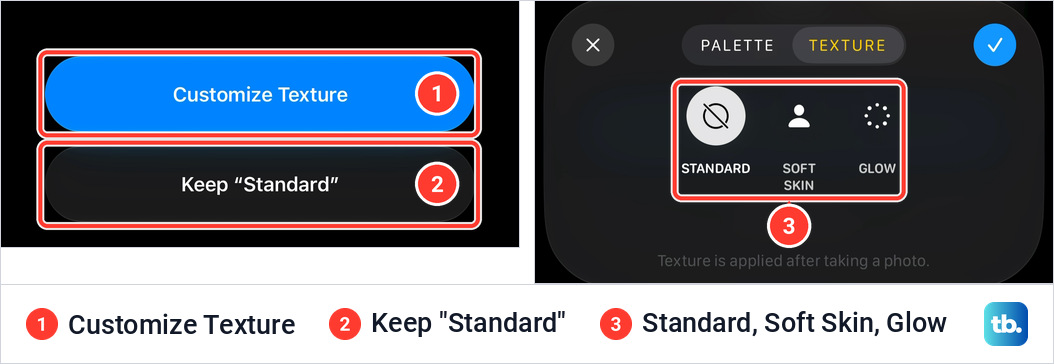
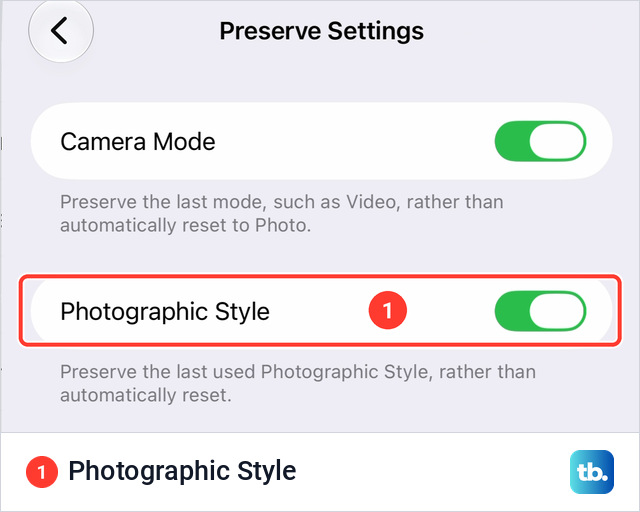
Apple adds that a style applies until you change it or close Camera. To keep it for next time, go to Settings, Camera, Preserve Settings and turn on Photographic Style.
What to do if Texture or Grain is missing
- No Texture after Customize. Check your iPhone model. Apple's Camera guide documents Texture on iPhone 18 Pro and iPhone 18 Pro Max.
- No Film or Grain in Settings. On my iPhone 18 Pro Max, the Texture tab reached through Photographic Styles in Settings showed Standard, Soft Skin and Glow, with no Film or Grain. Use the Camera app.
- No Styles in the menu. Apple's steps say to make sure Camera is in Photo or Portrait mode.
- Photos will not edit the style. Apple notes that Camera needs to capture in High Efficiency to edit Photographic Styles later in Photos. On my phone one photo opened with Filters in place of the Styles tab.
- No Texture on an older picture. Check the original capture model and format. Apple's Photos guide and launch footnote give different capture-model lists.
Can you add film grain on an iPhone 17 Pro or iPhone 16?
Neither of Apple's capture lists names these phones, and the two lists differ. The Camera guide marks Texture as "Available on iPhone 18 Pro and iPhone 18 Pro Max". The launch announcement's footnote says the controls "will be available for photos captured on iPhone 18 Pro models and the Ultra Wide, Main, and Center Stage cameras on iPhone Duo". For editing, the Photos guide lists Texture on models that support Photographic Styles 2 and 3, a list that includes both phones, for photos "captured on iPhone 18 Pro or iPhone 18 Pro Max". Macworld's reading is that you could, "theoretically", take a photo with a new phone and AirDrop it to an iPhone 17 for editing.
Do texture and grain work on video?
Apple's steps say to make sure Camera is in Photo or Portrait mode, and its launch footnote refers to photos. Its Photographic Styles guide gives no steps for video.