


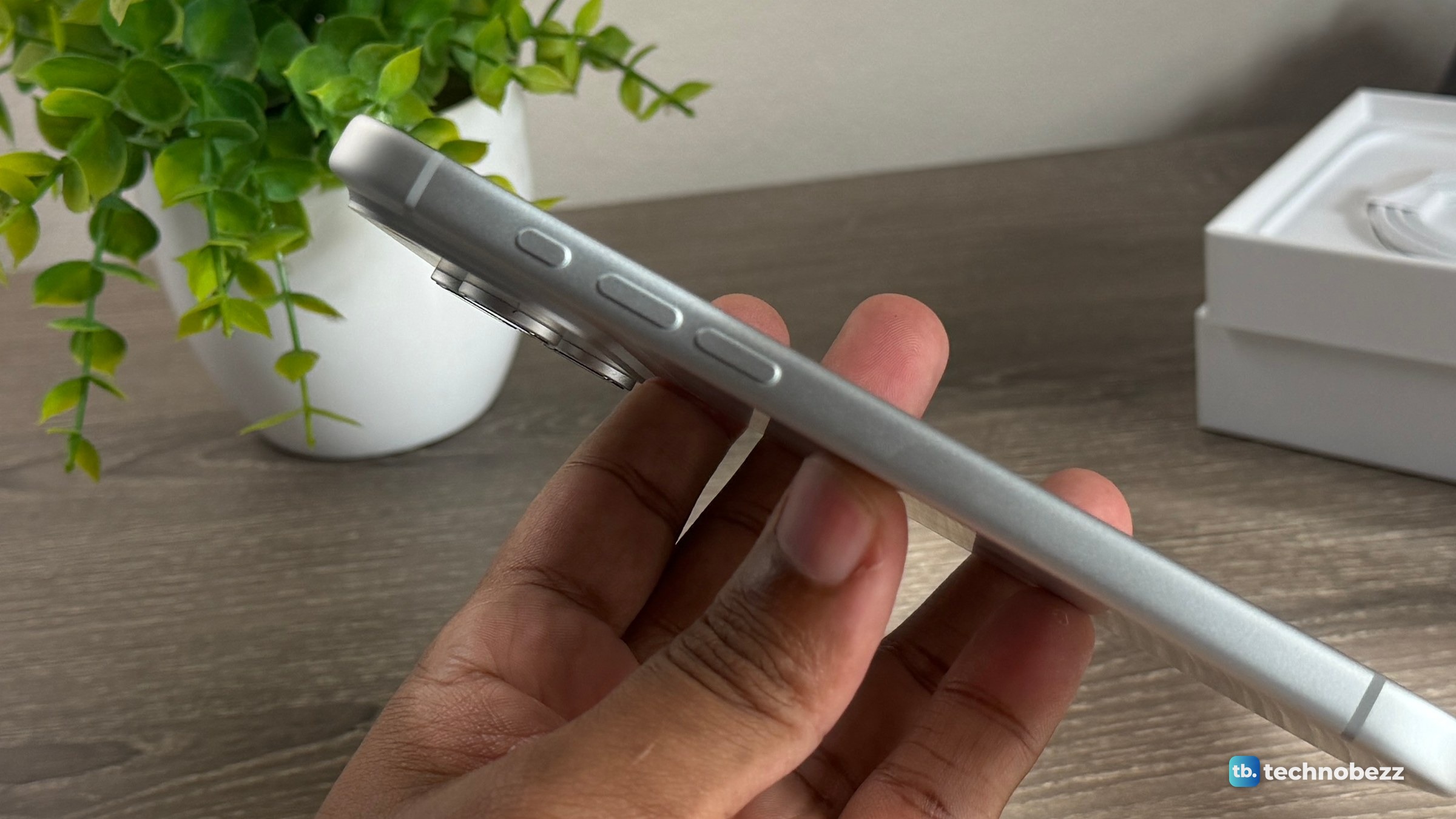
To customize the Action button, open Settings, tap Action Button, and swipe to the action you want. Its name appears below the row of dots. After that, press and hold the button on the left side of the iPhone to run it. Apple's iOS 27 guide gives one set of Action button steps for supported models, including the iPhone 15 Pro and iPhone 18 Pro Max.
The short version
- Go to Settings, then Action Button, and swipe to the action you want.
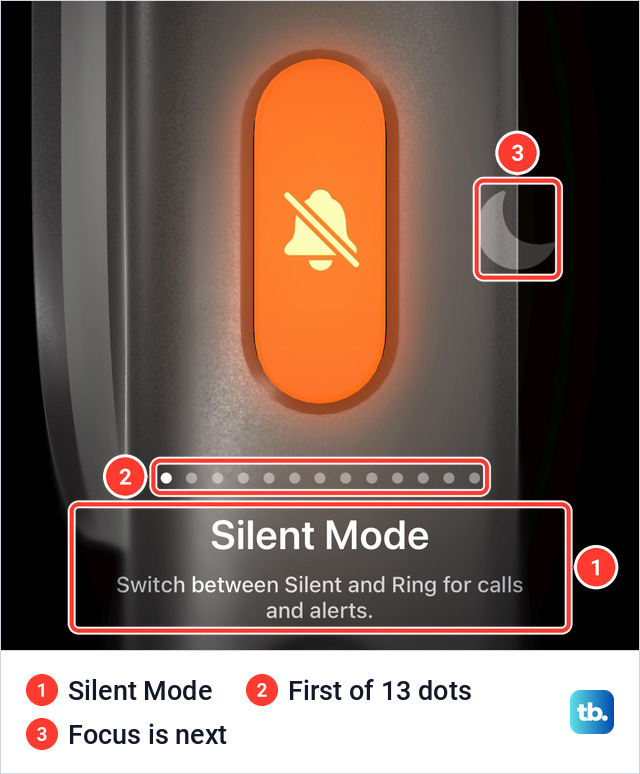
- Press and hold the button to use it. Silent Mode is the default.
- Controls, Shortcut and Accessibility do nothing until you choose a specific option under them.
- The Silent Mode switch stays available in Settings under Sounds & Haptics.
Which iPhones have an Action button
Apple's iPhone User Guide lists the iPhone 15 Pro and 15 Pro Max, all four iPhone 16 models, the iPhone 16e, the iPhone 17, 17 Pro and 17 Pro Max, the iPhone Air, and the iPhone 18 Pro and 18 Pro Max. Apple's page for the iPhone 17e shows the button as well. The iPhone 15 and 15 Plus still have the Ring/Silent switch. Not sure which model you own? Check which iPhone you have first.
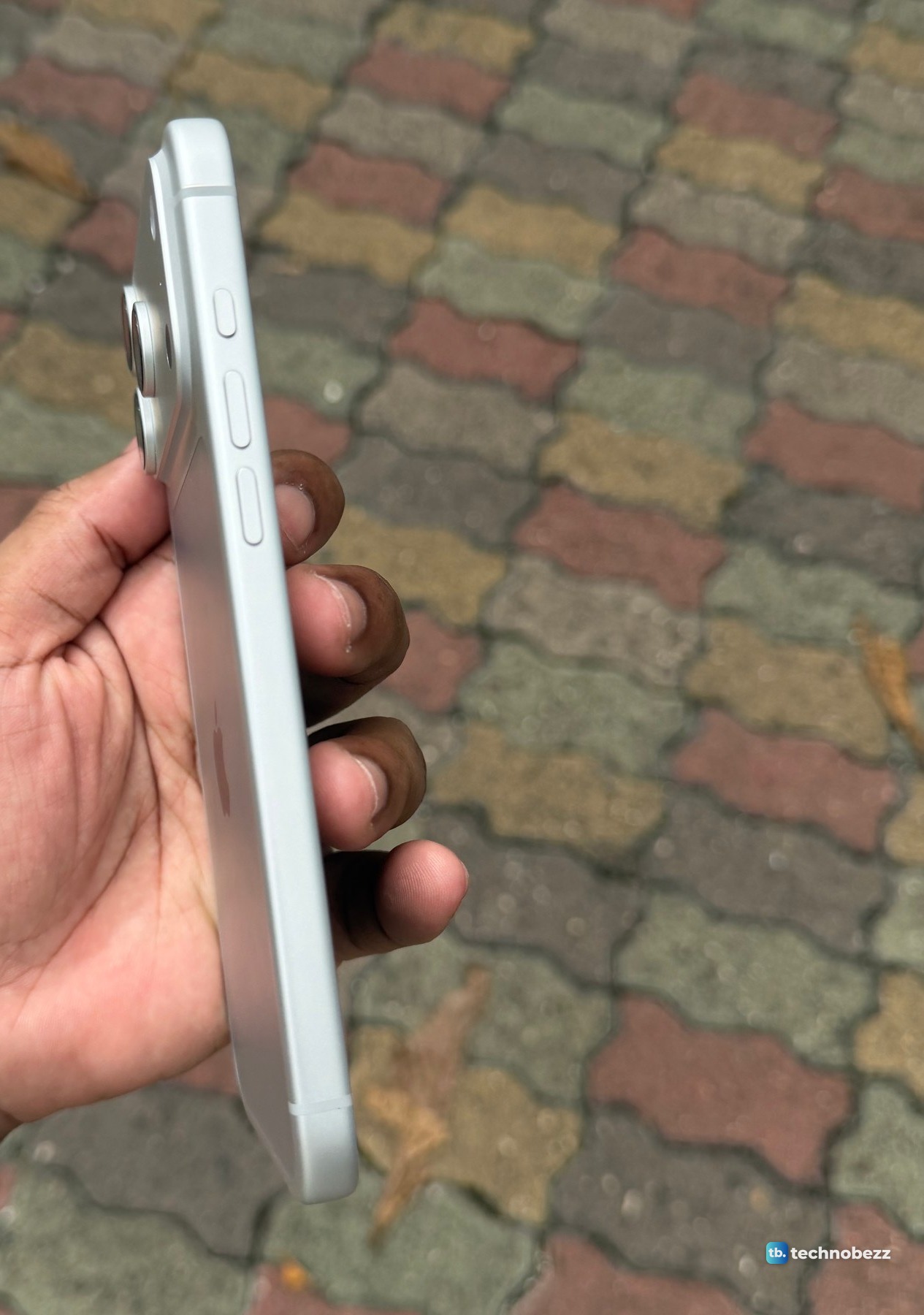
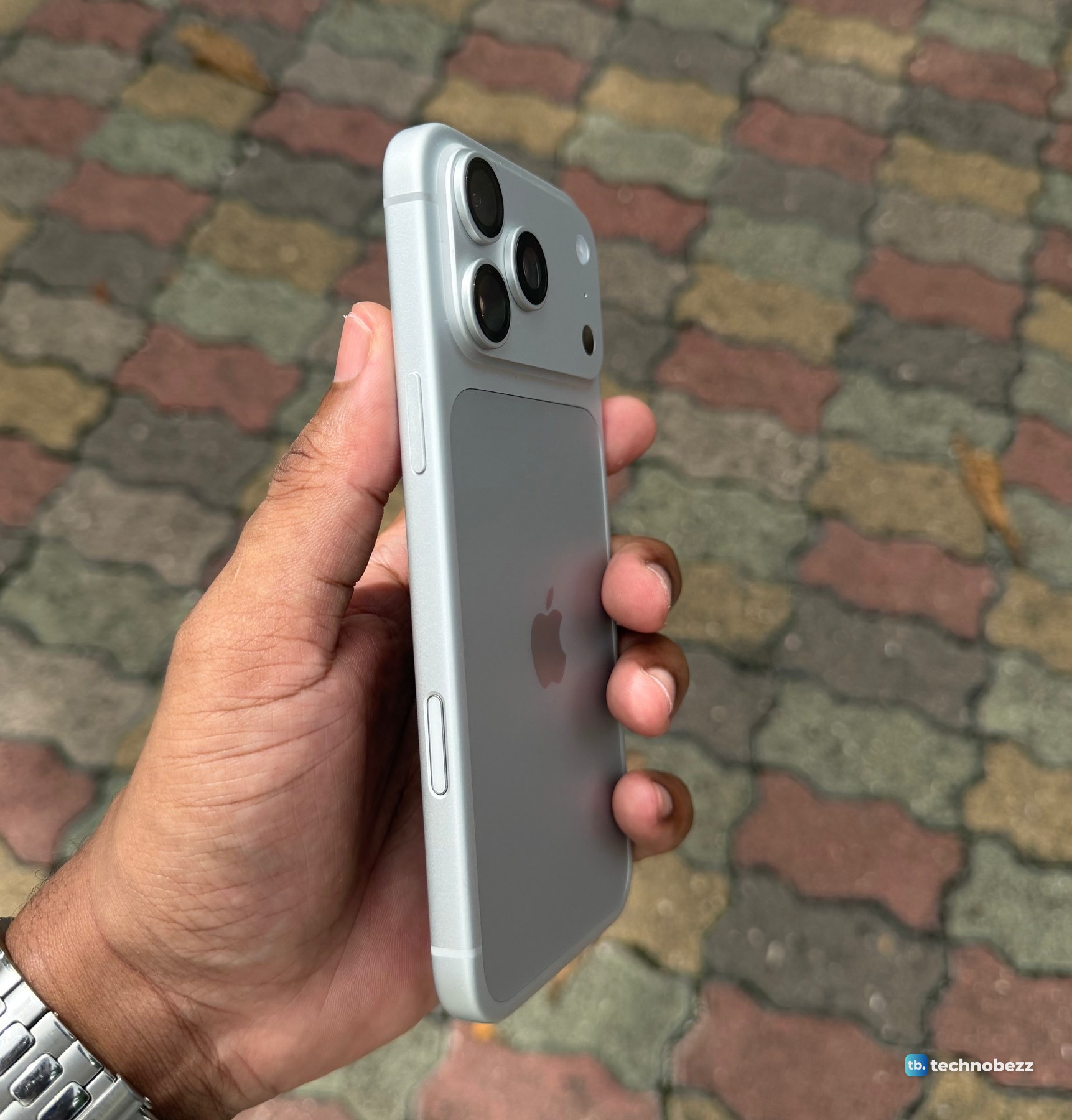
The button is on the left edge, above the volume buttons, where the Ring/Silent switch used to be. The steps below follow Apple's guide for iOS 27.
How to change what the Action button does
- 1.Open the Settings app.
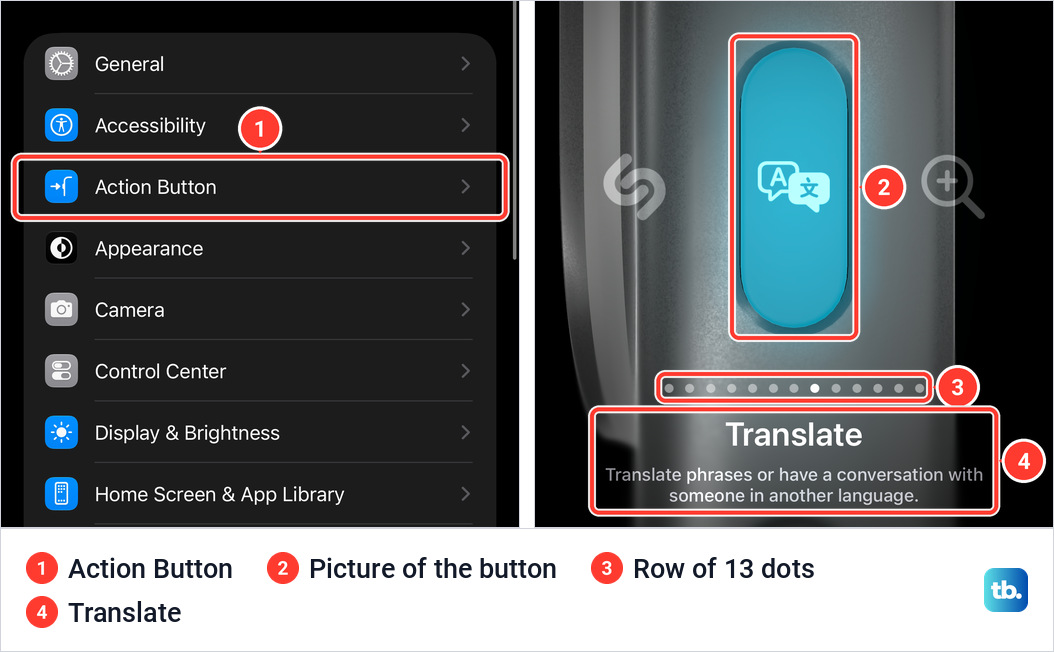
- 2.Tap Action Button, between Accessibility and Appearance. A picture of the side of the iPhone appears, with the selected action's icon on the button.
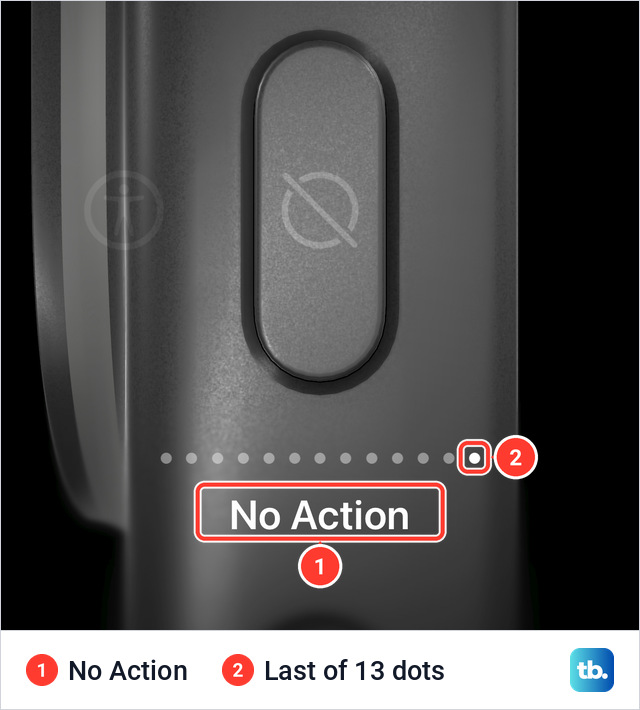
- 3.Swipe left or right to the action you want. Its name appears below a row of 13 dots. Most options also show a short description.
- 4.If a menu or a blue button appears below the description, tap it and pick from the list.
- 5.Press and hold the Action button to run the action.
There is no Done or Save button on this screen, only a back arrow at the top left. Many actions work as a toggle. With Silent Mode selected, one press and hold puts the iPhone in Silent mode and the next one turns it off.
A similar picker turns up during setup. While I was setting up my iPhone 18 Pro Max, a screen titled Action Button appeared. It read "Use and customize the Action button to open Camera, turn Silent Mode on or off, turn on Flashlight, and more" and offered two buttons, Customize and Not Now. (Coming from an older phone? See how to transfer iPhone to iPhone.)
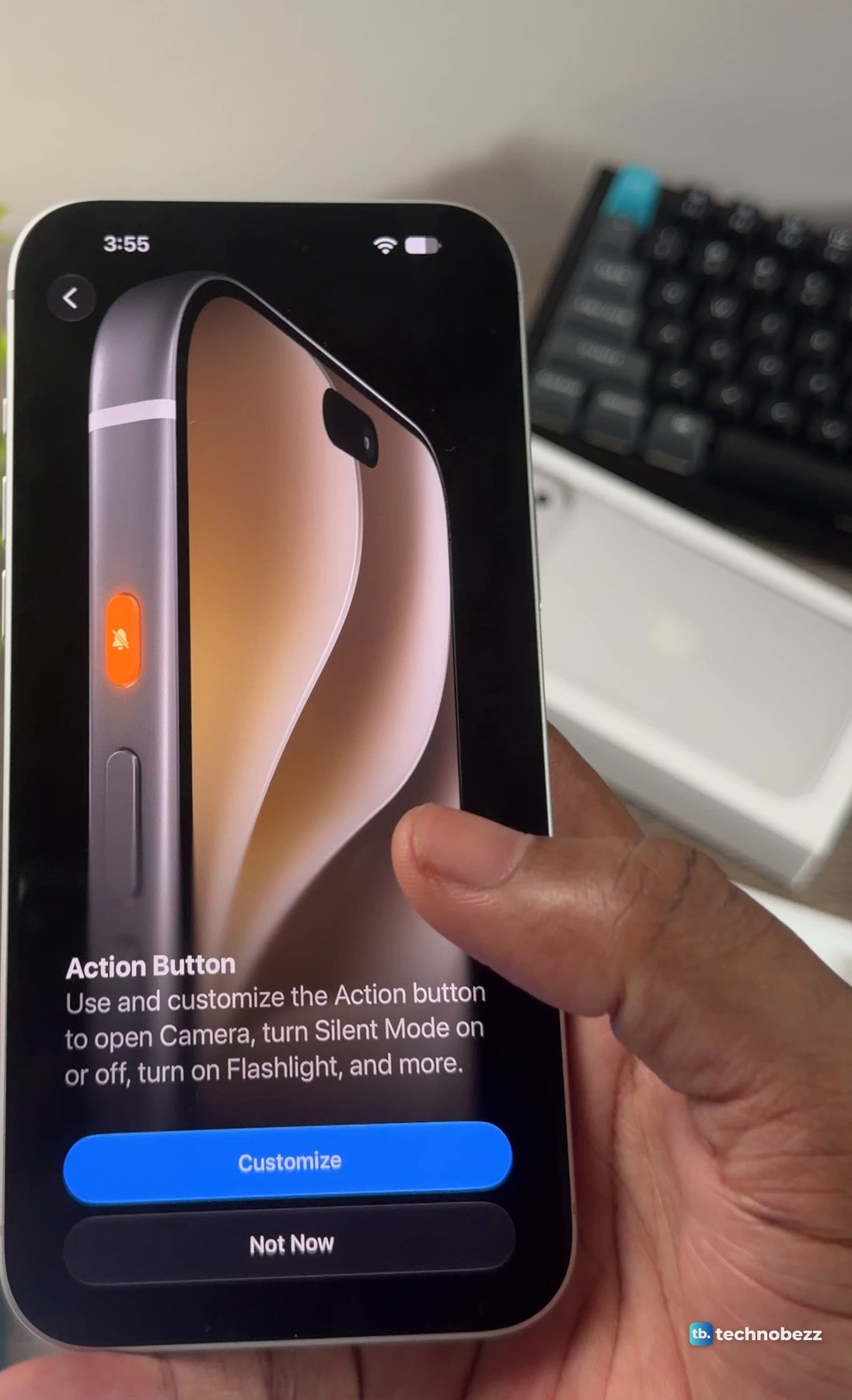
I tapped Customize. The next screen was the picker, opening on Silent Mode, with a Continue button underneath.
What each Action button option does
These are the 13 options on my iPhone 18 Pro Max, in screen order. The order matches Apple's iOS 27 guide to the Action button.
| Action | What the card says |
|---|---|
| Silent Mode | Switch between Silent and Ring for calls and alerts. |
| Focus | Turn Focus on to silence notifications and filter out distractions. |
| Camera | Open the Camera app to capture a moment. |
| Visual Intelligence | Learn about the world around you and get more information about what you see. |
| Flashlight | Turn on extra light when you need it. |
| Voice Memo | Record personal notes, musical ideas, and more. |
| Recognize Music | Find out what song is playing nearby or on your iPhone with Shazam. |
| Translate | Translate phrases or have a conversation with someone in another language. |
| Magnifier | Turn your iPhone into a magnifying glass to zoom in on and detect objects near you. |
| Controls | Quickly access your favorite Control. |
| Shortcut | Open an app or run your favorite shortcut. |
| Accessibility | Quickly use an accessibility feature. |
| No Action | The card has no description. Apple's guide says it does nothing. |
Apple's guide adds that Visual Intelligence requires Apple Intelligence. The card does not mention it.
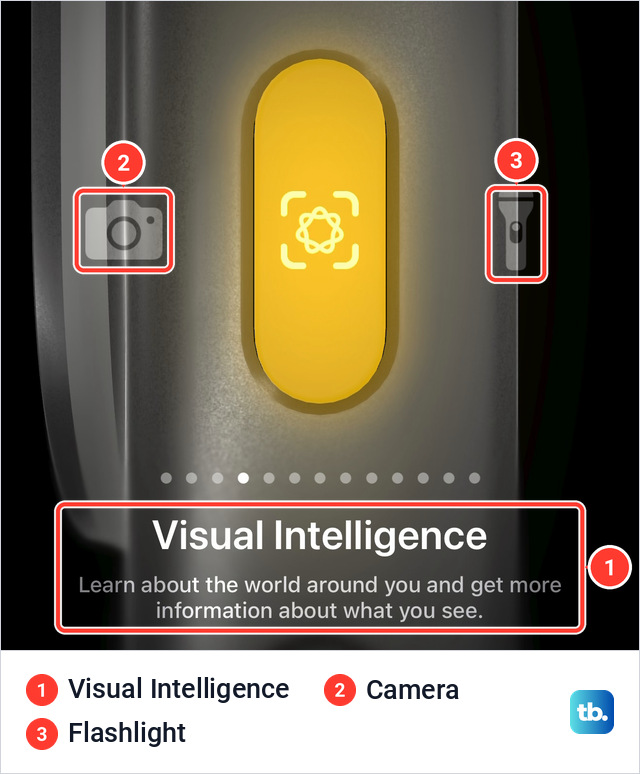
How to choose an option for Camera or Focus
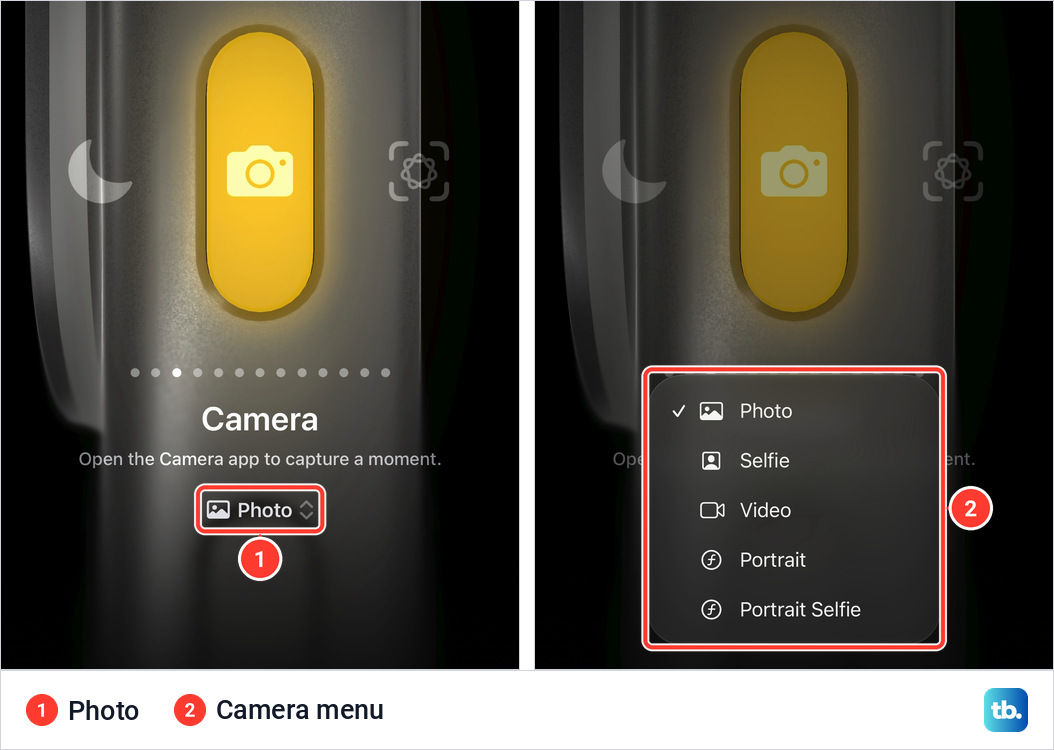
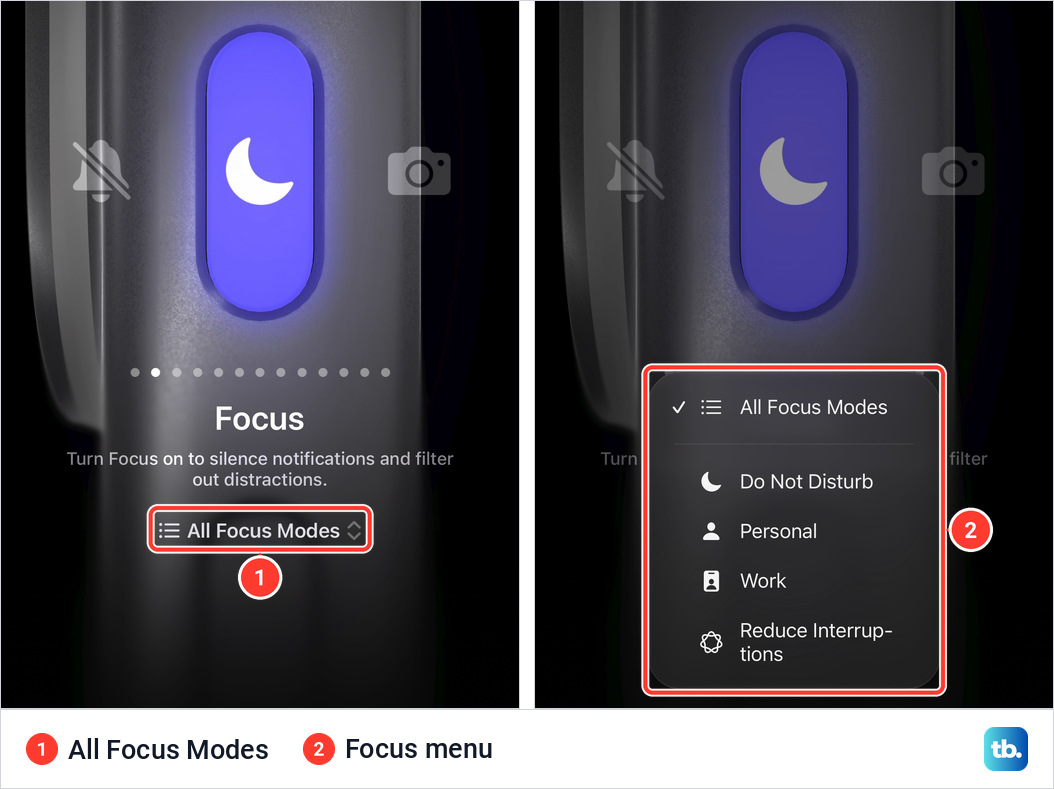
Camera and Focus each carry a second choice in a menu. Under the Camera description the menu reads Photo, and under Focus it reads All Focus Modes, each with a pair of small arrows beside it.
Tap Photo and the menu lists Photo, Selfie, Video, Portrait and Portrait Selfie, with a check mark beside the current one.
Tap All Focus Modes and my iPhone 18 Pro Max lists All Focus Modes first, then Do Not Disturb, Personal, Work and Reduce Interruptions.
How to assign a shortcut to the Action button
- 1.Open Settings and tap Action Button.
- 2.Swipe to Shortcut.
- 3.Tap Choose a Shortcut. If a shortcut is already assigned, tap its name instead.
- 4.Select a shortcut.
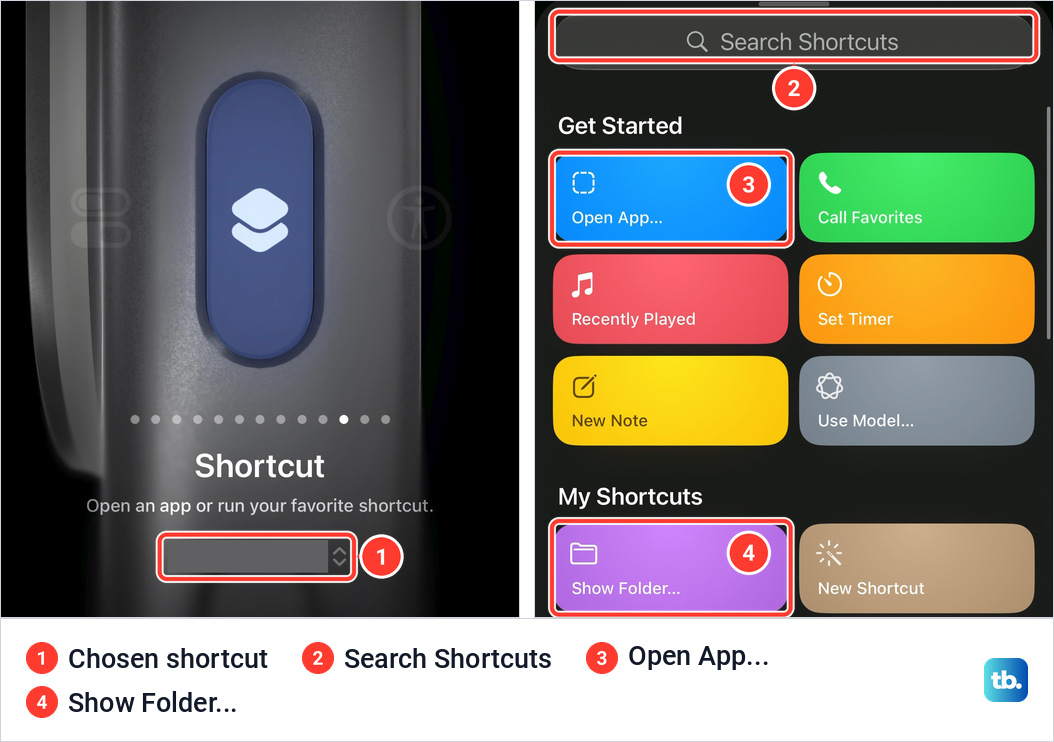
On my iPhone 18 Pro Max the chooser has a Search Shortcuts field at the top. Its Get Started group starts with an Open App... tile and its My Shortcuts group with a Show Folder... tile. Below those is a list of installed apps.
How to choose a control or an accessibility feature
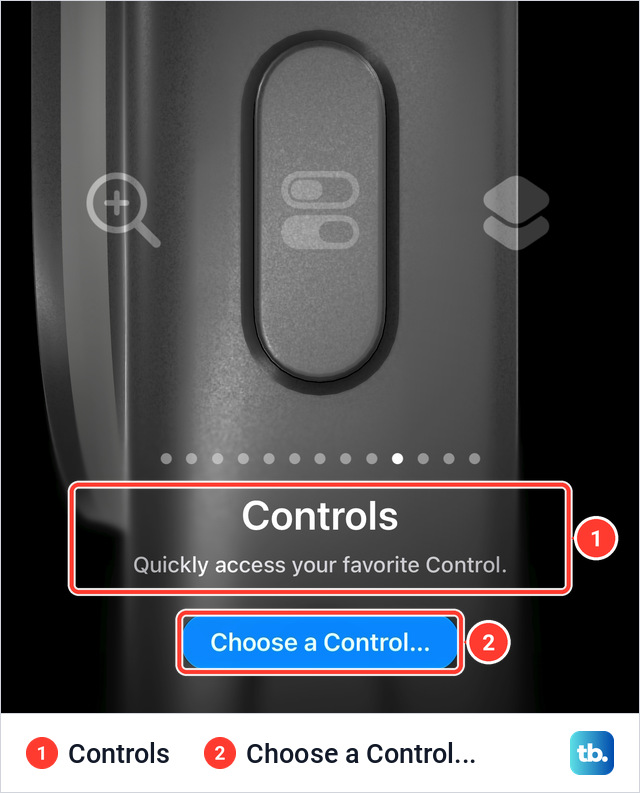
Controls and Accessibility work the same way, with a blue button under the description. For Controls it reads Choose a Control... and opens a sheet with a Search Controls field above a grid of controls.
For Accessibility the button reads Choose a Feature... and opens a list in four groups: Vision, Motor, Hearing and General. VoiceOver is in the Vision group, which fits Apple's note that in iOS 27 VoiceOver can be accessed using the Action button on supported models.
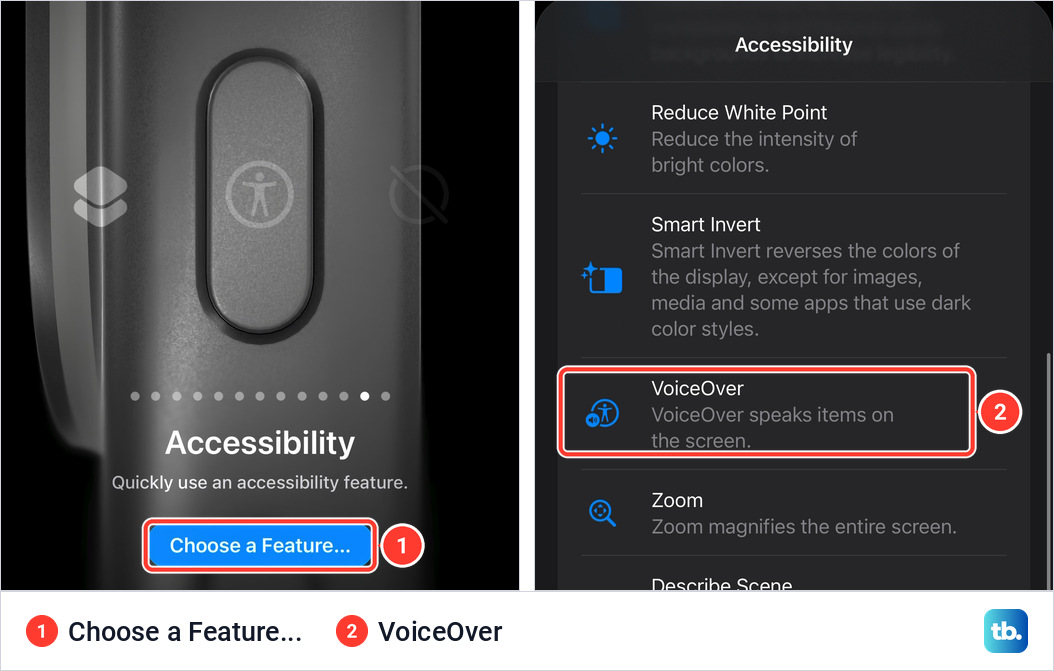
For Controls, Shortcut and Accessibility, Apple says to tap the button below the action and select a specific option, otherwise the Action button does nothing.
How to silence your iPhone when the button does something else
Giving the button a new job does not take Silent mode away. Open Settings, tap Sounds & Haptics, and use the Silent Mode switch at the top of the screen.
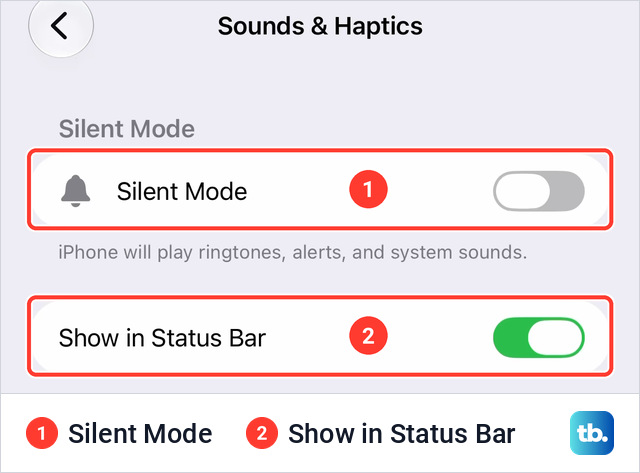
Apple notes that Clock alarms still play in Silent mode. If an alarm is not working, see our guide to fixing an iPhone alarm that is not working. For quiet hours instead of a quick mute, see how to silence notifications on your iPhone.
What to do if the Action button does nothing
Start with the press itself. Apple's instruction is to press and hold the Action button to perform its assigned action. Then open Settings, tap Action Button, and look for one of these:
- No Action is selected. That setting does nothing by design.
- Controls, Shortcut or Accessibility is selected with nothing chosen under it. Tap the button below the description and pick an option.
- Visual Intelligence is selected on a phone without Apple Intelligence, which Apple says is not available in all languages or regions.
If you cannot find Action Button in Settings, check your iPhone model against the models listed above. If the setting is right and the button still does not respond, Apple's advice for a button that is not working is to remove any case or protective film that might block it, clean away dirt around it with a soft cloth, and set up a repair if it still fails or works only now and then. Before booking that repair, restart the iPhone (if it is frozen, force restart it) and install any waiting iOS update. Apple says to back up the iPhone before updating.
Is the Action button the same as the Camera Control?
No. They sit on opposite edges. The Camera Control is on the right side with the side button, and Apple describes it as the way to open the camera, take photos and video, and adjust camera settings.
Both controls can open Camera or start Visual Intelligence. On models with a Camera Control, Apple lists a click and hold on it as another way to start Visual Intelligence.
Can the Action button do more than one thing?
Apple's settings give it one action at a time. The way around that is the Shortcut action, because Apple says a shortcut can run multiple steps in a task.
The other buttons keep their own jobs. The side button and the volume up button together still take a screenshot. If the buttons below the Action button have stopped responding, see how to fix iPhone volume controls that aren't working.