


To use Apple Reference Image, open Settings, tap Camera, tap Reference Image, tap Add Reference Mode, then tap Done. After that one-time setup, open Camera, swipe to Reference mode and take the photo. To get the version that can be verified, open the photo in Photos and tap the Reference badge at the top left, which needs an internet connection.
The short version
- On iPhone 18 Pro and iPhone 18 Pro Max, Reference mode captures signed data from the Main camera sensor.
- Reference mode is off by default. You add it once in Settings.
- Developing needs an internet connection. Viewing needs iOS 27, iPadOS 27 or macOS 27 or later.
- Develop a photo before you share it. Apple warns that an undeveloped one may include device details such as the serial number.
What Apple Reference Image is
Apple Reference Image is an opt-in Camera mode for verifying that a photo was taken on an iPhone 18 Pro or iPhone 18 Pro Max and seeing whether it has been edited since. In Reference mode the Main camera signs the photo data on the sensor itself, and the result, in Apple's words, is "like a secure digital negative" that you compare with the regular photo.
Apple's security team sums up what a reference image stands for as "a real photograph, captured by a real sensor in an iPhone camera, at a specific time." Apple documents the feature in its support article.
Which iPhones can use Reference mode
Capturing needs an iPhone 18 Pro or iPhone 18 Pro Max, because the signing happens on the sensor of the new Main camera, the same camera that brought the variable aperture. If you are unsure of the model, here is how to see what iPhone you have.
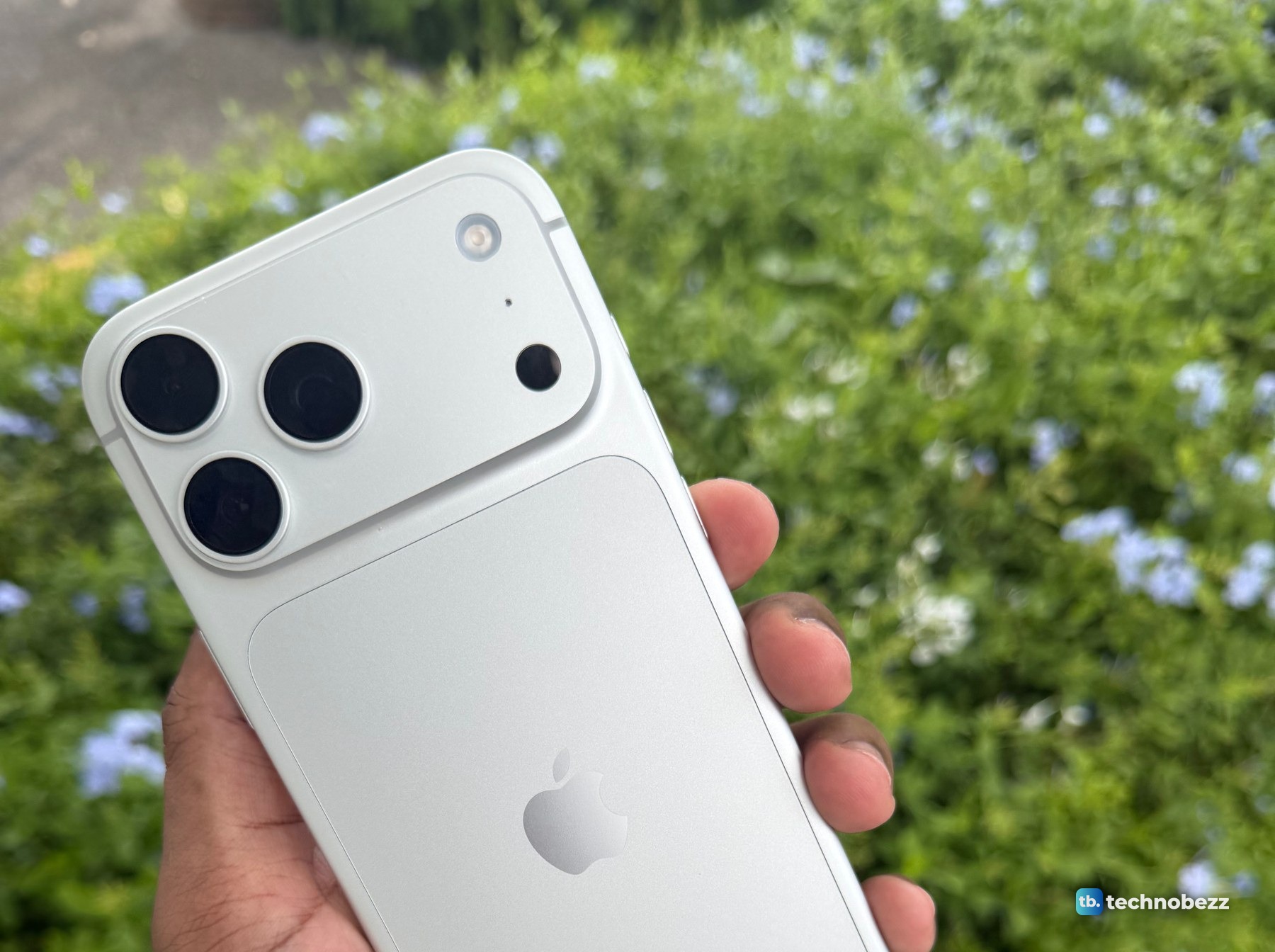
Developing, viewing and sharing work in Photos on any iPhone, iPad or Mac with iOS 27, iPadOS 27 or macOS 27 or later. In the EU, Reference mode is not available in Camera, although people there can develop and view reference images. In China mainland, users cannot capture or develop them, but can view ones shared with them.
How to set up Reference mode
Reference mode is off by default, and setup happens once.
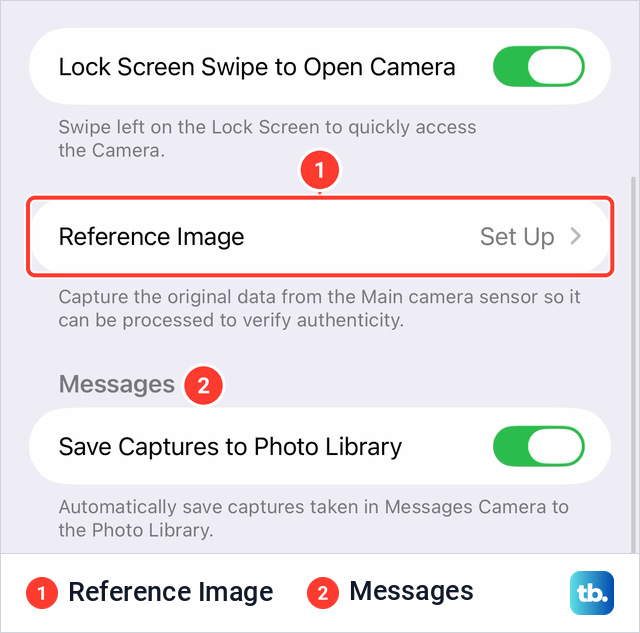
- 1.Go to the Settings app.
- 2.Tap Camera.
- 3.Scroll to the bottom and tap Reference Image. Until setup is done, this row reads Set Up.
- 4.On the Apple Reference Image screen, tap Add Reference Mode.
- 5.When the screen reads Reference Mode Added, tap Done.
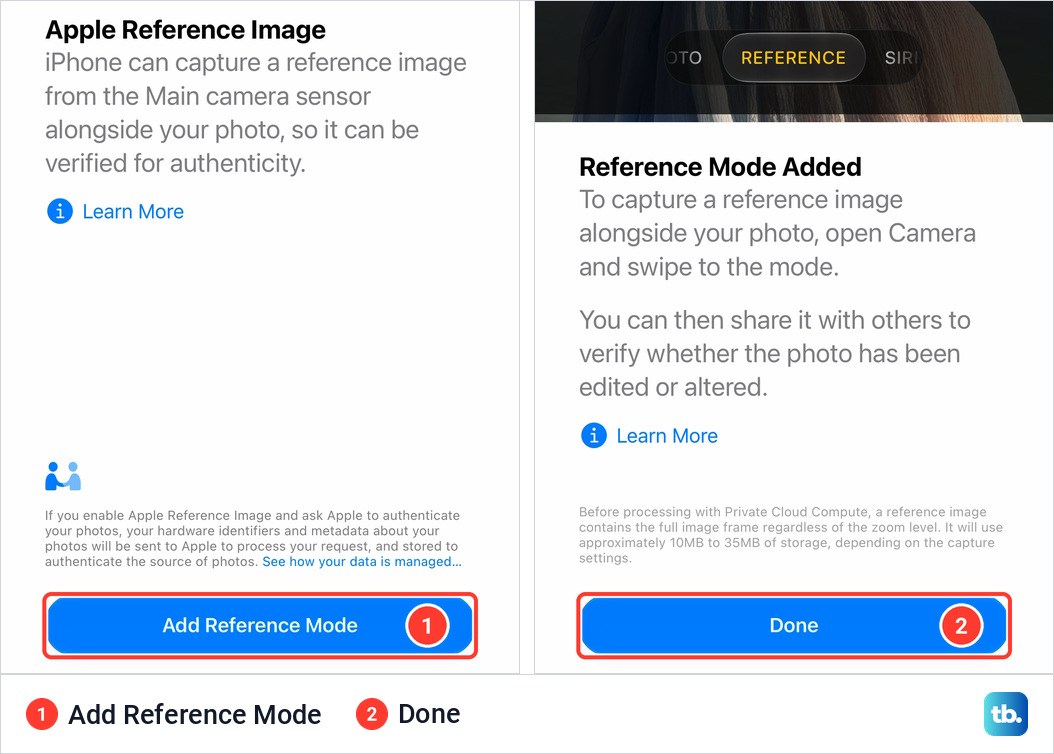
To remove the mode later, tap Reference Image again and turn Add Reference Mode off.
How to take a photo in Reference mode
- 1.Open Camera on your iPhone.
- 2.Swipe to Reference mode, which sits between Photo and Portrait.
- 3.Tap the Shutter button, or click the Camera Control, to take the photo.
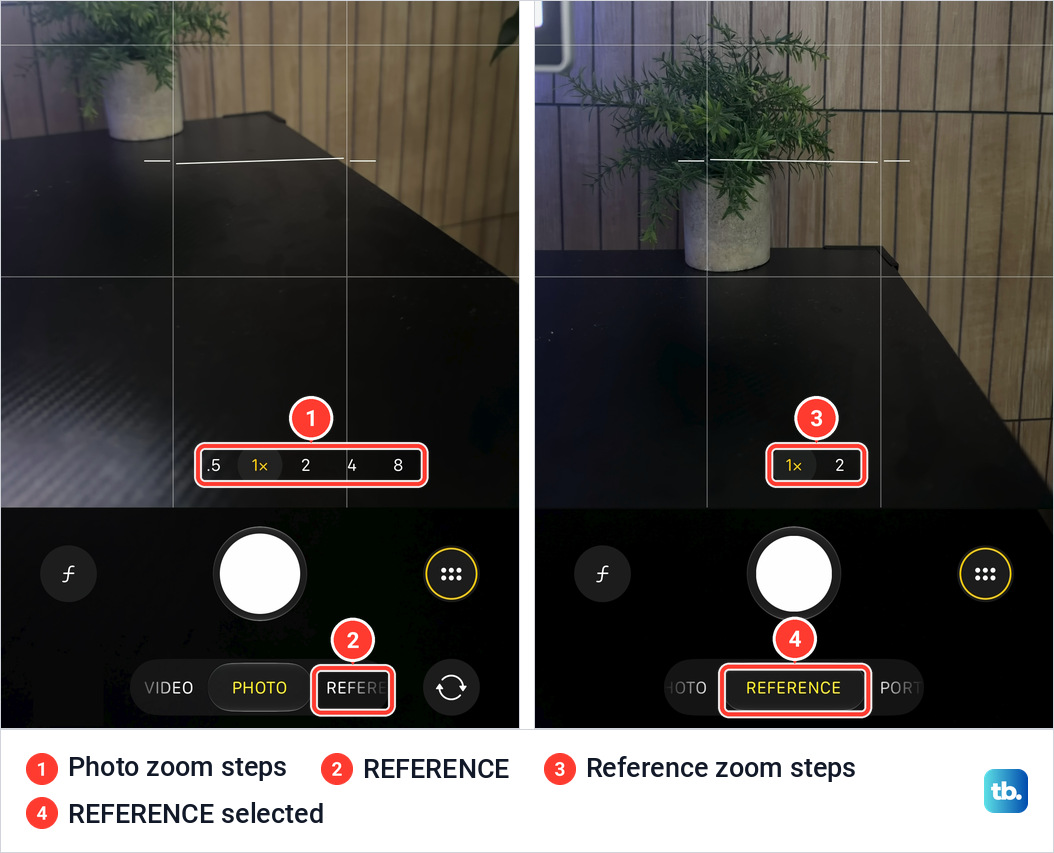
The iPhone saves a regular photo plus the signed data from the Main camera sensor. Live Photos, Portraits and Photographic Styles work in Reference mode. Some Camera features do not, and Apple names Night Mode as one.
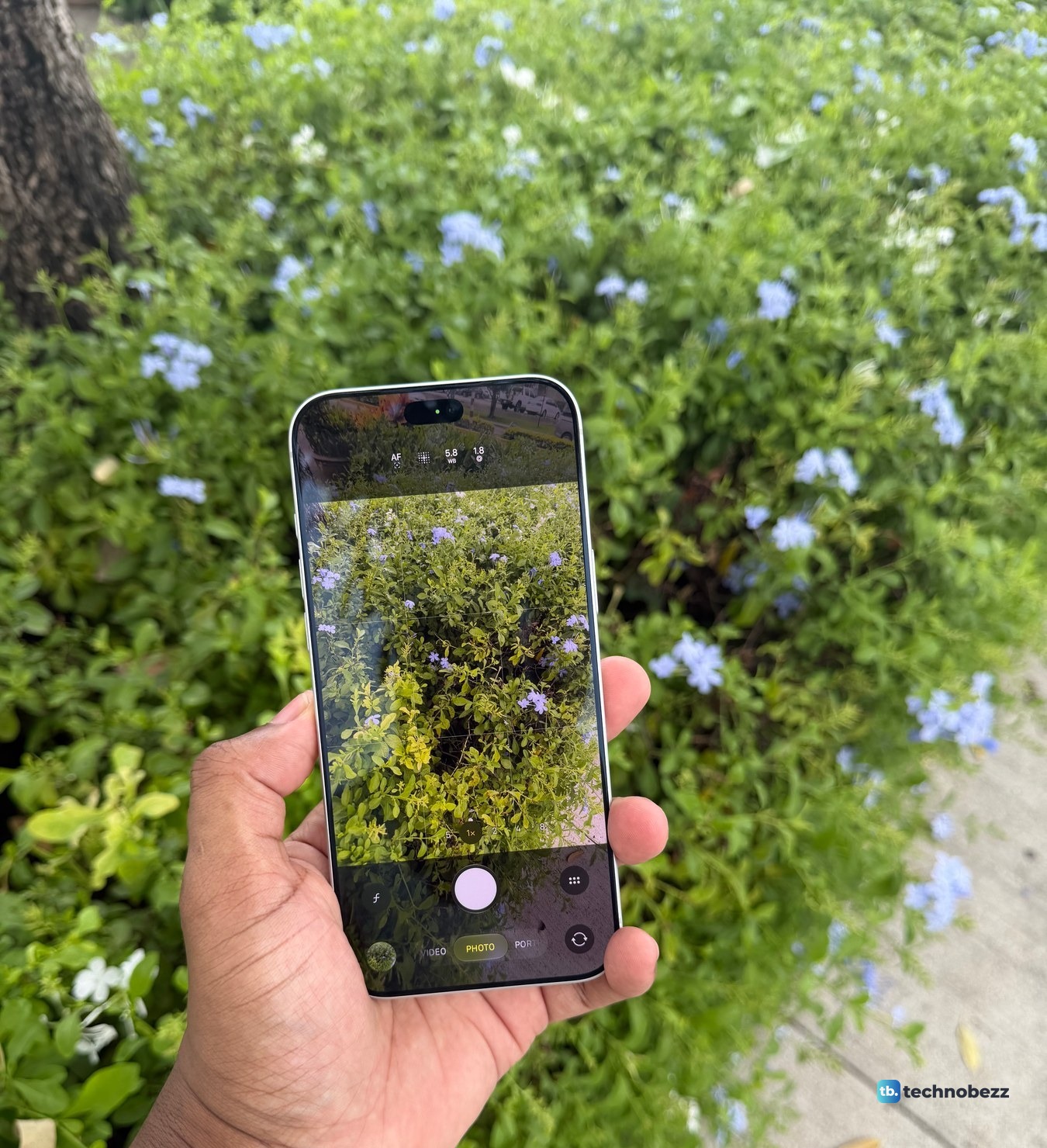
Reference photos take extra space on the phone and in iCloud. For a 12MP or 24MP photo, Apple estimates about 8 to 10 MB for the undeveloped reference data and about 3 MB for the developed reference image. At 48MP, the estimates are about 35 to 40 MB and about 7 to 8 MB. My Reference mode photo was saved at 24MP. If space is tight, get more storage on iPhone or check iCloud storage.
How to develop and compare a reference image
Develop the reference image before viewing it. Undeveloped reference data can be shared, but Apple warns that it may include sensitive device information and the full captured frame.
- 1.Open the Photos app.
- 2.Tap Collections.
- 3.Scroll down and tap Media Types.
- 4.Tap Reference.
- 5.Open a photo taken in Reference mode.
- 6.Tap the Reference badge at the top left, just above the photo.
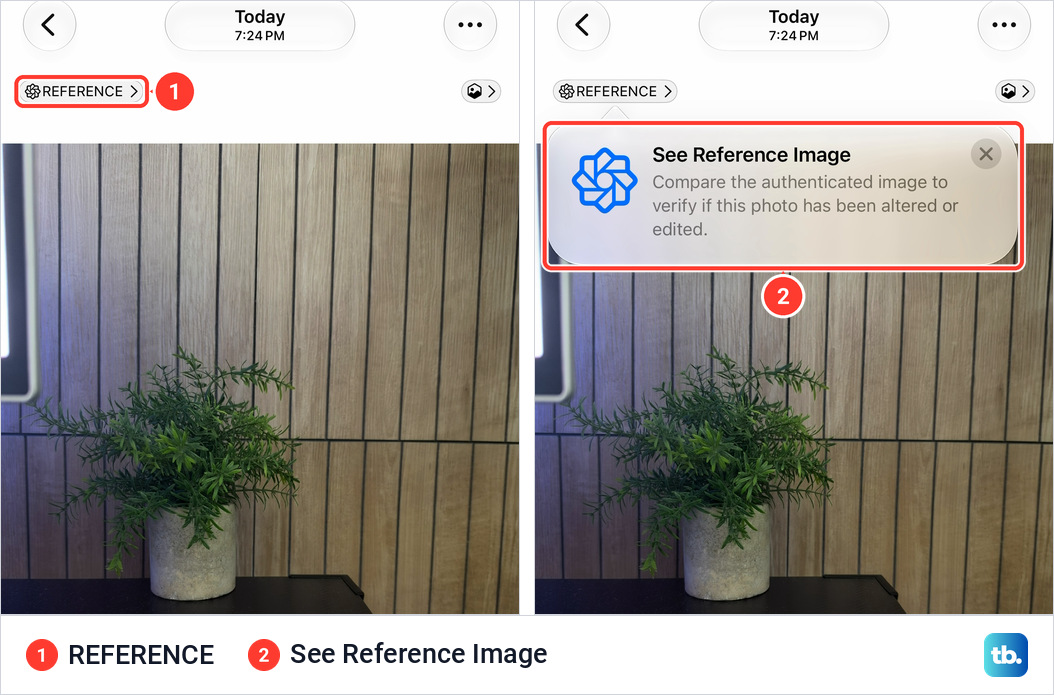
Tapping the badge opens a view labeled REFERENCE IMAGE, with a close button at the top left and an i button at the top right.
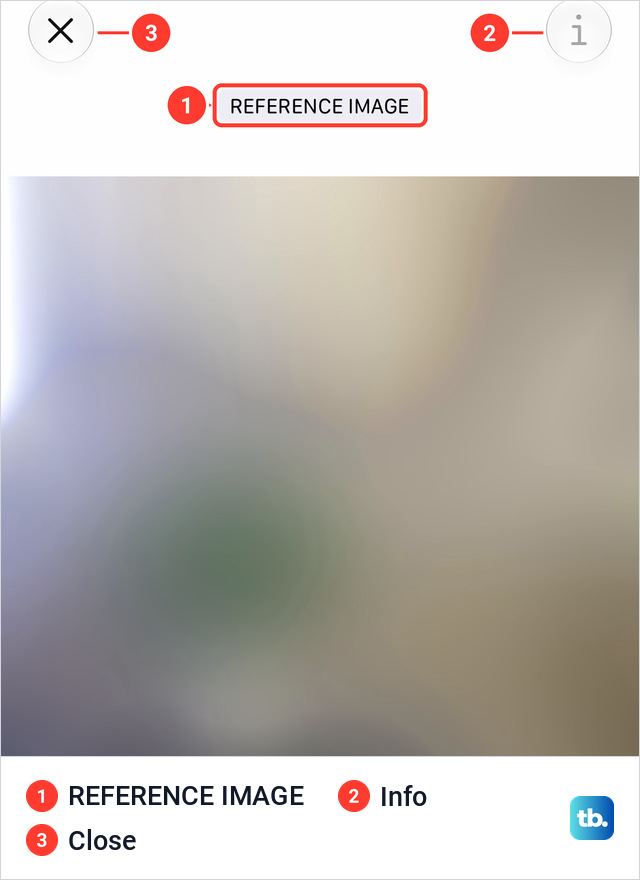
Developing sends the reference data and its metadata, including the sensor's signature and secure timestamps, to Apple's Private Cloud Compute, which turns it into a viewable image and authenticates the photo. That is why it needs an internet connection. Apple's iPhone User Guide adds that if you are offline, it is developed the next time you are online.
After that, tap the Reference badge to view the reference image, then tap the image to switch between it and the photo. Compare the two for changes made while editing photos on iPhone, such as a crop, a color adjustment or an adjustment made with generative AI. The reference image's lower contrast and saturation are expected, because it has minimal processing.
For the reference image's metadata, Apple Support calls the control Info and its iPhone User Guide calls it View Reference Image Data. During my unsuccessful processing attempt, the i button at the top right stayed gray.
Apple's security team adds that once developed, the secure digital negative is automatically moved to the deleted photos folder and purged after 30 days. Until then you can get it back, like any of your deleted photos.
How to share and verify a reference image
When you share or export a photo that has a reference image, you choose whether it goes along.
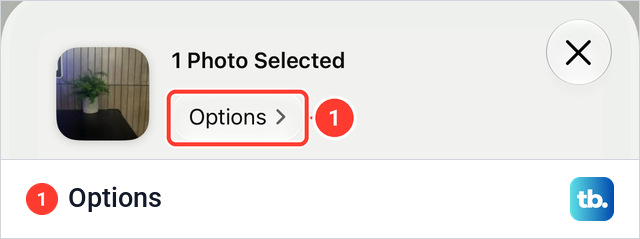
- 1.Select the photo in Photos.
- 2.Tap the Share button.
- 3.Tap Options, under 1 Photo Selected at the top of the share sheet.
- 4.Under Include, turn Reference Image on.
- 5.Share the photo, for example with AirDrop or Messages.
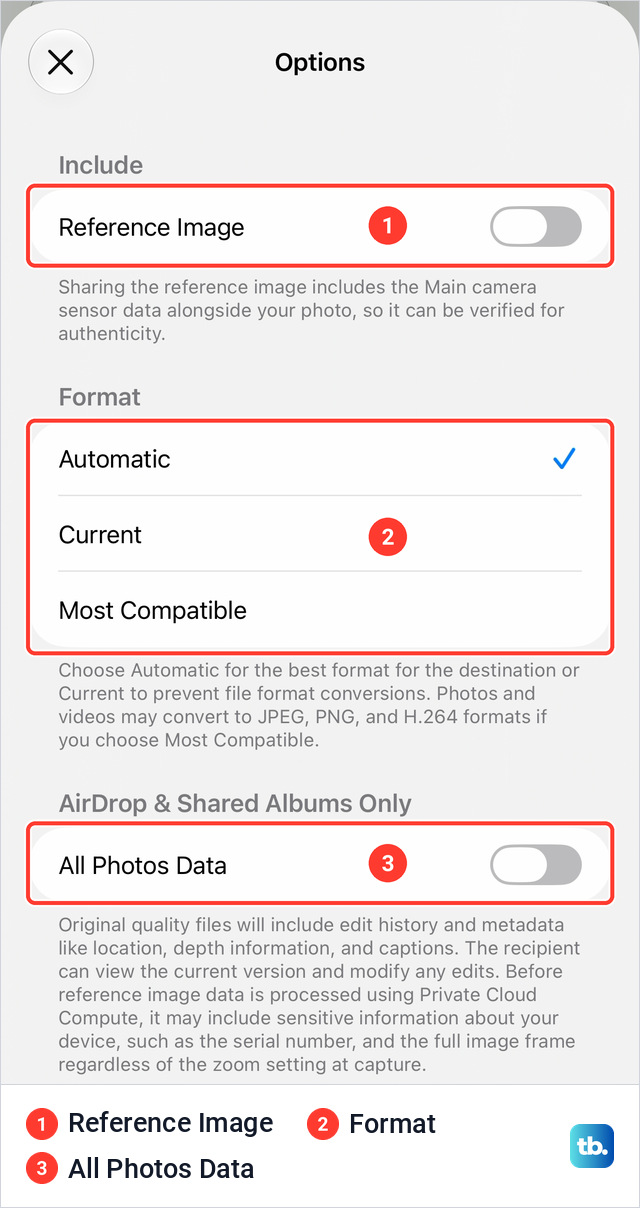
The person receiving it needs iOS 27, iPadOS 27 or macOS 27 or later, and checks it the same way, by tapping the Reference badge in Photos.
Develop before you share. Apple warns that if you share a Reference mode photo before the reference image has been developed, it may include sensitive information about your device, such as the serial number, and the full image frame regardless of the zoom setting at capture. The Options screen carries the same warning under All Photos Data. A shot you zoomed in on could hand over the wider frame as well.
What each Reference Image setting does
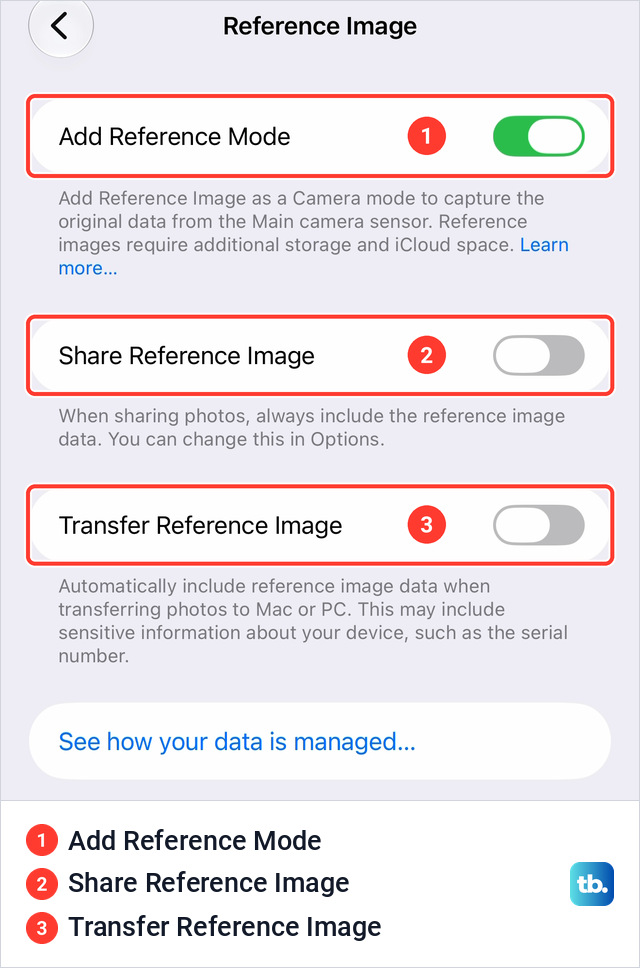
On the iPhone 18 Pro models, these switches are in Settings, under Camera, then Reference Image. On other iPhones, the two sharing switches are in Settings, under Apps, then Photos, with the transfer one inside Transfer to Mac or PC.
| Setting | What it does |
|---|---|
| Add Reference Mode | Adds Reference Image as a Camera mode. While it is off, Reference mode is not available in Camera. |
| Share Reference Image | Always includes the reference image when you share photos. You can still change it for one share in Options. |
| Transfer Reference Image | Includes the reference image when you transfer photos to a Mac or PC. The note under the switch says this may include sensitive information about your device, such as the serial number. |
If Reference mode is missing or will not develop
If Camera has no Reference mode on an iPhone 18 Pro or iPhone 18 Pro Max, in a region where capture is available, check that Add Reference Mode is on in Settings, under Camera, then Reference Image.
Apple documents capture on iPhone 18 Pro and iPhone 18 Pro Max. In the EU, Reference mode is not available in Camera, and in China mainland, users cannot capture reference images.
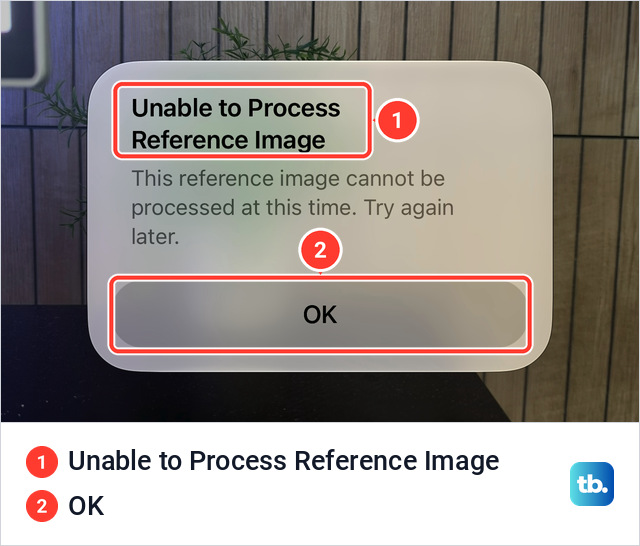
If you see an Unable to Process Reference Image alert, check your internet connection. The alert itself reads "This reference image cannot be processed at this time. Try again later."
Can Apple see my photo when it is developed?
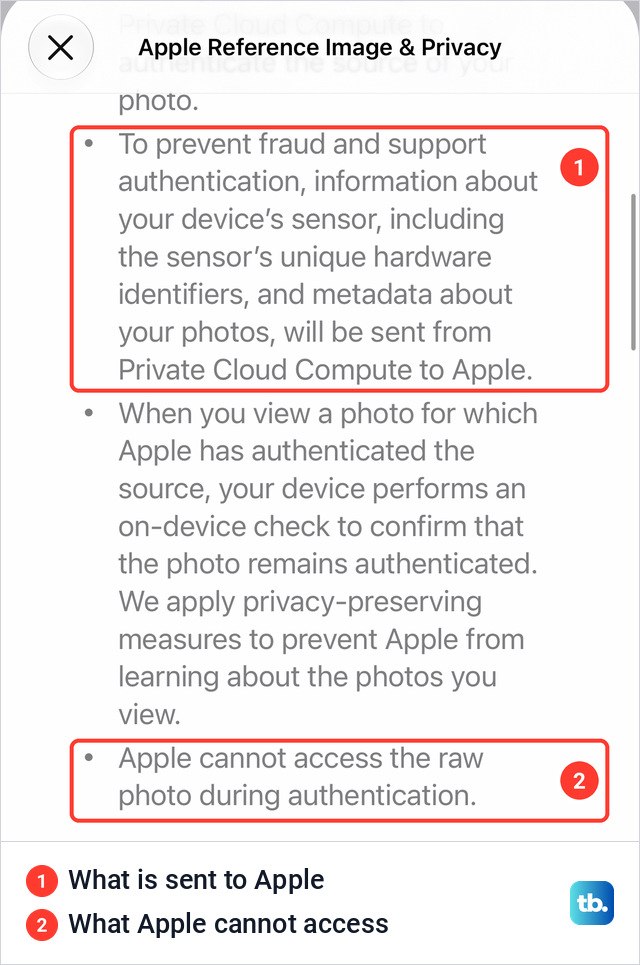
Apple says it cannot. Developing runs in Private Cloud Compute, which Apple's security team describes as built so that "not even Apple can access image data." The same post says an outside observer cannot tell whether two reference images came from the same device.
The privacy screen on the phone puts it as "Apple cannot access the raw photo during authentication."
Can I view a reference image on an older iPhone?
Yes. An older iPhone with iOS 27 or later can view a developed reference image shared with it. Developing one is subject to the regional limits above, and capture needs an iPhone 18 Pro or Pro Max.