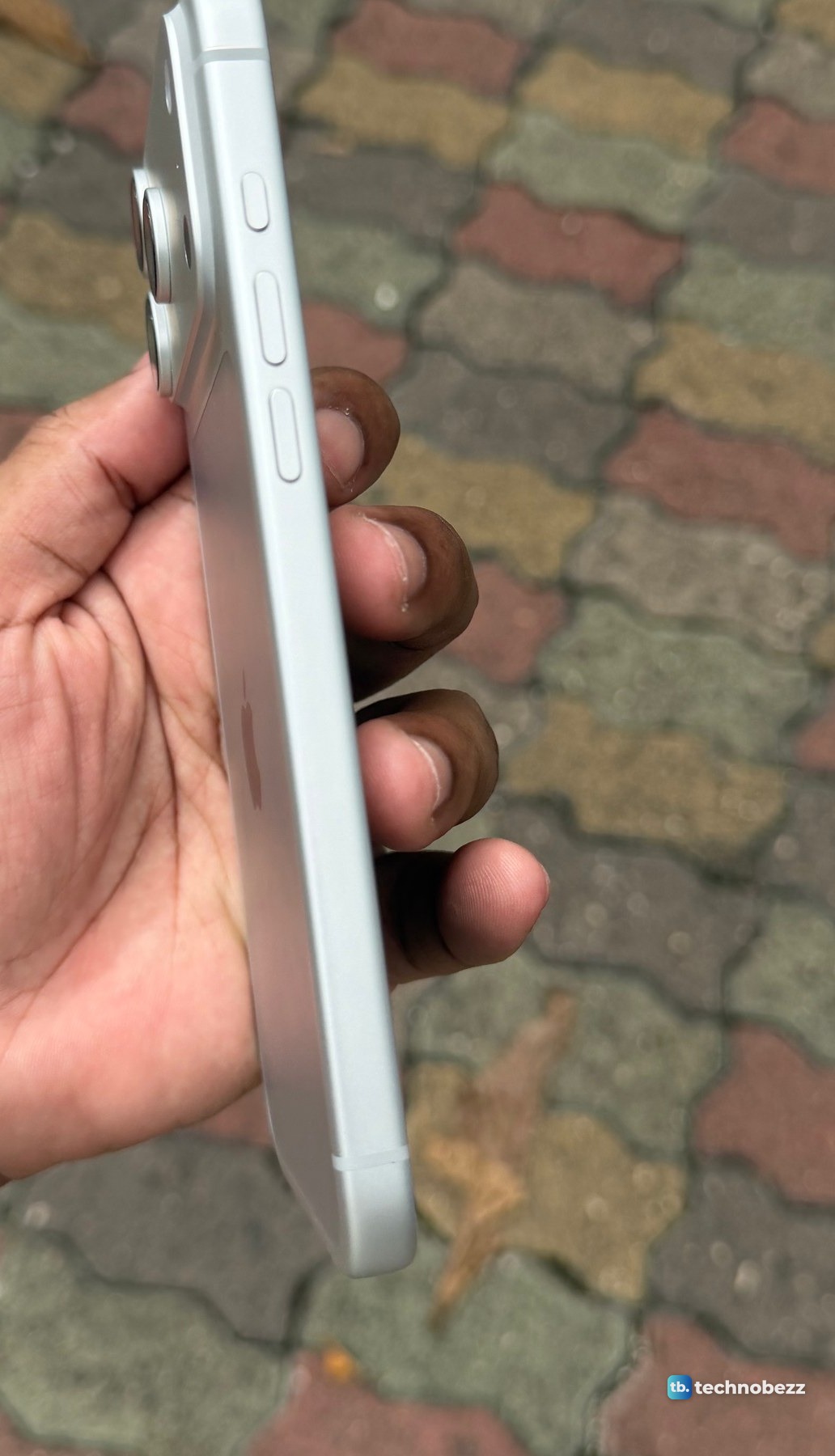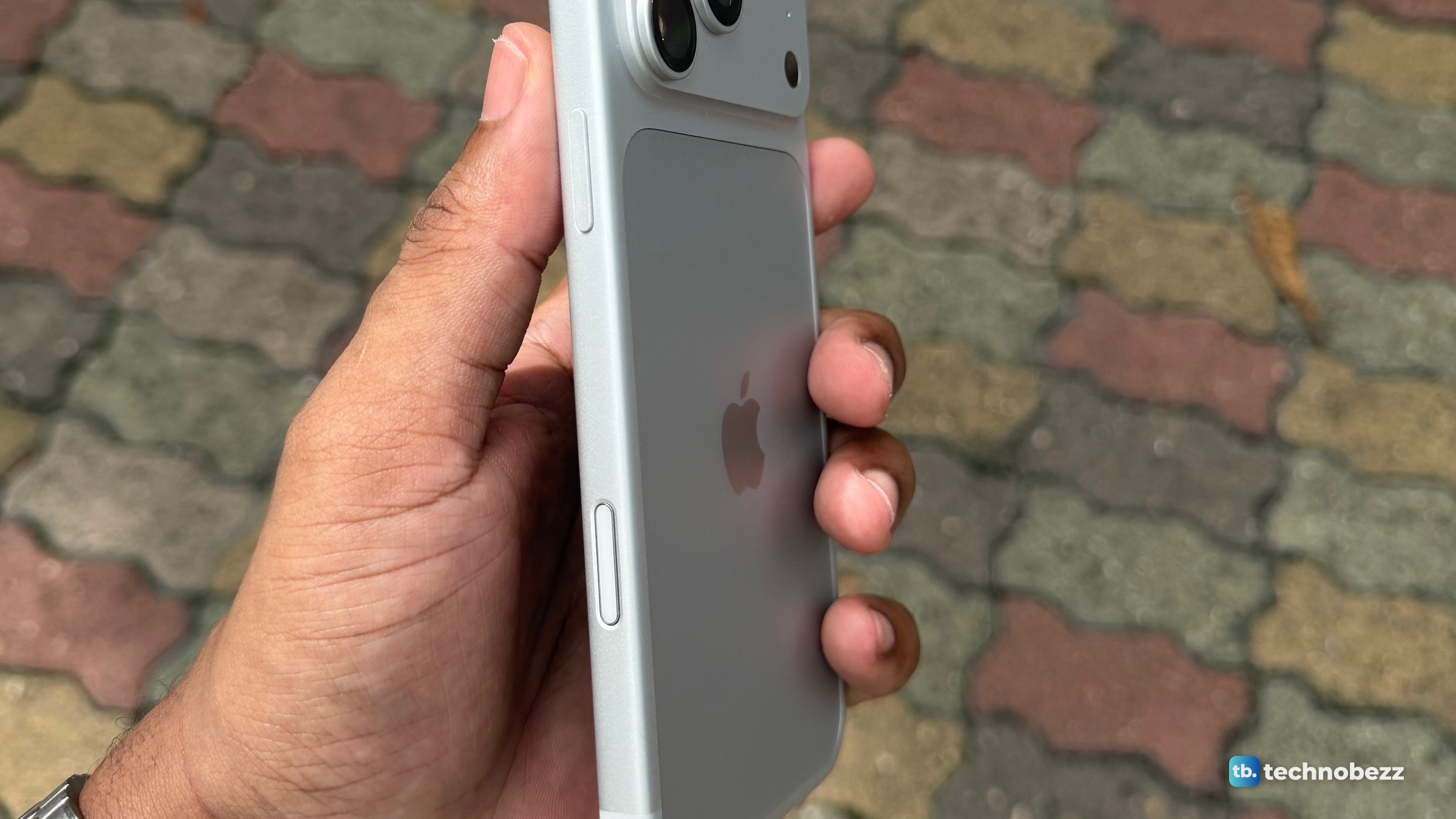
Click the Camera Control on the side of your iPhone to open Camera, click it again to take a photo, or click and hold to record a video. To change what the button does, open Settings, tap Camera, then tap Camera Control. The press force and speed options are under Settings > Accessibility > Camera Control.
The short version
- One click opens Camera, a second takes the photo, and click and hold records video.
- Lightly press twice, slide to find a setting, lightly press to select it, then slide to adjust it.
- Settings > Camera > Camera Control picks the app, single or double click, Camera Adjustments and the focus lock.
- Settings > Accessibility > Camera Control sets the press force and speeds, or turns the button off.
Which iPhones have Camera Control
Apple lists the Camera Control on the iPhone 16, 16 Plus, 16 Pro, 16 Pro Max, iPhone 17, 17 Pro, 17 Pro Max, iPhone Air, iPhone 18 Pro and iPhone 18 Pro Max. The iPhone 16e and 17e are not on that list. If you are unsure, check which iPhone you have first.
The button sits on the right side of the phone, further down the same edge as the side button. The side button is still the one you press with volume up to take a screenshot on iPhone.
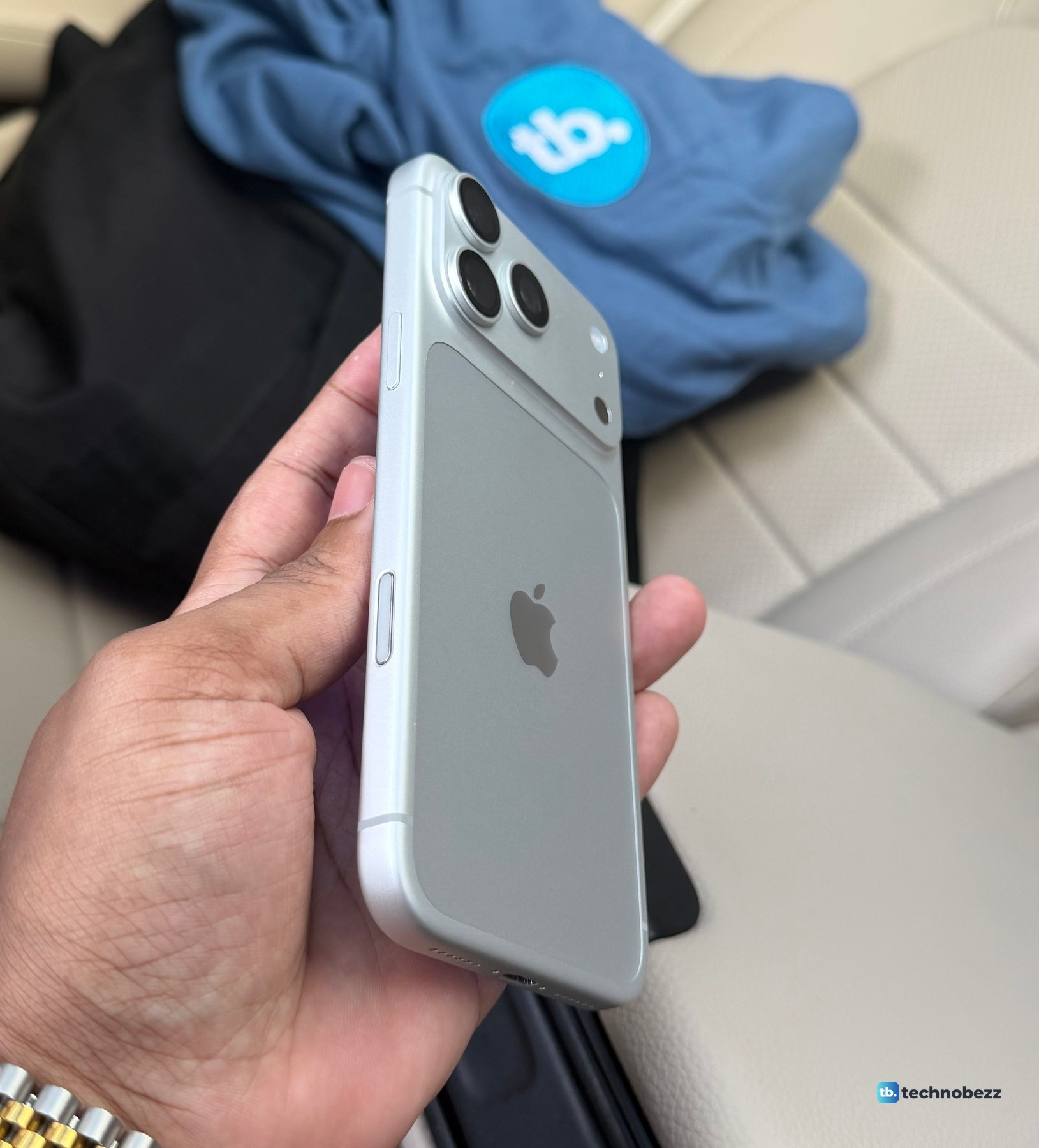
The steps below follow Apple's iPhone User Guide for iOS 27. The screenshots are from my iPhone 18 Pro Max.
How to open the camera and take a photo or video
- 1.Click the Camera Control to open Camera.
- 2.Click again to take a photo.
- 3.To record a video instead, click and hold.
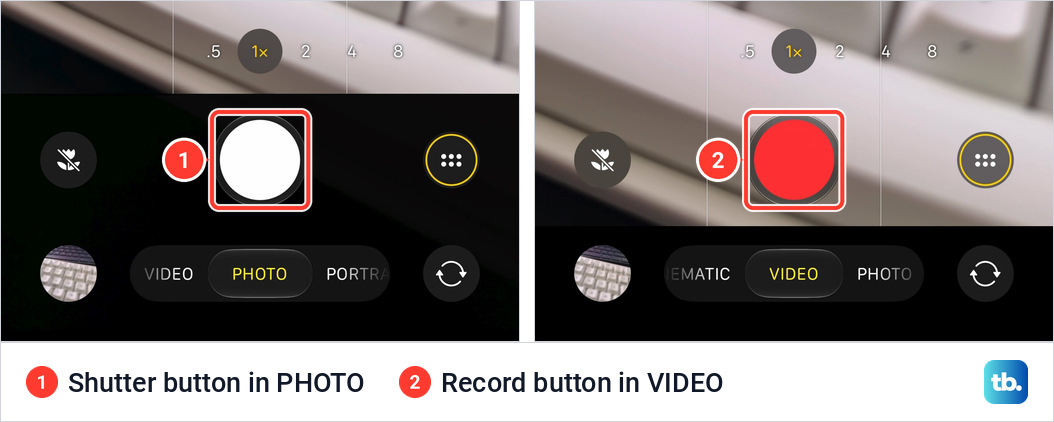
In Photo mode, clicking Camera Control takes a photo, like tapping the white Shutter button. In Video mode, clicking starts or stops recording, like tapping the red Record button.
Click and hold records a clip without leaving Photo mode. On my iPhone 18 Pro Max a red timer appeared at the top, and when each short clip ended the camera went straight back to Photo mode. The clips were saved in 4K at 30 fps, my Record Video setting.
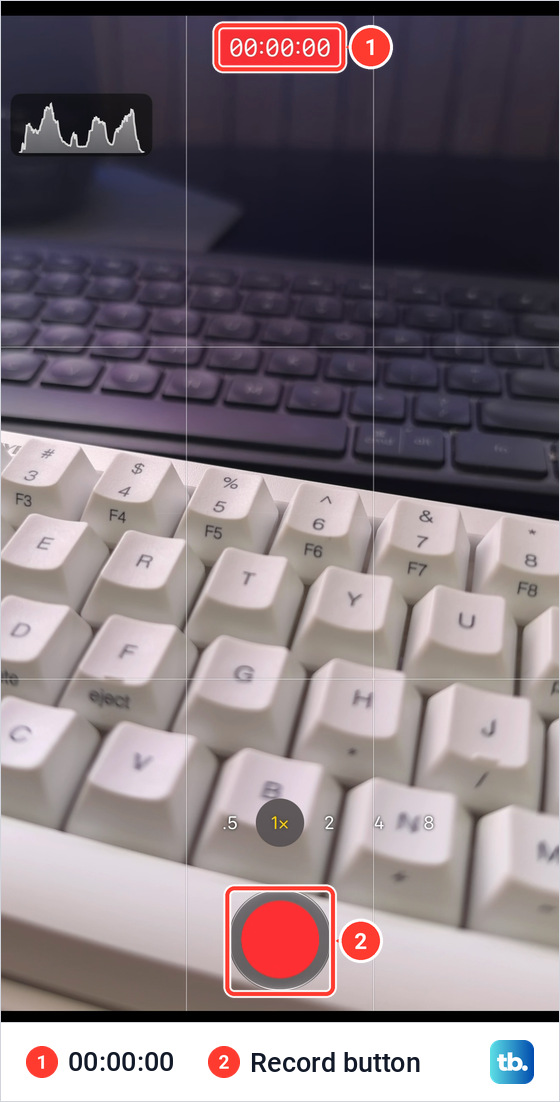
Options such as Live Photos are set in the Camera app (see how to turn off Live Photos). If recordings fill your storage, you can get more storage on iPhone. After taking a photo, open Photos to edit photos on iPhone.
How to change a camera setting with a light press and a slide
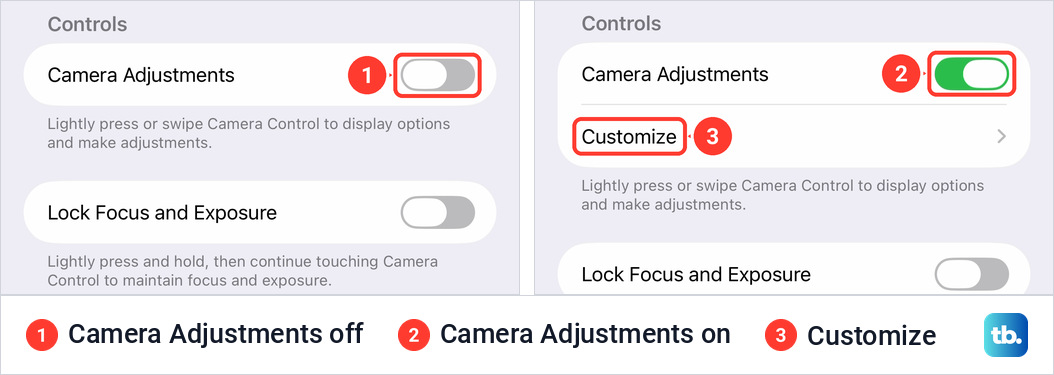
A light press stops short of the click. On my iPhone 18 Pro Max, Settings > Camera > Camera Control has a Camera Adjustments switch with the note "Lightly press or swipe Camera Control to display options and make adjustments." It was off, and Customize appeared below it only once it was on. The recording did not show how the switch changes the light press itself.
- 1.Click the Camera Control to open Camera.
- 2.Lightly press the Camera Control twice to open the overlay for the camera mode you are in.
- 3.Slide your finger on the Camera Control to scroll through the settings.
- 4.Lightly press once to select the setting you want.
- 5.Slide your finger on the Camera Control to adjust it.
- 6.Click the Camera Control to take the shot.
The setting you chose is saved for the next light press. Apple lists six, and not every one is available in every camera mode.
| Setting | What it does |
|---|---|
| Exposure | Brightens or darkens the scene. |
| Depth | Increases or decreases the background blur and turns on Portrait mode if it was off. |
| Zoom | Zooms in or out. |
| Cameras | Switches between cameras, including the front camera. |
| Styles | Changes the Photographic Style. |
| Tone | Lightens or deepens the mood of the picture. |
How to customize Camera Control in Settings
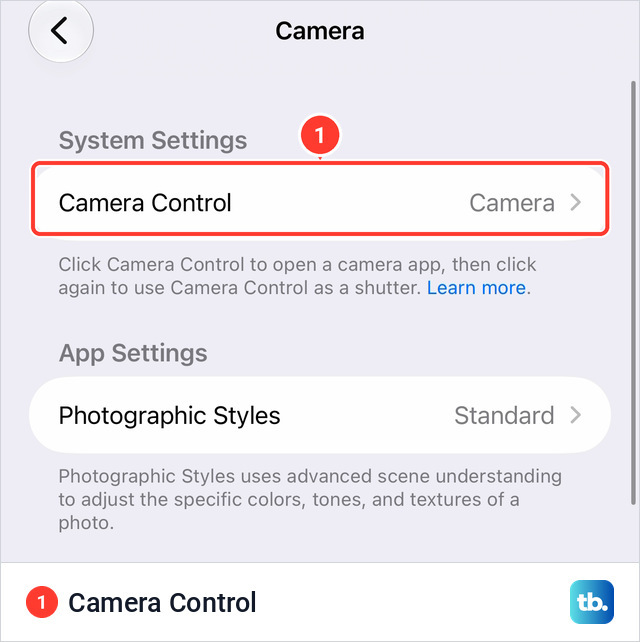
Go to Settings > Camera and tap Camera Control, the first row under System Settings.
The Camera Control screen lists these options, top to bottom.
| Option | What it does |
|---|---|
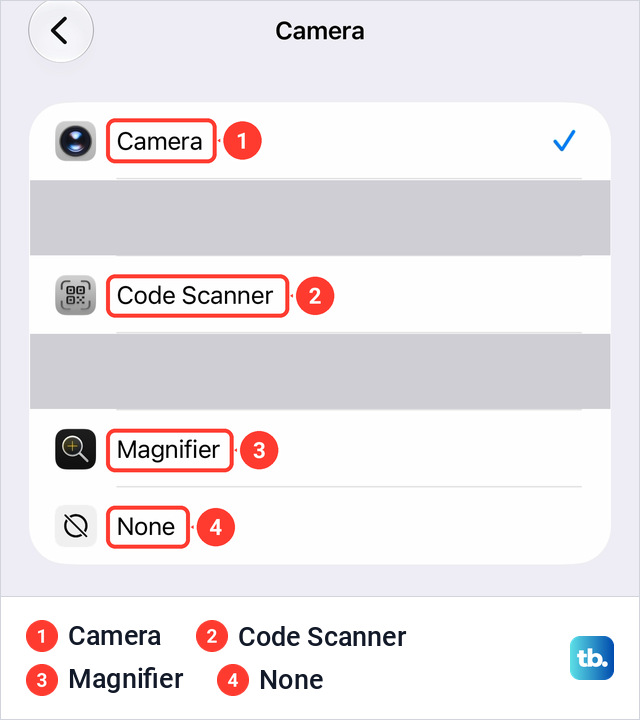
| Launch Camera | The app a click opens. |
| Single Click or Double Click | Sets whether one click or two opens the camera app. |
| Require Screen On | Launching a camera app with the button needs the screen to be on. |
| Camera Adjustments | Its note reads: Lightly press or swipe Camera Control to display options and make adjustments. |
| Customize | Appears when Camera Adjustments is on. Picks which settings the overlay shows, and their order. |
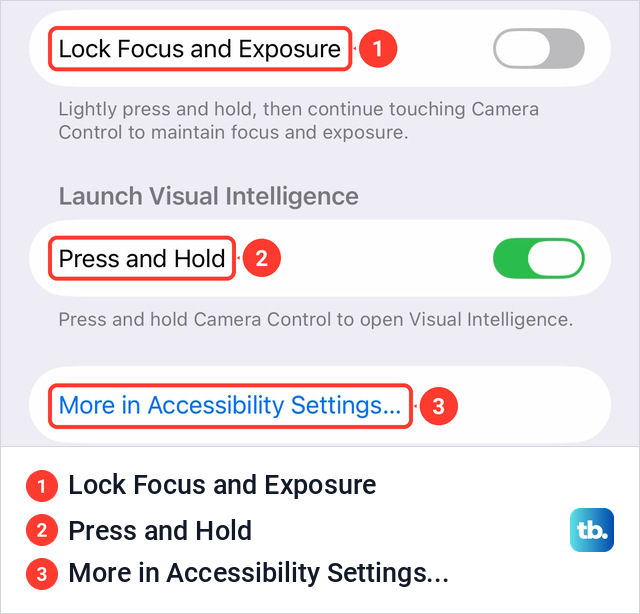
| Lock Focus and Exposure | Lets a light press and hold lock focus and exposure. |
| Press and Hold | Under Launch Visual Intelligence. Pressing and holding the button opens Visual Intelligence. |
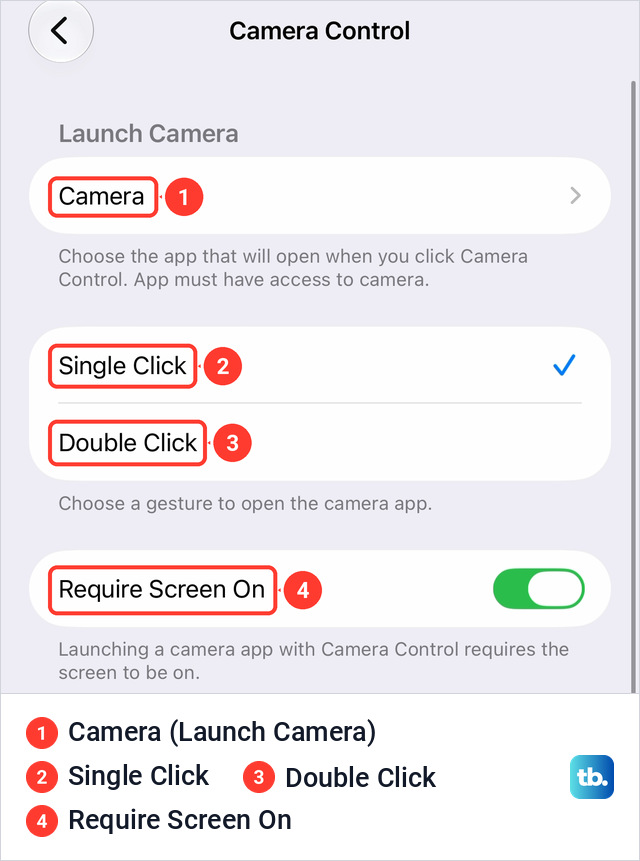
Tap the row under Launch Camera to choose the app: Camera, Code Scanner, Magnifier or None. Other installed apps with access to the camera can appear in the list too.
Cult of Mac describes a Clean Preview setting that hides the camera interface while the button is in use, but my iPhone 18 Pro Max has no such row here or in Settings > Camera.
With Lock Focus and Exposure turned on, lightly press and hold the Camera Control in Camera until AE/AF Lock appears above the frame. Keep your finger on the button while you click to shoot. Releasing it turns the lock off.
How to change the press force or turn off the light press
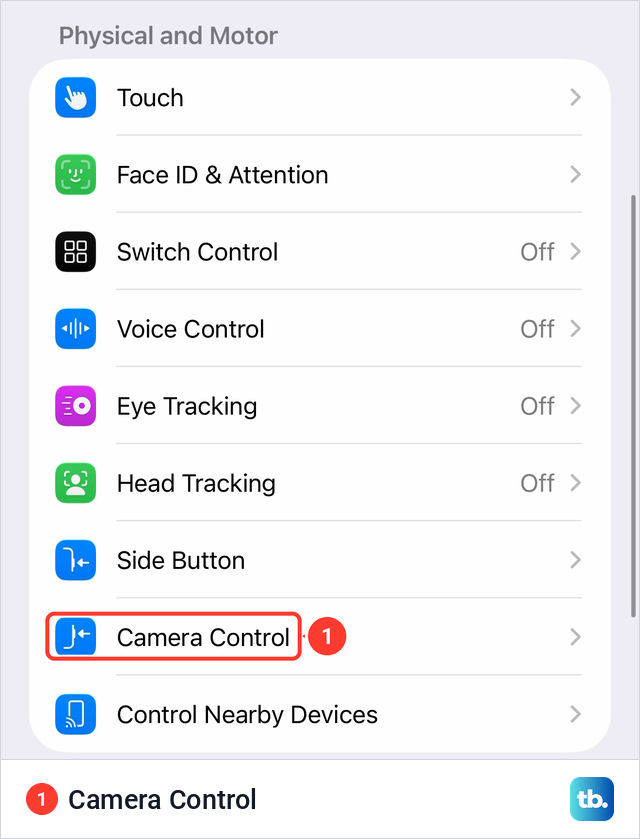
Go to Settings > Accessibility > Camera Control, in the Physical and Motor group.
- Camera Control turns the button off entirely.
- Light-Press Force offers Lighter, Default and Firmer, with a picture of the button to try the setting on.
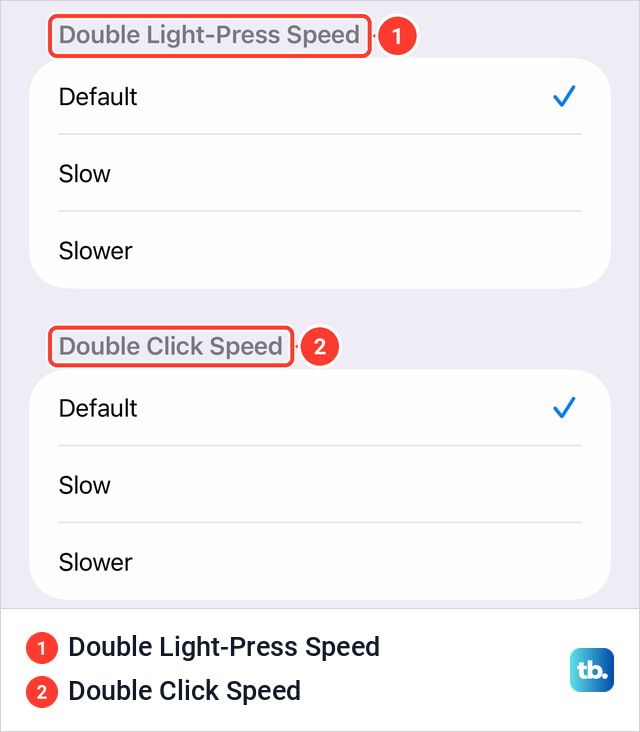
- Double Light-Press Speed sets how fast a light double press has to be. It and Double Click Speed each offer Default, Slow and Slower.
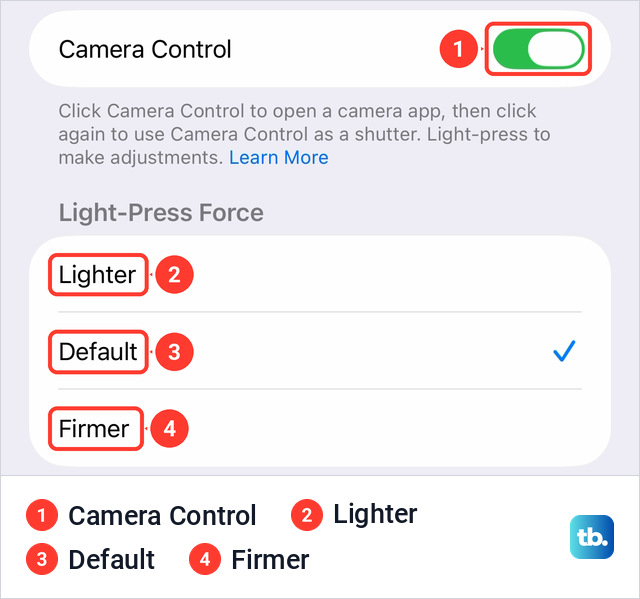
Apple's guide also lists Light-Press and Swipe switches here, but my iPhone 18 Pro Max showed neither.
How to stop accidental Camera Control presses
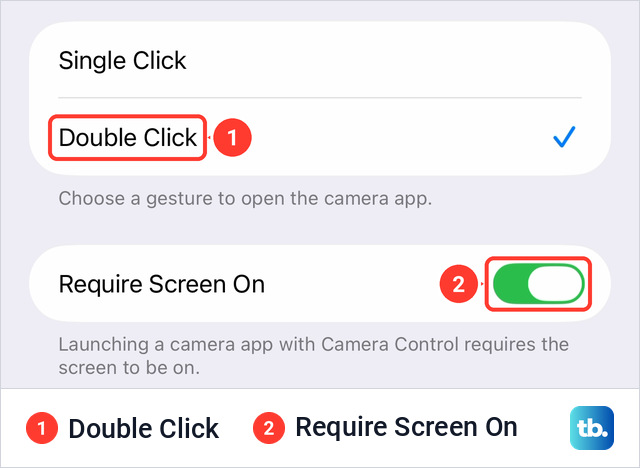
Choose Double Click, and it takes two clicks to open the camera. Keep Require Screen On turned on as well.
If the overlay keeps appearing when you only meant to shoot, choose Firmer under Light-Press Force in Accessibility.
To stop a click opening any app, tap the row under Launch Camera and choose None. To disable the button entirely, turn off Camera Control in Accessibility.
What to do when Camera Control does not work
- A click does nothing. Check whether Double Click is ticked or None is chosen under Launch Camera. With Require Screen On, the screen has to be on first. In Accessibility, check that Camera Control is on.
- The overlay never opens. Try Lighter under Light-Press Force in Accessibility. On my iPhone 18 Pro Max, the Camera Adjustments switch, whose note mentions the light press and swipe, was off.
- A setting is missing from the overlay. It may not be available in that camera mode, or it was removed in Customize.
- AE/AF Lock never appears. Lock Focus and Exposure has to be turned on first.
- Holding the button opens Visual Intelligence. With Apple Intelligence enabled and available, click and hold is how Camera Control opens Visual Intelligence. The switch for it is Press and Hold on the Camera Control screen. In Camera, click and hold records video.
- There is no Camera Control in Settings. Check your model against Apple's list above. To open Camera without it, swipe left on the Lock Screen.
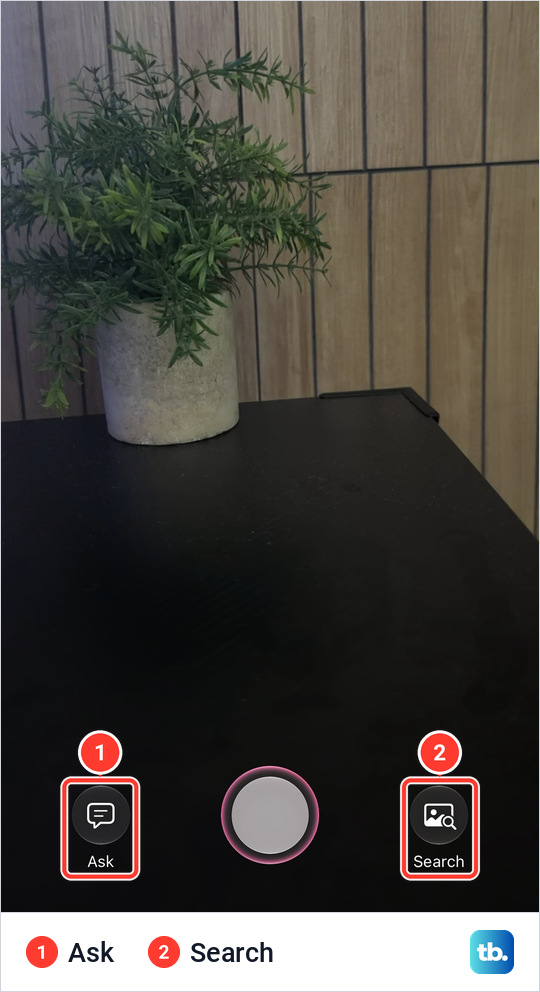
With Press and Hold on, Visual Intelligence opened on my iPhone 18 Pro Max with Ask and Search on either side of a round shutter.
If the whole phone has stopped responding, force restart the iPhone. Apple covers the rest in Use the Camera Control on iPhone and Adjust accessibility settings for the Camera Control.
How do you change the aperture on iPhone 18 Pro?
Apple lists the same six Camera Control settings for the iPhone 18 Pro and Pro Max, and its steps for the variable aperture on the iPhone 18 Pro use the Camera app. Open Camera and tap the Camera Controls button, the round button with six dots to the right of the Shutter button (not the Camera Control on the side). Tap Lens Aperture, then tap one of the four dots under the f-number. On my iPhone 18 Pro Max, the third dot set f/2.8.
What is the difference between Camera Control and the Action button?
The Action button is on the left side, above the volume buttons. Press and hold it to run one action that you assign in Settings > Action Button. Camera is one of the choices. Camera Control is on the right and adds the click to shoot and the slide adjustments.