When Apple Pay will not add your card, the problem is usually eligibility, account security, issuer verification, or a connection issue. Start with the checks that decide whether the card can be added at all, then move into Wallet fixes.
Apple Pay needs a supported card from a participating issuer, a compatible Apple device, current software, a supported country or region, two-factor authentication, and Face ID, Touch ID, Optic ID, or a passcode.
If you see Could Not Add Card, Invalid Card, or Card Device Limit, check Apple service status and your connection, then contact the card issuer because those messages can require bank-side help.
Check Apple Pay Eligibility First
Confirm the device, card, region, and account before deleting cards or changing settings. This separates a setup problem from a card that cannot be added.
Your device must support Apple Pay. Compatible devices include iPhone models with Face ID, iPhone models with Touch ID except iPhone 5s, iPad models with Touch ID or Face ID, Apple Watch Series 1 and later, Mac models with Touch ID, compatible Mac models used with an Apple Pay-enabled iPhone or Apple Watch, Apple Vision Pro, and supported browser flows that provide a code to scan.
Your country or region must support Apple Pay too. In the United States, Apple lists The United States and Puerto Rico as supported North America regions.
Check the issuer last. A bank can participate in Apple Pay while a specific card from that bank still cannot be added, so ask the bank or card issuer to confirm card-level eligibility.
Update Your Device Software
Use this when Wallet starts setup but will not finish, or when the device has not been updated recently. Apple Pay setup requires current software on iPhone, iPad, Apple Watch, Mac, or Apple Vision Pro.
On iPhone or iPad, open Settings.
Tap General.
Tap Software Update.
Tap Download and Install if an update appears, then follow the onscreen instructions.
After the device restarts, open Wallet and add the card again. For Apple Watch, Mac, or Apple Vision Pro, update that device first, then retry Apple Pay setup there.
Turn On The Security Settings Apple Pay Needs
The most common account-side blocker is missing Apple Account security.
Make sure you are signed in to your Apple Account on the device. On iPhone or iPad, open Settings, tap Apple Account, then choose Use Another Apple Device or Sign in Manually and enter the six-digit verification code if asked.
On Mac, open the Apple menu, choose System Settings, then select Sign in.
Turn on two-factor authentication. Go to Settings or System Settings, tap your name, open Sign-In & Security, and turn on two-factor authentication.
You can also sign in at account.apple.com and choose Upgrade Account Security.
Set a passcode if one is missing. On iPhone X and later or iPad with Face ID, go to Settings, then Face ID & Passcode, then tap Turn Passcode On.
On earlier iPhone models, open Settings, then Touch ID & Passcode, then tap Turn Passcode On. On devices without Touch ID, use Settings, then Passcode, then Turn Passcode On.
Use The Right Wallet Add Flow
Open the Wallet app.
Tap the Add Card button.
Choose Debit or Credit Card.
Tap Continue.
Tap or hold your card close to your iPhone if Tap to Add Card is available.
Choose Enter Card Details Manually or Scan Card with Camera when shown if tap-to-add is not available.
Complete the issuer authentication prompts until Wallet confirms the card has been added.
If a card you used before fails here, try the saved-card flow next.
Fix Previously Used Cards And Stale Wallet Entries
If the card was used with your Apple Account, another Wallet device, or Safari AutoFill, Wallet may show it under Cards Found For You or Previous Cards. Select the card, tap Continue, and complete the issuer verification steps.
A stale saved entry can block a clean setup attempt. On the Cards Found For You screen, tap Edit, tap the Remove button, choose Delete, then confirm with Delete Card.
After removing it, return to Wallet and add the card again through the standard add-card flow.
If this method fails, use the bank or card issuer app because the issuer may need to start or approve Apple Pay setup from its own system.
Add The Card Through Your Bank
Some cards add more cleanly from the issuer side. Open your bank or card issuer app and look for Add to Apple Wallet or Add to Apple Pay, then follow the issuer and Wallet prompts.
Some issuers also support adding a card from their website. Sign in on the issuer website, select the card to add to Apple Wallet, complete the Apple Account sign-in flow, choose the target device or devices, and confirm the result on each device.
When Wallet, Settings, or the Apple Watch app asks for additional verification, choose the method your issuer offers. That can be a text message, email, customer service call, or issuer app.
Enter the verification code where prompted, or complete the issuer app or call process.
Check The Network And Apple Services
Open Apple’s System Status page and check whether Apple Pay services are having an outage.
Open any website in a browser to confirm the internet connection works.
If other devices connect but this device does not, check VPN and third-party security software.
When using cellular, open Settings.
Tap Cellular.
Turn on Cellular Data.
On iPhone, iPad, or Apple Vision Pro, open Settings, then General, then Date & Time.
On Mac, open the Apple menu, then System Settings, then General, then Date & Time.
Try another network because Wallet has to reach Apple and issuer services during setup.
Keep VPN off during setup if Wallet keeps failing at the same verification screen.
Restart And Reset Only After Easier Fixes
This fixes temporary Wallet, app, or connection issues after eligibility, security settings, software updates, and issuer verification all check out.
On iPhone X, iPhone 11, iPhone 12, iPhone 13, or later, press and hold either volume button and the side button until the power-off slider appears.
Drag the slider.
Wait 30 seconds.
Press and hold the side button until the Apple logo appears.
On iPhone 6, iPhone 7, iPhone 8, or iPhone SE 2nd or 3rd generation, press and hold the side button until the slider appears.
Drag the slider.
Wait 30 seconds.
Press and hold the side button again.
Use force restart only if the iPhone is unresponsive. The button combination depends on the model.
On iPhone 8 or later, including iPhone SE 2nd or 3rd generation and models with Face ID, press and quickly release volume up.
Press and quickly release volume down.
Press and hold the side button until the Apple logo appears.
On iPhone 7 or iPhone 7 Plus, press and hold the side button and the volume down button together until the Apple logo appears.
On iPhone 6s or earlier, including iPhone SE 1st generation, press and hold the Home button and the side or top button together until the Apple logo appears.
As a last resort, open Settings, then General, then Transfer or Reset iPhone, then Reset, then Reset All Settings.
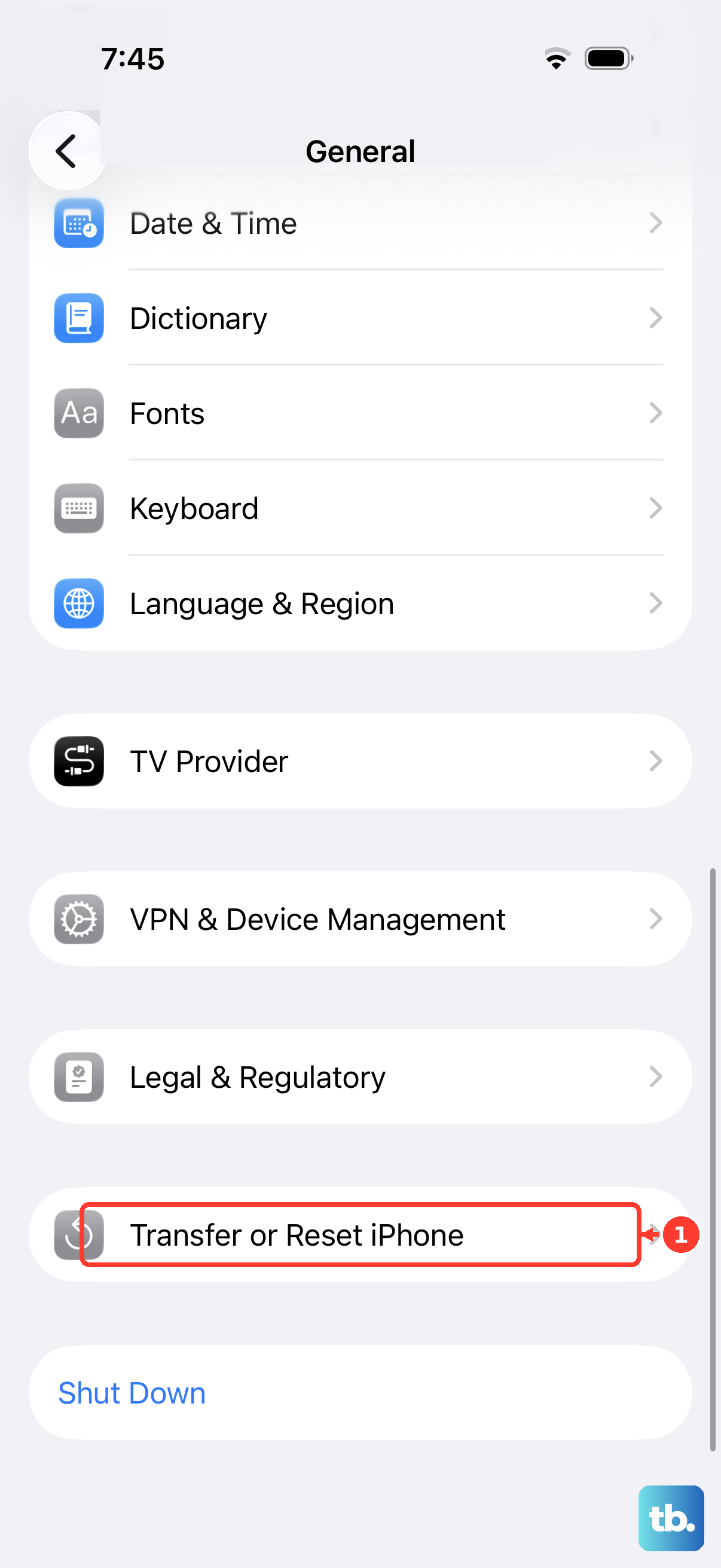
Reset All Settings removes or resets settings including network settings, privacy settings, and Apple Pay cards, but it does not delete data or media.
Handle Work Devices And Unsupported Workarounds
If the iPhone, iPad, Mac, Apple Watch, or Apple Vision Pro came from work or school, device management can block Wallet, account changes, passcode changes, biometric setup, NFC, network access, or other Apple Pay requirements. You cannot override those restrictions yourself, so contact IT or use a personal device and personal Apple Account for consumer Apple Pay.
Screen Time can also hide built-in apps or block account, passcode, Face ID, or Touch ID changes on a child account. A parent or guardian can open Settings, then Screen Time, tap the child’s name under Family, open Content & Privacy Restrictions, then check Allowed Apps & Features.
If setup settings are blocked on a child account, the parent or guardian can go to Settings, then Screen Time, then the child’s name, then Content & Privacy Restrictions, and under Allow Changes To, set Passcode & Face ID or Accounts to Allow.
Changing iPhone Region or Apple Account country is not a supported way to bypass Apple Pay availability. Use a supported country or region, compatible device, participating issuer, and eligible card, then contact the issuer when setup still fails.
Frequently Asked Questions
Why does Apple Pay say my card cannot be added?
The card may not be supported by the issuer, the device may be missing a passcode or two-factor authentication, Apple Pay may not be available in the region, or the issuer may need extra verification.
What should I do when Apple Pay says Card Device Limit?
Check Apple service status and the internet connection, then contact the card issuer. Apple lists Card Device Limit as a message that can require issuer help.
Can I add the same card to Apple Watch if it fails on iPhone?
Yes. Open the Apple Watch app on the paired iPhone, go to My Watch > Wallet & Apple Pay > Add Card, then choose Debit or Credit Card or Cards Found For You. You can also add a card directly in the Wallet app on Apple Watch when direct setup is available.
Will Reset All Settings delete my photos or apps?
No. Reset All Settings removes or resets settings such as network settings, privacy settings, and Apple Pay cards, but it does not delete data or media.











