

To change your Apple Watch face, touch and hold the face, swipe left or right to another face, then tap it. For a face you don't have yet, swipe left to the end and tap + on the watch, or tap Add to Watch in the Face Gallery of the Watch app on your iPhone, which also makes it your current face.
There is no separate wallpaper on Apple Watch. The face is the background, so changing the look means picking another face or editing its colors and complications, and the Photos face puts your own pictures there. Apple's guide gives the same steps for watchOS 26 and watchOS 27, and these instructions cover both.
The short version
- Switch faces: touch and hold the face, swipe, then tap the one you want.
- Swipe without holding: turn on Swipe to Switch Watch Face in Settings, then Clock, on the watch.
- New faces: tap + at the end of your faces, or tap Add to Watch in the Face Gallery on your iPhone.
- Colors and complications: touch and hold, tap Edit, swipe between screens and turn the Digital Crown.
- Delete: swipe up on a face in the picker and tap Remove. You can add it back later.
Every way to change your watch face
Most jobs can be done on the watch or in the Watch app on your iPhone. The iPhone is easier for anything with several choices, because every option is on one screen and you can see the face change as you tap.
| What you want | Where | What to do |
|---|---|---|
| Switch to a face you already have | Apple Watch | Touch and hold the face, swipe left or right, tap the one you want |
| Switch with one swipe | Apple Watch | Settings, Clock, turn on Swipe to Switch Watch Face, then swipe across the face |
| Add a new face | Apple Watch | Touch and hold, swipe left to the end, tap +, pick a collection, Get, Add |
| Add and set up a new face | Watch app on iPhone | Face Gallery, GET next to a face, pick a version, choose colors and complications, Add to Watch |
| Change colors or complications | Apple Watch | Touch and hold, Edit, swipe to a screen, turn the Digital Crown |
| Use your own photos | Watch app on iPhone | Face Gallery, the Photos face, Choose Photos or Shuffle, then Add |
| Delete a face | Apple Watch or iPhone | Swipe up on it in the picker and tap Remove, or use Edit in My Faces |
| Switch faces with a Focus | iPhone Settings | Focus, a Focus, Customize Screens, Choose below the Apple Watch image |
Switch to another face on your Apple Watch
With the current face showing, touch and hold the middle of the display. Apple says the face then shows its name at the top and an Edit button, and you swipe left or right to see your other faces. Tap the one you want and it becomes your face straight away.
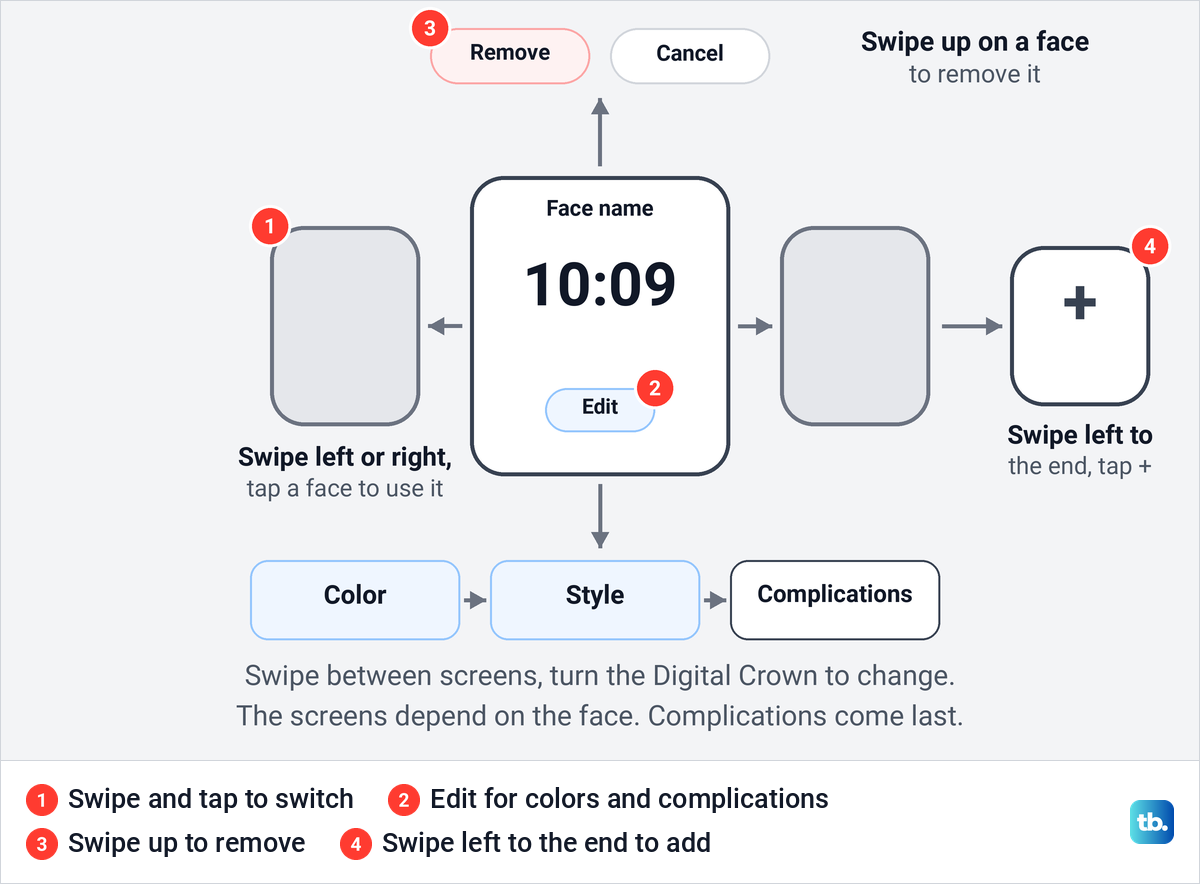
The same picker is the starting point for almost everything else on this page. Swiping left past your last face reaches the + button for adding faces, Edit opens the screens for colors and complications, and swiping up on a face offers Remove. If you only ever switch between two or three favorites, keep reading for the one-swipe setting.
In the Watch app on your iPhone, a face's own page under My Faces has a Set as current Watch Face button near the bottom, just above Remove Watch Face. On our iPhone it was there even on the page of the face already in use.
Turn on Swipe to Switch Watch Face
Swiping straight across the face to change it is a setting, not something every watch does. Apple's steps are to open the Settings app on your Apple Watch, tap Clock, then turn on Swipe to Switch Watch Face. After that you swipe from one face to the next without touching and holding first.
Apple added this switch in watchOS 10.2. Owners in Apple's community forums noticed that swiping between faces stopped working in watchOS 10, and the switch is how you get it back. If a face keeps changing when you don't want it to, the same switch is the first thing to turn off, because owners report that a sleeve brushing the edge of the screen can count as a swipe.
The Clock screen holds one more face setting worth knowing. Apple says tapping +0 min and turning the Digital Crown sets the time on the face ahead by up to 59 minutes, and that this changes only the time shown on the face, not alarms, notification times or World Clock.
Add a new face on the watch
You don't need your iPhone to add a face. Apple's steps on the watch are to touch and hold the display, swipe left all the way to the end, then tap the + button. You then tap a collection, such as New Watch Faces or Data Rich, to browse that group, or scroll down and tap All Watch Faces to see the full list.
Tap Get next to the face you want, then tap Add. Apple notes that you can customize the face after you add it, using the Edit steps further down. Older instructions tell you to turn the Digital Crown to browse faces after tapping +, which matches Apple's guide for watchOS 11, but on watchOS 26 and watchOS 27 the collections come first.
Add a face from the Face Gallery on iPhone
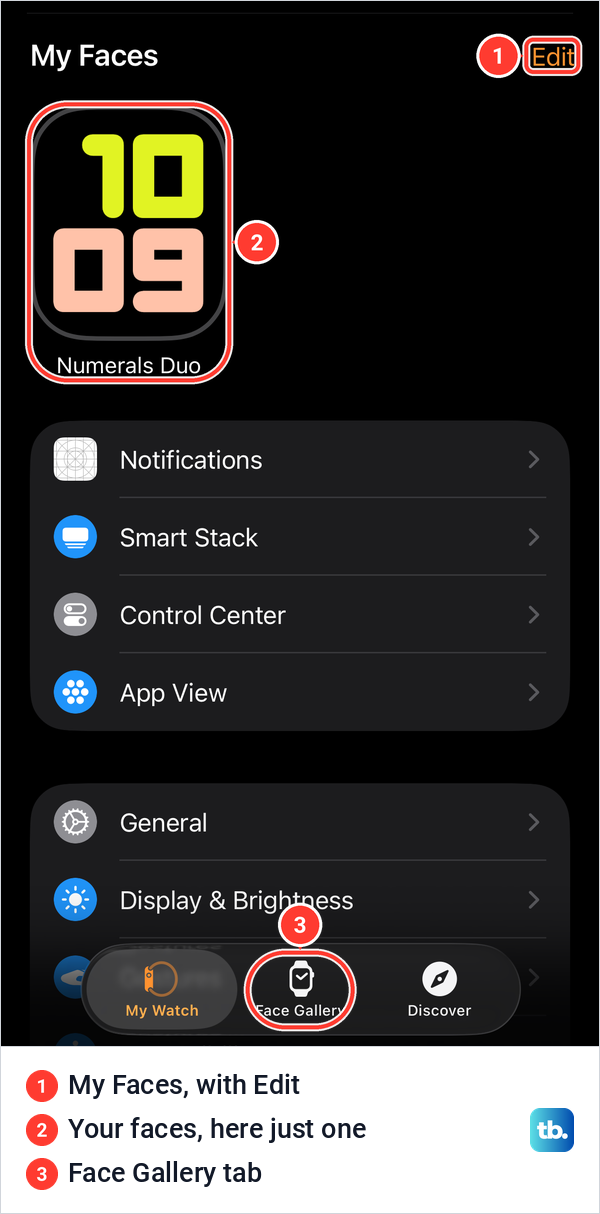
Apple calls the Face Gallery the easiest way to see every available face, customize one and add it to your collection. It lives in the Watch app on the iPhone your watch is paired with, so if you just switched phones, first pair your Apple Watch with a new iPhone. On iOS 26.5 the Watch app opened on the My Watch tab, with your faces in a My Faces row and the Face Gallery tab at the bottom of the screen.
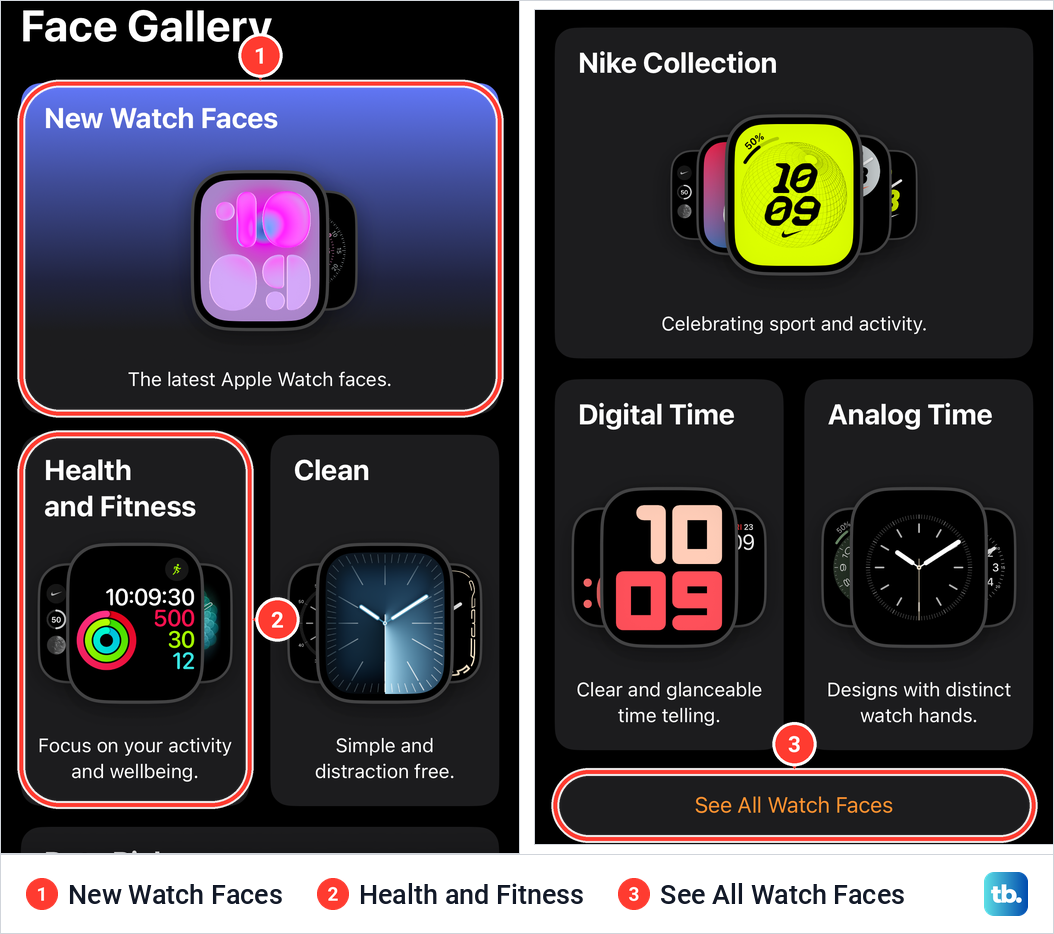
Tap Face Gallery. Faces are grouped into collections, and ours started with New Watch Faces, then Health and Fitness, Clean and Data Rich, followed by groups such as Dress Watch, Tool Watch, Astronomy, Digital Time and Analog Time. The collection Apple's watchOS 26 guide prints as Health & Fitness was labelled Health and Fitness on our iPhone. To see every face in one list, scroll to the bottom and tap See All Watch Faces.
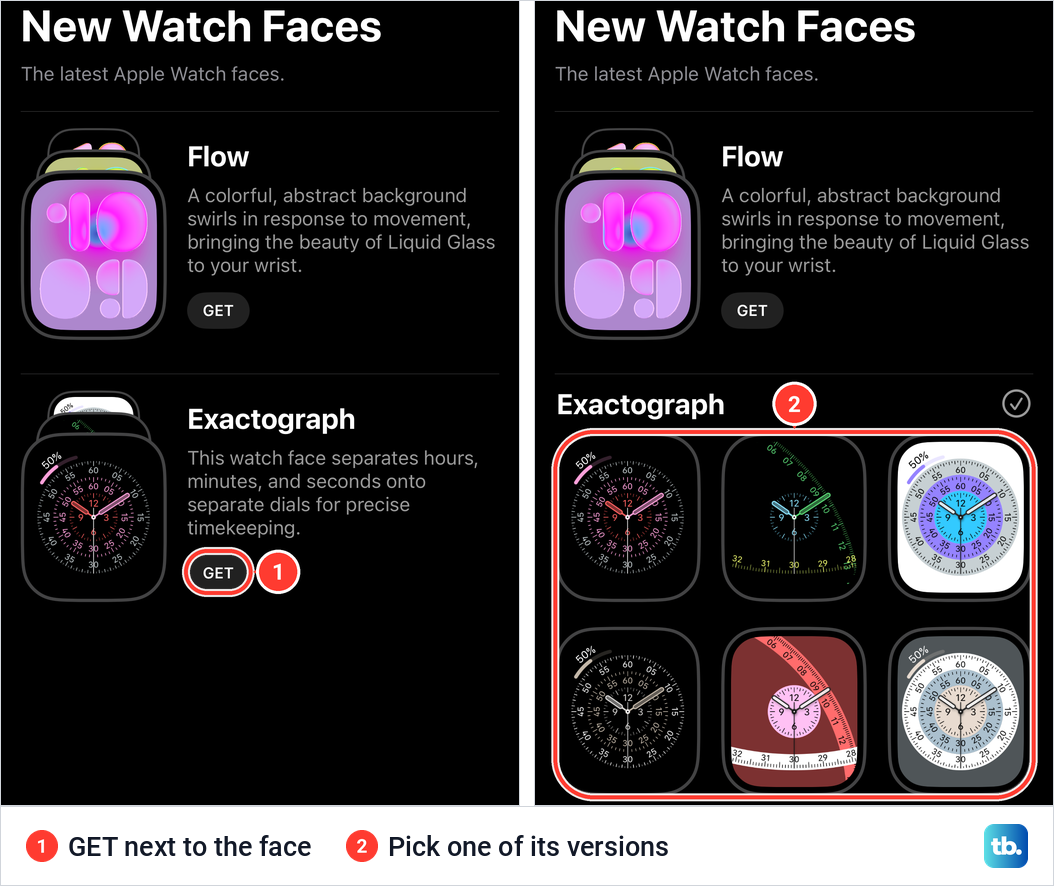
Open a collection and each face has a short description and a GET button. When we tapped GET next to Exactograph, it opened a grid of six ready-made versions of that face in different colors and layouts. Tap the version closest to what you want, because you can still change every option on the next screen.
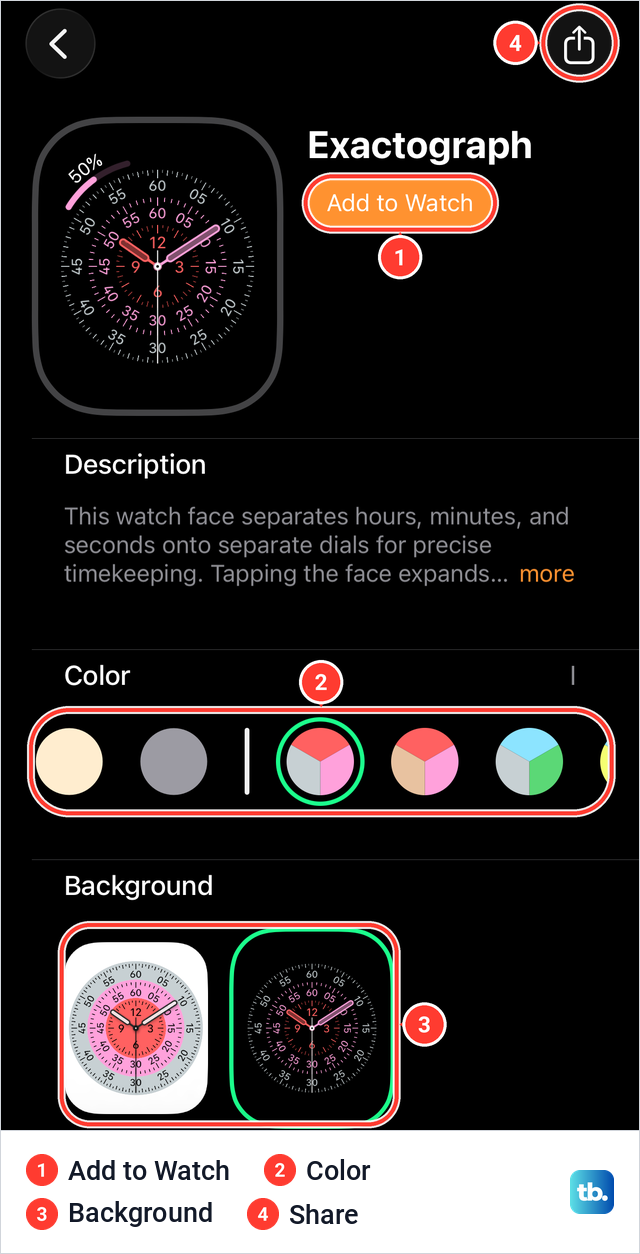
The face page shows a large preview at the top with Add to Watch beside it. Below are the face's options, which for Exactograph were Color, Background and Style, then the complication positions. As you tap an option, the preview changes, so you can check the result before anything reaches your wrist.
When the face looks right, tap Add to Watch. Our iPhone went back to the gallery with the message "Added to Apple Watch" and a note that faces added from the Face Gallery also appear in My Watch. Our watch was already showing Exactograph a few seconds later, and it was still the current face half a minute after that.
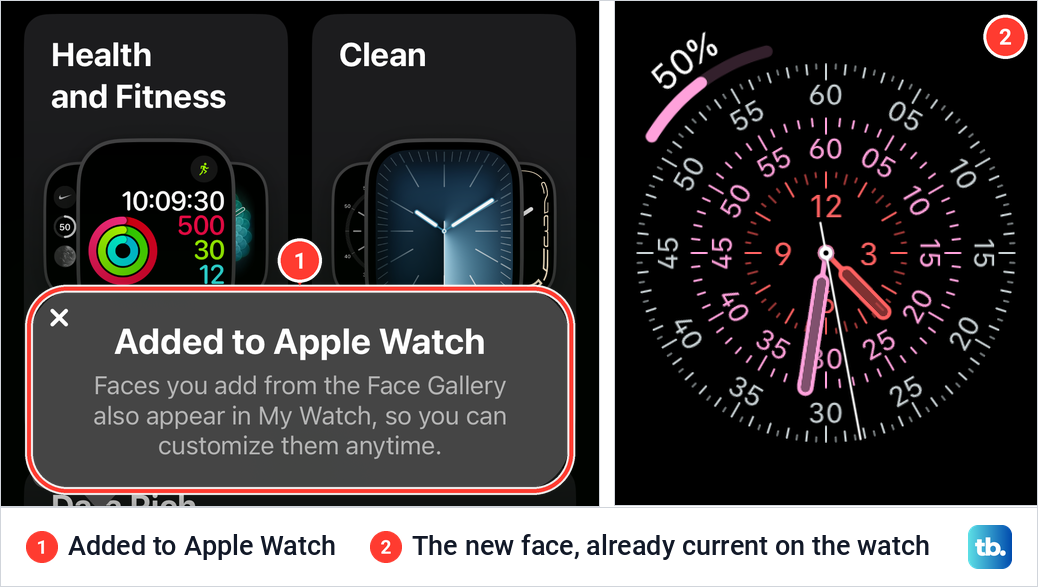
That settles a step some guides add. Apple says the face is added to your collection and becomes the current face, and that is what happened when we tried it, so there was nothing else to tap.
Change colors and styles
On the watch, touch and hold the face, then tap Edit. Each screen changes one feature of the face, such as its color or style, and you swipe left or right between them. Apple's own example for the Wayfinder face on Apple Watch Ultra is to tap Edit, swipe left to the Bezel screen and turn the Digital Crown to choose what the ring shows. Which screens you see depends on the face.
Some faces react to touch as well. Apple describes Metropolitan's numbers as changing in style and weight when you tap the face and then turn the Digital Crown. That is part of the face itself, not an editing mode, so you can play with it at any time.
The iPhone shows all of these choices on one page. In the Watch app, tap a face in the My Faces row. For Numerals Duo, the page listed Color with an Add Color button at the end of the swatches, then Numerals and Style, then Set as current Watch Face and a red Remove Watch Face button.
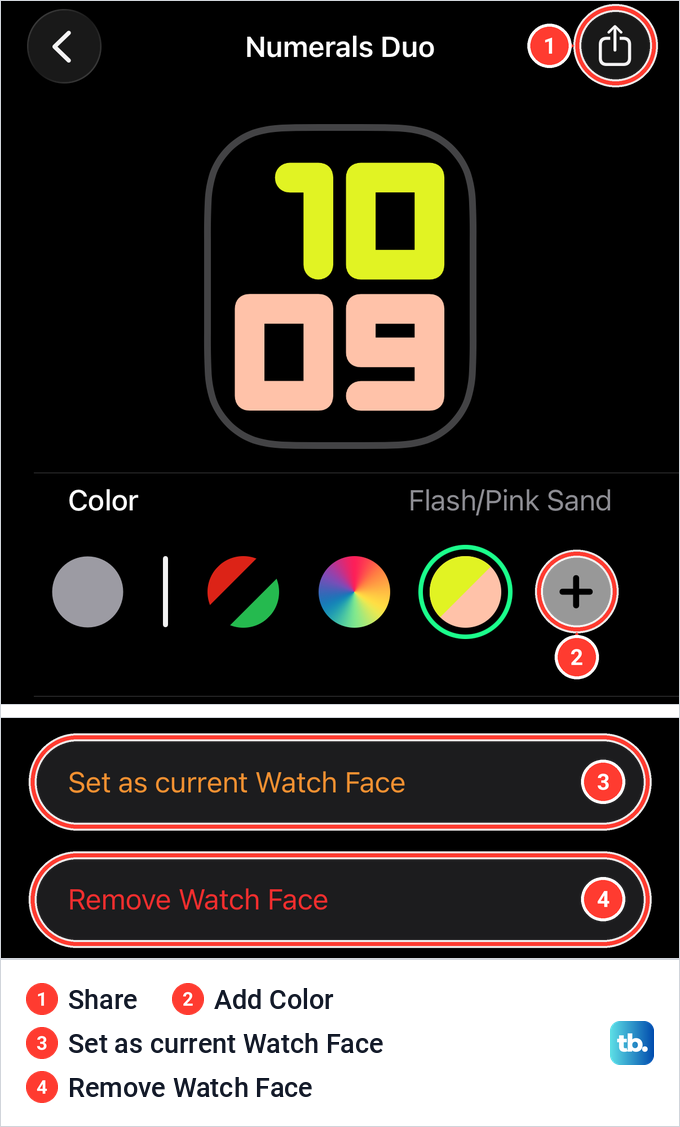
Changes made on this page apply to the face in your collection, so you can tidy up a face's colors without touching the watch. The Share button at the top right of the same page is the way to send the face to someone, covered in the sharing section below.
Add or change complications
Complications are the small pieces of information on a face, such as the battery level, the weather or your next event. Apple says you can open most apps by tapping their complication, so they double as shortcuts. On a face that has them, they are always the last Edit screen on the watch.
Apple's steps on the watch are to touch and hold the face, tap Edit and swipe left all the way to the end. Tap a complication to select it, turn the Digital Crown to choose a new one, then press the Digital Crown to save your changes and tap the face to switch back to it.
In the Watch app it takes fewer steps. On our iPhone, the Exactograph page listed four positions under Complications: Top Left, which was set to Battery, then Top Right, Bottom Left and Bottom Right, all Off. Tapping a position opened a list of complications grouped by app with Off ticked at the top, which is how you empty a position.
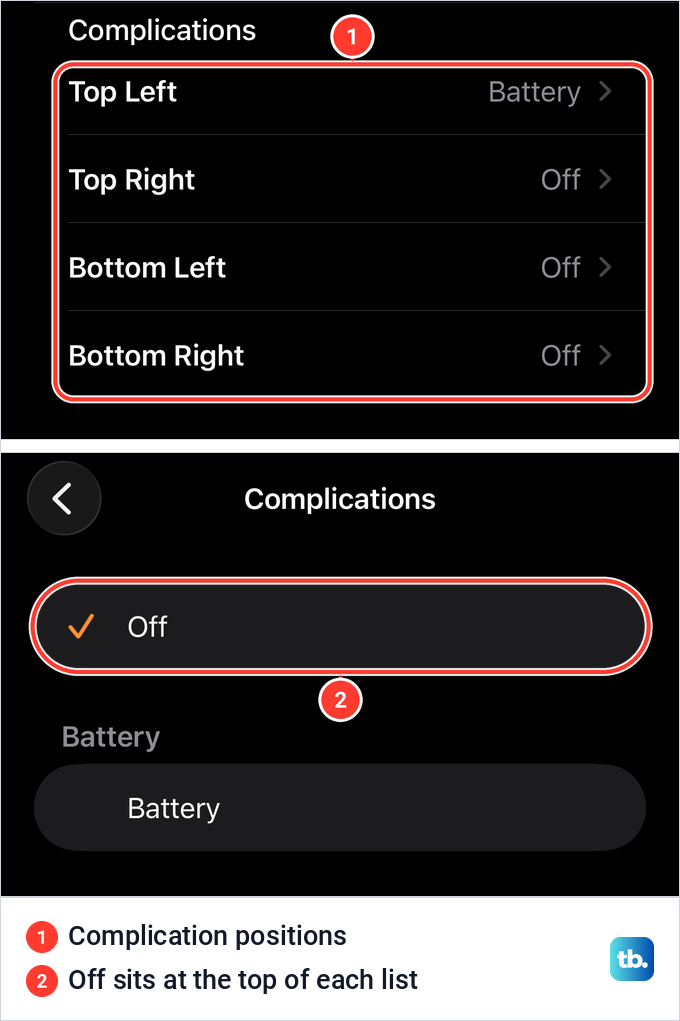
The positions depend on the face, so a simpler face offers fewer slots and a data-heavy one offers more. If the Battery complication doesn't climb when the watch is on its charger, see how to tell whether your Apple Watch is charging.
Apple's face list includes Wallet among the complications many faces accept, which is handy once you use Apple Pay on iPhone and Apple Watch. Apple also says sleep score can be shown as a complication, once you set up sleep tracking on Apple Watch. Some apps from the App Store add their own complications too.
Make a face from your own photos
This is the closest thing Apple Watch has to a wallpaper. Apple's steps are to open the Watch app on your iPhone, tap Face Gallery, open the Photos category and choose a style. Apple says the Photos face shows a new photo every time you raise your wrist or tap the display.
To pick the pictures yourself, tap Choose Photos, select up to 24 photos and tap the Done button. To let the face choose, tap Shuffle, then Featured or People, or Collection and an album, and tap Continue. Apple notes that when you shuffle, sixteen photos are picked automatically each day. Scroll down to change the layout, then tap Add at the top of the screen.
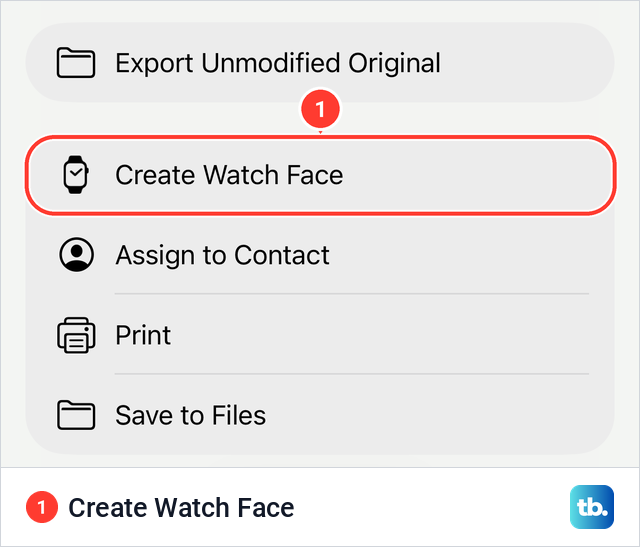
You can also start from a single picture. On iOS 26.5, opening a photo in the Photos app and tapping the share button listed Create Watch Face among the actions, next to Assign to Contact and Print. On the watch, Apple's route is the Photos app, an album, a photo, the Action button, then Create Watch Face and Photos.
If you want one picture turned into moving patterns instead, Apple's Kaleidoscope face does that from a single photo. And if your photos don't appear on the face, Apple's advice is to make sure they are in your synced album.
Rearrange your watch faces
The order of your faces is the order you swipe through them, so put the ones you use most next to each other. In the Watch app, tap Edit next to My Faces. On our iPhone a sheet titled My Faces opened with a red minus button on the left of each face and a reorder handle on the right, and the face in use was marked Current Watch Face.
Apple's steps are to drag the reorder handle next to a face up or down. On the watch itself, Apple says to touch and hold the display, touch and hold again, then drag the selected face left or right.
Delete a watch face
On the watch, Apple's steps are to touch and hold the display, swipe to the face you don't want, swipe up on it and tap Remove. Apple shows Remove and Cancel buttons on that screen.
In the Watch app, tapping the red minus button next to a face in the Edit sheet under My Faces reveals a red Remove button. When we tapped Remove next to Exactograph, the face was gone at once without another confirmation. Because it had been our current face, Numerals Duo took over, and our watch was showing it about ten seconds later.
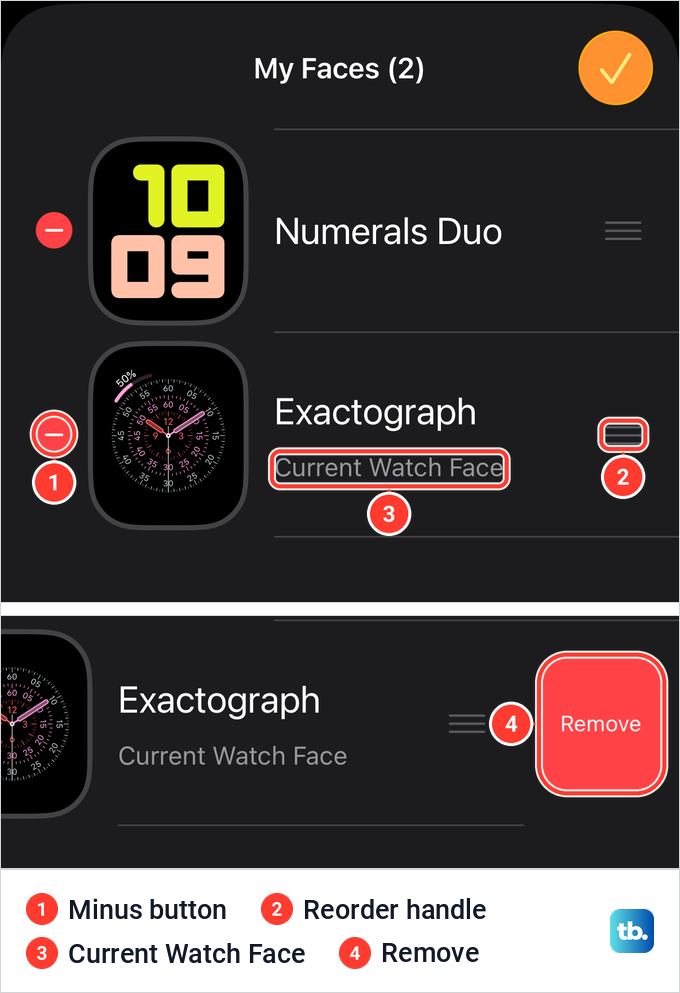
Removing a face only takes it out of your collection. Apple says you can always add it again later. You do that the same way as any new face, from the + screen on the watch or the Face Gallery on your iPhone. On our iPhone the sheet then read My Faces (1), with the remaining face marked as current.
Share a watch face
Apple's current guide shares faces from the iPhone. Open the Watch app, tap a face in your collection or the Face Gallery, tap the Share button, then choose how to send it. On our iPhone the Share button sat at the top right of both the gallery page and the My Faces page we opened, and for Numerals Duo, a face without complications, it opened the iPhone's share sheet straight away.
Apple says the person receiving the face needs an Apple Watch with watchOS 7 or later. They open the message, email or link, tap the shared face and tap Add. If the face includes a complication from an app they don't have, Apple says they can get the app or tap Continue Without This App to add the face without that complication.
Apple's guides for watchOS 8 and 11 showed a Share button beside Edit on the watch. Its guides for watchOS 26 and 27 show only the Edit button and describe sharing from the iPhone.
Change your face automatically with a Focus
A Focus can switch the face for you. Apple's example is the Simple face appearing whenever the Work Focus is on. On your iPhone, open Settings, tap Focus and choose a Focus, scroll down to Customize Screens, tap Choose below the Apple Watch image, select a face and tap Done.
To make it happen on a timetable, Apple says to tap Add Schedule in that Focus, and that the schedule works on both devices. Apple's Focus list includes Do Not Disturb, Personal, Sleep and Work, and the Focus icon appears at the top of the face while one is on. When you no longer want the switch, remove the face from that Focus or turn off Focus on iPhone.
Watch face actions in Shortcuts
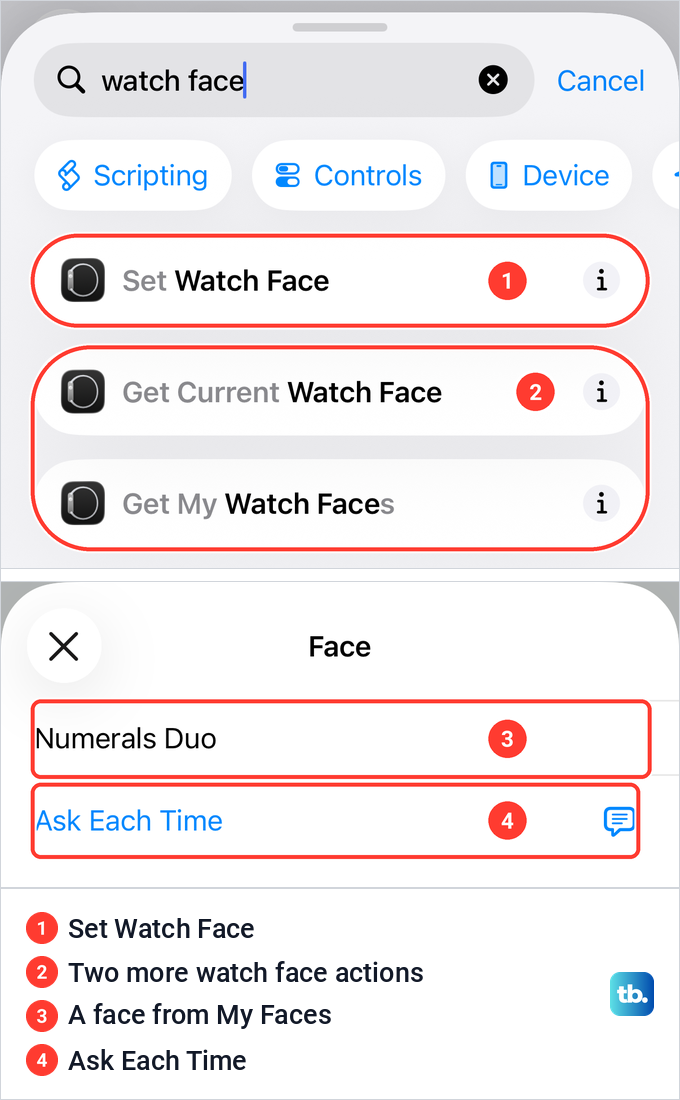
If you build your own shortcuts, the Shortcuts app also has watch face actions. On iOS 26.5, searching the actions for "watch face" listed Set Watch Face, Get Current Watch Face and Get My Watch Faces. Set Watch Face reads "Set active watch face to Face", and tapping Face offered the faces in My Faces plus Ask Each Time.
Why a face is missing or won't change
Not every face is available everywhere. Apple says faces vary by country or region and by model, and that you need current software to see the latest set.
Apple lists Contour and Modular Duo as not available on Apple Watch SE, and its watchOS 26 guide also excludes Apple Watch Series 6 for both. Modular Ultra, Wayfinder and Waypoint are Apple Watch Ultra faces, so a face you saw on a friend's watch may not exist for yours. Some faces are newer still, such as the Siri Modular face Apple added in watchOS 27.
Software matters as well. Apple's compatibility list for watchOS 27 is Apple Watch SE 3, Series 9 and later, and Ultra 2 and later, and it needs an iPhone with iOS 27. Older watches stay on the newest version they can run, which Software Update shows you. Apple's path is the Watch app on your iPhone, then My Watch, General and Software Update.
If a face you added in the Watch app never reaches the watch, owners in Apple's community forums report that adding the face on the watch itself, or restarting both devices, gets it through. Apple fixed one cause of this in watchOS 10.2. For the iPhone side, here is how to restart your iPhone, and our guide on how to fix an Apple Watch that won't turn on covers a force restart of the watch.
If a face changes by itself, check Swipe to Switch Watch Face, where owners report a stray swipe can change the face, and the faces linked to your Focus settings. Do Not Disturb counts as a Focus, so a face set for it appears every time Do Not Disturb comes on, and our guide shows how to turn off Do Not Disturb on iPhone. For a screen that stays black, that same won't-turn-on guide is the place to start.
How we tested this guide
We tested this in the Watch app on iOS 26.5, paired with an Apple Watch Series 11 with watchOS 26.5, adding and removing watch faces.
Frequently Asked Questions
Why can't I swipe to change my Apple Watch face?
Swiping straight across the face is a setting since watchOS 10.2. On the watch, open Settings, tap Clock and turn on Swipe to Switch Watch Face. Without it, touch and hold the face, swipe, then tap the one you want.
Why does my Apple Watch face keep changing by itself?
Check Swipe to Switch Watch Face in Settings, then Clock, on the watch, and the faces linked to each Focus under Customize Screens on your iPhone. With the swipe on, owners report that a sleeve can brush the edge of the screen and change the face.
Why is a watch face missing on my Apple Watch?
Some faces need a certain model. Apple lists Contour and Modular Duo as not available on Apple Watch SE, or on Series 6 in its watchOS 26 guide, and Modular Ultra, Wayfinder and Waypoint as Ultra faces. Faces also vary by region, and new ones need current software.
Can I get third-party watch faces?
The faces themselves come from Apple's gallery. Apps add complications and can share a face that is set up with them, and adding such a face asks you to get the app or continue without it.
How do I change the wallpaper on my Apple Watch?
There is no separate wallpaper, because the face is the background. Pick the Photos face in the Face Gallery and choose up to 24 photos, or let it shuffle sixteen a day from your library.
Can I add a deleted watch face back?
Yes. Removing a face only takes it out of your collection. Add it again from the + screen on the watch or from the Face Gallery on your iPhone, then customize it the way you like.