Your Microsoft account can stay signed in inside a browser, Windows, Edge, Office, OneDrive, Outlook, Teams, Store, Xbox, and registered devices. The right fix depends on whether you want to leave one app, end a Windows session, remove the account from a device, or sign out everywhere. Use the matching path below so you do not confuse a normal sign-out with account removal or closure.
1. Start with the Microsoft website menu
For a browser session, use the account menu on the Microsoft site you are already using. On account.microsoft.com, Outlook.com, OneDrive.com, Microsoft 365 for the web, and similar Microsoft web services, select your account name or profile picture in the upper-right corner, then select Sign out.
In Microsoft 365 for the web, the path is photo or initials > Sign out.
2. End the Windows session
Select Start.
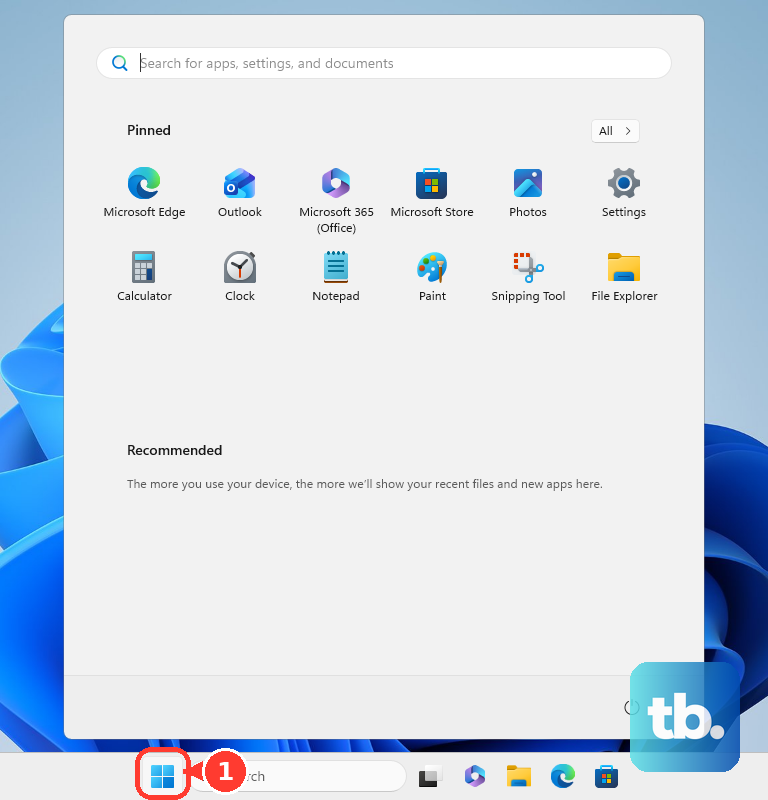
Select your account name or picture.
Select Sign out.
For the keyboard route, press Ctrl + Alt + Delete, then select Sign out.
From the desktop route, press Alt + F4, choose Sign out from the Shut Down Windows list, then select OK.
3. Disconnect Windows sign in from the account
If your Windows profile signs in with a Microsoft account, switch that profile to a local account. Go to Start > Settings > Accounts > Your info, select Sign in with a local account instead, then follow the prompts.
This keeps the Windows profile on the PC and disconnects that Windows sign-in from the Microsoft account.
4. Remove the account from Windows apps
Select Start.
Open Settings.
Select Accounts.
Select Email & accounts.
Under Accounts used by other apps, select the Microsoft account.
Select Remove.
Use this for accounts saved by apps such as Store, Mail or Outlook, Calendar, Teams, and Microsoft 365 apps.
5. Sign out of Microsoft apps one by one
In Microsoft Edge on desktop, select Settings and more > Settings > Profiles, select Sign out next to the profile, then confirm.
For Edge on iOS or Android, select More options > Settings, select your profile image, then select Sign out and turn off sync.
In Office apps on Windows, select File > Account, then under User Information, select Sign out.
On Office apps on Mac, open the app name menu, select Sign Out, then confirm.
In Office apps on iPhone or iPad, tap Account, tap the account you are using, then tap Sign Out and Sign Out again to confirm.
For Office apps on Android or a Chromebook, from the Recent screen tap the person icon, tap your name rather than View Profile, then tap Sign Out and Sign Out again to confirm.
In OneDrive on Windows, select the OneDrive cloud in the notification area, then Help & Settings > Settings > Account, select Unlink this PC, then select Unlink account.
On OneDrive on Mac, select the OneDrive cloud icon in the menu bar, then Help & Settings > Preferences > Account, then select Unlink this Mac.
On OneDrive.com, select your profile picture or initials in the upper-right corner, then select Sign out.
In the OneDrive mobile app, tap your profile picture or the person icon, tap Settings, tap the arrow next to the account you want to remove, then tap Sign out.
In new Outlook for Windows, on the View tab select View settings, or on the File tab select Account info > Accounts > Your accounts.
Under Email accounts, select Manage beside the account, then under Account details select Remove.
In classic Outlook for Windows, select File > Account Settings > Account Settings, select the account, then select Remove.
In current Outlook for Mac, select Tools > Accounts, select the account, select Manage > Remove Account, then select Continue.
For Legacy Outlook for Mac, select Tools > Accounts, select the account in the left list, select the minus button at the bottom of the window, then select Sign Out.
In Outlook for iOS or Android, select your account icon, select Settings, select the account, then select Delete Account.
In Teams Free on desktop or web, select your profile picture at the top, then select Sign out.
On Teams Free on mobile, tap your profile picture or More, tap Settings, then tap Sign out.
In Microsoft Store, select your profile icon, select the signed-in account, then select Sign out.
On Xbox Series X|S or Xbox One, press the Xbox button, select Profile & system, select Sign out, then choose the profile.
In the Xbox app on Windows, select your gamerpic, then select Sign out.
6. Force sign out everywhere
Use the Microsoft account security dashboard when the account needs to leave browsers, apps, and anywhere else it is used to sign in. There is one exception: this does not sign out an Xbox console, so sign out on the console separately.
Open the dashboard, select Advanced security options, scroll down to Sign out everywhere, then select Sign out.
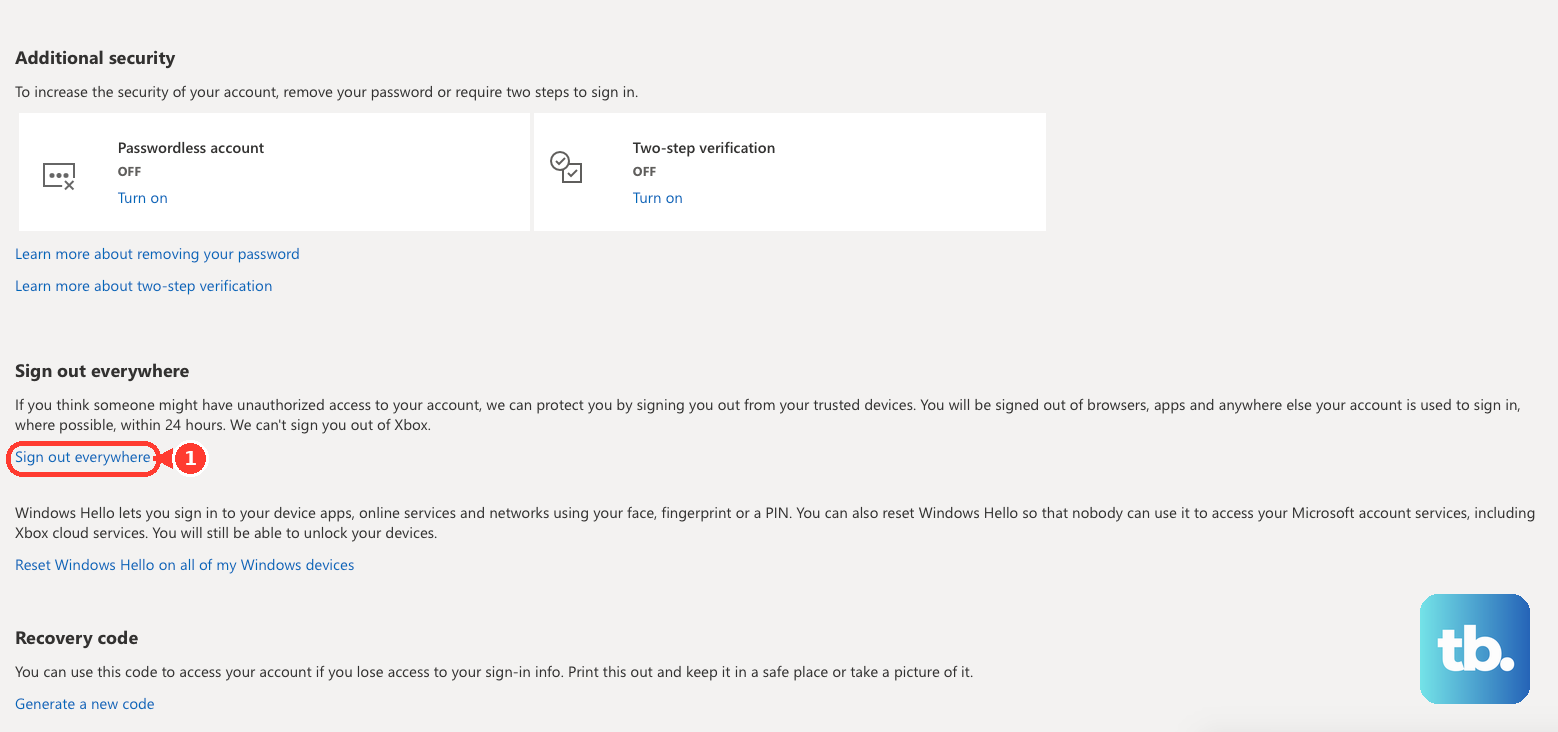
Microsoft says signing out may take up to 24 hours.
7. Remove a device or local profile
To remove a registered device from your Microsoft account list, go to account.microsoft.com/devices and sign in.
Find the device you want to remove, expanding its details if you do not see the control, select Remove device, check the box to confirm removal, then select Remove.
To remove another Windows user profile from a PC, go to Start > Settings > Accounts > Other users.
Select the person's name or email address, select Remove, then select Delete account and data.
To remove a Microsoft account profile from an Xbox console, press the Xbox button and select Profile & system > Settings > Account > Remove accounts, select the account, then select Remove.
Removing a device association does not sign out locally, and deleting a local profile removes that profile's data from the device.
8. Separate work or school accounts
A personal Microsoft account and a work or school Microsoft account use different removal paths.
On Windows, go to Start > Settings > Accounts > Access work or school, select the account, then select Disconnect.
For Microsoft 365 business or education accounts, an admin with the User Administrator or Helpdesk Administrator role opens the Microsoft 365 admin center, goes to Users > Active users, selects the user's name, then on the Account tab selects Sign out of all sessions; signing out another administrator requires Global Administrator.
An admin can also use the Microsoft Entra admin center path Entra ID > Users > All users, select the user, then select Revoke sessions on the user's Overview page.
9. Close the account only when finished
This fixes permanent Microsoft account removal, not a normal sign-out.
- 1.Go to the Close your account page.
- 2.Sign in.
- 3.Review the checklist.
- 4.Choose a reason.
- 5.Select Mark account for closure.
Frequently Asked Questions
Does signing out of Windows remove my Microsoft account from the PC?
No. Signing out of Windows ends the current Windows session. To disconnect the Microsoft account from Windows sign-in, switch the profile to a local account under Start > Settings > Accounts > Your info.
What should I use when I forgot to sign out on another device?
Use the Microsoft account security dashboard, open Advanced security options, scroll down to Sign out everywhere, then select Sign out. Microsoft says that within 24 hours you are signed out of browsers, apps, and anywhere else the account is used to sign in, except an Xbox console, which you sign out of separately on the console.
Is removing a device from account.microsoft.com the same as logging out?
No. Removing a device from account.microsoft.com/devices removes the device association from your Microsoft account list. It does not sign out locally on that device.
Does removing an Outlook or OneDrive account delete my Microsoft account?
No. Removing an account from Outlook or unlinking OneDrive removes it from that app or device. It does not close the Microsoft account or delete the cloud account.
Can I sign out of Office on a device I no longer have?
Yes. Go to the Installs page of your Microsoft account, find the device under Devices, then select Sign out of Microsoft 365 or Office. Microsoft says it can take up to 72 hours for Microsoft 365 or Office to detect that you signed out.