Removing a program in Windows 11 gets messy when the app is not in the place you expect. Store apps, older desktop programs, browser web apps, and Windows features all use different removal screens.
Start with Start > Settings > Apps > Installed apps. If that page does not remove it, use the matching method below for the exact type of app or feature you are trying to clean up.
Use Installed apps first
For most apps, open Start > Settings > Apps > Installed apps. This is the main Windows 11 removal screen for Microsoft Store apps and many desktop programs.
Find the app, select More, then select Uninstall.
Confirm the prompt and wait for Windows to finish.
Some apps cannot be removed from Installed apps. When that happens, move to the supported uninstall path for that app type.
Uninstall from the Start menu
Select Start.
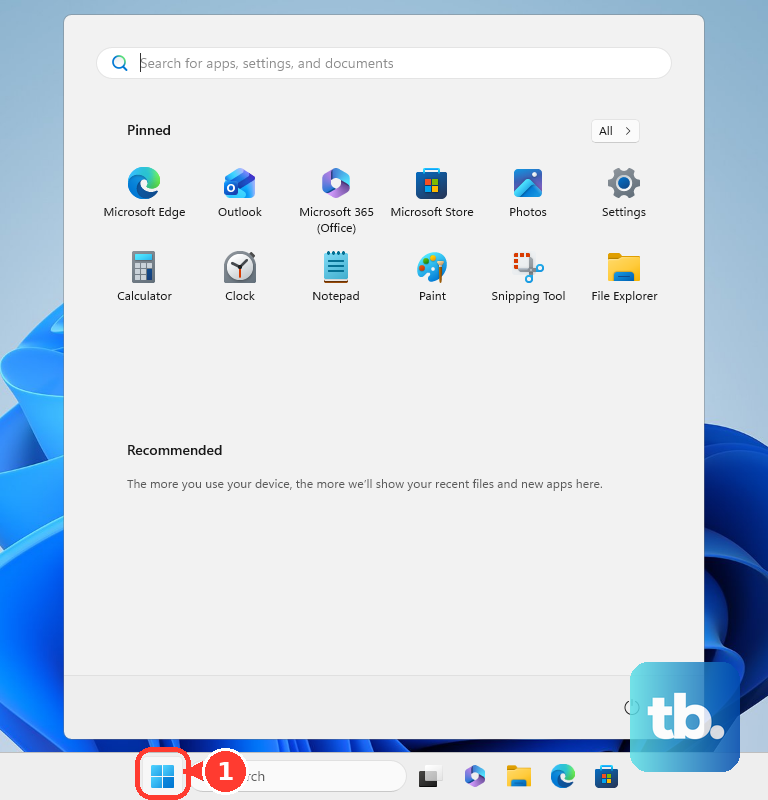
Open All apps.
Find the app you want to remove.
Press and hold the app, or right-click it.
Select Uninstall and follow the prompt.
This is the quickest route when the app exposes an uninstall command directly from Start.
Find apps missing from Settings
The most common cause is an older desktop program that still registers with Control Panel instead of the newer Windows 11 Settings page.
Use search on the taskbar, enter Control Panel, and open it.
Select Programs, then open Programs and Features.
Find the program, press and hold it or right-click it, then select Uninstall or Uninstall/Change.
Follow the on-screen directions until the uninstall finishes.
Remove optional Windows features
Use this when you want to remove a Windows feature instead of a normal app. Current Windows 11 places optional features in Start > Settings > System > Optional features.
Open Start > Settings > System > Optional features.
Go to Installed features.
Use Search installed features, or scroll to the feature.
Select the feature to expand it, then select Remove.
On supported Windows 11 builds that place the page elsewhere, open Settings > Apps and use Optional features there.
Turn off Windows components
Open Start.
Type Turn Windows features on or off.
Open Windows Features.
Clear the checkbox for the feature you want to turn off.
Select OK, then restart if Windows asks you to.
The exact feature list changes by Windows edition, hardware, and build.
Uninstall web apps from your browser
Some apps on your PC are installed web apps, which include PWAs and any site you installed as an app, and they use browser removal controls. For Microsoft Edge web apps, open edge://apps, select Details on the app card, select Uninstall, choose whether to delete app history and data, then select Uninstall again.
For Chrome web apps, open the web app, select More at the top right, select Uninstall [app name], then select Remove. Chrome also lets you manage installed web apps from chrome://apps.
If Chrome shows Also delete data from Chrome, select it only when you want that app's local Chrome data removed too.
Use Windows Security for suspicious software
Use this method when the item you want gone looks malicious or suspicious. Windows Security is threat removal, not a regular app uninstaller.
Open Windows Security.
Select Virus & threat protection.
Run Quick scan, or select Scan options and choose Full scan, Custom scan, or Microsoft Defender Antivirus (offline scan).
Open Protection history after the scan.
Review detected threats and choose Remove when that action appears.
Fix blocked uninstalls
The most common cause is a broken installer or uninstall record, especially with older desktop programs.
Try the main Windows 11 path again first.
Open Start > Settings > Apps > Installed apps.
Select the app, then select Uninstall.
If Windows shows an error message or notification with recommended troubleshooting, follow that prompt.
For programs that remain blocked, use Microsoft's downloadable Program Install and Uninstall troubleshooter as the fallback.
Choose advanced removal tools carefully
Command-line uninstall tools are for supported app types and admin workflows. Microsoft documents winget uninstall, PowerShell package removal commands, and msiexec /uninstall for packages and installer types that those tools recognize.
On a work or school PC, your organization can use policy-based in-box app removal to strip out selected preinstalled Microsoft Store apps, plus any other MSIX or APPX apps an admin adds to the dynamic removal list. Microsoft documents this for managed Windows 11, version 24H2 or newer devices running Enterprise or Education, configured through an MDM solution such as Microsoft Intune or through Group Policy. If you do not control those settings, contact the person or team that manages the device.
Older instructions for Windows Subsystem for Android and Amazon Appstore mobile apps are no longer a current app-install path. Microsoft says Windows Subsystem for Android and Amazon Appstore are not available in Microsoft Store starting March 5, 2025.
Frequently Asked Questions
Why can’t I uninstall some built-in Windows 11 apps?
Microsoft says some built-in Windows apps cannot be uninstalled. If an app has no supported uninstall option in Start, Settings, or Control Panel, leave it installed.
Is Control Panel still valid for uninstalling programs in Windows 11?
Yes. Microsoft still documents Control Panel > Programs > Programs and Features for desktop programs that use that uninstall surface.
Should I delete an app folder from Program Files if uninstall fails?
No. The verified Windows removal methods here use Settings, Start, Control Panel, browser web app tools, Windows Security for threats, or Microsoft’s uninstall troubleshooter fallback.
Can I remove apps with a command line?
Yes, for supported packages and installer types. Microsoft documents winget uninstall, PowerShell removal commands, and msiexec uninstall options for advanced users and admin workflows.