
To superscript in PowerPoint, click into the slide text, select only the character you want to raise, and press Ctrl + Shift + =, the key Microsoft writes as Ctrl, Shift and Plus. The character shrinks and moves above the line, so x2 becomes x². If you prefer menus, tick Superscript in the Font dialog, and in PowerPoint for the web open More Font Options.
Raised text in PowerPoint comes in three kinds, and picking the right one saves trouble later. Formatting raises any character you select, a symbol such as ² is a separate superscript character, and an equation is a math object you edit in its own box. We tried all three in PowerPoint for Microsoft 365 on Windows 11, version 25H2, and the formatting route in PowerPoint for the web in Microsoft Edge.
The short version
- Select only the character, then press Ctrl + Shift + =. On Windows, press it again to lower it.
- For a menu, click the small launcher arrow in the Font group on the Home tab and tick Superscript.
- For a ready-made ², look under Latin-1 Supplement in the Symbol dialog, not under Superscripts and Subscripts.
- For math, press Alt + = or use Insert > Symbols > Equation.
- Subscript is Ctrl + = on Windows, in Microsoft's instructions.
- In PowerPoint for the web, use Home > More Font Options > Superscript in Editing mode.
PowerPoint superscript methods at a glance
Pick the row that matches what you are making. The shortcut and the Font dialog cover most slides, while the Symbol and Equation rows suit raised digits and math that should not depend on character formatting.
| Press or choose | Where it works | What it does |
|---|---|---|
| Ctrl + Shift + = | PowerPoint on Windows and PowerPoint for the web | Raises the selected characters, and on Windows a second press lowers them |
| Home > Font dialog launcher > Superscript | PowerPoint on Windows | Raises the selection, with an Offset box to set the height |
| Insert > Symbols > Symbol | PowerPoint on Windows | Inserts a ready-made raised character such as ² or ⁴ |
| Alt + = or Insert > Symbols > Equation | PowerPoint on Windows | Builds an editable math expression such as x² |
| Home > More Font Options > Superscript | PowerPoint for the web | Raises the selection, with Subscript in the same menu |
| Ctrl + = | PowerPoint on Windows, in Microsoft's steps | Lowers the selected characters as subscript |
| Control + Shift + + | PowerPoint for Mac, in Microsoft's steps | Raises the selected characters |
| Ctrl + Spacebar | PowerPoint on Windows | Clears superscript and any other manual character formatting |
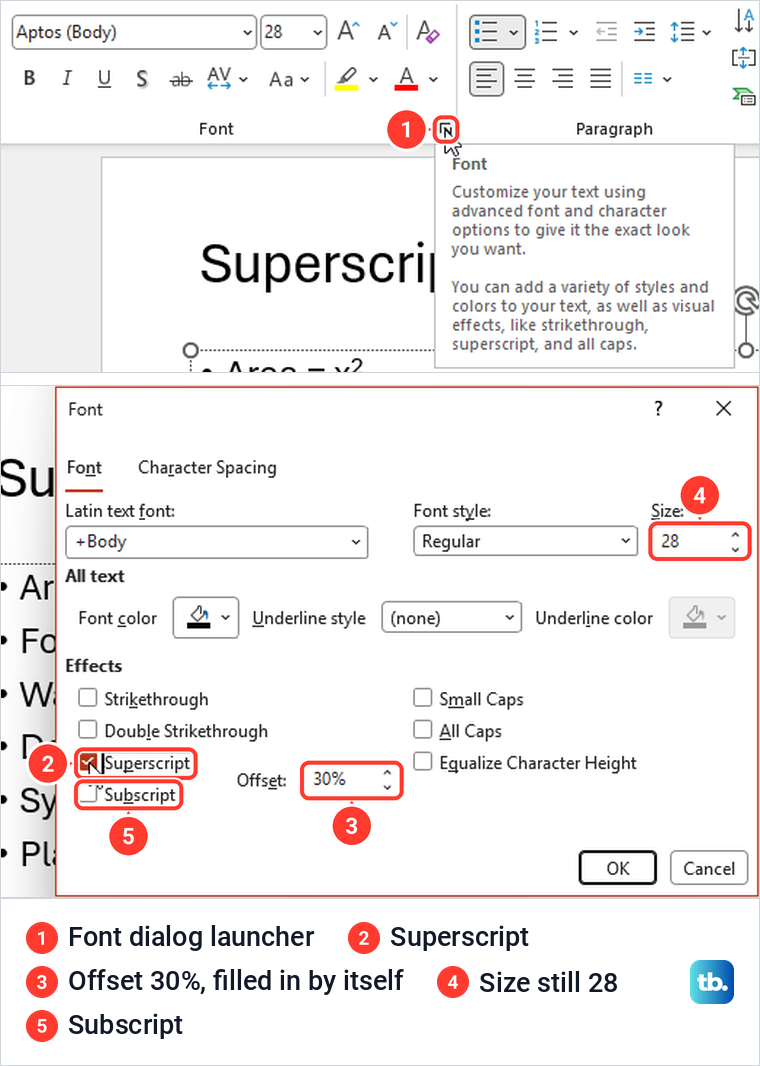
PowerPoint on Windows has no Superscript button in the Font group on the Home tab. On our PC the way in was the small launcher arrow in the group's bottom right corner. If text boxes and placeholders are new to you, our guide on how to use PowerPoint covers the basics first.
Superscript text with the keyboard shortcut
Click inside the text box and drag over only the characters to raise, such as the 2 in x2, because the shortcut changes exactly what is highlighted and nothing else. Then press Ctrl + Shift + =. On keyboards where = and + share one key, this is the same press Microsoft describes as Ctrl, Shift and the Plus sign. If the shortcut does nothing on your keyboard layout, use the Font dialog below.
On our slide, selecting just the 2 in Area = x2 and pressing the keys raised only that 2, and the x stayed on the line. The Font dialog for that 2 then showed Superscript ticked and an Offset of 30%, while the Size box still read 28.
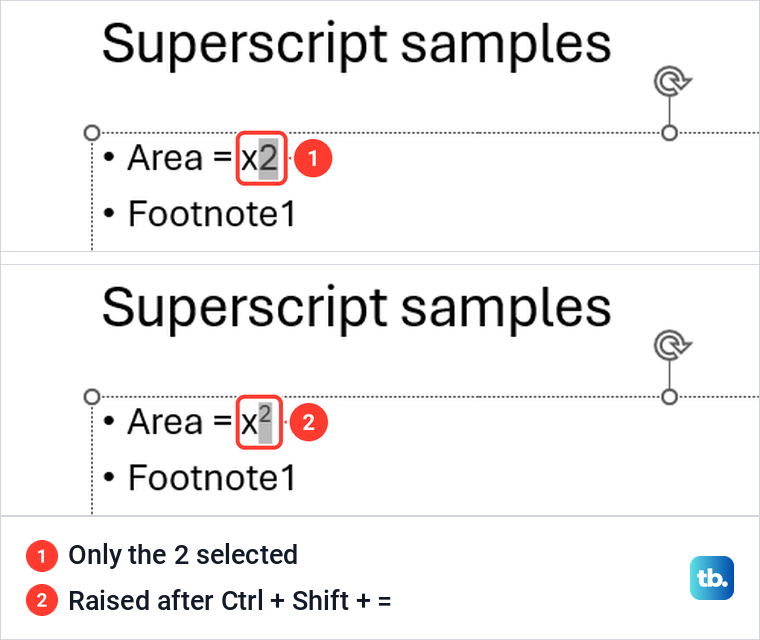
The shortcut works as a switch. Pressing it again on the same selection put our 2 back on the line, and a third press raised it again. That makes it the quickest way to fix a character you raised by mistake.
Use the Font dialog and set the Offset
Select the character, then click the small arrow in the bottom right corner of the Font group on the Home tab. Its tooltip reads Font and mentions visual effects like strikethrough, superscript, and all caps. In the dialog, tick Superscript under Effects and click OK.
When we ticked Superscript for the 1 in Footnote1, the Offset box changed from 0% to 30% by itself. Only the selected 1 rose after OK. The Subscript box sits right below Superscript in the same Effects group.
Offset sets how high the character sits. Microsoft's tip says you can superscript without changing the font size by entering a higher percentage in Offset. On our slide that was only half true: typing 50% ticked Superscript by itself and lifted the 1 higher than the 30% one, and the Size box read 28 both times, yet both markers were drawn at the same small size.
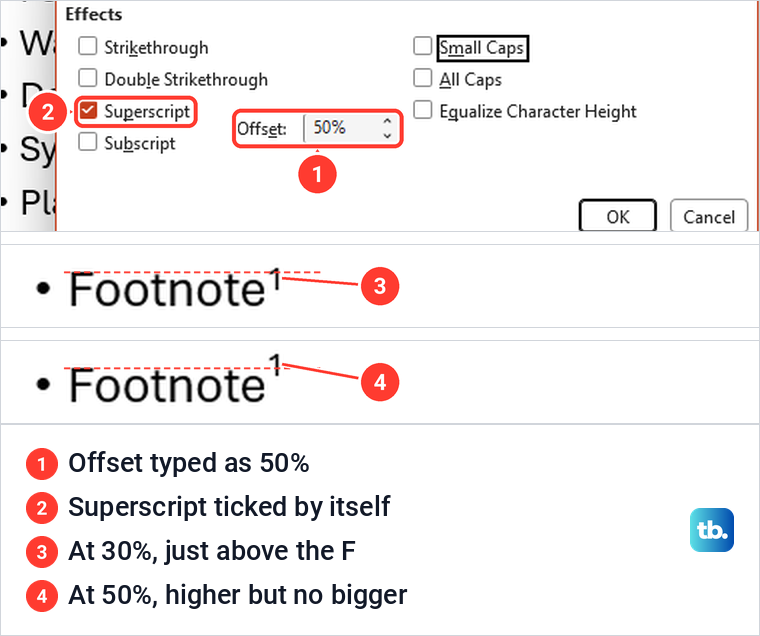
So use Offset to move a marker up or down, not to make it bigger. If a raised marker reads too small on a projector, select it and pick a larger size in the Font Size box, then compare it with the text around it.
Insert a superscript number from the Symbol dialog
Formatting changes how a normal character looks. A symbol such as ² is its own character, which the Symbol dialog names Superscript Two, rather than a 2 with formatting on it, though its look can vary with the font. Use one when a slide needs a common exponent or a raised digit as a single character.
Click where the symbol should go, open the Insert tab and choose Symbol. On our screen the Insert tab grouped Equation and Symbol under one Symbols button, so look there if Symbol seems to be missing. In the dialog, set Font to (normal text), then choose a Subset.
Microsoft's steps point to the Superscripts and Subscripts subset, but on our PC that subset held only a raised 0, 4 to 9 and n, followed by the lowered digits 0 to 9. The raised 1, 2 and 3 sat in Latin-1 Supplement instead, where ² is named Superscript Two and the dialog shows its character code, 00B2.
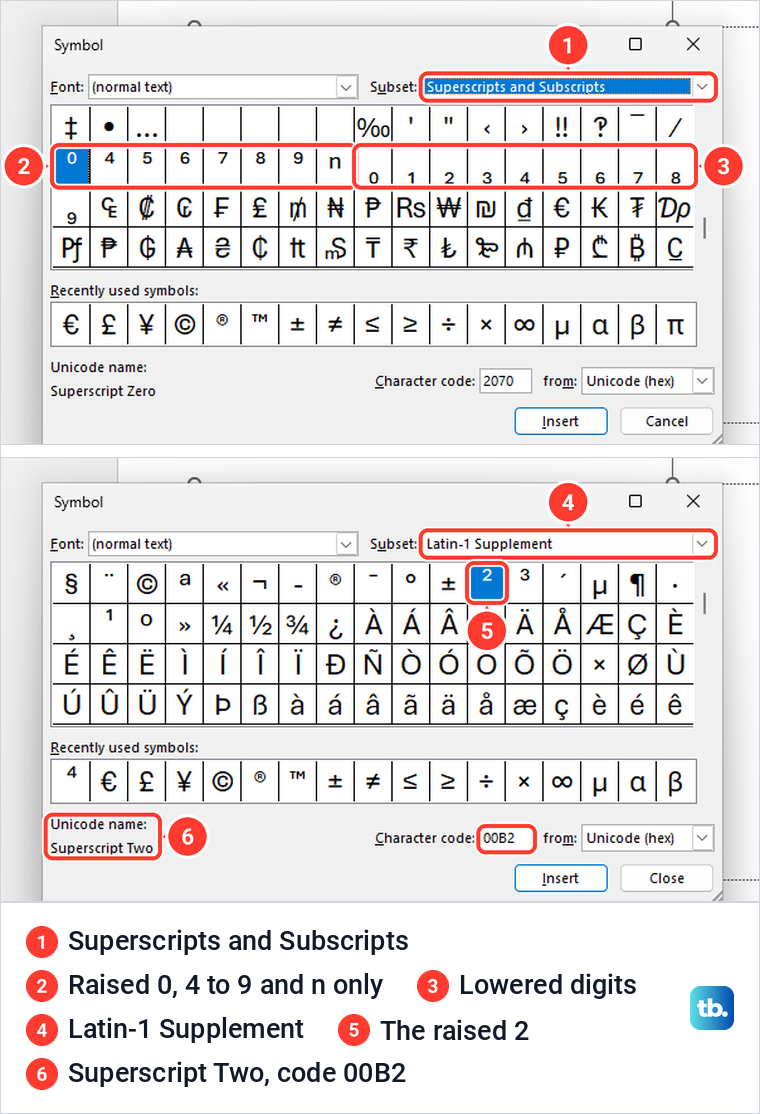
Pick the character, click Insert, then Close. We added Superscript Four after an x this way and got x⁴, and after the first Insert the Cancel button changed to Close. These symbols come in a fixed set, so for a raised letter or a longer exponent use formatting or an equation instead.
Build a superscript in an equation
For math you want to keep editing, such as x² inside a formula, use an equation. Press Alt + =, which opened a new box reading Type equation here at the cursor on our slide. The menu route is Insert > Symbols, then the arrow under Equation and Insert New Equation.
The Equation tab appears while the box is selected. Click Script and choose the first layout, labelled Superscript, which places a large box with a small raised box beside it. Click in the large box, type x, press the Right arrow key and type 2.
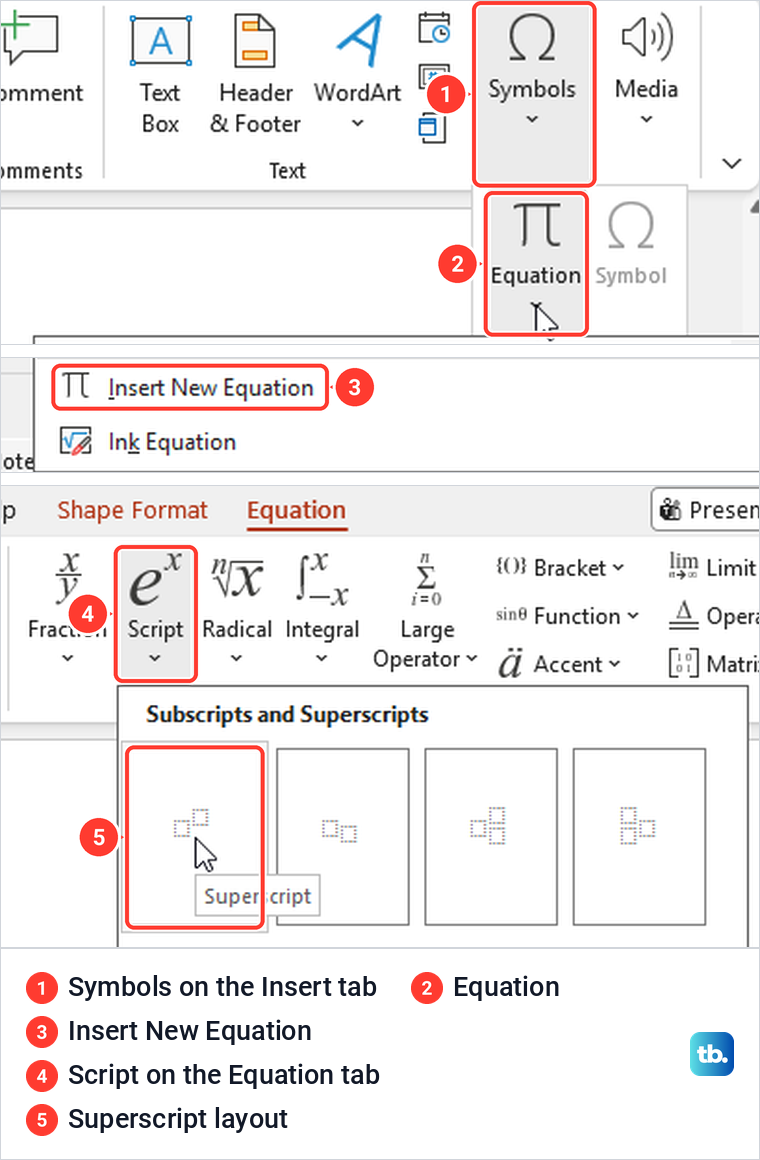
The result is an editable equation object rather than formatted text, and you change it inside its own box. The same Script menu also has a Common Subscripts and Superscripts row with a ready-made x² layout. Microsoft says PowerPoint for the web cannot insert equations, and in our web copy a desktop-made equation displayed but offered only shape tools when selected, so build equations in the desktop app.
How to subscript in PowerPoint
Subscript lowers a character below the line, as with the 2 in H₂O. Microsoft's shortcut for it on Windows is Ctrl + =, without Shift, and the Font dialog's Subscript box sits right under Superscript. In PowerPoint for the web, the More Font Options menu we opened listed Subscript with Ctrl+Shift+- beside it.
For a ready-made lowered digit, the Symbol dialog's Superscripts and Subscripts subset holds subscript 0 to 9. Microsoft lists subscript and superscript together as manual character formatting, so the removal steps further down clear subscript in the same way.
Add a superscript footnote marker to a slide
PowerPoint does not number slide footnotes for you. Microsoft's method is to type the number, such as 1, after the word in the slide text, then open Insert > Header & Footer, tick Footer on the Slide tab, type the same number and the note, and click Apply.
Then raise both numbers, the one in the text and the one at the start of the footer, with the shortcut or the Font dialog. We raised the 1 in Footnote1 on our slide and only that 1 moved. The footer lives in the same Header & Footer box you use to add slide numbers in PowerPoint.
Superscript in speaker notes
You can raise text in the Notes pane the same way, and on our PC a raised 1 in the notes showed straight away. Our guide to adding speaker notes in PowerPoint covers the rest of the pane.
Microsoft's help says to turn formatting on first through View > Outline View, then a right-click on the Outline pane and Show Text Formatting. In our copy the raised 1 showed in the Notes pane before we used that switch, and turning it on only changed the fonts in the Outline pane.
Superscript in PowerPoint for the web
PowerPoint for the web opens presentations stored in OneDrive, SharePoint or Dropbox. If your deck is only on your PC, Microsoft's first step is to upload it: sign in to OneDrive, open the folder you want and select Upload, then click the file's name once to open it in PowerPoint for the web.
If you would rather have decks sync from a folder on your PC, our guide to setting up OneDrive on Windows covers that, and if your team keeps them in SharePoint, our guide on how to use SharePoint covers the basics. Our presentation opened straight into Editing mode, which you need for any formatting.
Select the character, then click the three-dot button on the Home tab, whose tooltip reads More Font Options. The menu lists Superscript with Ctrl+Shift++ beside it and Subscript with Ctrl+Shift+-. Choosing Superscript raised only our selected 2, and the file saved by itself.
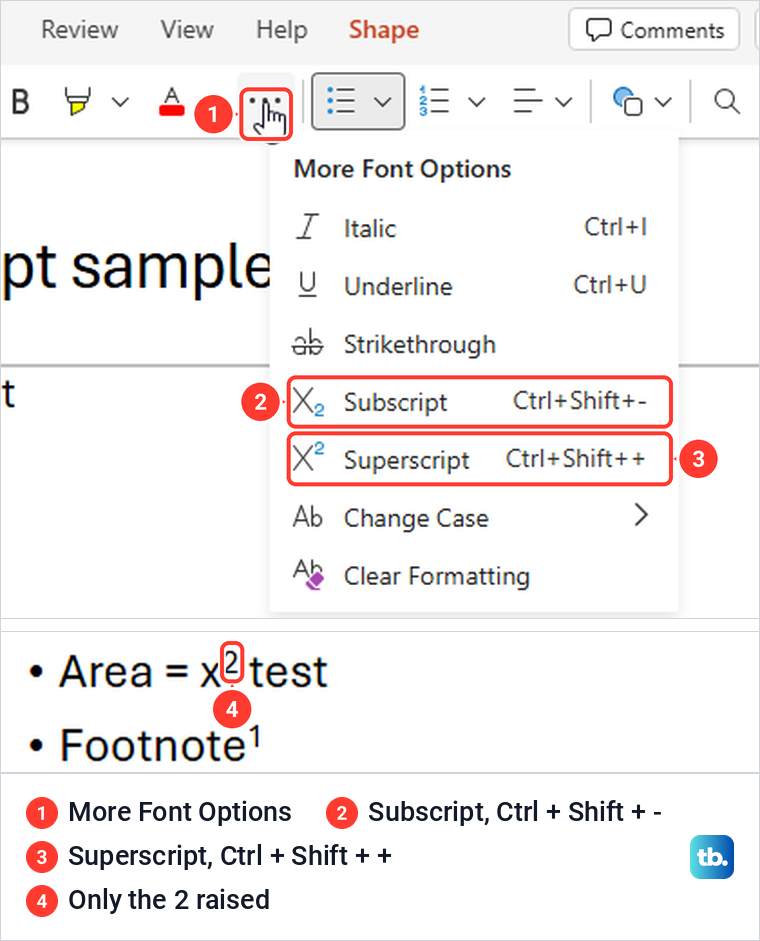
The keyboard shortcut worked in Edge as well, and Ctrl + Shift + = raised the st of 21st on our slide. The web Home tab has no Superscript button of its own, so the shortcut and the three-dot menu are the two routes.
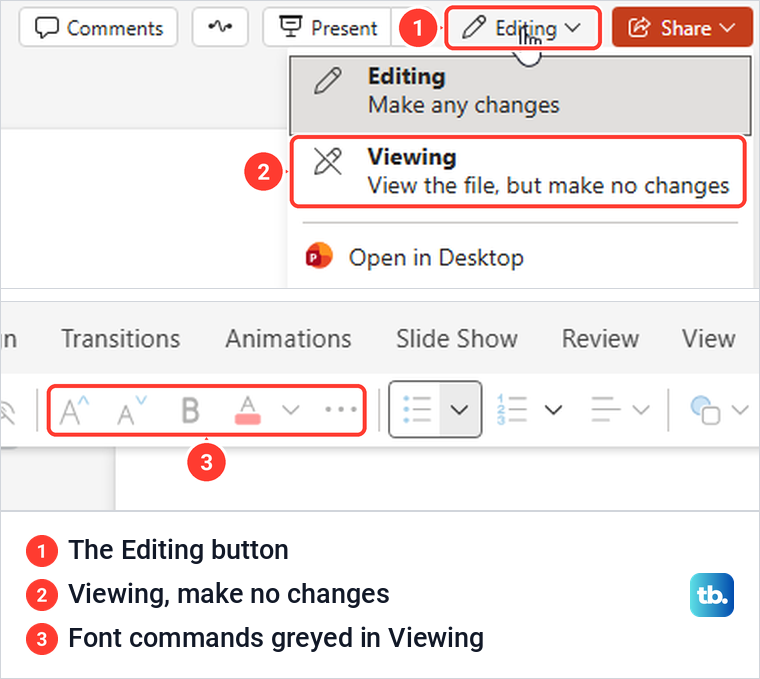
If the buttons are grey, check whether the file is in Viewing mode. Click the Editing or Viewing button near the top right and choose Editing (its line reads Make any changes), if it is offered. In Viewing, our Home commands were greyed and the shortcut did nothing, and switching back to Editing brought them back.
If Editing is not offered, check the file type. Microsoft says PowerPoint for the web can show templates (.pot, .potx) and macro-enabled files such as .pptm but cannot edit them, and converts .ppt files to .pptx before you edit them. Microsoft's help page also uses older wording for the mode switch, Edit Presentation and then Edit in PowerPoint for the web.
Superscript in PowerPoint on a Mac
Microsoft gives a different shortcut for PowerPoint for Mac. Select the character and press Control + Shift + + for superscript, or Control + = without Shift for subscript. If that does nothing on your Mac, use the Superscript button in the Home tab's Font group.
In Microsoft's Mac instructions the Home tab's Font group has its own Superscript and Subscript buttons, which PowerPoint on Windows does not. Microsoft adds that symbols almost always written raised, such as ® and ™, come in already formatted as superscript when you insert them from Insert > Symbol under Letterlike Symbols on a Mac.
Fix text that stays in superscript
Text typed straight after a raised character comes out raised too. On our slide, typing a word after the raised 2 put the whole word up in small type. The easy habit is to type the full line first, then go back and raise the one character.
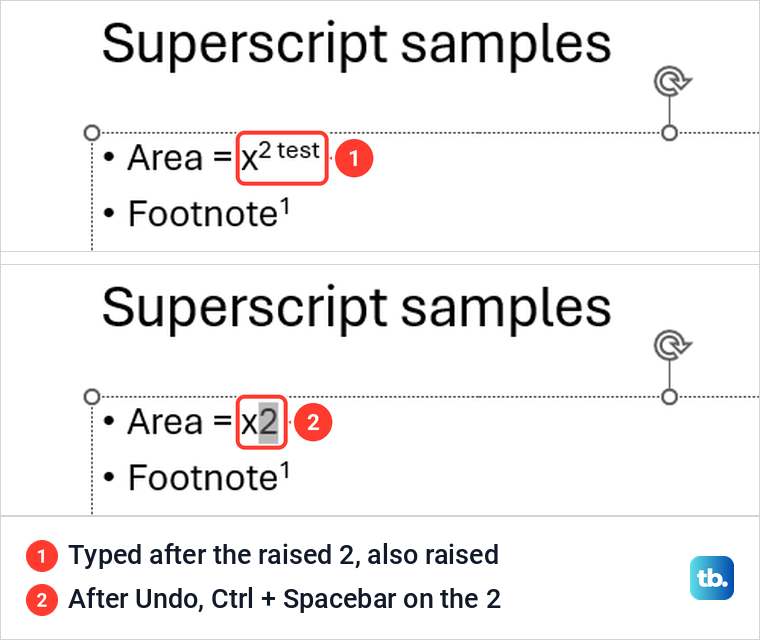
To fix text that is already raised, select it and press Ctrl + Shift + = again. After an Undo removed the raised word, Ctrl + Spacebar put our selected 2 back on the line, and the word typed again after it stayed normal. Microsoft notes that Ctrl + Spacebar removes manual character formatting such as subscript and superscript, so bold or a colour you set on those characters goes with it.
Turn off automatic superscript on ordinals
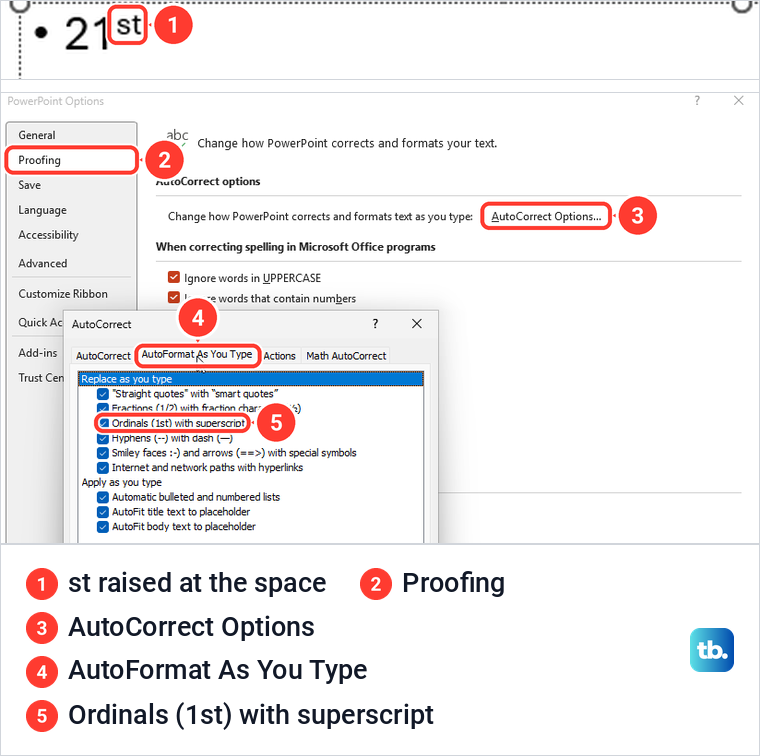
When the Ordinals (1st) with superscript option in AutoCorrect is on, PowerPoint raises the letters in ordinals such as 1st and 21st by itself. On our slide, 21st stayed flat while we typed it, and the st rose the moment we pressed the spacebar.
To stop it, open File > Options > Proofing and click AutoCorrect Options. On the AutoFormat As You Type tab, clear Ordinals (1st) with superscript and click OK. The box was ticked when we opened it, and with it cleared 22nd stayed plain, while ticking it again made 23rd rise again.
When the superscript controls do not work
The most common surprise is selecting the box instead of the text. A solid border around the placeholder means the whole box is selected, and on our slide the shortcut then raised and shrank every line in it. Click inside the text so the border turns dotted, and drag over only the characters you need.
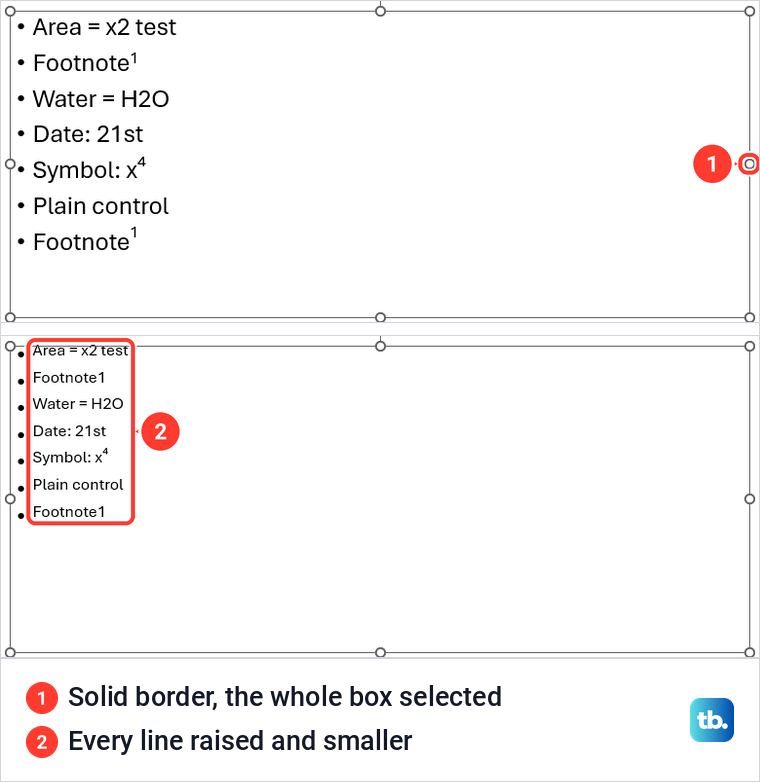
The right-click menu depends on what is selected too. Right-click the selected text and choose Font to open the same Font dialog with its Superscript box. With the box selected by its border, our right-click menu had no Font or Superscript command at all.
If typing does nothing and the ribbon is greyed, the file may be marked as final. Ours showed a yellow MARKED AS FINAL bar saying an author has marked this presentation as final to discourage editing. We turned it off the way Microsoft describes, choosing File > Info > Protect Presentation > Mark as Final again, which took effect at once with no prompt.
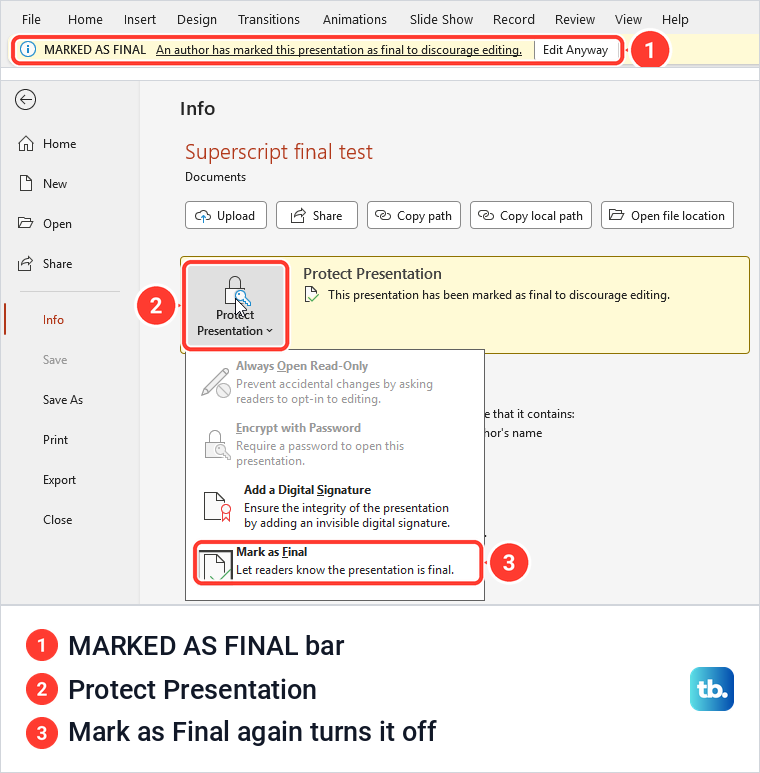
After that, the 1 on our slide could be raised as normal. Microsoft says Mark as Final is not a security feature, because anyone with a copy can remove it. A file from email or the internet can also open in Protected View, which Microsoft calls a read-only mode, and for a file you trust it says to select Enable Editing on the yellow bar.
If Ctrl + Shift + = does nothing even with text selected, use the Font dialog to rule out the keyboard. When other key combinations fail as well, work through fixing keyboard shortcuts in Windows. If your menus look different from the ones shown here, start by updating Microsoft Office.
How we tested this guide
We tested this in PowerPoint for Microsoft 365 on Windows 11, version 25H2, and PowerPoint for the web in Microsoft Edge, raising characters on a sample slide.
Frequently Asked Questions
What is the superscript shortcut in PowerPoint?
On Windows, select the character and press Ctrl + Shift + =, which Microsoft writes as Ctrl, Shift and Plus. Press it again to lower the character, and on a Mac use Control + Shift + + as Microsoft gives it.
Why did every line in my text box turn superscript?
The whole box was selected, shown by a solid border, so the shortcut changed all of its text. Undo, click inside the text and select only the character you want raised.
How do I fix text that came out in superscript?
Select the raised text and press the shortcut again, or press Ctrl + Spacebar, which also clears other manual character formatting. Typing the line first and raising the character last avoids the problem.
Why can I not find the superscript 2 in the Symbol dialog?
On our PC it was in the Latin-1 Supplement subset as Superscript Two, code 00B2. The Superscripts and Subscripts subset showed a raised 0 and 4 to 9, but no 1, 2 or 3.
How do I subscript in PowerPoint?
Select the character and press Ctrl + =, the Windows shortcut Microsoft gives, or tick Subscript in the Font dialog. In PowerPoint for the web it is under Home > More Font Options.
Can PowerPoint for the web do superscript?
Yes. In Editing mode, select the character and choose Home > More Font Options > Superscript, or press the same shortcut, though Microsoft says the web app cannot insert equations.
Why does PowerPoint raise the st in 21st?
The Ordinals (1st) with superscript option in AutoCorrect does it when you type a space. Clear it under File > Options > Proofing > AutoCorrect Options > AutoFormat As You Type.