
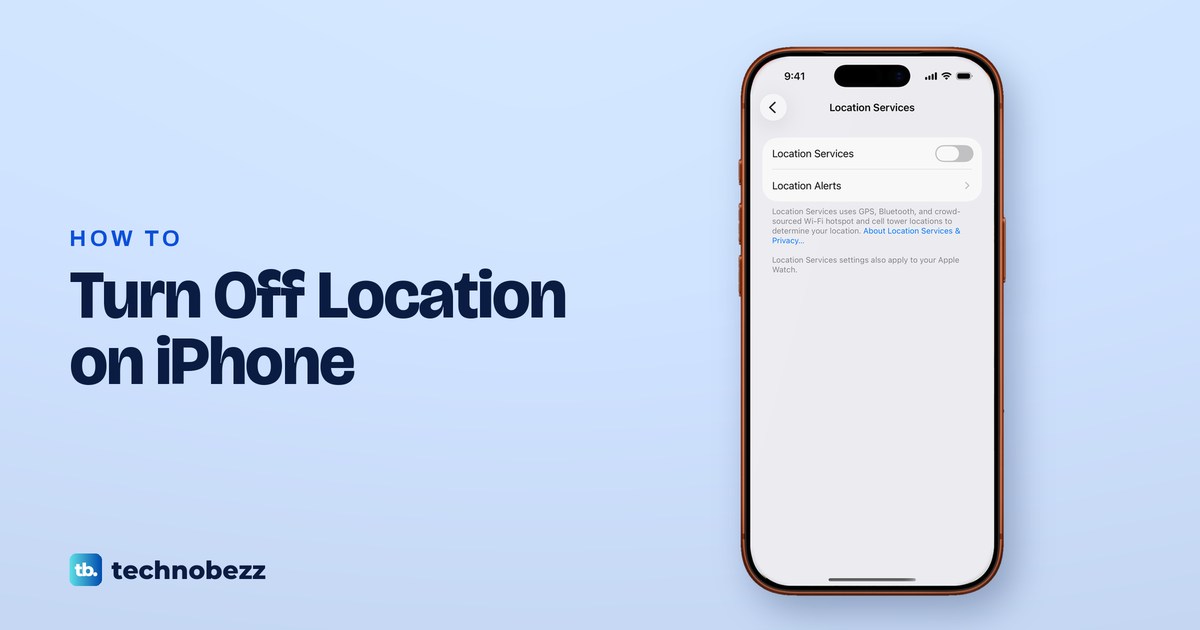
To turn off location on iPhone, open Settings, tap Privacy & Security, tap Location Services, switch Location Services off and tap Turn Off. That stops every app from using your location. To block one app only, tap it in the same list and choose Never, and to stop people seeing where you are, turn off Share My Location in Find My.
The Turn Off prompt says your app settings are temporarily restored if you use Find My iPhone to enable Lost Mode, and when we switched location back on, Maps still had the setting we gave it. Location is also never fully hidden, because Apple says emergency calls can still use it and websites can still estimate your area.
The short version
- Everything off: Settings > Privacy & Security > Location Services, switch it off, tap Turn Off.
- One app: tap the app in that list and choose Never, or turn off Precise Location to give it only a rough area.
- People: in Find My, tap Me and turn off Share My Location.
- Not invisible: emergency calls can still send your location, and your carrier and websites can estimate where you are.
- Coming back: switch it on again, and your app settings are still there, as Maps' was when we tried it.
Which location setting to change
Location on an iPhone is not one setting but a stack of them, and the right one depends on who you want to stop. The table lists each goal, where the switch is and what changes when you use it.
| What you want | Where to go | What happens |
|---|---|---|
| Stop every app using your location | Settings > Privacy & Security > Location Services, switch off, then Turn Off | No app gets your location, and app settings were kept when we switched back on |
| Block one app | Location Services > the app > Never | Only that app loses your location |
| Give an app a rough area only | Location Services > the app > Precise Location off | The app sees an approximate location |
| Stop all websites | Location Services > Safari Websites (if listed) > Never | Sites in Safari cannot use Location Services |
| Stop photos recording places | Location Services > Camera > Never | New photos and videos carry no location |
| Stop the iPhone remembering places you go | Location Services > System Services > Significant Locations & Routes | Visited places stop being kept, but Stolen Device Protection needs it |
| Hide from everyone you share with | Find My > Me > Share My Location off | Nobody you share with sees your location |
| Hide from one person | Find My > People > the person > Stop Sharing My Location | Only that person stops seeing you |
| Undo every location choice | General > Transfer or Reset iPhone > Reset > Reset Location & Privacy | Apps must ask for permission again |
The first row is the one most people want, so it comes first below. Every other row has its own section further down, and none of them needs the main switch to be off.
Turn off Location Services for every app
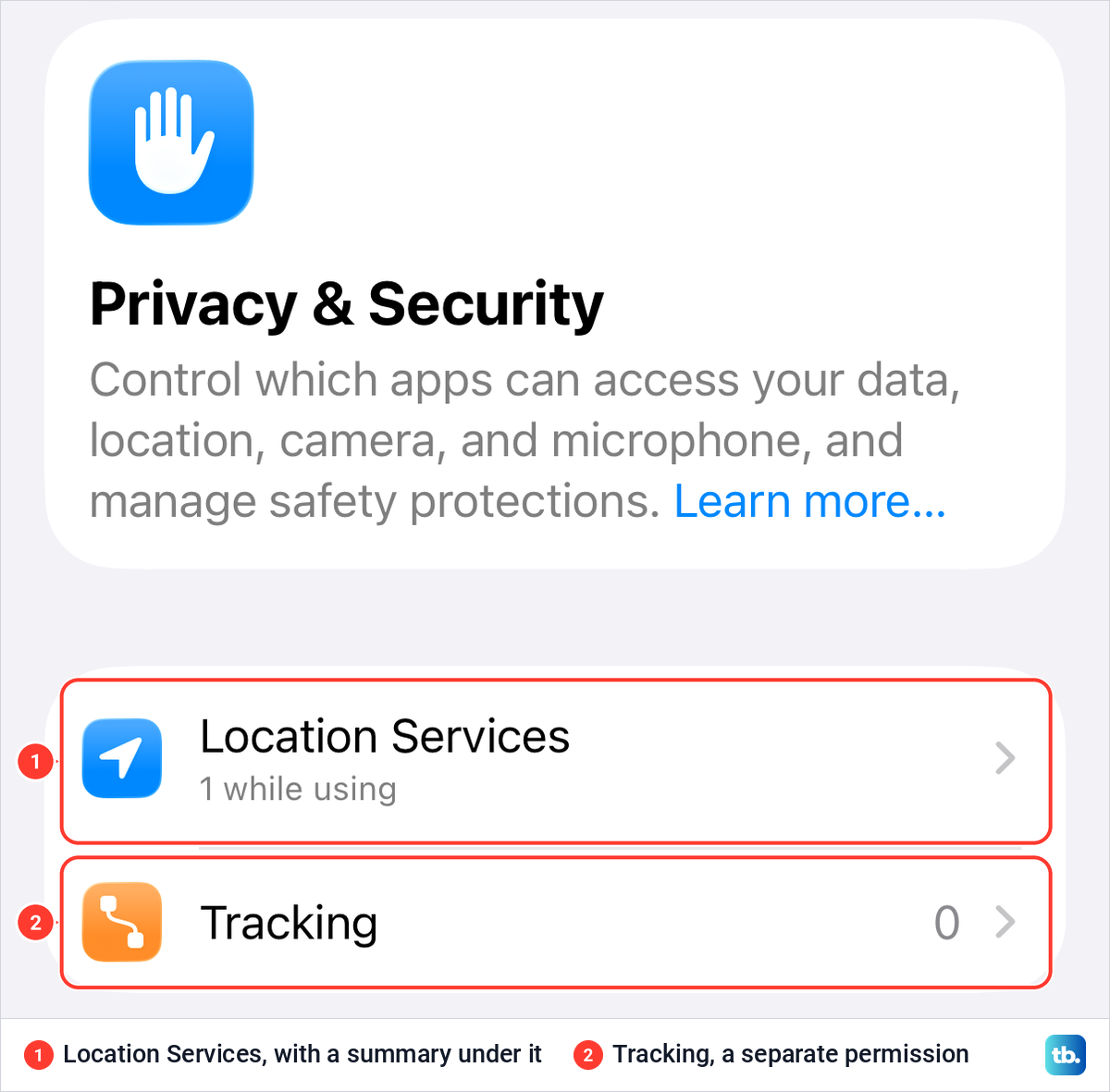
Open Settings, scroll down and tap Privacy & Security. On iOS 26.5, Location Services is the first row on that page, with a short summary under it of how many apps use it. Tracking sits just below it and is a separate permission.
Tap Location Services. The main switch is at the top, with Location Alerts under it. Below that come App Clips and every app that has asked for your location, then Share My Location, Siri and System Services. The app, Share My Location and Siri rows show their current setting beside them.
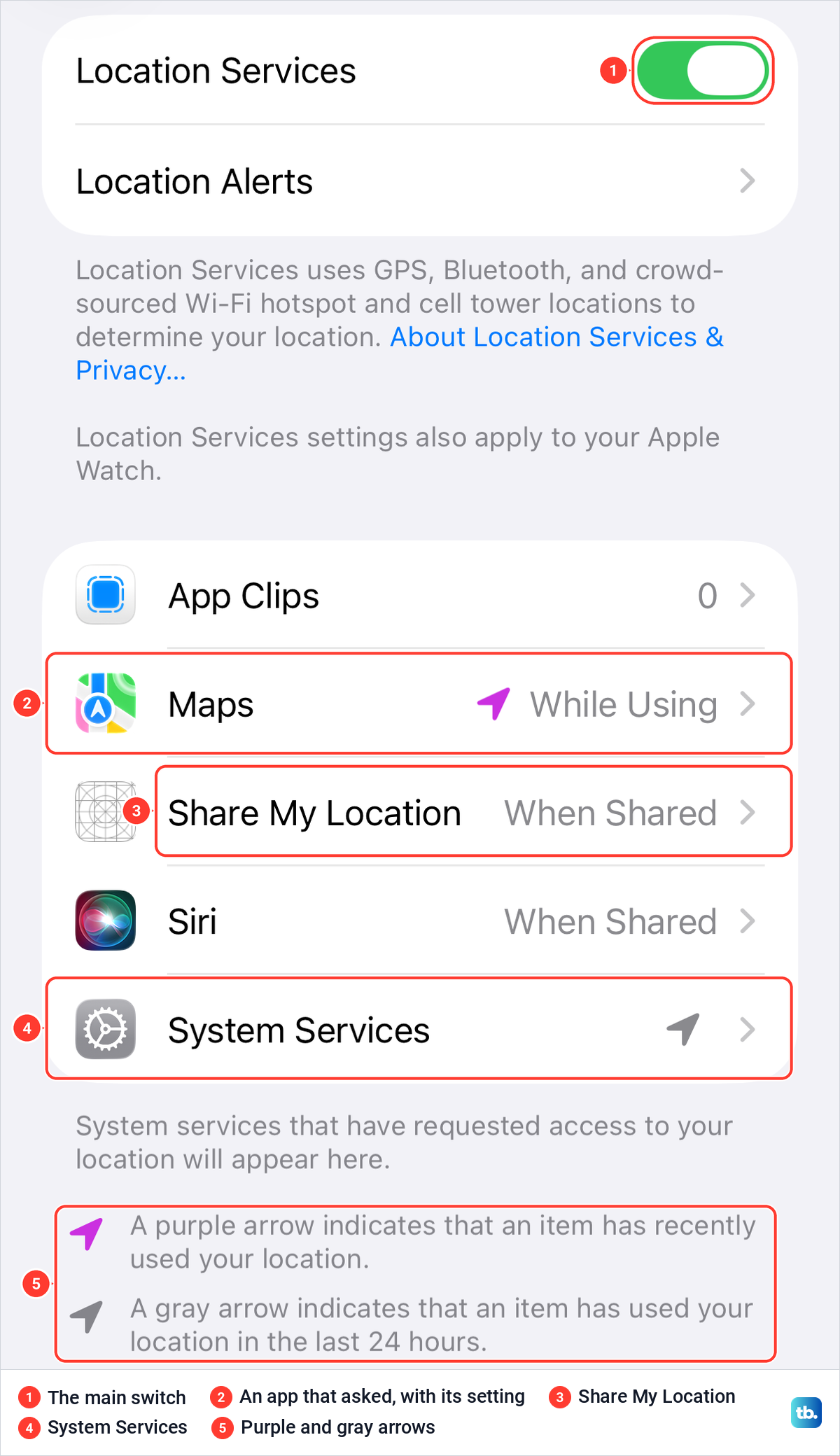
One note on that screen says Location Services uses GPS, Bluetooth, and crowd-sourced Wi-Fi hotspot and cell tower locations to determine your location. The other says Location Services settings also apply to your Apple Watch, and Apple adds that the watch may use your iPhone's location when it is nearby.
The arrows show who has been using it. A purple arrow indicates that an item has recently used your location, and a gray arrow means it has used it in the last 24 hours. On our screen Maps had a purple arrow and System Services a gray one, which is a quick way to see what is active before you switch anything off.
Now tap the Location Services switch. A prompt appears, and it carries the one warning that matters here.
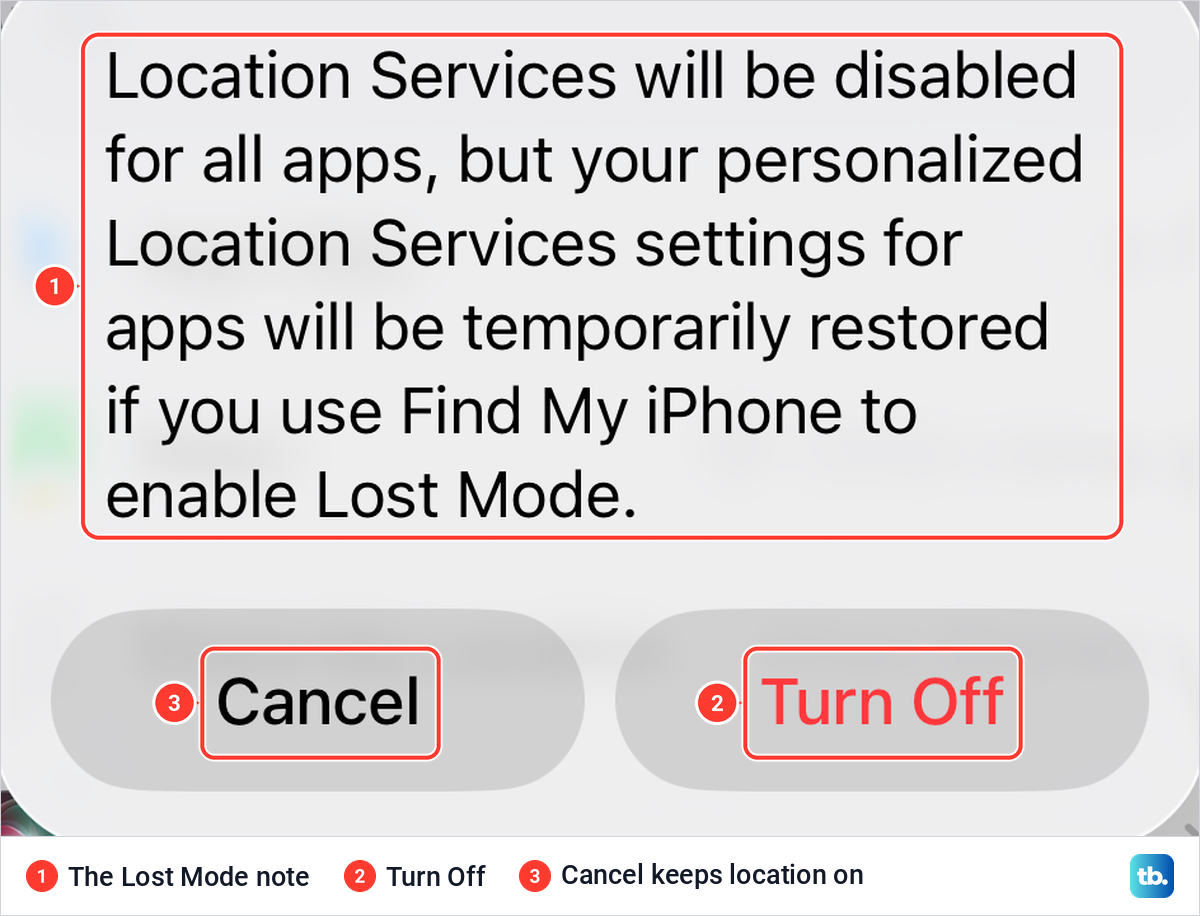
When we tapped the switch on iOS 26.5, the prompt read: "Location Services will be disabled for all apps, but your personalized Location Services settings for apps will be temporarily restored if you use Find My iPhone to enable Lost Mode". Behind the prompt the switch already looked off. Tap Turn Off to go ahead, or Cancel to leave everything as it was.
After Turn Off, the screen shrank to the switch, Location Alerts and the two notes. The app list, Share My Location, Siri and System Services all disappeared. When we switched it back on a moment later, the list returned exactly as before, and Maps still read While Using.
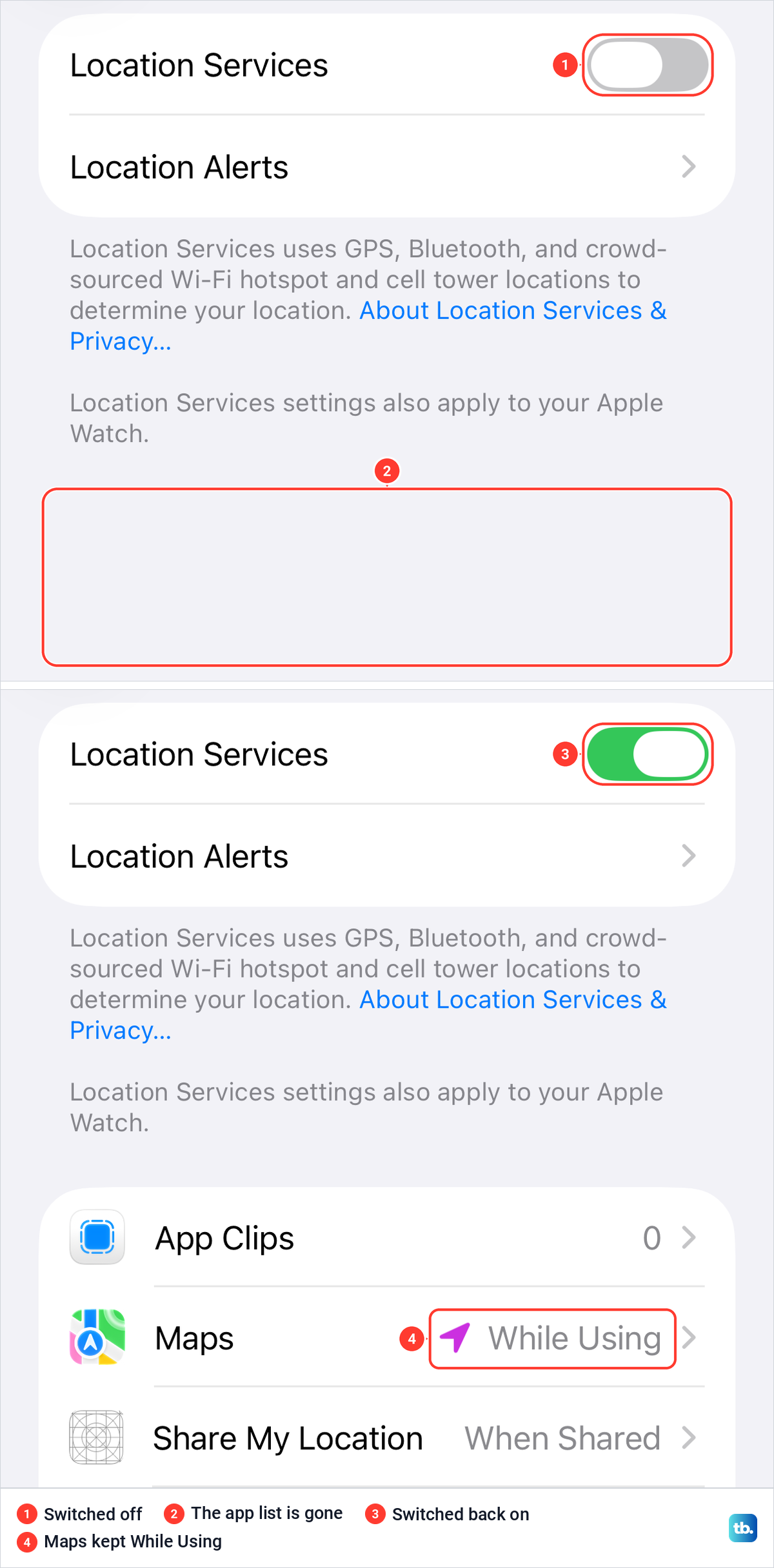
Turning location off did not erase the setting we had given Maps, and the Share My Location and Siri rows came back unchanged too. The prompt itself speaks of your personalized settings for apps being temporarily restored for Lost Mode, so they are stored rather than wiped. Apple's own warning still applies, though: if you turn off Location Services, many important iPhone features stop working.
What stops working when location is off
Apple says that when Location Services is off, apps cannot use your location in the foreground or in the background, which will limit the performance of various Apple and third-party apps. Maps' own explanation on its location page says it uses your location to show your position on the map and get directions, so expect it to lose those.
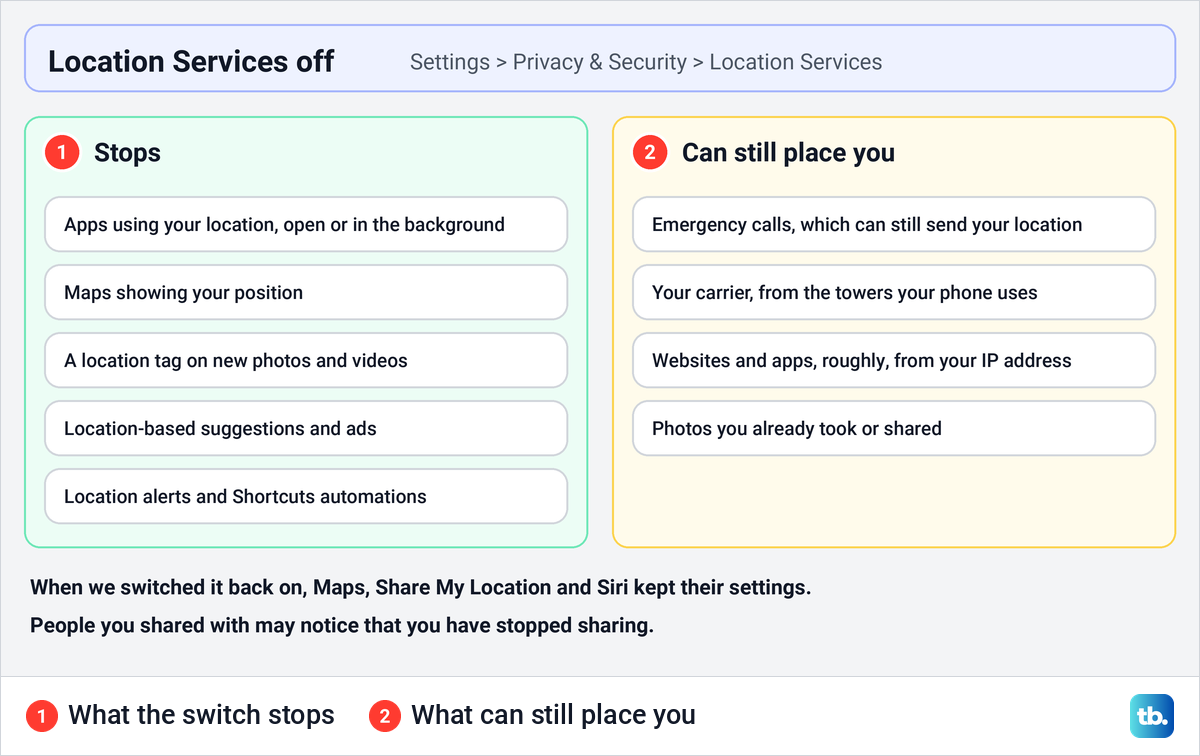
Some system features go with it. Apple lists location-based suggestions and location-based ads among the services that use your location, along with alerts and Shortcuts automations tied to places. New photos and videos stop recording where they were taken, because Apple says that information is collected only when the Camera has location access.
If battery is your reason for switching location off, Apple's suggestion is narrower. It says that when the battery list shows an app with Location and Background Location, you can turn off Location Services for that app. Location is only one drain, and our tips to improve battery life on your phone cover the rest.
Turn off location for one app
You do not have to switch everything off to keep one app out. In Settings > Privacy & Security > Location Services, tap the app and choose Never. The rest of your apps keep working as before.
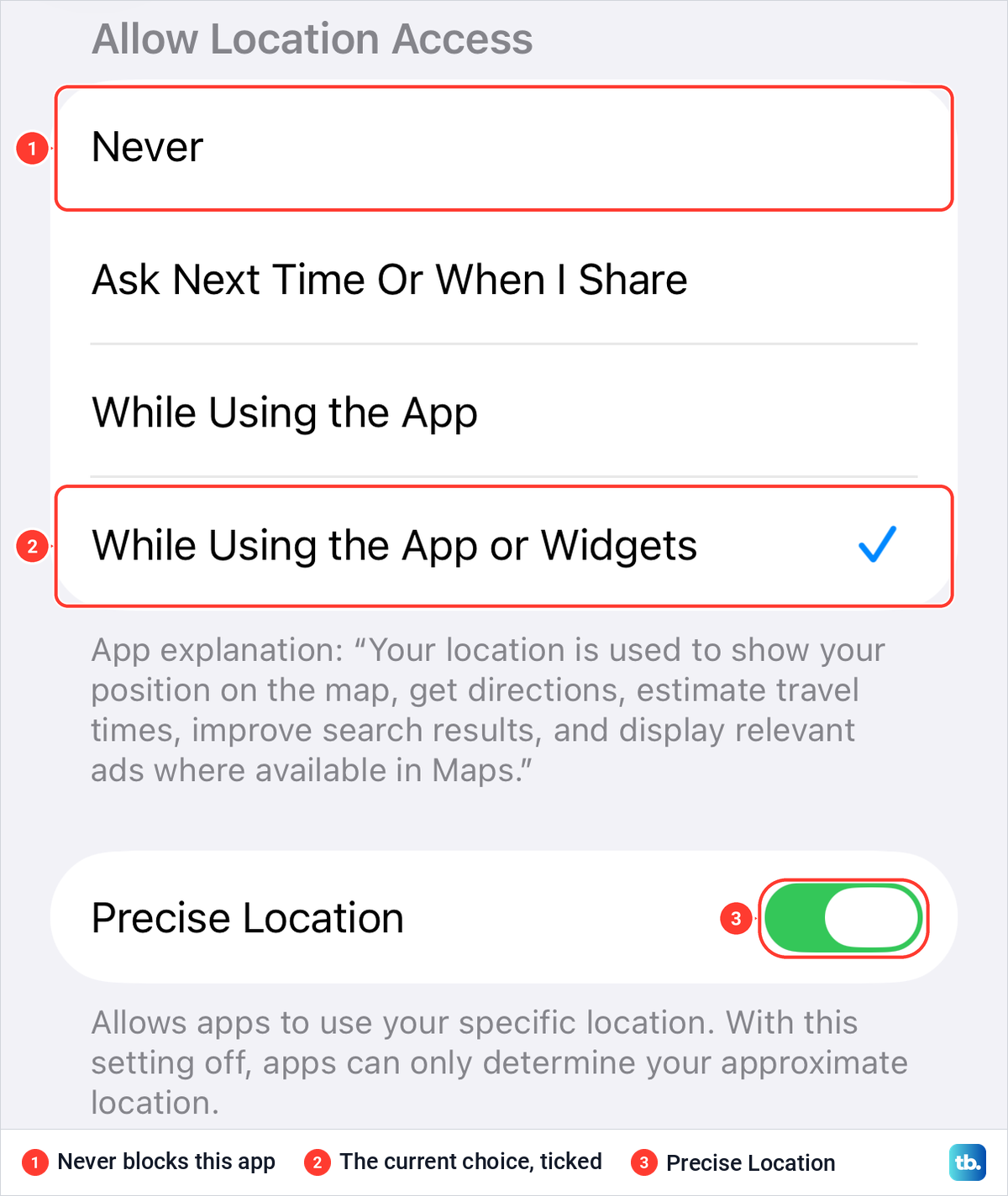
When we opened Maps there, the page was headed Allow Location Access and offered four choices. They were Never, the Ask Next Time option, While Using the App, and While Using the App or Widgets, which was ticked. The app's own explanation sits under the list, so you can read why it wants your location before you decide.
Apple defines the main choices this way. Never prevents access to Location Services information. While Using the App allows access only when the app or one of its features is visible on screen, and Always allows it even when the app is in the background. Ask Next Time makes the app ask again the next time it wants your location.
Not every app offers all of them. Apple says some apps might offer only two options. Maps offered While Using the App or Widgets instead of Always. Pick the most limited choice the app still works with.
An app appears in this list only after it asks. Maps was missing from our list on iOS 26.5 until it showed its prompt, and after we tapped Allow While Using App it appeared with While Using beside it. If an app you want to block is not listed, it has not asked for your location yet.
The Siri row has its own setting, which read When Shared on our screen. It only controls Siri's use of your location. You can also turn Siri off completely, which is a separate setting.
Share only your approximate location
For an app that needs your town but not your street, there is a middle ground. On the same app page, turn off Precise Location, the switch under the list of choices. On our screen it was on for Maps, with the note "Allows apps to use your specific location. With this setting off, apps can only determine your approximate location."
Apple says an approximate location may be enough for an app that does not need your exact location. In Maps, Apple says a location it cannot pin down shows as a blue circle around the marker, and the bigger the circle, the less precise the position. Apple gives no fixed size for that approximate area.
Stop websites and photos from sharing your location
Websites ask through Safari, and Apple's privacy page gives one switch for all of them. If Safari Websites appears in the Location Services list, tap it and choose Never. Apple says that disables Location Services for all websites.
Photos are a separate leak, because a picture can carry the place it was taken. To stop new ones recording it, Apple's step is Location Services > Camera > Never. Apple also warns that people you share a photo with may be able to see where it was taken, if the photo includes that location.
Pictures you already took keep their location until you remove it. Apple's steps are to open the photo in Photos, tap the More button, tap Adjust Info, tap Adjust Location, then tap No Location. To share one photo without it, tap the Share button, tap Options and turn off Location, and Apple says Location Not Included then shows above the Options button.
Turn off System Services you do not need
At the bottom of the Location Services list, System Services holds the iPhone's own uses of your location. Apple says you can turn each one on or off there, and the same page has a switch that shows the location icon in the status bar whenever a system service uses your location.
Apple's privacy page lists services such as Routing and Traffic, Significant Locations & Routes, Improve Location Accuracy, Suggestions & Search, Alerts & Shortcuts Automations, Home Accessories, System Customization and Apple Pay Merchant Identification. The names on your phone may differ slightly. Location-based ads are one of these, and to limit tracking by apps too, turn off ad tracking on your iPhone.
Significant Locations & Routes is the setting that keeps a history of where you go. Apple says it keeps track of places you have recently been, how often and when you visited them, and the routes you take, synced between your devices with end-to-end encryption. To stop it, Apple's path is Location Services > System Services > Significant Locations & Routes, then turn it off.
Apple requires Significant Locations, along with a passcode, Face ID or Touch ID and Find My, to turn on Stolen Device Protection. If you are deciding whether to keep that feature, here is how to turn off Stolen Device Protection. To send your location to your emergency contacts, Apple says to keep Emergency Calls & SOS on in System Services.
The clock can follow you too. Apple says your iPhone may set its time zone automatically from your location, so with location off, check the clock when you travel and set the time zone yourself if it is wrong.
Stop sharing your location with people
The main switch is a blunt tool when the worry is a person, not an app. Find My, Messages and Maps share your location with people, and Apple says that when you stop sharing with someone in one app, you stop sharing across apps. Everything in this section follows Apple's instructions.
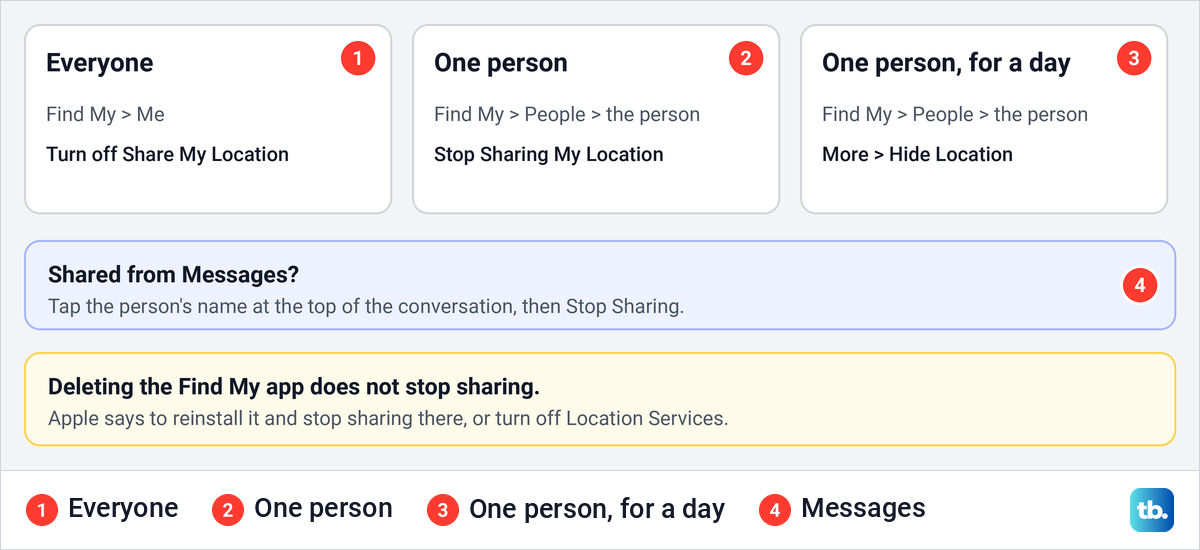
To stop sharing with everyone at once, open Find My, tap Me and turn off Share My Location. Apple says the people you shared with see your location again when you turn it back on. To stop one person, tap People, tap their name, tap Stop Sharing My Location and confirm.
For a pause instead of a goodbye, Apple's safety guide describes Hide Location. Tap People, tap the person, tap the More button and tap Hide Location, and Apple says sharing automatically resumes the next day. In Messages, tap the person's name at the top of the conversation and tap Stop Sharing.
Will they know? Apple's support article says the person you stop sharing with won't be notified. Its personal safety guide adds that people may notice you have stopped, and that on earlier operating systems they may get a notification in Messages. Apple's older safety checklist also says that if you start sharing again, they get a notification.
Deleting the Find My app does not stop anything. Apple says people can still see your location, and to reinstall Find My and stop sharing there, or turn off Location Services. If your safety is at risk, Apple points to Safety Check, which stops sharing your information quickly. To start sharing again later, see how to share your location on iPhone.
What can still find you with location off
The switch controls what your iPhone hands to apps and websites, not every way a phone can be placed. Apple is clear on emergencies. It says your iPhone's location may be used when you place an emergency call, regardless of whether Location Services is on, and that after an emergency SOS call your iPhone can text your emergency contacts with your location.
Your carrier is another. Apple says cellular networks can determine your location based on which cell towers your device connects to, and the Location Services switch does not change that. Apple's Limit Precise Location setting reduces it, but only on iPhone Air, iPhone 16e and iPhone 17e with supported carriers, under Settings > Cellular > Cellular Data Options.
Websites and apps can still guess. Apple says they may use other information, such as the IP address of your internet connection, to approximate your location, regardless of the state of the Location Services switch. If that matters to you, you can set up a VPN on your iPhone.
Apple describes Airplane Mode as a way to turn off cellular and Wi-Fi. Its Airplane Mode page says nothing about Location Services, so use the Location Services switch when location is what you want to stop.
Find My and Lost Mode with location off
The Turn Off prompt says your personalized settings for apps will be temporarily restored if you use Find My iPhone to enable Lost Mode. Find My iPhone itself is a separate setting with its own page, under Settings, your name, Find My and Find My iPhone.
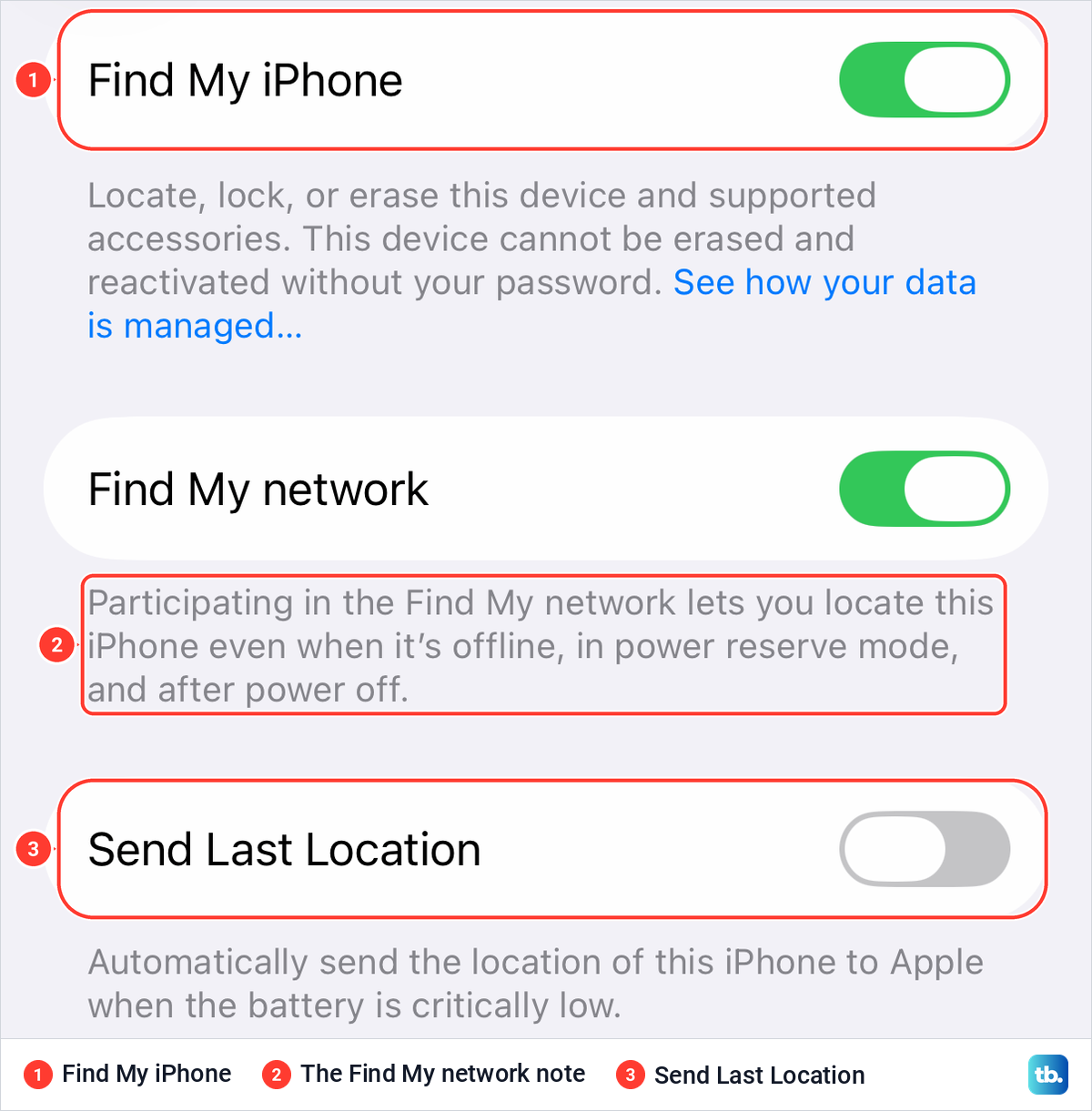
On our iPhone 17 Pro with iOS 26.6 that page held Find My iPhone, Find My network and Send Last Location. The Find My network note reads "Participating in the Find My network lets you locate this iPhone even when it's offline, in power reserve mode, and after power off." If the phone ever goes missing, our guide shows how to use Find My iPhone on a computer.
When the Location Services switch is grayed out
Screen Time can hold a privacy setting in place. Apple's Screen Time settings can lock privacy settings: in Content & Privacy Restrictions, each option below Privacy can be set to Allow Changes or Don't Allow Changes. On iOS 26.5 the Screen Time page lists Content & Privacy Restrictions under Restrictions, with Lock Screen Time Settings at the bottom.
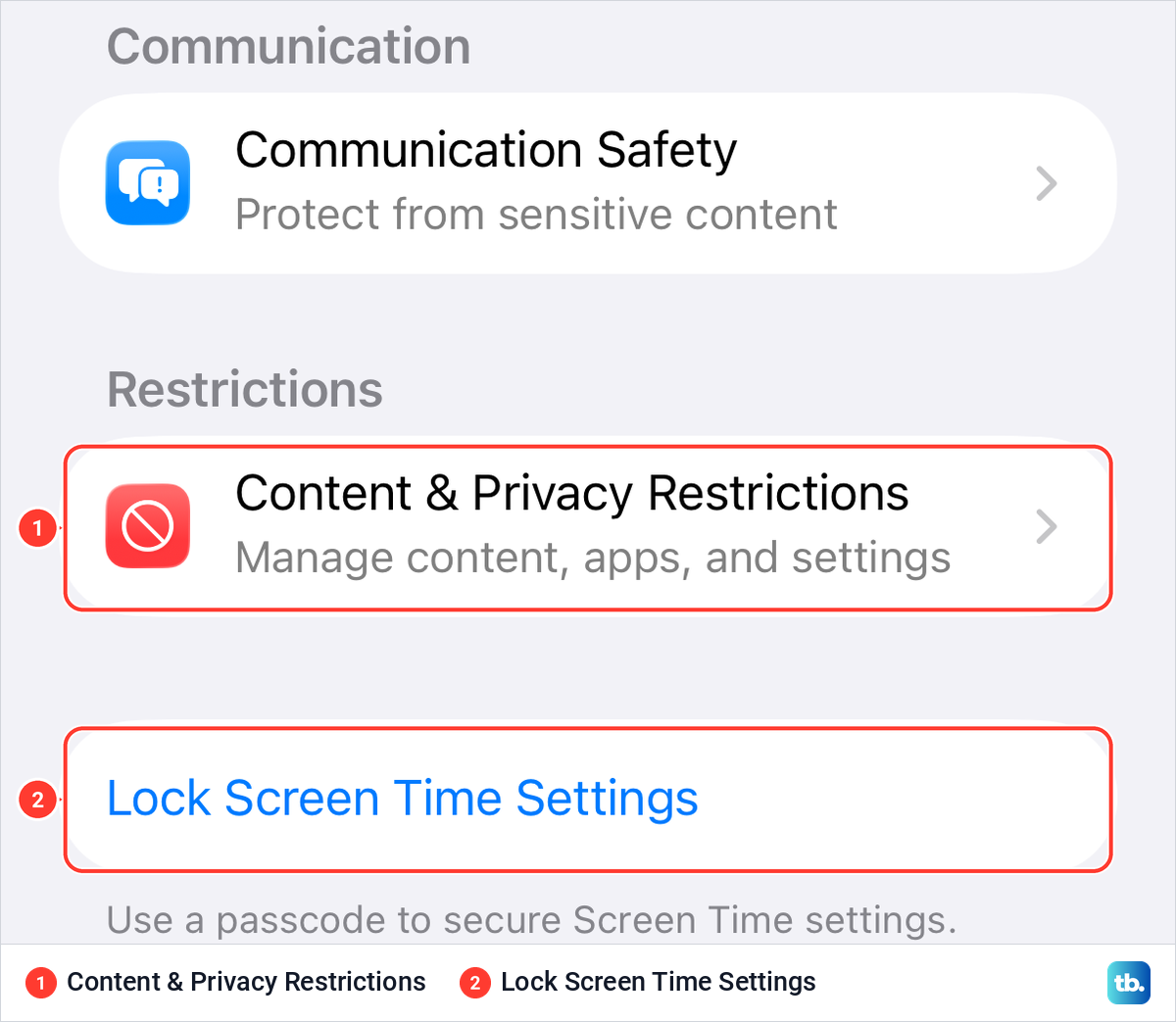
On your own iPhone, open Settings > Screen Time > Content & Privacy Restrictions, check the options below Privacy for one set to Don't Allow Changes and switch it to Allow Changes. If a Screen Time passcode protects those settings, you need it to make the change.
On a child's iPhone the parent controls it, and the path depends on the parent's iOS version. Apple's iOS 26 guide has the parent open Settings, tap Screen Time and tap the child's name, then Content & Privacy Restrictions. Apple's parental controls article for iOS 27 instead says to open Settings, tap Family, tap the child's name, tap Content & Privacy Restrictions and select Privacy Restrictions.
Both routes need the child in the parent's family group, so set up Family Sharing on iPhone first if that has not been done. Apple says you can set parental controls from your own device as long as you are the organizer or a parent or guardian in that group.
Turn location back on or reset every location setting
To undo the switch, go back to Settings > Privacy & Security > Location Services and turn it on. When we did, Maps, Share My Location and Siri kept the settings they had before. There is more in our guide to turn Location Services back on, including apps that still ask for permission.
To wipe every location choice instead, open Settings > General > Transfer or Reset iPhone, tap Reset and choose Reset Location & Privacy. Apple says this resets the location services and privacy settings to their defaults, and apps stop using your location until you grant them permission again.
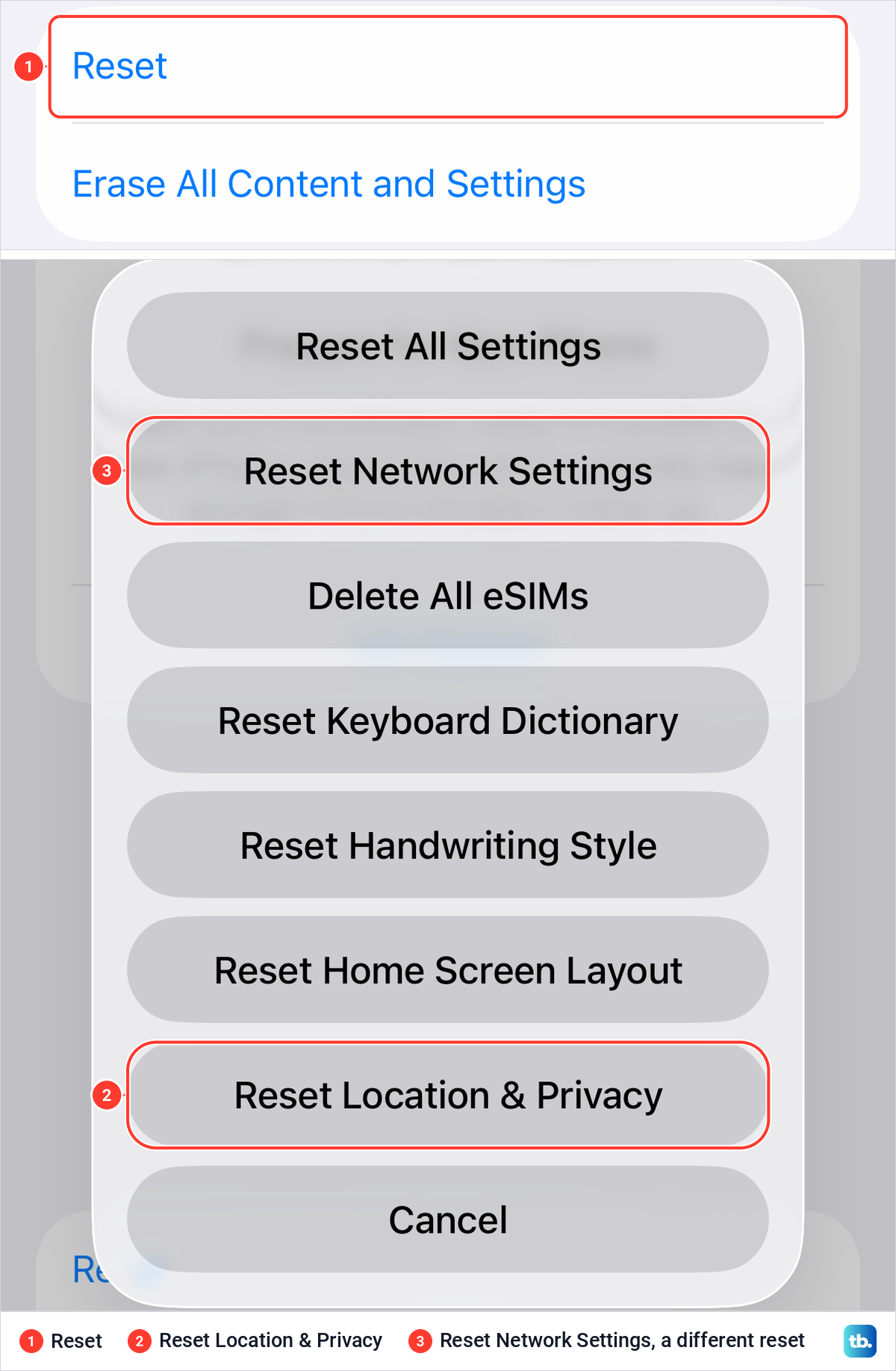
On our iPhone 17 Pro with iOS 26.6, that sheet listed seven options, and we closed it with Cancel. Reset Location & Privacy is the last option, just above Cancel, while Reset Network Settings is second from the top. Check what Reset Network Settings does before you tap the wrong one, because Apple says it removes previously used networks and VPN settings.
How we tested this guide
We tested this on iOS 26.5, turning Location Services off and back on, and on an iPhone 17 Pro with iOS 26.6, stopping at the Reset prompt.
Frequently Asked Questions
Does anyone get notified if I turn off location on my iPhone?
Apple's safety checklist, written for older iOS versions, says no one is notified when you turn off Location Services, but some features may not work as expected. Its personal safety guide adds that people you shared with may notice you have stopped.
Can I stop sharing my location with one person without them knowing?
In Find My, tap People, tap the person and tap Stop Sharing My Location. Apple's support article says they won't be notified, while its safety guide warns they may notice, and Hide Location pauses sharing until the next day.
Does turning off location stop Find My iPhone?
Find My iPhone is a separate setting with its own switch, under Settings, your name, Find My. When you turn Location Services off, the prompt says your app settings are temporarily restored if you use Find My iPhone to enable Lost Mode, and the Find My network note on that page says it lets you locate this iPhone even when it is offline, in power reserve mode, and after power off.
Can my iPhone still be tracked with location off?
In some ways, yes. Apple says emergency calls can use your location regardless of the switch, your carrier can place the phone from the cell towers it uses, and websites can estimate your area from your IP address.
Does turning off location save battery?
It can for apps that use it a lot. Apple suggests turning off Location Services for any app the battery list shows with Location and Background Location, but it gives no figure for the saving.
Why can't I turn off Location Services?
Screen Time can lock privacy settings with Don't Allow Changes under Content & Privacy Restrictions. On a child's iPhone, the parent's Screen Time settings control it. On a work or school iPhone, your organization may manage this setting, so ask whoever manages the phone.
Will Maps work with location off?
Not for anything that needs your position. On our screen, Maps explained that it uses your location to show your position on the map and get directions, so switch Location Services back on, or set Maps to While Using the App, when you need them.