
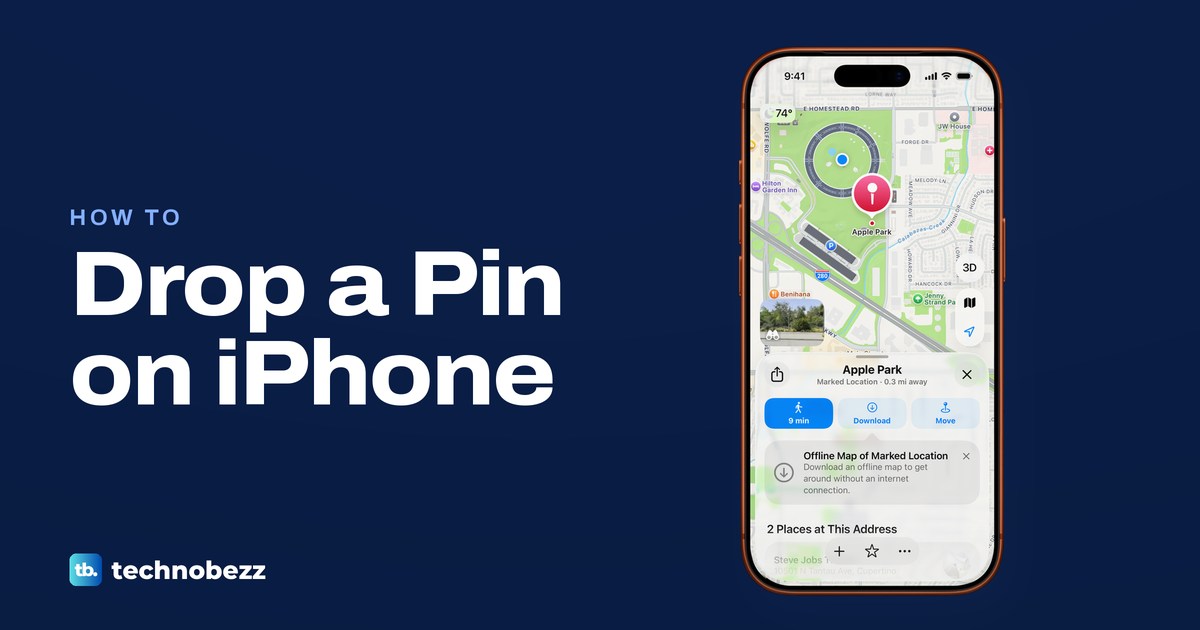
To drop a pin on iPhone, open Apple Maps and touch and hold the spot until a red pin appears. To adjust it, tap Move, drag the map under the pin and tap the check mark, then scroll down the card and tap Pin to keep it. To send it, tap the Share button at the top left of the card. Only one unsaved pin shows at a time, so the next one you drop replaces it.
On iOS 26.5 our pin's card read Marked Location, not Dropped Pin. Its Pin button sat at the bottom of the card rather than next to Move.
The short version
- Drop it: in Maps, touch and hold an empty spot on the map until a red pin appears.
- Fix it: tap Move, drag the map under the pin, then tap the check mark.
- Keep it: tap Pin at the bottom of the card or in the More menu. An unsaved pin is replaced by the next one.
- Send it: tap Share on the card, or in Messages tap the plus button, Location and Map Pin, drag the map, then tap Send Pin and Send.
- Remove it for good: Delete in Pinned only unpins it. Use Delete from Places under Saved Places.
- Google Maps: touch and hold a spot with no label, then tap the name at the bottom to share or save it.
Ways to drop and send a pin at a glance
There are six places to start, and they give you slightly different things. The Apple Maps rows match what we saw on iOS 26.5, while the Messages and Google Maps rows follow Apple's and Google's instructions.
| Where you start | What to do | What you get |
|---|---|---|
| Apple Maps, any open spot | Touch and hold the map, then tap Pin at the bottom of the card | A kept pin under Places, in Pinned and Saved Places |
| A pin you just dropped | Tap the Share button at the top left of the card | A short Apple Maps link to send in any app |
| The Maps icon on the Home Screen | Touch and hold it, then tap Mark My Location or Send My Location | A pin where you stand, or a quick way to share it |
| A Messages conversation | Plus button, Location, Map Pin button, drag the map, Send Pin, then Send | A pin in the chat that does not move |
| The Apple Maps search field | Type the coordinates, then tap Show on Map | A map result for the coordinates you entered |
| Google Maps on iPhone | Touch and hold a spot that has no label | A red pin you can share, save or label |
Drop a pin in Apple Maps
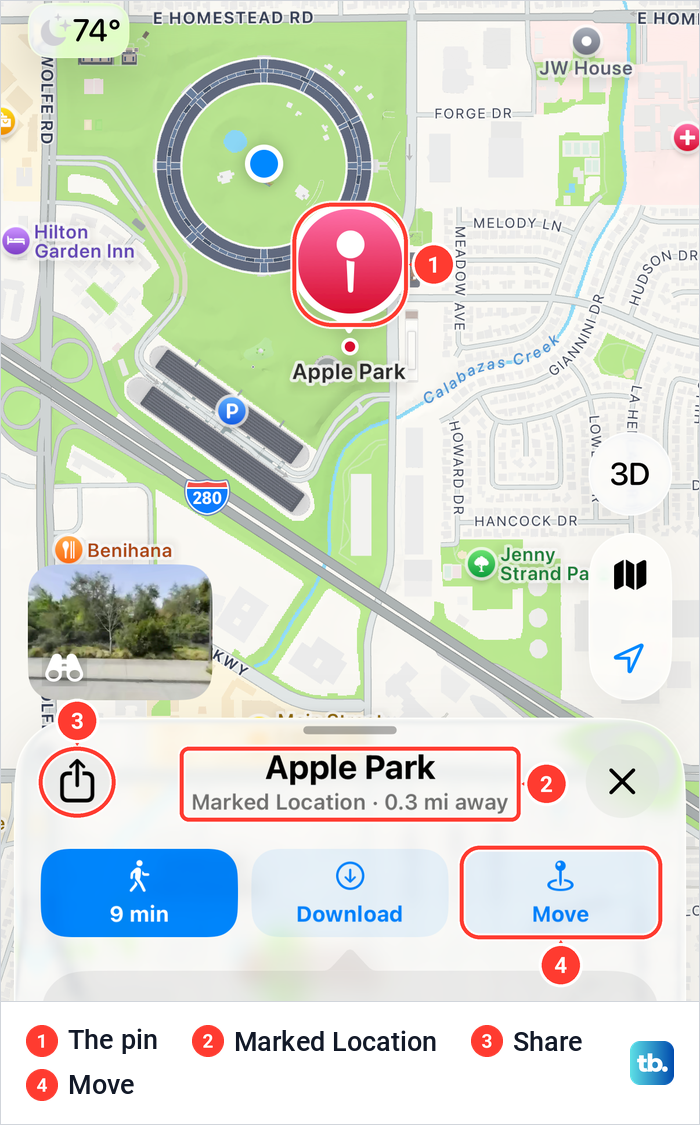
Open Maps and zoom in on the place you want to mark. Touch and hold a spot on the map that has no label or icon on it, and keep your finger down until a red pin appears. When we held for about a second on open grass on iOS 26.5, a pin dropped and a card slid up from the bottom of the screen.
The card took the name of the area, Apple Park in our case, with Marked Location and its distance from you under it. It offered a walking-time directions button, Download for an offline map of the area, and Move, with the Share button at the top left. A Look Around picture sat on the map just above it, and further down the card listed the places at that address.
Where you hold matters. When we held on a labelled place, a hotel in our test, Maps opened a preview of that place with Directions, Call, Open Homepage and Share Location instead of dropping a pin. Move to a blank patch of map, or zoom in until there is space between the labels.
Apple says a pin is for sharing a location with someone, or for starting or ending a route at a place that isn't already marked on the map. Tap the directions button on the card for a route to the pin, and if the spoken turns are not to your liking, change the Apple Maps voice.
Move a pin to the exact spot
Apple's step to refine a pin is to tap Move, then drag the map. On iOS 26.5 Move opened a screen called Move Location with a satellite view and the line "Move the map to the correct location". The pin stayed fixed in the middle while we dragged the map under it, so line your target up with the pin's point instead of trying to drag the pin.
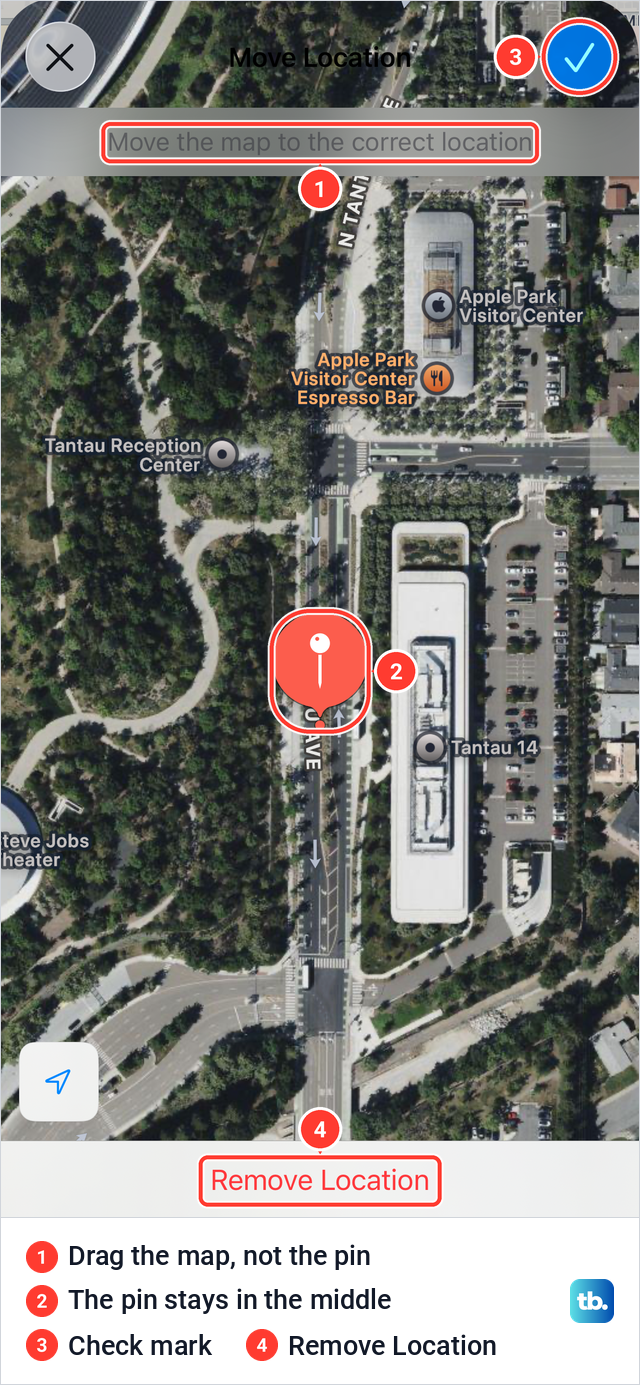
Confirm with the blue check mark at the top right. Apple's steps go straight from dragging the map to tapping Pin, but on iOS 26.5 the Move screen closes with that check mark, and the spot was still unsaved afterwards. The card took the new street address as its title, and its Coordinates line changed to match.
The X at the top left of the Move screen cancels, and a red Remove Location button sits at the bottom. The satellite view makes rooftops, paths and car parks easy to tell apart. If you want that view on the main map as well, Apple's Map Modes button at the lower right switches between Explore, Driving, Transit and Satellite.
Keep a pin so it does not disappear
A dropped pin is not saved. Apple says only one pin appears at a time unless you save them to your Places, and we saw exactly that on iOS 26.5. We dropped a pin on Howard Drive, left its card open, dropped a second one a few streets away, and when we panned back the first one was gone.
To keep a pin, scroll down its card. Below the address and the coordinates are three buttons, Report Something Missing, Pin and Remove, so Pin is easy to miss on the first screen of the card. The same Pin command is in the More menu, the three dots at the bottom of the card.
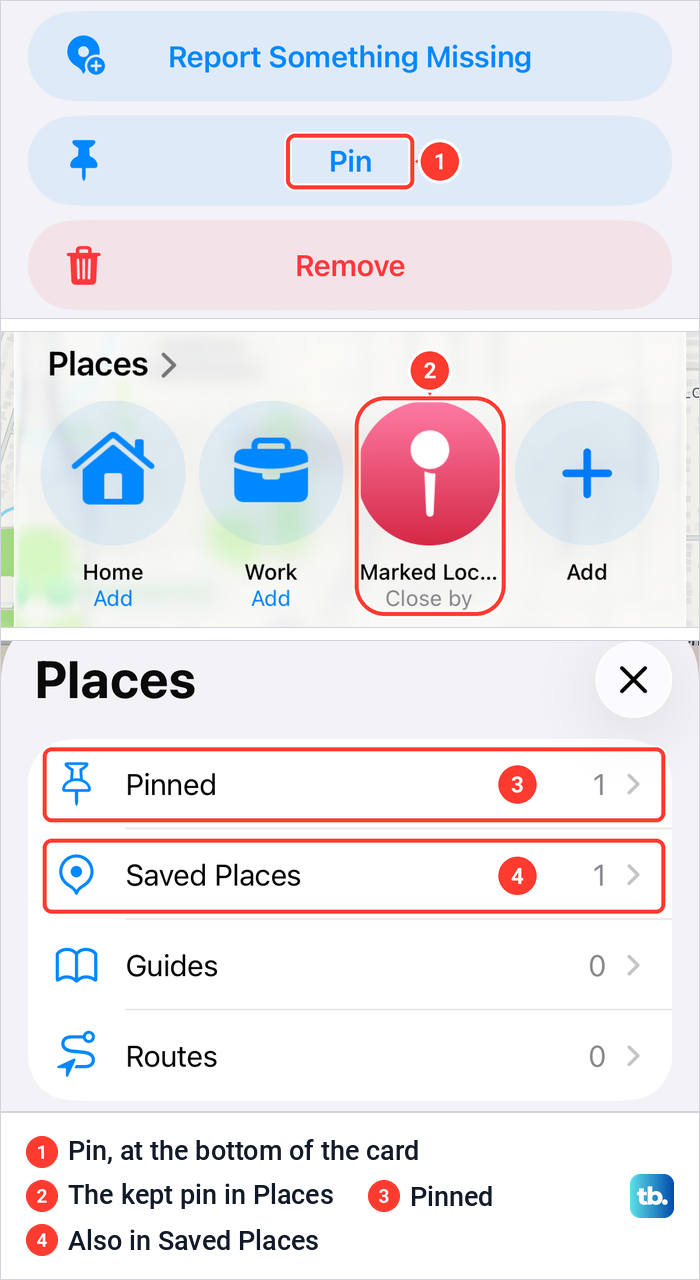
Maps kept our pin straight away, without asking us to sign in to an Apple Account. The plus button at the bottom of the card turned into a check mark, an Add a Note row appeared, and on the Maps home screen the pin sat in the Places row as Marked Location with Close by under it. A small red pin also stayed on the map.
Tap Places for the full list. On iOS 26.5 the Places screen lists Pinned, Saved Places, Guides and Routes with a count next to each, and our new pin counted under both Pinned and Saved Places. Apple adds that pinned places also show up in CarPlay.
Share a dropped pin
Tap the Share button at the top left of the pin's card, then choose how to send it. Apple's other route works for pins you already kept: tap Places, tap Pinned, swipe left on the pin and tap Share. On iOS 26.5 a partial swipe showed a blue Share button next to a red Delete button.
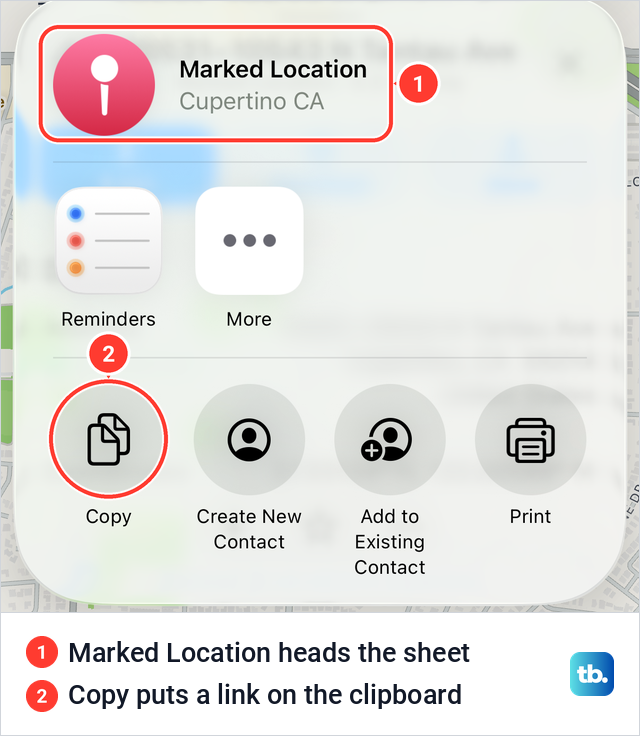
The sheet we got was headed Marked Location with the town under it. Copy put a short link starting with https://maps.apple/p/ on the clipboard, not plain coordinates, so whoever gets it opens the spot from the link. Apple's example is a message or an email that shows people where to meet you.
Send a pin in Messages
Messages can send a pin without opening Maps first. On our iPhone 17 Pro with iOS 26.6, the plus button in a new message listed Location just below Digital Touch.
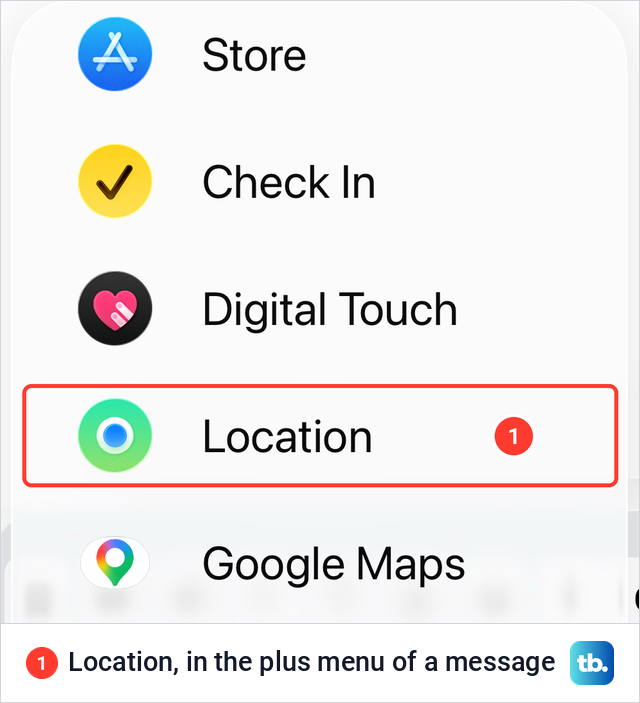
The rest follows Apple's instructions. In a conversation, tap the plus button, then Location. Tap the Map Pin button in the top left of the map, then drag the map until the pin is in the right place. Tap Send Pin, then tap the Send button.
Drag the map whenever you want to send a different spot from the one the map first shows. Apple also says pinned locations don't update as you move. If you want the other person to follow you as you go, share your live location on iPhone instead.
For an SMS conversation, which shows in green bubbles and can include someone with a phone that isn't made by Apple, Apple's own advice is to send a pinned location instead of sharing your location. Apple says Messages uses the Find My app when you share a live location, and that live location updates in real time in the conversation.
Mark where you are from the Home Screen
You don't have to open Maps to mark the spot you are standing on. Touch and hold the Maps icon on the Home Screen. On iOS 26.5 the menu showed widget sizes at the top, then Mark My Location, Send My Location, Search Nearby, Edit Home Screen and Remove App.
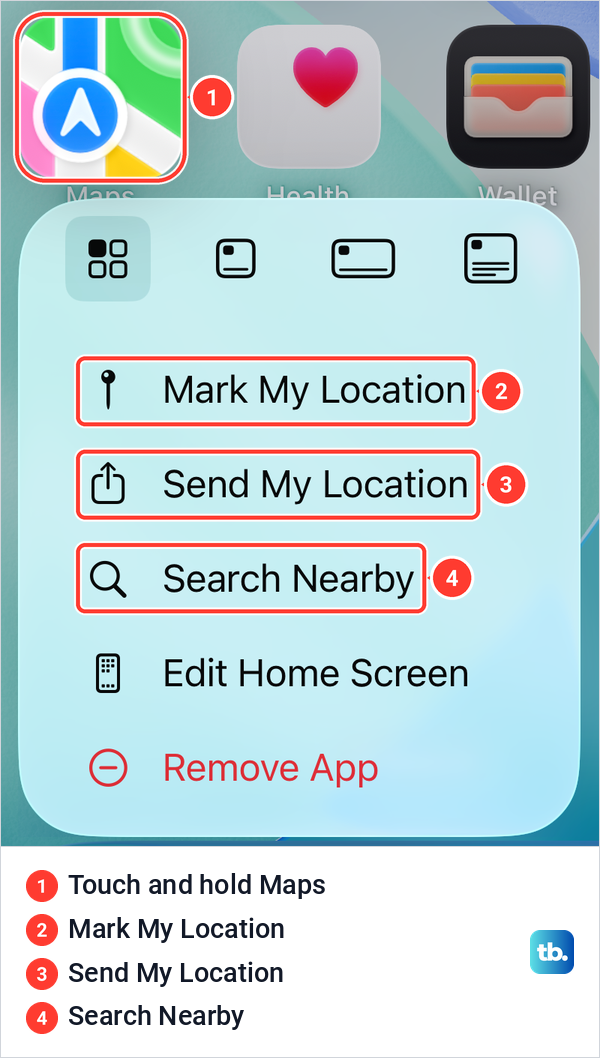
Apple's pin page names only Mark My Location for this, and its quick actions page names only Send My Location, but both sit in the same menu. Mark My Location opened Maps with a pin on our current spot and a card reading Marked Location and 0 ft away. It had the same Share, Download and Move buttons as a pin dropped by hand, so keep it with Pin the same way.
Apple describes Send My Location as the way to share your current location when you don't have Maps open. Hold the icon only briefly. Apple notes that if you touch and hold an app too long before choosing, all the apps begin to jiggle, and you tap Done and try again.
Copy or search the coordinates of a pin
The card of a dropped pin shows its coordinates. Scroll down to Details, where iOS 26.5 listed the address and then Coordinates as 37.33134° N, 122.00691° W. Touch and hold the Coordinates row and tap Copy.
Apple's steps start from Places, then Pinned, then the pin, but the row is on the card of an unsaved pin too, which is where we copied it. The clipboard held the coordinates in that same form, degrees with N and W and no minus sign, ready to paste them into another app, a note or a message.
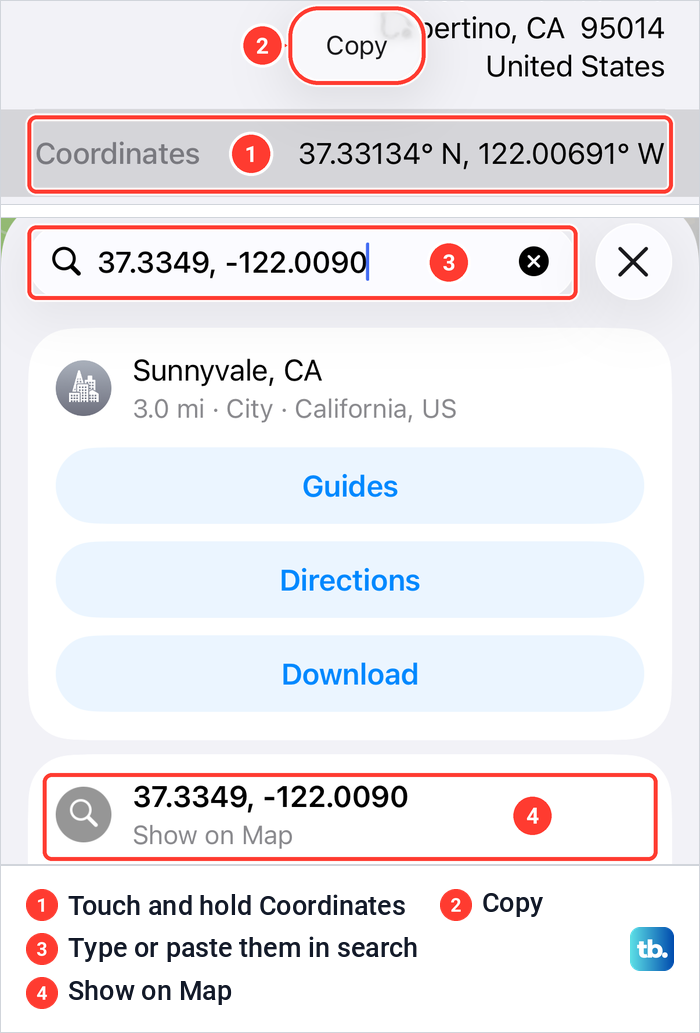
It works the other way round as well. Apple's search page doesn't list coordinates among the things you can search for, but Maps on iOS 26.5 took both forms we entered, 37.3349, -122.0090 and the copied 37.33134° N, 122.00691° W. Each time a row reading Show on Map appeared, and tapping it put a red pin on the map with a card headed Apple Park and Address.
Don't tap the first suggestion without looking. Above the Show on Map row, Maps offered a nearby city, and below it came street addresses in other states that only matched the digits.
Rename a pin or make it Home or Work
A kept pin is called Marked Location until you name it. Tap Places, tap Pinned, then tap the Info button, the i in a circle next to the pin. On iOS 26.5 that opened a Details screen with Label, Address, a Type list and a red Unpin button.
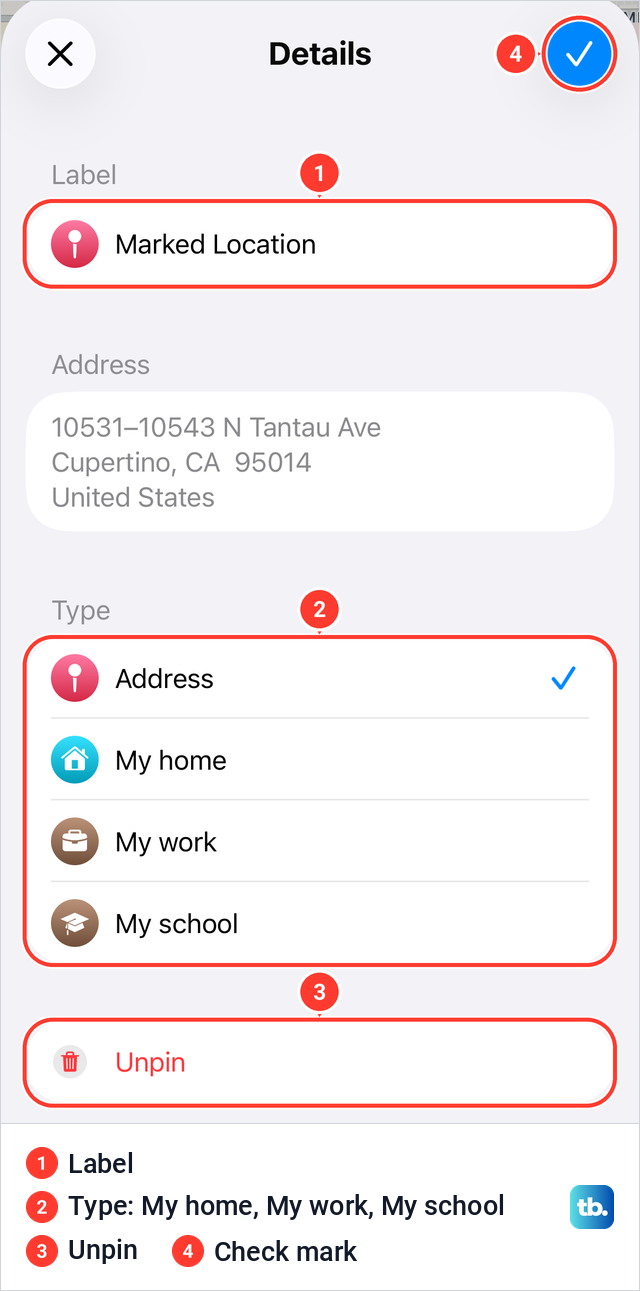
Tap in the Label field, type a name and tap the check mark. We renamed ours Picnic spot, and the Pinned list showed the new name at once. The Type list offered Address, which was ticked, plus My home, My work and My school, which is how Apple has you make a pin your Home, Work or School address.
Apple adds a warning about Home, Work and School. If you change one of them after you are prompted to sync Maps to My Card, you may need to update the address in both Maps and Contacts.
Save a pin to a guide
Guides are lists of places, and a pin can go in one. Open the pin's card, tap More, the three dots, then tap Add to Guides. On iOS 26.5 the sheet already held a guide called Favorites, which Apple says always appears, and a button at the bottom right for a new guide.
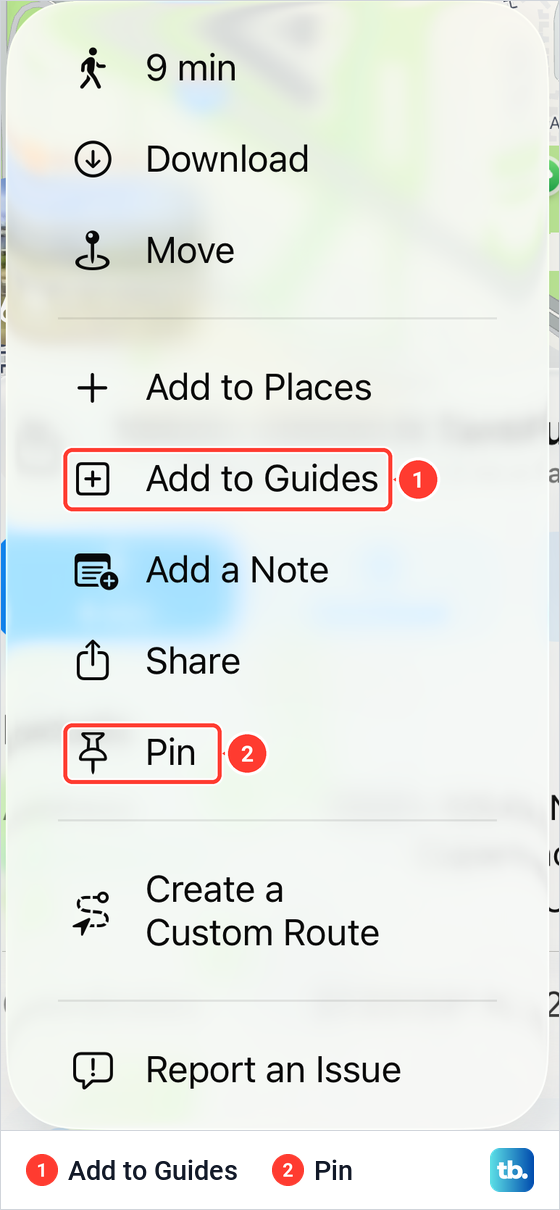
Creating a new guide from there took one extra step that Apple's instructions don't mention. Maps first showed a Name This Location box, where we kept the suggested name and tapped Save, then the New Guide form, where we typed the guide's name and tapped Done. The card then read In Your Guides with the guide's name under it.
In our test, that naming step also saved a second copy of the spot under Saved Places, which matters later if you want the place gone. Your guides sit under Places, then Guides, and Apple's steps to share one are to open it and tap the Share button.
To take a place out of a guide on iOS 26.5, open the guide, tap the edit button, select the place and tap the trash button. It went at once, with no confirmation. To delete the whole guide, tap the More button next to it in the Guides list and tap Delete from Places, and Maps asked us to confirm first.
Remove a pin for good
Apple's swipe-and-Delete step takes a pin out of Pinned, but on iOS 26.5 it left the place saved. Apple says to tap Places, tap Pinned, swipe left on the pin and tap Delete, or tap the Info button and then Unpin. When we used Delete, the pin left Pinned but the spot stayed under Saved Places.
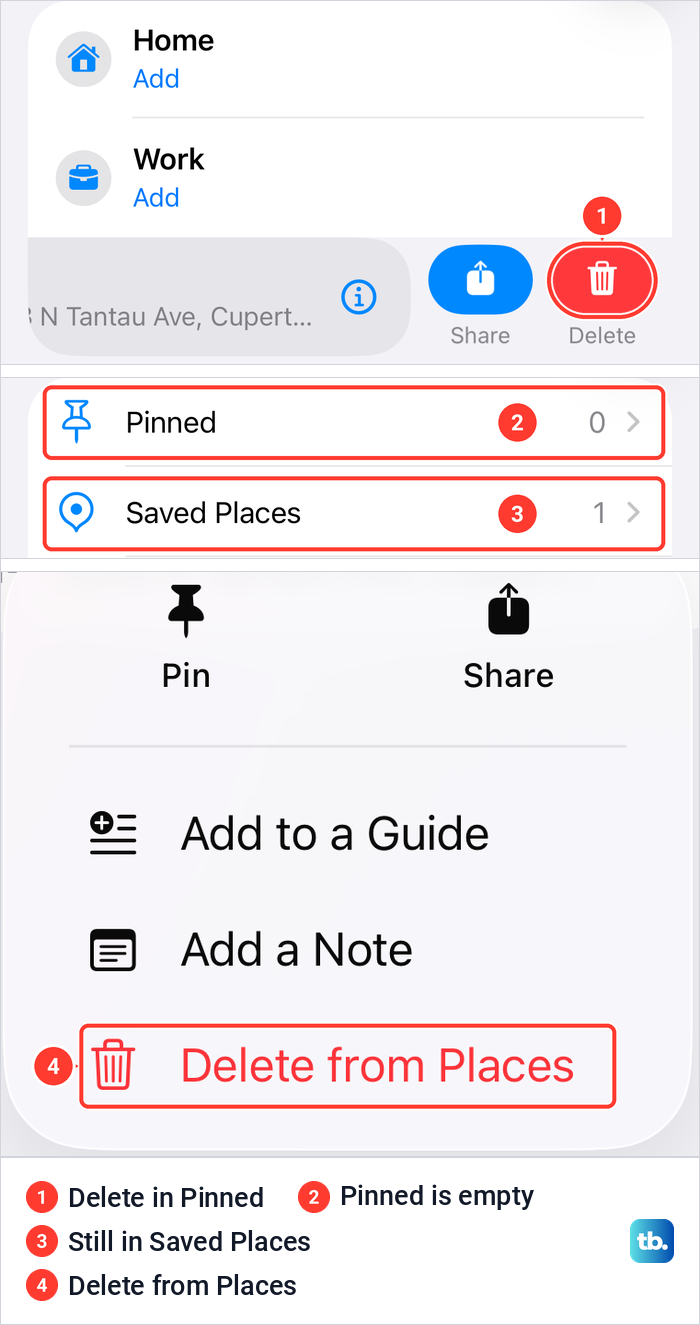
Pinned went to 0 while Saved Places still showed 1. To remove the place itself, open Places, tap Saved Places or find it under Recently Added, tap the More button next to it and tap Delete from Places. On iOS 26.5 it went at once with no confirmation, and Apple says removing a place from your Places also deletes any personal notes you added to it.
Apple's iOS 27 guide words this last step differently: you touch and hold the More button, tap Delete from Places, then tap Delete to confirm. When we added the spot to a new guide, a second entry appeared under Saved Places, so check for a duplicate if the spot still shows after you delete it.
A pin you never kept needs none of this, because the next pin you drop replaces it. Maps still listed our last dropped pin under Recents as Marked Location. The red marker of a place you searched for is not a pin at all, and it went away when we closed the search.
Drop a pin in Google Maps on iPhone
This part follows Google's instructions. Open the Google Maps app and touch and hold an area of the map that isn't labeled to drop a red pin. Google says the place sheet that opens shows the pin's coordinates.
To share the pin, tap the place's name or address at the bottom, tap Share and choose an app. To see how far the pin is from another place, measure the distance from a dropped pin with Google's ruler.
Google also takes typed coordinates in the search box. Its rule is latitude first, then longitude, with a dot for decimals, so 41.40338, 2.17403 works and 41,40338, 2,17403 does not. Degrees, minutes and seconds such as 41°24'12.2"N 2°10'26.5"E work too.
Save or label a Google Maps pin
Saving needs a Google Account, and Google says to sign in first. Tap the name or address at the bottom, tap Save and choose a list. Google limits a list to 3,000 places, and only you can see your saved places unless you share a list. To make a saved spot your Home, or to fix Google's pin for your address, change your home address in Google Maps.
Your lists are under the You tab, which one of Google's own help pages calls Saved, so look for either name. To take a place off a list, Google's steps are You, then More and Edit list on that list, then Remove next to the place. A private label works from the same sheet: tap the name, then Label, and labelled places show on your map, in search suggestions and in Google Photos.
When touch and hold will not drop a pin
Check where you are holding first. In Apple Maps a hold on a labelled place opens that place instead of a pin, and Google tells you to use an area that isn't labeled. Zoom in until there is open map between the labels and hold there.
Location settings don't stop a pin. We set Maps to Never under Settings > Privacy & Security > Location Services > Maps on iOS 26.5, and a hold on the map still dropped a pin with a working card. What changed was everything that depends on your position: a Location Services is Off banner, no distance line on the card, and no travel time on Directions.
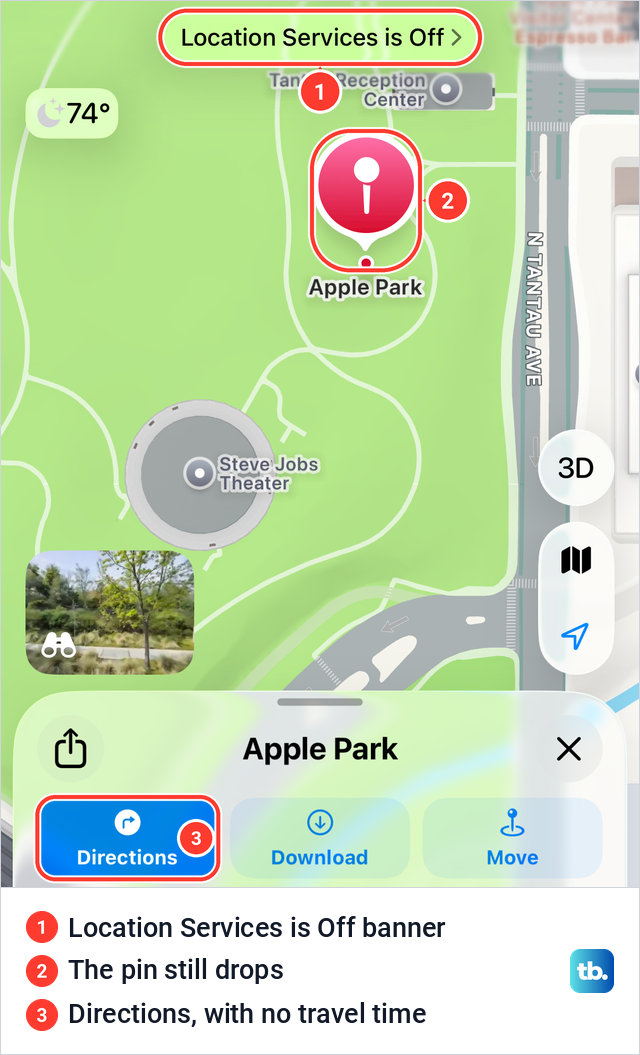
The banner said Location Services was off although only Maps was set to Never, so check the app's own setting before you change anything for the whole phone. Setting Maps to Never also hid its Precise Location switch. Apple says Maps needs Precise Location on to find your location and give accurate directions, and our guide to the Location Services and Precise Location settings shows where both live.
If menus such as the Maps icon menu open too early or too late, change the timing in Settings > Accessibility > Touch > Haptic Touch. On our iPhone 17 Pro with iOS 26.6 that page offered Fast, Default and Slow, with Default ticked, and said it adjusts the time it takes to reveal content previews, actions and contextual menus. A flower picture below lets you touch and hold to test the speed.
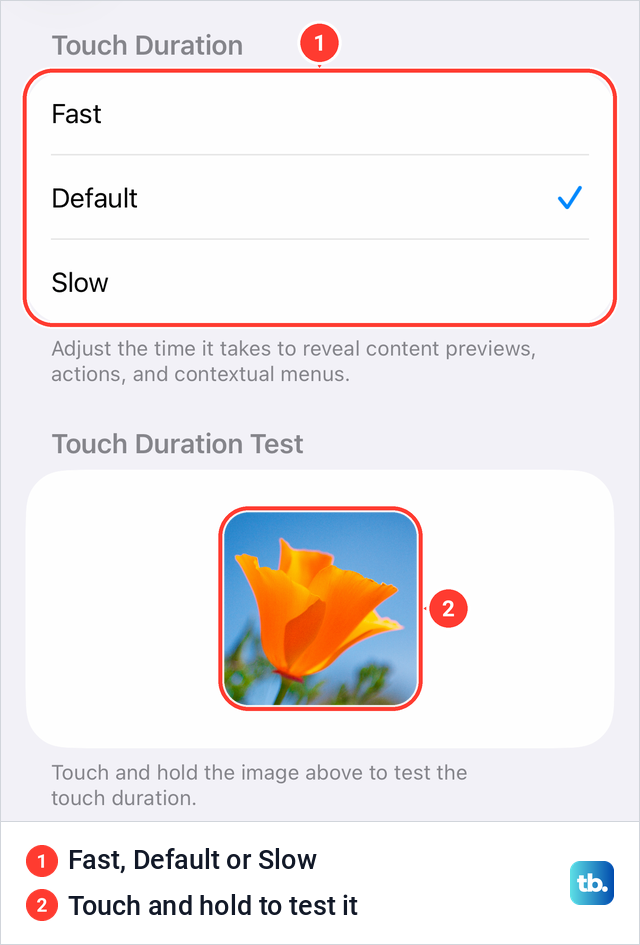
Before you change the timing, note which option is ticked, so you can choose it again to undo the change. For touches in general, Apple's setting is Hold Duration under Settings > Accessibility > Touch > Touch Accommodations, which makes iPhone respond to longer or shorter touches, and Apple warns that taps and swipes within that duration are then ignored. If Google Maps won't respond at all, work through our fixes for Google Maps not working properly.
Pins for your parked car and on Apple Watch
Apple Maps drops one pin by itself. Apple says that when you disconnect your iPhone from your car's CarPlay or Bluetooth system and leave the car, Maps drops a parked car marker. Apple lists three settings for it: Location Services on, Significant Locations on under Settings > Privacy & Security > Location Services > System Services, and Show Parked Location on in Settings > Apps > Maps. It doesn't mark the car at a familiar location such as home or work.
To clear that marker, Apple's step is to touch and hold it and tap Remove Car. Google Maps keeps a parking pin for 48 hours unless you remove it or start driving, and to save one, Google's steps are a tap on the blue dot that shows your location, then Saved parking.
Apple's watchOS 27 guide adds a location marker to Maps on Apple Watch: touch and hold the map where you want the pin, then tap Mark Location. A new marker replaces the previous one, so the watch keeps only one. The watchOS 26 edition of Apple's Maps guide has no marker section.
How we tested this guide
We tested this in Apple Maps on iOS 26.5, dropping, moving and removing pins and copying a pin's link from the share sheet.
Frequently Asked Questions
Can I drop more than one pin in Apple Maps?
Yes, but only one unsaved pin shows at a time. Tap Pin on each spot before you drop the next one, and the kept pins stay in Places under Pinned.
Why did my dropped pin disappear?
A new pin replaces any pin you didn't keep, which is how Apple Maps behaved for us on iOS 26.5. Pins you kept are under Places, then Pinned, and your last dropped pin also shows in Recents as Marked Location.
How do I send a dropped pin in a text message?
Tap the Share button on the pin's card and pick Messages, or in a conversation tap the plus button, then Location. Apple's next steps are the Map Pin button, a drag of the map to the right spot, then Send Pin and Send.
Is dropping a pin the same as sharing my location?
No. A pin marks one spot, and Apple says pinned locations don't update as you move, while live location sharing updates in real time through Find My.
Can I drop a pin by typing coordinates?
You can show them on the map. Type the coordinates in the Apple Maps search field and tap Show on Map, which worked for us on iOS 26.5 with both 37.3349, -122.0090 and the degrees form with N and W. In Google Maps, Google says to enter latitude first with a dot for decimals.
How do I drop a pin in Google Maps on iPhone?
Touch and hold a spot on the map that has no label. Tap the name or address at the bottom to share it, save it to a list or give it a label, and sign in to a Google Account if you want to save it.
How do I delete a pin in Apple Maps for good?
On iOS 26.5, a swipe left and Delete in Pinned only took the spot out of Pinned. Open Places, then Saved Places, tap the More button next to the spot and tap Delete from Places.