


To use Python, install Python 3, open its interpreter, and enter print("Hello, World!") to run your first program. Then save that code in a plain-text file named hello.py so you can run it again. This program needs no additional packages.
The short version
- Windows: Install Python Install Manager, then enter
pythonin a terminal. - Mac: Install the official Python package, then enter
python3in Terminal. - Linux: Use your distribution's Python installation and packages.
- First program: Enter
print("Hello, World!")at the Python prompt and press Enter. - Browser option: Use a JupyterLite notebook to run Python without installing it locally.
| Starting option | What you need | How you begin |
|---|---|---|
| Windows download | Python Install Manager from Python's downloads page | Install the manager, then enter python |
| Windows Microsoft Store | Python Software Foundation's Python Install Manager | Select Install, then enter python |
| macOS package | Official Python installer for your Mac | Complete installation, then enter python3 |
| Ubuntu | Distribution Python packages | Check python3 --version |
| Fedora | Preinstalled Python 3 | Enter python in a terminal |
| IDLE | A Python installation with IDLE and Tk | Save a file, then select Run > Run Module |
| Browser notebook | A supported modern browser | Open Try Jupyter and create a Python notebook |
Install Python on Windows
On a compatible Windows 10 or Windows 11 PC, open the official Python downloads page and download Python Install Manager. Double-click the downloaded file, then select Install. You can use the manager to install and select Python runtimes.
Alternatively, open the Python Install Manager listing in Microsoft Store and select Install. Choose the product from the Python Software Foundation.
After installing the manager through either route, open a terminal, enter the command below, and press Enter. When no runtime is installed, the manager obtains one.
pythonOnce you see the >>> prompt, you're ready to enter the first program below. If Windows cannot find the command, follow the Windows command fixes at the end.
Install Python on a Mac
Download the current stable macOS package from the Python downloads page linked above. The Python 3.15 universal2 installer supports Intel and Apple Silicon Macs running macOS 10.15 or later. Double-click the downloaded .pkg file to begin.
Select Continue through the introductory and license screens, select Agree, then select Install and authenticate. After installation, open /Applications/Python 3.15/Install Certificates.command to complete the certificate setup.
Open Terminal and enter the following command. Press Enter to start Python's interactive interpreter.
python3On macOS 27.0 with Python 3.15.0, use Terminal for your first program because Python documents an issue that can cause IDLE and Tk to hang. Apple's development-tools Python is not a substitute for a complete python.org installation.
Start Python on Ubuntu or Fedora
On Ubuntu, open a terminal and check your Python version with the command below. Ubuntu selects the version supplied through its repositories, so it may differ from the latest python.org release.
python3 --versionTo install Ubuntu's complete Python environment, run the following command. Keep Ubuntu's system Python installed.
sudo apt install -y python3-fullOn Fedora, you can use the preinstalled Python 3 interpreter. Fedora treats python and python3 as equivalent commands, so enter the following command in a terminal.
pythonOn Ubuntu, start the interpreter with the command below. Once the >>> prompt appears, you can enter the same first program on either distribution.
python3Run your first line of Python
The >>> prompt means Python is ready to accept code interactively. Enter the line below without adding the prompt symbols, then press Enter.
print("Hello, World!")You'll get the output Hello, World!, followed by another Python prompt. You can change the words inside the quotation marks and run the line again.
Before entering terminal commands again, leave the Python interpreter. Enter the following command and press Enter to return to your normal terminal.
quit()You can also exit with Ctrl + D on macOS or Linux. On Windows, press Ctrl + Z, followed by Enter.
Save your program and run it again
For a program you can keep, enter the same line in a plain-text editor. Save the file as hello.py, with this code inside it.
print("Hello, World!")Open a terminal in the directory containing hello.py. On Windows, enter the following command and press Enter.
python hello.pyOn macOS or Linux, use the command below instead. Your program prints Hello, World! and finishes, returning you to the terminal.
python3 hello.pyTo change the program, edit the text inside the quotation marks and save the file again. Run the same terminal command to execute the saved version.
Write and run a program in IDLE
If your Python installation includes IDLE and Tk, you can use IDLE's editor and interactive Shell window. Launch IDLE directly, or enter the following command in a Windows terminal.
python -m idlelibOn macOS or Linux, use the command below instead. On macOS 27.0 with Python 3.15.0, keep using Terminal because of the IDLE hang issue.
python3 -m idlelibIn IDLE, select File > New File and enter print("Hello, World!"). Select File > Save As… and save it as hello.py. Then select Run > Run Module, or press F5.
Read your program's output in the Shell window. To stop a running program, select Shell > Interrupt Execution. To reset the shell, select Shell > Restart Shell.
Run Python in your browser
To start without a local installation, open Try Jupyter in a supported modern browser and select JupyterLab or Jupyter Notebook. These JupyterLite demos run Python in your browser through WebAssembly.
Create a notebook using its available Python kernel. In JupyterLab, select + in the file browser, then select the available Python kernel under Notebook. Enter print("Hello, World!") in a code cell, then press Shift + Enter to run it.
Fix Windows command problems
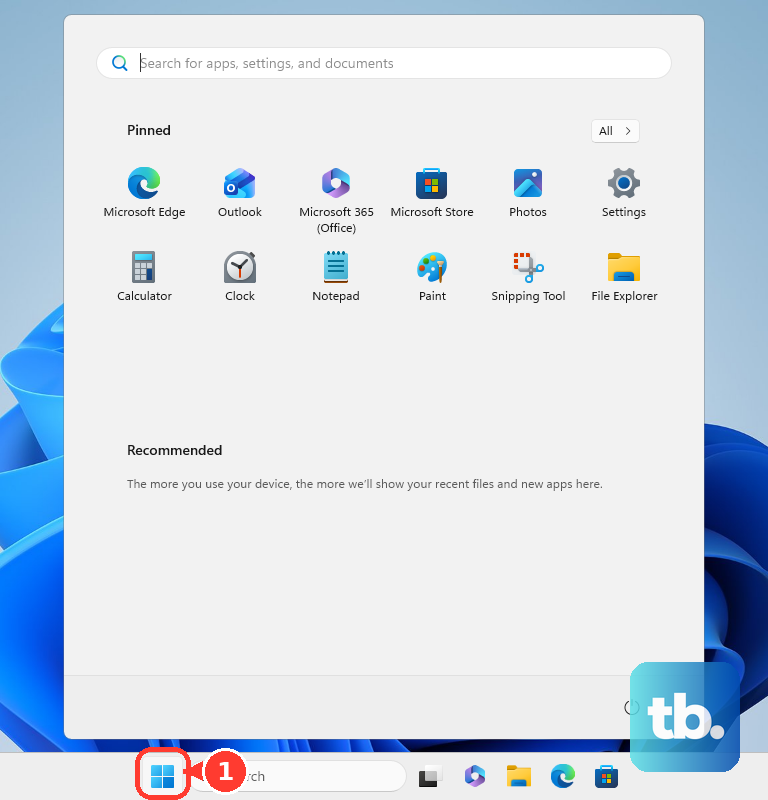
If Windows cannot find the manager's Python command, open Start, find Manage app execution aliases, and enable Python (default). If necessary, disable and re-enable its aliases, then try python again.
When an older standalone launcher overrides the manager's py command, open Start and find Installed apps. Find Python launcher and uninstall it to resolve that conflict.
With Python Install Manager working, you can explicitly install Python 3.15 using the command below. Use this when you want to select that version for your program.
py install 3.15From the directory containing hello.py, run the following command to select that runtime and execute your file. You'll get the same Hello World output.
py -V:3.15 hello.pyFrequently Asked Questions
Can you run Python code directly from a terminal without opening its prompt?
On Windows, enter python -c "print('Hello, World!')" to execute the code directly without saving a file or opening an interactive session. On macOS or Linux, use python3 in place of python.
How do you keep a project's Python environment separate?
For a Python distribution that provides venv, run python -m venv .venv, using python3 on macOS or Linux where appropriate. Activation is optional: run .\.venv\Scripts\python.exe hello.py on Windows or .venv/bin/python hello.py on macOS or Linux.
Is there a beginner editor that includes Python?
Thonny's Windows and macOS installers include Python, with Thonny 5 bundling Python 3.14. After installing it, enter print("Hello, World!") in its editor and press F5 to run it.
Can you use examples from old Python 2 tutorials?
Use Python 3 for a new installation because Python 2 no longer receives upstream support. Python 2 examples may need changes before they run under Python 3.











