Outlook automatic replies usually fail because the mailbox does not support the feature, the schedule is wrong, the message was saved in the wrong Outlook app, or a rule is getting in the way. Start with the mailbox and message settings, then move to the app-specific fixes below. By the end, you will know whether this is a setting you can fix yourself or a work mailbox issue that needs an admin.
Check the mailbox and message settings first
Start here before rebuilding rules or switching devices.
- 1.Confirm the mailbox supports Outlook Automatic Replies. Microsoft supports the built-in feature for Microsoft 365, Exchange, Outlook.com-style accounts, and Exchange Online mailboxes, not Gmail, Yahoo, or other POP/IMAP accounts in Outlook.
- 2.Open the Automatic Replies setting in the Outlook version you use and turn on Automatic replies or Send automatic replies.
- 3.Check Send replies only during a time period. If it is enabled, the start and end times must include the time you expect replies to send.
- 4.Enter a real message under the internal reply box, such as Send automatic replies inside your organization or Inside My Organization.
- 5.Enable the external reply option, such as Send replies outside your organization, and add the outside message when external senders need a response.
- 6.Select Save or OK, then test from a different sender account.
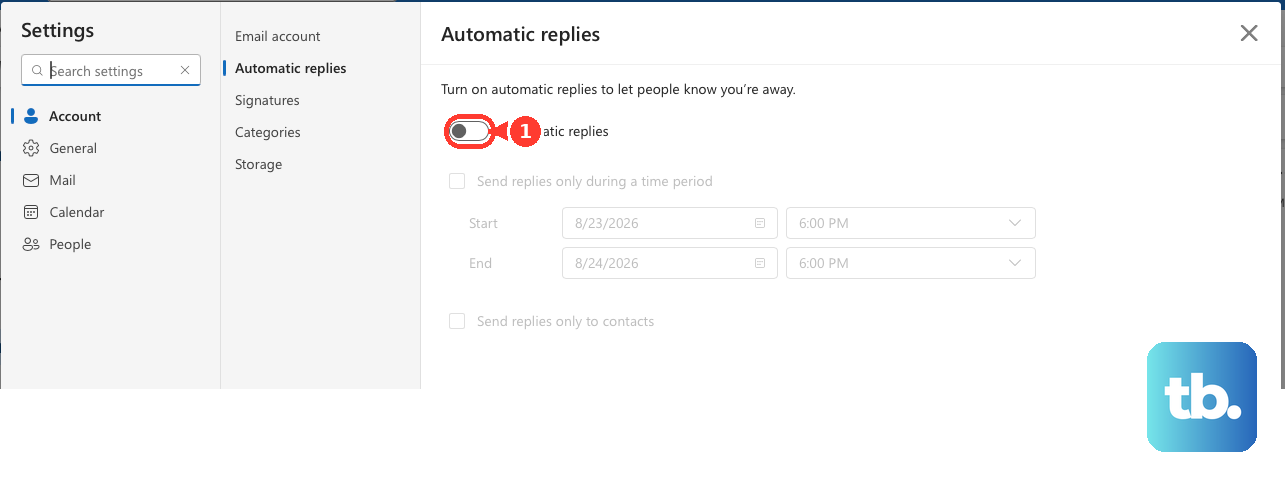
Set it from Outlook on the web
Use this when the desktop or mobile app shows automatic replies as enabled but the mailbox does not send them. Outlook on the web saves the setting directly against Outlook.com or the Exchange Online mailbox.
Open Outlook on the web or Outlook.com, select the Settings gear, then go to Mail or Accounts and choose Automatic replies. The path varies by Outlook web layout.
Turn on Automatic replies, choose Send replies only during a time period only if you want a scheduled window, and enter the reply message.
Use the calendar options only if you want Outlook to Block my calendar for this period, Automatically decline new invitations for events that occur during this period, or Decline and cancel my meetings during this period.
Turn on Send replies outside your organization and write the external message when outside senders should receive one.
Select Save. If your Outlook.com or newer Outlook on the web layout does not show the setting under Mail, use Settings, Accounts, and Automatic replies instead.
Turn it on in new Outlook for Windows
Open new Outlook for Windows and select View.
Choose View settings, then open Accounts and Automatic Replies.
Turn on Automatic replies.
Select Send replies only during a time period only when you want Outlook to start and stop replies on specific dates and times.
Enter the message under Send automatic replies inside your organization.
Select Send replies outside your organization and write the external message when people outside the organization also need a response.
Select Save.
New Outlook does not support Gmail, Yahoo, or other POP/IMAP accounts for built-in Automatic Replies, so use the provider's auto-reply setting for those accounts.
Fix classic Outlook settings
This fixes Microsoft 365, Exchange, and supported classic Outlook mailboxes where the out-of-office switch, date range, or message was never saved correctly.
Open classic Outlook for Windows and select File.
Choose Automatic Replies.
Select Send automatic replies.
Set a date range only when the reply should run for a fixed period.
Open the Inside My Organization tab and type the reply.
Configure the outside-organization reply when external senders need the message.
Select OK.
If File does not show Automatic Replies, that account does not support Outlook's built-in Automatic Replies feature.
Handle Gmail, Yahoo, POP, and IMAP accounts
Outlook's built-in Automatic Replies feature does not support Gmail, Yahoo, or other POP/IMAP accounts. Configure the auto-reply at the mail provider, or use a classic Outlook rule with an Outlook template file.
To build the classic Outlook workaround, create a new email, enter the subject and body, then select File, Save As, Save as type, Outlook Template (*.oft), and Save. Next, open File, Manage Rules & Alerts, E-mail Rules, and New Rule. Choose Apply rule on messages I receive, select Next, choose Yes if the rule should apply to all messages, choose reply using a specific template, select a specific template, set Look In to User Templates in File System, select the template, choose Open, select Next, add exceptions if needed, select Next, name the rule, keep Turn on this rule checked, and select Finish.
Keep classic Outlook running while you are away, because this rule workaround depends on the classic Outlook app. Do not recreate this rule in new Outlook; Microsoft lists Reply with specific template and Send an automatic server reply as unsupported actions there.
If this method fails, open File, Manage Rules & Alerts, and E-mail Rules, then enable the rule, edit any broken rule details shown in red, or delete the bad rule and recreate it.
Check Outlook for Mac and mobile
This fixes cases where the wrong account was selected or the reply was enabled in one Outlook app but not saved for the mailbox you use.
On Mac, select Tools, Accounts, choose the account, and read the account type above Account Description.
Open Mail, Tools, and Automatic Replies.
Select the correct account from the drop-down.
Turn on Send Automatic Replies and enter the message for inside your organization.
Use Set option for Send replies during a specific time period only when you want scheduled dates and times.
If your Exchange administrator has enabled external automatic replies, enable Message for outside your organization when outside senders need a response, then choose Send only to my contacts or Send to everyone. If that option is missing or greyed out, your organization has not allowed replies to outside senders.
On iPhone or Android, open Outlook Settings, tap the account, select Automatic Replies, turn the switch on, choose the reply scope, enter the message, and select Save.
Outlook mobile supports Automatic Replies for Microsoft 365, Exchange, Exchange Hybrid, and Outlook.com accounts.
Reset the one reply per sender behavior
Outlook and Exchange send an automatic reply only once to each sender.
Turn Automatic Replies off and back on to reset the sender history.
Modify the out-of-office rule or message if you need another way to reset that history.
Use a mailbox server-side rule instead of the Out of Office Assistant when every message must receive a reply.
Test with a sender that has not already received the current automatic reply.
This is expected behavior, so use a new sender account when checking whether automatic replies are working.
Update Outlook when settings are missing
Outlook bugs and stale app builds can break or hide Automatic Replies, especially with classic Outlook and shared mailboxes. On Windows, open any Microsoft 365 app or classic Outlook, then go to File, Account or Office Account, Product Information, Update Options, and Update Now.
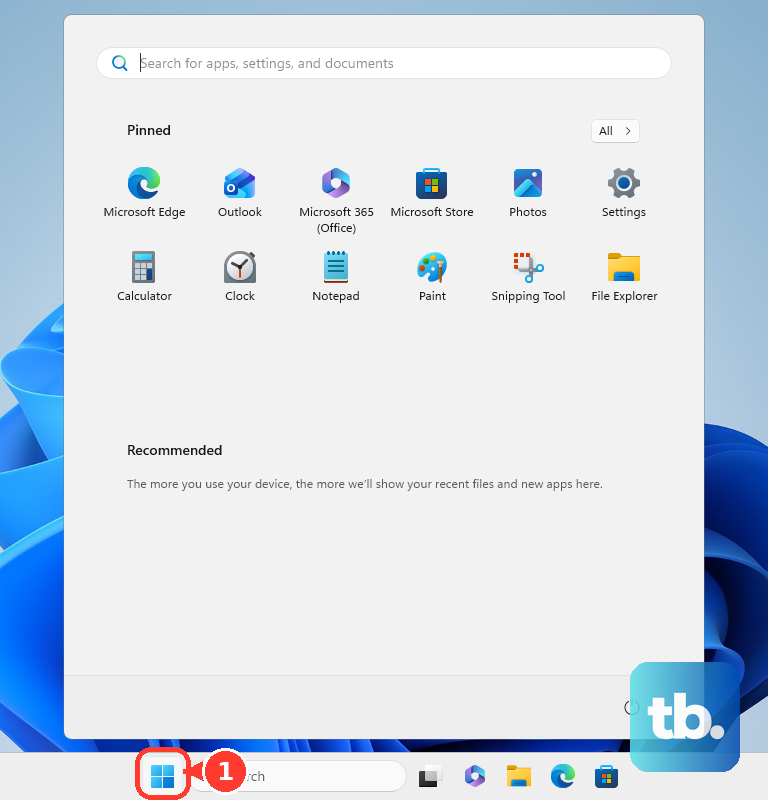
If Update Now is missing, select Enable Updates first. On Windows 11, open Start, Settings, Windows Update, Advanced options, and turn on Receive updates for other Microsoft products when you update Windows.
On Mac, open an Office app such as Word or Excel, choose Help, select Check for Updates, then use Update or Update All in Microsoft AutoUpdate and restart Outlook after the update finishes.
For a classic Outlook shared mailbox that cannot open Automatic Replies, use Outlook Web Access in a separate browser window and go to Settings, Account, and Automatic replies. Microsoft lists the fixed classic Outlook build as Version 2508 Build 19127.20000 or later.
Escalate work or school mailbox problems
Managed Exchange and Microsoft 365 mailboxes can fail for reasons normal Outlook settings cannot fix, including forwarding that prevents delivery to the mailbox, organization mail-flow forwarding rules, EWS being disabled, or corrupted hidden out-of-office rules and templates.
Contact your workplace or school IT team when Automatic Replies are enabled in Outlook on the web but still do not send. Ask them to check mailbox forwarding, mail-flow forwarding rules, EWS access, and the mailbox's out-of-office rules and templates.
If this method fails, have an admin set Automatic Replies directly from the Microsoft 365 admin center, Exchange admin center, or Exchange Online PowerShell for your mailbox or shared mailbox.
Frequently Asked Questions
Can Microsoft Teams set my Outlook automatic reply?
Yes. In Teams desktop, use profile picture, Set status message, Schedule out of office, turn on automatic replies, enter the message, choose any external or scheduled options, and select Save.
Can Microsoft 365 Copilot manage Outlook automatic replies?
Yes, if your account has the supported Copilot access. Open Microsoft 365 Copilot in Outlook, ask it to set, update, or turn off automatic replies, review the draft, and confirm it.
Why do automatic replies still send after I turned them off?
A manually created out-of-office template rule may still be active in classic Outlook. Open File, Manage Rules & Alerts, E-mail Rules, then disable or delete that rule.
What should I do if Outlook mobile turns the reply on but it reverts?
For an on-premises Exchange mailbox, Microsoft says to set the out-of-office reply in OWA instead of repeatedly toggling Outlook mobile.