Closing your MacBook's lid or tapping Touch ID doesn't shut it down. The Apple menu handles a normal shutdown on both MacBook Air and MacBook Pro. If you need keyboard controls or your Mac has stopped responding, use the matching method below.
Shut down from the Apple menu
Choose Apple menu > Shut Down. This works on MacBook Air and MacBook Pro models with Apple silicon or Intel processors, including those running macOS Tahoe 26.
Clear Reopen windows when logging back in if you don't want those windows to return the next time you log in.
Click Shut Down to confirm. Wait until shutdown finishes before closing the lid.
To skip the confirmation dialog next time, hold Option while choosing Apple menu > Shut Down. This also works on MacBooks with Touch ID.
If you need to use only the keyboard
Menu navigation lets you shut down without the trackpad, including on Touch ID models.
Press Control-F2, or Fn-Control-F2, to move focus to the menu bar.
Use the arrow keys to navigate to the Apple menu .
Select Shut Down with the arrow keys.
Press Return to choose it.
Confirm the shutdown when prompted.
If menu-focus navigation needs enabling, open System Settings > Keyboard > Keyboard Shortcuts > Keyboard.
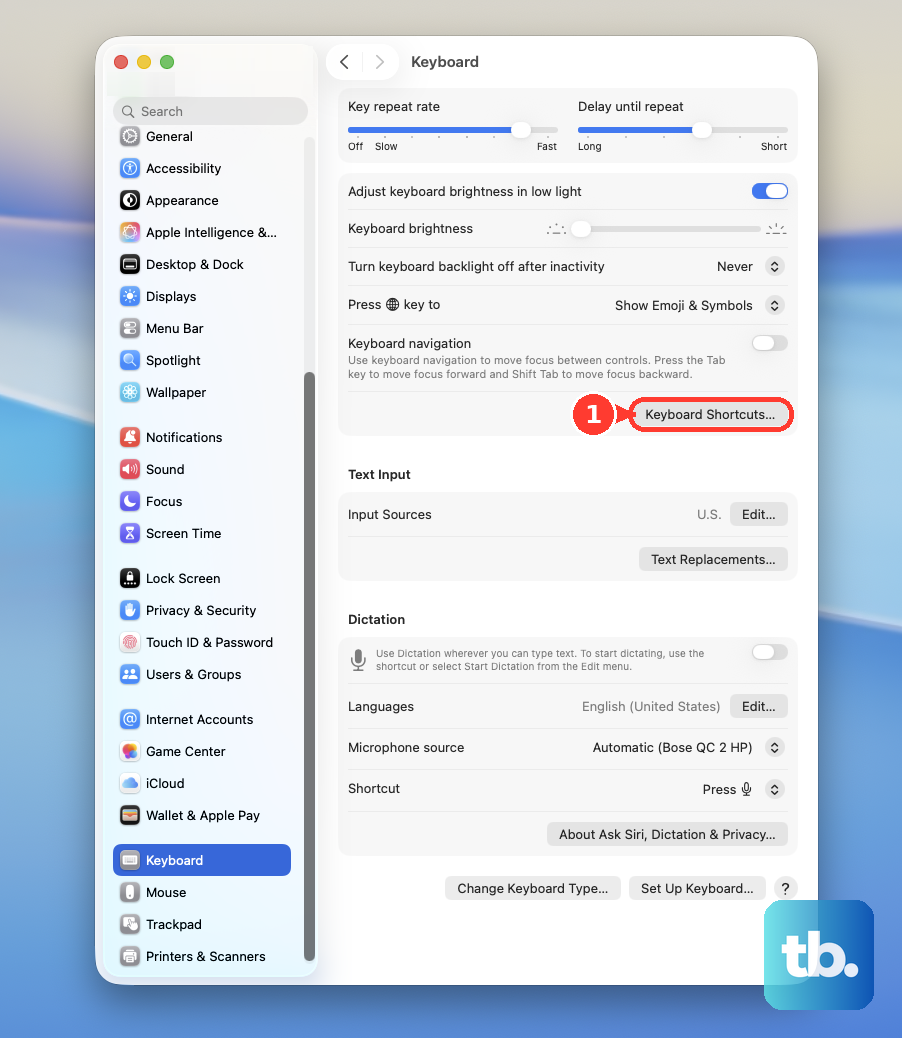
Enable menu-focus navigation there.
When your MacBook won't shut down
An unsaved document is one reason a MacBook won't shut down.
Respond to any unsaved-document prompts.
Save your work before trying again, especially before using a forced shutdown.
Choose Apple menu > Shut Down again.
If normal shutdown still fails, press and hold the physical power button for up to 10 seconds, until the Mac turns off. On a MacBook with Touch ID, this means physically pressing and holding the Touch ID button.
Forcing shutdown puts unsaved work at risk. Reserve it for a Mac that won't turn off normally.
What the lid and power button actually do
Closing the lid normally puts your MacBook to sleep. For a full shutdown, choose Apple menu > Shut Down. Wait for shutdown to finish before closing the lid.
A brief press of Touch ID locks the screen. Holding it down forces shutdown as described above, so a quick tap won't turn off your MacBook.
On a built-in keyboard without Touch ID, press Control-Option-Command-Power. Apple's current keyboard-shortcuts page describes this combination as quitting all apps and then shutting down your Mac, and says you are asked about any open documents that have unsaved changes. The same entry then calls it equivalent to choosing Restart from the Apple menu, so Apple documents two different results for one key combination and does not say which applies when. Respond to any unsaved-document prompts, and when you need a shutdown you can count on, choose Apple menu > Shut Down instead. Apple explicitly limits this combination to built-in keyboards without Touch ID.
On those keyboards, press Control-Power to open the power dialog. Choose Shut Down. For a Touch ID MacBook, use the keyboard menu-navigation method instead.
Create your own shutdown shortcut
The Shortcuts app includes a Shut Down action in macOS Ventura 13.3 and later. Create it once to get a reusable shutdown control with your own key combination.
Open Shortcuts.
Click the + button to create a shortcut.
Name it Power Off Mac, or choose another recognizable name.
Add the Shut Down action.
Click the Play button to run it.
Respond to any shutdown confirmation.
To assign a key combination, open the shortcut's details.
Click Add Keyboard Shortcut.
Record an unused combination.
Press that combination to run the shortcut. This also works on Touch ID MacBooks.
If the shortcut doesn't run, try Apple menu > Shut Down. If normal shutdown also fails, use the physical power-button method above.
Frequently Asked Questions
Can I shut down my MacBook without logging in?
At the login window, click Shut Down. Button visibility depends on settings or device management. To enable it, open Apple menu > System Settings > Lock Screen. Enable Show the Sleep, Restart, and Shut Down buttons. This setting applies to the login window; a locked session does not always show the same button.
Can Siri shut down my MacBook?
Yes, by running a locally created shortcut containing the Shut Down action on macOS 13.3 or later. With Siri enabled, name the shortcut something distinctive, such as Power Off Mac. Activate Siri on that Mac. Say the shortcut's name. Complete any confirmation or unlocking request.
How do I turn off a MacBook in Recovery or Startup Options?
In macOS Recovery, choose Apple menu > Shut Down. On an Apple silicon MacBook already displaying startup disks and the Options gear, click Shut Down.
Does Command-Q shut down a MacBook?
Command-Q is not a general desktop shutdown shortcut. At Setup Assistant after reinstalling macOS, press Command-Q to shut down without completing setup.