Your Mac won’t turn on, or at least the screen stays black. Start with the power connection and a forced restart, then work through the checks that match your Mac’s response. If it powers on but won’t finish starting, move on to safe mode and Recovery.
Check the power connection first
Inspect the power cable and adapter for damage. Stop using any damaged charging hardware. Reconnect the power cable securely to your Mac. Test the wall outlet with a lamp.
Plug your Mac into a working outlet. Try another compatible power cable or adapter if your Mac still doesn’t respond. For a laptop, use a cable that supports charging and an adapter with appropriate power for the model. A cable that fits still needs to support charging, so check compatibility with your particular Mac.
Restart a Mac that won’t respond
Hold your Mac’s power button for about 10 seconds. On a MacBook with Touch ID, physically press that button. Release the button. Press and release it normally to try turning on your Mac.
Still nothing? Disconnect external drives, printers, USB hubs, and mobile devices. An accessory or its cable can prevent startup. Hold the power button for about 10 seconds again.
Release it. Press and release it normally. If this fails, give a MacBook time to charge using the next steps. For a desktop Mac with an external monitor, move to the display checks below.
Give a drained MacBook time to charge
A drained battery prevents a MacBook from starting, particularly after prolonged storage. Connect your MacBook to its power adapter. Apple advises allowing 20 minutes of charging for a laptop coming out of long-term storage. Try the power button again after charging.
If charging still fails, disconnect the adapter from the wall outlet for 60 seconds. This resets an adapter affected by electrical line noise. Reconnect the adapter. Inspect the charging port, cable, adapter, and removable AC plug for damage or debris.
Try another compatible Apple AC plug or Power Adapter Extension Cable if the removable plug is the problem. Move a hot MacBook and adapter to a ventilated location. Apple recommends an ambient temperature of 50–95°F, or 10–35°C.
Disconnect the adapter before cleaning the charging port. Clean the port with a dry, soft, lint-free cloth.
Rule out a dark external display
For a Mac mini, Mac Studio, Mac Pro, or laptop connected to an external monitor, check the screen before moving on.
- 1.Confirm that the monitor is connected to power, connected to the Mac, and switched on.
- 2.Reconnect its power and video cables, bypassing any dock or hub so the display connects directly to the Mac.
- 3.Raise brightness using the monitor’s controls. With an Apple keyboard and display combination, press Brightness Up.
- 4.Check that the cable and adapter support the display’s specifications and that your setup stays within the Mac’s supported display count, resolution, and refresh rate.
- 5.For a laptop used with its lid closed, connect power, an external keyboard, and a mouse. On an Apple silicon laptop, accept the accessory-connection prompt.
- 6.If another screen works, open Apple menu > System Settings > Displays, hold Option, and click Detect Displays.
Reset power management for your Mac model
On a Mac with Apple silicon, connect it to power. Power management resets automatically; there’s no SMC keyboard combination to enter. Choose Apple menu > Restart if the menus are accessible.
For an Intel Mac, shut it down before using the matching procedure below. Laptops with and without Apple’s T2 Security Chip use different combinations. On an Intel MacBook with T2, hold left Control, left Option, and right Shift for seven seconds.
Add the power button while holding those three keys, and hold all four for another seven seconds. Release everything. Wait a few seconds. Press the power button.
On an Intel laptop without T2 covered by Apple’s SMC procedure, hold left Shift, left Control, left Option, and the power button together for 10 seconds. Release all the keys. Press the power button.
For an Intel desktop Mac, disconnect the power cord after shutting down. Reconnect it after 15 seconds. Wait another five seconds. Press the power button.
Stick to the procedure for your hardware; Intel SMC key combinations don’t apply to Apple silicon.
Try safe mode when startup stalls
For a Mac that powers on but stalls, first let any macOS installation finish, including overnight if necessary, then use safe mode to check for software trouble.
- 1.On Apple silicon, turn off the Mac, then hold the power button until startup options appear. Select the startup disk, hold Shift, and click Continue in Safe Mode. On Intel, turn on the Mac and immediately hold Shift until the login window appears; an enabled firmware password prevents safe mode.
- 2.Log in, completing a second login if requested.
- 3.Restart normally to leave safe mode and check whether the startup problem returns.
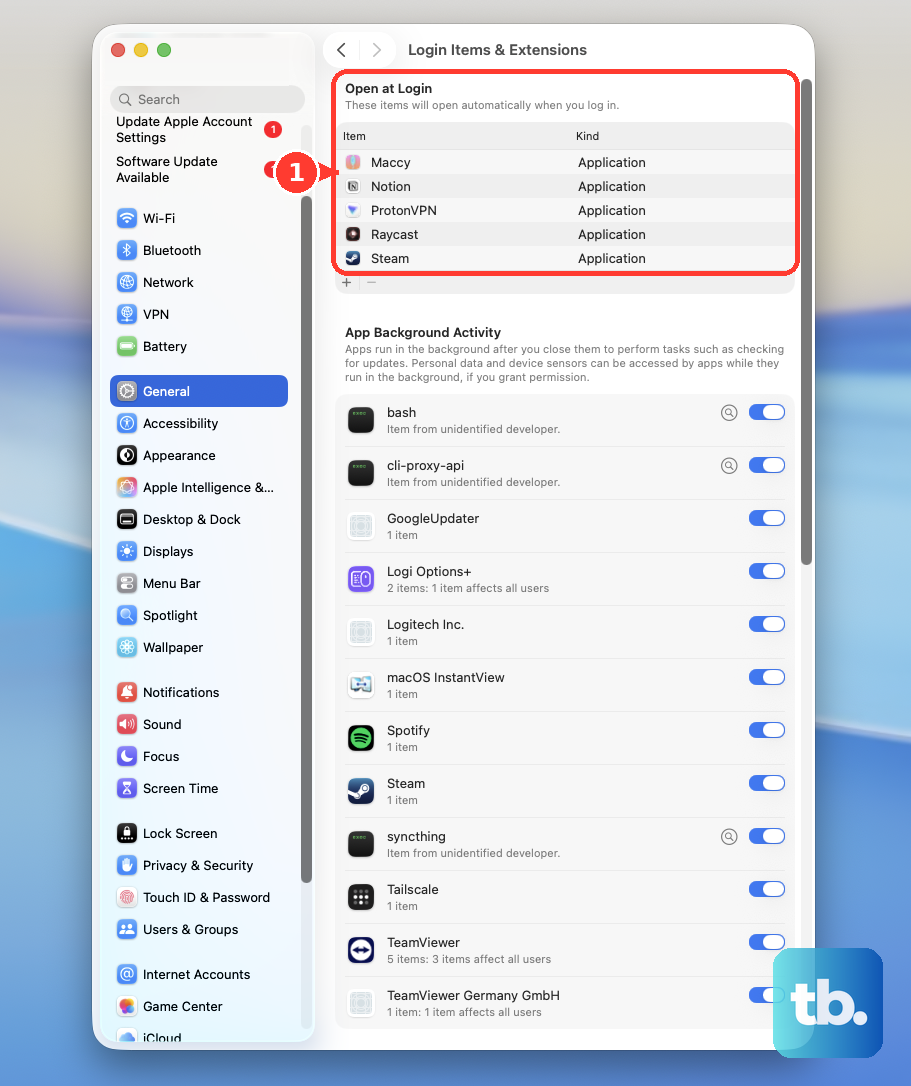
- 4.If you reach the desktop and suspect login software, open Apple menu > System Settings > General > Login Items & Extensions. Record the Open at Login list.
- 5.Remove those items using the Remove button, then restart.
- 6.Restore items individually, restarting after each. Remove the item that reproduces the failure.
Use Recovery to repair a startup failure
macOS Recovery applies when your Mac powers on but won’t start successfully. It needs functioning hardware to run, so a completely unresponsive Mac needs the power checks above or service.
On Apple silicon, start with the Mac off and hold the power button until startup options appear. Choose Options > Continue. Select the startup volume if requested. Enter a known user’s login password if requested.
On Intel, turn on the Mac and immediately hold Command-R until an Apple logo or globe appears. Connect to a network when requested. Authenticate when requested. If the Intel Mac won’t enter local Recovery, try Option-Command-R at startup for Internet Recovery.
Use the built-in keyboard or a wired Mac keyboard if startup shortcuts aren’t recognized. If Recovery Assistant opens automatically, click Continue. This feature is available in macOS Tahoe 26 and later.
Choose whether to share diagnostics. Enter the administrator password if requested. Click Unlock if requested. Connect to Wi-Fi.
Click Restart Mac when Recovery Assistant finishes. To repair the startup disk from Recovery, select Disk Utility > Continue. Choose View > Show All Devices. Select the bottom volume in the sidebar.
Run First Aid > Run, or Repair Disk. Enter the administrator password if asked to unlock it. Repeat First Aid while working upward through the volumes, volume groups, containers, and finally the physical storage device. Quit Disk Utility when repairs finish.
Choose Apple menu > Restart to test startup. If startup still fails, back up your files first if you have access to them. Reinstalling macOS without erasing normally preserves apps and personal files.
Return to Recovery using the procedure for your Mac above. Select Reinstall macOS, whose label includes the offered version. Click Continue. Follow the installation prompts.
Unlock the disk if requested. If offered Macintosh HD and Macintosh HD - Data, select Macintosh HD. Keep the Mac awake and its lid open until installation finishes. Progress bars and intermittent blank screens are part of installation; allow it to finish overnight when necessary.
Get a diagnosis when the fixes don’t help
Prepare for Apple Diagnostics if your Mac powers on: disconnect nonessential hardware, keeping power, the keyboard, mouse, and display connected. Ethernet can remain connected too.
On Apple silicon, hold the power button until Options appears. Hold Command-D until the Mac restarts. On Intel, hold D during startup. Try Option-D at startup if D doesn’t work.
Follow the diagnostic prompts. Select Run Offline if offered, unless Apple Support initiated an online session. Record any reference codes for the technician.
Arrange service through Get service on Apple’s Mac troubleshooting page if the Mac remains completely unresponsive or the applicable startup fixes fail. Ask about firmware recovery for an Apple silicon or T2 Mac that still won’t start. Apple’s procedure uses Finder on another internet-connected Mac running macOS 14 or later. A firmware revive preserves data; a firmware restore erases the affected Mac.
Tell the technician whether your Mac shows no response, a blank display, or a stalled startup, and share any diagnostic codes.
Frequently Asked Questions
What should I do about Internet Recovery error -1008F?
On an Intel Mac, restart and immediately hold Option-Command-R instead of Command-R or Shift-Option-Command-R to retry Internet Recovery.
Should I reset NVRAM on an Apple silicon Mac?
No. Apple says the Option-Command-P-R procedure is unnecessary and inapplicable on Apple silicon. It applies to Intel Macs with persistent startup-disk, display-resolution, or other NVRAM-setting problems.
What does a padlock at startup mean?
On an Intel Mac, a startup padlock indicates a firmware password restriction. Enter the firmware password. If you’ve forgotten it, arrange service with Apple or an Apple Authorized Service Provider and bring proof of purchase. For a managed Mac, contact the responsible administrator.
Can I bypass login items without removing them?
Yes. At the login window, hold Shift while clicking Log In. Release it when the Dock appears. With automatic login, hold Shift when the startup progress bar appears, then release it after the desktop appears.