Your Mac restarts unexpectedly, then shows “Your computer was restarted because of a problem.” Software, connected devices, and hardware faults all belong on the suspect list. Start with updates and the app named in the alert, then work through the checks below to narrow down the cause.
Start with macOS and app updates
Software problems cause unexpected Mac restarts, so Apple's first troubleshooting step is to install available updates.
Open the Apple menu > System Settings > General > Software Update. Searching for Software Update in Spotlight opens the same setting.
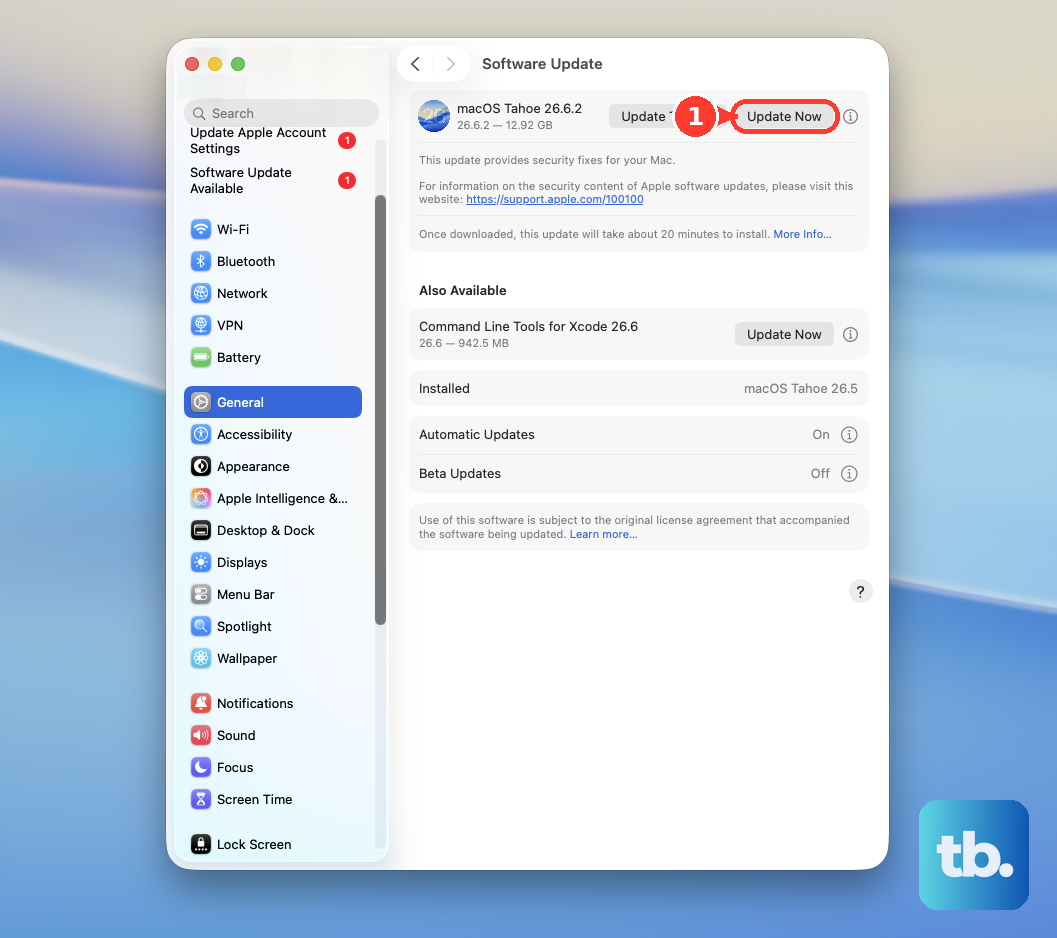
Install the offered update using Update, Upgrade, or Restart Now, whichever appears. Enter your administrator password when requested. Keep your Mac awake with its lid open until installation finishes. macOS updates also update built-in apps such as Safari.
Open App Store > Updates for apps downloaded from the Mac App Store. Click Update beside the suspected app or Update All.
For apps obtained elsewhere, contact the developer for its supported update procedure and compatibility information. Use the developer's own updater or official download page as instructed. There is no universal update menu for these apps.
Remove an app named in the alert
If the restart alert names an app, start there. This check also applies when the trouble began after installing an app, plug-in, or enhancement tool.
Click Move to Trash if macOS offers it for the suspected app. Contact the developer about a compatible update before reinstalling.
To remove an app yourself, quit it first. Check its folder in Finder > Applications for Uninstall or Uninstaller.
Run the supplied removal tool and follow its instructions. Apple's preferred method is the app's own uninstaller because it also handles associated components, including login items and extensions. Some apps put their removal feature inside the app; follow the developer's instructions for that location.
If there is no supplied uninstaller, open Finder > Go > Applications. Select the app. Choose File > Move to Trash.
Authenticate when requested. Choose Finder > Empty Trash to permanently delete it. If macOS reports that the app is in use, restart or enter Safe Mode before trying again.
For third-party plug-ins and enhancement software, follow the manufacturer's removal instructions. Check compatibility with macOS and the host app before reinstalling.
When a legacy extension alert names a developer, ask for an updated alternative that does not require the legacy extension, or its supported disable or uninstall procedure. Approving a blocked extension or reducing startup security is not a repair for this error.
Test your Mac in Safe Mode
Shut down your Mac. On an Apple silicon Mac, hold the power button until startup options appear. Select your startup disk. Hold Shift and click Continue in Safe Mode.
On an Intel Mac instead, turn it on while immediately holding Shift until the login window appears. A firmware password prevents this startup method. Log in to your Mac. Log in again if a second login window appears.
Use your Mac to test whether the unexpected restart happens in Safe Mode. This startup process checks the disk and clears selected system caches without manual cache deletion. Choose the Apple menu > Restart to return to normal startup. Test for the restart again.
If the problem returns only outside Safe Mode, investigate startup software; if it persists in Safe Mode, Apple recommends reinstalling macOS.
Stop troublesome software from loading at login
Startup software is a suspect when restarts return after leaving Safe Mode. Open the Apple menu > System Settings > General > Login Items & Extensions. On macOS Sonoma 14, the setting is called Login Items.
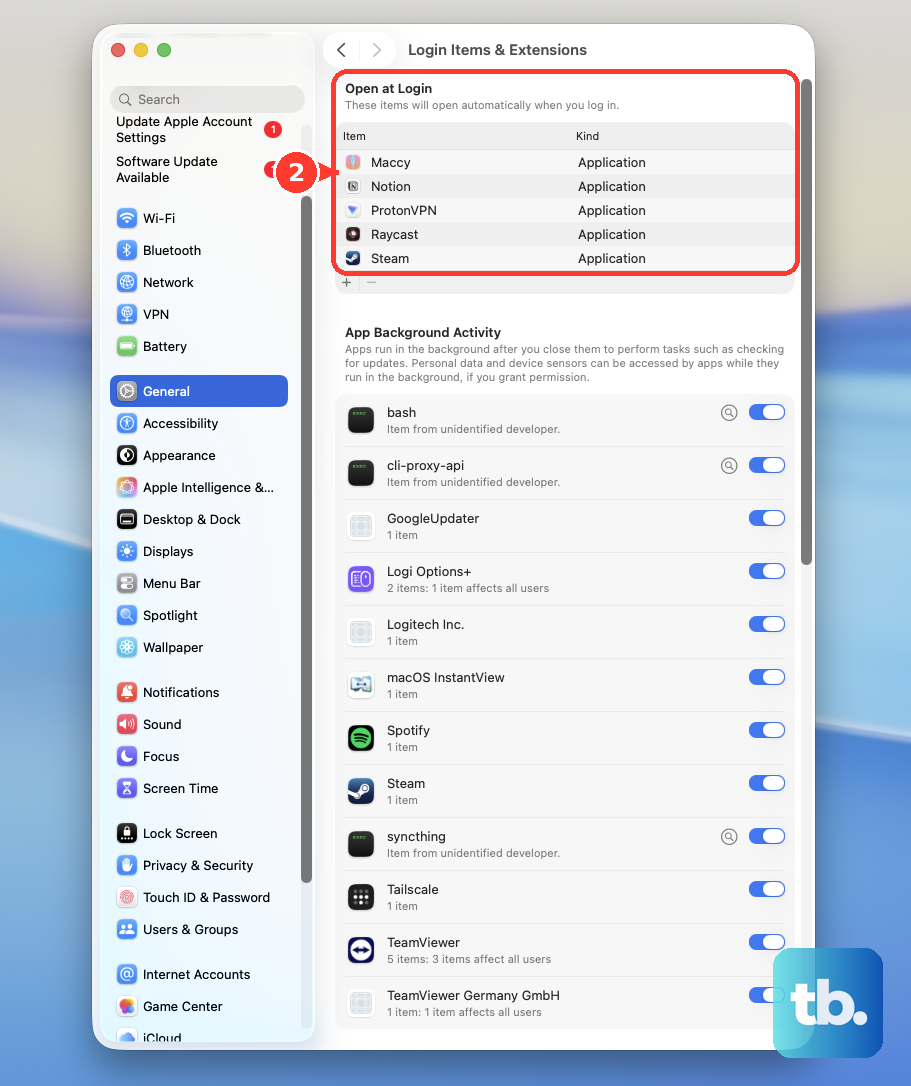
Record the Open at Login list so you know what to restore later. Select an item in the list. Click Remove (–), repeating for the remaining items.
Choose the Apple menu > Restart. Test for the problem. If the restarts stop, restore one item with Add (+). Restart after each addition to identify the item that brings the problem back.
Remove that item with Remove (–). To prevent the previous session from immediately loading a troublesome app or document, choose the Apple menu > Restart. Deselect Reopen windows when logging back in. Confirm with Restart.
On macOS Tahoe 26, turn off the suspected app's background permission under App Background Activity in Login Items & Extensions. Test again. This isolates background activity without uninstalling the app.
Disconnect accessories and test them individually
Check connected devices if software changes haven't stopped the restarts, or if the trouble happens with an accessory attached. External storage, printers, hubs, and docks all belong in this test.
Shut down your Mac. Disconnect peripherals. On a desktop Mac, keep the display, keyboard, and mouse or trackpad connected.
Start your Mac. Use it for the amount of time it usually takes for the restart to happen. If it stays stable, reconnect one device. Test again, repeating the process with one device at a time until the restart returns.
Contact the manufacturer of the device that triggers the problem about compatible companion software or drivers. If the trouble started after adding removable third-party RAM or PCI hardware, remove the addition using your Mac model's hardware instructions. Restart and test again.
Reintroduce compatible components individually to identify the culprit. Get service assistance for components that aren't user-accessible; integrated Apple silicon memory is not removable.
Run Apple Diagnostics for hardware clues
Apple Diagnostics checks for hardware faults and supplies reference codes for service. Shut down your Mac. Disconnect accessories except the keyboard, mouse, display, Ethernet, and AC power.
On Apple silicon, hold the power button until Options appears. Release the power button. Hold Command-D to start Apple Diagnostics.
On Intel instead, start the Mac while holding D. If D doesn't work, start again while holding Option-D. Follow the diagnostic prompts.
Choose Run Offline when offered, unless Apple Support initiated an online session. Save any reference codes from the results. If Diagnostics identifies a hardware fault, arrange service through Apple Support, supplying the codes and a description of the restarts.
Repair the startup disk through macOS Recovery
Filesystem and directory errors are another suspect when earlier checks haven't resolved the restarts. Back up your Mac if possible before repairing the disk. Shut down your Mac. If it's unresponsive, hold its power button or Touch ID button for up to 10 seconds.
On Apple silicon, hold the power button until startup options appear. Select Options. Click Continue.
On Intel instead, power on while immediately holding Command-R until the Apple logo or globe appears. If local Recovery fails on Intel, start while holding Option-Command-R to use Internet Recovery. The macOS version offered depends on the Recovery method; this combination requests the latest compatible version when available.
Connect to Wi-Fi or Ethernet when requested. Select the disk and user requested by Recovery. Click Next when prompted. Enter the requested administrator password.
Select Disk Utility. Click Continue. Choose View > Show All Devices. Select the last volume listed under your startup storage device.
Click First Aid. Click Run. Enter your administrator password if needed to unlock the volume. Repeat First Aid, working upward through every volume, then each container, and finally the physical device.
First Aid checks filesystem and directory errors; it does not repair every hardware fault. Quit Disk Utility when the checks finish. Choose the Apple menu > Restart. Test for the unexpected restart again.
Reinstall macOS if the restarts continue
Make a backup if possible before reinstalling macOS. A standard reinstall retains your apps and personal data. Enter macOS Recovery using the steps above.
Select Reinstall macOS for the displayed version. Click Continue. Follow the installation prompts. When offered both Macintosh HD and Macintosh HD - Data, select Macintosh HD.
Keep your Mac awake with its lid open until installation finishes. Test your Mac after installation. If unexpected restarts persist, contact Apple Support with any Apple Diagnostics reference codes ready for the service team.
Frequently Asked Questions
How do I keep macOS and apps updated automatically?
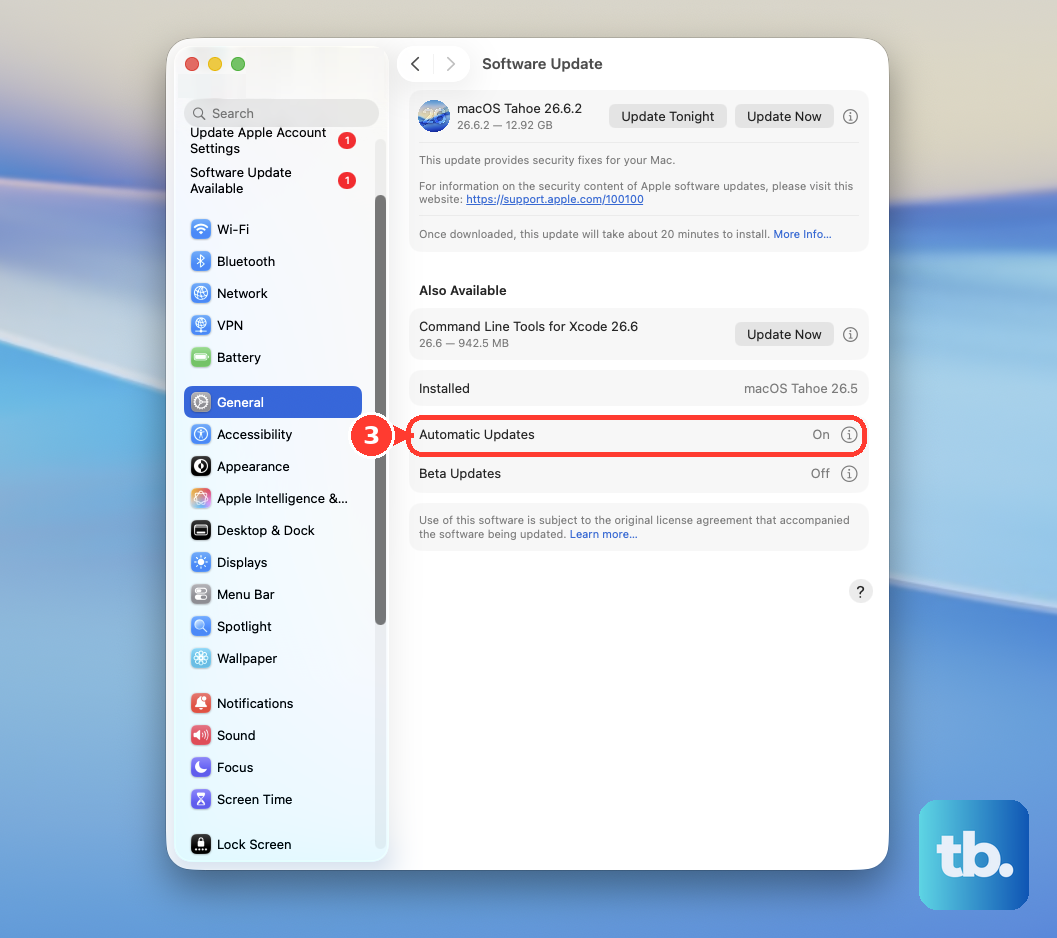
On macOS Tahoe 26, open Apple menu > System Settings > General > Software Update and click the information button beside Automatic Updates. Enable Download new updates when available, Install macOS updates, and Install Security Responses and system files. For App Store apps, open App Store > Settings and enable Automatic Updates. These settings provide preventive maintenance, not an immediate restart repair.
Should I reset NVRAM or the SMC for this message?
Neither is a blanket fix for unexpected restarts. Apple supports NVRAM resets on Intel Macs for malfunctioning stored settings, and SMC troubleshooting for relevant power or thermal symptoms. Apple silicon Macs don't need the Intel NVRAM shortcut or a separate SMC keyboard reset.
What if my Mac works normally in another user account?
That narrows troubleshooting to your original account. Apple recommends testing a new local account as part of Safe Mode troubleshooting. Focus further checks on software and settings associated with the affected account.
What should I do if this is a work-managed Mac?
Ask IT to investigate the implicated app, background task, or extension and update or remove it through the organization's management system. Share the app name shown in the alert and any Apple Diagnostics reference codes.