A stuck Mac update leaves you staring at a frozen download, an unmoving progress bar, or an Apple logo that never clears. The next step depends on whether you can still reach the desktop or your Mac has already restarted to install. Start with the fix that matches your screen, then work through disk repair and reinstallation if the update still won’t finish.
Give the installation time to finish
If your Mac has already restarted to install macOS, a stationary progress bar alone does not mean it has frozen. Long pauses and a blank display between installation stages are part of the installation process.
Leave the installation running overnight if necessary. Apple’s guidance sets no time limit after which an update counts as stuck; it recommends starting installation in the evening so the Mac can finish overnight.
Keep your MacBook’s lid open throughout installation.
Do not put the Mac to sleep. If startup never advances despite the overnight wait, follow the restart section below.
If the download stalls, retry Software Update
Still able to use the desktop? Open Apple menu > System Settings > General > Software Update. This path applies to macOS Ventura 13 and later.
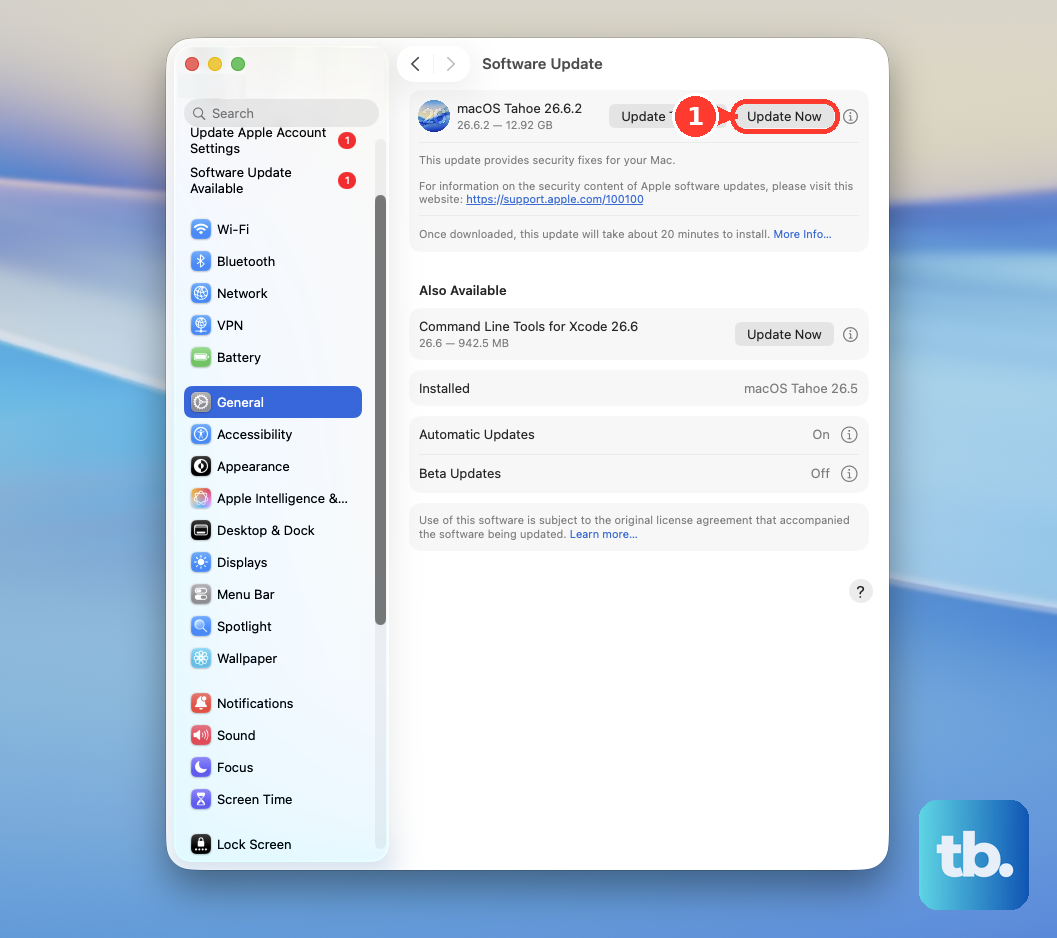
Press Command-R to check again. Alternatively, click Check for Updates or close and reopen Software Update.
Start the offered update. Only compatible updates appear here.
Enter your administrator password when requested.
For a download, preparation, or verification failure, try another network.
Connect through Ethernet if available.
Restart your modem or router if the connection problem continues.
Retry later if the failure appears temporary.
If the update still fails, check storage next, especially if macOS reports insufficient space. For continuing connection failures, temporarily disable your VPN or security app’s features using its own controls, then retry the update. Button names vary by app; ask IT before changing organization-controlled settings on a managed Mac.
Make room on the startup disk
An insufficient-storage message means you need to reclaim space before trying again.
- 1.Open Apple menu > System Settings > General > Storage.
- 2.Use a category’s More Info button to review removable files.
- 3.Move large files you want to keep to external storage.
- 4.Delete unnecessary downloads through Finder > Go > Downloads, or uninstall apps you no longer use.
- 5.Empty Trash to reclaim the space, then retry the update in Software Update.
Restart a Mac that never gets past the Apple logo
These steps address a stalled startup and interference from accessories or cables.
After allowing the installation time to finish, hold the power button for up to 10 seconds until your Mac switches off. On a MacBook with Touch ID, use the Touch ID button.
Turn the Mac on again.
If it remains stuck, power it off again.
Disconnect unnecessary printers, external drives, USB hubs, and other accessories.
Start the Mac again.
Safe Mode gives the update another chance
Try Safe Mode when ordinary installation attempts fail. It also checks the startup disk and clears certain caches. Apple silicon and Intel Macs use different startup procedures.
On an Apple silicon Mac, shut down, then hold the power button until startup options appear. Select your startup disk, hold Shift, and click Continue in Safe Mode.
On an Intel Mac, start or restart and immediately hold Shift until the login window appears. An enabled firmware password can prevent entry into Safe Mode.
Log in, completing a second login if your Mac prompts for one. Retry Software Update or your downloaded installer. Restart normally afterward to exit Safe Mode.
When normal startup fails, enter macOS Recovery
Use macOS Recovery to reach startup-disk repair and reinstallation when the earlier fixes fail. Follow the startup procedure for your Mac.
On Apple silicon, shut down your Mac.
Hold the power button until startup options appear.
Select Options > Continue.
On Intel, turn on the Mac while immediately holding Command-R until an Apple logo or globe appears.
If the Intel shortcut fails, retry with the built-in keyboard or a wired keyboard.
Select the startup volume if prompted.
Authenticate when requested.
For installation from Recovery, select a network from the Wi-Fi menu or attach an Ethernet cable. Recovery requires broadband using DHCP; networks that require a browser login can prevent installation.
Repair disk errors with First Aid
First Aid repairs disk errors that interfere with startup or installation.
In Recovery, select Disk Utility > Continue.
Choose View > Show All Devices, if that option is available, to reveal the disk’s full structure.
Select the lowest volume in the sidebar.
Click First Aid > Run.
Repeat the repair on each entry, working upward through every volume, volume group, container, and finally the device. Skip entries whose First Aid button is unavailable.
Quit Disk Utility when the repairs finish.
Restart your Mac or retry installation.
Reinstall macOS without erasing your files
If First Aid finishes but the update still won’t install, reinstall macOS from Recovery; Apple says this preserves personal files and apps. If Disk Utility instead reports errors it can’t repair, back up whatever you can reach, then follow Apple’s instructions to erase (format) the disk before reinstalling.
- 1.Back up your files if you can access them before proceeding.
- 2.Enter macOS Recovery using the steps above.
- 3.Select Reinstall macOS for the offered version, then click Continue.
- 4.Unlock your disk when prompted. If both volumes appear, choose Macintosh HD, not Macintosh HD - Data.
- 5.Follow the installation prompts and leave installation uninterrupted, keeping your MacBook’s lid open.
Persistent failures need a different next step
If your Mac remains stuck after disk repair and reinstallation, contact Apple Support or select Get service on Apple’s startup-troubleshooting page. Service is particularly relevant when Disk Utility cannot detect the internal drive.
For persistent firmware or installation failure on an Apple silicon or T2 Mac, a firmware revive is another repair option. It requires a second Mac running macOS 14 or later and uses Finder; follow Apple’s model-specific firmware recovery instructions.
Try revival before a firmware restore. A revive preserves data; a restore erases it.
Frequently Asked Questions
Will reinstalling macOS install the newest major version?
Recovery normally reinstalls the current version of the most recently installed macOS, so it does not guarantee an upgrade to the newest major release. On Intel Macs, start with Option-Command-R to request the newest compatible macOS through Internet Recovery.
What should I do if a downloaded macOS installer says it is damaged?
Repair the startup disk first. Delete the downloaded installer app, then obtain a fresh compatible installer from Apple’s download-and-install page and retry. Delete only that installer app, not protected system update directories.
What if updating works in Safe Mode but the problem returns after restarting?
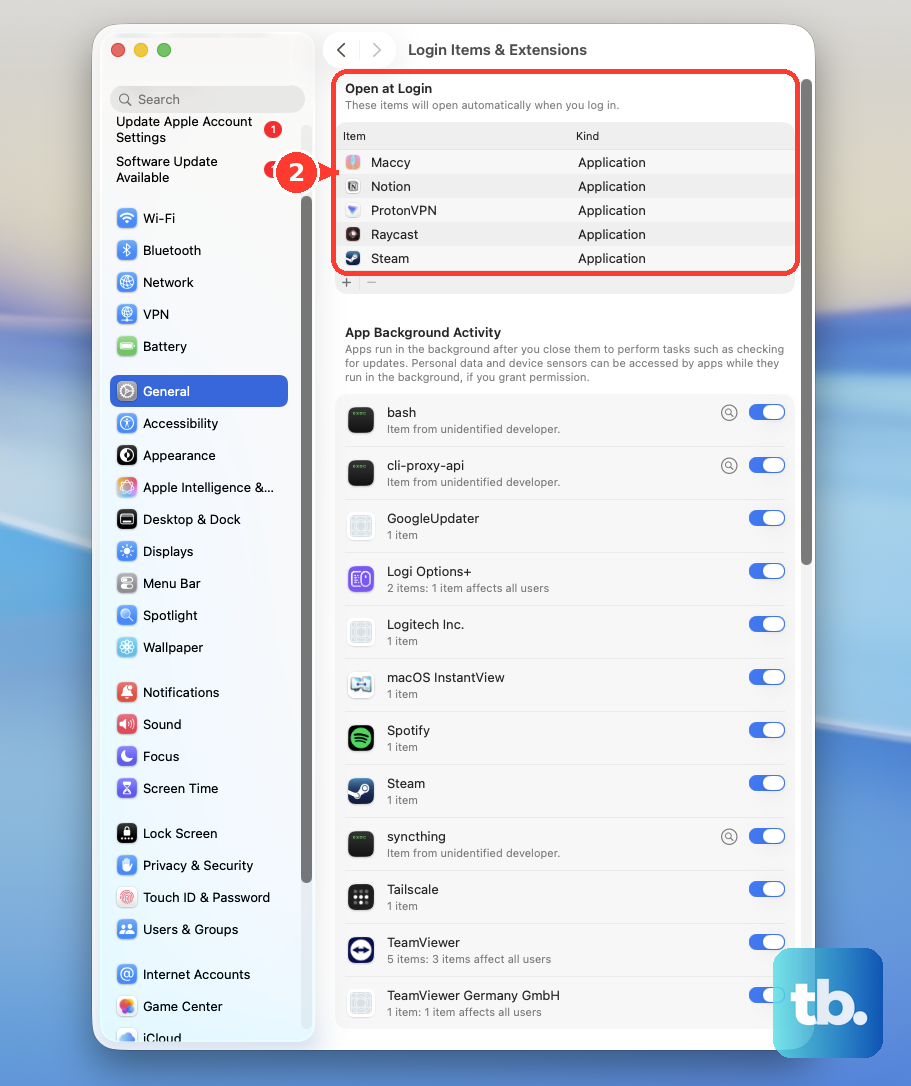
Test your login items. Open System Settings > General > Login Items & Extensions. Record the Open at Login list, then select its items and click the remove button. Restart your Mac. Add items back individually, restarting between additions to identify the one that triggers the problem.
Should I reset NVRAM or the SMC for a stuck update?
Neither is a general stuck-update fix. NVRAM resetting addresses relevant stored-settings problems on Intel Macs, including startup-disk selection. SMC resetting addresses model-specific power, charging, fan, or thermal faults. Apple silicon Macs require neither the Intel NVRAM reset procedure nor a manual SMC key sequence.