

To repost on Instagram, tap the Repost icon (two arrows) under a public post or reel. It goes out right away, keeps the original poster's credit and is kept in a separate reposts tab on your profile. For a Story share instead, tap the paper plane and look for Add to story.
In the Instagram app on our iPhone 17 Pro with iOS 26.6, one tap on that icon reposted the post at once, with no confirmation step. Instagram then showed a sheet headed "You reposted this post" with an Undo button, which took it straight back.
The short version
- Repost: tap the two-arrow icon under a public post or reel. It is reposted the moment you tap.
- Changed your mind: tap Undo on the "You reposted this post" sheet.
- Where it goes: a reposts tab on your profile, not your main grid.
- Story instead: tap the paper plane and look for Add to story. A Story share is gone after 24 hours.
- No Repost icon: the post is not public, or its creator turned reposts off.
- Stop others reposting yours: Settings and activity, Sharing and reuse, turn off Reposts on posts and reels.
Ways to repost on Instagram at a glance
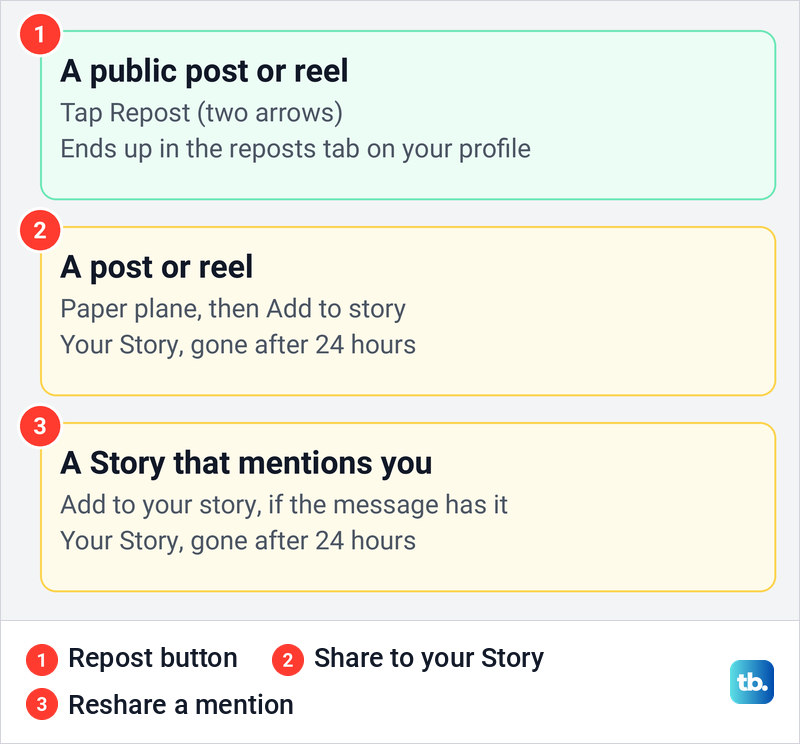
Instagram has two different things people call reposting, and they end up in different places. The Repost button keeps the item on your profile, while a Story share disappears after a day. Pick the row that matches what you want to do.
| What you want | What to tap | Where it ends up | How long it stays |
|---|---|---|---|
| Repost a public post | The Repost icon (two arrows) under the post | The reposts tab on your profile, and recommended in friends' and followers' feeds | Kept on your profile |
| Repost a public reel | The Repost icon in the reel's action row | The reposts tab on your profile, and recommended in feeds | Kept on your profile |
| Put a post or reel in your Story | The paper plane, then Add to story when it is offered | Your Story or Close Friends | 24 hours |
| Reshare a Story that mentions you | Add to your story in the mention message, when it is offered | Your Story | 24 hours |
The difference matters for who sees it and for how long. Meta says reposts are recommended to your friends' and followers' feeds and kept in a separate tab on your profile, so you can go back to them. A reel shared to your Story behaves like a regular Story instead: it does not appear on your profile and it disappears after 24 hours.
Repost a post or reel with the Repost button
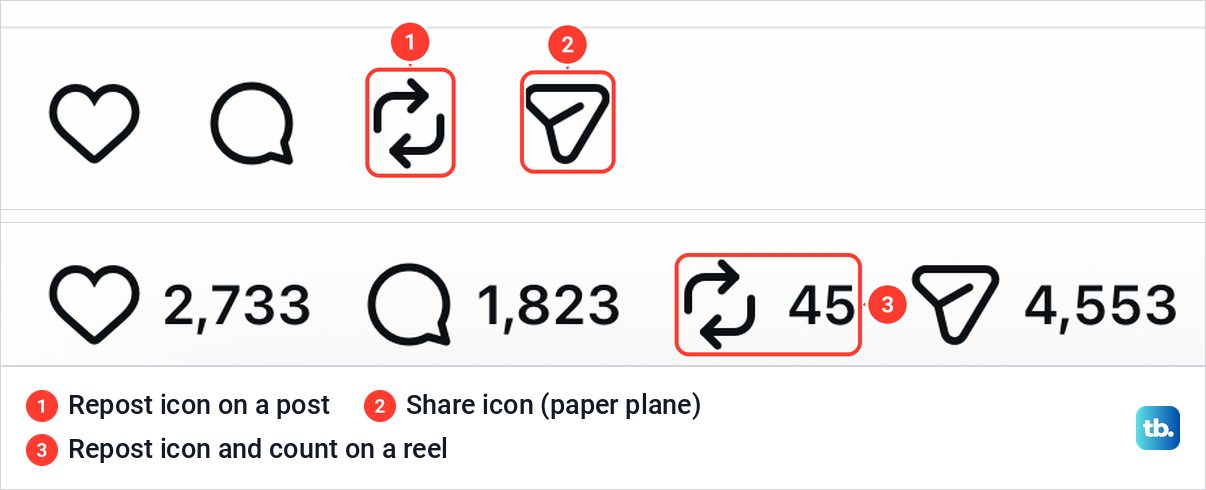
Open the post, or find the reel in your feed, and look at the row of icons under it. The Repost icon is two arrows chasing each other, the third icon in the row, after the heart and the speech bubble and just before the paper plane. On our iPhone it sat in that spot on one of our own posts and on a reel in the feed, where the number beside it was that reel's repost count.
Tap the Repost icon once. There is no confirmation: when we tapped it on one of our own posts, the post was reposted on the spot and a sheet appeared reading "You reposted this post", with OK and Undo. The sheet explains that reposting shares a post or reel with your followers in their feeds, and that "things you repost will also appear in a special place on your profile."
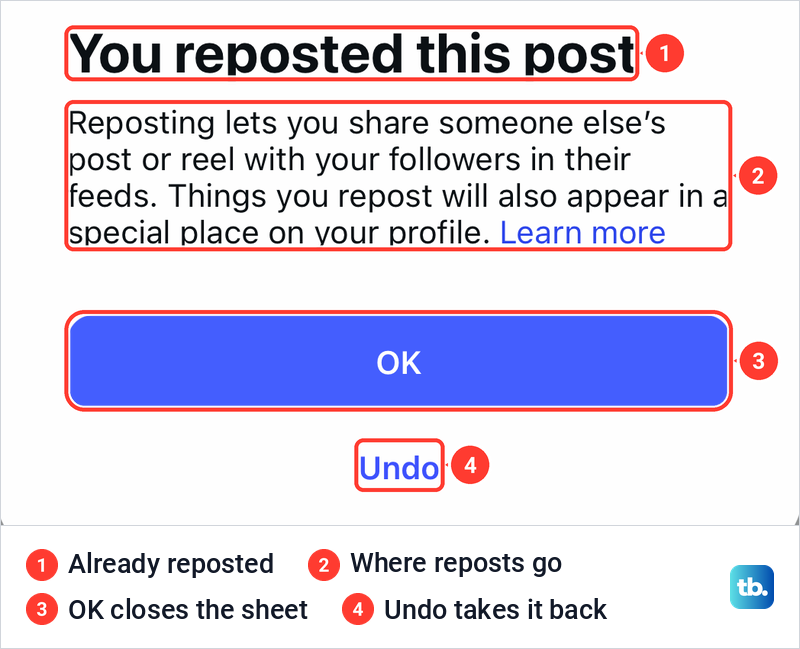
The repost is already live. Tap OK to close the sheet, or Undo to take it back. Meta says you can also add a note to a repost by typing into the thought bubble that appears on screen and pressing save. The note is optional, and Meta credits every repost to the original poster either way.
Reels work the same way. Open the reel, tap the Repost icon in its action row, and it joins your reposts. Don't confuse it with the paper plane next to it, which sends the reel in a message or adds it to your Story. If the reel never opens in the first place, fix a Reel that will not load before you look for the Repost control.
The icon also appears on your own posts, and tapping it there reposts your own post, as the sheet on ours showed. That may get an older post recommended in friends' and followers' feeds. If what you really want is an archived post back on your grid, that is a different task, covered further down.
Undo a repost
If you tapped Repost by mistake, the quickest fix is the sheet that showed up straight after on our iPhone. We pressed Undo a few seconds after reposting, and the Repost icon went back to a plain outline. The profile we used showed the same three tabs as before.
Once that sheet is gone, many people report that tapping the highlighted Repost icon on the post again removes the repost. If you can't find the original post, open it from the reposts tab on your profile, which Meta says keeps your reposts so you can go back to them. Check that tab afterwards to make sure the post has gone.
Where your reposts show up
Reposts do not land in your main grid. Meta says they are kept in a separate tab on your profile and recommended to your friends' and followers' feeds. Instagram's own sheet calls it "a special place on your profile."
The profile we used, with no reposts on it, showed only three tabs under the profile buttons: the posts grid, reels and tagged. It looked the same after we undid our repost.

Being recommended is not the same as being delivered to everyone. Meta's wording is that reposts are recommended to friends and followers, and that reposted content may reach the reposter's followers even if they don't follow the creator. Treat a repost as a nudge to your audience, not a message every follower will see.
Share a post or reel to your Story
A Story share is the older way to repost, and it is temporary. Open the post or reel and tap the paper plane share icon. People report that the menu it opens has an Add to story option, which puts the post in the Story editor, where you share it to Your story or to Close Friends.
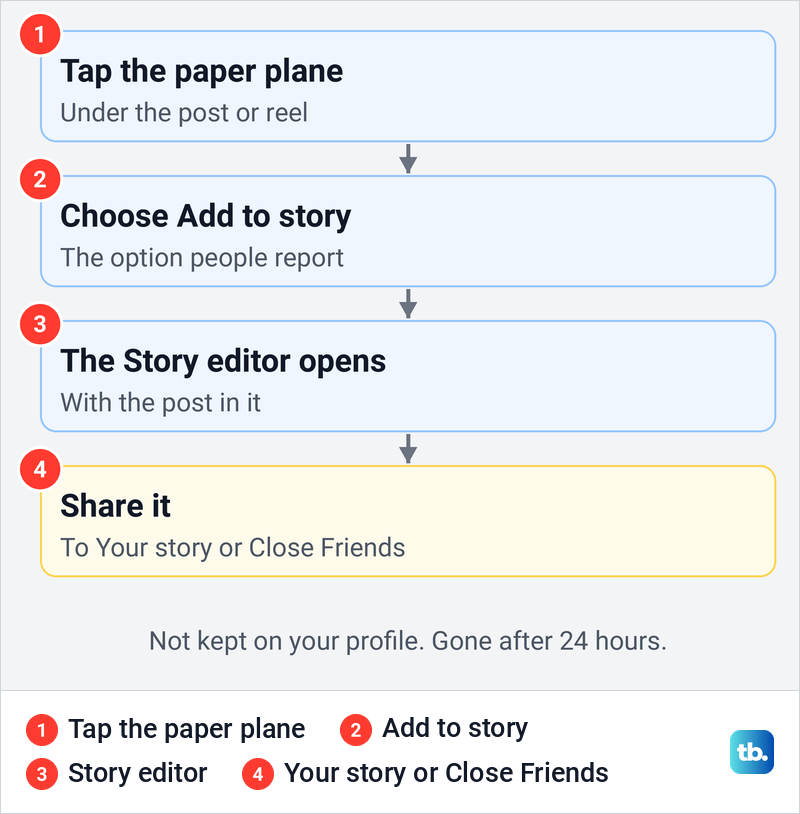
Meta says a reel shared to your Story behaves like a regular Story: it is not shown on your profile and it disappears after 24 hours. If the share is only meant for people close to you, choose a smaller Instagram Story audience before you publish it.
Not every post offers Add to story, because the creator decides. On our own Sharing and reuse page, a switch called Posts and reels to stories controls whether people can add your posts and reels to their stories. If one post offers no Story option, its creator may have turned that off, so copy an Instagram post link and send the original instead.
If the Story option is missing on every post, work through the steps to fix Instagram Add to Story when it is missing. When the Story editor opens but your Story will not go out, our guide can help fix Instagram Stories that will not post.
Reshare a Story you were mentioned in
People report that a Story mention arrives in your messages with an Add to your story option while the original Story is still live, and that tapping it opens the Story in your own editor, ready to share. The reshare lasts 24 hours like any other Story.
Resharing other people's Stories also depends on their settings. Instagram's Sharing and reuse page has a Stories to stories choice of Everyone, Followers you follow back or Off, with the note "When this is on, the audience you select can share your stories to their story." On the account we used it was set to Everyone. People report that when a creator allows it, tapping the paper plane on their Story offers an Add to story option.
If you made the original Story and want a friend to reshare it, mention someone in an Instagram Story so the mention reaches them. If the mention preview has expired or will not open, check why an Instagram Story is no longer available.
Why the Repost button is missing
Start with the post itself. Meta describes reposts for public reels and feed posts, so a post from a private account does not qualify. Stories are not covered by the Repost button either, and you share them with the paper plane as described above.
Next, the creator may have switched reposts off. Instagram's Sharing and reuse page has a switch called Reposts on posts and reels under Allow people to share your posts and reels, so an account that turns it off is choosing not to be reposted. Ask the creator, or share the post's link instead.
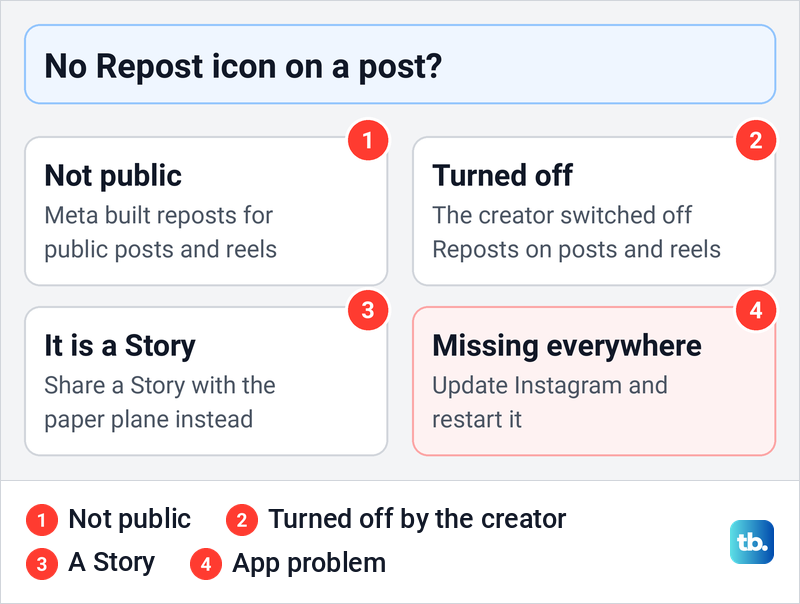
If the icon is missing on every post, even public posts from large accounts, the app is the likelier problem. Update Instagram from the App Store or Google Play, then close it and open it again. If several buttons are broken at once rather than one share option, work through our steps to fix the Instagram app when controls fail.
Stop people from reposting your posts
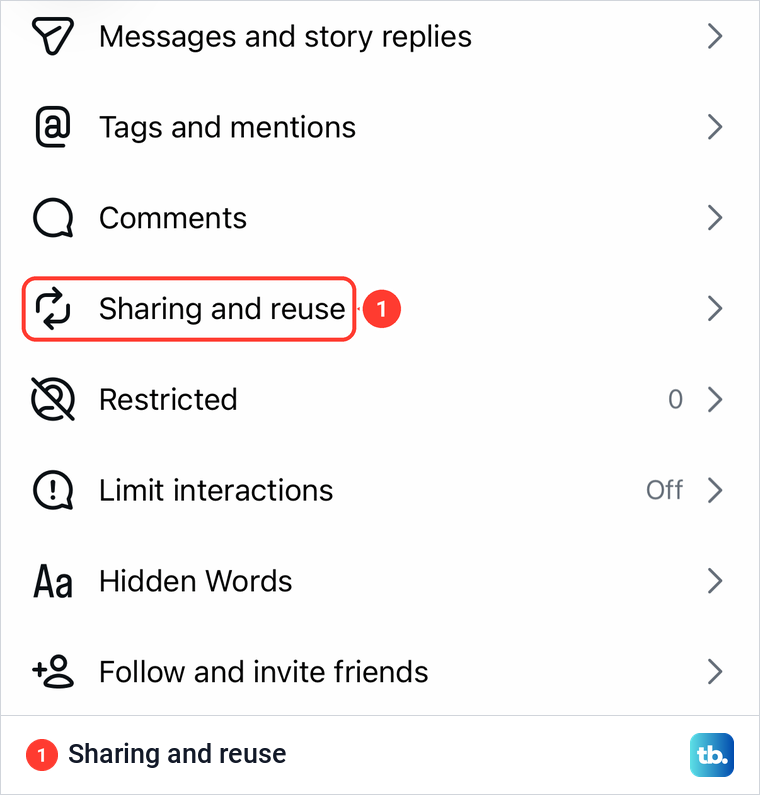
You decide whether others can repost your own posts and reels. Go to your profile, tap the menu with three lines at the top right, then Settings and activity. On our iPhone, Sharing and reuse sat under How others can interact with you, between Comments and Restricted.
The top of Sharing and reuse has four controls for sharing your work. Story shares lets people send your stories in messages, Stories to stories sets who can share your stories to their own story, and Posts and reels to stories lets people add your posts and reels to their stories. Reposts on posts and reels covers the Repost button, and on the account we used all four allowed sharing.
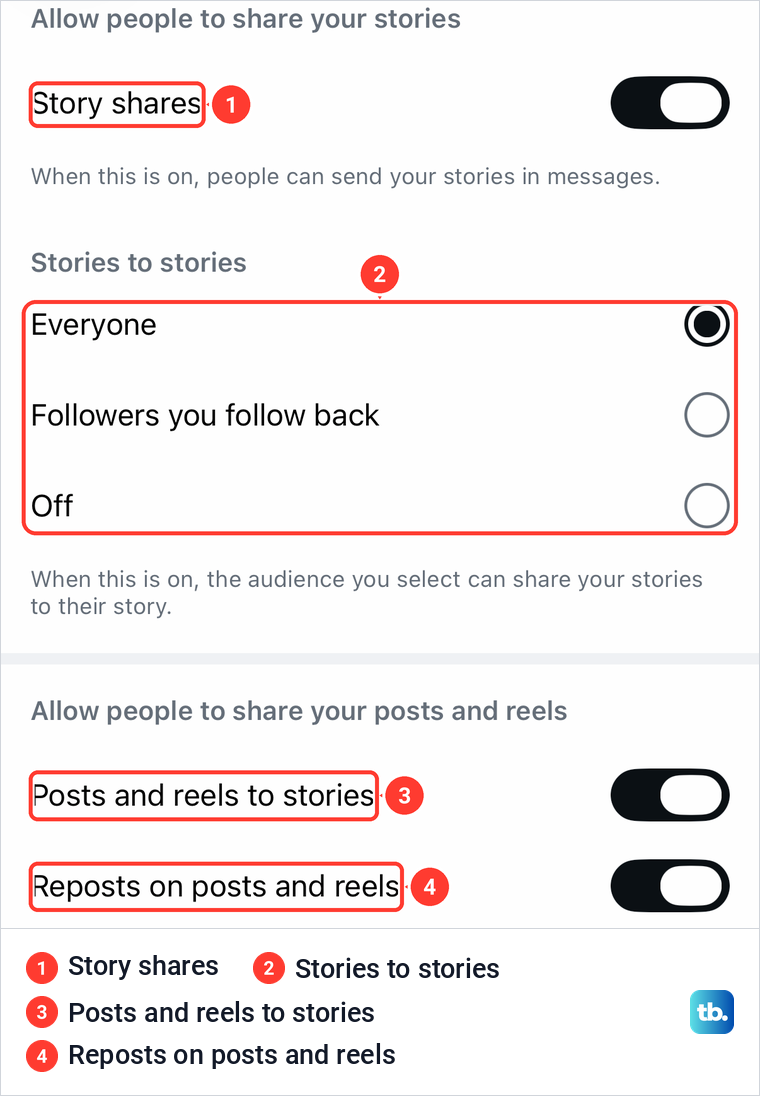
Turn off Reposts on posts and reels if you don't want people reposting your posts and reels, and leave the Story switches on if you are happy with Story shares. Lower on the same page, separate switches cover reuse of your posts in remixes, templates and stickers, and Instagram notes you can turn that reuse off for a single post or reel from its More menu. Downloads of your public reels have their own Downloads switch, which was off on the account we used.
Repost your own archived posts or keep old Stories
Bringing back your own old content is a separate job. If you archived a post and want it on your grid again, restore an archived Instagram post rather than reposting it. Restoring puts the original post back where it was, while a repost only adds it to your reposts tab.
For an old Story, a Highlight keeps it on your profile past the 24 hours. The profile we used had no Highlights row yet, so the way in was the + button at the top left of the profile. It opened a Create sheet with Reel, Post, Story, Instants, Highlights, Live and Channel, and Highlights opened a picker of our archived stories.
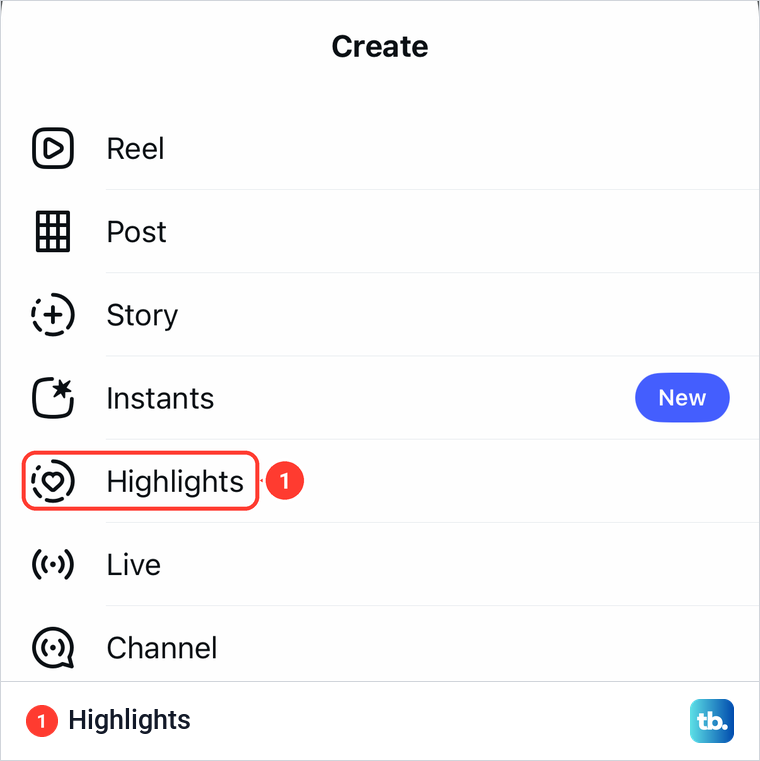
Pick the stories you want and tap Next. Our guide shows how to add Instagram Highlights from your archive from start to finish.
Screenshots, downloads and credit
A native repost keeps the creator's name on it, because Meta credits reposts to the original poster. A screenshot or a downloaded reel that you upload again is a new post under your name, with no link back to the person who made it. If you want to reuse someone's photo or video that way, ask them first and name them in your caption.
How we tested this guide
We tested this in the Instagram app on an iPhone 17 Pro with iOS 26.6, tapping Repost on a post and then pressing Undo.
Frequently Asked Questions
Where do my Instagram reposts go?
They go to a separate reposts tab on your profile, not your main grid. Meta says reposts are also recommended to your friends' and followers' feeds.
Can I repost a reel on Instagram?
Yes, if it is public. Tap the Repost icon in the reel's action row, the two arrows before the paper plane.
How do I repost a post to my Story?
Tap the paper plane under the post and look for Add to story, which people report opens the post in the Story editor. A Story share disappears after 24 hours.
Can I repost a Story if I was not tagged?
It depends on the creator, whose Stories to stories setting lets Everyone, only Followers they follow back, or nobody share their stories. People report that when it is allowed, tapping the paper plane on the Story offers Add to story; if it is not there, ask the creator to mention you instead.
Why is there no Repost button on a post?
The post may not be public, or its creator turned off Reposts on posts and reels. If the button is missing everywhere, update Instagram.
How do I undo a repost on Instagram?
Tap Undo on the "You reposted this post" sheet if it appears after you repost. Later on, people report that tapping the highlighted Repost icon again removes it.
Can I repost my own post on Instagram?
Yes. The Repost icon appears on your own posts too, and tapping it on ours reposted the post at once.