

Instagram Reels can break in a few different ways: the feed spins, videos freeze, audio disappears, uploads fail, or the Reels tab will not respond. Start with the fixes that reset the app and connection, then move into cache, data saver, permissions, account status, and web fallback steps.
1. Reset Instagram before changing settings
Close Instagram completely, reopen it, then restart your phone if Reels still fails. This clears a stuck app session and resets the phone before you start changing account or network settings.
On iPhone, open the App Switcher, find Instagram, swipe up on it, then reopen Instagram from the Home Screen or App Library.
On Android, swipe up from the bottom, hold, let go, swipe up on Instagram, then reopen Instagram.
If Reels still will not load, restart the phone.
On an iPhone with Face ID (iPhone X or later), press and hold the Side button and either volume button until the power-off slider appears.
On iPhone 6, 7, 8, or SE (2nd or 3rd gen), press and hold the Side button.
Drag the slider, wait 30 seconds, then press and hold the Side button again until the Apple logo appears.
On most Android phones, press the Power button for about 30 seconds, or tap Restart and then Restart again when those buttons appear.
On Android, use Settings > Apps > Instagram > Force stop if the app still will not respond after reopening it.
2. Switch the network Reels is using
A blocked or unstable connection can make Reels spin, freeze, or fail to preload. Switch from Wi-Fi to mobile data, or from mobile data to Wi-Fi, then open Reels again.
On iPhone: go to Settings > Wi-Fi, turn on Wi-Fi, and tap the network name. For mobile data, go to Settings > Cellular and turn on Cellular Data.
If Reels works on Wi-Fi but not mobile data, allow Instagram to use cellular data: Settings > Cellular > Instagram > turn on cellular access.
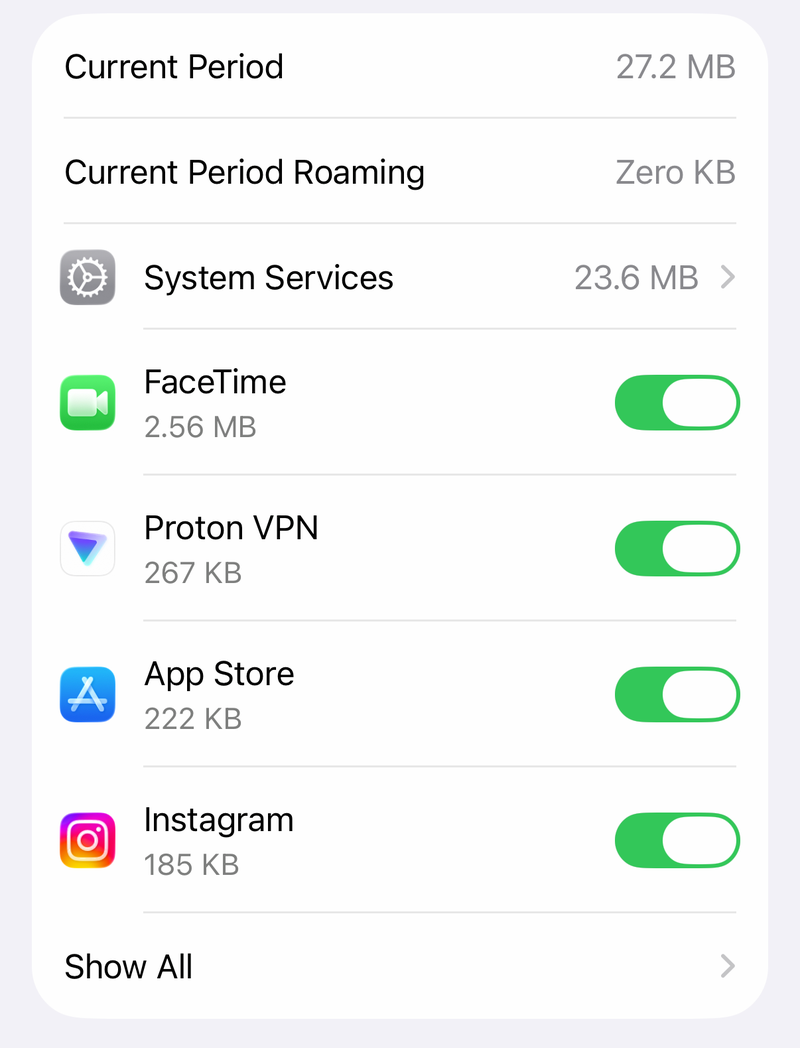
On Android: open your network settings, confirm the internet connection is stable, then switch between Wi-Fi and Mobile data. Android settings labels vary by phone, so use the matching network menu on your device.
3. Update Instagram from the official store
On iPhone or iPad, open the App Store, tap your Profile icon, open App Updates, then tap Update next to Instagram.
On Android, open the Google Play Store, tap your Profile icon, choose Manage apps & device, open Updates available, tap See details, then tap Update next to Instagram.
On Windows, open the Microsoft Store, search for Instagram, select Instagram from Meta, then choose Get or Install.
Use the store version first. Do not install random APK files to fix Reels.
The current App Store listing requires iOS 16.3 or later or iPadOS 16.3 or later. The Google Play listing for Instagram was updated July 13, 2026, and the App Store listing showed version 438.0.0 as of July 16, 2026.
4. Clear damaged app data the supported way
On Android: open Settings > Apps > Instagram > Storage & cache or Storage > Clear cache. If Reels still will not load, tap Clear storage or Clear data. This deletes local app data and can require signing in again.
On iPhone or iPad: delete and redownload Instagram. Touch and hold Instagram, tap Remove App, tap Delete App, then tap Delete. Open the App Store, search for Instagram, and install it again.
Do not use old instructions that claim the iPhone app has a verified main-cache clearing button inside Instagram. Apple’s supported reset path is delete and redownload.
5. Disable data saving when videos stall
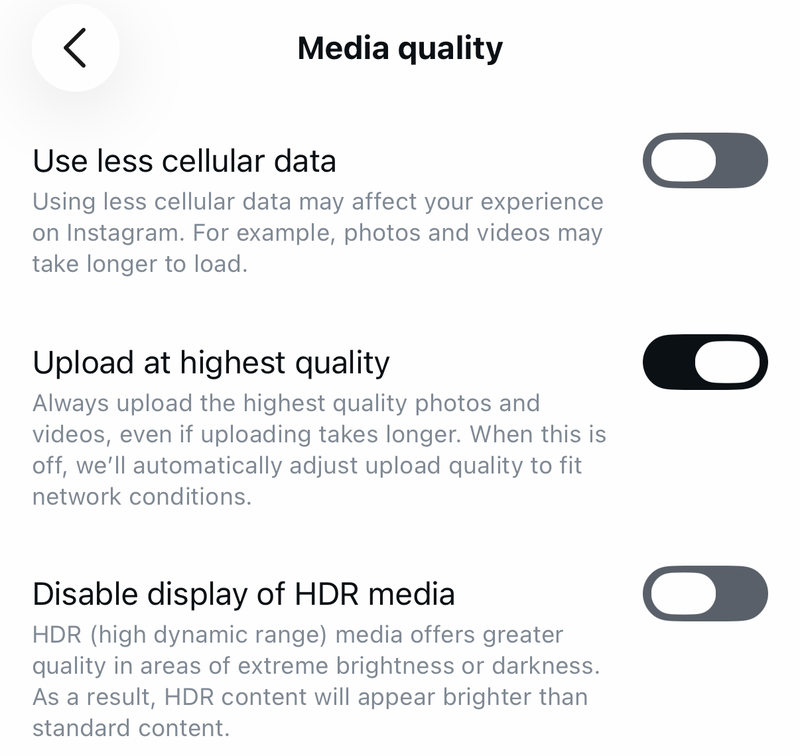
Turn off Instagram Data Saver while testing. Instagram’s Data Saver stops videos from preloading over cellular, so Reels can take longer to load.
Open Instagram, tap your Profile picture, tap Menu, open Settings and activity, choose Media quality, then turn off Use less cellular data.
On iPhone Wi-Fi, go to Settings > Wi-Fi > the Info button next to your network > Low Data Mode > off.
On iPhone cellular, go to Settings > Cellular > Cellular Data Options, then turn off Low Data Mode (on 5G models, tap Data Mode first).
On a Dual SIM iPhone, go to Settings > Cellular or Mobile Data > your line or number > Low Data Mode > off.
On Android, go to Settings > Network & internet > Data Saver > Use Data Saver > off.
When your Android phone shows unrestricted or background data controls for Instagram, allow Instagram to use that data during troubleshooting.
6. Allow recording upload and audio access
Inside Instagram, tap your Profile picture, open Menu, then under Your app and media tap Device permissions. Select the permission and follow the prompts.
On Android: go to Settings > Apps > Instagram > Permissions, then allow Camera, Microphone, Photos and videos, or Location.
On iPhone: go to Settings > Apps > Instagram, then enable the permissions you need.
If Reels play but you cannot record, upload, use audio, or add media, these permissions are the next check. Reels creation depends on camera, microphone, photos, and sometimes location access.
For sound, start with the simple mute control: while watching a Reel in Feed, tap the Volume off icon to turn sound on.
If a Reel shows Audio unavailable, open that Reel, tap Audio unavailable, tap Replace audio, then tap Replace audio again.
For a new Reel, record the clip, tap Next > Audio > Music, then choose a song or use original audio.
7. Review account limits and Facebook sharing
When Reels load but posting, reach, recommendations, or Facebook sharing is broken, treat it as an account issue.
Refresh the session first: tap your Profile picture, open Menu, tap Settings and activity, scroll to the bottom, tap Log out, then sign back in.
For Reels that will not share to Facebook, open your Instagram profile, tap Menu, then open Accounts Center or Meta Account settings > Sharing across profiles.
Below Share from, select your Instagram account and make sure Your Instagram reels is turned on.
If sharing still fails, turn sharing off and back on, check the Facebook connection, close both Instagram and Facebook, reopen them, and try again.
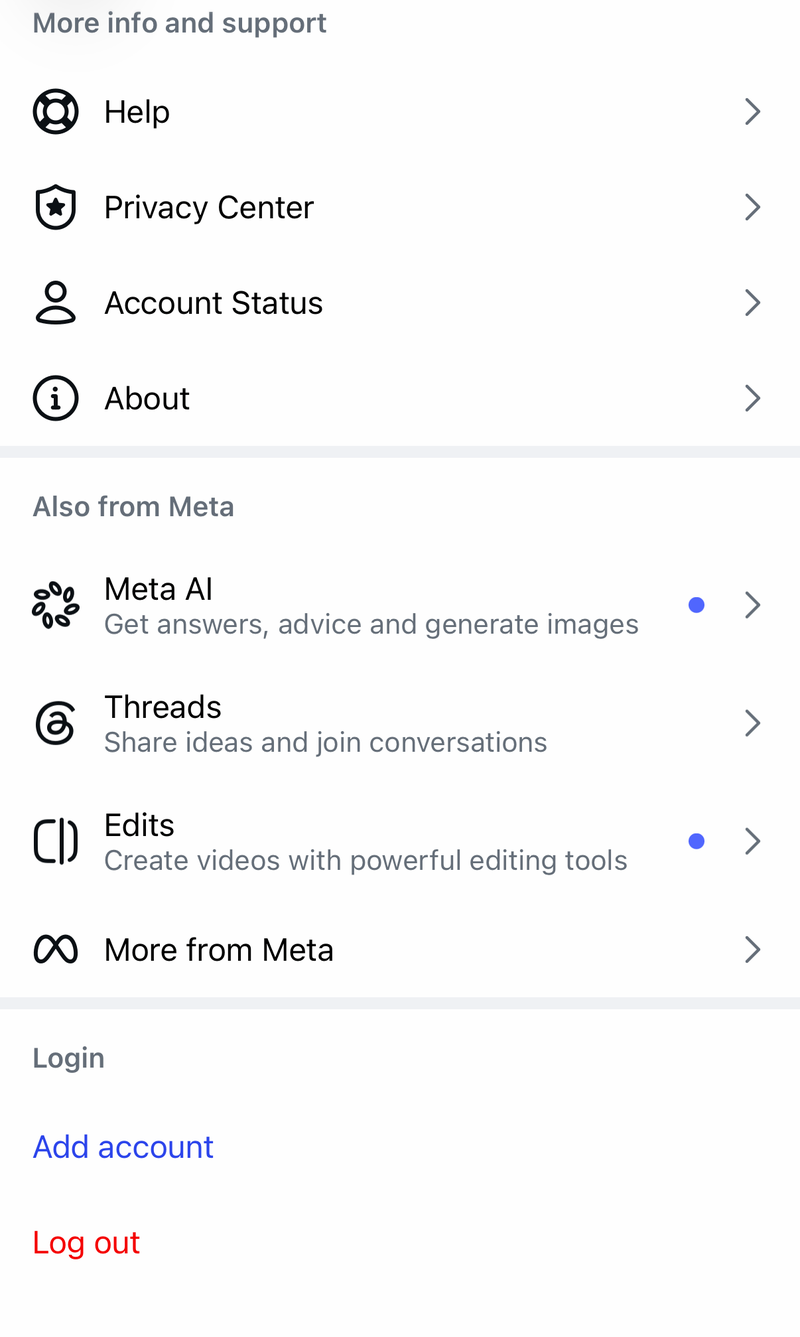
For posting, reach, or recommendation problems, tap your Profile picture, tap Menu, then under More info and support tap Account Status.
For missing or limited Reels recommendations, open Settings and activity, go to Suggested content or Content preferences, tap Sensitive content, then choose the level you want.
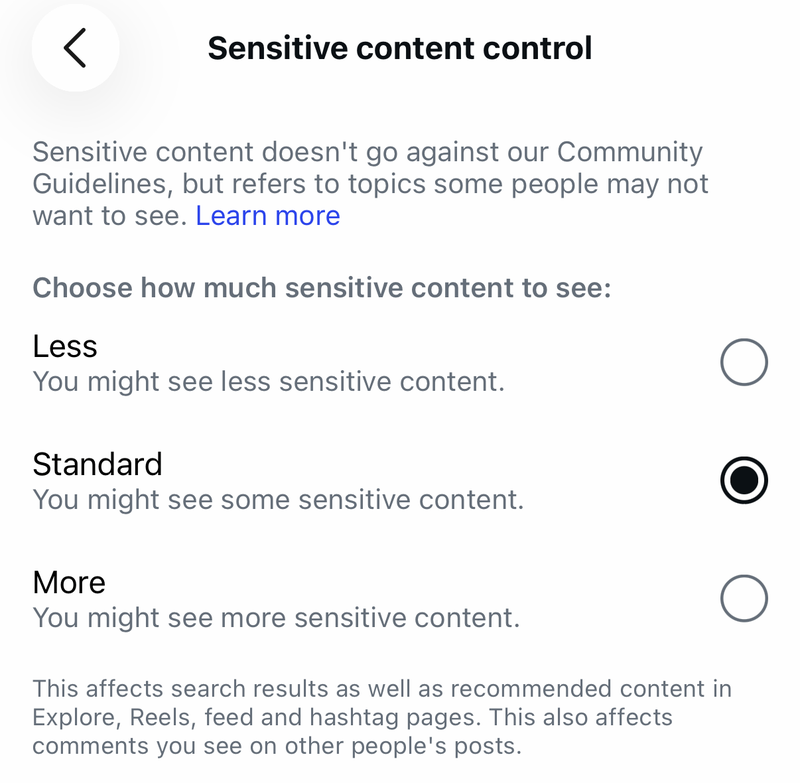
Teen accounts and users under 18 have stricter sensitive-content limits and may not see every option.
8. Use the web fallback or report the bug
Instagram supports instagram.com in current versions of Google Chrome, Mozilla Firefox, Safari, and Microsoft Edge. Go to instagram.com and log in, or open instagram.com/reels directly.
When Reels fails only in the browser, refresh instagram.com/reels, sign out and back in, or clear that browser’s site data and cache.
On Windows, reinstall Instagram from the Microsoft Store if you use the Windows app.
For a persistent app bug, update Instagram first, then report it: tap your Profile picture > Menu > Help > Report a Problem.
To check an existing report, go to Profile picture > Menu > Help > Reports and violations.
On work, school, or family-managed devices, Instagram, updates, camera access, microphone access, cellular data, instagram.com, or media streaming can be blocked by policy. Ask the device owner or admin to allow Instagram and the permissions Reels needs.
Frequently Asked Questions
Why are Instagram Reels not showing on my account?
Use Instagram’s current Reels surfaces first: scroll Feed for reels from followed creators or tap the Reels icon at the bottom of Feed. If recommendations are limited, check Account Status and Sensitive Content settings.
Why do Reels work on Wi-Fi but not mobile data?
Cellular access or data saving is usually the cause. Turn on cellular data for Instagram on iPhone, switch off Instagram Data Saver, and disable system Low Data Mode or Data Saver while testing.
Can low storage stop Instagram Reels from working?
Yes. On Android, use Settings > Storage > Free up space or clear Instagram cache. On iPhone, use Settings > General > iPhone Storage, then delete unused apps or large files.
Should I install an Instagram APK to fix Reels on Android?
No. Use the official Google Play listing for Instagram. Random APK download portals are not a supported Reels fix.