Instagram not working can mean a frozen app, blank Reels, missing notifications, login trouble, or an account that suddenly cannot post. Start with the fast checks, then move into the settings that actually control updates, data, permissions, and account access.
These fixes cover iPhone, Android, Windows, and Instagram on the web, using current Apple, Google, Meta, and Microsoft-supported steps.
1. Check If Instagram Is Down
Start here when Instagram fails on every device or everyone around you is seeing the same problem. A service outage has no phone setting to repair.
Open Instagram and check for any in-app outage or account notice.
For business tools, open Meta Status at metastatus.com.
If Meta services show active disruption, wait and try Instagram again later.
Meta Status tracks Meta business products, so it is not a complete consumer Instagram status page. It still helps confirm wider Meta service problems.
2. Restart Instagram And Your Phone
On iPhone or iPad, open the App Switcher, swipe to Instagram, swipe up on Instagram, then reopen Instagram from the Home Screen or App Library.
On Android, go to Settings > Apps > Instagram > Force stop, then open Instagram again.
If the Android app still freezes, press the Power button for about 30 seconds until the phone restarts. If prompted, tap Restart > Restart.
On iPhone or iPad, restart the device, then open Instagram again.
A stuck app session is the cleanest fix to rule out first. It does not delete anything or change your account.
3. Update Instagram Before Reinstalling
Install the latest app build first if Instagram crashes, refuses to open, or acts strange after a phone update.
On iPhone or iPad, open App Store, tap your account button or profile photo, open App Updates, then tap Update next to Instagram, or tap Update All. If Instagram has no update available, go to Settings > General > Software Update and follow the onscreen steps.
On Android, open Google Play Store, tap your profile icon, choose Manage apps & devices, then under Updates available, update Instagram or update all apps. To update Android, go to Settings > System > Advanced > System update. Some phones use Settings > About phone or Settings > About tablet > Software update.
4. Allow Cellular Data And Background Access
On iPhone, go to Settings > Cellular, turn on Cellular Data, then scroll to Instagram and turn on its cellular-data switch.
On Android, go to Settings > Network & Internet > Data Saver > Unrestricted data, then turn on Instagram.
On some Android phones, open Settings > Apps > Instagram > Mobile data & Wi-Fi or Data usage, then allow Background data or Unrestricted data usage.
Inside Instagram, open your profile, tap Menu, then open Data usage and media quality. Turn Data Saver on or off as needed.
Use this fix when Instagram works on Wi-Fi but not mobile data, Reels load slowly, or the app stops refreshing in the background. Instagram says videos take longer to load over cellular when Data Saver is on.
5. Restore Camera Photos And Notification Access
Permissions are the next check when Stories, Reels, uploads, the camera, the microphone, photos, location, or contacts stop working.
In Instagram, open your profile or profile picture, tap Menu, then under Your app and media, choose Device permissions.
Select the blocked permission, then tap Turn on permissions, Continue, or Update device settings.
On iPhone, open Settings > Privacy & Security, then choose Camera, Microphone, Photos, or the blocked category and turn on Instagram access.
On Android, open Settings > Apps > Instagram > Permissions, choose the blocked permission, then select the access level you need.
For missing notifications, check both the phone and Instagram.
On iPhone, open Settings > Apps > Instagram > Notifications, then turn on Allow Notifications.
On Android, open Settings > Notifications > App notifications > Instagram, then turn notifications on.
Inside Instagram, open Menu > Notifications, then adjust push notification categories or pause settings.
6. Clear Cache Without Using Fake iPhone Tricks
On Android, go to Settings > Apps > Instagram > Storage or Storage & cache, then tap Clear cache.
If Instagram still fails on Android, tap Clear storage or Clear data, then sign in again.
On iPhone, go to Settings > General > iPhone Storage > Instagram, tap Offload App, then tap Reinstall App, or tap the Instagram icon with the cloud symbol.
Android has a real Instagram cache button. iPhone uses offloading instead. iPhone does not provide a general per-app cache clear button for Instagram.
Offloading refreshes the app while keeping its documents and data.
If Instagram is broken in a browser, clear that browser’s site data.
In Safari on iPhone, go to Settings > Apps > Safari > Clear History and Website Data.
In Safari on Mac, open Safari > Settings > Privacy > Manage Website Data, then select instagram.com or choose Remove All > Remove.
In Chrome, open More > Delete browsing data, choose the time range and data types, then tap Delete data.
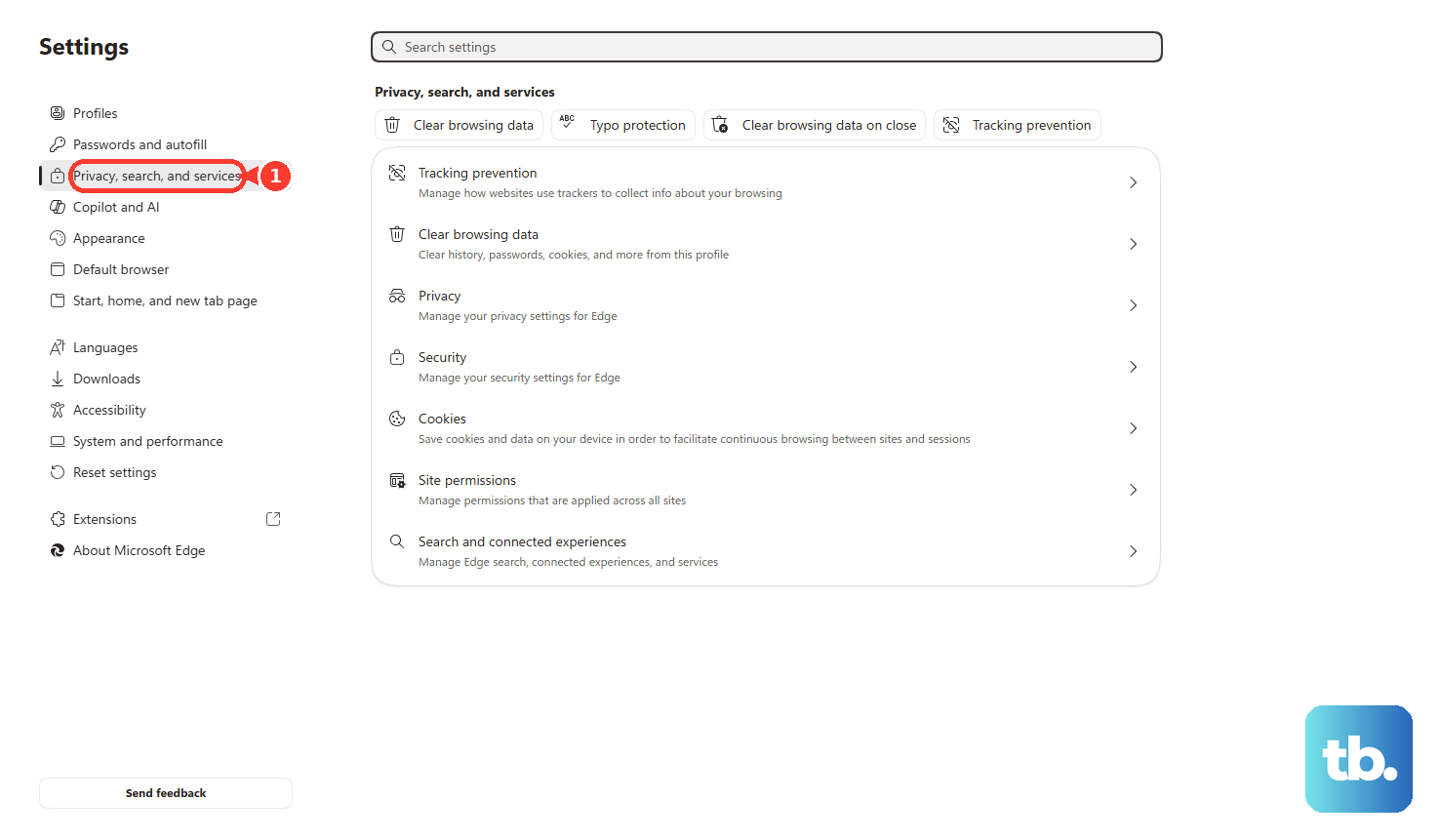
In Microsoft Edge, open Settings and more > Settings > Privacy, search, and services > Clear browsing data > Choose what to clear, choose the range and data types, then select Clear now.
7. Reinstall From Official Stores Or Use Instagram Web
Reinstall only after restart, updates, permissions, data, and cache checks. It removes the app install and gives you a clean copy from the official store.
On iPhone or iPad, touch and hold Instagram, then tap Remove App > Delete App > Delete. Redownload Instagram from the App Store.
On Android, touch and hold Instagram, choose Remove App, Delete App, or Uninstall, then reinstall Instagram from Google Play.
On Windows, install or update Instagram from the official Microsoft Store listing.
When the app is unavailable, open instagram.com or instagram.com/accounts/login and sign in with your Instagram username and password.
Use the App Store, Google Play, Microsoft Store, or Instagram.com. Skip iTunes app syncing, unofficial desktop clients, APK mirrors, and user-agent tricks.
8. Review Account Status And Get Support
Open Instagram, go to your profile, tap Menu, then open More info and support > Account Status.
Review removed content, reach limits, feature limits, or appeal options shown there.
For login failures, hacked accounts, lost passwords, suspicious login issues, or inaccessible accounts, use Forgot password?, Get help logging in, or Need more help? from the Instagram login screen.
To report a technical problem, open Profile > Menu > More info and support > Help > Report a Problem and follow the onscreen instructions.
If shake reporting is enabled, shake your phone from the broken screen and follow the report prompts.
Meta Verified subscribers can access Meta Verified support from the account’s support or help area in the Instagram mobile app.
Use this section when Instagram opens but posting, commenting, following, messaging, monetization, or a specific feature fails. On family-managed, school, or work devices, restrictions can block app updates, deletion, cellular access, camera or photo permissions, notifications, or Instagram itself. Check Screen Time, Content & Privacy Restrictions, Family Link, a work profile, organization management, or the device owner’s controls.
Frequently Asked Questions
Why does Instagram keep logging me out?
Use Instagram’s login recovery options from the login screen, including Forgot password?, Get help logging in, or Need more help?. For hacked accounts, suspicious login problems, lost passwords, or inaccessible accounts, use Meta’s account recovery support flow.
Can I still use Instagram if the app will not open?
Yes. Open instagram.com or instagram.com/accounts/login in a browser and sign in with your Instagram username and password. Instagram web is the official workaround while the mobile app is broken.
Why are Reels slow on cellular data?
Instagram’s Data Saver setting can make videos take longer to load over cellular. Open Instagram, go to your profile, tap Menu, open Data usage and media quality, then change Data Saver as needed.
What if I cannot update, delete, or grant Instagram permissions?
The device can be limited by Screen Time, Content & Privacy Restrictions, Family Link, a work profile, organization management, or an MDM profile. Check those controls or contact the device owner or admin.