You want a Highlight on your profile without broadcasting a fresh Story. Instagram lets you do that only when the photo or video is already in your Stories archive.
If the item was never posted as a Story, Instagram does not offer a supported direct camera-roll upload into Highlight content. Use an archived Story, add a current Story to a Highlight, or change only the Highlight cover.
See What Instagram Allows
Highlights live on your profile, but the content inside them comes from active Stories or archived Stories. A new camera-roll photo or video cannot become Highlight content unless it has been posted as a Story first.
The clean no-new-post path is Profile, Menu, Archive or Archived, then Stories archive. Open an old Story there and tap Highlight. If you want a brand-new item in a Highlight, post it as a Story, share it to a limited audience first, or use it only as a Highlight cover.
Add an Archived Story
Use this when the Story was posted before and saved to your archive.
- 1.Open Instagram and tap Profile or your profile picture.
- 2.Tap Menu, then tap Archive or Archived.
- 3.Make sure you are viewing Stories archive.
- 4.Open the Story you want to use.
- 5.Tap Highlight.
- 6.Choose an existing Highlight or create a new one.
Create a Fresh Highlight
This fixes the case where you need a new Highlight album, not just another item inside one that already exists. Go to your Instagram Profile.
Under your bio, tap Story Highlights. If you have no highlights yet, tap the + at the top of your profile and choose Highlights instead. Tap the plus icon or New.
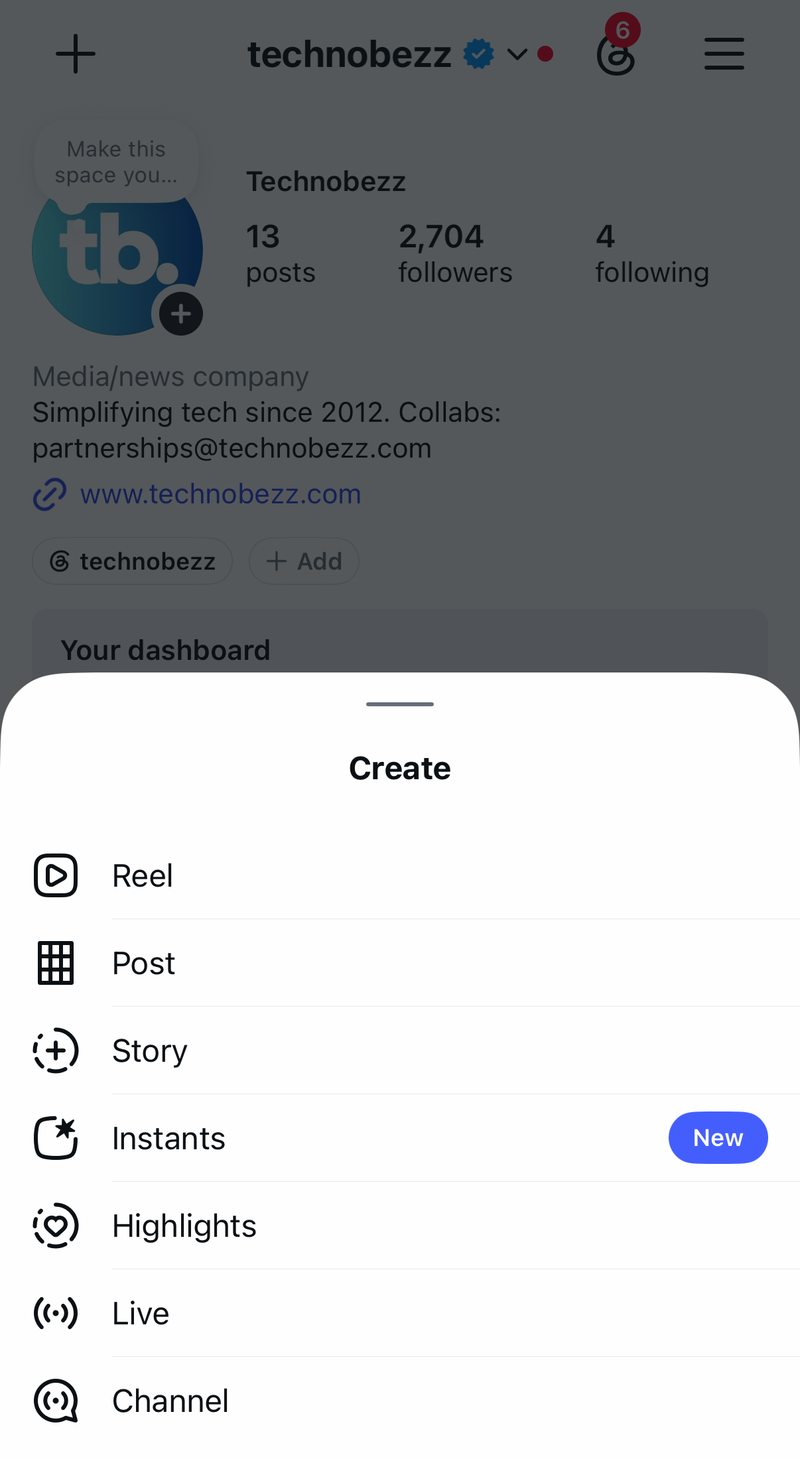
Select the archived Stories you want to include. Tap Next. Tap Edit Cover if you want to change the cover image.
Enter a Highlight name. Tap Add on iPhone or Done on Android.
Use Instagram on Desktop
This method applies when you are on a computer and your account already has archived Stories available. It is still an archive-based Highlight tool, not a direct upload path for new media.
Go to Instagram.com and open your own Profile. In the highlights row, click New. Enter a name for the Highlight. Click Next.
Select Stories from your archive, then click Next. Choose a cover photo. Click Done.
Turn On Story Archive
Story Archive will not bring back a photo or video that was never posted, but it prevents the same problem later. Once it is on, future Stories can be reused in Highlights after they leave your active Story.
In the Instagram app, tap Profile, then Menu. Below How you use Instagram, tap Your activity. Tap Archived. Tap Options, then Settings.
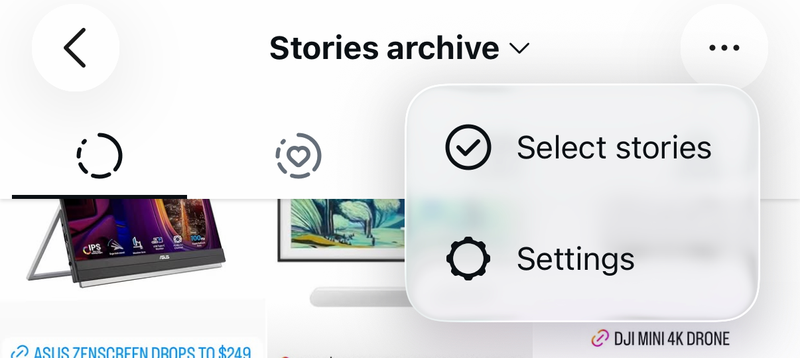
Turn on Save story to archive. On the web, open instagram.com/accounts/settings/v2/archiving_and_downloading/ and turn on Save story to archive. If archived Stories still do not appear, use the active Story method or a limited-audience Story for new media.
Change the Highlight Cover
The most common mix-up is thinking a Highlight cover adds new content inside the Highlight. A cover can come from your camera roll without being posted as a Story, but it only changes the round preview image on your profile. It does not add a new Story item to the Highlight.
Go to your Profile and press and hold the Highlight you want to change. Tap Edit Highlight. Tap Edit Cover.
Choose a photo from your camera roll. Tap Done.
Limit the Story Audience
Open your Profile. Tap Menu. Tap Close Friends. Tap Add or select the people you want to include.
Create the Story and tap Close Friends to share it only with that list. Open the Story and tap Highlight.
For specific people, go to Profile, Menu, Settings and activity, Story, live and location, then Hide story and live from. Select the accounts, post the Story, and tap Highlight.
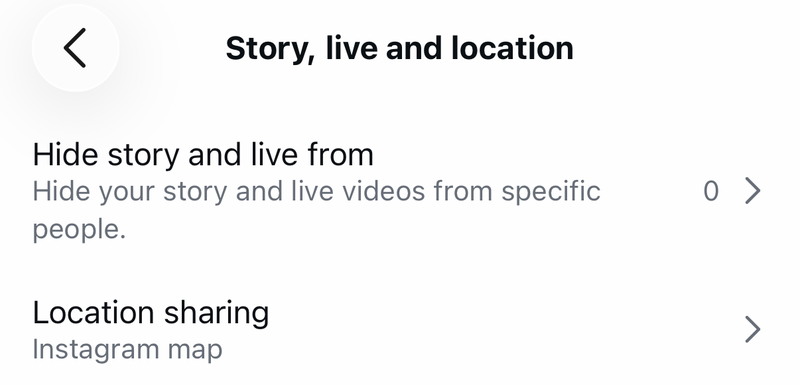
This reduces visibility, but it still posts a Story.
Switch to Private First
This method applies when your main concern is visibility on a personal account. A private account limits Story viewing to approved followers, but it still does not bypass the Story requirement.
On iPhone or Android, tap your profile icon. Tap the three-line Menu. Go to Account privacy. Turn on Private Account.
To narrow the audience further, go to your Profile, open followers, and tap Remove next to followers you do not want seeing the Story. Post the Story and tap Highlight.
Some professional account tools show Highlight management for certain business accounts, but those tools still select archived Stories and are not available to every consumer account.
Skip Delete and Restore Tricks
The most common outdated advice is to post a Story, delete it quickly, restore it from Recently deleted, and try to add it from archive or Highlight screens. Instagram supports deleting and restoring Stories, but it does not present that as a supported Highlight workflow.
Use Stories archive when the item was already posted. Use Highlight on an active Story when the item is new.
Use Close Friends, Hide story from, or Private Account when you need to reduce visibility before highlighting. Use Edit Cover only when you want to change the preview image, not the Story content inside the Highlight.
Frequently Asked Questions
Can I add a new camera-roll photo to Instagram Highlights without making it a Story?
No. Instagram’s supported Highlight flows use active Stories or archived Stories. A camera-roll photo can be used as a cover, but not as new Highlight content by itself.
Why do I not see an old Story when creating a Highlight?
The Story has to be in your Stories archive. Turn on Save story to archive so future Stories are available for Highlights after they expire.
Does Close Friends count as posting a Story?
Yes. Close Friends limits who can see the Story, but it still posts the Story to that selected audience before you add it to a Highlight.
Can Instagram Web create Highlights without posting a Story?
Instagram Web can create Highlights from archived Stories when the New button is available on your profile. It does not provide a supported direct upload path for brand-new media.