pip can be missing from the command line even when Python itself opens normally. The fix is to check the Python you are actually using, then install pip through the current path for your system. Start with the quick check, then jump to the section that matches your computer.
1. Check whether pip is already installed
- 1.Open Terminal, Command Prompt, or PowerShell.
- 2.On Windows, run py -m pip --version.
- 3.On macOS or Linux, run python3 -m pip --version.
- 4.Look for a pip version number and a Python folder path. That means pip is installed for that Python.
- 5.After pip works, update it with py -m pip install --upgrade pip on Windows or python3 -m pip install --upgrade pip on macOS and Linux.
2. Install pip on Windows with Python
This fixes a Windows PC that needs a current Python install with pip included.
Open the Python Install Manager listing in the Microsoft Store and select Install.
After installation finishes, open Terminal.
Run python or py to start Python.
Verify pip with python -m pip --version.
To use WinGet instead, open PowerShell in Windows Terminal, run winget install Python.Python.3.14, close and reopen PowerShell, then run python --version and python -m pip --version.
3. Set up pip on a Mac
Download the current macOS .pkg installer from python.org.
Double-click the installer package.
Click Continue, click Continue again, then click Agree.
On Installation Type, click Install.
Once the install finishes, run /Applications/Python 3.14/Install Certificates.command.
Open Terminal and verify pip with python3 -m pip --version.
4. Fix the Windows Store prompt
When python opens the Store or Windows cannot find Python, use Start > Manage app execution aliases. Enable or refresh Python (default), Python (default windowed), and Python install manager. If you use the Microsoft App Installer shortcuts, switch the App Installer Python entries to Off, then open a new Terminal window and check pip again.
5. Install pip on Linux
On Ubuntu, Debian, or WSL Ubuntu, open Terminal and run sudo apt update, then sudo apt install python3-venv python3-pip.
For Fedora, open Terminal and run sudo dnf install python3-pip python3-wheel.
On Arch Linux, open Terminal and run sudo pacman -S python-pip.
For openSUSE, open Terminal and run sudo zypper install python3-pip python3-setuptools python3-wheel.
On CentOS or RHEL, enable EPEL or the PyPA Copr repo first, then run sudo dnf install python3-pip python3-wheel.
Verify with python3 -m pip --version.
6. Add pip to an existing Python
This fixes a Python install that runs, but has no usable pip module.
On macOS or Linux, run python3 -m ensurepip --default-pip.
On Windows, run py -m ensurepip --default-pip.
To refresh the bundled pip files, run python -m ensurepip --upgrade or, on Windows, py -m ensurepip --upgrade.
Without administrator access, run python -m ensurepip --user to install pip into your user site packages.
Verify with python3 -m pip --version on macOS or Linux, or py -m pip --version on Windows.
7. Use pip inside venv or Conda
For a Python virtual environment on macOS or Linux, run python3 -m venv tutorial_env, then source tutorial_env/bin/activate.
For a Python virtual environment on Windows, run py -m venv tutorial_env, then tutorial_env\Scripts\activate.
Use pip in that environment after venv creates it automatically.
For Conda, run conda activate <ENVNAME>, install Conda packages first, then include pip last in the Conda install command.
After pip is installed in that Conda environment, run pip install <PACKAGE> only inside the active environment.
8. Avoid outdated Windows pip fixes
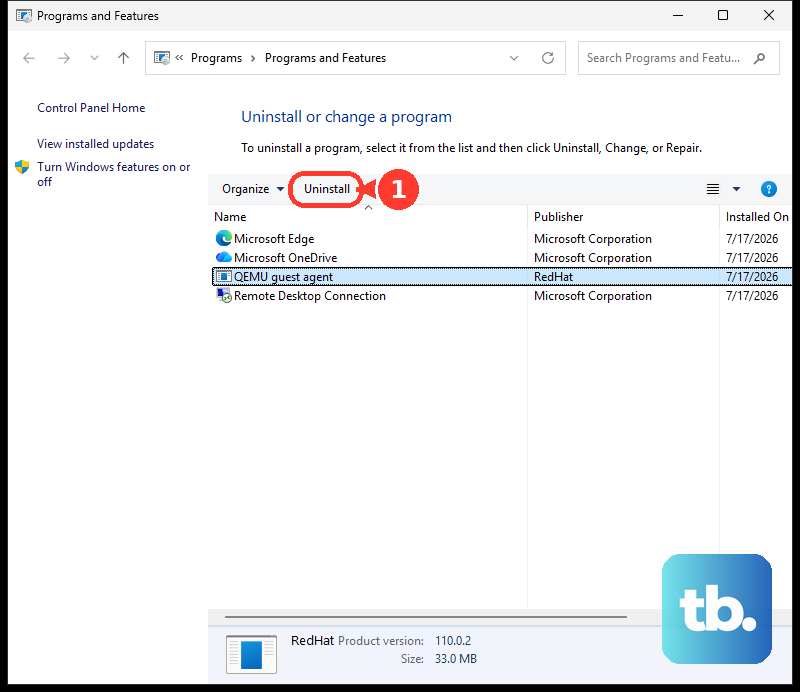
Older Windows instructions sometimes point to Programs and Features > Python > Uninstall/Change > Modify or the legacy full installer. That path applies only to older full-installer Python setups, and the full installer is deprecated starting with Python 3.14. For a new Windows setup, use Python Install Manager, python.org downloads, or WinGet; do not use the Windows embeddable ZIP for normal pip package management because pip is not included and that use is not supported.
9. Use get-pip.py as the fallback
Use this only when pip is missing and ensurepip is unavailable or does not solve it.
Securely download get-pip.py from https://bootstrap.pypa.io/get-pip.py.
Open Terminal, Command Prompt, or PowerShell.
Use cd to move to the folder where you downloaded the file.
On macOS or Linux, run python get-pip.py.
On Windows, run py get-pip.py.
Verify with python3 -m pip --version or py -m pip --version.
Tip: run pip as python -m pip, python3 -m pip, or py -m pip so it uses the Python version you selected.
Frequently Asked Questions
Do I need to install pip separately from Python?
Usually no. Current Python.org installs normally include pip, and Python virtual environments create pip automatically unless they are made with --without-pip.
Why does pip work in one Terminal but not another?
Different terminals can point to different Python commands or environments. Check the exact Python with python -m pip --version, python3 -m pip --version, or py -m pip --version.
Can I install pip without administrator access?
Yes. When ensurepip is available, python -m ensurepip --user installs pip into your user site packages instead of globally. Do not use --user inside an active virtual environment.
Should I use get-pip.py first?
No. Use the Python installer, your operating system package manager, venv, or ensurepip first. Use get-pip.py only when pip is missing and the built-in options are unavailable or insufficient.











