Searching for win rar usually means you want the official Windows archiver, not a random installer from somewhere else. The safe path is simple: get WinRAR 7.23 x64 from WinRAR or RARLAB, install it, then use the built-in tools to extract, create, test, scan, and remove archives cleanly. These steps were checked against the supplied August 2026 research.
1. Get the real WinRAR installer
This fixes the riskiest part of setup: choosing the official installer.
Open https://www.win-rar.com/download.html?L=0.
Under Latest WinRAR and RAR Versions English, choose WinRAR 7.23 English 64 bit.
Compare the page's SHA 256 value before running the installer when you want an integrity check.
Use https://www.rarlab.com/download.htm as the alternate official source.
On the RARLAB page, choose WinRAR x64 (64 bit) 7.23.
2. Keep Windows protection switched on
Before you run the installer, check SmartScreen at Start > Settings > Privacy & security > Windows Security > App & browser control and choose your Microsoft Defender SmartScreen settings. In the same area, open Reputation-based protection for PUA and download protection.
SmartScreen applies to Windows and Microsoft Edge downloads and apps; Microsoft says it does not protect files opened from internal locations or network shares.
3. Install WinRAR or refresh it
Open the downloaded WinRAR .exe.
Approve the Windows UAC prompt.
Leave Integrate WinRAR into shell enabled when you want File Explorer right-click commands.
Click the setup button that finishes installation.
For an update, install WinRAR 7.23 over the old version.
Use WinRAR 7.23 because the release notes describe it as a security-focused update.
4. Open and extract an archive
Double-click the archive, or open WinRAR and open the archive from there.
Review the file list before extracting.
Select the files and folders you want.
Click Extract To.
Choose a destination folder.
Click OK.
From File Explorer, right-click the archive, open the WinRAR submenu on Windows 11, then choose Extract files..., Extract Here, or Extract to <folder name>.
5. Restore the right click WinRAR menu
This fixes missing File Explorer commands after installation or an update.
Open WinRAR.
Choose Options.
Open Settings.
Select the Integration tab.
Click Context Menu Items....
Select the commands you want, such as Add to archive, Open with WinRAR, and Extract To.
Click OK.
6. Create a RAR or ZIP archive
Open WinRAR.
Browse to the folder that contains your files.
Select the files and folders.
Click Add, press Alt+A, or choose Commands > Add files to archive.
Enter the archive name and choose RAR or ZIP.
Set the compression options and volume size you need.
Click OK.
From File Explorer, select files or folders, right-click, open the WinRAR submenu on Windows 11, and choose Add to archive....
For a defaults-only archive, choose Add to <archive name> archive.
For a private RAR file, choose Add to archive..., select RAR, click Set password, enter the password, enable Encrypt file names, then click OK twice.
Skip Set default password for casual use because it applies globally until changed.
7. Use RAR on Android
WinRAR is the Windows program; on Android, use the official companion app named RAR from RARLAB, published by win.rar GmbH.
Open Google Play > RAR > Install, then use the app's archive manager to create RAR or ZIP archives and unpack RAR, ZIP, TAR, GZ, BZ2, XZ, 7z, ISO, and ARJ files.
The Google Play listing was updated July 22, 2026.
8. Check archives before trusting them
This catches broken archives and adds an antivirus check before you rely on the files.
In WinRAR, select or open the archive and run Test.
Use Scan archive for viruses inside WinRAR.
Choose a scanner under Virus scanners found by WinRAR or choose User defined.
Start the scan.
In File Explorer, right-click the installer, archive, or extracted folder.
Choose Show more options.
Choose Scan with Microsoft Defender.
To confirm Microsoft Defender Antivirus is active, open Windows Security > Virus & threat protection > Who's protecting me? > Manage providers.
To turn real-time protection on, open Virus & threat protection > Manage settings and switch Real-time protection to On.
9. Remove WinRAR and ignore old advice
Open Start > Settings > Apps > Installed apps.
Find WinRAR.
Choose More.
Choose Uninstall.
Use the Start menu fallback by opening Start > All apps, finding WinRAR, right-clicking it, and choosing Uninstall.
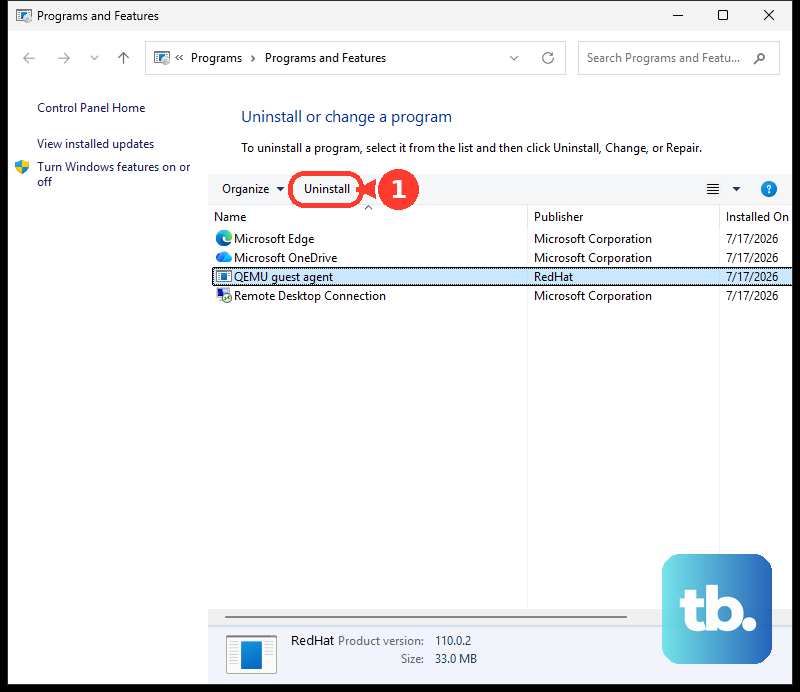
Use the Control Panel fallback through Control Panel > Programs > Programs and Features, then right-click WinRAR and choose Uninstall or Uninstall/Change.
Current WinRAR guidance is Windows 7 x64 or later and current RAR or ZIP archives, not current WinRAR on 32-bit Windows or Windows Vista and not new RAR 4.x archives.
Frequently Asked Questions
Is WinRAR 7.23 the current version?
Yes. WinRAR 7.23 is the current build for August 2026, with a June 30, 2026 release date.
Should I choose RAR or ZIP when creating an archive?
Choose RAR when you need file-name encryption. WinRAR can create RAR and ZIP archives, but Encrypt file names is available for RAR, not ZIP.
Can I use current WinRAR on Windows Vista or 32-bit Windows?
No. Current release notes state that Windows Vista and 32-bit Windows are no longer supported, and current WinRAR requires Windows 7 x64 or later.
Why do I not see WinRAR when I right-click a file?
Open WinRAR's Integration settings and re-enable the context-menu items. On Windows 11, the full set of commands can also appear inside the WinRAR submenu.











