OMEN Command Center is the name many people still search for, but HP's current app is OMEN Gaming Hub. That is the app to install, update, repair, and reinstall on a Windows PC in 2026.
Start with the official install path, then use the Windows and HP fixes that match the problem you are seeing.
1. Start with the current OMEN app name
HP's current download page and Microsoft Store listing point to OMEN Gaming Hub, not the old OMEN Command Center name.
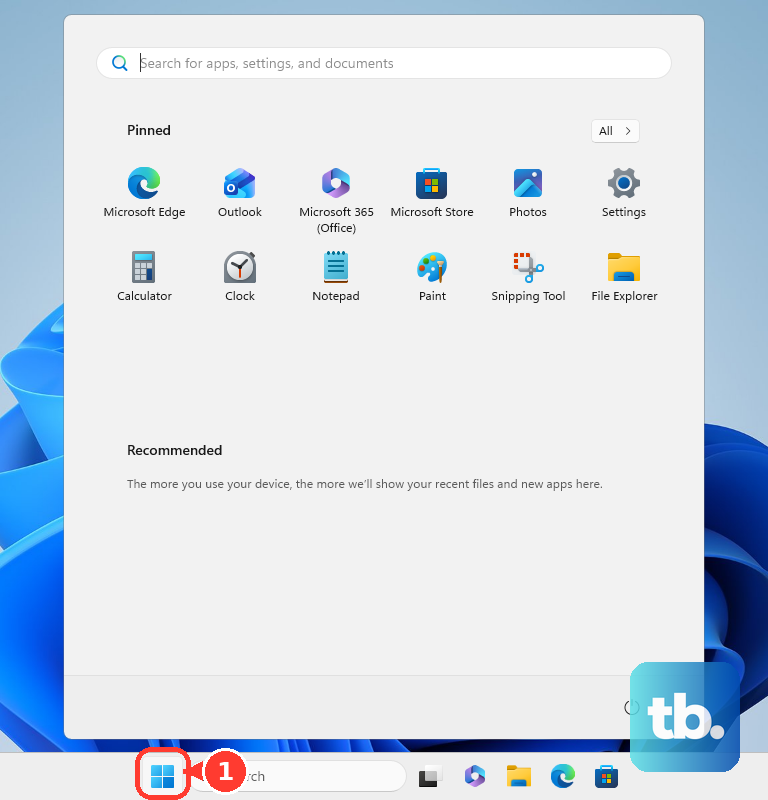
On an OMEN PC, check Start > All apps > OMEN Gaming Hub, open the app, and follow the on-screen instructions. Some current OMEN, Victus, and HyperX OMEN systems may already include it.
2. Install OMEN Gaming Hub from Microsoft Store
This fixes a missing OMEN Command Center app by installing HP's current replacement.
- 1.Open Microsoft Store.
- 2.Search for OMEN Gaming Hub.
- 3.Select OMEN Gaming Hub by HP Inc..
- 4.Select Get, then wait while the app downloads and installs.
- 5.Open it from Start > All apps > OMEN Gaming Hub.
3. Start from HP's official OMEN page
Use HP's page when you want the vendor's official product route.
Open HP's OMEN Gaming Hub page and select DOWNLOAD NOW, which opens the same OMEN Gaming Hub listing in Microsoft Store, then install it from there.
HP lists support for Windows PCs running Windows 10 version 18362.0 or higher.
4. Update the app before deeper fixes
Open Microsoft Store. Search for OMEN Gaming Hub. Select OMEN Gaming Hub. Select Update.
Or open Microsoft Store > Library > Get updates on Windows 11, or Microsoft Store > See more > Downloads and updates > Get updates on Windows 10. For fewer repeat update checks, turn on Microsoft Store > Profile > Store Settings > App updates.
5. Repair or reset OMEN Gaming Hub
Open Start > Settings > Apps > Installed apps on Windows 11, or Start > Settings > Apps > Apps & features on Windows 10. Find OMEN Gaming Hub. Select More on Windows 11, or select the app on Windows 10. Select Advanced options.
Select Repair. Select Reset when Repair is unavailable or does not fix the problem.
6. Reinstall the app cleanly
Use reinstalling when OMEN Gaming Hub still will not open, keeps failing, or behaves badly after repair and reset.
Go to Start > Settings > Apps > Installed apps > OMEN Gaming Hub > More > Uninstall. Then install it again from Microsoft Store or HP's OMEN Gaming Hub page. You can also remove it from Start > All apps > OMEN Gaming Hub by right-clicking the app and selecting Uninstall.
7. Fix Microsoft Store install problems
Close OMEN Gaming Hub with the X button. Then reopen it.
Open Start > Settings > Windows Update on Windows 11, or Start > Settings > Update & Security > Windows Update on Windows 10. Select Check for updates. Select Install now when Windows offers updates.
Press Windows key + R. Enter wsreset.exe. Select OK.
After Microsoft Store reopens, search for OMEN Gaming Hub again. On a managed work or school PC, ask the device administrator to allow Microsoft Store access or deploy OMEN Gaming Hub.
8. Restore performance lighting and hardware controls
In Windows, search for and open HP Support Assistant. Open My Dashboard. Select your computer. Open Updates.
Select available HP updates, including OMEN Gaming Hub SDK Package when offered. Install the updates. Restart the PC.
When needed, open HP Customer Support - Software and Driver Downloads. Identify your HP OMEN, Victus, or HyperX OMEN computer. Select the OS when prompted. Then install the relevant OMEN Gaming Hub SDK Package, firmware, BIOS, and driver updates.
9. Skip outdated Command Center advice
This keeps you off legacy fixes that no longer match HP's current install path.
Do not use old instructions that say to open OMEN Command Center and select an in-app Update button. Do not use Microsoft Store searches for the old OMEN Command Center name as your main install method.
Use OMEN Gaming Hub from Microsoft Store or HP's current OMEN Gaming Hub page. For keyboard launching, press the dedicated OMEN key only on OMEN laptops or keyboards that include one; otherwise open Start > OMEN Gaming Hub.
Frequently Asked Questions
Is OMEN Command Center still the app to install?
No. For current Windows installs, use OMEN Gaming Hub. OMEN Command Center is the older name found in older HP material and tutorials.
Why can't I find OMEN Command Center in Microsoft Store?
The current verified Microsoft Store app is OMEN Gaming Hub by HP Inc., using Store package ID 9NQDW009T0T5.
Can I install OMEN Gaming Hub with WinGet?
Yes. Run winget install 9NQDW009T0T5 -s msstore. To update it, run winget upgrade 9NQDW009T0T5 -s msstore.
What should I do if my organization blocks Microsoft Store?
Ask the device administrator to allow Store access or deploy OMEN Gaming Hub through Microsoft Intune as a Microsoft Store app using package ID 9NQDW009T0T5.











