To use Microsoft Access, create a desktop database from a template or a blank file, add your data to tables, then build queries, forms, and reports. A template provides a prepared starting point, while a blank database lets you build the tables yourself. These steps apply to the full Windows desktop application in Access for Microsoft 365 and Access 2024.
The short version
- Get the desktop app: Check whether your Microsoft 365 subscription includes Access before buying it separately.
- Choose a starting point: Create a database from a desktop template or select Blank Database.
- Add your information: Enter records in tables or import existing Excel or text data.
- Build useful views: Use queries to retrieve information, forms for data entry, and reports to present results.
- Keep a backup: Back up your database before experimenting with it.
| Option | Use it to |
|---|---|
| Full Access application | Create and develop desktop databases |
| Account portal installation | Install the application covered by your license |
| Office updates | Update your existing installation |
| Desktop template | Start with a prepared database |
| Blank database | Build your own database structure |
| Enable trusted content | Allow blocked active content in a trusted database |
| Datasheet entry | Enter records directly into table cells |
| Table Design | Define fields and data types before entry |
| Paste tabular data | Bring copied rows into a table |
| Excel import or append | Copy worksheet records into a new or existing table |
| Excel link | Read worksheet data while maintaining it in Excel |
| Text file connection | Import, append, or link supported text data |
| Table relationships | Connect compatible fields across tables |
| Query Wizard | Select fields through a guided setup |
| Query Design | Build a query with filtering criteria |
| Automatic form | Create a form from a selected source |
| Form Wizard | Choose form fields and layout |
| Multiple Items form | Display several records in a continuous form |
| Split Form | Combine synchronized form and datasheet sections |
| Automatic report | Create a report from a selected source |
| Report Wizard | Choose fields, grouping, and sorting |
| Blank Report | Assemble a report by dragging fields |
| Report Design | Build a report in Design view |
| Database backup | Save a backup before experimenting |
| Open an existing database | Return to a saved file or open it read-only |
Get Access on your Windows PC
Check whether your existing subscription includes the Windows desktop application before purchasing Access separately. Microsoft lists Microsoft 365 Personal, Family, Business Standard, Business Premium, and Apps for business as qualifying subscriptions. If you need the application, open Microsoft’s Access product page to review subscription and standalone purchase options.
With a license ready, visit the Microsoft 365 apps portal and sign in with the account that holds it. For a personal account, select Install apps > Install. For a work or school account, select Install apps > Microsoft 365 apps; some layouts require you to select Apps first. Organizational installation requires an assigned license and permission, so ask your administrator if either prevents installation.
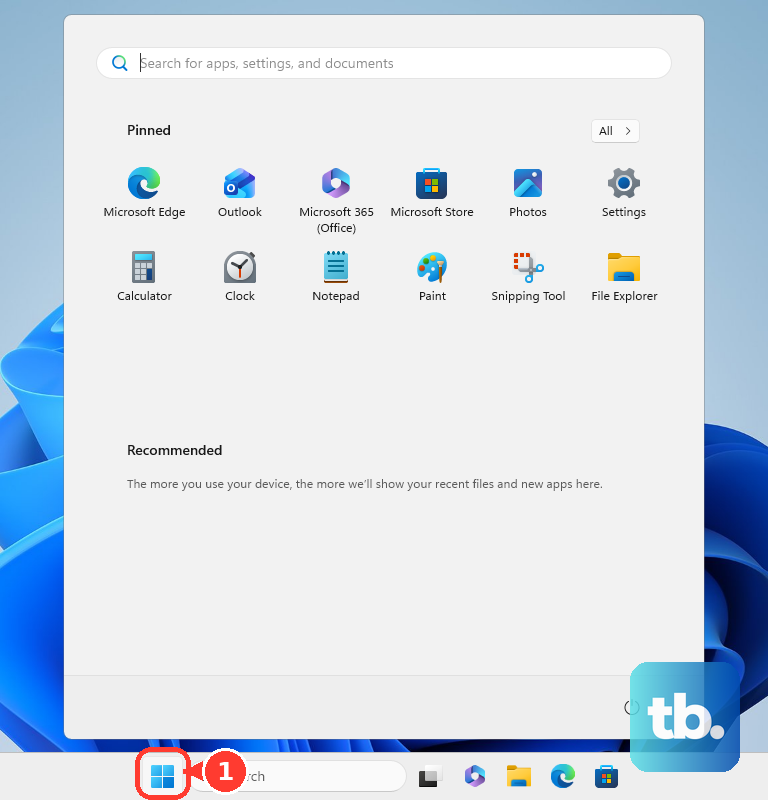
Run the downloaded installer and select Yes at the Windows permission prompt. After installation, open Start, search for Access, and open it.
For an existing installation, select File > Account > Update Options > Update Now in an Office desktop application. If necessary, select Enable Updates first; your organization may control updates on a managed installation. For a supported new setup, use Access for Microsoft 365 or Access 2024, since Access 2021 has passed its retirement date.
Create your first database
To start with a prepared database, select File > New and choose a desktop template, or use Search online templates to find one. Enter a name under File Name, choose a folder, and select Create.
Some templates open with a user selection screen. If its user list is empty, select New User, complete User Details, and select Save & Close. Choose your user, then select Login.
To build the database yourself, select File > New > Blank Database; the template may instead be labeled Blank desktop database. Enter the name under File Name, choose a folder, and select Create. Access opens Table1 for data entry, and you should save that table before closing it.
If a template has blocked active content, first confirm that you trust both the database and its source. Where organizational policy permits it, select Enable Content on the Message Bar to allow that content. On a managed PC, ask your administrator to resolve policy restrictions.
Older tutorials may describe Access web apps. Microsoft says those do not work with Microsoft 365 and advises against creating new ones, so start with a desktop Access database.
Add fields and records to a table
Enter records into the cells of your open table in Datasheet view. Double-click a column heading to rename the field, and select Click to Add when you need another field. Select File > Save and give the table a name.
Add another table by selecting Create > Table. Enter its records, rename its fields, and save the table in the same way.
If you prefer to define the structure before entering records, select Create > Table Design. Enter each field under Field Name, choose its Data Type, and configure any needed field properties. Save the table, then switch to Datasheet view to enter records.
Bring in data you already have
You can paste existing tabular information from Excel, Word, or another application. Arrange the source data into consistent columns and copy it, then open the destination Access table in Datasheet view. Paste into the appropriate starting cell or new-record row, and review the resulting records and field types.
For an Excel import, open your database and select External Data > New Data Source > From File > Excel. Browse to the workbook and choose Import the source data into a new table in the current database. To add records to an existing table instead, choose Append a copy of the records to the table and select the destination table. Select OK, then choose the worksheet or named range.
Each import handles one worksheet or named range. Select First Row Contains Column Headings when the first row contains your field names. Continue through the applicable field and primary-key choices, name the destination when prompted, and select Finish.
To keep the data in Excel, use External Data > New Data Source > From File > Excel and choose the workbook. Select Link to the data source by creating a linked table, then select OK. Choose the worksheet or named range, specify headings when applicable, name the linked table, and select Finish. Make source-data changes in Excel because the linked table is read-only in Access.
For a CSV or other supported text file, select External Data > New Data Source > From File > Text File. Browse to the file, choose whether to import into a new table, append to an existing table, or create a linked table, and select OK. Follow the wizard to specify delimited or fixed-width data, configure separators and fields, choose a destination name, and select Finish.
Connect related tables
When your database has tables with compatible related fields, select Database Tools > Relationships. Choose Relationships Design > Add Tables, add the tables, and close the selection dialog. Drag the primary-key field to its corresponding foreign-key field in the other table.
Verify that the relationship uses the matching fields you intended. Select Enforce Referential Integrity when appropriate for the relationship, then select Create.
Create a query to retrieve information
For a guided query setup, select Create > Query Wizard > Simple Query Wizard > OK. Choose your source tables or queries, double-click the fields you want, and select Next. If prompted, choose Detail for individual records or Summary for aggregated results. Name the query and select Finish.
For a query with filtering criteria, select Create > Query Design and add the source tables or queries. Drag the output fields into the lower grid, then enter filtering expressions in Criteria. Select Query Design > Run, and save the query for reuse.
Make a form for data entry
Select a table or query in the Navigation Pane, then choose Create > Form. Adjust the layout of the form Access creates and save it.
For more control over which fields appear, select Create > Form Wizard. Choose the source tables or queries and their fields, selecting fields from every required source before advancing beyond the first page. Configure the layout offered by the wizard, then select Finish.
To display several records in a continuous form, select the source table or query in the Navigation Pane, then choose Create > More Forms > Multiple Items. For synchronized form and datasheet sections, select your source and choose Create > More Forms > Split Form.
Turn your data into a report
For an automatic report, select a table or query and choose Create > Report. If you want guided control over field selection, grouping, and sorting, choose Create > Report Wizard instead. Complete the wizard and select Finish.
To assemble the layout manually, select Create > Blank Report and drag fields from the Field List. You can also select Create > Report Design to work in Design view.
Back up and reopen your database
Before experimenting with your database, select File > Save As > Save Database As. Under Advanced, select Back Up Database, then Save As. Choose a backup filename and folder, then select Save.
When you return to your database, select File > Open. Choose it under Recent, or browse to its location, select the file, and select Open. To open it for viewing without editing, use the arrow beside Open and choose Open Read-Only.
Frequently Asked Questions
Can you use the free Access Runtime to create a database?
Use the full Access application to create databases; the free Access Runtime runs prepared applications supplied by their developers. Runtime’s architecture and installation technology must be compatible with the Office installation on your Windows PC.
Which keyboard shortcuts are useful when starting with Access?
On a US keyboard layout, press Ctrl + N to start a new database, Ctrl + O to open one, or Ctrl + S to save the current object. Press F11 to show or hide the Navigation Pane, Alt to reveal ribbon access keys, or F1 for help.
Can Access make mailing labels from your records?
You can create mailing labels from a table or query. Open the source from the Navigation Pane, then select Create > Labels. Configure the label format and fields in the wizard, then select Finish to preview the labels.
Can you add prepared components to an existing database?
You can add reusable application parts to an existing database. Open the destination database, select Create > Application Parts in the Templates group, and choose a part. Access adds the related objects supplied by that part.