To format an SD card when FAT32 is missing in Windows, open Rufus, select your card, choose Non bootable and FAT32 or Large FAT32, then start formatting. Back up the card first because formatting erases its contents. Rufus automatically uses Large FAT32 for drives above 32GB.
Windows 11 also offers command-line FAT32 formatting up to 2TB when its expanded limit is enabled. On a Mac, use Disk Utility’s MS-DOS (FAT) option. The Windows steps use Windows 11 menus, with Windows 10 included where the procedure also applies.
The short version
- Protect your files: Back up the card and verify the selected drive before formatting.
- Larger Windows cards: Use Rufus with a USB card reader and select FAT32 or Large FAT32.
- Smaller Windows volumes: Use File Explorer when the volume is no larger than 32GB and FAT32 is offered.
- Mac option: Choose MS-DOS (FAT) in Disk Utility and check the resulting format.
| Method or fix | When to use it | Main condition |
|---|---|---|
| Rufus | Larger cards on Windows | Connect through a USB reader |
| File Explorer | Windows volumes up to 32GB | FAT32 must be offered |
| Disk Management | Another interface for eligible Windows volumes | Use a volume no larger than 32GB |
format.exe | Command-line formatting on Windows 11 | Above 32GB requires the expanded limit |
| Disk Utility | Cards connected to a Mac | Choose MS-DOS (FAT) and check device capacity support |
| GParted | Explicit FAT32 selection on Linux | Install FAT filesystem support tools |
| Physical lock switch | Write protection on a card or adapter | The card or adapter must have a switch |
| DiskPart attributes | A Windows software read-only attribute | Does not override a physical lock |
| Administrator policy check | Blocked writes on a managed Windows PC | The administrator must permit removable-storage writes |
Back up the card and identify its drive
Back up the card and identify its drive letter or device entry before opening a formatter. Check that target again inside the tool before confirming any operation. Formatting destroys the selected volume’s contents.
If your Windows volume exceeds 32GB and FAT32 is missing, use Rufus or the expanded Windows command-line formatter. For a volume no larger than 32GB, File Explorer and Disk Management offer simpler routes when FAT32 appears. Check the receiving device’s supported card capacity before formatting a larger card.
Format a larger card with Rufus
Download the appropriate stable Windows build from the official Rufus download page. Installation is not required. Connect the SD card through a USB reader, open Rufus, and select the card under Device.
Set Boot selection to Non bootable. Under File system, select FAT32 or Large FAT32, whichever Rufus offers. Rufus automatically uses Large FAT32 for drives above 32GB.
Rufus repartitions and reformats the whole card, erasing every partition on it, so back up the entire card and recheck Device before starting. Select START, then check the target again before accepting the destructive-operation confirmation.
If your USB reader is missing because Rufus classifies it as a hard drive, press Alt + F to toggle detection, equivalent to enabling List USB Hard Drives. Recheck Device after changing that setting. Detection can differ with non-USB internal readers, so connect through a USB reader for this procedure.
Use File Explorer for a smaller Windows volume
On Windows 11 or Windows 10, press Windows + E and open This PC. Right-click the card and select Format. Under File system, choose FAT32, set Allocation unit size to Default allocation size, and select Quick Format.
Formatting erases the selected volume’s contents, so back up the card and verify its drive letter before continuing. Select Start to format it. If FAT32 is missing on a volume above 32GB, use Rufus.
For another way to format an eligible volume on Windows 11 or Windows 10, right-click Start and select Disk Management. Right-click the card’s volume, select Format, and choose FAT32 when offered. You can select Perform a quick format.
This operation erases the volume’s contents, so back up the card and check the selected volume before confirming. Select OK, then select OK again. If FAT32 is missing here on a larger volume too, switch to Rufus or the expanded command-line formatter.
Use the Windows command when its larger limit is enabled
Windows 11 can format FAT32 volumes up to 2TB through format.exe when the expanded limit is enabled. Microsoft documents this change in KB5083631 for Windows 11 24H2 build 26100.8328 and 25H2 build 26200.8328. The feature has a gradual rollout, so the update baseline alone does not guarantee that it is enabled.
Identify the card’s drive letter, then open Command Prompt using Run as administrator. Replace X in the command below with that letter. Running format.exe from Windows Terminal or PowerShell invokes the same executable.
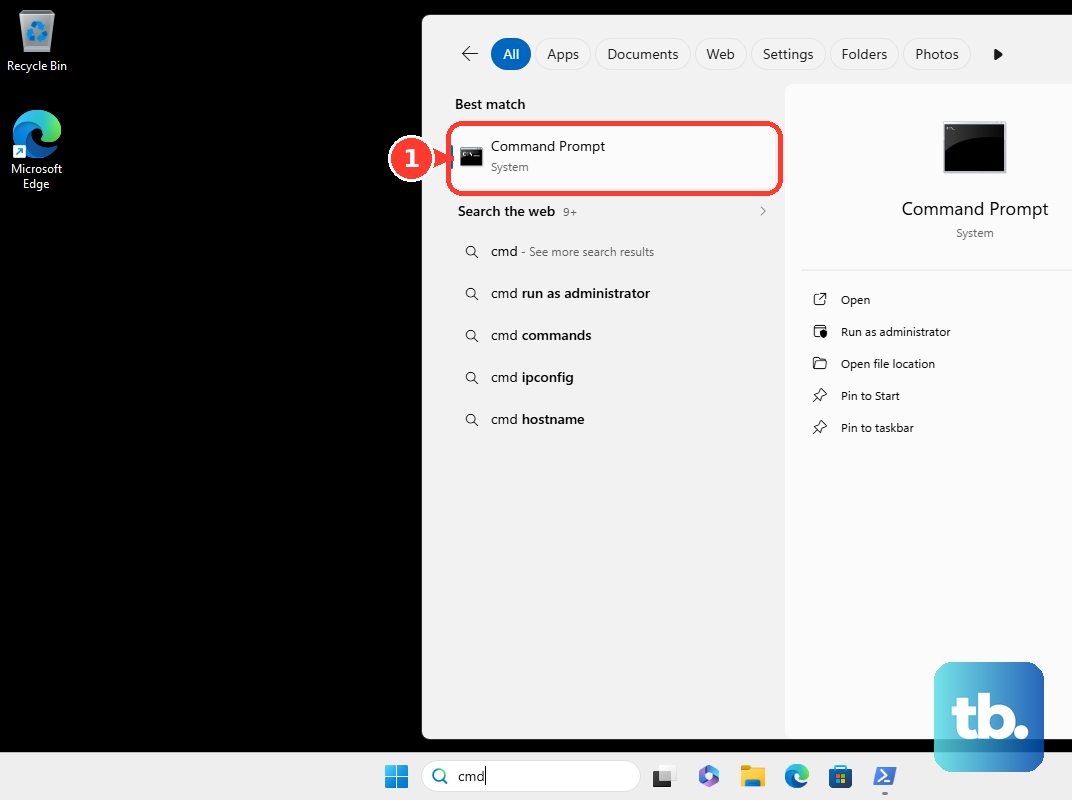
The command erases the selected volume, so back up the card and verify its drive letter before running it. Enter this command:
format X: /FS:FAT32 /QComplete the interactive prompts only after checking the target again. If a card above 32GB is rejected because of its size, use Rufus instead. The expanded limit applies to format.exe; do not assume that DiskPart or PowerShell’s separate Format-Volume command has the same capability.
Format the card with Disk Utility on a Mac
Open Disk Utility, then choose View > Show All Devices. Select the card’s physical device in the sidebar. Selecting the physical device exposes the partition-scheme control.
Erasing destroys the selected card’s contents, so back up the card and verify the selected device before continuing. Select Erase, choose the required Scheme, and select MS-DOS (FAT) under Format. Enter a name, select Erase, then select Done when the operation finishes.
Apple recommends MS-DOS (FAT) for disks 32GB or smaller and ExFAT for larger disks. Garmin’s instructions also cover using MS-DOS (FAT) on macOS for cards of 64GB or more when FAT32 is required. Check the resulting format and the receiving device’s supported card capacity.
Select FAT32 explicitly with GParted on Linux
Install GParted through your Linux distribution’s package manager, with FAT filesystem support tools installed. Alternatively, obtain GParted Live from the official GParted download page to use the editor without installing Linux on the computer. Open GParted and select the card.
Select the card’s partition and, if it is mounted, choose Partition > Unmount. Choose Partition > Format to > fat32. If you are working with unallocated space instead, choose Partition > New and select fat32 under File System.
Applying a format destroys the selected partition’s contents, so back up the card and verify the target before continuing. Choose Edit > Apply All Operations, then select Apply.
Remove write protection if formatting is blocked
A write-protection error needs a different fix from a missing FAT32 option. Eject the card, then move the SD card or full-size adapter’s write-protect switch upward to the unprotected position. Reinsert it and retry your chosen formatting method. This switch applies to SD cards and adapters with a lock, not bare microSD cards.
On Windows 11 or Windows 10, you can also check for a software read-only disk attribute. Open Command Prompt using Run as administrator, then launch DiskPart with this command:
diskpartUse the following command to display the disks. Identify the card by capacity before selecting it:
list diskReplace N with the card’s disk number in the following command. Check that the number belongs to the card before running it:
select disk NInspect the selected disk’s attributes before changing them. Run this command:
attributes diskIf the software read-only attribute is the blocker, clear it with the following command. This does not override a physical lock or repair failed flash memory:
attributes disk clear readonlyRetry your chosen formatting method after clearing the attribute. Clearing it addresses write protection, so a FAT32 option missing because of volume size still requires a suitable formatter.
On a managed Windows 11 Pro, Enterprise, Education, or supported IoT PC, ask your administrator to inspect User Configuration or Computer Configuration > Administrative Templates > System > Removable Storage Access > Removable Disks: Deny write access. Choosing Disabled or Not Configured permits writes for this storage class unless another policy blocks them. The administrator should also check all-removable-storage denial and BitLocker write restrictions when applicable, then have you retry formatting.
Frequently Asked Questions
Will SD Memory Card Formatter force a large SDXC card to FAT32?
SD Card Formatter does not provide a force-FAT32 selector for SDXC cards. It uses FAT32 for standard SDHC formatting on cards above 2GB through 32GB. Standard SDXC and SDUC formatting uses exFAT.
Can you convert an NTFS card instead of reformatting it?
MiniTool Partition Wizard Professional or higher includes an NTFS-to-FAT conversion feature; Free Edition does not. Back up the card before conversion and check the resulting filesystem afterward, because the application selects FAT12, FAT16, or FAT32 based on partition size. This feature applies to NTFS, not exFAT.
Can you format the card from an iPhone or iPad?
USB-C iPhone and iPad models offer an MS-DOS (FAT) erase option in the Files app for connected external storage. For a task that requires an explicit FAT32 selection, choose GParted’s fat32 option instead.
Can you use only part of a larger card for FAT32?
Yes, Disk Management on Windows 11 or Windows 10 can create a smaller FAT32 volume from unallocated space, such as a 32000 MB volume. The remaining capacity sits outside that volume, and support for partitioned cards varies by device. Back up the card before changing its partitions.