


To format an SD card, connect it to your computer or insert it into your device, select the card in its storage tools, and choose Format or Erase. Back up the files you want to keep before confirming, because formatting removes access to the card’s existing files. Choose the file system and partition scheme required by the device that will use the card.
The short version
- Back up first: Copy any files you want to keep before formatting.
- Windows: Right-click the card in File Explorer and select Format.
- Mac: Select the card in Disk Utility and click Erase.
- Other devices: Follow the formatting path for your specific phone, camera, or console.
| Method | Formatting control | Requirement |
|---|---|---|
| Windows File Explorer | Format on the card’s drive | Card appears as a storage drive |
| Windows Disk Management | Volume’s Format command | Existing card volume |
| Windows new volume | New Simple Volume | Unallocated space and administrator access |
| Mac Disk Utility | Erase | Compatible card reader |
| USB-C iPhone | Erase in Files | USB-C port and compatible reader |
| USB-C iPad | Erase in Files | USB-C port and compatible reader |
| Android card setup | SD card detected notification | Device uses Google’s setup flow |
| Samsung Galaxy file manager | Open My Files, then the card’s Format menu | App exposes the card and command |
| Chromebook Files | Format device | Card recognized as external storage |
| Linux GNOME Disks | Format Partition… | GNOME Disks installed |
| SD Card Formatter quick format | Quick format | Listed compatible operating system |
| SD Card Formatter overwrite | Overwrite format | Computer stays powered and awake |
| Nintendo Switch family | Format microSD Card | Current system software |
| Nintendo Switch 2 | Clear microSD Card Data | microSD Express card and latest system software |
| Steam Deck | Format SD card | Inserted microSD card |
| GoPro HERO13 Black | Format SD Card | Rear touchscreen controls |
| Canon EOS R5 | Format card | Correct SD-card slot selected |
Back up your files and check the card requirements
Copy the files you want to keep somewhere other than the card before starting. Identify the card carefully in the formatting tool, especially when your computer has several storage drives connected. Check its size and drive letter where those details are shown.
The device that will use the card determines which file system and partition scheme to choose. Check those requirements before accepting a computer’s formatting defaults. Apple’s whole-device erase procedure specifies GUID Partition Map, so check that scheme against your destination device’s requirements before choosing it for an SD card.
Format an SD card on Windows
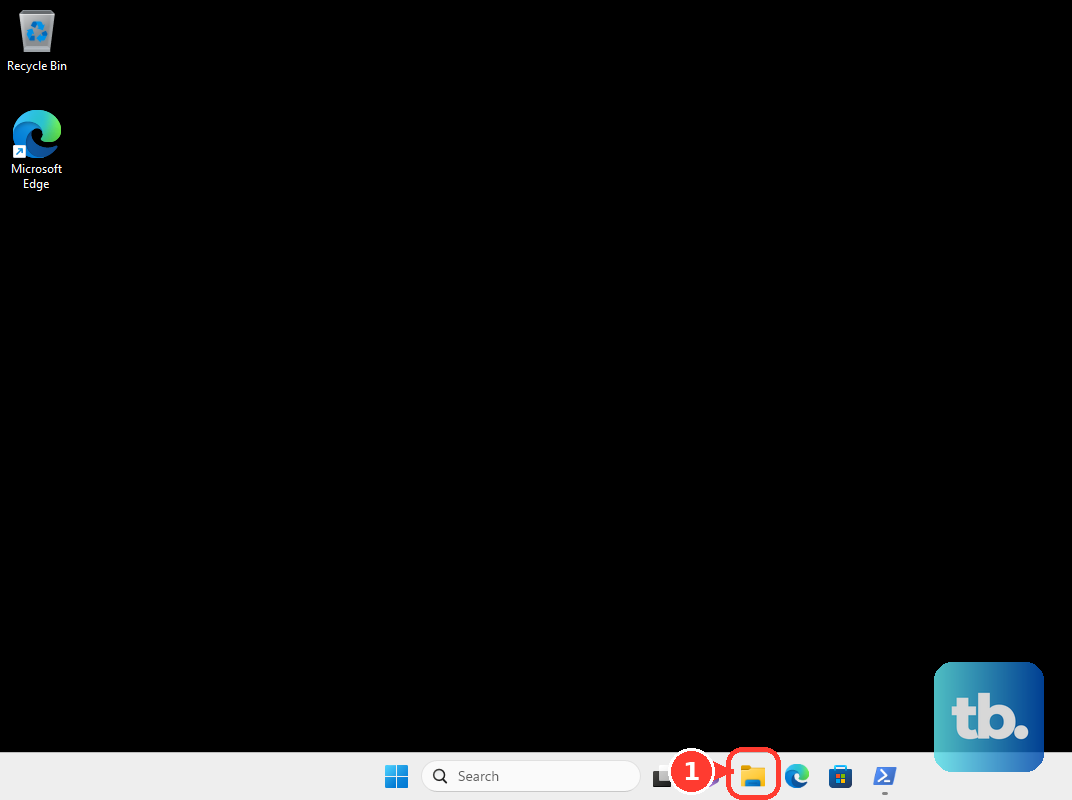
On a Windows PC, insert the card into a compatible reader and open File Explorer. Right-click the card’s drive and select Format. Choose the file system and other options required by the destination device, then select Start.
Select OK to confirm the format. When Windows reports completion, select OK again. This method requires the card to appear as a storage drive.
For an existing card volume on Windows 11 or Windows 10, you can also right-click Start and select Disk Management. Right-click the card’s volume and select Format, then choose the appropriate file system. Check Perform a quick format for a quick format, or uncheck Perform a quick format for a full format. Select OK, then select OK again.
Erase a card on Mac or a USB C iPhone or iPad
On a Mac, connect the card through a compatible built-in or external reader, then open Disk Utility from the Utilities folder inside Applications. Choose View > Show All Devices. Select the card and click Erase.
Choose the required option under Format and enter a name for the card. For a whole-device erase, check the destination device’s partition-scheme requirements before choosing GUID Partition Map under Scheme. Click Erase, then click Done when the operation finishes.
On a USB-C iPhone, connect the card through a compatible reader and open Files. Select Browse, then under Locations, touch and hold the storage device and select Erase. Choose APFS, ExFAT, or MS-DOS (FAT) for the intended use, then tap Erase.
On a USB-C iPad, connect the card through a compatible reader, open Files, and reveal the sidebar. Under Locations, touch and hold the storage device and select Erase. Choose APFS, ExFAT, or MS-DOS (FAT), then tap Erase. These iPhone and iPad formatting steps apply specifically to USB-C models.
Format an SD card on Android or Samsung Galaxy
On Android devices that use Google’s SD-card setup flow, insert the card and open the notification shade. Tap SD card detected, then select Format for portable storage. To use adoptable storage on a device that supports it, select Format another way instead.
After formatting, choose Move content or Move content later. Adoptable storage depends on manufacturer support, so this option does not apply to every Android phone.
For a Galaxy device whose file manager exposes the card and its formatting command, open My Files. Under Storage, select the SD card, then open More options > Format. Tap Format to confirm.
Use Chromebook Files or Linux Disks
On a Chromebook that recognizes the card as external storage, insert the card and open Launcher > Files. Right-click the storage device in the left sidebar. Check that you have selected the card you intend to erase, then select Format device.
On Linux with GNOME Disks installed, open Disks from Activities and select the card. Beneath Volumes, open the menu and choose Format Partition…. Choose the Type, enter a name, and select Next. Review the target and click Format.
Use the SD Association formatter
You can download SD Memory Card Formatter for a compatible Windows PC or Mac. Select the Windows or Mac download page, review the license agreement, and download the appropriate installer. Administrator rights are required.
The SD Association lists Windows 10 22H2, Windows 11 22H2, 23H2, and 24H2, and macOS 11 through 15 for version 5.0.4. Check your operating system against the product page’s compatibility list before choosing this tool.
Launch SD Card Formatter with administrator rights and select the card in the drive list. Choose Quick format and optionally enter a Volume label. Click Format, then select Continue.
To overwrite the card’s user-data area, select the card and choose Overwrite format instead, then optionally enter a Volume label. Click Format and select Continue. This takes longer than quick formatting, so keep the computer powered and prevent it from sleeping until the operation finishes.
Format a microSD card on a gaming console
On Nintendo Switch, Nintendo Switch OLED Model, or Nintendo Switch Lite with current system software, open HOME Menu > System Settings > System > Formatting Options. Enter the Parental Controls PIN if requested. Select Format microSD Card, then Continue, then Format. The console restarts.
Nintendo Switch 2 uses a different path for its microSD Express storage. Open HOME Menu > System Settings > System and confirm that the console is running its latest system software. Select Clear microSD Card Data, enter the Parental Controls PIN if requested, then select Continue and Clear Data. The console restarts after this operation.
For Steam Deck, insert the microSD card and open Steam > Settings > System. Select Format SD card and allow formatting to finish.
Format the card in a camera
On GoPro HERO13 Black, including the Creator Edition, swipe down on the rear screen to open Dashboard. Swipe left and select Preferences > Reset > Format SD Card.
On Canon EOS R5, open the Set-up menu, select Format card, and choose the SD-card slot. Select OK for standard formatting. For low-level formatting, press the Erase button to check Low level format, then select OK. That button assignment applies to the EOS R5.
Fix a missing card partition on Windows
If your card has unallocated space instead of a usable partition, you can create and format a volume with administrator access on Windows 11 or Windows 10. Right-click Start and open Disk Management. On the correctly identified card, right-click the unallocated space and select New Simple Volume. Select Next, specify the volume size, and select Next again.
Assign a drive letter and select Next. Configure the formatting options under Format Partition, then select Next. Review the selected card and your choices before selecting Finish.
Frequently Asked Questions
Does a quick format securely erase an SD card?
No, quick formatting is not secure erasure. Do not treat a completed quick format as proof that the previous contents have been securely removed.
Does the lock switch on an SD card format it?
No, the card’s lock switch controls write protection. Moving the switch does not perform a format.
Can I change an Android card from adoptable storage back to portable storage?
Yes, on Android devices using Google’s adoptable-storage implementation, open Settings > Storage > SD card > Menu > Format, then select Format card. Back up the files first because the conversion involves formatting the card.
Can I format the card in a DJI drone through DJI Fly?
Yes, for DJI camera drones using DJI Fly, connect to the aircraft and open camera view. Tap the upper-right System Settings icon, select Camera, then select Format. This targets the aircraft’s card, so check that it is the card you intend to erase rather than the controller’s own card.











