To restore Quick access in File Explorer, check Home, turn on the Navigation Pane if the sidebar is hidden, and pin any missing folders again. On Windows 11 version 22H2 onward, the Quick access landing page is named Home. Start with these display and shortcut checks before moving to broader Windows repairs.
The short version
- Check the name: On Windows 11 version 22H2 onward, select Home to find your Quick access folders.
- Restore the sidebar: On Windows 11, select View > Show > Navigation Pane.
- Replace missing pins: Right-click a folder and select Pin to Quick access.
- Separate files from folders: Enabling recent-item history does not recreate missing folder pins.
- Escalate gradually: Restart Explorer and check Windows updates before considering system repairs.
| Check or fix | When to use it | Windows scope |
|---|---|---|
| Open Home | The landing page has a different name | Windows 11 version 22H2 onward |
| Show the navigation pane | The sidebar is hidden | Windows 11 |
| Pin a folder again | A folder shortcut is missing | Windows 11 and Windows 10 |
| Restore default folder shortcuts | Shortcuts such as Downloads are missing | Windows 11 version 22H2 onward |
| Choose Home at startup | Explorer opens to This PC | Windows 11 version 22H2 onward |
| Enable recent items | Recent files are missing | Windows 11 displaying the named setting |
| Review history policy | A managed device suppresses recent documents | Policy-managed Windows devices |
| Restart Windows Explorer | The shell needs recovery | Windows 11 and Windows 10 |
| Restart Windows | Explorer still behaves incorrectly | Windows 11 and Windows 10 |
| Install Windows updates | General Explorer trouble continues | Supported Windows 11 and eligible Windows 10 configurations |
| Run DISM and SFC | System files need repair | Windows 11 and Windows 10 with administrator access |
| Use System Restore | The problem followed a system change | Windows 11 and Windows 10 with a suitable restore point |
| Reinstall through Windows Update | Broader Windows repair is needed | Eligible Windows 11 installations |
| Reset the PC | Broader Explorer failure survives simpler repairs | Windows 11 and Windows 10 |
| Windows installation downloads | Upgrade or installation work, unnecessary for missing pins | Compatible Windows 11 PCs |
Find Home and restore the navigation pane
On Windows 11 version 22H2 onward, press Windows + E to open File Explorer, then select Home in the navigation pane. Look there for your Quick access folders. If your familiar shortcuts are present, you can use them from this renamed landing page.

If the sidebar is hidden in Windows 11 File Explorer, select View > Show, then select Navigation Pane. On Windows 11 version 22H2 onward, select Home there and check your folders again. If individual shortcuts are still missing, pin those folders again.
Pin your missing folders again
On Windows 11 or Windows 10, locate the folder you want in File Explorer. Right-click it and select Pin to Quick access. Repeat this for each folder shortcut you want to restore.
For the default folders on Windows 11 version 22H2 onward, select Home, then select the Up arrow beside the address bar. Right-click each missing folder and select Pin to Quick access. This route lets you restore shortcuts for Desktop, Documents, Downloads, Pictures, Music, and Videos.
Make File Explorer open to Home
On Windows 11 version 22H2 onward, select See more > Options in File Explorer. Under Open File Explorer to, choose Home, then select Apply. This changes the startup choice from This PC to Home.
Use this setting when the problem is where Explorer opens. If you are missing folder shortcuts, restore them with Pin to Quick access. If recent files are missing instead, check the recent-items setting.
Restore recent files and check managed settings
On Windows 11 installations displaying the following label, select Start > Settings > Personalization > Start. Turn on Show recently opened items in Start, Jump Lists, and File Explorer. This allows Windows to display recent items, but it does not recreate missing folder pins.
On some Windows 11 installations, the same Personalization > Start page labels this toggle Show recommended files in Start, recent files in File Explorer, and items in Jump Lists instead. If that is the label you see, turn it on. If neither setting is available, continue with the Explorer recovery steps below, or have your administrator check policy if you use a managed device.
On a policy-managed Windows device, have your administrator inspect both Computer Configuration and User Configuration, then Administrative Templates > Start Menu and Taskbar > Do not keep history of recently opened documents. The administrator can set the applicable policy to Disabled or Not Configured. They can also review Start/HideRecentJumplists through their management service. These changes address suppressed history, so missing folder pins still need to be restored separately.
Restart Explorer and install Windows updates
On Windows 11 or Windows 10, press Ctrl + Shift + Esc to open Task Manager. Find Windows Explorer, right-click it, and select Restart. Reopen File Explorer and check the affected view.
Restarting Explorer is a general Windows shell recovery step, so it is not a guaranteed repair for missing Quick access. If the problem continues, save your work, then select Start > Power > Restart. After signing in again, reopen File Explorer.
On a supported Windows 11 release, select Start > Settings > Windows Update > Check for updates. Install available updates and restart if required. Check File Explorer again afterward.
On Windows 10, select Start > Settings > Update & Security > Windows Update > Check for updates. Install available updates and restart if required, then check File Explorer again. Update availability depends on your PC's servicing eligibility.
Repair damaged Windows system files
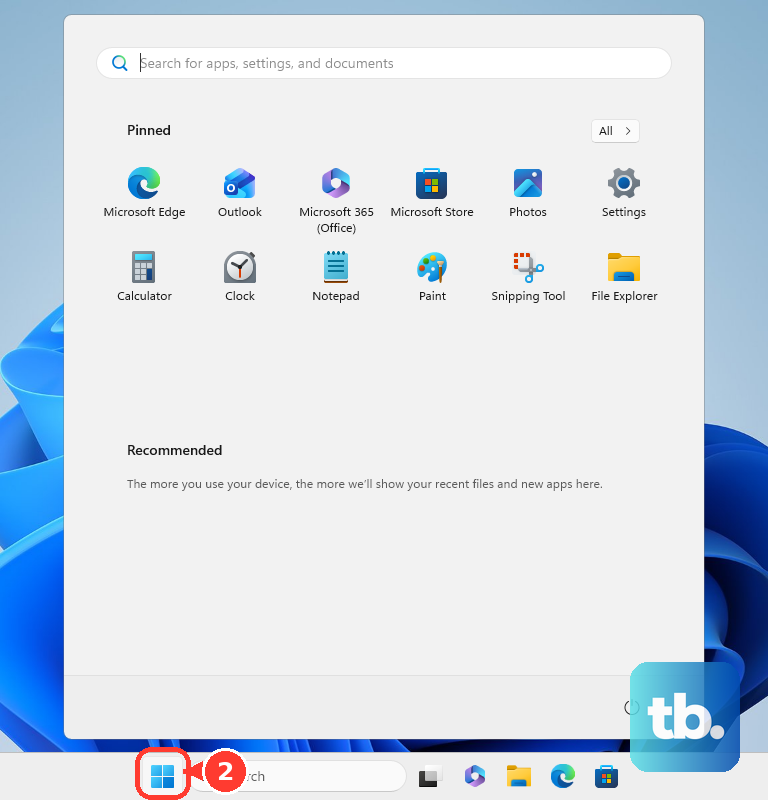
If Explorer trouble continues, Windows 11 and Windows 10 include DISM and System File Checker to repair system corruption. Install available Windows updates and restart before using them. You need administrator access, and these tools address broader system problems rather than guaranteeing that missing Quick access folders return.
Search for Command Prompt, right-click it, and select Run as administrator. Select Yes when prompted. Enter the following command and press Enter.
DISM.exe /Online /Cleanup-image /RestorehealthWait for DISM to complete successfully before continuing. Then enter the following command and press Enter.
sfc /scannowLet verification finish before checking File Explorer again. If broader Explorer trouble remains, consider the recovery options below.
Use a restore point after a system change
On Windows 11 or Windows 10, you can consider System Restore if the problem followed a system change and you have a suitable existing restore point. This rolls back system changes to the selected point. If you do not have a suitable restore point, continue to the other recovery options.
Press Windows + R to open the command entry window. Enter the following command and press Enter.
rstrui.exeSelect Next, then choose a restore point from before the problem. If necessary, check Show more restore points. Select Scan for affected programs to review the consequences before proceeding.
Continuing applies the system rollback to your chosen restore point. Select Next, then Finish.
Reinstall Windows through Windows Update
For broader Windows trouble, the Windows Update repair option reinstalls your current Windows version while preserving apps, files, and settings. Microsoft specifies Windows 11 with the 2022 annual update or later, plus the February 2024 optional update or later. The option is unavailable on some devices with organization-managed updates.
On an eligible Windows 11 installation, open Start > Settings > System > Recovery. Under Fix problems using Windows Update, select Reinstall now, then select OK to start. Keep your PC connected to power and the internet throughout the repair.
Restart after completion, then check File Explorer. If the option is missing on a device with organization-managed updates, have your administrator handle further repair. For continuing broader Explorer failure after simpler troubleshooting, reset is a last resort.
Reset Windows only for continuing Explorer failure
Resetting with the personal-file preservation option removes apps and settings while keeping personal files; back up important files before proceeding. Obtain your BitLocker recovery key if applicable. On Windows 11, open Settings > System > Recovery, then select Reset PC.
On Windows 10, open Settings > Update & Security > Recovery, then select Get started under Reset this PC. On either version, select Keep my files, choose Cloud download or Local reinstall, and follow the remaining reset screens.
Frequently Asked Questions
How do you pin a folder on a touchscreen?
In File Explorer on Windows 11 or Windows 10, press and hold the folder, then select Pin to Quick access. This gives you a touchscreen alternative to right-clicking.
What does Microsoft's Windows installation download page offer?
Microsoft's Download Windows 11 page offers Windows 11 Installation Assistant, Create Windows 11 Installation Media, and ISO download options for compatible PCs. The Installation Assistant and Media Creation Tool on that page are for x64 PCs; consult the page's separate Arm guidance if applicable. You do not need installation media to restore a hidden navigation pane or missing folder pins.
Can you open System Restore without entering a command?
On Windows 11 or Windows 10, open Control Panel > Recovery > Open System Restore. You can also access it through Troubleshoot > Advanced options > System Restore in Windows Recovery Environment. An encrypted recovery environment may require your BitLocker recovery key.
Why can't you find the Local Group Policy Editor on Windows Home?
Windows Home does not provide the Local Group Policy Editor. The local policy controls described for recent-document history apply to Pro, Enterprise, and Education editions. On a policy-managed device, your administrator can also review the relevant policy through their management service.