To fix pen pressure not working in Photoshop, select Brush, open Window > Brush Settings, enable Shape Dynamics, and set Control under Size Jitter to Pen Pressure. Draw with light and firm pressure to check whether the stroke width changes. If it stays constant, check whether your tablet driver detects pressure, then follow the fixes for your device below.
The desktop brush settings require a compatible pressure-sensitive tablet. Photoshop on iPad and the web have separate pressure controls, covered in the final section.
The short version
- Brush controls: Enable Shape Dynamics and choose Pen Pressure for brush size.
- Driver test: Check whether your tablet driver detects changing pressure before resetting Photoshop.
- Windows input: Enable Windows Ink in the supported tablet driver when Photoshop uses Windows Ink.
- Later fixes: Update the driver and Photoshop before resetting preferences or reinstalling a driver.
| Fix | When to use it |
|---|---|
| Enable brush size pressure | Stroke width stays constant |
| Adjust brush dynamics | Width variation is slight or opacity stays constant |
| Activate options bar pressure buttons | You want pressure to control size or opacity |
| Diagnose Wacom pressure | You need to check the tablet's pressure signal |
| Adjust Wacom tip settings | Tip assignment or sensitivity needs correction |
| Check Huion pressure settings | The nib or pressure response is misconfigured |
| Enable XPPen pressure | A supported Artist Pro V2 model lacks pressure variation |
| Enable Wacom Windows Ink | Photoshop uses Windows Ink on Windows |
| Correct the Wacom application profile | Settings target a different Photoshop installation |
| Enable Huion Windows Ink | Huion V15 and Photoshop use Windows Ink |
| Enable XPPen Windows Ink | A supported Artist Pro V2 model needs Windows Ink |
| Enable Xencelabs Windows Ink | A Windows Xencelabs Pen Tablet lacks Photoshop pressure |
| Remove an old WinTab override | You are returning a modified installation to Windows Ink |
| Update Photoshop | Brush and input settings have not resolved the fault |
| Update the Wacom driver | A compatible driver update is available |
| Update the Huion driver | Huion V15 offers a driver update |
| Download the correct XPPen driver | You need the driver for your model and operating system |
| Restore Mac permissions | Wacom input fails on macOS 26 |
| Enable Wacom background components | Wacom reports a driver-response or synchronization failure |
| Reset the Brush tool | The tool configuration may be damaged |
| Reset Photoshop preferences | Simpler Photoshop fixes have failed |
| Reset preferences manually | You cannot use Photoshop's reset controls |
| Reduce smoothing | Pressure appears delayed or stroke endings look unusual |
| Check Wacom connectivity | Input is intermittent or delayed |
| Disable press-and-hold right-click | Holding the pen interrupts drawing on Windows |
| Isolate Photoshop plug-ins | An optional plug-in may interfere with input |
| Restart or reset the Wacom driver | The driver needs troubleshooting |
| Reinstall Wacom on Windows | Simpler driver fixes have failed |
| Reinstall Wacom on macOS | Driver repair requires a fresh installation |
| Reinstall Huion V15 | The driver still fails after simpler fixes |
| Collect Wacom diagnostics | You need help with an unresolved fault |
| Enable iPad brush pressure | A compatible Apple Pencil produces uniform strokes |
| Adjust Apple Pencil sensitivity | Pressure works but needs adjustment |
| Check Apple Pencil compatibility | Your Pencil may lack pressure sensitivity |
| Enable web brush pressure | You use Photoshop in a supported browser |
Enable pressure in the brush settings
Select Brush and open Window > Brush Settings, or press F5. Check Shape Dynamics, then set Control beneath Size Jitter to Pen Pressure. Make several strokes with different pressure using your compatible pressure-sensitive tablet.
Lower Minimum Diameter in Shape Dynamics if your strokes still look nearly the same width. For pressure-controlled transparency or paint flow, enable Transfer and set the relevant Control beneath Opacity Jitter or Flow Jitter to Pen Pressure. A warning icon means Photoshop cannot access the selected pen capability, so continue with the tablet checks.
With Brush selected, the options bar also has pressure icon buttons for size and opacity. Activate the button for the effect you want, then draw with varying pressure again.
Check whether the tablet detects pressure
For devices supported by Wacom Tablet Properties, open Wacom Tablet Properties, select your device, and choose About > Diagnose. Press the pen tip against the tablet and watch Pressure; it should change as you vary the force. This helps distinguish a Photoshop problem from a driver or hardware problem.
If your device uses the Wacom Center pen-settings interface, open Wacom Center and select your device and pen under Devices. Set the pen tip action to Click, adjust Tip sensitivity, and press in the Test area to check the response.
With Huion V15 drivers, open HuionTablet > Digital Pen and ensure the pen nib is not configured as invalid. Adjust Pressure Sensitivity Adjustment and draw in Pressure Test. Available controls vary by tablet.
For XPPen Artist 13.3 Pro V2 and Artist 15.6 Pro V2 models using the 4.x driver interface, open the driver and select Pen Settings. Check Pressure, adjust the pressure curve, and test Current pressure. Other XPPen models can have different controls.
Correct Windows Ink settings
When Photoshop uses its default Windows Ink input with a supported Wacom tablet on Windows, open Wacom Tablet Properties and select the tablet and pen. Open Mapping or Calibrate, depending on your device, and check Use Windows Ink. Retest Photoshop.
A Photoshop-specific Wacom profile is especially useful after installing a different Photoshop version. In drivers supporting application-specific settings, select the pen in Wacom Tablet Properties, click + beside the Application list, then select the running Photoshop application or browse to it. Apply the intended pen and Windows Ink settings to that Photoshop entry.
For Huion V15 on Windows with Photoshop using Windows Ink, open HuionTablet > Digital Pen and check Enable Windows Ink. Restart the driver after changing input protocols, then test Photoshop. On Windows with the XPPen Artist Pro V2 models described above, check Windows Ink in Pen Settings.
With a Xencelabs Pen Tablet on Windows, open the Xencelabs Settings application and select Pen Tablet. Check Windows Ink, then confirm that Photoshop has pressure enabled under Shape Dynamics.
If you previously forced WinTab through PSUserConfig.txt, remove that override when returning to Windows Ink. Removing the file removes its configuration entries, so preserve unrelated customizations if it contains any. Close Photoshop and remove the file previously created solely for the WinTab workaround from the version-specific settings folder under %APPDATA%\Adobe, enable Windows Ink in the tablet driver, then reopen Photoshop.
Update Photoshop and your tablet driver
Save your work and close Photoshop, then open Creative Cloud desktop and select Home > Updates. Select Update beside Photoshop. You can also reach updates through Photoshop's Help > Updates.
On a managed installation, your organization's administrator may control updates. If Auto-update is locked, contact the administrator to apply an approved Photoshop update.
For supported Wacom devices, open Wacom Center > Global settings > General settings. Under Software updates, locate Driver update and select Install update. Complete installation and restart as directed.
Huion V15 users can open HuionTablet > Settings > About > Check for Updates. For XPPen, get the driver for your exact model and operating system from the official XPPen downloads page. Test pressure again after updating.
Restore Wacom permissions on your Mac
For Wacom on macOS 26 with a compatible driver, open the Apple menu > System Settings > Privacy & Security > Accessibility. Enable the installed Wacom components and Photoshop when listed. Open Input Monitoring and enable WacomTabletDriver, then select Quit and Reopen when prompted and restart the Mac.
Use a mouse or trackpad if the pen cannot operate the permission dialogs. For another macOS release, follow Wacom's instructions for that operating system.
If Wacom reports a driver-response or synchronization failure on macOS 13 or later, open System Settings > General > Login Items. Newer interfaces name this pane Login Items & Extensions. Under Open at login, select + and add Wacom Center, then enable Wacom and Wacom Technology Corp under Allow in the background and restart.
Reset the Brush tool before resetting Photoshop
Resetting the Brush tool restores its default configuration. Select Brush, right-click its tool icon in the options bar, and select Reset Tool. Reconfigure pressure in Brush Settings and test again.
Resetting Photoshop preferences resets your customized preferences, so back them up first. On Windows, open Edit > Preferences > General; on macOS, open Photoshop > Settings > General. Select Reset Preferences On Quit, select OK, then quit and reopen Photoshop.
If you cannot use the reset controls, rename the settings folder to make Photoshop generate fresh preferences. This resets your customized preferences, so back up the folder first. Quit Photoshop, back up and rename its Adobe Photoshop <version> Settings folder under %APPDATA%\Adobe\Adobe Photoshop <version>\ on Windows or ~/Library/Preferences/ on macOS, then reopen Photoshop.
Fix drawing interruptions and isolate plug-ins
If pressure appears delayed, select Brush and reduce Smoothing. For unusual tapered endings, lower Minimum Diameter in Shape Dynamics. These changes address stroke behavior; they do not restore a missing hardware pressure signal. Compare the result in another drawing application.
For intermittent Wacom input or delayed strokes, restart the driver and computer. Connect the tablet directly by cable instead of Bluetooth, avoiding adapters where possible, and compare strokes in another drawing application.
If holding the pen interrupts drawing on a Windows computer with Pen and Touch, disable the press-and-hold right-click action. Open Control Panel > Pen and Touch, select Press and hold > Settings, and uncheck Enable press and hold for right-clicking. Select OK and retest.
To check for a Photoshop plug-in conflict, close Photoshop and hold Shift while launching it. At the prompt to skip optional and third-party plug-ins, select Yes, then test pressure. If the problem disappears, move third-party plug-ins out of the Plug-ins folder one at a time, restarting between tests. Keep the conflicting plug-in disabled or obtain a compatible update from its publisher.
Repair the driver or get device support
In current Wacom Center, open Global settings > Troubleshooting options > Driver check. After the check, use the offered driver restart action. Resetting driver settings removes your customized driver settings. If a reset is needed, use the offered reset action, then restart the computer if necessary.
Reinstalling the Wacom driver removes the installed driver, so back up driver preferences first. On Windows, disconnect an external tablet, open Control Panel > Programs and Features, and uninstall the applicable Tablet, Wacom Tablet, or Bamboo entry. Integrated Wacom pen computers should skip disconnecting the tablet.
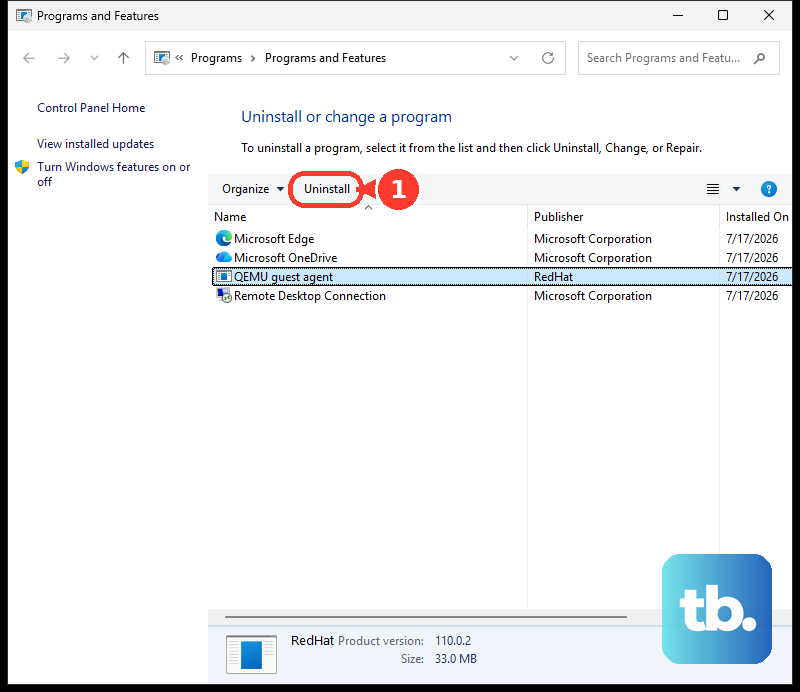
Restart, then search for your exact model on Wacom's driver download page and choose a driver compatible with your device and operating system. Install it, restart again, and reconnect the tablet.
On macOS installations with Wacom Tablet Utility, uninstalling removes the tablet software, so back up preferences first. Disconnect the external tablet, then use Finder to open Applications > Wacom Tablet > Wacom Tablet Utility and select Uninstall under Tablet Software. Restart, install a driver compatible with both your tablet and macOS version, grant its required permissions, restart again, and reconnect directly to the Mac. Test before restoring old preferences.
Uninstalling Huion's driver removes the installed driver, so first export settings through Settings > Backup > Export in Huion V15. Use Settings > About > Uninstall, then open the Huion Download Center. Select your product category and exact model, then choose the appropriate Windows Driver or macOS Driver download.
For an unresolved Wacom fault, open Wacom Center > Global settings > Troubleshooting and turn on Driver logging. Reproduce the problem, select Package log files, and turn logging off afterward. Open Help > Support and provide the logs, Photoshop version, operating system, driver version, and device model.
Enable pressure on iPad or the web
In Photoshop on iPad, select Brush and open its additional settings from the floating tool-options panel. Enable Use pressure for size and Use pressure for opacity, then test with a compatible pressure-capable Apple Pencil. To adjust the response, open App Settings, select Input > Apple Pencil, and adjust Pressure sensitivity. Compare light and firm strokes.
Apple Pencil (USB-C) has no pressure sensitivity, and a Photoshop setting cannot add that hardware capability. Apple Pencil Pro supports pressure, but you still need a Pencil compatible with your particular iPad. Check your Pencil model against Apple's iPad compatibility selector before choosing a replacement.
For Photoshop on the web, open an image and select Paint > Brush > More options. Enable Use pressure for size and Use pressure for opacity. Test with a pressure-sensitive pen in a supported browser that can receive its pressure input.
Frequently Asked Questions
How do you adjust Surface Pen pressure for Photoshop?
Open Start, search for Surface, and open the app. Select Pen and adjust the pressure setting, then test Photoshop again. These controls apply to compatible Surface and Surface Pen combinations that expose pressure settings in the Surface app.
What should you do if a Wacom pen draws while hovering?
For joined strokes or drawing while hovering, remove the nib and leave the pen resting in its stand overnight. Reinsert the nib and retest with Diagnose. If the fault persists, contact Wacom for pen replacement.
Can you try an earlier Photoshop version if pressure broke after an update?
Yes, when an earlier version is available to your Creative Cloud account. In Creative Cloud desktop, select More actions for Photoshop, choose Other versions, and select Install beside an available earlier version. Test the tablet there; an earlier build is a workaround to try, not a guaranteed pressure fix.
Can the Eraser respond to pressure in Photoshop on the web?
Yes, with compatible pressure-sensitive input. Select Eraser, open More options, and enable Use pressure for size and Use pressure for opacity. Test erasing with light and firm pressure.