To fix Microsoft Store stuck on checking dependencies, reopen Microsoft Store, restart Windows, then clear the Store cache and retry the installation. If the download still stalls, install available updates and repair Microsoft Store. For Xbox games, update Xbox and Gaming Services before moving to broader Windows repairs.
These steps cover Windows 11 and Windows 10, with separate Settings paths where needed. Retry the installation after each fix so you can stop once it works. Use the gaming fixes only for downloads that use Xbox or Gaming Services.
The short version
- Start small: Reopen Microsoft Store and restart Windows to finish pending installations.
- Clear the cache: Run
wsreset.exe, wait for Store to reopen, and retry. - Repair before resetting: Try Repair first because Reset clears Store’s local settings and data.
- Check game components: Update Xbox and Gaming Services when a game installation is affected.
| Fix | When to use it |
|---|---|
| Reopen Microsoft Store | Start here and retry the installation |
| Restart Windows | Pending installations or updates need to finish |
| Clear the Store cache | The installation still stalls after reopening |
| Install Windows updates | Your device has available updates |
| Update Microsoft Store and apps | Store or installed apps have pending updates |
| Repair Microsoft Store | Basic fixes fail and Repair is available |
| Reset Microsoft Store | Repair fails or is missing; local settings and data will be cleared |
| Correct the clock and time zone | The displayed time or selected zone is wrong |
| Correct the country or region | Your regional setting is incorrect or you have moved |
| Check account and app restrictions | Only one app or account has installation problems |
| Free installation space | Your Windows 11 installation drive lacks space |
| Update Xbox and Gaming Services | A game using these components will not install |
| Resume a game through Xbox | A restart interrupted the game download |
| Run the Gaming Services Repair Tool | Xbox game installation problems persist |
| Run DISM and SFC | You suspect Windows component corruption |
| Check deployment logs | You need details about the failing package or policy |
| Contact Microsoft Support | The stall continues after the applicable repairs |
Reopen Microsoft Store and restart Windows
Select Close (X) in Microsoft Store, then select Start, search for Microsoft Store, and open it again. Retry the affected installation before changing any settings.
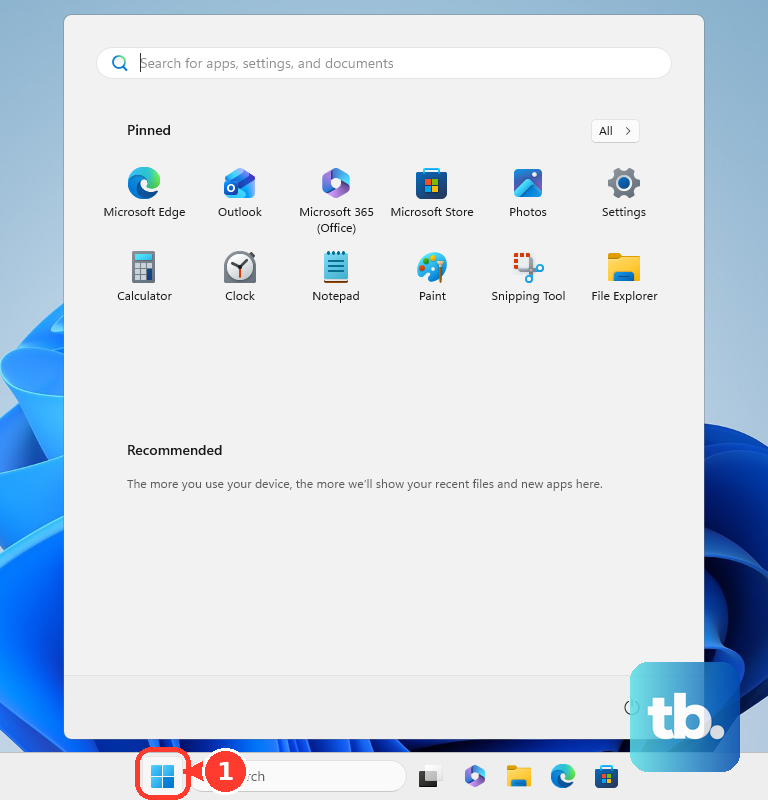
A Windows restart can finish pending installations, particularly after Windows updates. Save your work, then select Start > Power > Restart. After signing in, reopen Microsoft Store and retry the download.
Clear the Microsoft Store cache
Clearing the Store cache removes its cached data without uninstalling Microsoft Store. Press Windows + R, then enter this command:
wsreset.exeSelect OK and wait for the blank command window to close and Microsoft Store to reopen. Retry the installation once it does. If it remains stuck on checking dependencies, continue with Windows and Store updates.
Install Windows and Microsoft Store updates
On Windows 11, open Start > Settings > Windows Update and select Check for updates. Select Install now when offered, and restart when required.
On Windows 10, open Start > Settings > Update & Security > Windows Update and select Check for updates. Install updates available under your device’s servicing entitlement by selecting Install now when offered, then restart when required.
Next, open Microsoft Store and open Downloads to check for and install available app updates. In Store versions with the library update layout, select Library > Get updates instead. Install any Microsoft Store update, reopen Store, and retry the stuck download.
Repair or reset Microsoft Store
On Windows 11 builds that list Store as a system component, open Settings > System > System components. Find Microsoft Store, select its … menu, then choose Advanced options > Repair if available.
On Windows 11 builds that list Store under installed apps, open Settings > Apps > Installed apps. Find Microsoft Store, select …, then choose Advanced options > Repair if available.
On Windows 10, open Settings > Apps > Apps & features > Microsoft Store > Advanced options. Select Repair if available, then reopen Store and retry the installation. Some apps and builds do not offer Repair; when that control is missing or the repair fails, continue with the reset.
Resetting Microsoft Store clears the app’s local settings and data. In Store’s Advanced options, select Reset, then select Reset again if prompted to confirm. Reopen Store, sign in if requested, and retry the download.
Correct conditions that block installation
If your computer’s clock or time zone is wrong, correct it before retrying. On Windows 11 or Windows 10, open Start > Settings > Time & language > Date & time. Turn on Set time automatically, then turn on Set time zone automatically or turn it off and select the correct Time zone manually.
If your region is incorrect or you have moved, select your actual region. On Windows 11, open Start > Settings > Time & Language > Language & Region > Country or region. On Windows 10, open Start > Settings > Time & Language > Region > Country or region. Microsoft recommends changing regions only for a long-term move, so do not switch regions to bypass app availability.
When only one app fails, confirm that Store is using the correct Microsoft account and check the app’s device compatibility and regional availability. For a child account, have the family organizer review its restrictions. These checks address installation blockers, but they do not override an app’s requirements or restrictions.
If the installation drive lacks space on Windows 11, review the available cleanup choices. Cleanup deletes the files and apps you select. On Windows 11, open Start > Settings > System > Storage > Cleanup recommendations, review the proposed files and apps, select only items you intend to remove, and choose Clean up for the relevant section.
Fix Xbox and Gaming Services downloads
For a game that uses Xbox or Gaming Services, open Microsoft Store’s Downloads or Library update view. Look for Xbox and Gaming Services, and select Update when offered. Reopen the Xbox app and retry the game installation.
If a restart interrupted an Xbox app or Game Pass installation, open the affected game’s details page in the Xbox app and start installation again. Microsoft says the installation can resume from its existing partial download.
When gaming installations still fail, run the Gaming Services Repair Tool from the Xbox app or use its official downloadable version. The integrated tool requires Xbox app version 2311.1001.7.0 or newer. If you cannot run it through Xbox, open the Gaming Services Repair Tool page and follow the downloadable-version instructions.
Repair Windows components and system files
If the narrower fixes fail and you suspect Windows component corruption, use DISM followed by System File Checker. Install available Windows updates and restart before starting. These commands require administrator access.
Search for Command Prompt, right-click it, and select Run as administrator. Select Yes, then enter this command and press Enter:
DISM.exe /Online /Cleanup-image /RestorehealthWait for DISM to complete successfully before continuing. Then enter the following command and press Enter:
sfc /scannowAllow verification to finish before retrying Microsoft Store. If DISM fails or the installation still stalls, collect the error details for more targeted troubleshooting.
Get help with a persistent installation failure
For a persistent failure, open Event Viewer and examine Applications and Services Logs > Microsoft > Windows > AppXDeployment-Server > Operational. Also examine Windows Logs > Application and System. Give the relevant error details to Microsoft Support or, on a managed work or school device, your administrator so they can identify package or policy problems.
When contacting Microsoft Support, describe the checking dependencies stall and include any error code, then select Get Help. If needed, select Contact Support; available support options depend on your product, account, and region. Include whether ordinary free apps install and whether only Xbox games fail.
Frequently Asked Questions
Can you install app updates while automatic updates are paused?
Yes, you can install needed updates manually from Downloads or Library while automatic updates are paused. To check the pause state, open Microsoft Store, select your profile picture, then select Store Settings and look under App updates. On managed devices, administrators can control availability.
Can a Microsoft Store web installer avoid the stuck Store window?
For eligible free packaged MSIX and Win32 apps, you can use the web installer offered on the app’s official Microsoft Store listing or through its publisher’s Store installation link. This can avoid the Store app interface, but it does not guarantee that a broken dependency will be resolved. Paid content and MSIXVC apps are excluded from this web-installer feature.
Does re-registering Microsoft Store reinstall it?
No, re-registering uses the existing Store package and requires that package to already be present. It is an advanced repair for AppX registration problems affecting a user, rather than a download or reinstall. It is not a guaranteed fix for every dependency stall.
Should you uninstall Microsoft Store to fix checking dependencies?
Store removal is not established as a specific remedy for this stall. Eligible Windows 10 and Windows 11 devices in the European Economic Area with the regional feature enabled support Store removal and reinstallation. That regional capability is not a reason to uninstall Store as a routine dependency repair.