You cut or copy cells in Excel, but the data does not land where it should. The problem can come from the command you used, the browser clipboard setting, the shape of the paste area, a protected workbook, or Excel itself. Start with the quick checks below, then move through the file and app fixes in order.
1. Use Excel’s supported copy and paste controls
- 1.In desktop Excel, select the cells you want to move or copy.
- 2.Select Home > Clipboard > Cut, Copy, or Paste.
- 3.Or right-click the selection and choose Cut, Copy, or Paste.
- 4.On Windows, press Ctrl+X, Ctrl+C, or Ctrl+V.
- 5.On Mac, press Command+X, Command+C, or Command+V.
Begin with the built-in Excel commands, especially when a browser menu or mouse shortcut is not behaving. In Excel for the web, switch the workbook from Viewing to Editing first. Then use right-click Copy, Home > Clipboard > Copy, Ctrl+C, Command+C, Ctrl+V, or Command+V.
2. Allow clipboard access in Excel for the web
When Office shows a clipboard access error online, give the site permission to use the browser clipboard. In Chrome, open Excel for the web, select View site information in the address bar, find Clipboard, then turn Clipboard on.
In Microsoft Edge, open Excel for the web, select the Lock icon or View site information in the address bar, go to Permission for this site, find Clipboard, then choose Allow.
3. Choose Paste Special for values, formulas, and formats
Select the destination cell or range. Next, select Home > Paste, then choose the paste option you need. For the full dialog, select Home > Paste > Paste Special. Alternatively, press Ctrl+Alt+V.
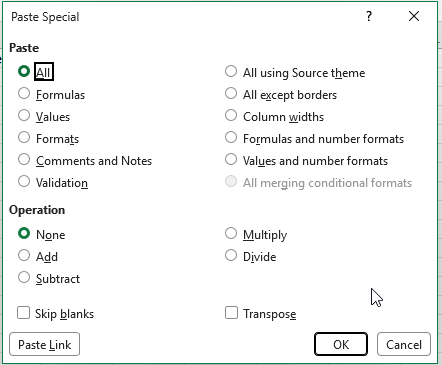
Choose All, Formulas, Values, Formats, Comments and Notes, Validation, Column widths, or the available attribute that matches the result you want. Use Paste Special when Excel pastes formulas instead of values, carries unwanted formatting, skips formatting, or needs a specific paste type.
Excel for the web has a reduced set of paste options. Open the workbook in desktop Excel when the online app does not show the paste option you need.
4. Match the paste area before trying again
A paste fails when the copied cells and selected destination range are different sizes or shapes. Select only the upper-left destination cell, then choose Home > Paste. The other supported path is to select a destination range with the same size and shape as the copied range before pasting.
For large data on Mac, format the destination column before pasting. Select the column heading, open Home, open the Number Format menu, choose the format that matches the data, then paste one column at a time.
When the pasted data needs more columns, add them first. Select the column heading to the right of where you want the new column, choose Home > Insert, repeat until the sheet has enough columns, then paste again.
5. Remove file restrictions that block editing
For Protected View, use the yellow message bar and select Enable Editing. For a red message bar, select File > Edit Anyway. Do this only for files you trust.
For a protected worksheet, open the worksheet, then select File > Info > Protect > Unprotect Sheet. You can also select Review > Unprotect Sheet. Enter the password when prompted, then select OK.
For a protected workbook, select Review > Protect Workbook, enter the password, then select OK. Workbook protection locks the workbook structure, such as adding, moving, or renaming sheets, so unprotect the worksheet above when cell edits are what is blocked.
For data validation that rejects pasted values, select the cells, then choose Data > Data Validation > Clear All > OK.
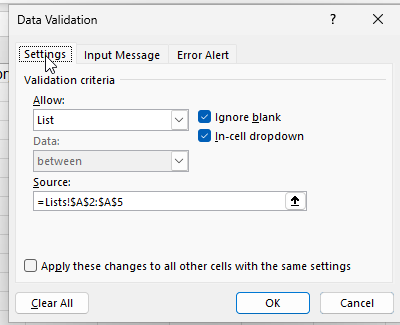
Sometimes Excel is fine and the workbook is refusing edits. Excel for the web opens and edits password-protected workbooks, but it does not add, change, remove, or recover passwords.
6. Clear the clipboard after repeated failures
On Windows desktop Excel, clear the Office Clipboard from Excel itself. Select Home. In the Clipboard group, select the Clipboard dialog box launcher. Select Clear All.
To remove one item instead, hover next to the clip, select the arrow to the right of the clip, then choose Delete. On Windows 11, clear Windows clipboard history from Start > Settings > System > Clipboard > Clear clipboard data > Clear.
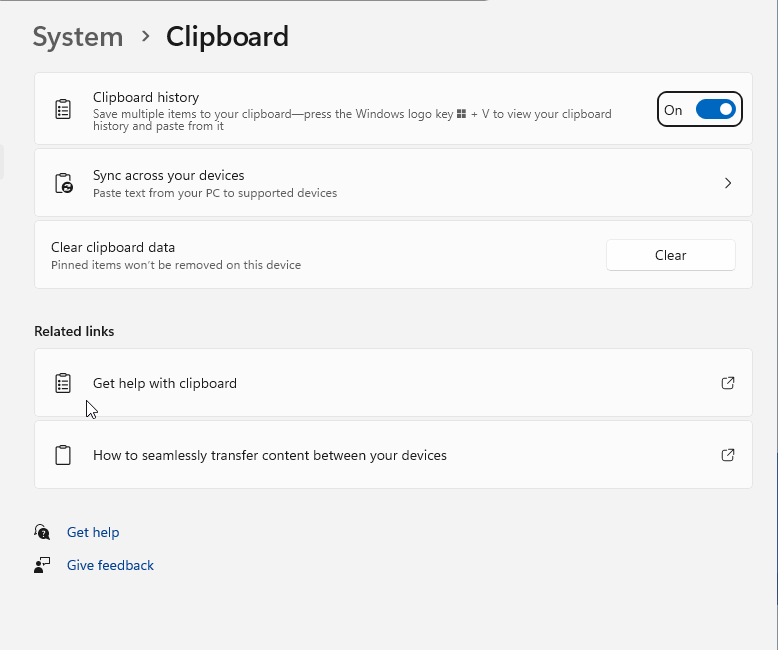
The shortcut path is Windows logo key+V > Clear all. For one item, press Windows logo key+V, select See more (...) next to the item, then choose Delete. On Mac, Microsoft states that you cannot view or clear the Office Clipboard.
7. Restart Excel after a crash or locked file
If the problem began after Excel crashed, close Excel, restart the computer, reopen the workbook, and try cutting or pasting again. Microsoft lists this restart path for a previous crash that leaves a file locked.
If you use Windows clipboard history and Windows logo key+V is the paste path that fails, turn clipboard history on. Press Windows logo key+V, then select Turn on. You can also use Start > Settings > System > Clipboard and turn on the clipboard history or sync setting you use.
8. Test add-ins and startup files on Windows
Hold Ctrl and double-click the Excel shortcut, then select Yes. Or press Windows logo key+R, type excel /safe, then select OK. Try copying and pasting in Safe Mode. Open Excel in Office Safe Mode to check whether add-ins or startup files are interfering.
If cut and paste works in Safe Mode, disable COM add-ins and restart Excel. Select File > Options > Add-ins. Next to Manage, choose COM Add-ins, then select Go. Clear all check boxes, select OK, close Excel, and restart it.
Turn add-ins back on one at a time, restarting Excel after each one, until you identify the add-in that breaks copy and paste. Check startup files next.
For XLStart, select File > Options > Trust Center > Trust Center Settings > Trusted Locations, note the XLStart folder path, move files out of that folder, then start Excel normally.
For the alternate startup folder, select File > Options > Advanced > General > At Startup, open all files in, note the folder path, move files out of that folder, then restart Excel.
9. Repair or update Office when Excel still fails
Repair Office on Windows when the earlier workbook, clipboard, and add-in fixes do not solve the problem. Right-click Start.
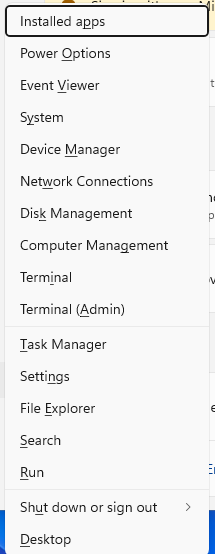
Select Installed apps on Windows 11, or Apps and Features on Windows 10. Select Microsoft 365 or Office. Select the Ellipses (...). Choose Modify.
Select Online Repair > Repair. Update Office next.
On Windows, open any Microsoft 365 app, create a new document, then select File > Account > Product Information > Update Options > Update Now. Select Enable Updates first when that option appears. If Update Options is missing and only About appears, Microsoft Update, Group Policy, or volume licensing controls updates, so use your organization’s help desk.
On Mac, open Excel or another Office app, select Help > Check for Updates, then choose Update or Update All in Microsoft AutoUpdate. Restart the app after the update finishes.
As of July 2026, Microsoft 365 and Office for Mac need macOS 12 Monterey or later and app version 16.83 or later to keep full editing, so update macOS first if needed; apps left below that run in reduced functionality, where you can open, view, and print but cannot edit or save.
Office 2019 for Mac cannot reach that version, so use Microsoft 365 for the web or a current Microsoft 365 subscription instead.
If Microsoft AutoUpdate is disabled on macOS Ventura or later, open System Settings from Launchpad, select General > Login Items & Extensions > Allow in the Background, then turn Microsoft AutoUpdate on.
For deeper startup, hang, crash, setup, uninstall, or activation issues on Windows, use Microsoft’s Microsoft 365 troubleshooters page, select the relevant Start button, choose Open when prompted for Get Help, follow the prompts, then restart if prompted.
If repair and updates still leave Excel unable to cut or paste, uninstall Office and reinstall a supported version from Microsoft’s official Microsoft 365 or Office download page.
Frequently Asked Questions
Why is cut and paste disabled in Excel for the web?
The workbook can be in Viewing mode, or Chrome or Edge can be blocking clipboard access. Switch to Editing, then allow Clipboard permission from the browser’s site information menu.
How do I get the Paste Options button back in Excel?
On Windows, select File > Options > Advanced > Cut, copy, and paste, turn on Show Paste Options button when content is pasted, then select OK. On Mac, select Excel > Preferences > Edit > Cut and Paste Options, then turn on Show Paste Options.
Why does Excel reject pasted values in certain cells?
The cells can have data validation rules. Select the cells, then choose Data > Data Validation > Clear All > OK to remove the validation that is rejecting the paste.
Can I clear the Office Clipboard on Mac?
No. Microsoft states that on Mac, you cannot view or clear the Office Clipboard. On Windows desktop Excel, use Home > Clipboard and select Clear All.