
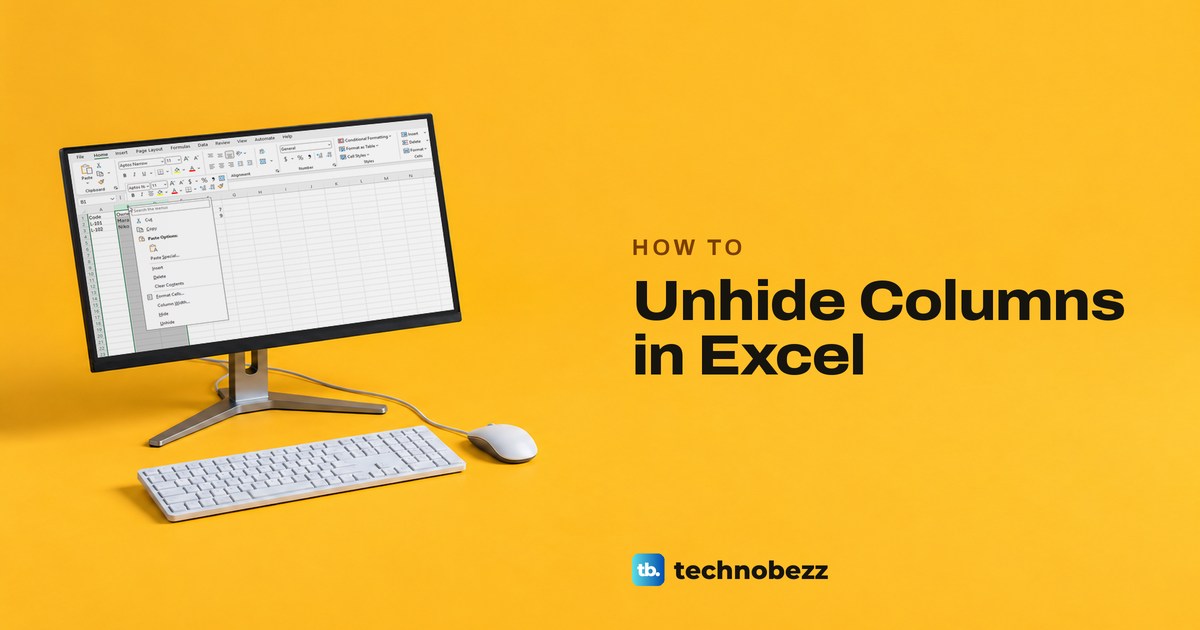
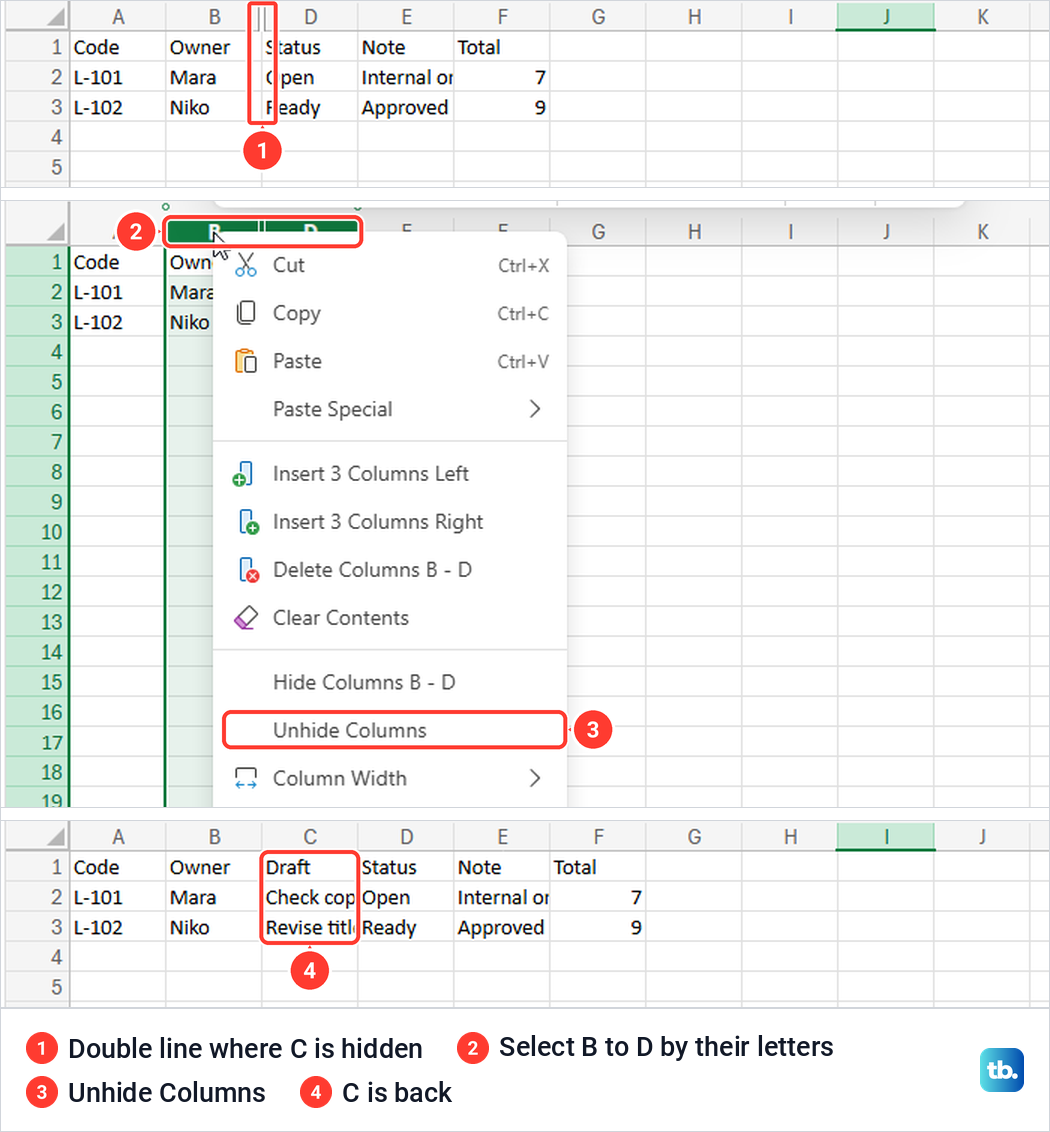
To unhide columns in Excel, select the column letters on both sides of the gap, right-click the selection and choose Unhide. When C is missing, that means selecting B through D. The column comes back with its contents, and Home > Format > Hide & Unhide > Unhide Columns does the same from the ribbon.
To bring back every hidden column on a sheet, click the Select All corner first. For column A alone, type A1 in the Name Box, press Enter and use the same ribbon command.
We ran these routes in Excel for Microsoft 365 on Windows 11, version 25H2, and tried the right-click menu, the column A fix and the shortcut in Excel for the web. Two results did not match Microsoft's help pages: Ctrl + Shift + 0 did nothing in desktop Excel, and in the browser the column B menu offered no Unhide Columns for a hidden column A.
The short version
- One hidden column: select the letters on both sides, right-click and choose Unhide.
- The ribbon route: Home > Format > Hide & Unhide > Unhide Columns works after you select the letters around the gap, the whole sheet, or a hidden cell through the Name Box.
- Every hidden column: click the Select All corner, then use the ribbon command.
- Column A: type A1 in the Name Box, press Enter, then use the ribbon command.
- The shortcut: Ctrl + Shift + 0 worked in Excel for the web but did nothing in our desktop Excel.
- Greyed out: check whether the sheet is protected, and if Review shows Unprotect Sheet, choose it first.
Ways to unhide columns in Excel at a glance
| Method | Best for | What happened on our sheet |
|---|---|---|
| Right-click the letters on both sides, then Unhide | One gap, such as C missing between B and D | C came back with its contents at its old width |
| Double-click the line between the letters | A quick fix for one gap | C came back, widened to fit its text |
| Home > Format > Hide & Unhide > Unhide Columns | The letters around a gap, the whole sheet or a cell picked in the Name Box | Every hidden column inside the selection came back |
| Select All corner, then Unhide Columns | Several gaps, or a sheet someone else set up | C and E both came back |
| A1 in the Name Box, then Unhide Columns | Column A | A came back while E stayed hidden |
| Ctrl + Shift + 0 | Excel for the web | Worked in Edge, did nothing in desktop Excel |
| Column Width above 0 | A column whose width was set to 0 | C came back at the width we typed |
How to tell that a column is hidden
Excel does not delete a hidden column, it only stops showing it. The clue is in the letters along the top. On our sample sheet, hiding column C left the letters running A, B, D, E, F, and the Draft entries vanished from view with it.
Microsoft describes a double line between two column letters as the sign of a hidden column, and Excel for the web draws it clearly at the gap. In the desktop app the line is thin, so the missing letter is the easier thing to spot.
If the row numbers skip instead, for example from 3 to 6, rows are hidden rather than columns, and Microsoft's steps are the same with the row numbers on either side of the gap. If every letter is there but the left-hand columns stay put while the rest of the sheet scrolls past them, that is frozen panes rather than hidden columns, and our guide to freeze cells in Excel covers it.
Unhide a column with a right click
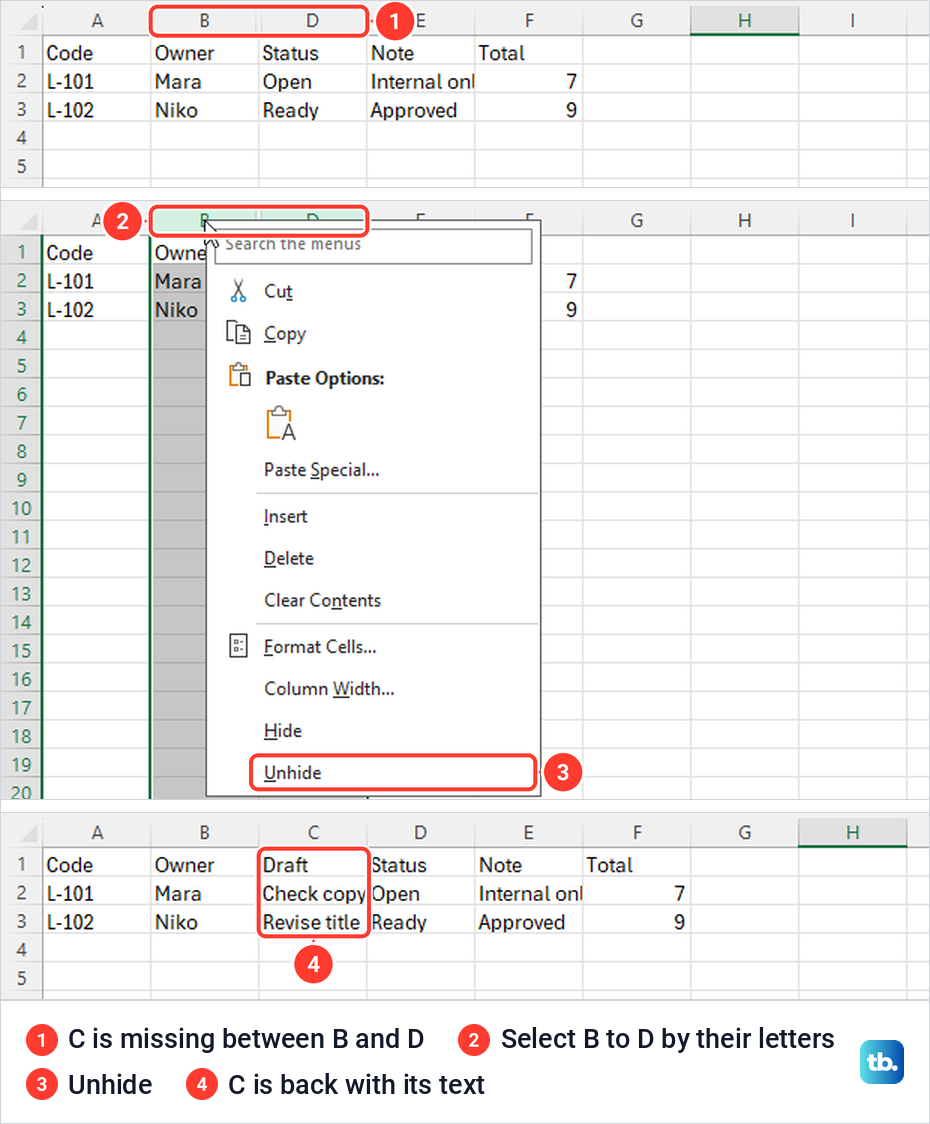
This is the quickest fix for a single gap. Drag across the column letters on both sides of it, so B through D when C is hidden, then right-click one of the selected letters. Choose Unhide, the last item in the menu, just under Hide.
On our sheet, C came straight back with its heading and both entries, Check copy and Revise title, at the same width as before. The desktop right-click menu calls the command Unhide, while the Home tab and Excel for the web call it Unhide Columns. Both do the same job.
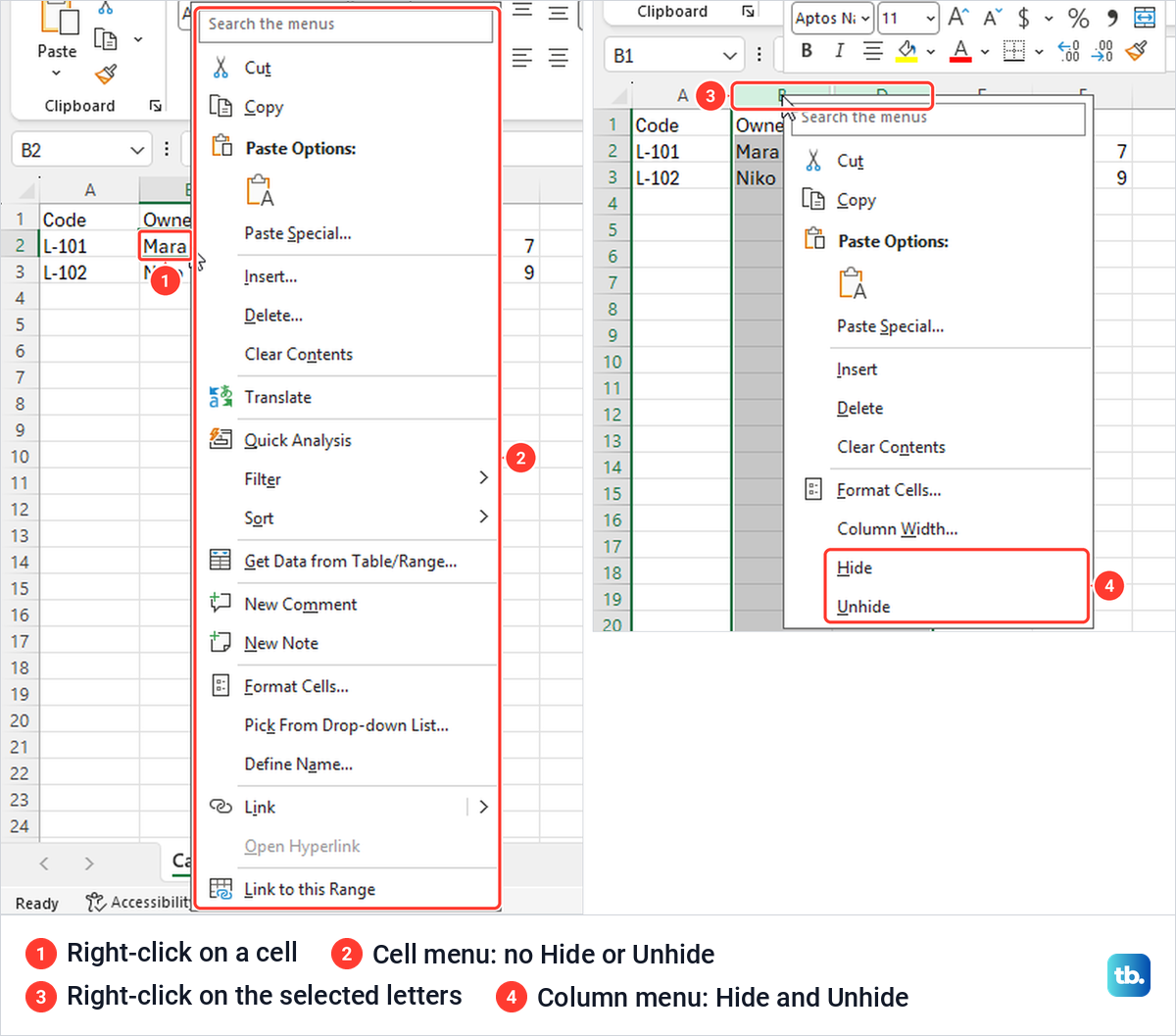
Right-click the letters, not the cells. When we right-clicked cell B2 instead, Excel showed the long cell menu with Insert, Delete, Filter, Sort and Format Cells, but no Hide or Unhide anywhere. Right-clicking the selected column letters gave the shorter column menu that ends with Column Width, Hide and Unhide.
The same works for a run of gaps. Select from the letter before the first hidden column to the letter after the last one, and Unhide restores the hidden columns inside that selection.
Double-click the line between the column letters
Point at the border between the two letters on either side of the gap, just to the right of the line. When the pointer turns into a double arrow split down the middle, double-click. On our sheet, C came back at once.
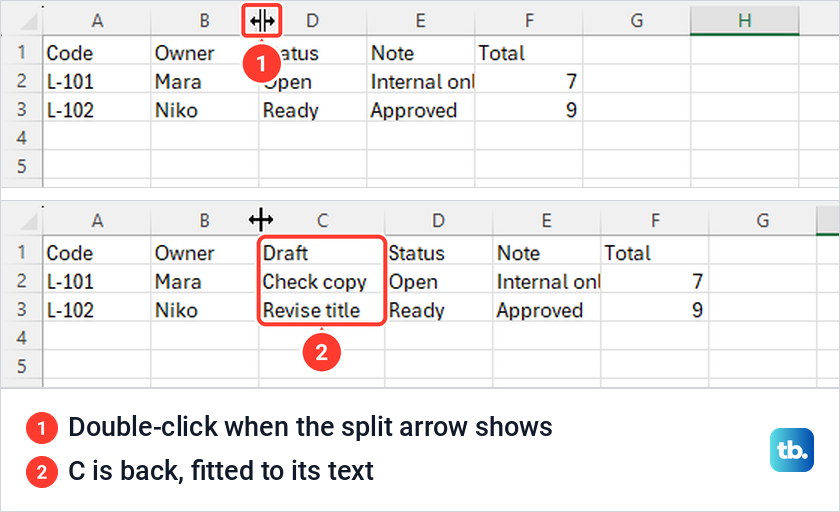
It came back wider than before, though. Column C had been 8.38 characters wide like the untouched columns, and after the double-click it measured 9.88, fitted to its longest entry. That is harmless on most sheets, but use the right-click or ribbon method if the layout matters.
Microsoft gives the same two methods for Excel for Mac. Select the columns on both sides of the gap, right-click them and choose Unhide, or double-click the double line between the two columns.
Unhide columns from the Home tab
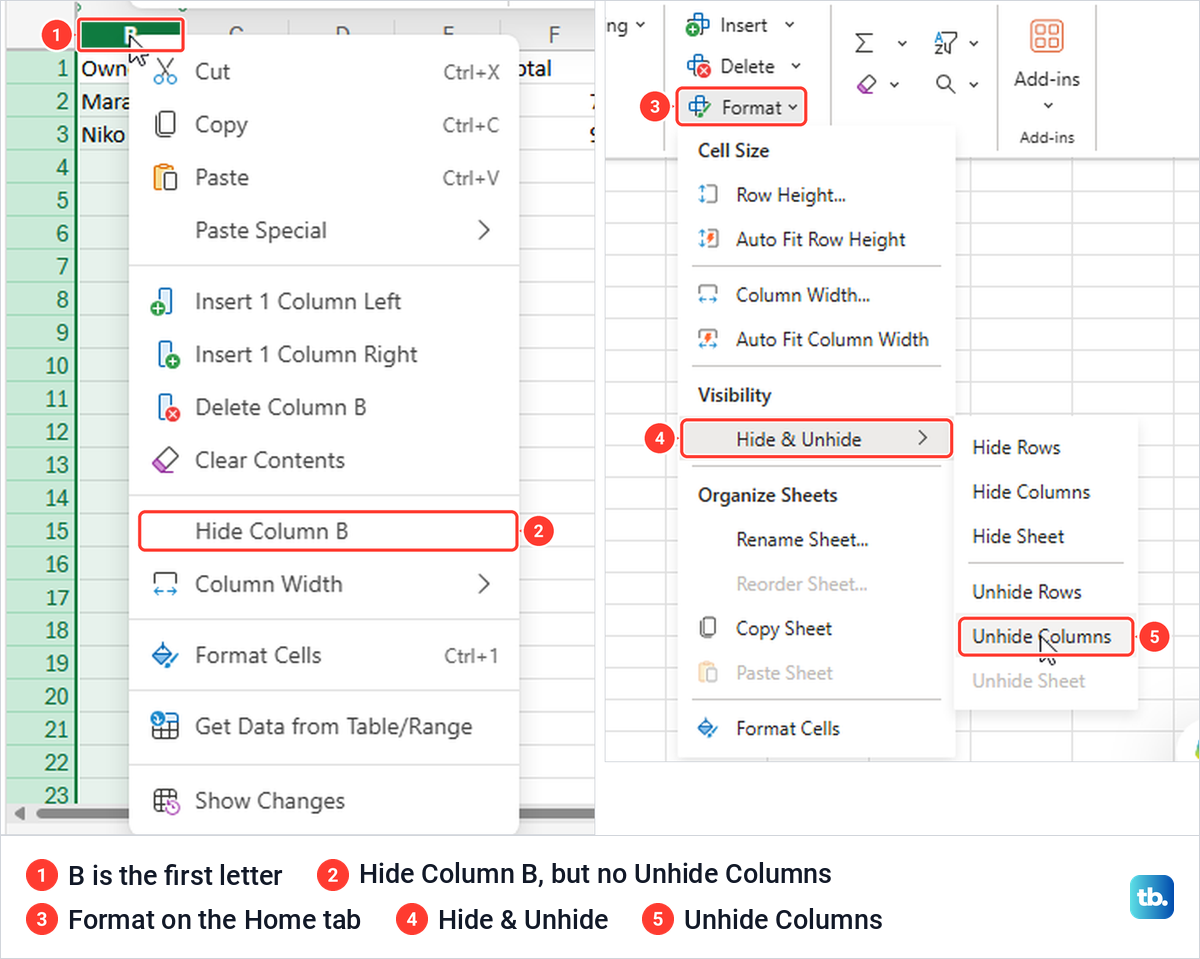
The ribbon route is the one to remember, because it works for one gap, several gaps and column A alike. Select the letters on both sides of the gap, open the Home tab and choose Format in the Cells group. Point at Hide & Unhide under Visibility, then choose Unhide Columns.
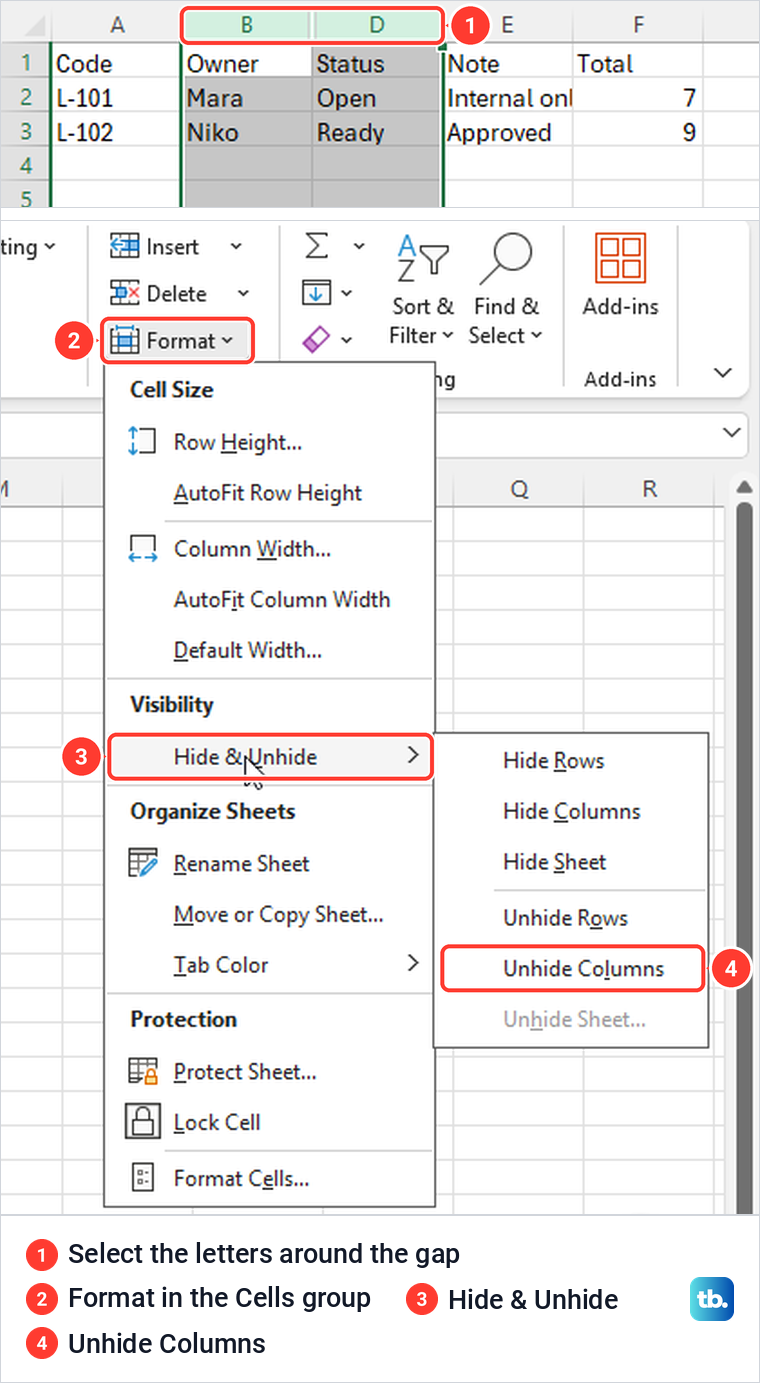
With B through D selected, Unhide Columns brought C back on our sheet. The same submenu holds Hide Rows, Hide Columns, Hide Sheet, Unhide Rows and Unhide Sheet, so it is also the place to look when a whole worksheet tab is missing.
Unhide all columns at once
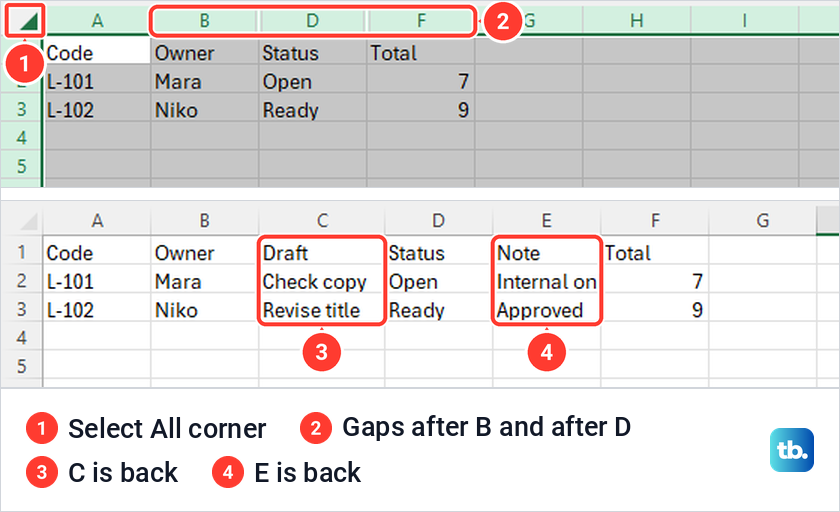
When several columns are missing, or you did not build the sheet yourself, select the whole worksheet first. Click the Select All button, the small triangle in the corner where the column letters meet the row numbers. Then choose Home > Format > Hide & Unhide > Unhide Columns.
We hid both C and E, and that one command brought both back with their original text. Microsoft points out that selecting the whole sheet reveals every hidden column on it, including any that someone hid on purpose.
Columns in a shared workbook are sometimes hidden to keep working notes out of view. Before revealing everything, you can make a copy of the Excel file and unhide the columns in the copy, so the owner's layout stays as it was.
Unhide column A
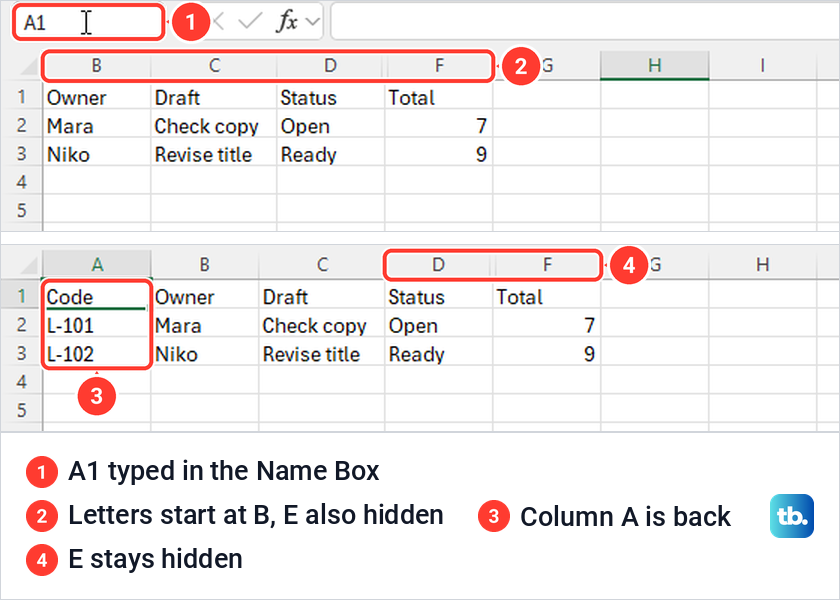
Column A is awkward because there is no letter to its left to select. If the letters start at B, click the Name Box, the small box at the left end of the formula bar that shows the selected cell's address, type A1 and press Enter. Excel selects the hidden cell even though you cannot see it.
Then choose Home > Format > Hide & Unhide > Unhide Columns. On our sheet, with both A and E hidden, column A came back with Code, L-101 and L-102, while E stayed hidden. That is the advantage over Select All, which would have revealed E as well.
The Go To box does the same job if you prefer menus. Choose Home > Find & Select > Go To, type A1 in the Reference box and select OK, then use Unhide Columns as before. We brought column A back this way too. Microsoft gives the same A1 trick for a hidden row 1, with Unhide Rows instead of Unhide Columns.
Try the keyboard shortcut
Microsoft lists Ctrl + Shift + 0 as the shortcut to unhide columns. Select the letters on both sides of the gap first. In our desktop Excel it did nothing, even with B through D selected and after a second try, while another shortcut, Ctrl + Shift + 4 for the currency format, worked at once on the same PC.
The same keys did work in Excel for the web in Microsoft Edge, where they brought C back straight away. If the shortcut does nothing in your desktop Excel, use the Home tab route, which brought C back on our PC right after the shortcut failed.
Microsoft's list pairs it with Ctrl + 0 to hide the selected columns. For other selection and navigation keys, see our list of useful Excel keyboard shortcuts.
Bring back a column with zero width
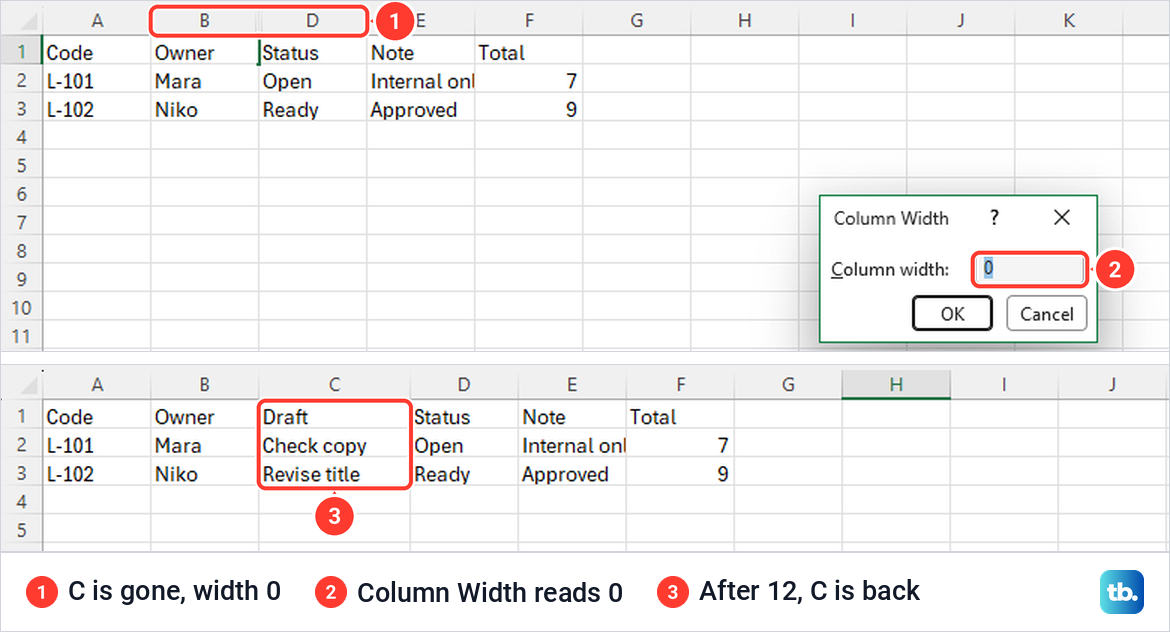
A column can also be hidden by setting its width to 0. When we typed 0 in Column Width for C, the letters jumped from B to D just as they do after Hide, and Microsoft's own width table lists 0 as hidden.
To bring it back at a width you choose, type the column's first cell, such as C1, in the Name Box and press Enter. Then choose Home > Format > Column Width. For our zero-width C the box read 0, and after we typed 12 and selected OK, C was back with its text.
Pick any width that suits your data, and do not assume the old one was 8.43. Microsoft's help page gives 8.43 as the default, but untouched columns in our new workbook read 8.38. Right-clicking a selected column letter also offers Column Width.
A heading merged across two columns can stop AutoFit from widening a column. When we merged a long heading across B and C, AutoFit Column Width left B at its old width, while typing 24 in Column Width widened it at once. Set the width by hand, or unmerge cells in Excel first.
Unhide columns in Excel for the web
Excel for the web uses the same idea with slightly different words. Select the letters on both sides of the gap, right-click one of them and choose Unhide Columns. On our copy in Microsoft Edge, C came back with its text, and the menu named the selected range in its other items, such as Hide Columns B - D.
Column A is where the browser differs from Microsoft's own instructions. Microsoft says to right-click the column B header and pick Unhide Columns, but with A hidden, B's menu on our copy offered Hide Column B and no Unhide Columns at all.
The desktop fix worked instead. Type A1 in the Name Box, press Enter, then choose Home > Format > Hide & Unhide > Unhide Columns. On our PC the grid did not redraw at once, and column A only appeared after our next jump with the Name Box, so move to another cell before you decide it failed.
If the button near the top right reads Viewing (View the file, but make no changes), you can still try the column letters. On our copy in Viewing, a right-click on a cell offered only Copy and Sort, but the column letters still offered Unhide Columns and C came back.
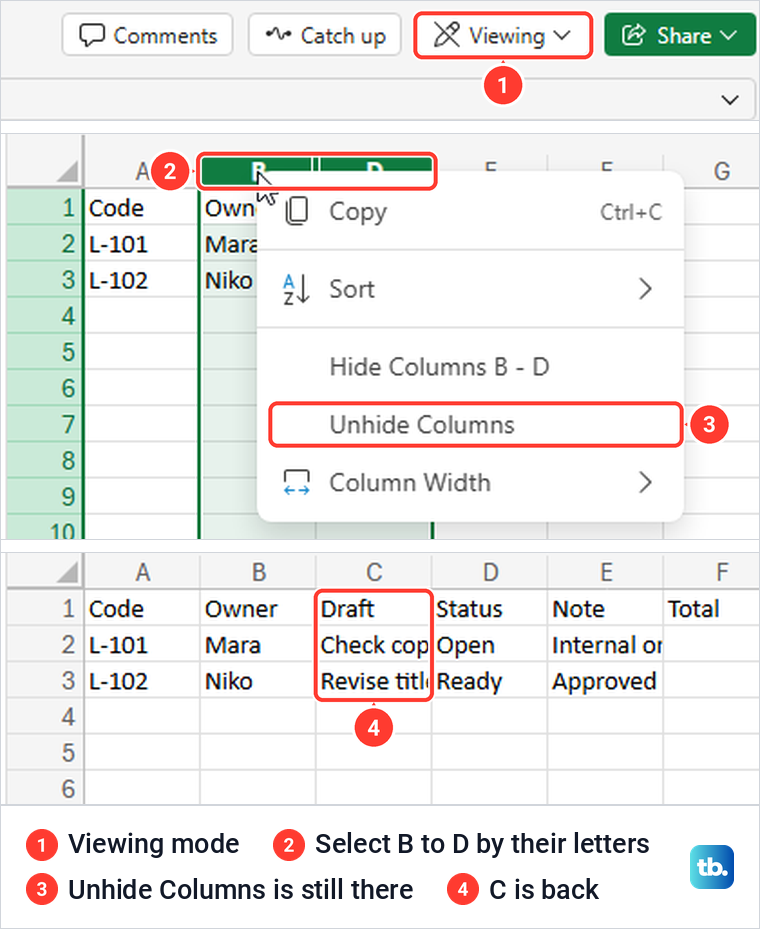
Typing and formatting are a different matter. Microsoft says that if entering data or applying basic formatting does nothing, you are probably in read-only view and should switch that menu to Editing.
When Unhide Columns is greyed out
A protected sheet blocks column commands unless its owner allowed column formatting. We protected our sheet from Review > Protect Sheet and left Format columns unticked. By default, only Select locked cells and Select unlocked cells are ticked in that dialog.
Excel gave no error message. In Home > Format, Column Width and every Hide & Unhide entry except Hide Sheet were greyed out, and the Protection section offered Unprotect Sheet instead of Protect Sheet.
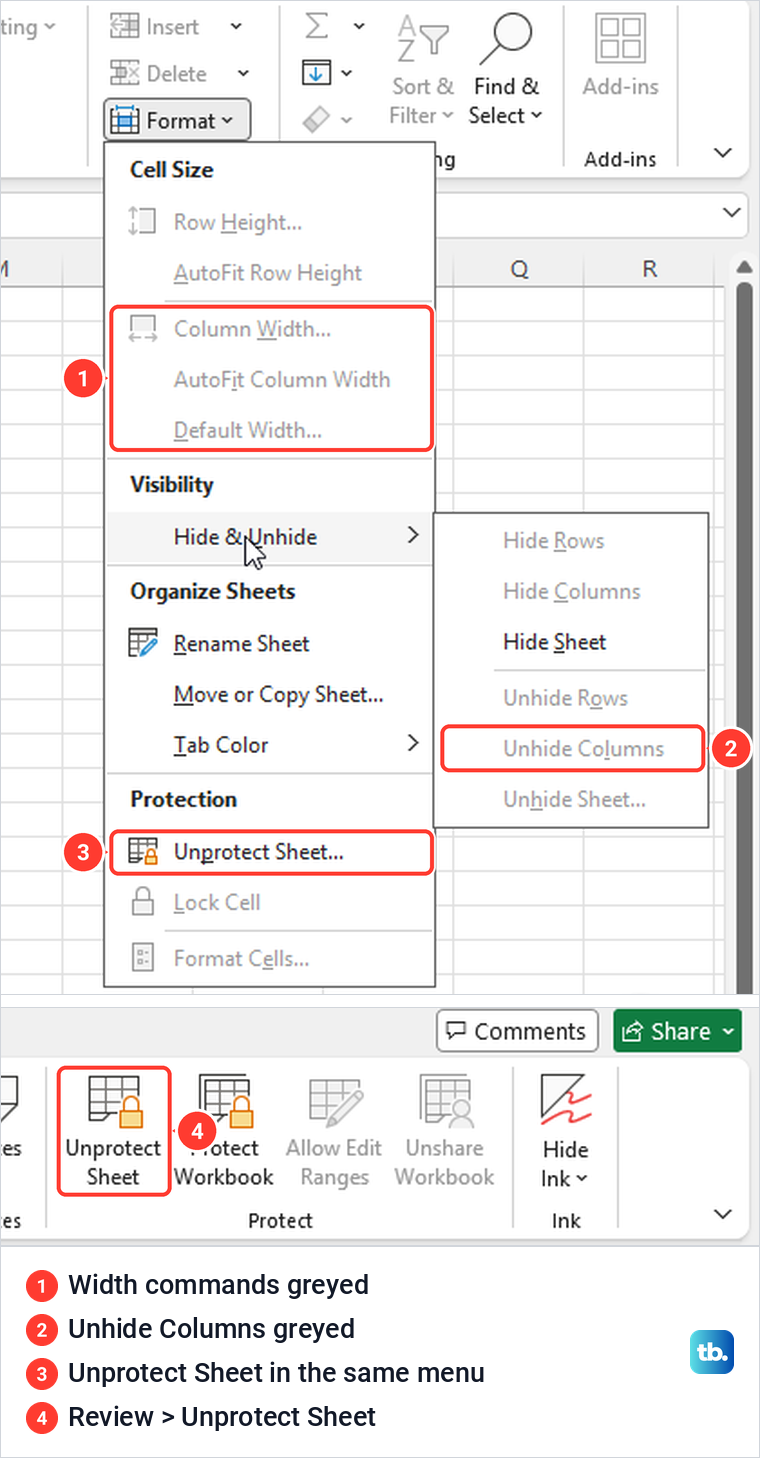
Choose Review > Unprotect Sheet, or Unprotect Sheet in that same Format menu, then unhide the column as usual. Our sheet had no password, so it unprotected at once and C came back. If the owner set a password, you need it from them, and our guide to unprotect an Excel worksheet covers both cases.
In Excel for the web, Microsoft's route is Review > Manage Protection, then turn off Protect sheet. Review > Pause Protection lifts it for your session only and asks for the password if one was set.
If you protect sheets yourself and want others to be able to show hidden columns, tick Format columns in the Protect Sheet dialog. Microsoft says that permission covers changing column width or hiding columns, and our guide to lock cells in Excel explains the rest of the dialog.
Columns folded away in a group or a Sheet View
Columns can also be folded into an outline group rather than hidden. When we grouped B and C with Data > Outline > Group, Excel drew a bar above the letters with a minus button. Clicking it collapsed both columns, left the letters running A, D, E, and turned the button into a plus.
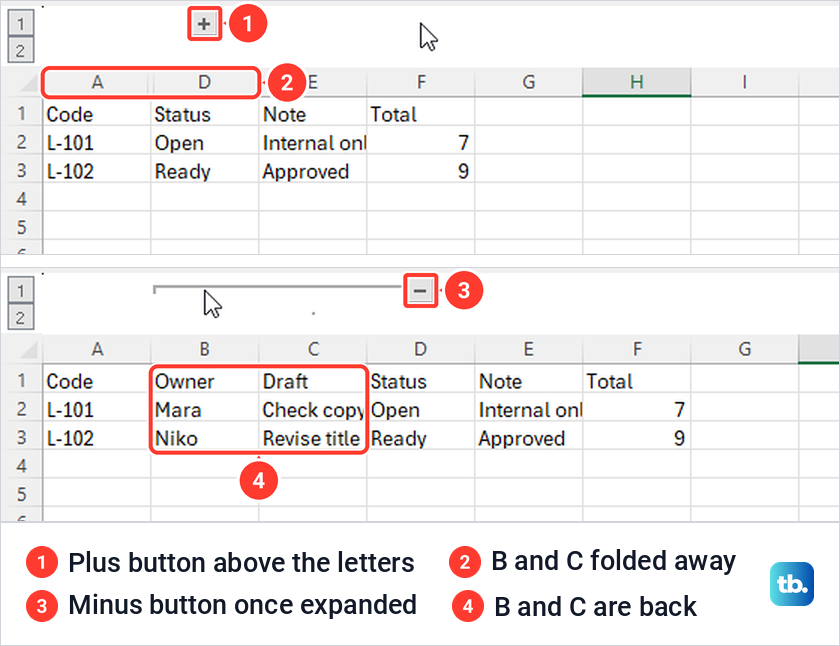
Click the plus button to bring grouped columns back. Microsoft adds that if an outline is removed while its detail is hidden, those columns can stay hidden, and the fix is the usual one: select the letters on both sides and use Unhide Columns.
In a shared workbook, a Sheet View can hide columns too. Microsoft says an eye symbol next to the worksheet tab name shows a Sheet View is applied, and columns hidden in default view stay hidden in every Sheet View. To leave a Sheet View and return to the default view, select View > Sheet View > Exit.
Hidden columns do not print
Microsoft says hidden rows and columns are left out when you print from Excel for the web. Our print preview with C hidden showed Code, Owner, Status, Note and Total, with no Draft column. After we unhid C, the preview showed it again between Owner and Status.
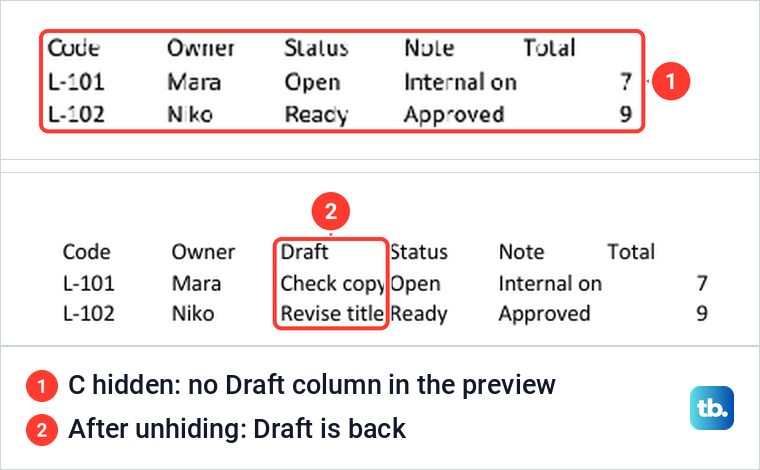
So unhide anything you want on paper before you open File > Print, and check the preview before you print. If the columns should stay out of sight for other readers, hide them again afterward from the same Hide & Unhide menu. A blank preview or a job that never prints is a different problem, and our guide to fix printing from Word and Excel covers it.
How we tested this guide
We tested this in Excel for Microsoft 365 on Windows 11, version 25H2, and in Excel for the web in Microsoft Edge, hiding and restoring columns on a made-up sheet.
Frequently Asked Questions
How do I find columns I hid in Excel?
Look along the column letters for a missing letter, such as A, B, D with no C. Select the letters on both sides of that gap, right-click and choose Unhide.
How do I unhide all columns in Excel?
Click the Select All corner above row 1, then choose Home > Format > Hide & Unhide > Unhide Columns. Every hidden column on that sheet comes back, including any hidden on purpose.
How do I unhide column A without unhiding everything?
Type A1 in the Name Box, press Enter, then choose Home > Format > Hide & Unhide > Unhide Columns. On our sheet that brought back column A and left another hidden column alone.
Why does Ctrl+Shift+0 not unhide columns?
Microsoft lists it, but in our desktop Excel it did nothing, even with the right letters selected. Use the Home tab route instead, or press the same keys in Excel for the web, where they worked.
Why is Unhide Columns greyed out?
Check whether the sheet is protected: if the Review tab shows Unprotect Sheet, it is, and the owner did not allow Format columns. Choose Unprotect Sheet, entering the password if one was set, then unhide the column.
Can I unhide only one column out of many?
Yes. Drag across from the letter before that column to the letter after it, such as B through D for C, and choose Unhide, and gaps elsewhere stay hidden. For column A, use the Name Box instead of Select All.
Will a hidden column print?
No. In Excel for the web, our print preview left the hidden column out until we unhid it, and Microsoft says hidden rows and columns are not printed.