

To password protect an Excel file, open it in Excel on Windows and select File > Info > Protect Workbook > Encrypt with Password. Type a password, select OK, type it again in Reenter Password, select OK, then save the workbook. Microsoft says this is the protection that prevents other users from opening the file, and it cannot retrieve the password if you forget it.
Excel has several look-alike settings, and none of them keeps a reader out. Review > Protect Workbook locks the list of sheets and Review > Protect Sheet locks cells, and neither needs a password to view the file. A password to modify may ask for its password at opening, but anyone without it can still open the file read-only. On our PC, a workbook with a protected sheet opened straight away with no password prompt at all.
The short version
- Lock the whole file: File > Info > Protect Workbook > Encrypt with Password, enter the password twice, then press Ctrl + S.
- Anyone can read, only password holders save changes: press F12, open Tools > General Options and fill in only Password to modify.
- Not a file lock: Review > Protect Workbook and Review > Protect Sheet do not stop the file opening.
- In a browser: Excel for the web has no file password setting, so choose Open in Desktop first.
- Forgotten password: Microsoft cannot recover it, so keep it in a password manager.
Which Excel protection stops someone opening the file
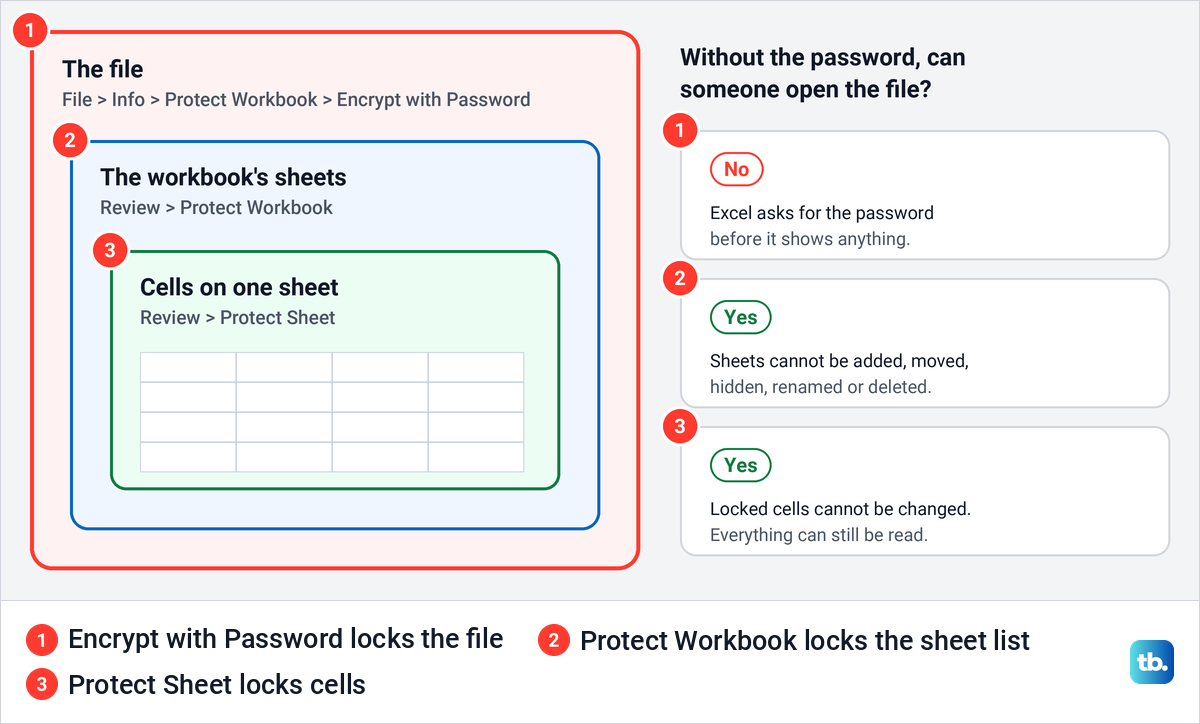
Excel's protection settings live in three places, the File > Info page, the Review tab and the Save As dialog's General Options, and two of them are called Protect Workbook. Microsoft separates them by what they guard. File encryption locks the file itself, a password to open or modify controls read-only and edit access, workbook protection locks the sheet structure, and sheet protection limits changes to cells.
| What you want | Where to set it | What it locks | Can the file open without that password? |
|---|---|---|---|
| Nobody sees the data without the password | File > Info > Protect Workbook > Encrypt with Password | The whole file | No |
| Everyone can read, only password holders can save changes to it | F12, then Tools > General Options > Password to modify | Saving changes to the file | Yes, read-only |
| Sheets cannot be added, moved, hidden or renamed | Review > Protect Workbook | The workbook structure | Yes |
| Formulas and locked cells cannot be edited | Review > Protect Sheet | Cells on one sheet | Yes, it opened normally on our PC |
Only the first row keeps a stranger away from your data. Microsoft states that worksheet protection is not intended as a security feature, and the password on a workbook structure lock is optional, so neither should guard anything private. Use Encrypt with Password for sensitive files, and add sheet protection on top only if you also want to stop accidental edits.
Add a password to open an Excel file
Before you start, make a copy of your Excel file if it matters to you. A spare copy is your fallback if the password is ever lost, because Excel's own dialog warns that a lost password cannot be recovered. Keep that copy somewhere private, since it has no password.
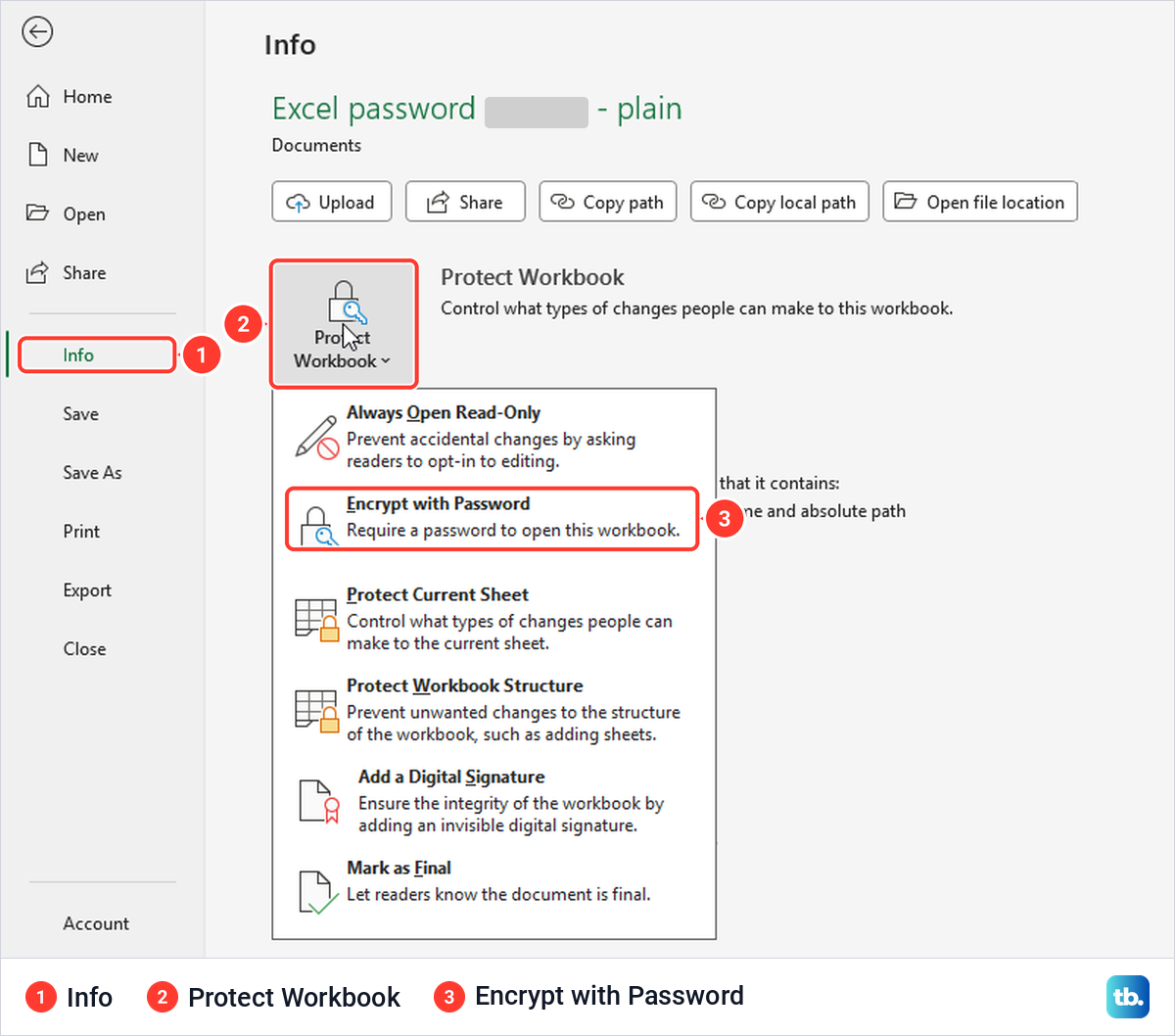
Open the workbook in Excel for Microsoft 365 on Windows and select File, then Info. On our PC the Info page showed a Protect Workbook button with the line "Control what types of changes people can make to this workbook." Select the button to open its menu of six options.
The option you want is Encrypt with Password, which the menu describes as "Require a password to open this workbook." The same menu also holds Always Open Read-Only, Protect Current Sheet, Protect Workbook Structure, Add a Digital Signature and Mark as Final. Only Encrypt with Password is described as asking for a password at opening.
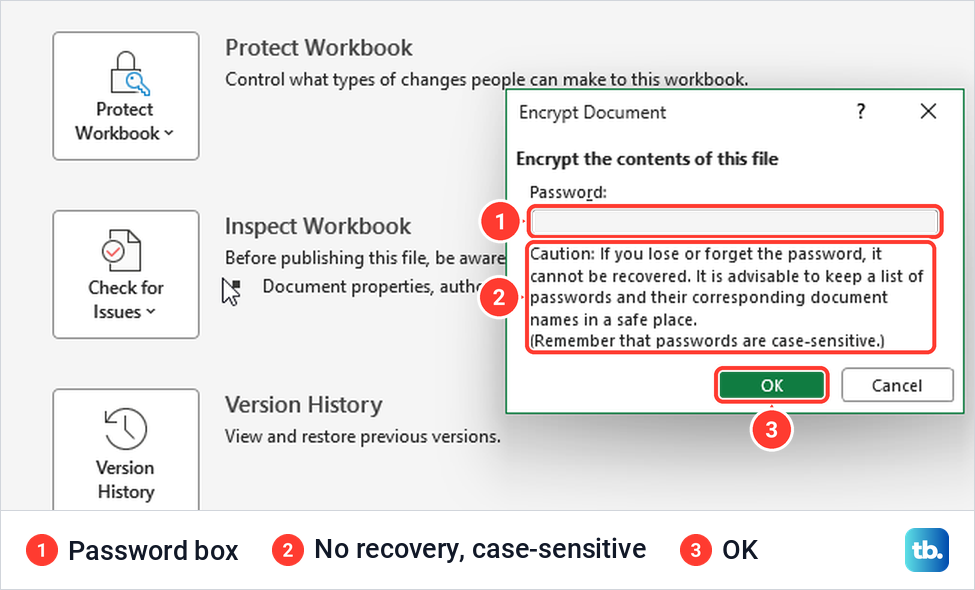
Excel opens a small dialog titled Encrypt Document, headed "Encrypt the contents of this file", with a single Password box. Under the box, Excel warns that a lost or forgotten password cannot be recovered and reminds you that passwords are case-sensitive. The dialog showed no length or character rules on our PC, and Microsoft says there are no restrictions on length, characters or numbers.
Type your password and select OK. Microsoft's instructions then have you confirm it in a Reenter Password box and select OK again. Type it carefully both times, because capital letters count.
Finish by saving the workbook with Ctrl + S or File > Save. The password is written into the file when you save, which is why Microsoft's own steps for removing it also end with "Save the workbook." Until you save, the copy on your drive is the one you started with.
Choose a password you will keep
Because nobody can recover it for you, the password has to be hard to guess and impossible to lose. A long phrase beats a short word, and our guide shows how to create a strong password you can remember. The Encrypt Document dialog itself suggests keeping a list of passwords and their document names in a safe place.
You may see a 15-character limit quoted for Excel passwords. Microsoft gives that limit for passwords in Excel for Mac on its page about workbook structure protection. For this file password, Microsoft's instructions say there are no restrictions on length, characters or numbers. The same Mac section adds that a workbook password-protected in Excel on Windows cannot be opened in Excel for Mac if the password is longer than fifteen characters, so keep it to 15 characters or fewer if Mac users need the file.
Check that the saved file asks for the password
Close the workbook, then open it again from File > Open or File Explorer. Because file encryption prevents other users from opening the file, Excel should ask for the password before it shows a single cell. Type it with the same capitals and the workbook opens as normal.
Make sure you reopen the copy you protected. If you have two copies with similar names, such as a backup, check the file name before you open it. If you keep an unprotected backup, give it a clearly different name or keep it in another folder.
Encryption covers that one file only. Copies saved earlier, attachments already sent and backups made before you added the password stay as they were. If you also need to lock a set of files together, our guide shows how to password protect a folder in Windows, mainly with a password-protected 7-Zip archive, which is a separate job from the workbook's own password.
Use Save As for a password to open or modify
Desktop Excel has a second route that can set two kinds of password. Press F12 or choose File > Save As > Browse to open Save As, then select Tools beside the Save button. On our PC that menu listed Map Network Drive, Web Options, General Options and Compress Pictures.
General Options has a File sharing section with Password to open and Password to modify boxes, plus Read-only recommended and Always create backup check boxes. Microsoft describes this setting as the one to use when different people need read-only or edit access. Fill in the box you need, select OK, then Save, and confirm if Excel asks whether to replace the existing file.
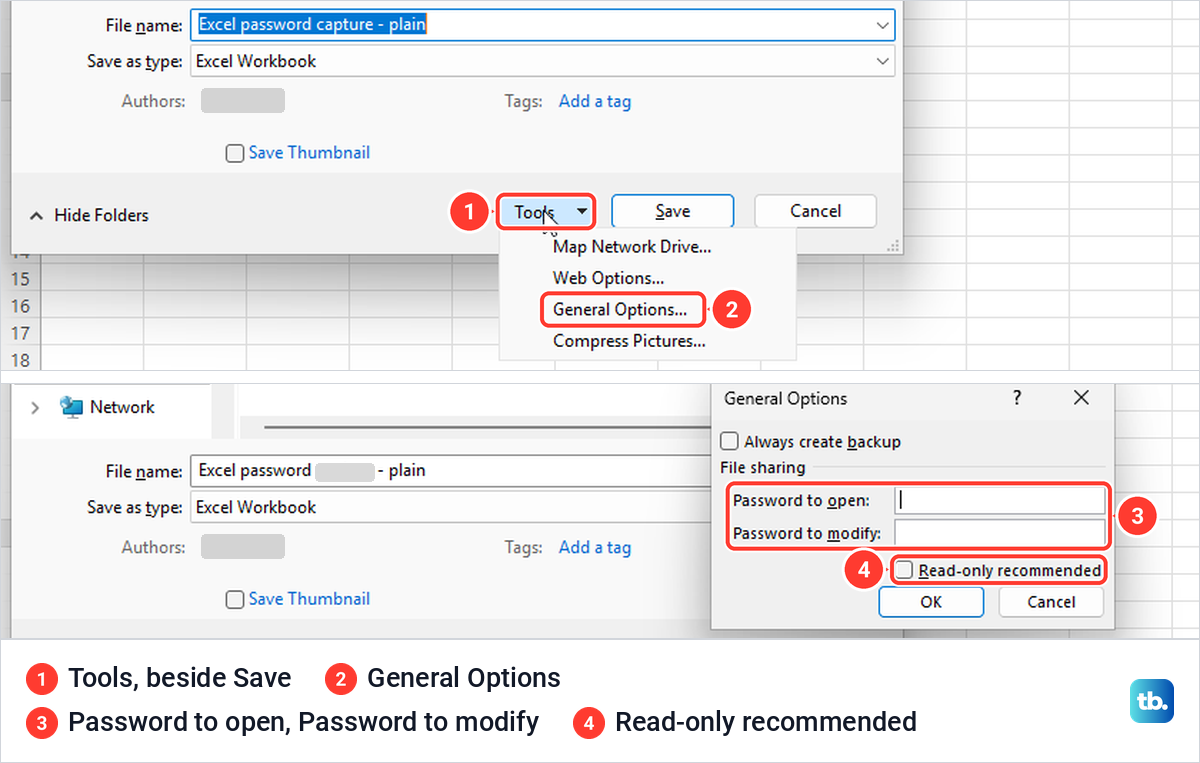
For a file everyone may read but only password holders may save changes to, leave Password to open empty and fill in only Password to modify. An accepted answer on Microsoft's community forum describes the result: Excel asks for the password on opening, and anyone without it can select Read-Only instead. The same answer says you will be asked to enter the password a second time as confirmation.
That makes a modify-only password a sharing control, not a lock. Anyone who opens the file read-only can still see every cell. Use Password to open, or Encrypt with Password, whenever the content itself is private.
Change or remove a password you know
To remove a password you know, open the file with it and go back to File > Info > Protect Workbook > Encrypt with Password. The Password box holds the current password as masked characters. Clear the box, select OK and save the workbook.
Microsoft gives these steps on one of its Excel support pages, and its Windows troubleshooting page also points to File > Info > Protect Workbook to remove password encryption. To change the password, remove the old one this way, then add the new one with the Encrypt with Password steps near the top of this guide. Our guide on how to unprotect an Excel workbook with its password walks through removal step by step, structure passwords included.
Either way, close the file and open it again to check the result. A changed password should be asked for at opening, and a removed one should let the file open straight away.
Password protect a workbook from Excel for the web
Excel for the web cannot add a file password. Microsoft says passwords can't be added, changed, removed or recovered there, and the browser app matched that in our test. In Microsoft Edge its File menu listed New, Open, Share, Create a Copy, Export, Print, Rename, Move File, Version History, Info and Options, with no password or encryption command anywhere.
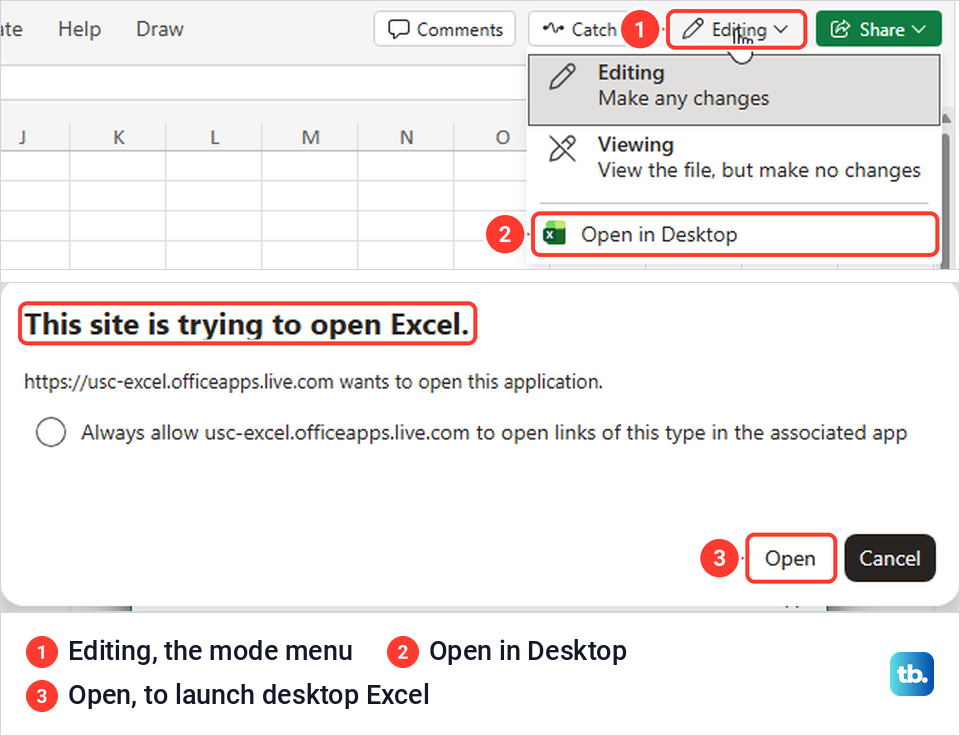
The way through is the desktop app. In the web workbook, select File > Info > Open in Desktop, or open the Editing menu near the top right and choose Open in Desktop there. Microsoft's help page calls this button Open in Excel, but Open in Desktop is the label we saw in both places.
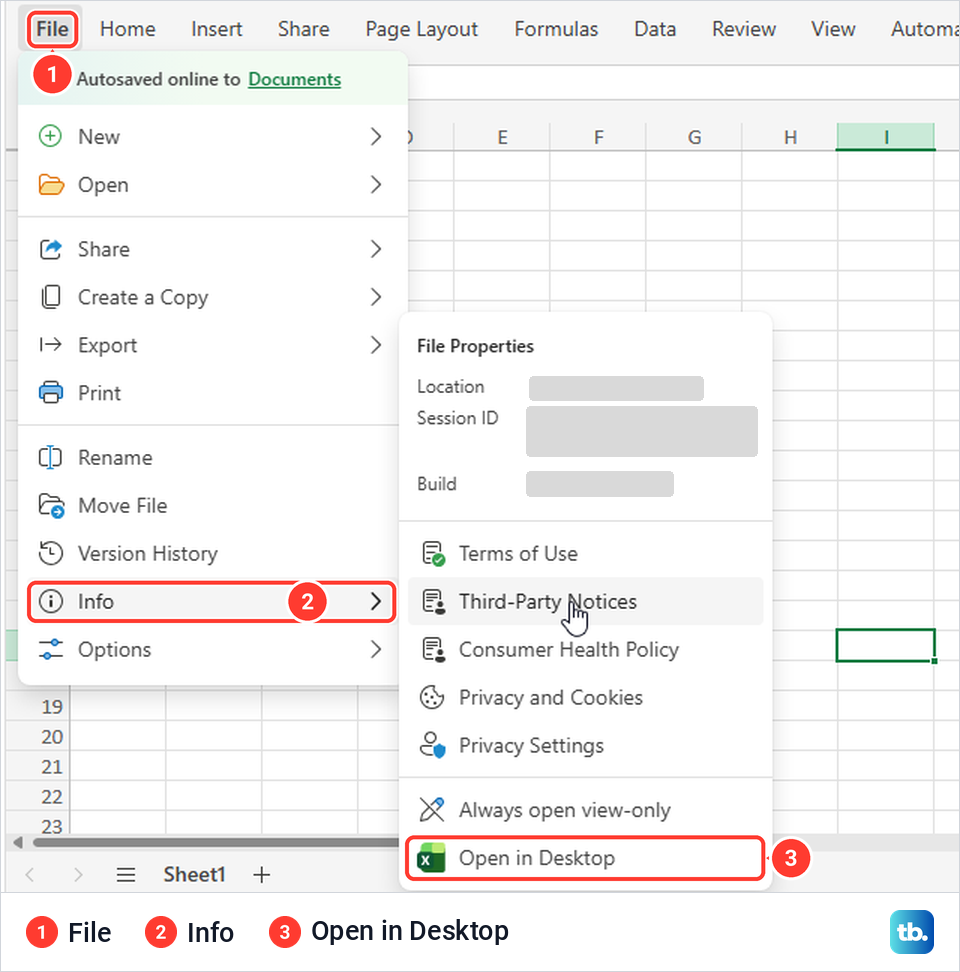
Edge then asked "This site is trying to open Excel." with Open and Cancel buttons and a box to always allow it. Select Open, and once the workbook is open in desktop Excel, follow the Encrypt with Password steps above. If desktop Excel asks you to sign in and will not accept your account, our guide to fix Microsoft 365 sign-in problems covers the usual causes.
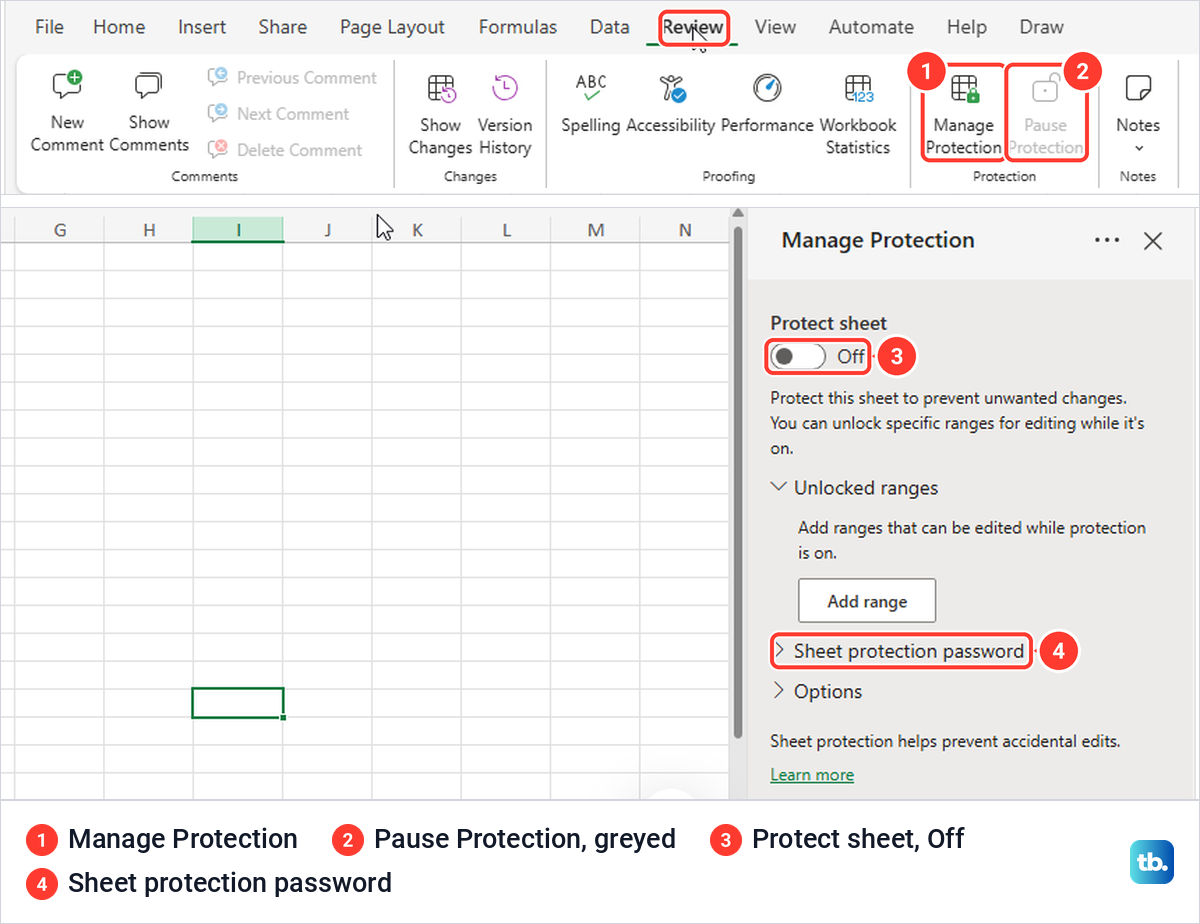
The web Review tab is another dead end. Its Protection group holds Manage Protection and a greyed Pause Protection, and Manage Protection opens a pane for the current sheet only, with a Protect sheet switch, Unlocked ranges and a Sheet protection password. The pane's own note says sheet protection helps prevent accidental edits, which is a different job from locking the file.
What the browser does after the password is added is less clear. Microsoft's help pages give two answers: one says Excel for the web can open and edit workbooks protected by a password, another says that after you add the password you will only be able to view the file on the web. Plan to make changes in desktop Excel, and treat any editing in the browser as a bonus.
Why Protect Workbook on the Review tab does not lock the file
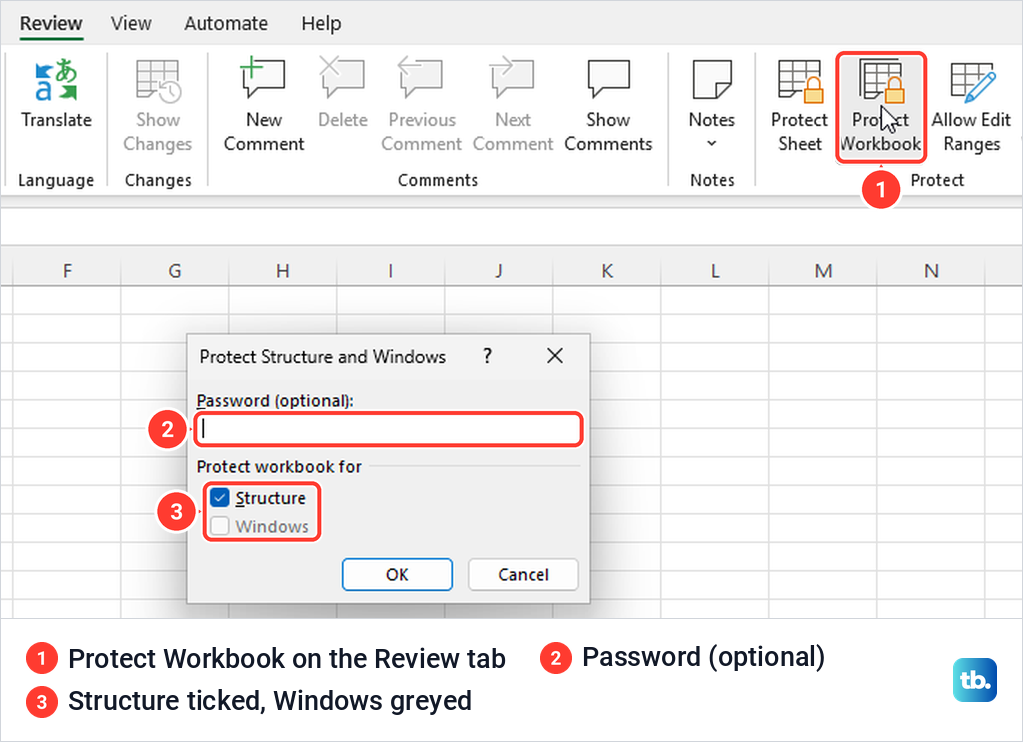
This is the easiest wrong turn to take. Review > Protect Workbook sounds like the right command, but on our PC it opened a dialog titled Protect Structure and Windows. It had a Password (optional) box and Structure ticked under Protect workbook for, with Windows greyed out.
Microsoft says structure protection stops other users adding, moving, deleting, hiding and renaming worksheets, which is a different job from asking for a password at opening. The File > Info menu lists it separately as Protect Workbook Structure, described as preventing unwanted changes to the structure of the workbook, such as adding sheets. It sits two entries below Encrypt with Password, after Protect Current Sheet, so check which one you pick.
Review > Protect Sheet is the other look-alike. We protected a sheet with its password box left empty and the default settings, then tried to type in cell A2. Excel refused with the message "The cell or chart you're trying to change is on a protected sheet", and the Review tab switched to Unprotect Sheet.
We then saved and closed that workbook and opened it again. It opened straight away with no password prompt, and the sheet was still protected. Sheet protection is the right tool to lock cells in Excel so formulas survive careless edits, but it is no lock on the file.
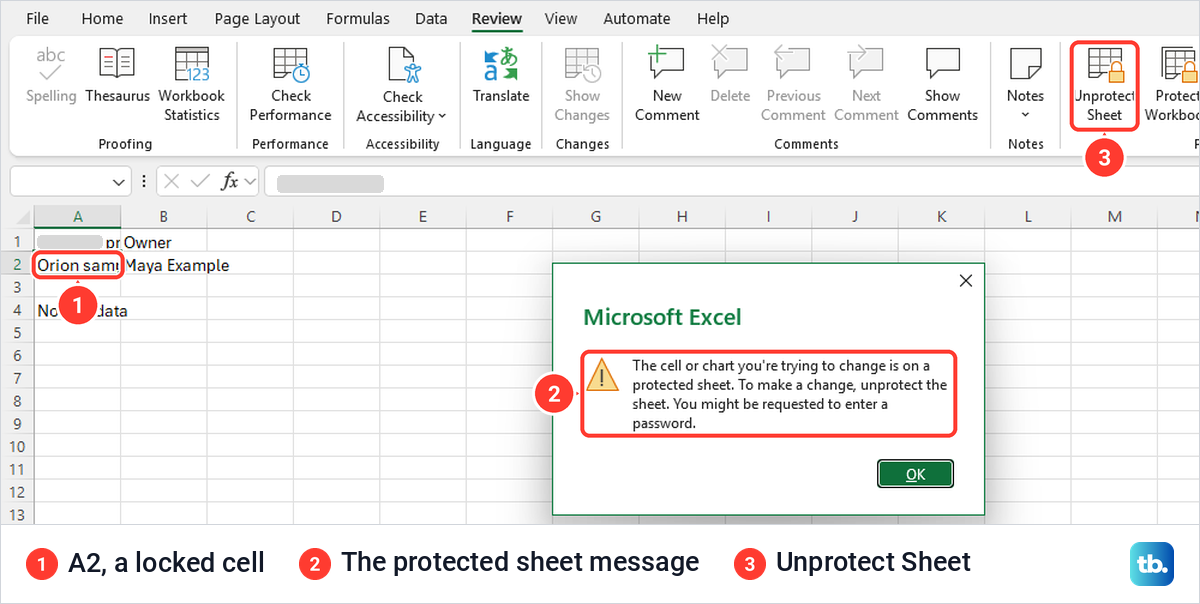
If someone sent you a workbook whose cells will not change, look at the Review tab first. When it shows Unprotect Sheet, the sheet is protected, and on our sheet with no password one click turned the protection off. A sheet with a password needs that password, and our guide shows how to unprotect an Excel worksheet when you have it.
When the file opens but will not let you edit
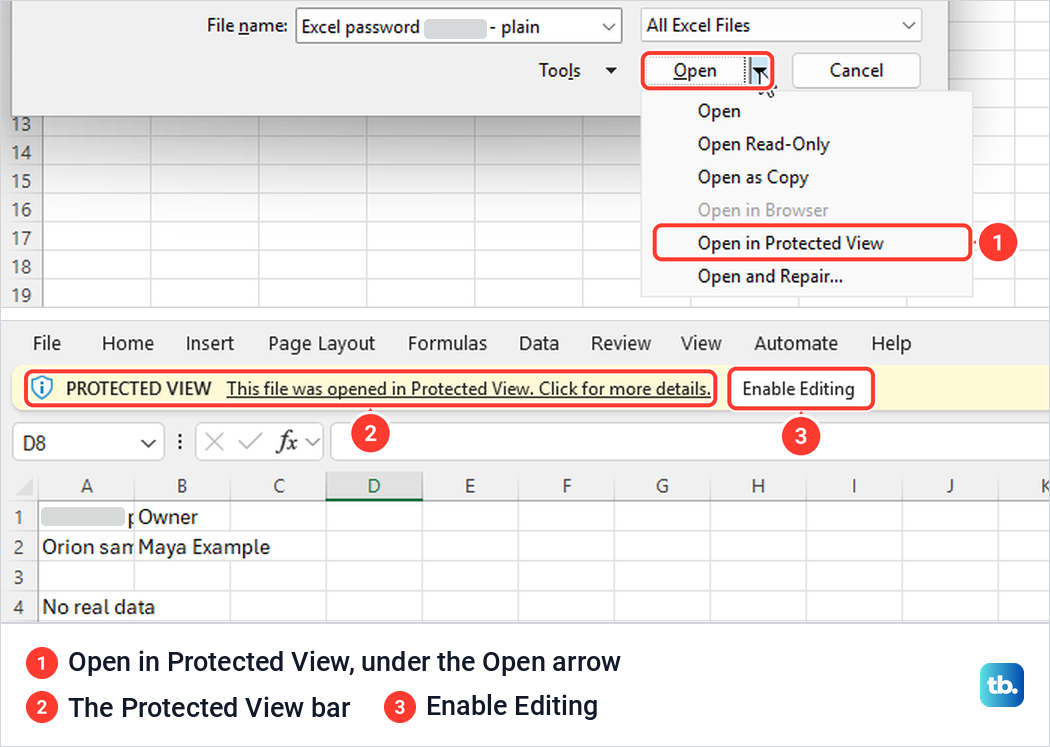
A yellow bar across the top is not a password either. Microsoft says files from the internet and other potentially unsafe locations open in Protected View, a read-only mode where most editing functions are disabled. You can also choose it yourself from the arrow beside the Open button, where our menu listed Open, Open Read-Only, Open as Copy, Open in Browser, Open in Protected View and Open and Repair.
In Protected View our workbook showed a bar reading "PROTECTED VIEW This file was opened in Protected View", with an Enable Editing button. Selecting Enable Editing gave us the normal editable workbook. Only do that for files you trust, because Microsoft's advice is that unless you need to edit, it's safer to stay in Protected View.
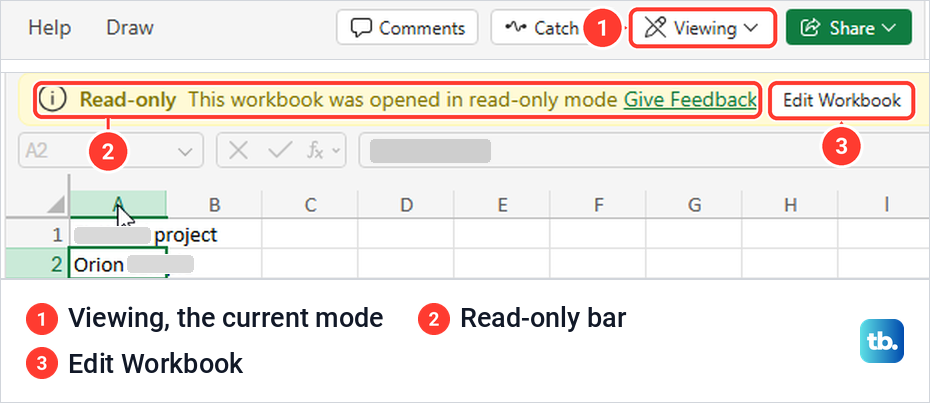
Excel for the web has its own read-only state. Its mode menu offers Editing, described as "Make any changes", and Viewing, described as "View the file, but make no changes". In Viewing our sheet showed a yellow Read-only bar saying "This workbook was opened in read-only mode" and ignored typing, and switching back to Editing let us change cell A2 straight away.
If the file still opens without a password
First check which setting you used. If you went through the Review tab, you set structure or sheet protection, and the file will open freely, as our sheet-protected workbook did. If you used Save As with only Password to modify, the file can still be opened read-only. In both cases, go back to File > Info > Protect Workbook > Encrypt with Password and set the password there.
Next, check that you opened the protected copy and that you saved after adding the password. If you close the Encrypt Document dialog with Cancel, nothing changes, and on our PC the Info page looked exactly as before, so reopen the saved file to be sure the password is there. If Excel closed before you saved, try to recover an Excel file that was not saved, then add the password again.
If the right password is accepted but the workbook then fails to load, the password is not the problem. Work through our steps to fix an Excel file that will not open for the repair options.
If you forget the password
Microsoft cannot retrieve a forgotten file password, and Excel's own dialog warns that a lost password cannot be recovered. Start with the simple checks. Passwords are case-sensitive, so make sure Caps Lock is off and try the capitals exactly as you set them.
After that, look for a copy without the password, such as the copy you made before protecting the file, an attachment you sent earlier or a backup. Avoid sites and programs that promise to get you back into a locked workbook, because they mean uploading your private data to a stranger or installing software you cannot trust. For the future, set up a password manager and store each workbook's password under the file's name.
Keep Microsoft's wider caution in mind too. It warns that it's not always secure to distribute password-protected files that contain sensitive information such as credit card numbers, and that a password does not necessarily protect your file from malicious intent. Share the password with as few people as possible, and never in the same message as the file.
How we tested this guide
We tested this in Excel for Microsoft 365 on Windows 11, version 25H2, going through the protection settings in File > Info, the Review tab and Save As.
Frequently Asked Questions
How do I make an Excel file ask for a password before it opens?
In Excel on Windows, select File > Info > Protect Workbook > Encrypt with Password, type the password, confirm it and save the workbook. Microsoft says this is the setting that prevents other users from opening the file.
Why does my protected workbook still open without a password?
You most likely used Review > Protect Workbook or Review > Protect Sheet, which lock sheets and cells rather than the file. Our sheet-protected workbook opened with no prompt, so set the password with Encrypt with Password instead.
Can people read the file if I only set a password to modify?
Yes. A password to modify controls who can save changes, and people without it can still open the file read-only. Use a password to open, or Encrypt with Password, for anything private.
Can I add a password in Excel for the web?
No. Microsoft says passwords can't be added, changed, removed or recovered in Excel for the web, so choose Open in Desktop and add the password in desktop Excel.
Can Microsoft recover a forgotten Excel password?
No. Microsoft says it cannot retrieve forgotten passwords, so check the capitals, look for an older copy without a password and keep future passwords in a password manager.
How do I remove a password from an Excel file I can open?
Open it with the password and go to File > Info > Protect Workbook > Encrypt with Password. Clear the Password box, select OK and save the workbook.