


To create a drop-down list in Excel, select the cells that should get the list, open the Data tab and select Data Validation. On the Settings tab, set Allow to List, then type your choices in Source with commas between them or select the cells that hold them, and select OK. When you select one of those cells, an arrow appears beside it, and the list, also called a drop-down menu or drop-down box, opens from it.
Where the choices live decides how easy the list is to change later. We built each kind of list below in Excel for Microsoft 365 on Windows 11, version 25H2, and the table below shows how each kind takes a new choice.
The short version
- Make the list: select the cells, then Data > Data Validation, set Allow to List, fill in Source and select OK (Apply in Excel for the web).
- Short fixed choices: type them in Source with commas, such as Yes,No.
- Choices that grow: keep them in an Excel table, which Microsoft says keeps the list up to date, or name the range and widen it in Name Manager with Ctrl + F3.
- Block other entries: keep the error alert style on Stop (Blocking in Excel for the web). Warning and Information let a wrong entry through.
- Open a list from the keyboard: press Alt + Down arrow.
- Remove it: Data > Data Validation > Clear All > OK. The value already in the cell stays.
Choose where the list items come from
Excel can take the choices from four places, and each one takes a new choice differently. This table sums up how.
| Where your choices live | What goes in Source | When you add a choice | Best for |
|---|---|---|---|
| Typed in the dialog | The choices with commas, such as Yes,No (255 characters at most) | Edit Source and tick Apply these changes to all other cells with the same settings | A few short choices that rarely change |
| Cells on a sheet | A range such as =Lists!$A$2:$A$9, filled in when you drag over the cells | Type it in a cell, then reselect the longer range with Apply these changes ticked | A longer list you change now and then |
| Cells in an Excel table | Select the table's cells, without the heading | Type it in the row under the table. Microsoft says the list updates by itself | Lists that change, as Microsoft recommends |
| A named range | The name, such as =Cities | Widen the name in Formulas > Name Manager, one place for every cell | Lists that grow, or one list used on many sheets |
For choices that will change, Microsoft recommends a table, and a named range is the other way to change the list in one place. Both are covered under Add choices to a list later.
Create a drop-down list in Excel step by step
Type the choices in one column, one per cell, with a heading above them. They can sit on the same sheet as the list or on a separate one, and we used a sheet named Lists with Status in A1 and Not started, In progress and Done underneath. Microsoft suggests sorting them first. The list shows them in the same order as the cells.
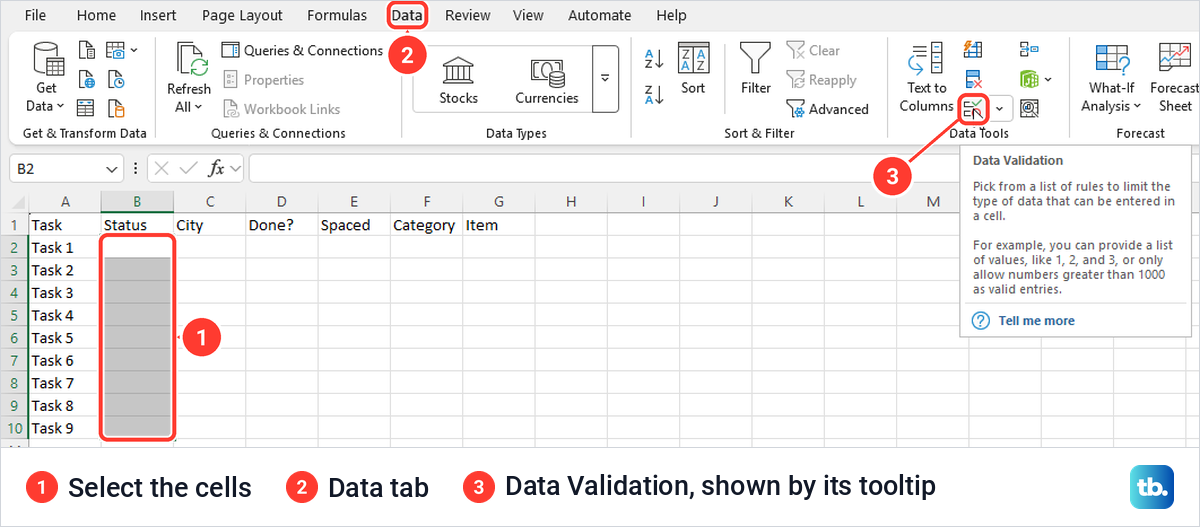
Next, select the cells that should get the list. Open the Data tab and select Data Validation in the Data Tools group. In a narrow Excel window it is a small icon with no label, so hover over the icons until the tooltip reads Data Validation.
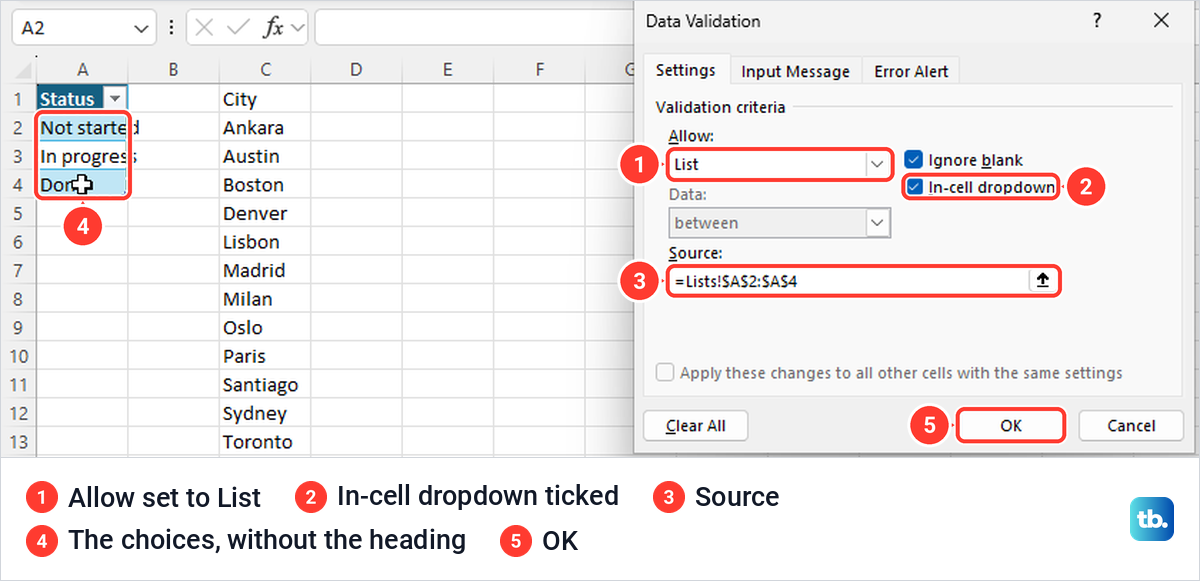
In the dialog, stay on the Settings tab and open the Allow box. It offers Any value, Whole number, Decimal, List, Date, Time, Text length and Custom, and the one you want is List. When we picked it, Ignore blank and In-cell dropdown were both ticked by default. Keep In-cell dropdown ticked, or there is no arrow to click, and keep Ignore blank ticked if people may leave a cell empty, which is what Microsoft says it is for.
Then click in Source, switch to the sheet with your choices and drag over them, leaving out the heading. Source fills in a reference such as =Lists!$A$2:$A$4, and you finish by selecting OK. If your choices will change, set them up as a table or a named range first, as described under Add choices to a list later.
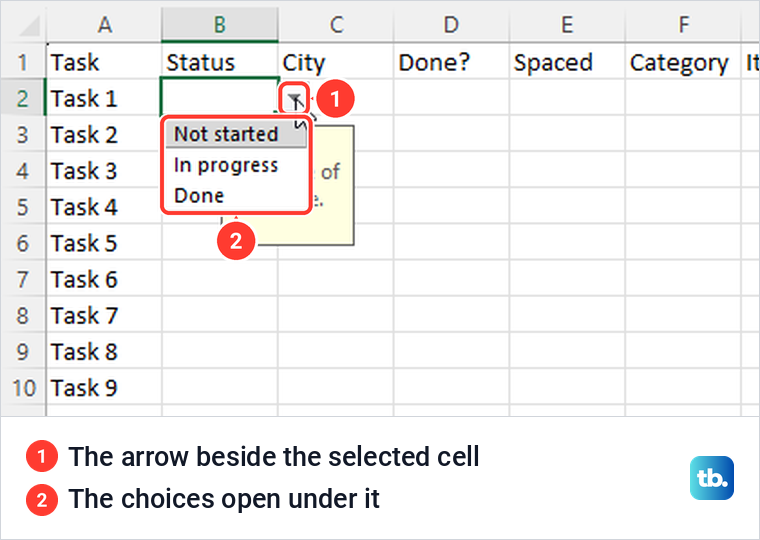
Now select one of the cells. An arrow appears at its right edge, and clicking it, or pressing Alt + Down arrow, opens the choices under the cell. Pick one and it fills the cell.
Type the choices straight into the Source box
For a short list that rarely changes, skip the cells and type the choices in Source with commas between them, such as Yes,No or Low,Medium,High. Microsoft's instructions say to leave no spaces after the commas. When we typed Yes, No with a space anyway, Excel dropped it, and a LEN formula on the No we picked returned 2, not 3.
Capital letters did not matter when we typed into a cell. Typing yes in a cell whose list was Yes,No raised no alert, and Excel changed the entry to Yes. Circle Invalid Data still flagged a lower-case yes typed before the rule existed, so do not count on case being ignored everywhere.
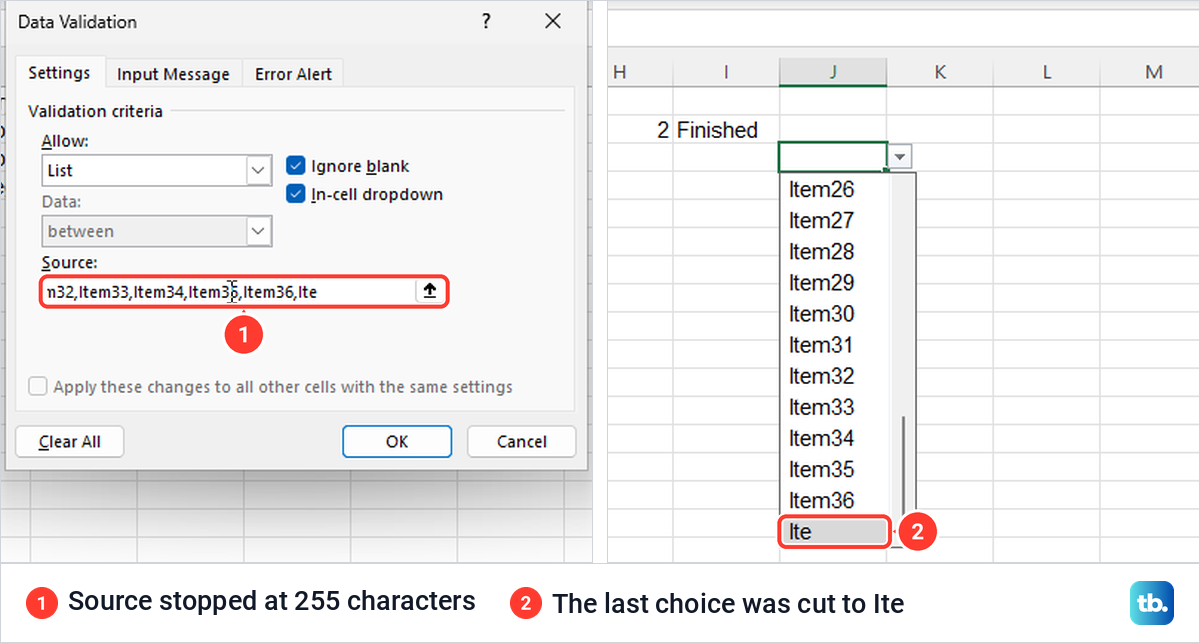
A typed list has a hard limit. The Source box stopped accepting text at 255 characters, and Excel showed no warning when we selected OK. Our 45-item list was cut after Item36, and the last choice read Ite.
If your choices run past that limit, put them in cells instead. And for a plain done or not done column, you may prefer to insert tick boxes in Excel instead of a Yes,No list, since a tick needs no typing at all.
Add choices to a list later
Microsoft recommends keeping the choices in an Excel table. Select any cell in the list, press Ctrl + T, tick My table has headers if the list has a heading, and select OK. Microsoft says any drop-down based on the table then updates automatically as you add or remove items.
Microsoft's steps for adding a choice are to go to the end of the list and type the new item. To remove one from the middle, right-click its cell, select Delete and then OK to shift the cells up.
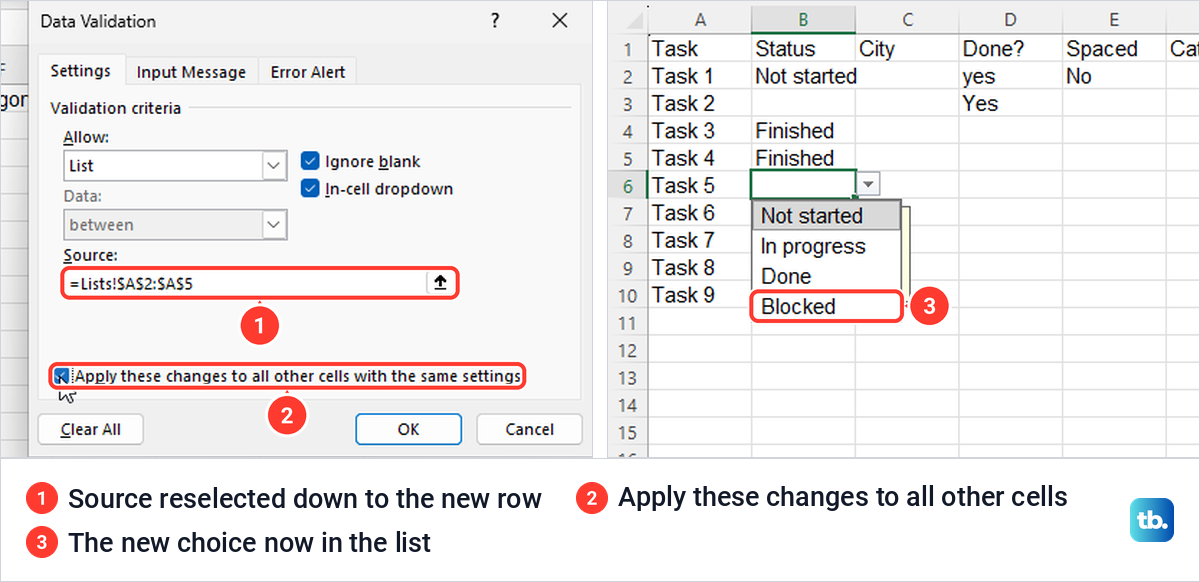
For a list that points at ordinary cells, Microsoft's instructions are to select the longer range again when the choices outgrow it. Select a cell with the list, open Data Validation, click in Source and drag over the longer range. Tick Apply these changes to all other cells with the same settings before you select OK, and every cell with that list picks up the new choice, as ours did.
Without that tick, Excel changes only the cells you selected. When we added Maybe to a typed Source on one cell without it, that cell offered Maybe and the cells below still offered only Yes and No.
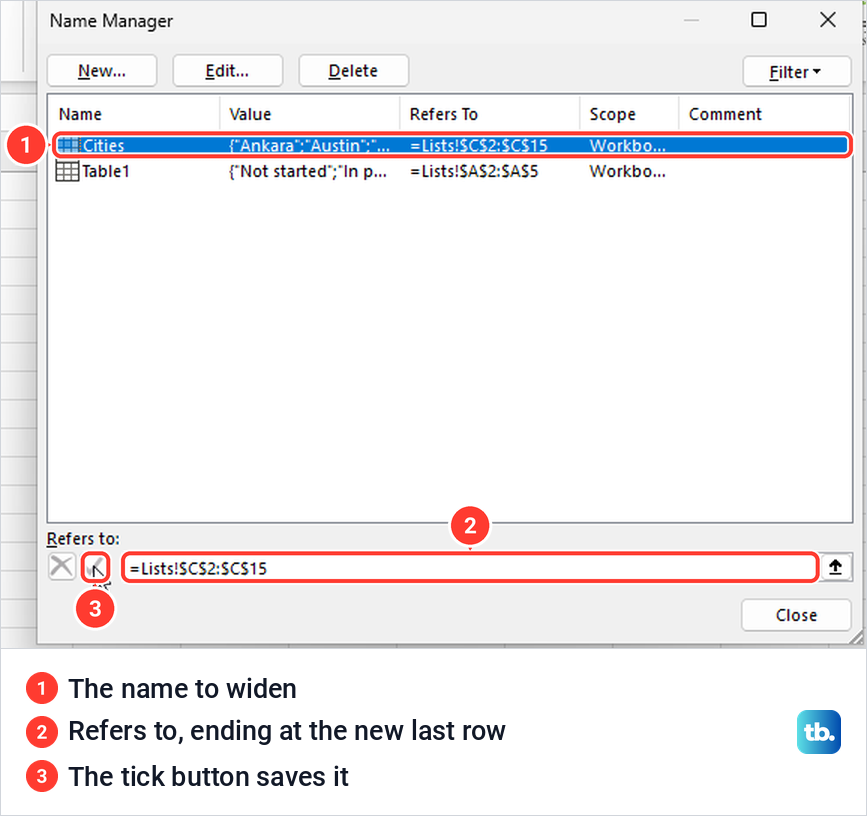
A named range is the other way to change a list in one place. Select the choice cells, click the Name Box at the left of the formula bar, type a name such as Cities and press Enter. Then type =Cities in Source, and our list showed all 12 cities.
Names cannot contain spaces, and Excel refused one that did. When the list grows, press Ctrl + F3 to open Name Manager, select the name, change the last row in Refers to and select the tick button beside it. We added two cities that way and the list grew without opening Data Validation at all.
Microsoft also suggests keeping the choices on their own sheet, then hiding that sheet and protecting the workbook so nobody edits them by accident. If you are handed a workbook set up like that, you can unprotect a workbook you inherited with its password and unhide the sheet to see where the choices come from.
Add an input message and an error alert
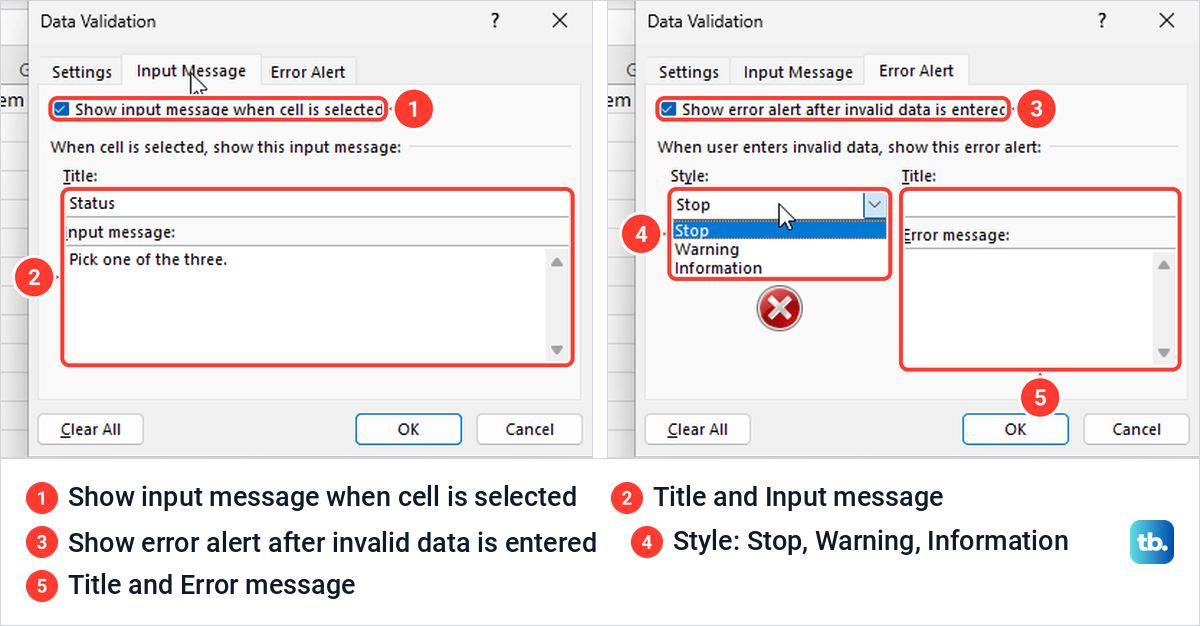
An input message is a note that pops up when someone selects the cell. In the Data Validation dialog, open Input Message, keep Show input message when cell is selected ticked, and fill in Title and Input message. On our sheet it showed as a pale yellow box just under the cell.
The error alert is what Excel shows after a wrong entry. On the Error Alert tab, Show error alert after invalid data is entered was ticked and Style was set to Stop by default. Title and Error message can stay empty, in which case Excel uses its own wording.
The boxes have limits, and Excel enforces them by quietly refusing more text. Both title boxes stopped at 32 characters, the input message at 255 and the error message at 225, with no warning. Microsoft's main help page gives 225 characters for the input message, so go by what the box accepts.
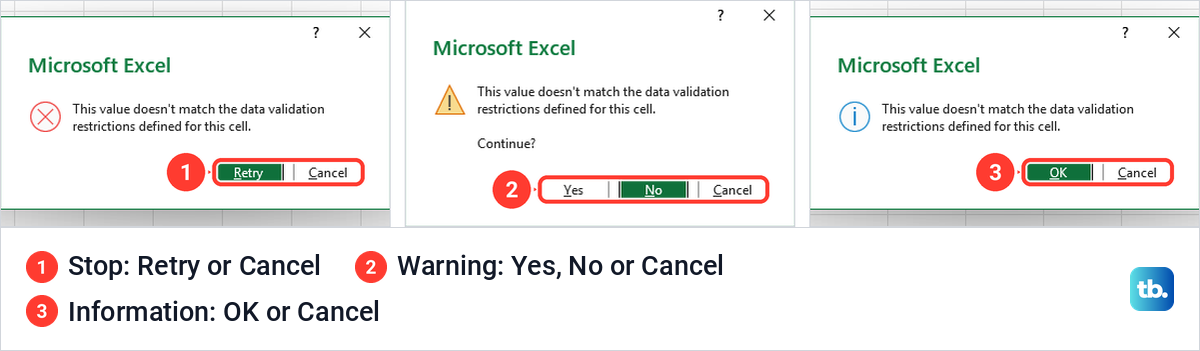
The style decides whether a wrong entry can stay, and only Stop blocks it. With no title or message filled in, all three alerts were titled Microsoft Excel and said This value doesn't match the data validation restrictions defined for this cell. Microsoft's help page quotes an older sentence, so your wording may differ from both.
| Style | What the person sees | Buttons | Does the wrong entry stay? |
|---|---|---|---|
| Stop (the default) | The message with a red cross | Retry, Cancel | No |
| Warning | The message, a warning triangle and the question Continue | Yes, No, Cancel | Only after Yes. No goes back to the entry and Cancel clears it |
| Information | The message with a blue i | OK, Cancel | Yes after OK. Cancel clears it |
Choose Warning or Information only when exceptions are fine, such as a list of suggested cities that should still accept a new one. Microsoft's Mac instructions call the third style Important rather than Information.
Use the list, search it and copy it to more cells
Clicking the arrow is not the only way in. Select the cell and press Alt + Down arrow to open the list, then use the arrow keys and Enter to pick a choice. It is one of the Excel keyboard shortcuts worth learning if you fill in forms all day.
A list also holds only one choice per cell. When we picked Done and then Not started from the same list, in the desktop app and in Excel for the web, the cell kept only Not started.
On our PC the list showed 12 choices before a scroll bar appeared, not the eight that is often quoted. If long choices look cut off, widen the column, because Microsoft says the list is only as wide as its cell.
In Excel for Microsoft 365 you can also type to search. Microsoft added AutoComplete to drop-down lists in a Current Channel update, so the list shrinks to the choices that match what you type. On our PC it did not match letters inside a word: typing an offered Ankara, but not Milan or Santiago. If typing does not filter your list at all, update Microsoft Office and try again.
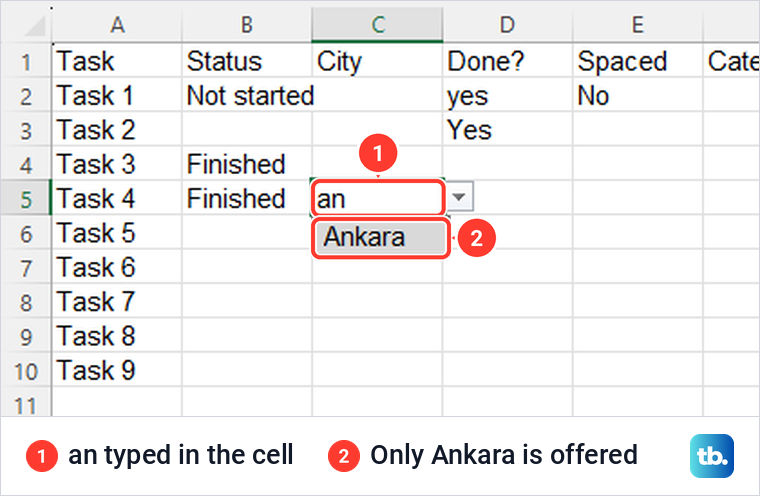
A city we had entered twice in the source showed up only once in the list. Even so, take a minute to remove duplicates from the source list, so the cells you maintain match what people see.
To give more cells the same list, copy a cell that has it and paste. A normal Ctrl + V carried the list across, and so did dragging the fill handle, but both also copy the value. To copy only the list, select the new cells, press Ctrl + Alt + V for Paste Special, choose Validation and select OK.
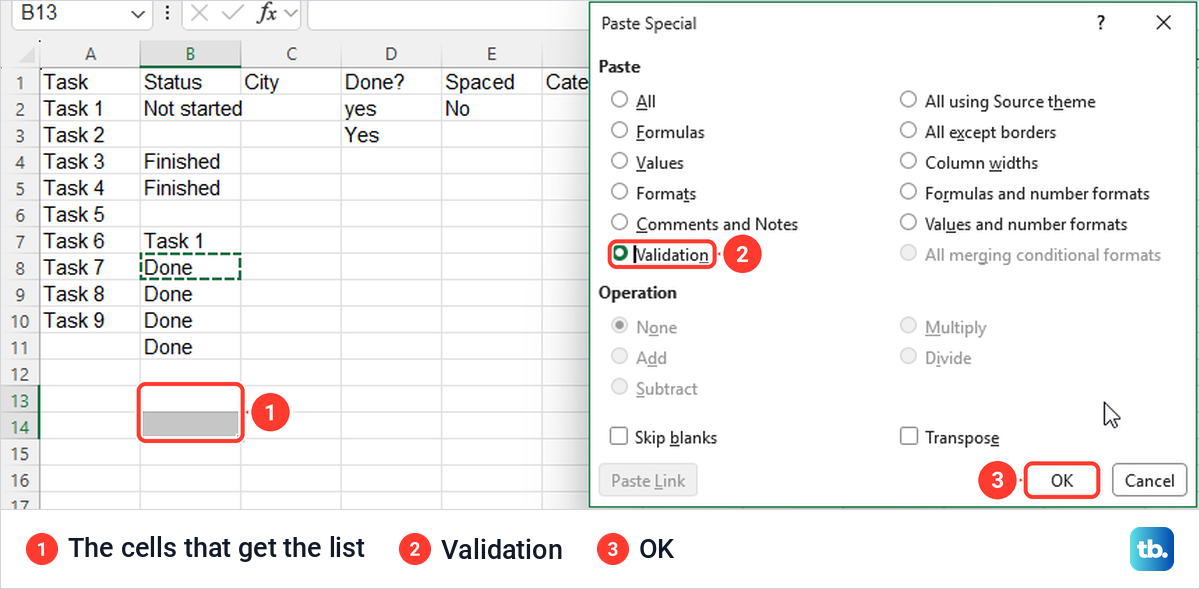
Pasting works the other way too, and that is how lists break. When we pasted an ordinary cell onto a cell with a list, its rule went back to Any value and the list was gone. Pasting a value that is not on the list raised no alert at all, which matches Microsoft's note that copied and filled data is not checked.
If a drop-down list stops working later, after someone pastes over it or its source moves, our fix guide walks through each cause in turn. It also covers a missing arrow and a broken source range.
To find wrong entries that slipped in, open the arrow on the Data Validation button and choose Circle Invalid Data. Excel drew red circles round the entries that broke their rule on our sheet. It could not flag a pasted value whose cell had lost its list in the paste, because that cell no longer had a rule to break.
To stop people filling or dragging values past the check, Microsoft suggests clearing Enable fill handle and cell drag-and-drop under File > Options > Advanced, then protecting the sheet. That box sits under Editing options and was ticked by default.
Edit or remove a drop-down list
Before you change a list someone else made, find out what feeds it. Select a cell with the list, open Data Validation and read Source: words with commas are typed choices, a reference such as =Lists!$A$2:$A$5 is a range, and a single name such as =Cities is a named range. In the desktop app all three could be edited in that same Source box.
When you edit typed choices or reselect a range, tick Apply these changes to all other cells with the same settings, or only the selected cells change. A named range needs no tick, because every cell that uses it follows the name.
To remove a list, select its cells, holding Ctrl while you click to pick several, and open Data Validation. Select Clear All on the Settings tab, then OK. Clear All switched Allow back to Any value and the arrow disappeared, but the value already in the cell stayed.
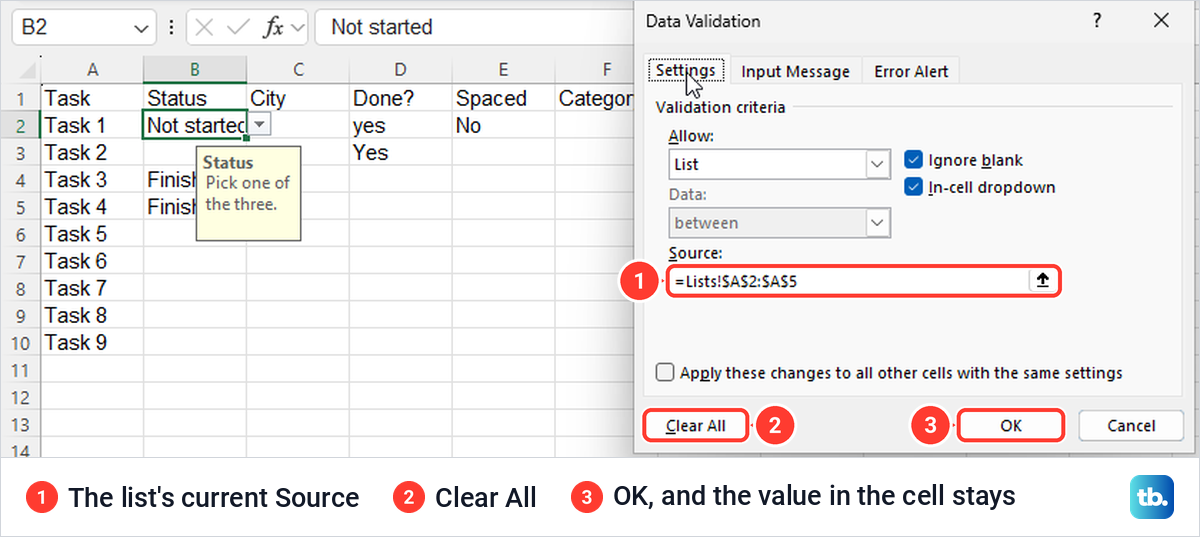
Pressing Delete does the opposite. It empties the cell and leaves the list in place, which is what you want when you only need to clear an answer.
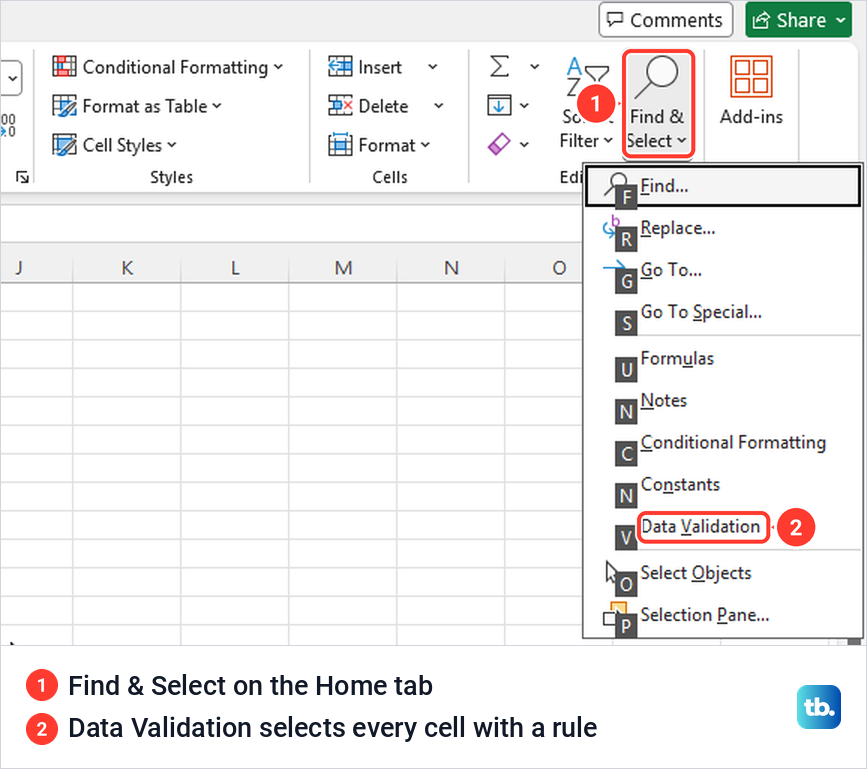
Lists are easy to lose track of on a big sheet. On the Home tab, open Find & Select and choose Data Validation, and Excel selects every cell that has a rule. You can also press Ctrl + G, select Special and choose Data validation, which offers All or Same.
Make a second list that depends on the first
A dependent list changes with the choice next to it. Pick Fruit in one column and the next column offers only fruit. It takes two parts Microsoft documents separately: named ranges, and the INDIRECT function, which turns a name in a cell into the range with that name.
Put each set of second-level choices in its own column under a heading, and name each set exactly as it is spelled in the first list. We named Apple, Banana and Cherry Fruit, and Carrot, Leek and Pea Vegetables, using the Name Box. Formulas > Create from Selection, or Ctrl + Shift + F3, names several columns at once from their headings when Top row is ticked.
Make the first list as usual, with Fruit,Vegetables typed in Source. Then select the cells for the second list, set Allow to List and type =INDIRECT(F2) in Source, where F2 is the first cell of the first list, with no dollar signs. If F2 is still empty, Excel warns that the Source currently evaluates to an error, and selecting Yes carries on.
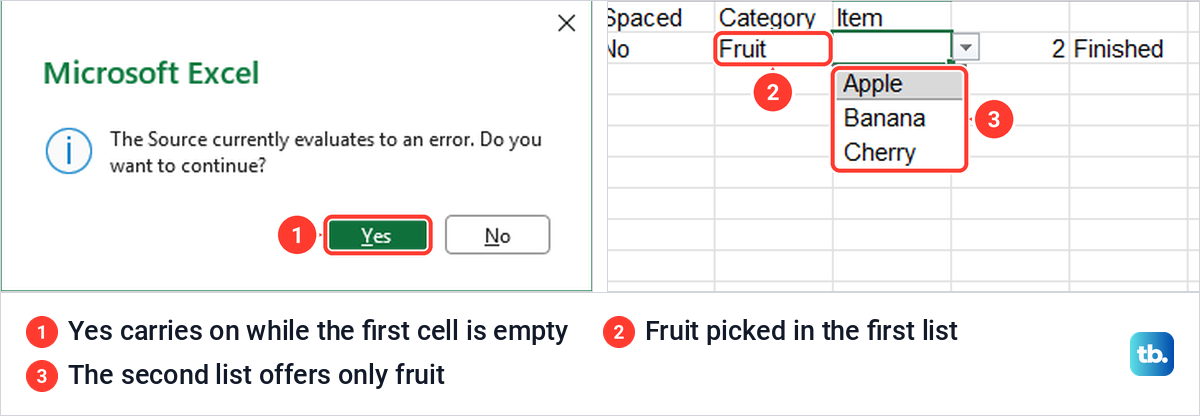
It worked row by row on our sheet. Fruit in one row offered Apple, Banana and Cherry beside it, and Vegetables in the next row offered Carrot, Leek and Pea.
Two catches showed up. A first-level choice with a space, such as Root Veg, cannot be a name, so its second list did not open. And changing the first choice later left the old second choice in place, so Apple stayed beside Vegetables until we changed it by hand.
Microsoft's naming rules allow underscores, so join words with one, such as Root_Veg, in both the first list and the name. A drop-down list only fills in one cell. To bring in the price or code that goes with a choice, look up the matching price with XLOOKUP in the next column.
Create a drop-down list in Excel for the web
Excel for the web keeps the command in the same place, Data > Data Validation in the Data Tools group. At one point the group folded into a single Data Tools button, and Data Validation was inside it. If you are new to Excel for the web, our beginner's guide shows how to open and save a workbook first.
The dialog has the same three tabs and the same Allow choices, but several labels differ. The tick box reads In-cell drop-down, the button that saves the list is Apply instead of OK, and a hint under Source says to select from a range or enter items separated by commas. Dragging over cells with the dialog open filled Source with a range, as in the desktop app.
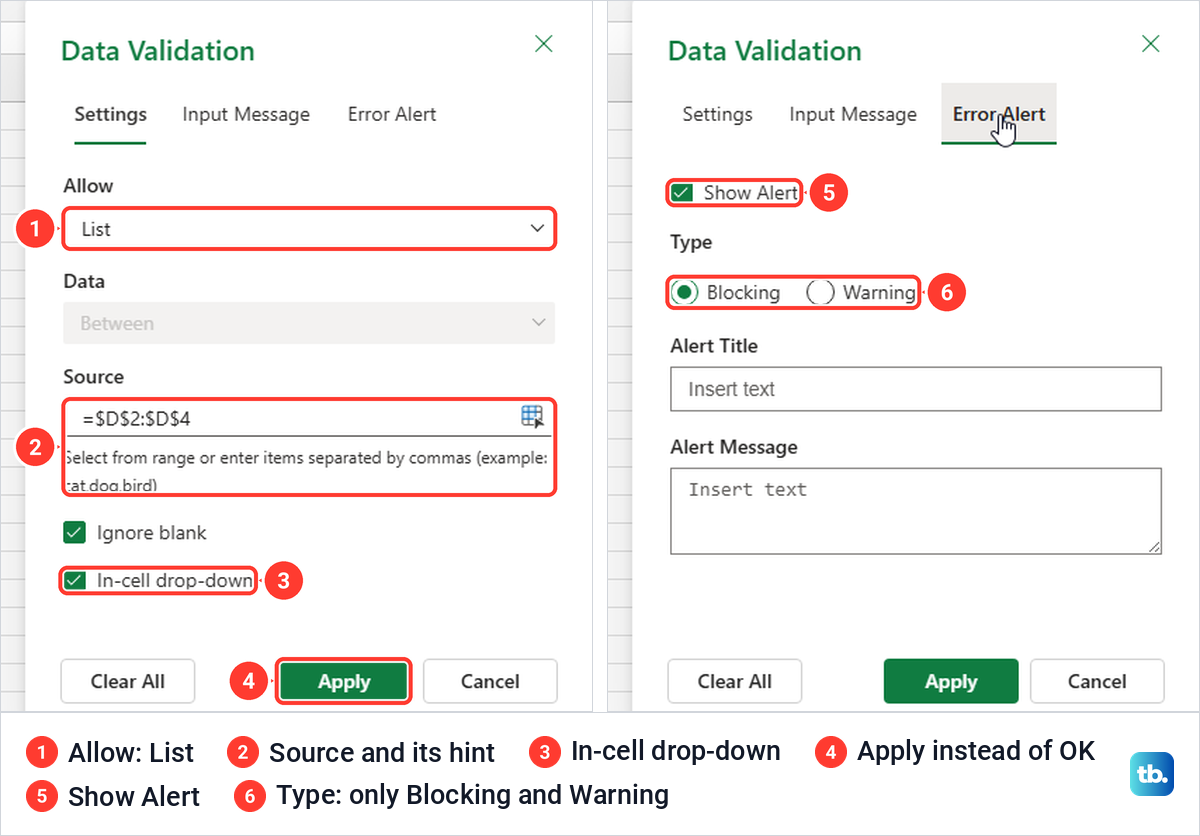
The message tabs are simpler. Input Message has Show Message, Title and Message, and Error Alert has Show Alert, a Type setting, and Alert Title and Alert Message boxes. Type offers only Blocking and Warning, so the web has no Information style.
The web's alerts read differently too. A wrong entry under Blocking brought up There is a data validation rule here, with Retry and Cancel, and Warning offered only Yes and No.
One shortcut did not carry over. In Microsoft Edge, Ctrl + T opened a new browser tab instead of Create Table, so use Insert > Table to turn your choices into a table. Its My table has headers box was not ticked for us, so tick it if your choices have a heading.
Editing an existing list is where Microsoft's web instructions add limits. Its help page says Excel for the web can only edit a list whose choices were typed in, that a range should be changed in the cells and reselected, and that a named range must be changed in the desktop app. A newer Microsoft page lists Name Manager under Formulas on the web, so check your ribbon before you switch apps.
Create a drop-down list in Excel for Mac
The Mac steps follow Microsoft's instructions. Type the choices in one column or row with no blank cells, select the cells for the list, then on the Data tab, under Tools, select Data Validation or Validate. On the Settings tab, choose List from the Allow pop-up menu.
Click in Source and select your choices on the sheet. Microsoft says the dialog shrinks while you do this, so press Return or select Expand to bring it back, then select OK. You can also type the choices with commas in Source, as on Windows.
The Error Alert tab is reached the same way, from Data Validation or Validate. To remove a list, Microsoft's Mac steps match Windows, with Clear All on the Settings tab and then OK.
When Data Validation is greyed out
A greyed Data Validation button usually has one of two causes. If you are still typing in a cell, the Data tab's commands stay grey until you press Enter or Esc. On a protected sheet the Data Validation icon stayed grey for us, even with no password set.
Unprotect the worksheet first if you know the password, then add or change the list. Microsoft recommends finishing the validation before you protect a sheet, and unlocking the cells with lists first so people can still pick from them. It also says the button is unavailable on a shared workbook.
How we tested this guide
We tested this in Excel for Microsoft 365 on Windows 11, version 25H2, building typed and dependent lists and trying the three alert styles.
Frequently Asked Questions
How do I make a drop-down list in Excel update automatically?
Keep the choices in an Excel table and select the table's cells, without the heading, as the Source. Microsoft says lists based on a table update by themselves as you add or remove items, and a named range that you widen in Name Manager is the other way to change the list in one place.
How do I edit a drop-down list in Excel?
Select a cell with the list, open Data > Data Validation and read Source. Edit typed choices there or reselect a range that has grown, and tick Apply these changes to all other cells with the same settings so every copy updates. A named range is changed in Name Manager and needs no tick.
Can an Excel drop-down list allow more than one choice?
Not with Data Validation. Each cell holds one choice, and picking a second item replaced the first in both the desktop app and Excel for the web when we tried it.
How do I make a drop-down list depend on another one?
Name each set of second-level choices after a first-level choice, then type =INDIRECT and the first list's cell, such as =INDIRECT(F2), in the second list's Source. Keep spaces out of the first-level choices, because names cannot contain them.
Can I search inside an Excel drop-down list?
In Excel for Microsoft 365, yes. Start typing in the cell and the list narrows to matching choices, although on our PC letters from inside a word, such as an in Milan, did not bring that choice up.
Why is Data Validation greyed out in Excel?
Usually you are still editing a cell, the sheet is protected, or the workbook is shared. Press Enter or Esc, unprotect the sheet or stop sharing it, and the button works again.
How do I copy a drop-down list to other cells?
Copy a cell with the list, select the new cells, press Ctrl + Alt + V and choose Validation in Paste Special. That copies the rule without the value, while a normal paste or the fill handle copies both.